
You are on the documentation page for the Toret Adulto.cz plugin for WooCommerce, which verifies customer age via the Adulto.cz service using bank identity.
You can purchase the Adulto.cz plugin here: Toret Adulto.cz for WooCommerce
Plugin Installation
After purchasing the plugin, you will receive a license key and a download link for the plugin zip file via email. You can find detailed instructions on how to install the plugin from your computer into WordPress here.
Plugin Activation
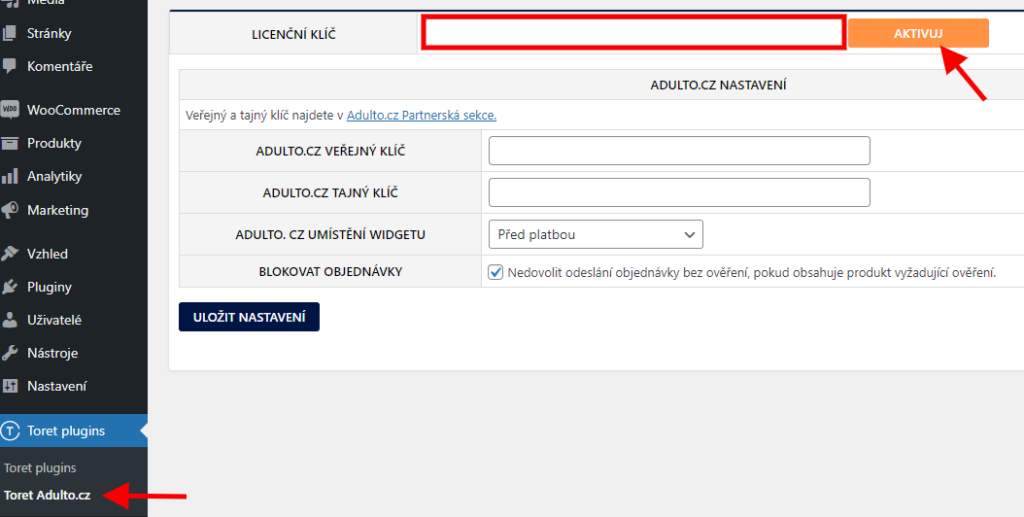
After installing the plugin, open the Toret Adulto.cz plugin settings, insert the license key into the appropriate field, and click the button to activate.
Connecting the Adulto.cz Service with the Plugin
After installation and activation, the next step is to connect the plugin with the Adulto.cz service. After logging into your Adulto partner account, you need to add the new website you wish to connect with the service.
Note: To add a new website, you must have your billing details filled out in the Adulto.cz service.
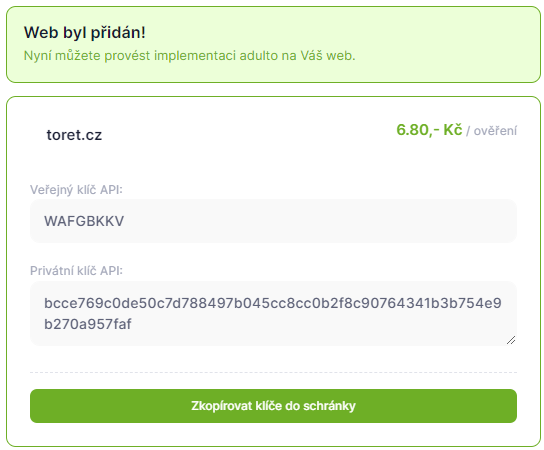
After creating the website, a window with the Public and Private keys will appear. You can always access the generated keys in the Adulto.cz administration via the “Weby a klíče” (Websites and keys) section.

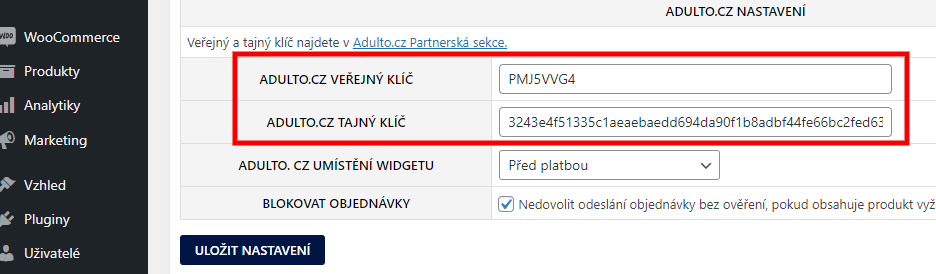
Enter both keys into the appropriate fields in the plugin settings and save the settings.
Age Verification Settings
After entering the implementation keys, it is time to configure the age verification settings.
Widget Placement
First, choose the location where the age verification widget will be displayed. For the classic checkout, you can choose from eleven WooCommerce hooks on the checkout page, for example near the billing address, shipping, or right next to the order submission button.
If your checkout is built with a page builder (e.g. Elementor or Woodmart) and the widget is not displayed correctly in any of the hooks, choose the Shortcode only (Pouze shortcode) placement and insert the following shortcode into the checkout:
[toret_adulto]
The widget is then displayed only where the shortcode is. Verification works even if the shortcode is placed outside the checkout form itself.

Block checkout
The plugin also supports the WooCommerce block checkout. You determine where the widget is displayed in the block checkout with the Widget placement in block checkout (Umístění widgetu v blokové pokladně) option:
- automatic: the plugin inserts the widget into the checkout itself,
- manual: in the checkout page editor, you insert the Adulto.cz block where the widget should be displayed.

Automatic Blocking of Unverified Orders
In the plugin settings, you can enable automatic blocking of orders containing products that require age verification. This ensures that any such order was created by a customer whose age has been verified.

Product Verification Settings
The last step is setting up age verification for specific products. A new tab “Ověření věku” (Age Verification) will appear in the detail of each WooCommerce product, where you can set up age verification via Adulto.cz.
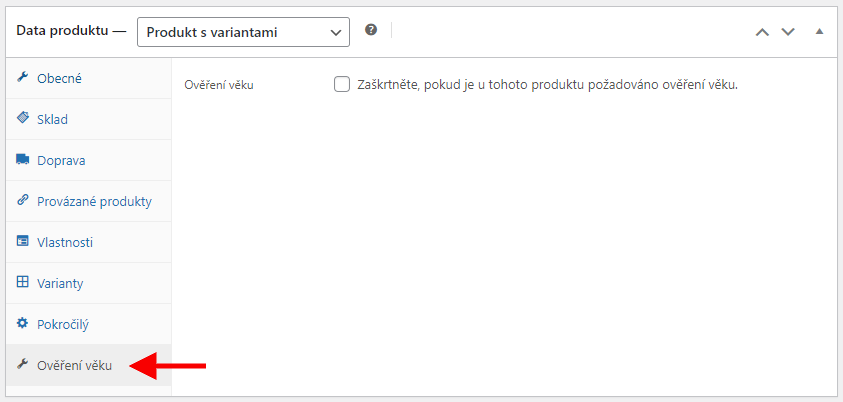
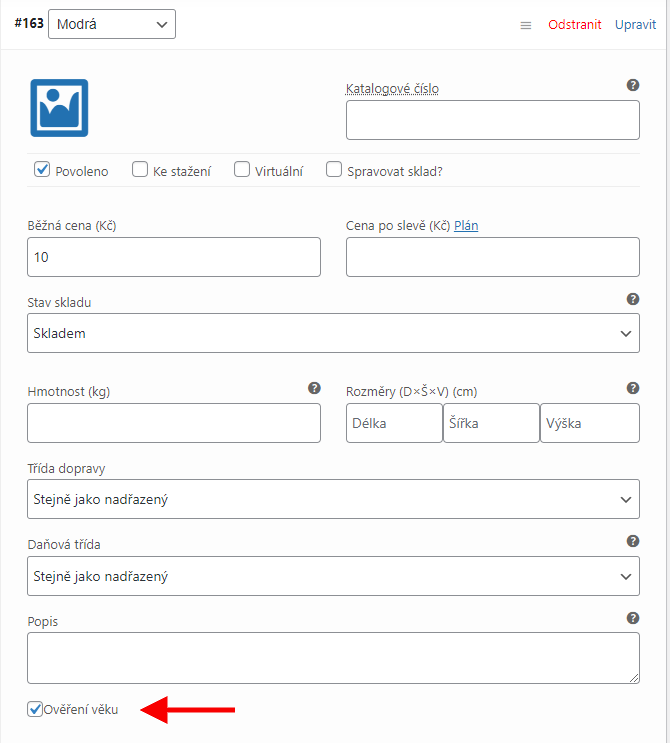
If you want to set age verification only for a specific variation, the plugin supports this option. You set the verification by checking the verification condition directly in the settings of the specific variation. If you want to verify age for all variations of a variable product, simply set the verification on the “Ověření věku” (Age Verification) tab, and you do not need to click through all variations.
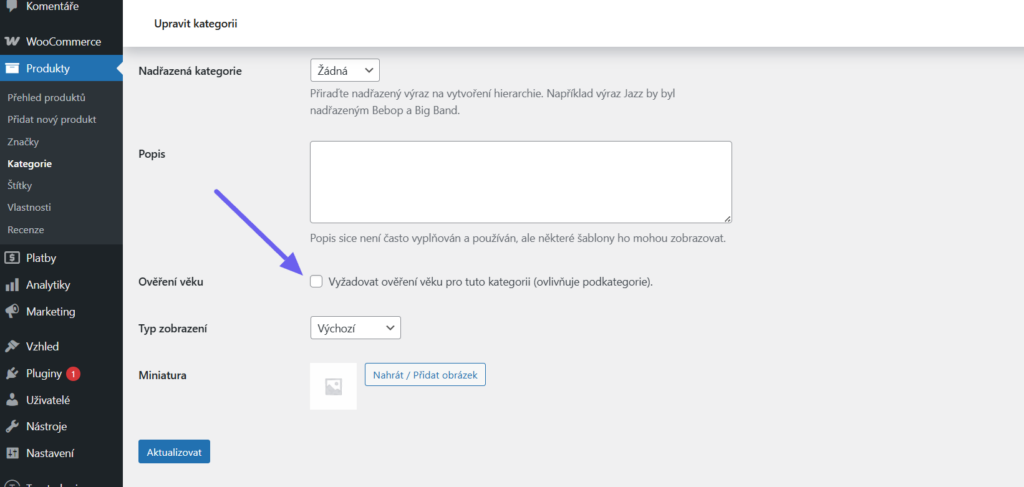
Verification settings can also be applied to an entire product category – within the category details.
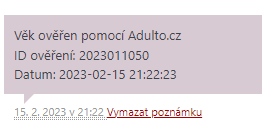
If an order contains a product requiring age verification, information about the verification via Adulto.cz will be displayed in the order notes box. If the Adulto.cz service returns an error or an invalid response during verification, the plugin also records it in the order note.
Widget Language
You can choose the widget language in the settings: Automatic (Automaticky), CZ or SK. With Automatic, the language follows the language of the website. Adulto.cz does not support other languages yet.

Plugin testing
For testing purposes, you can use:
- the subdomain “dev.domainlicense” (with the same license as for the production website)
- localhost (127.0.0.1)
Purchased plugins will also work in these locations, and you can test their implementation and compatibility here before deploying them to the website and during its use.