
You are on the documentation page for the Toret DPD plugin, which integrates the DPD carrier into your e-shop.
You can purchase the DPD plugin here: Toret DPD for WooCommerce
- Plugin Installation
- Plugin Activation
- Connecting to DPD
- Main Settings
- Setting up Shipping Methods in the DPD Plugin
- Shipping Zone Settings
- Shipment Submission from Web to DPD
- Ordering Package Pickup
- Printing Labels
- Shipment Tracking
- Order Status Change Based on Shipment Status in Transit
- Free Shipping
- Age Verification
- Plugin testing
Plugin Installation
Upon purchasing the plugin, you will receive a license key and a download link for the plugin zip file via email. You can find detailed instructions on how to install the plugin from your computer into WordPress here.
Plugin Activation
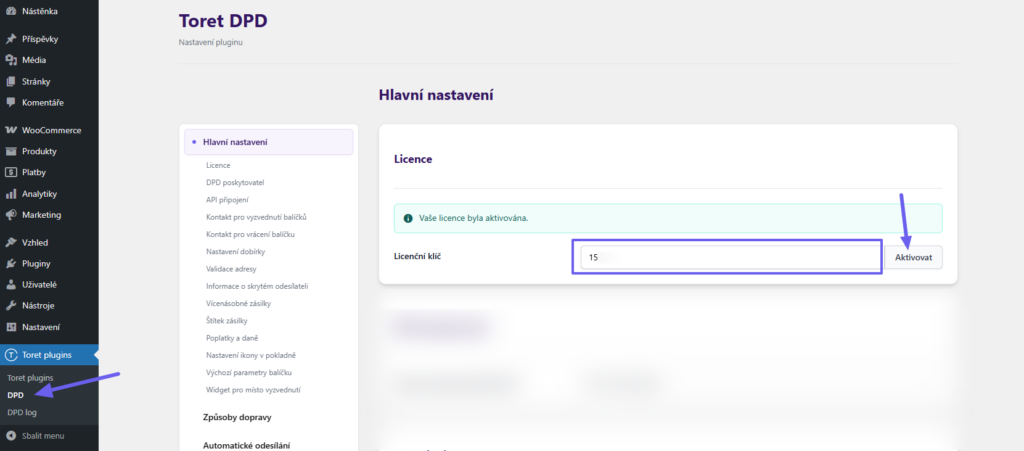
After installing the plugin, open the DPD plugin (Toret Plugins > DPD). On the “Hlavní nastavení” (Main Settings) tab, enter the license key into the appropriate field and verify the license.
Connecting to DPD
The DPD plugin includes the option to connect to DPD CZ (GeoAPI or DPD Shipping) and DPD SK (DPD Shipper or dpdporta.sk).
DPD Provider
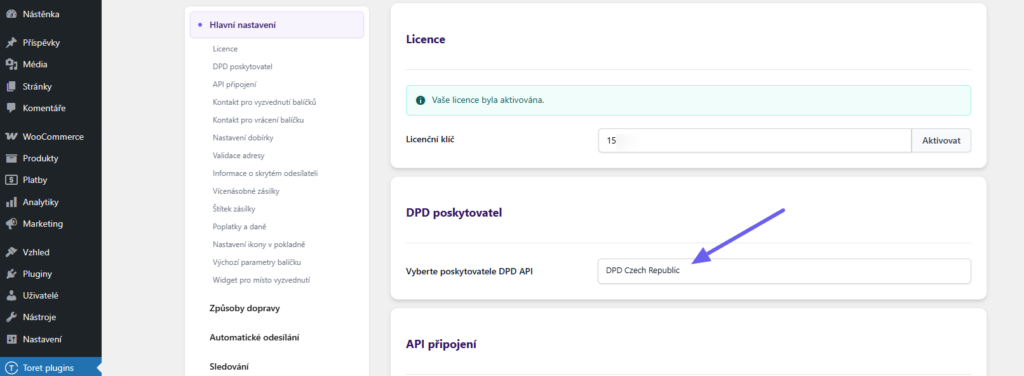
In the “DPD poskytovatel” (DPD Provider) section (Toret Plugins > DPD > DPD poskytovatel), select whether you want to connect the e-shop to DPD Czech Republic or DPD Slovakia.
Attention! Available plugin functions may vary depending on whether you use DPD CZ or DPD SK. These are different APIs, and their support for individual functions and services differs.
DPD CZ
To use the connection to DPD CZ, you must have a DPD account created for GeoAPI (older) or DPD Shipping (recommended). Contact DPD support to create an account. This is not an account for mojedpd.cz.
!!! The shipping company DPD has both systems (GeoAPI and mojedpd.cz) separated, meaning packages submitted via API do not appear under the mojedpd.cz account.
DPD CZ does not have an administration interface for accounts set up for API connection, so there is nowhere to log in at DPD. An overview of submitted shipments is possible only via the plugin in the order overview.
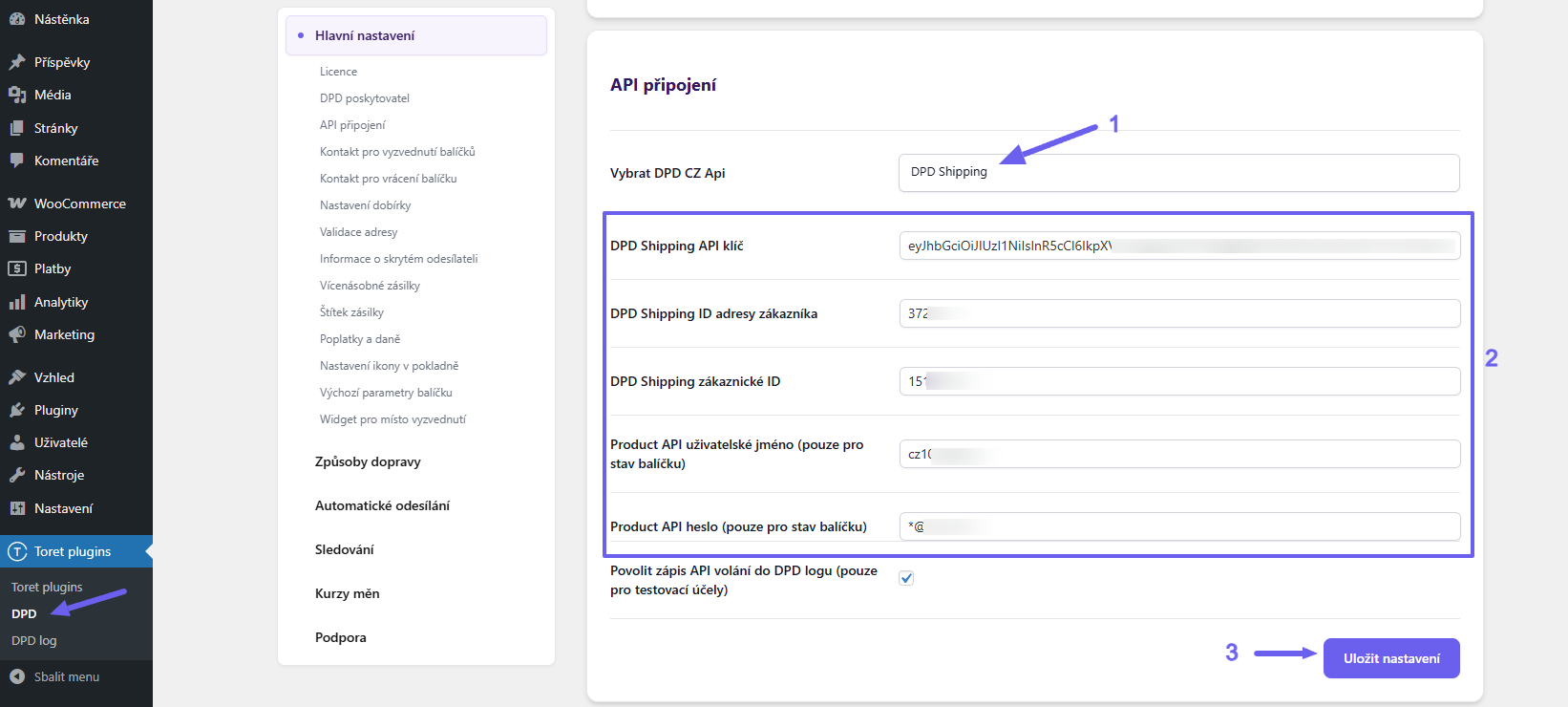
To connect the plugin with a DPD GeoAPI/Shipping account, you need to:
- Select the API for which you have access credentials.
- Fill in the access credentials obtained from DPD.
DPD Shipping API klíč (Bearer Token)
DPD Shipping ID adresy zákazníka (senderAddressId)
DPD Shipping zákaznické ID (customerId)
Product API uživatelské jméno (Login)
Product API heslo (Password) - Save.
Attention! If you have a foreign hosting and thus a foreign server IP address, write to DPD support to add this IP address to the Whitelist.
* The function “Povolit zápis API volání do DPD logu” (Enable writing API calls to DPD log) is for testing and troubleshooting.
DPD SK – Shipper
To use the connection to DPD Shipper, you must have an account created at DPD Shipper (https://www.dpdshipper.sk/).
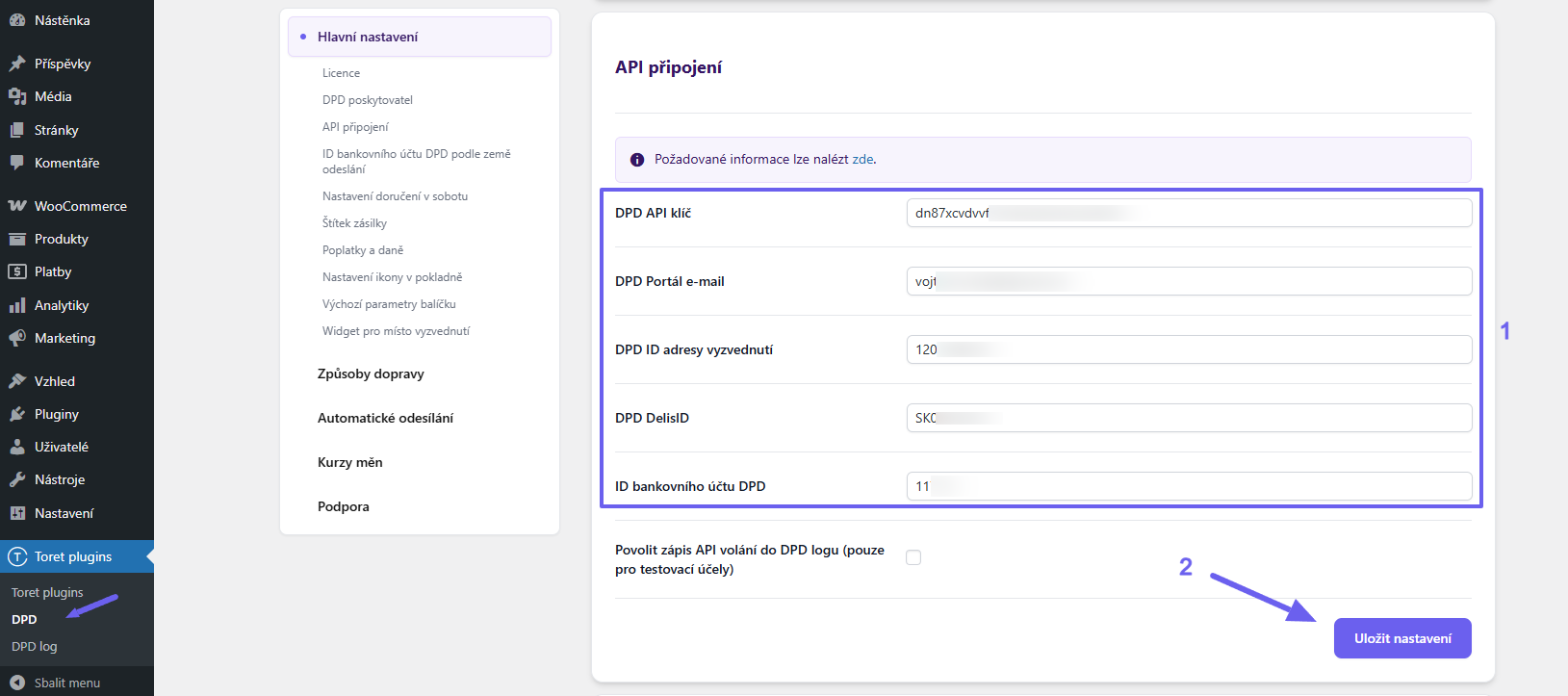
To connect the plugin with a DPD Shipper account, you need to:
- Fill in the access credentials. You can find the credentials in your DPD Shipper account, or DPD support will send them to you.
- Save.
Main Settings
In addition to connecting to the API, on the Hlavní nastavení (Main Settings) tab, you further configure:
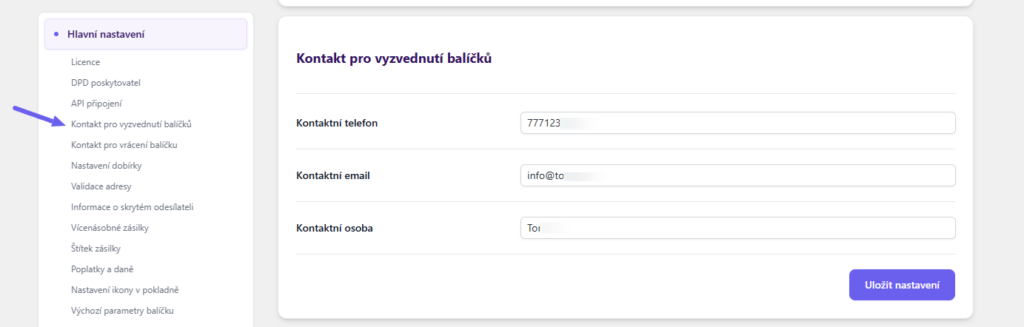
Package Pickup Contact (DPD CZ only)
Allows entering a contact phone, email, and name of the person for communication regarding package pickup.
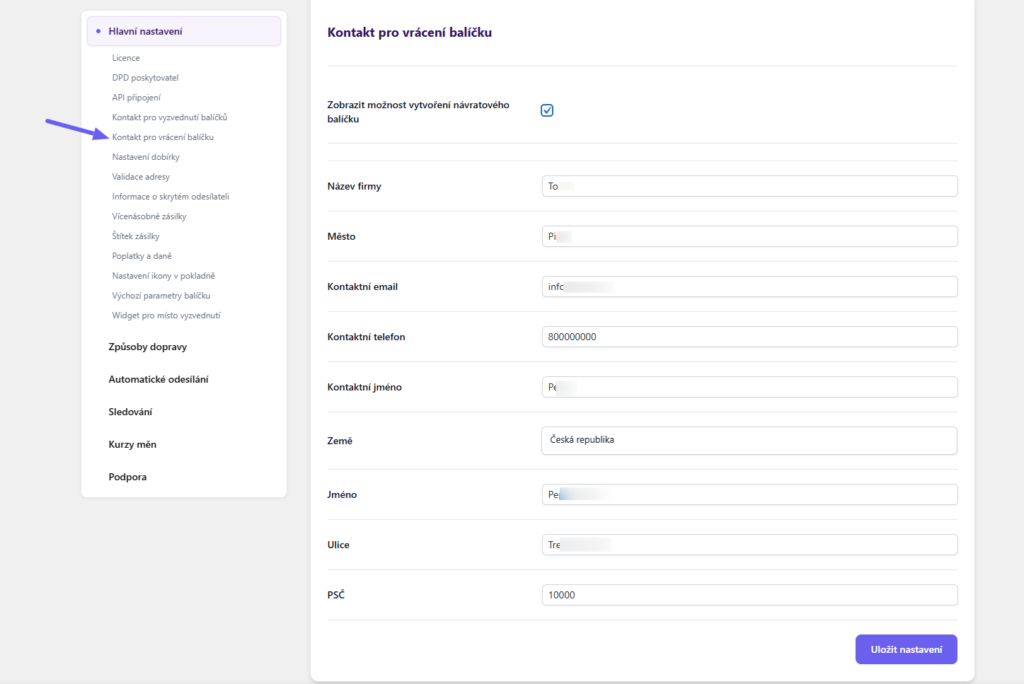
Package Return Contact (DPD CZ only)
Allows creating return shipments and entering the address to which they will be delivered.
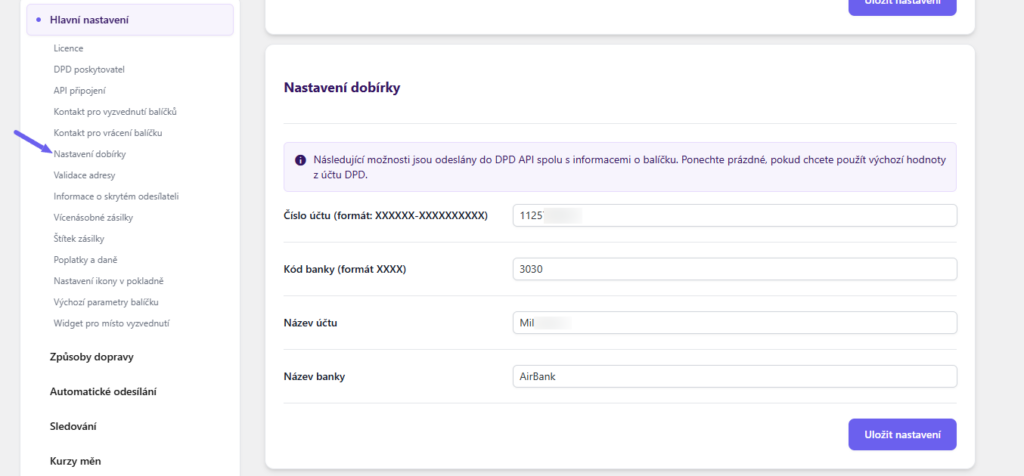
COD Settings (DPD CZ only)
Allows entering the account number, bank code, and name of the account and bank for COD payouts. If you want to use the default values from the DPD account, there is no need to fill this in.
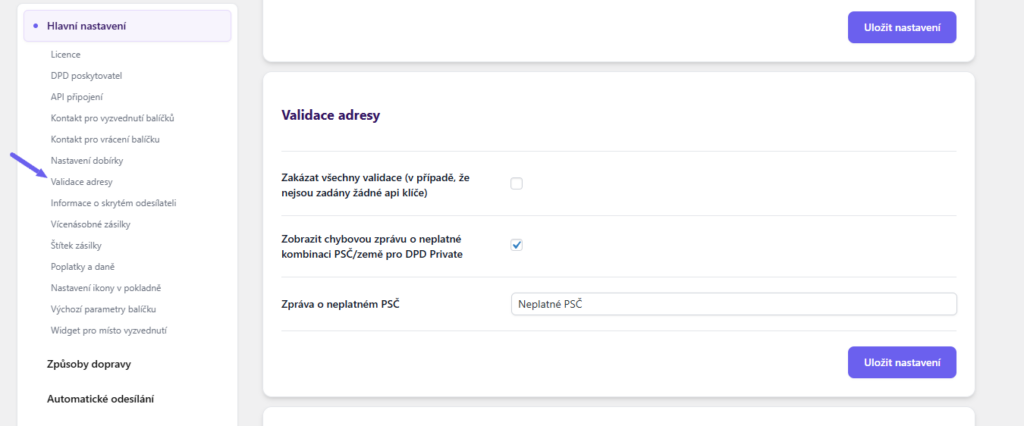
Address Validation (DPD CZ only)
Allows disabling validation or, conversely, displaying an error message if an invalid postal code and delivery country are entered. The displayed info message can be customized.
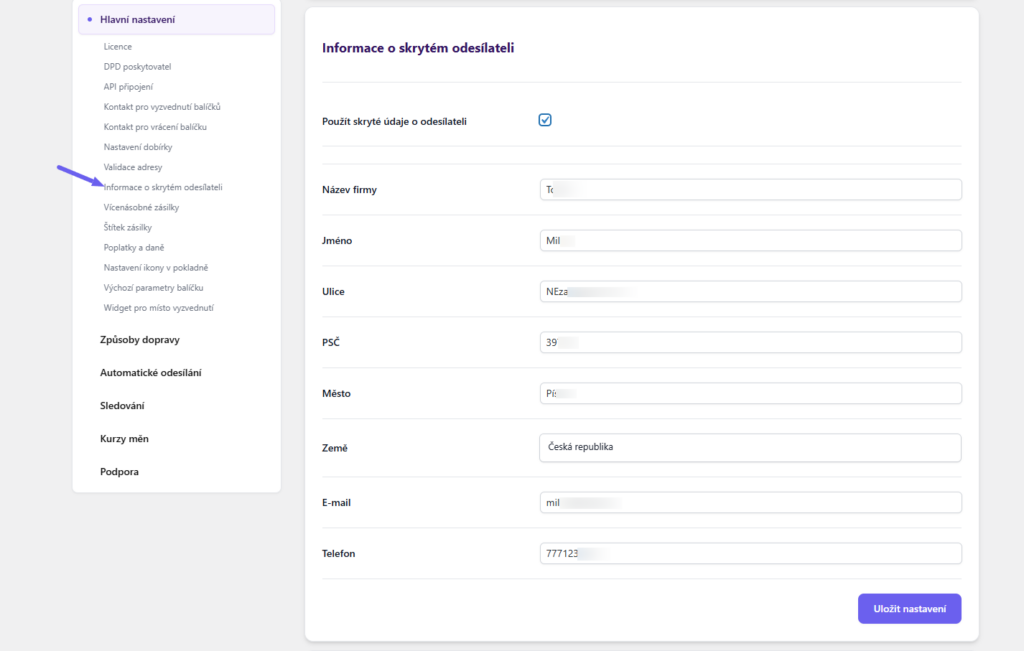
Hidden Sender Information (Masked Address) (DPD CZ only)
Allows setting an address that will appear on the label as the sender. This address may differ from the actual place of dispatch.
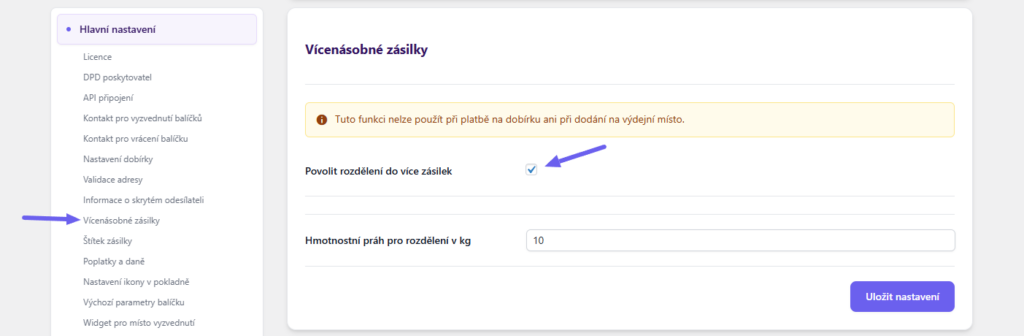
Multiple Shipments (DPD CZ only)
Allows setting automatic splitting of shipments into multiple pieces based on a entered weight threshold.
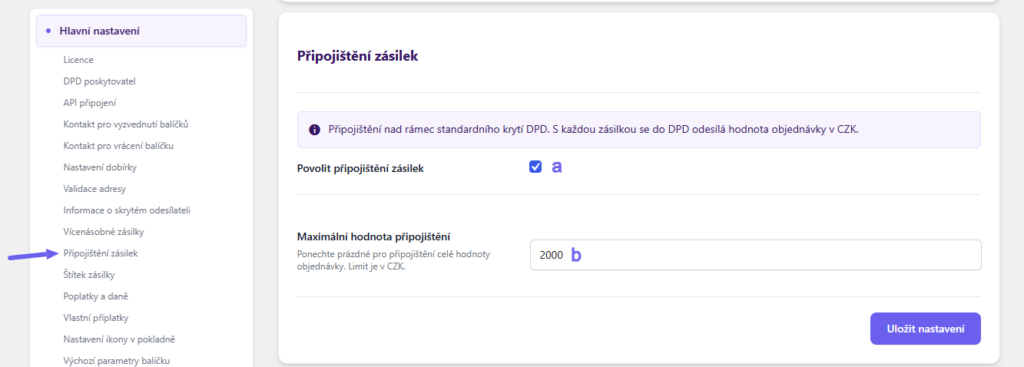
Shipment insurance (DPD CZ only)
This allows you to enable additional insurance for shipments beyond the standard DPD coverage (a). The insurance amount corresponds to the shipment value and can be capped with a maximum insurance value (b).
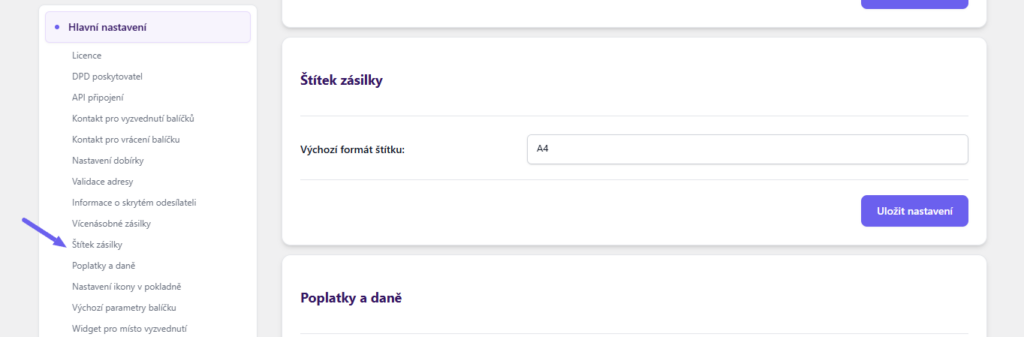
Shipment Label – Format
Here you can choose the label format – A4 or A6.
Fees and Taxes
In this section, you can choose tax settings (with VAT or without VAT), the tax class for COD, and hiding the COD fee if it is free.
Tip: If you activate the “Nastavení sazeb s DPH” (Rates with VAT) function, enter prices including VAT.
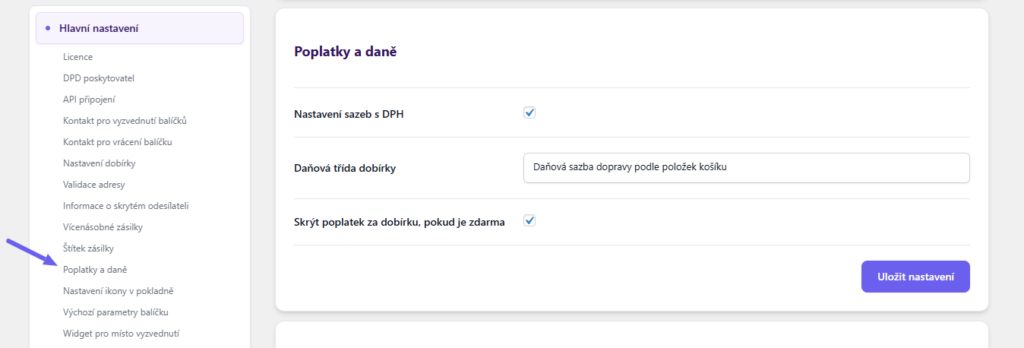
TIP2: For the Czech Republic, it is recommended to determine the tax rate for COD based on items in the cart.
Custom Surcharges
In this section, you can set custom surcharges for a product, variation, category, or globally (per order). All surcharges can be shown or hidden at checkout, and you can also set their multiplicity (based on the number of products in the order).
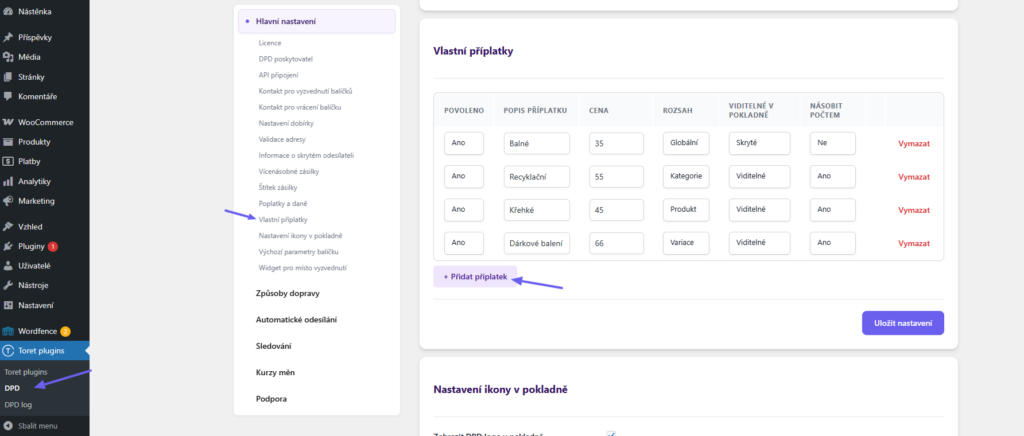
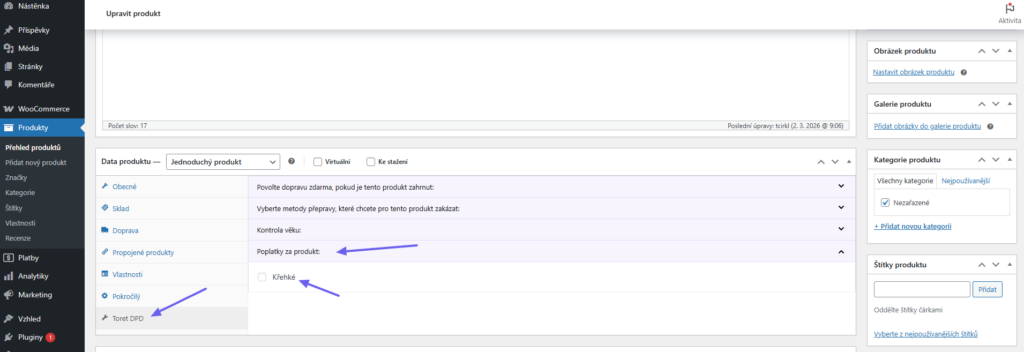
Surcharges configured for a product/variation/category must also be activated in the product/variation/category detail where you want them to apply after setting them in the plugin.
Checkout Icon Settings
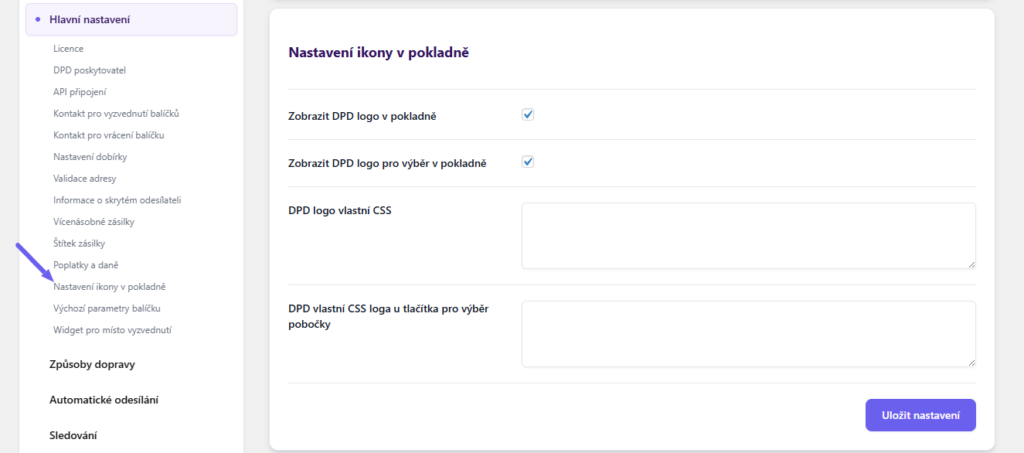
In this section, it is possible to enable the display of icons for shipping methods and for the widget opening button, and also style them with custom CSS.
TIP: The plugin includes preset carrier logos. If you want to set custom icons, you can do so in the settings of specific shipping methods (see below).
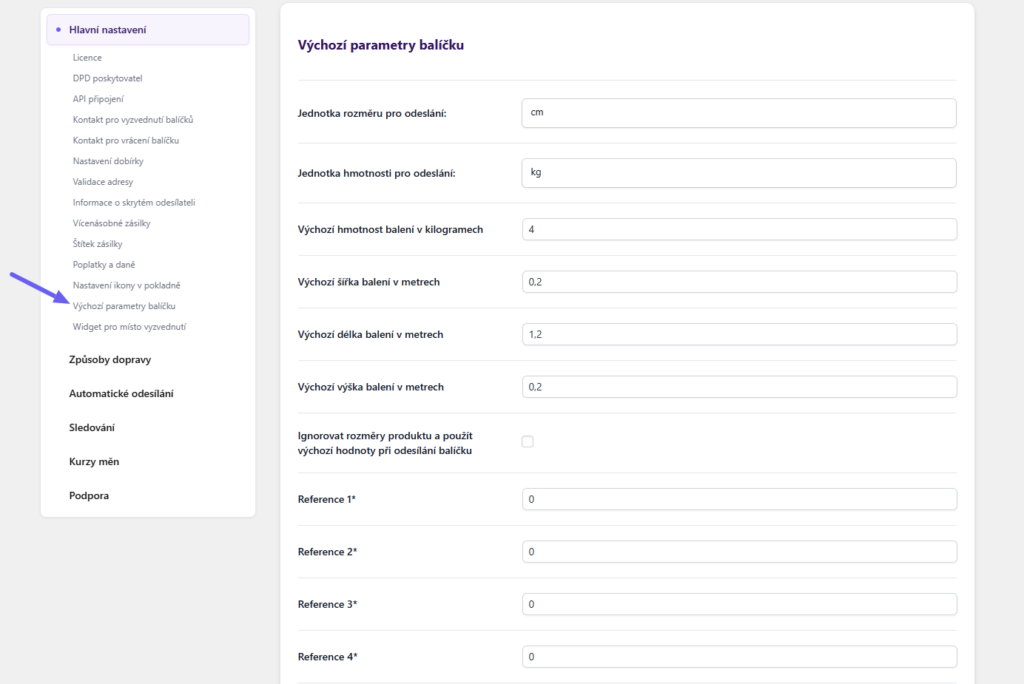
Default Package Parameters
Here you set default references, dimensions, and weight of the package, including units used. These default values are used if data is not available for all products in the order.
The function Ignorovat rozměry produktu a použít výchozí hodnoty při odesílání balíčku (Ignore product dimensions and use default values when sending package) will use the default parameters entered here even if values are specified for products.
For package references, which also appear on the label, you can use custom text or variables:
- {order_id}
- {order_number}
- {product_ids}
- {qty_product_ids}
- {qty_product_sku}
- {customer_note}
- {meta_key}
Which references are printed on the label depends on the connection:
- DPD Shipping API (CZ): references 1 and 2 are printed on the label. References 3 and 4 are sent to DPD only as shipment data. Reference 3 has the default value {order_id}. If you leave reference 1 empty, the plugin generates its own identifier.
- GeoAPI (CZ): references 3 and 4 are printed on the label. Reference 2 is sent only as shipment data; reference 1 is not used.
- DPD SK: references 1 and 2 are printed on the label; reference 3 is sent only as shipment data.
References are sent with manual, bulk and automatic submission.
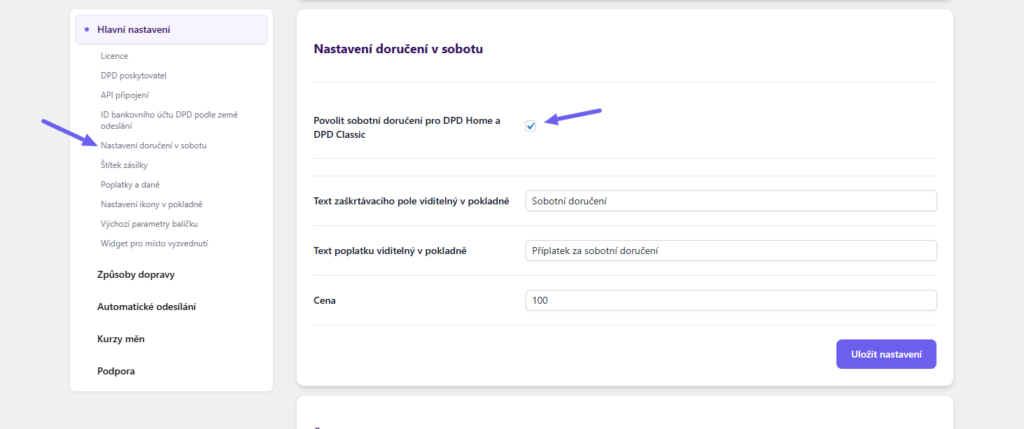
Map Widget Settings
In the “Widget pro místo vyzvednutí” (Pickup Point Widget) section, you can set:
- Use pickup point address as delivery address – the customer does not have to fill in their address when delivering to a pickup point.
- Automatically display map with pickup point selection when choosing shipping – automatically opens the map when selecting delivery to a pickup point. The open button remains available for potential changes.
- Branch selection widget button placement – the button can be placed immediately below the pickup point shipping method or at the end of the shipping list.
- Branch selection widget – for DPD CZ, the DPD CZ widget is available; for DPD SK, you can choose between DPD CZ and DPD SK widget (requires Widget API key).
- Disable all boxes when selecting pickup point – does not offer boxes in the widget when selecting a pickup point.
TIP: You can also disable delivery to a box only for specific products – in the product detail. See below.
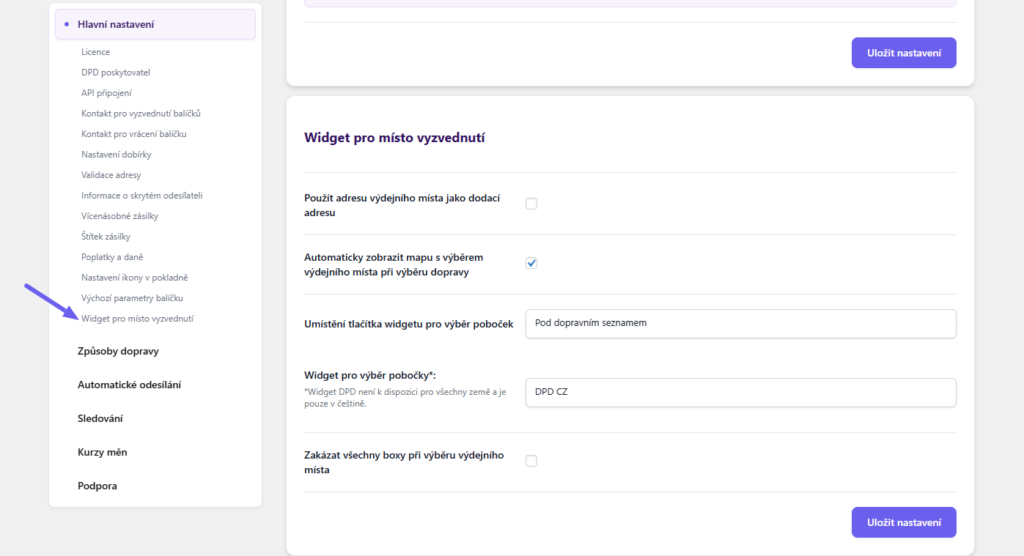
DPD Bank Account ID by Country of Origin (DPD SK only)
The function allows setting bank account IDs, which you have entered in your DPD account, for COD payment by customers from different countries.
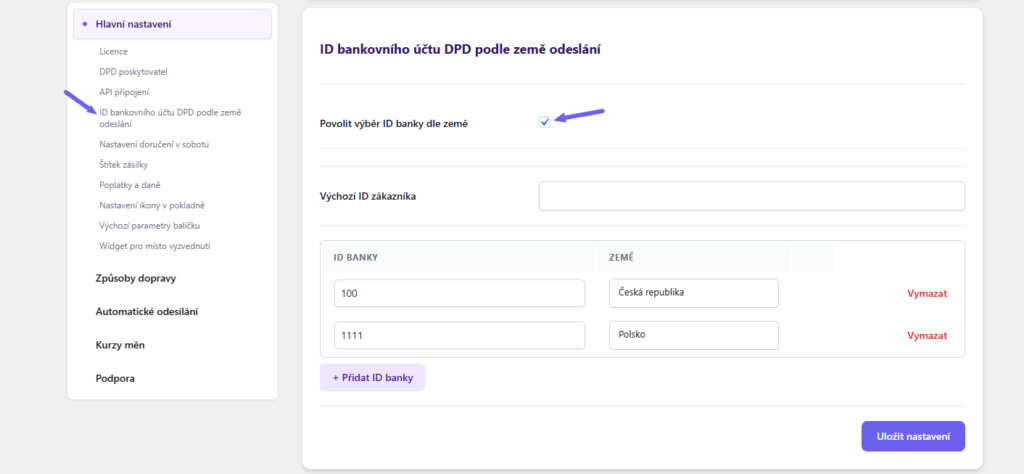
Saturday Delivery (DPD SK only)
Activates the Saturday delivery function for DPD Home and DPD Classic. In the checkout, the customer will see a checkbox for selecting Saturday delivery, for which you can customize the text and set a surcharge.
Setting up Shipping Methods in the DPD Plugin
You can find the settings for individual shipping methods in the plugin administration, in the “Způsoby dopravy” (Shipping Methods) section (Toret Plugins > DPD > Způsoby dopravy).
In the “Země” (Country) column (1), select the country for which you want to set up DPD shipping. The “Aktivní dopravci” (Active Carriers) column (2) shows already configured shipping methods. Click the pencil button in the “Akce” (Actions) column (3) to enter the settings themselves.
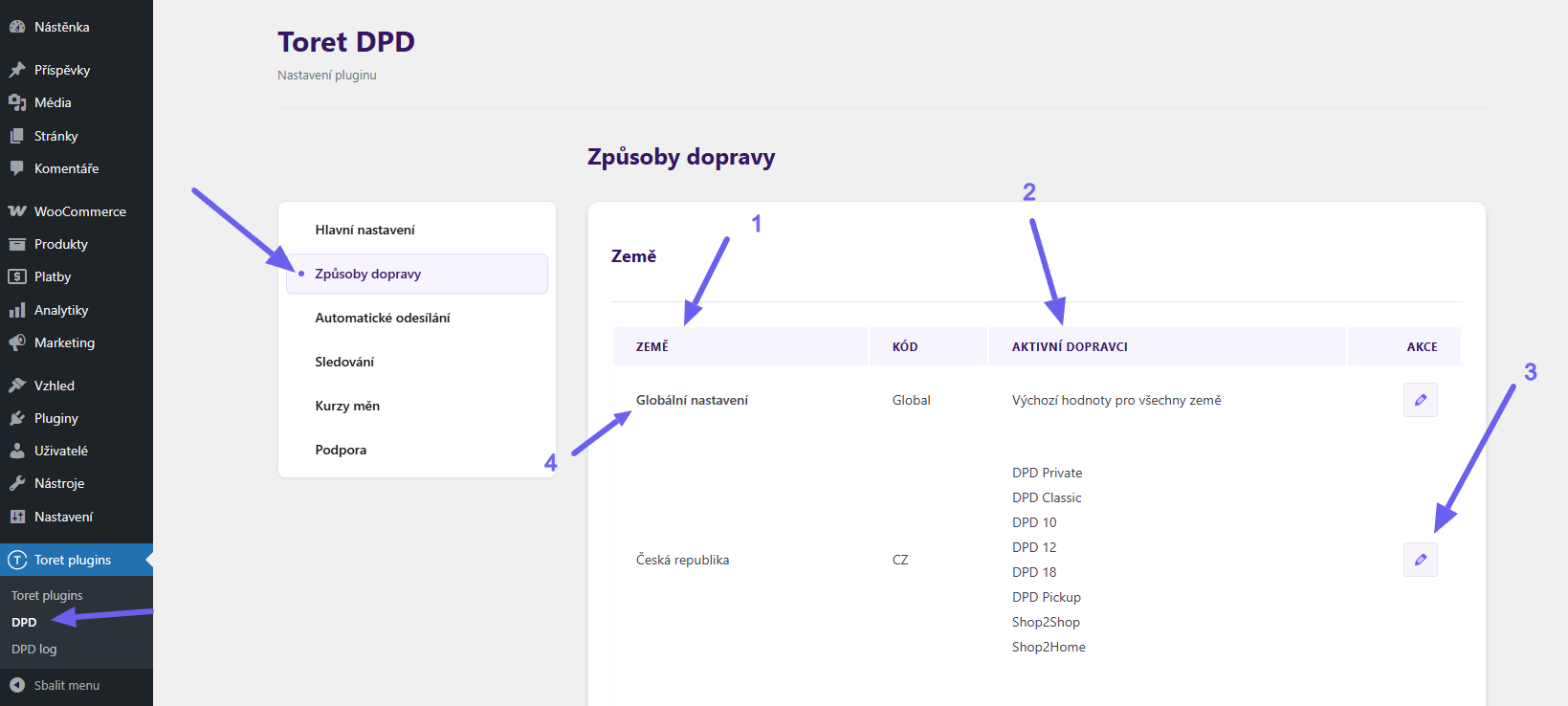
In the Global Settings section (4), you can set values that will be used for all countries that do not have them filled in. Settings for specific countries override these values. This involves:
- activation of dimension and weight checks
- dimensional and weight limits of shipments (if the limit is exceeded, the given shipping method will not be offered in the checkout)
Attention! If you enable weight or dimension checks, it is necessary to have these values filled in for products.

In the DPD plugin, you can set the following shipping for DPD CZ:
- Private (delivery to address)
- Classic (delivery to company address)
- DPD 10:00 (delivery by 10:00)
- DPD 12:00 (delivery by 12:00)
- DPD 18:00 (delivery by 18:00)
- Pickup (delivery to pickup points)
- Shop2Shop (delivery from pickup point to pickup point)
- Shop2Home (delivery from pickup point to address)
For DPD SK, the following are available:
- DPD SK Home (delivery to address)
- DPD SK Pickup (delivery to pickup point)
- DPD SK Classic (delivery to company address)
- DPD SK 10:00 (delivery by 10:00)
- DPD SK 12:00 (delivery by 12:00)
- DPD SK 18:00 (delivery by 18:00)
Activation
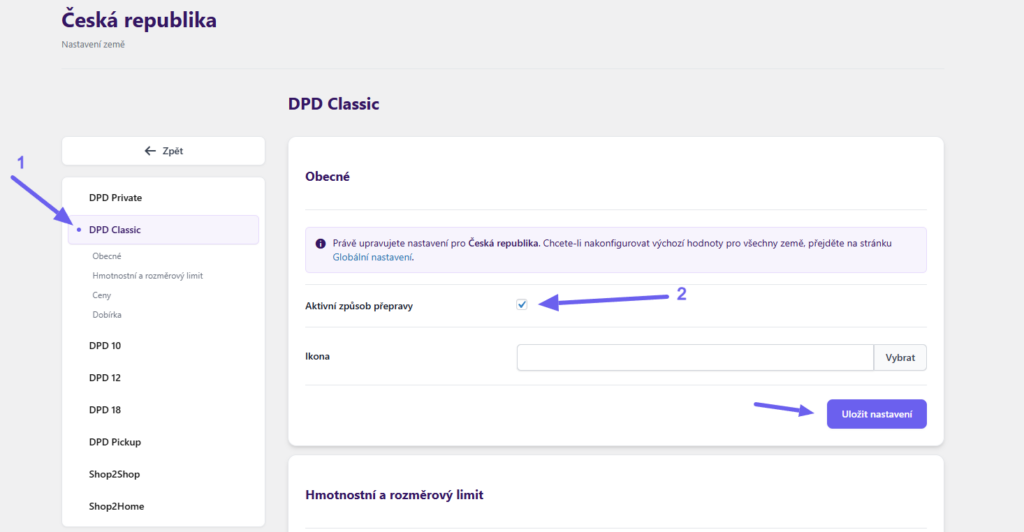
On the “Způsoby dopravy” (Shipping Methods) page, click on the settings for the required country (Actions column) and in the sidebar select the shipping method you want to configure (1). In the sidebar, you will always find only those shipping methods that are available for the given country.
Each shipping method must first be activated (2)
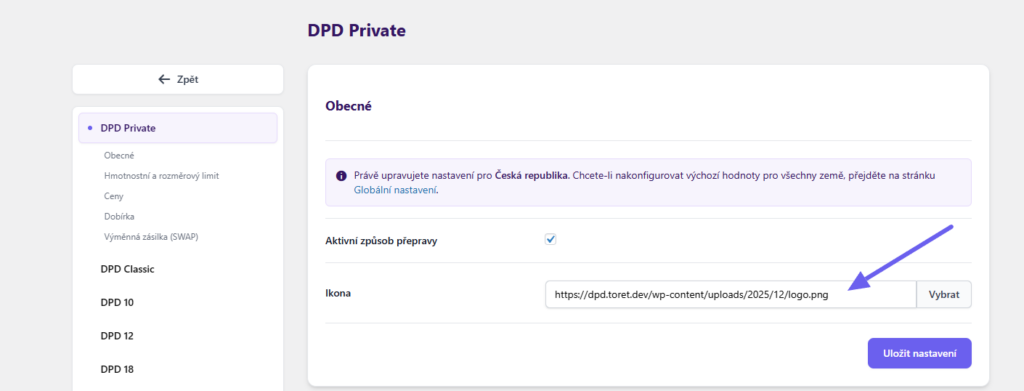
Icon Settings
Here you can upload an icon that will be displayed for the given shipping method in the checkout.
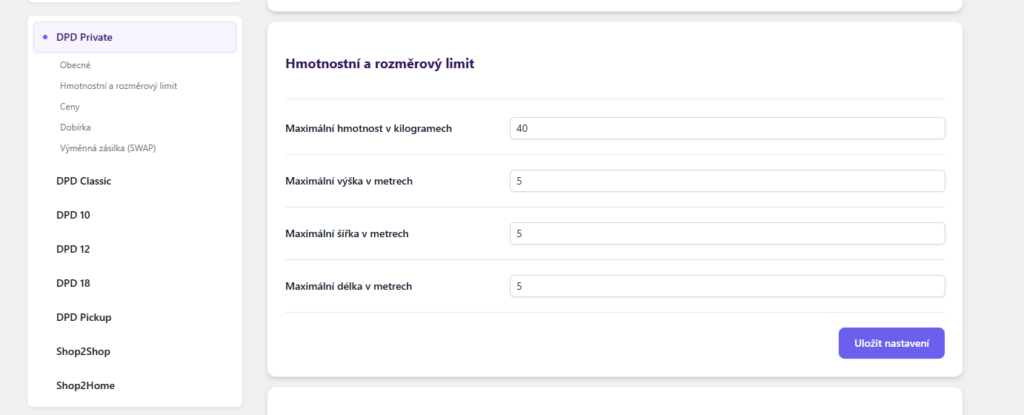
Weight and Dimension Limits Settings
If you enter maximum weight and dimensions, the given shipping method will not be offered in the checkout if they are exceeded. For this to be possible, it is necessary to have these values filled in for products.
Price and Free Shipping Settings
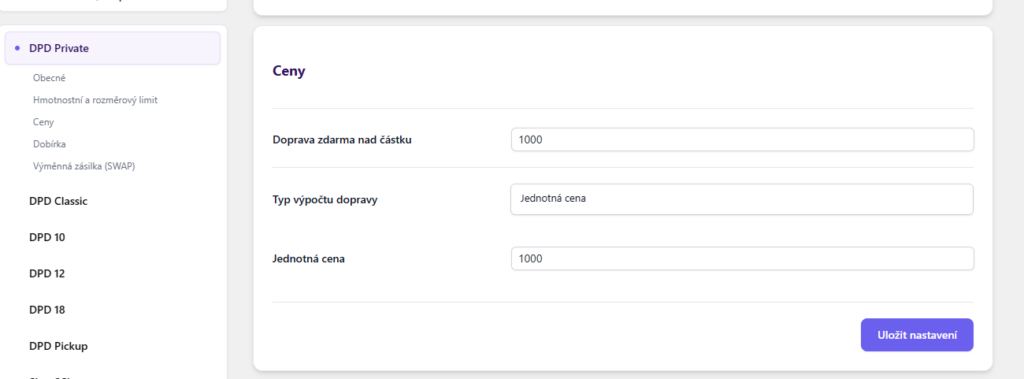
In the prices section you set:
- Free shipping over amount: Enter the order value here, upon reaching which the shipping method will be free. The shipping price is not included in the order value.
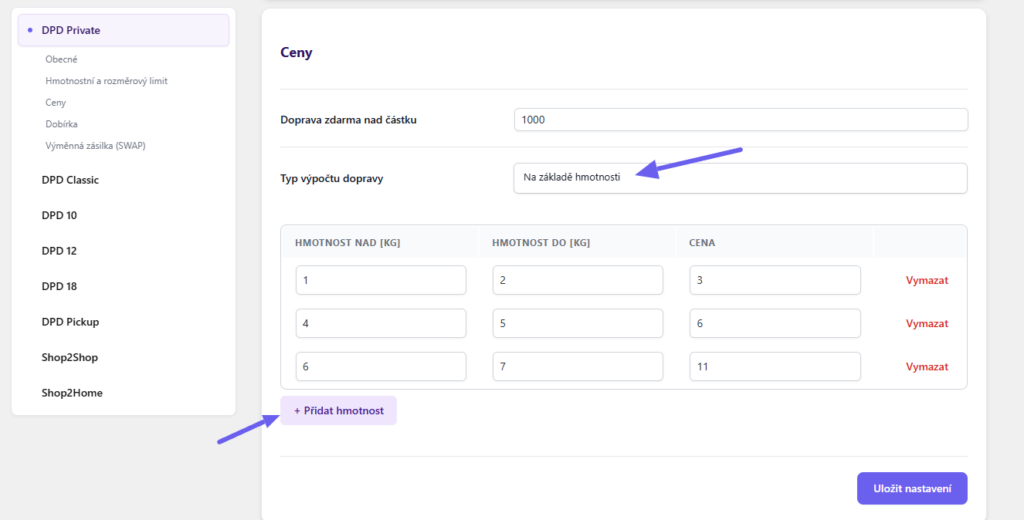
- Shipping price calculation type: The shipping price can be set uniformly or scaled by weight or dimensions of the order.
You can set price scaling rules by clicking on the “Přidat hmotnost/rozměr” (Add weight/dimension) button.
COD Settings
Cash on delivery for a given shipping method must be activated by the “Povolit dobírku” (Enable COD) checkbox. Subsequently, it is possible to set:
- Free from: enter the amount upon reaching which the COD will be without surcharge (The shipping price and COD fee are not included in the amount).
- Maximum order value for Cash on Delivery: If this value is exceeded, Cash on Delivery will not be available at checkout.
- Fee calculation type: You can choose a flat rate (Uniform price) or scale the rate by order price (Total price).
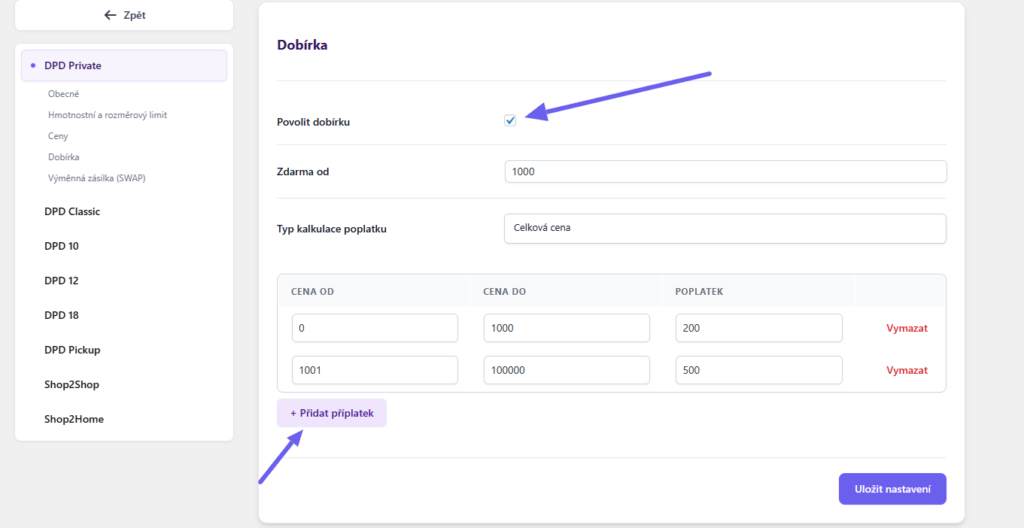
You can set price scaling rules by clicking on the “Přidat příplatek” (Add surcharge) button.
Exchange Shipment – SWAP
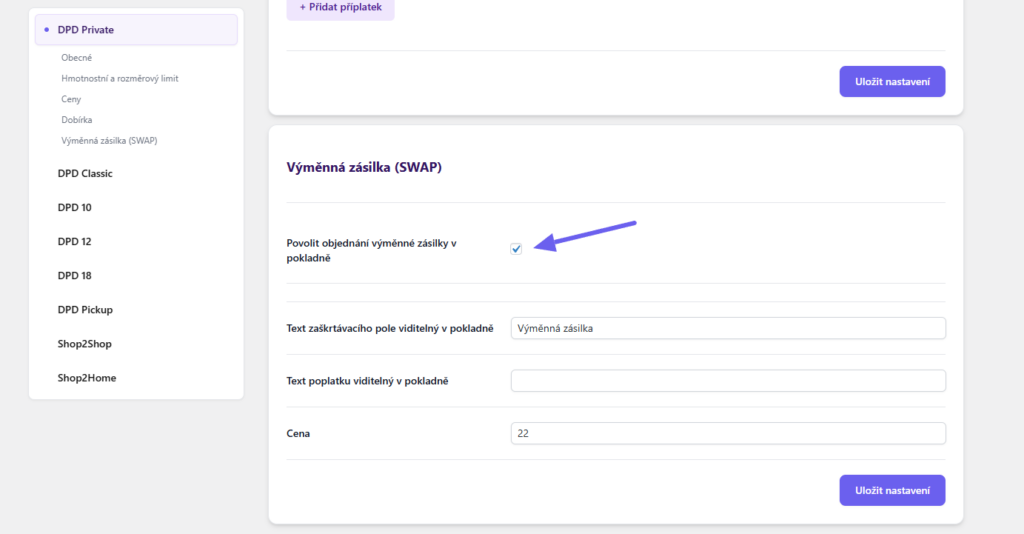
For some shipping methods/countries, an exchange shipment is available. This allows the customer to order a return shipment in the checkout.
The function needs to be activated by checking the checkbox. Subsequently, it is possible to enter the text that will be displayed to customers next to the checkbox in the checkout, fee text, and price.
Shipping Zone Settings
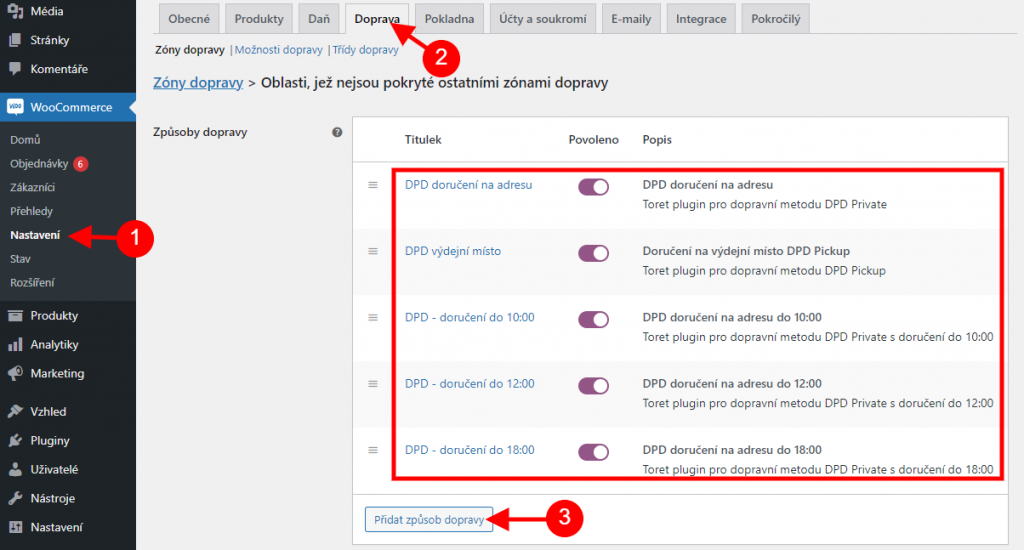
After setting up carriers in the DPD plugin, it is also necessary to set up identically named carriers in WooCommerce shipping zones. Without setting them in shipping zones, carriers from the DPD plugin will not appear in the checkout.
Set the shipping method in WooCommerce > Settings > Shipping > required shipping zone > Add shipping method.
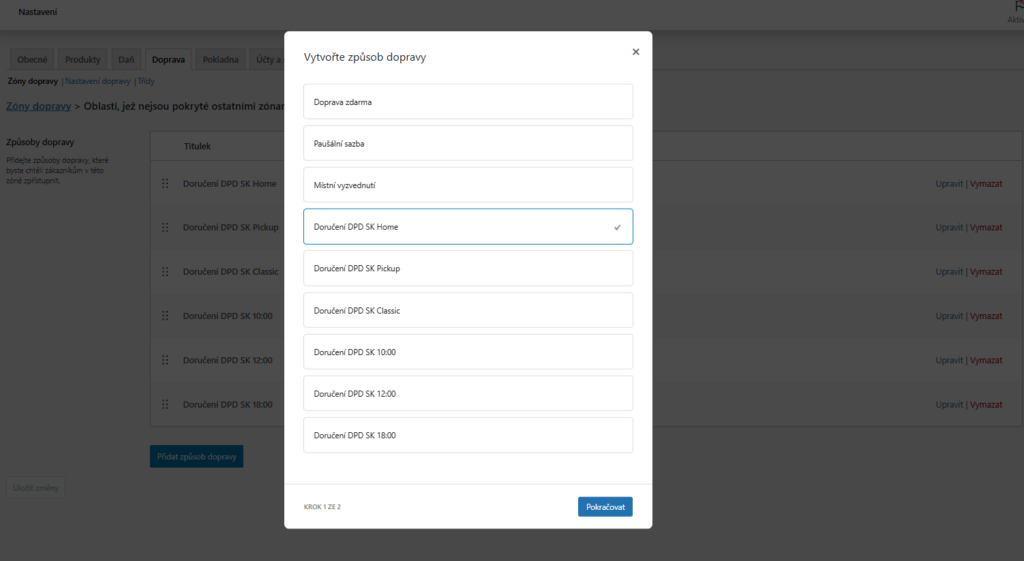
Select from the offered shipping methods and click Continue.
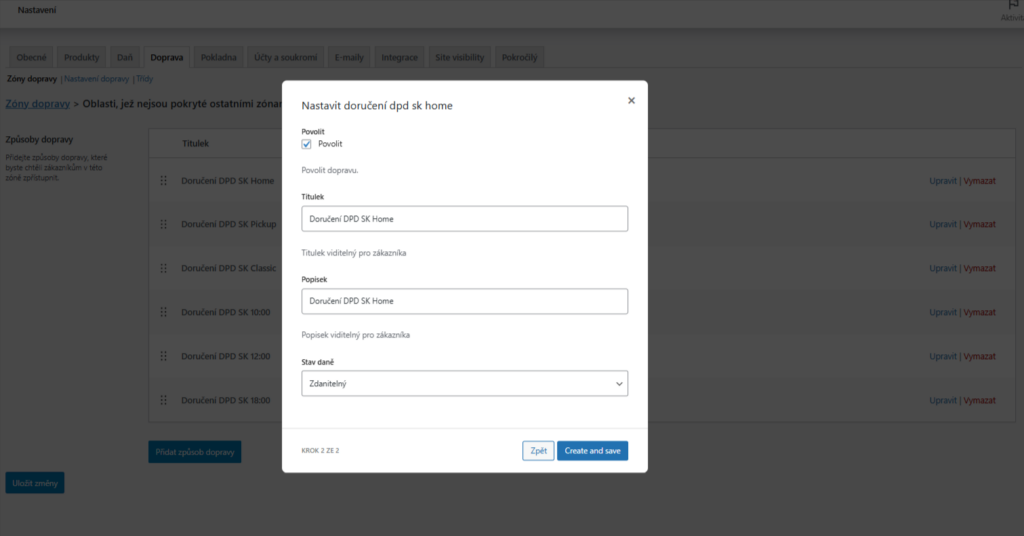
In the next step, choose the Title and Description of the shipping method and Tax Status (Taxable or None). Click Create and save. The new shipping method is created.
Shipment Submission from Web to DPD
Submitting a package requires specifying its weight. We recommend setting the weight at the product level – without set weight for products, automatic shipment submission upon order status change and weight checking will not work.
If you do not have weight listed for products, it can be added during manual submission in the pop-up window.
In the plugin, you have these options for submitting a shipment to the DPD system.
Manual Shipment Submission
A package can be submitted manually via a button in the order overview or in the order detail.


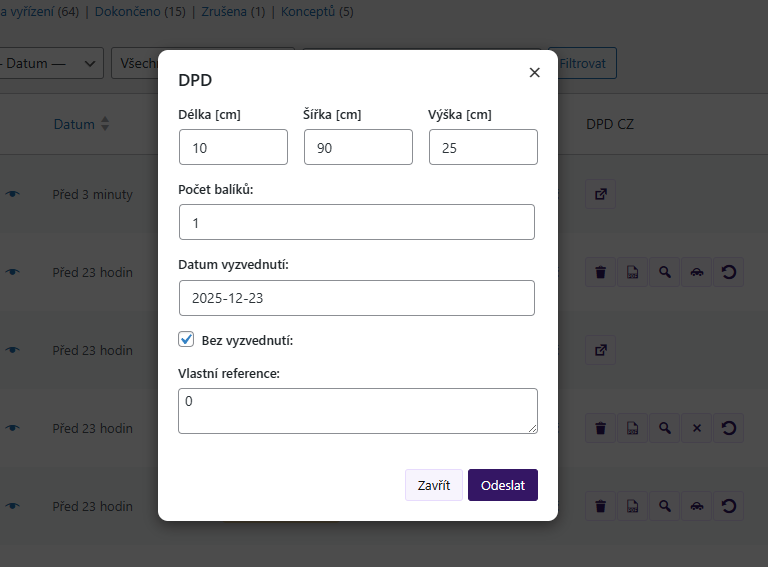
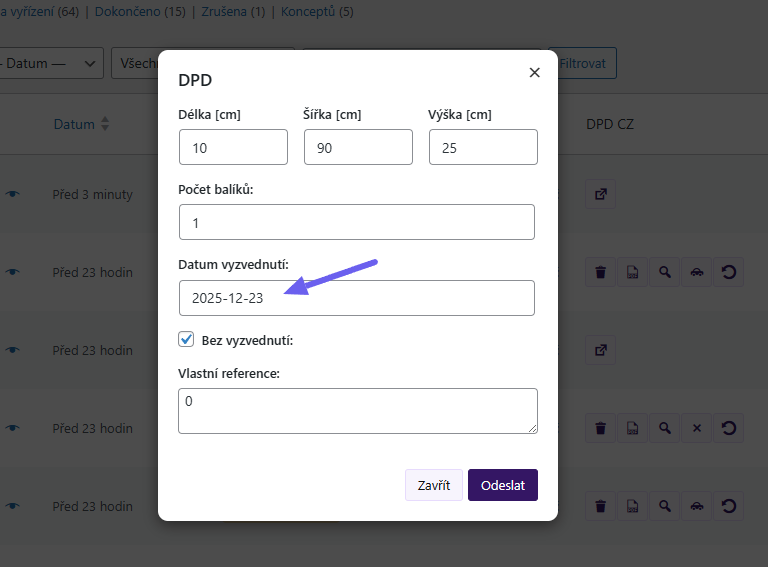
In the subsequent dialog box, you can specify further package properties (dimensions, references) and order a pickup. Activate the Bez vyzvednutí (No pickup) option if you physically take the shipment to a collection point yourself (without courier pickup).
Bulk Submission
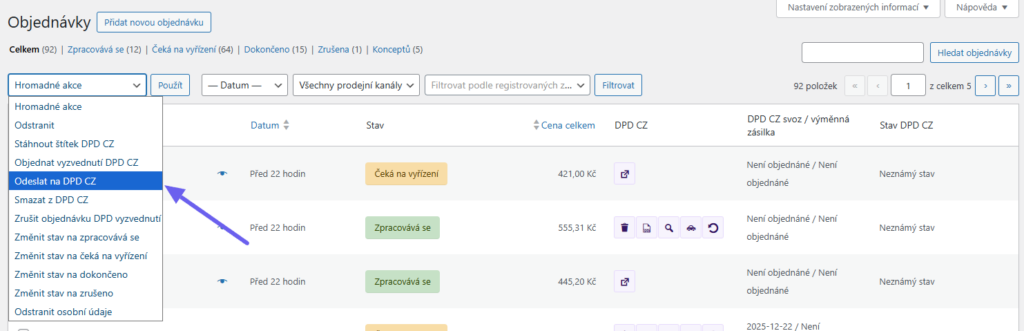
From the order overview, shipments can be submitted using the bulk action “Odeslat na DPD” (Send to DPD).
Automatic Submission on Order Status Change
With automatic submission, submission occurs at the order status change you choose. E.g., you change the order status to Processing. The package will be automatically submitted to the DPD system.
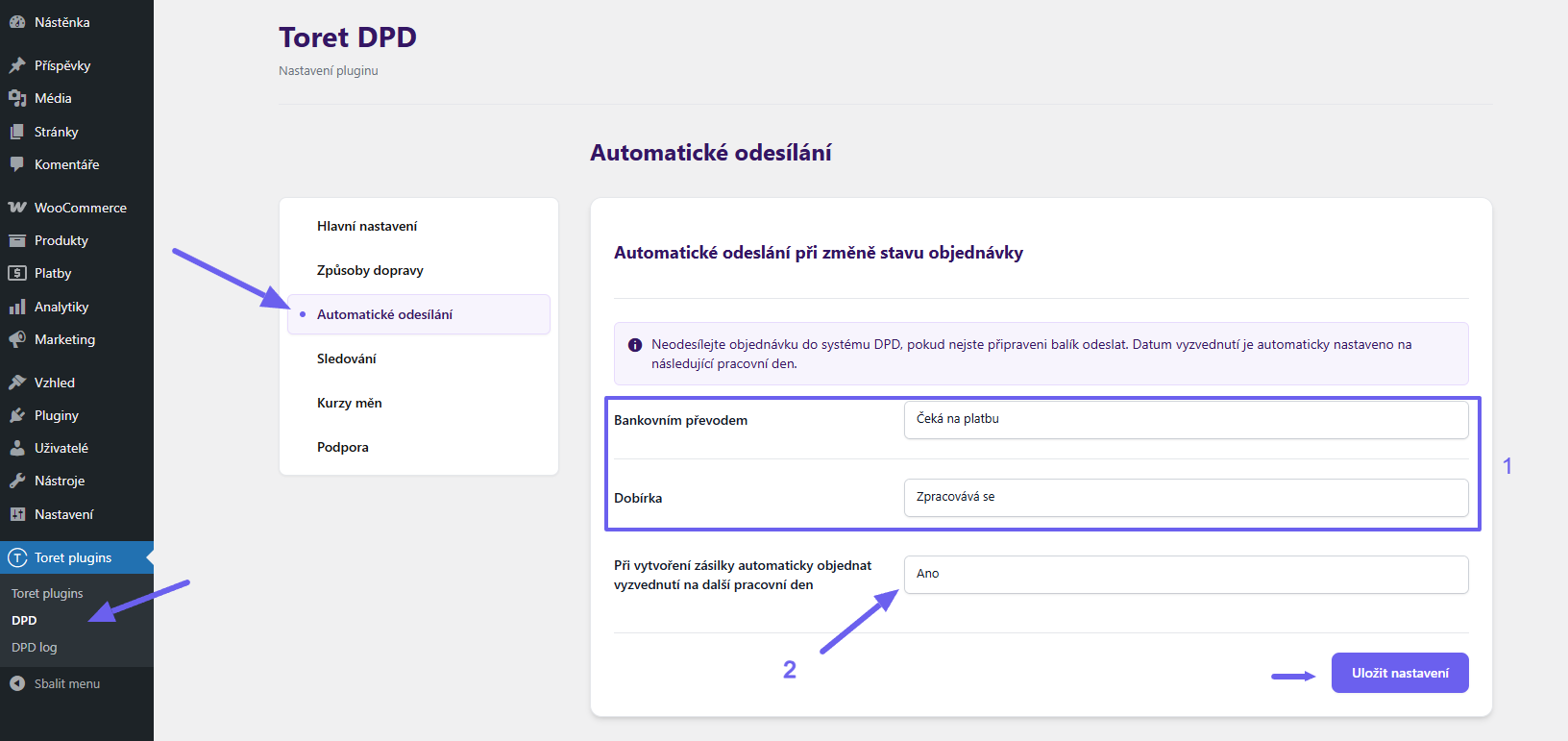
Automatic submission can be set in the plugin administration DPD → Automatické odesílání (Automatic Sending). For individual payment methods, set the order statuses at which submission will occur (1). You can also choose whether to automatically order a pickup for the next working day. (2)
Ordering Package Pickup
Via the plugin, it is possible to order package pickup. Pickup ordering is possible already in the dialog box during manual package submission or later.
Activate the Bez vyzvednutí (No pickup) option if you physically take the shipment to a collection point yourself (without courier pickup).
Manually
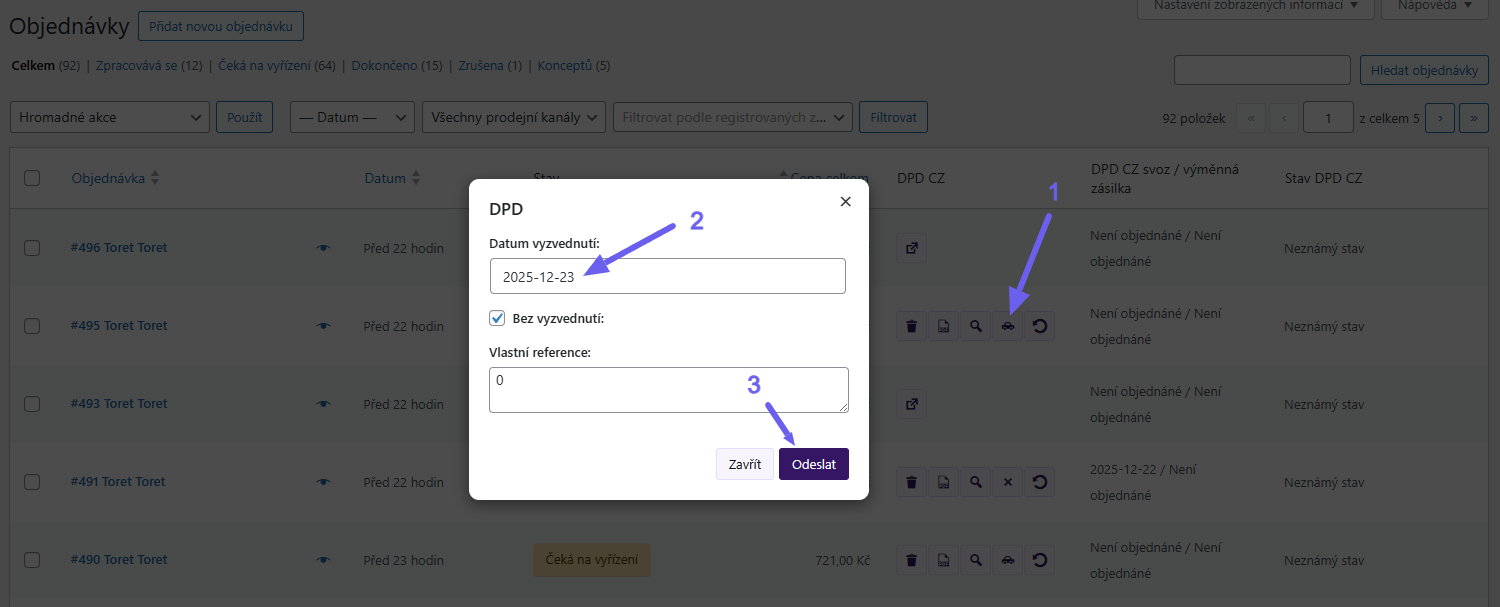
If you do not order pickup during submission, there is a car icon next to submitted orders in the DPD system in the order overview. Clicking the icon opens a pop-up window with the option to select the date for ordering package pickup. You can also add a reference to the package here.
Activate the Bez vyzvednutí (No pickup) option if you physically take the shipment to a collection point yourself (without courier pickup).
Automatically
Pickup can also be ordered automatically when submitting a shipment. Automatic pickup ordering is set in the Automatické odesílání (Automatic Sending) section, see Automatic Submission on Order Status Change.
Status and Cancellation of Pickup
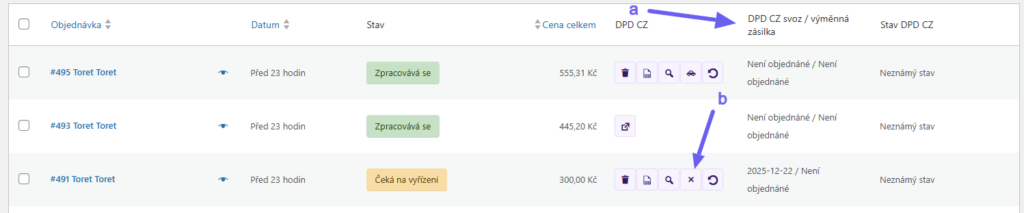
You can see the status of the pickup order in the order overview in the DPD svoz (DPD pickup) column (a). The ordered pickup can be cancelled by clicking the button with a cross (b) or by bulk action.
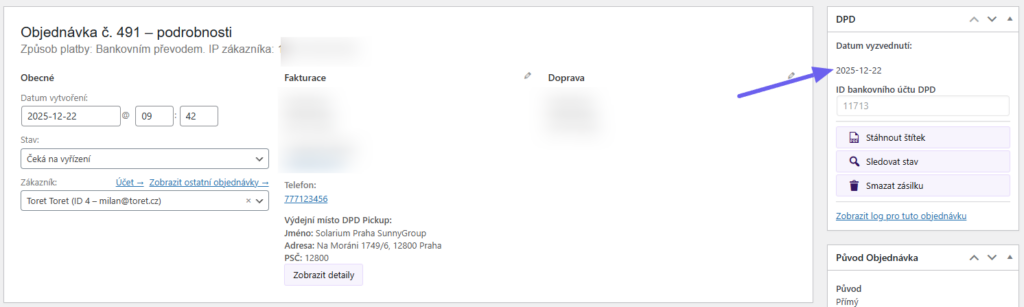
Also, in the order overview, you can find out the pickup date – in the DPD metabox.
Printing Labels
Labels of submitted packages can be downloaded only in the website administration. You will not find orders submitted via API in the DPD system.
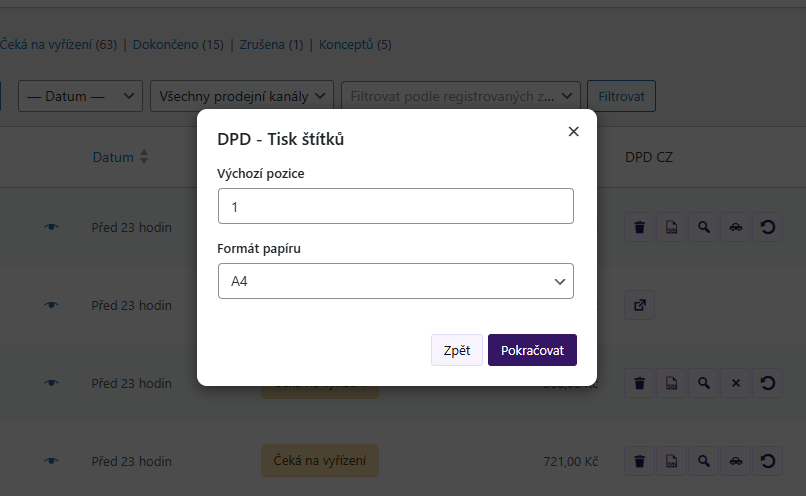
In the order overview for a shipment already submitted to the DPD system, click on the PDF document icon (see image) for the selected order. The label will be saved in PDF format, and then you can print it.

For a submitted shipment, the label can also be downloaded in the order detail.
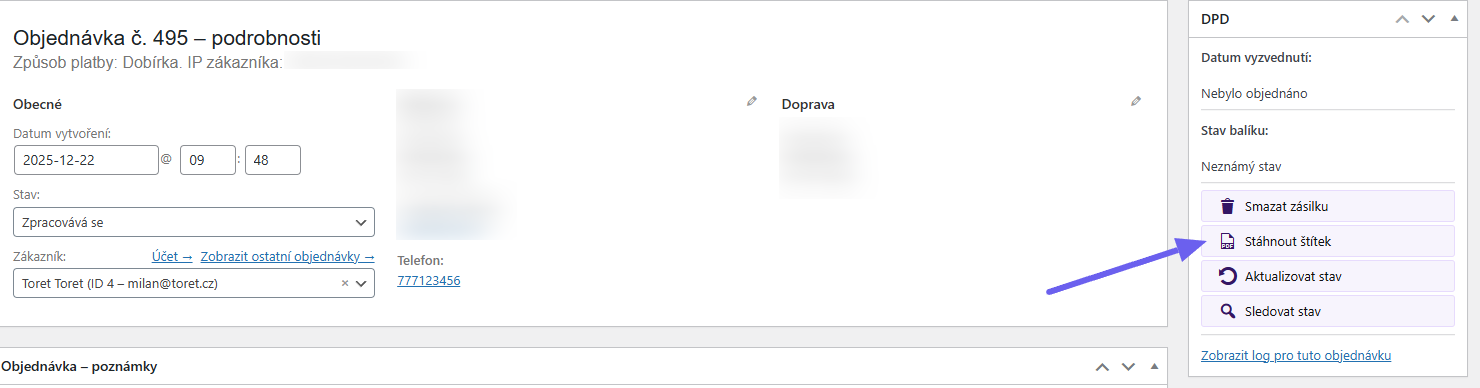
You can also use bulk label printing via bulk action in the order overview.
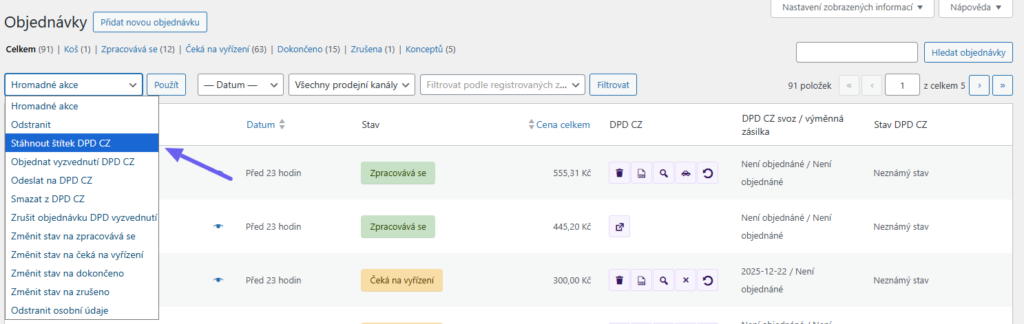
Label Format and References can be set as default in the Main Settings of the plugin (Toret Plugins > DPD > Hlavní nastavení) or individually in dialog boxes when manually creating a shipment (references) and printing (format and print position).
Shipment Tracking
Shipment tracking is possible in several ways:
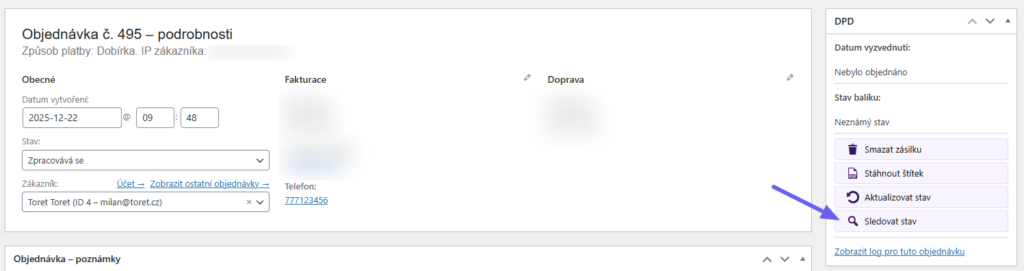
Clicking through to the DPD system
Clicking the magnifying glass icon in the order overview or detail takes you to the tracking page for the given shipment in the DPD system.

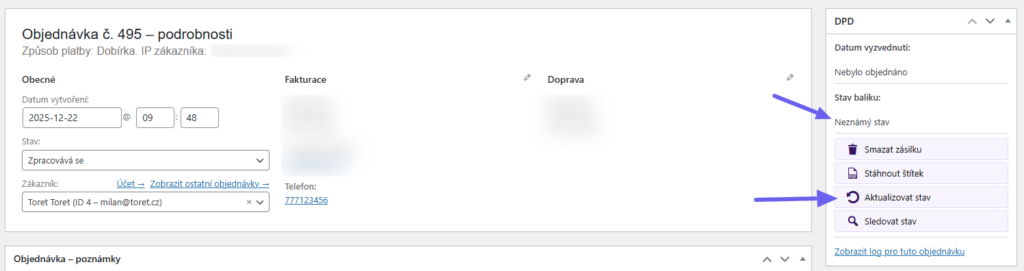
Loading shipment status from DPD and displaying it in administration
Shipment status can be loaded manually by clicking the circular arrow icon in the order overview or detail, or set up automatic status loading (see below). You will then see the shipment status in the Stav DPD (DPD Status) column or in the metabox in the order detail.

Automatic Shipment Status Loading
The plugin includes an automatic shipment status loading function via cron. You can find the URL for cron on the “Sledování” (Tracking) tab (Toret Plugins > DPD > Sledování) and set up the cron on your hosting.
In the plugin, you can then set the number of checked orders per cron run, the number of days for retrospective checks, and exclude order statuses that will not be checked.
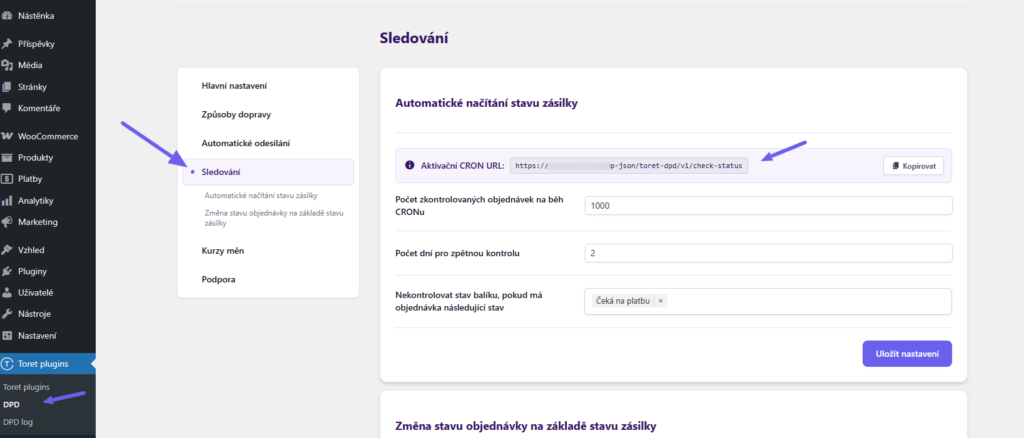
After setting up cron, you will see the current shipment status in transit directly in the WooCommerce administration – in the order overview in the Stav DPD column or in the order detail in the DPD metabox.
Tracking Email for Customers
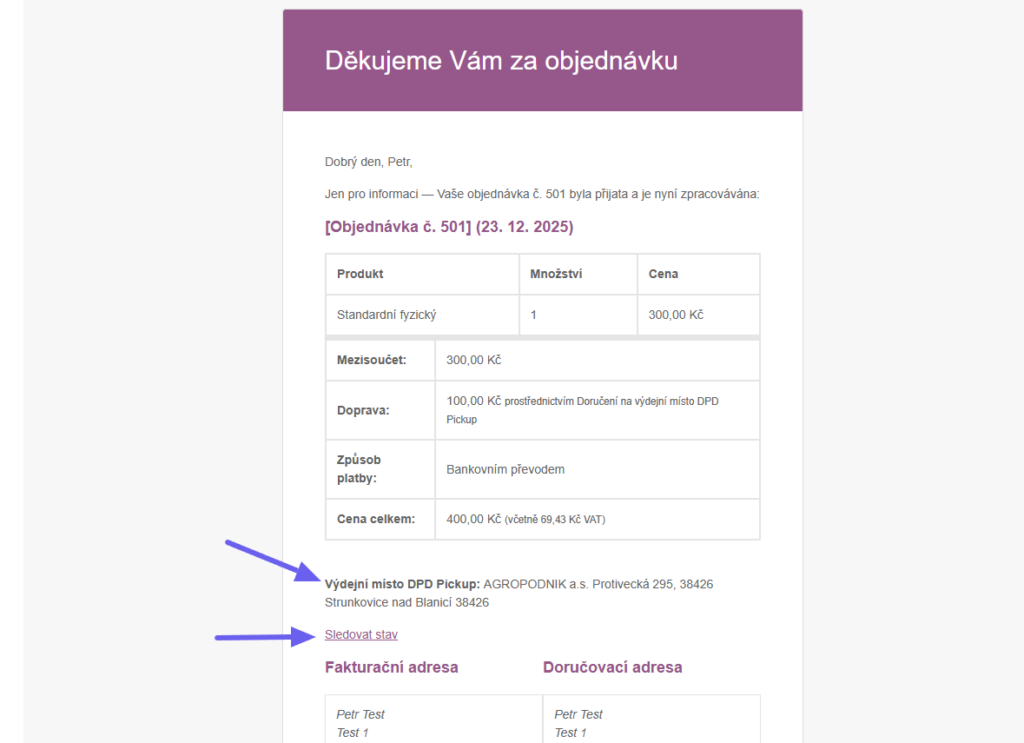
Shipment tracking links are automatically added to WooCommerce emails for customers. The link is added only for already submitted shipments. I.e., if you submit a package in the Processing status, the link will appear in the email for the Processing shipment status. Not in earlier emails.
Information about the selected delivery branch is also automatically displayed in WooCommerce order emails, even for shipments not yet submitted.
Order Status Change Based on Shipment Status in Transit
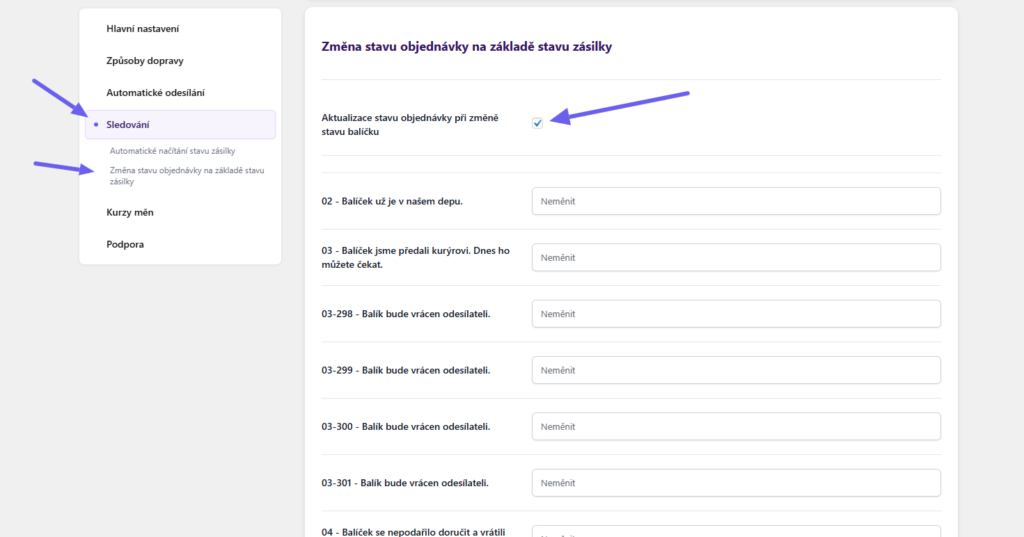
On the Sledování (Tracking) tab, you can further set the order status change according to the shipment status at the carrier. Activate the function and simply assign WooCommerce order statuses for given DPD statuses. Save the changes made.
E.g. Upon successful DPD shipment delivery, the order status changes to Completed.
Free Shipping
You can set free shipping directly in the DPD plugin for each shipping method for individual countries (Toret plugins > DPD > Způsoby dopravy (Shipping Methods) > Country (e.g. Czech Republic) > Shipping Method (e.g. DPD Private) > Ceny (Prices)) – see Price and Free Shipping Settings
The free shipping amount setting applies only to products; the shipping price is not included.
EXAMPLE: If you have free shipping set from 500, and the cart contains a product for 450 + shipping price 65 = 515 CZK, free shipping will not be activated. It is necessary to exceed the set price with the product, i.e., to activate free shipping set this way, you need to put product(s) worth at least 500 CZK into the cart.
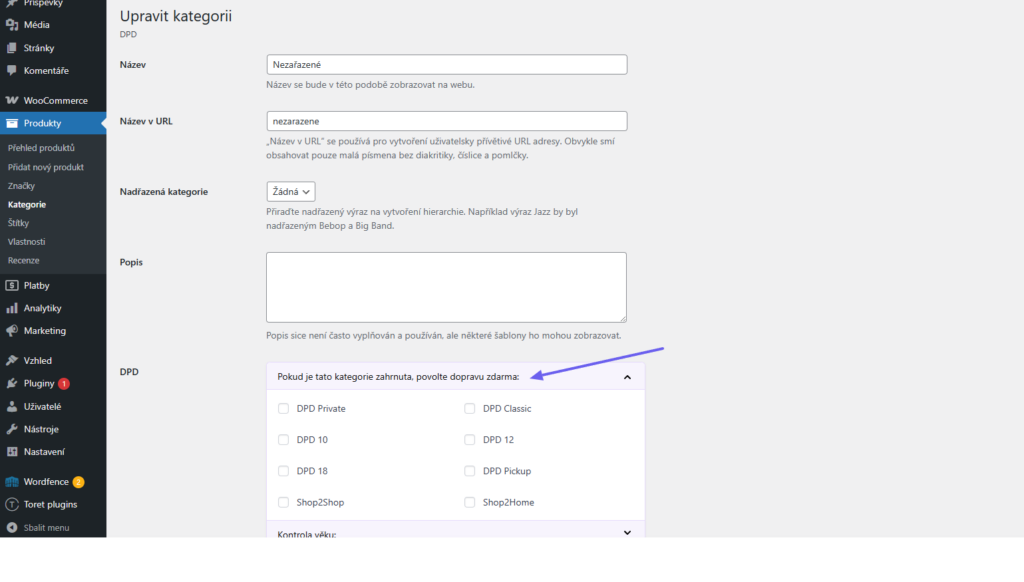
Free shipping can also be set individually for a product, variation, or category. The setting can be configured in the product, variation, or category detail.
Age Verification
The plugin allows you to enable age verification. The feature can be activated in the product, variation, or category detail.
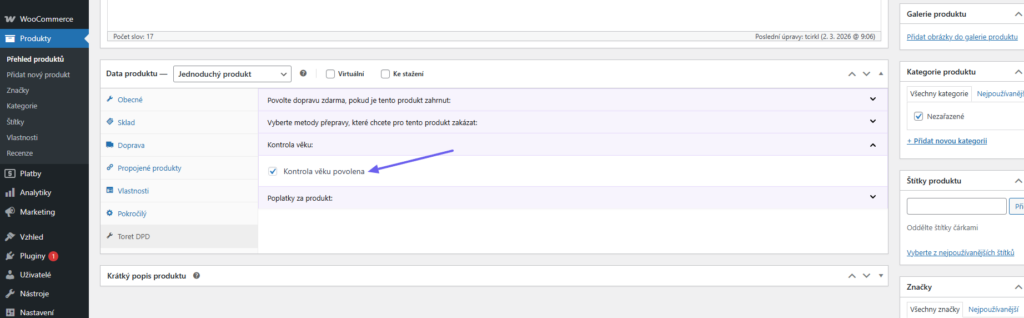
A required field for entering the ID card number will be added to the checkout.

When the shipment is handed over, the ID card number will be verified by the carrier.
Plugin testing
For testing purposes, you can use:
- the subdomain “dev.domainlicense” (with the same license as for the production website)
- localhost (127.0.0.1)
Purchased plugins will also work in these locations, and you can test their implementation and compatibility here before deploying them to the website and during its use.