
You are on the documentation page for the Glami Pixel plugin for WooCommerce, which implements the Glami Pixel code into the WooCommerce e-shop. You can purchase the Glami Pixel plugin here: Toret Glami Pixel for WooCommerce
Plugin Installation
Upon purchasing the plugin, you will receive a license key and a download link for the plugin zip file via email. You can find detailed instructions on how to install the plugin from your computer into WordPress here.
Plugin Activation
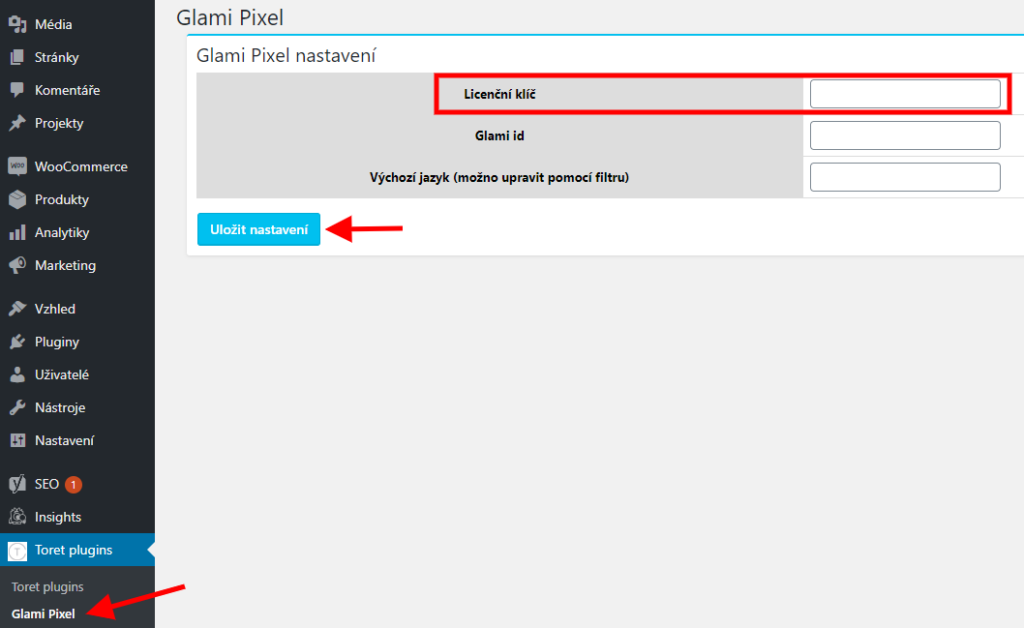
After installing the plugin, open the Glami Pixel plugin, insert the license key into the appropriate field, and verify the license.
Plugin Settings
You can access the plugin settings in the WordPress administration via the section Toret plugins > Glami Pixel.
After installation and activation of the plugin, you must perform basic settings – insert the Glami ID (API key) and define the default language.
You can obtain the API key (Glami ID) in the administration at glami.cz – section GLAMI PiXel, at the bottom of the page click on “GLAMI PiXel implementace pro vývojáře” (GLAMI PiXel implementation for developers) and here you will find the API key. You can enter Glami IDs for different countries into the plugin.
Another option is to contact GLAMI support, which will send you the API key based on your e-shop name.

Plugin testing
For testing purposes, you can use:
- the subdomain “dev.domainlicense” (with the same license as for the production website)
- localhost (127.0.0.1)
Purchased plugins will also work in these locations, and you can test their implementation and compatibility here before deploying them to the website and during its use.