
You are on the documentation page for the GoPay Inline plugin, which integrates the GoPay payment gateway. You can purchase the GoPay Inline plugin here: Toret GoPay Inline for WooCommerce
- Plugin Installation
- Plugin Activation
- Video Tutorial
- Access Credentials Settings
- Tax Rates Settings
- Activation of Payment Methods
- Separate Payment Methods Settings
- Settings for the grouped GoPay payment method
- Testing Payments
- Recurring Payments (Subscriptions)
- Refunds
- Compatibility with WPML
- Restricting Payment Methods Using a Filter
- Default Payment Gateway Language
- Additional Settings for Payment Failure
- Filters
- Payment Gateway Language
- Filter for Changing Order Number in GoPay
- Filter for Payment Gateway Language
- Changing Gateway Language Using a Filter
- Changing Client Credentials Using a Filter
- Changing Order Status for Paid Transaction
- Changing Order Status for Canceled or Invalid Payment
- Filter for Adding Description to Individual Payment Method
- Filters for Data Sent to GoPay
- FAQ
- Debugging Errors
- Unfortunately your order cannot be processed because your bank/merchant declined the transaction. Try to make the payment later, or select another payment method.
- How to get GOID and secure key
- What is test operation
- Error: IOException: Read timed out – Trouble delivering HTTP payment status change notifications
- Where is the GoPay payment settings
- Where to insert the license key
- What does payment method selection mean
- GoPay Payment Error: Scope is empty, contact plugin support
- After clicking order, the payment window does not open, but the thank you page appears immediately
- Payment methods selection is not displayed
- SCOPE is empty
- Duplicate invoices and double deduction from stock
- Logos and checkboxes of payment methods are not displayed in checkout
- Adjusting logo display in block checkout
- Plugin testing
Plugin Installation
Upon purchasing the plugin, you will receive a license key and a download link for the plugin zip file via email. You can find detailed instructions on how to install the plugin from your computer into WordPress here.
Plugin Activation
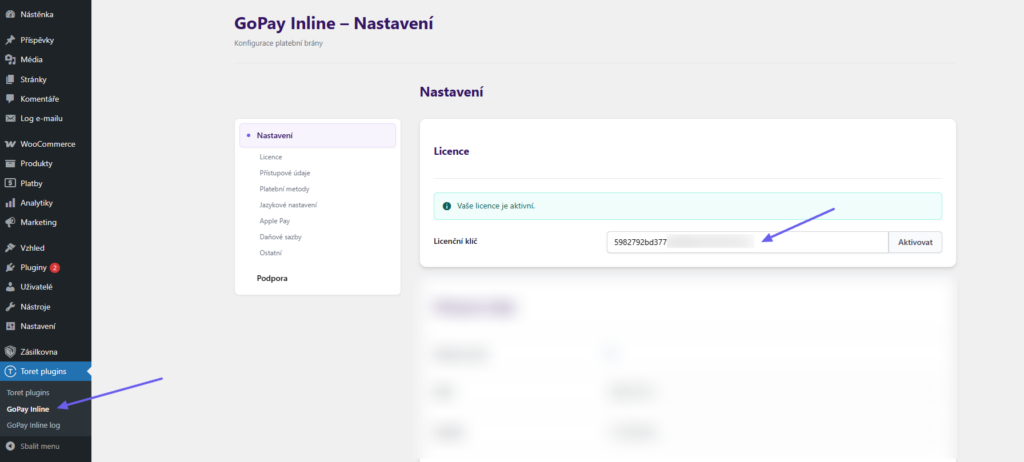
After installing the plugin, open the GoPay Inline plugin, insert the license key into the appropriate field, and click the button to activate.
Video Tutorial
Access Credentials Settings
In the GoPay plugin settings (Toret plugins > GoPay Inline), you need to enter the following details obtained from GoPay:
- GoID – e-shop ID received from GoPay
- ClientID – your assigned client number
- Client secret – code for connecting to GoPay API
!Attention: Before launching live operation, the payment gateway needs to be tested. Therefore, you will first receive test credentials from GoPay. Only after successful testing will you receive production credentials to replace them.
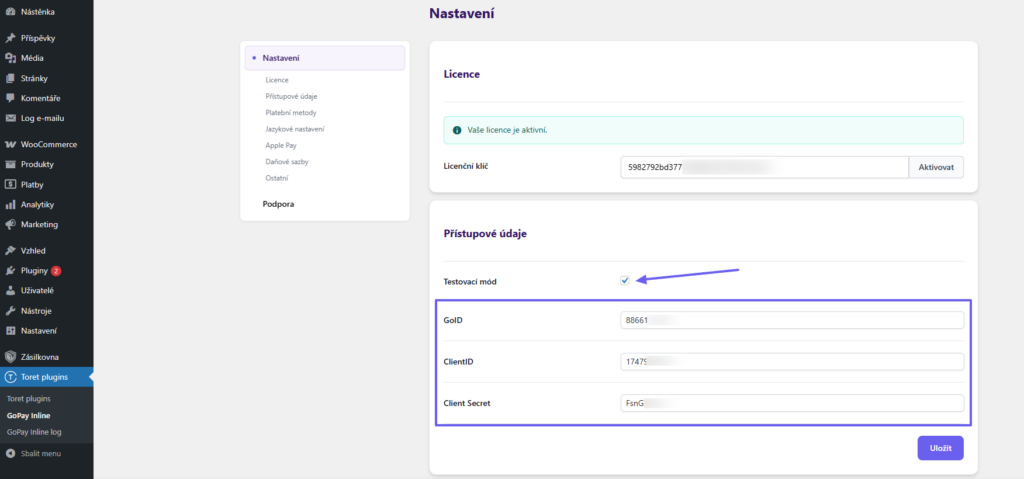
Test mode (Test mód) – setting determines whether you are performing test payments or setting up live operation. Enable it if you are entering test credentials.
When communicating with GoPay, you will be asked for a notification URL. You need to inform them that the GoPay Inline plugin uses Rest API technology, which means it generates and sends this notification URL itself.
Tax Rates Settings
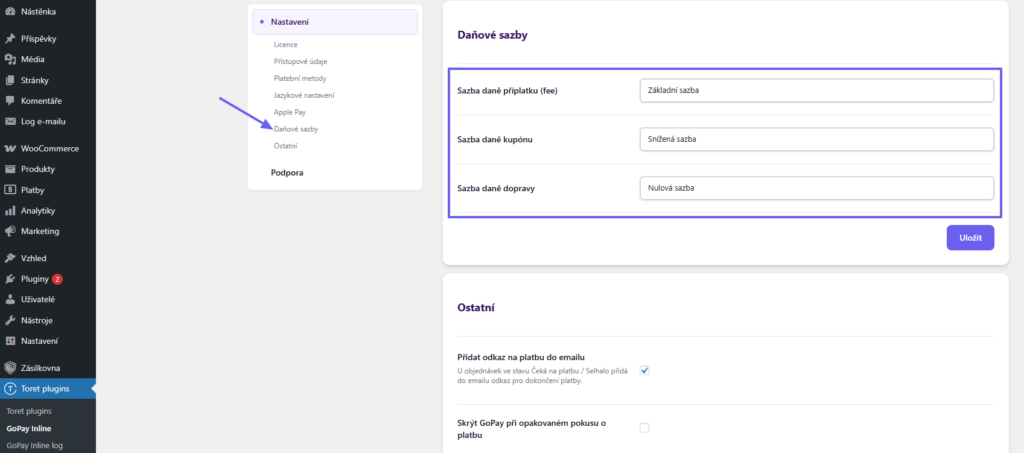
Set tax rates for surcharges, shipping, and coupons in the plugin settings (Toret plugins > GoPay Inline).
Activation of Payment Methods
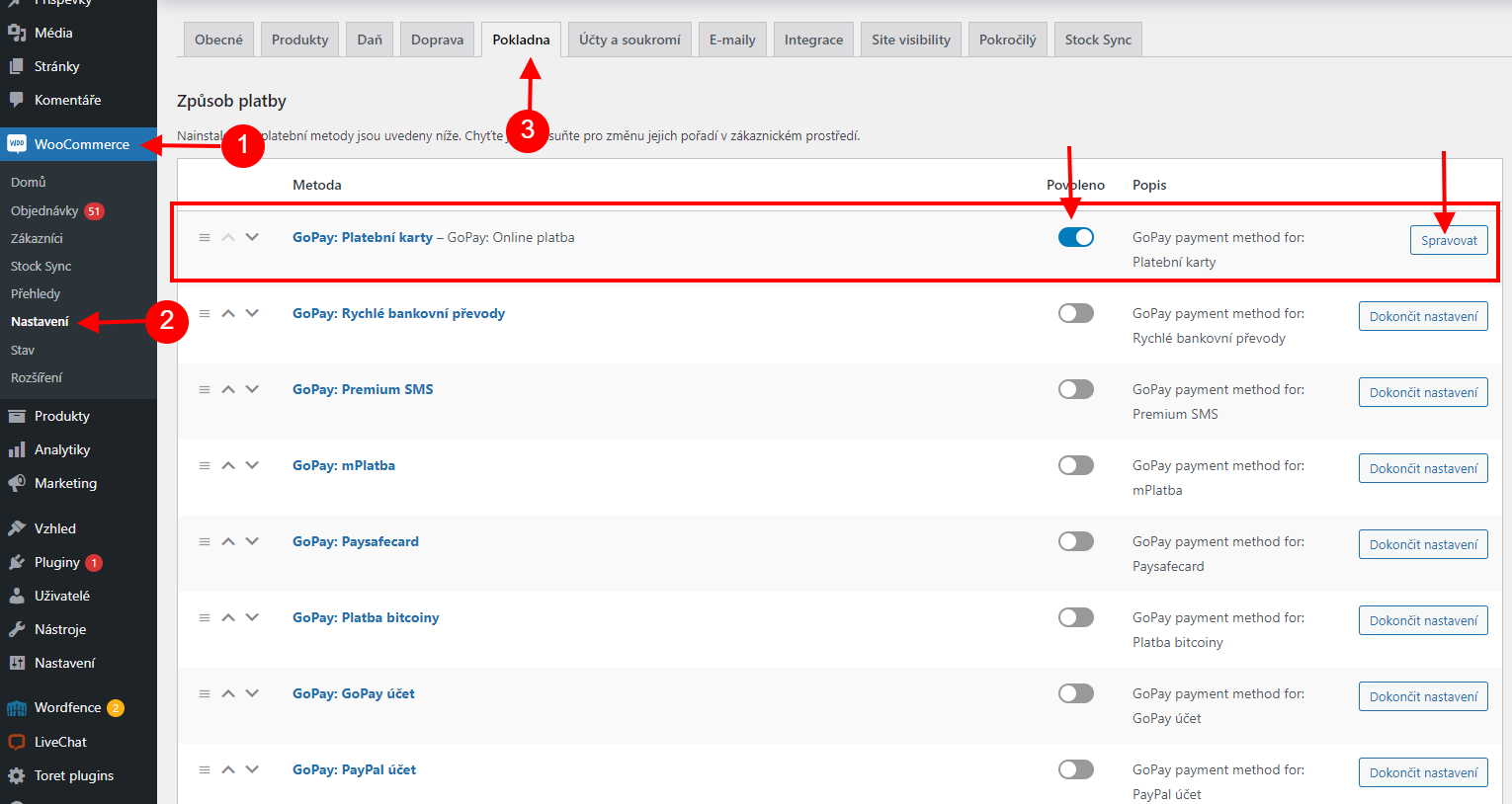
After license activation, you need to activate GoPay Inline payment methods. Do this in WooCommerce > Settings > Payments. Select and enable the payment methods you want to use from the list here.
Settings for the WooCommerce shortcode checkout
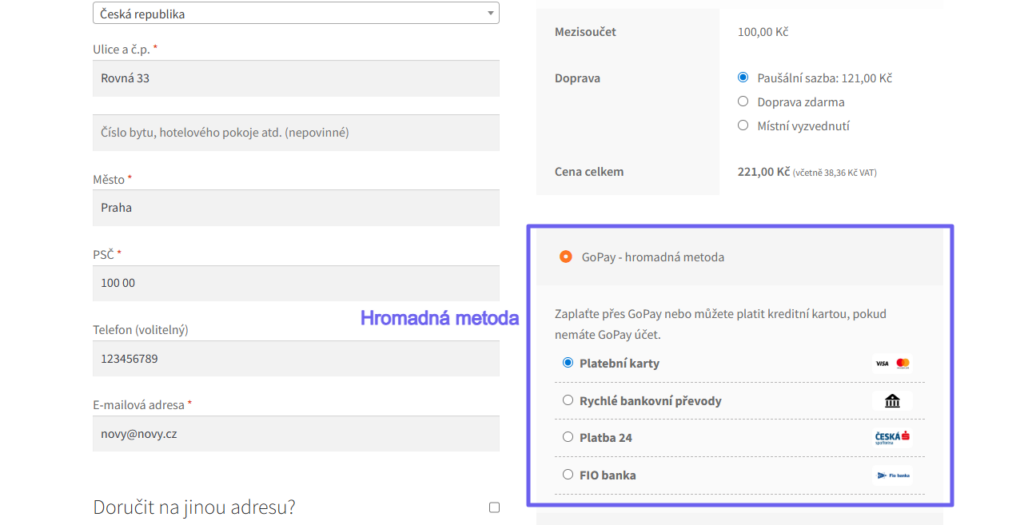
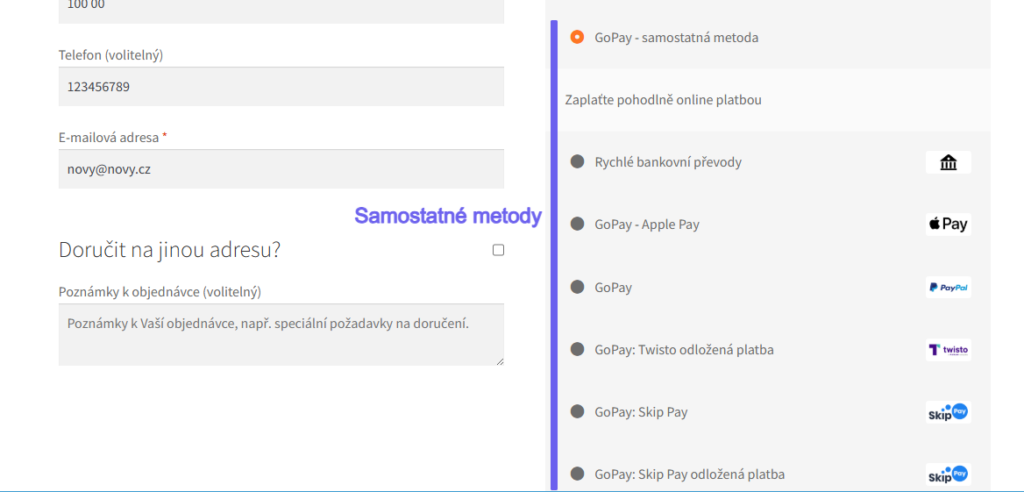
For the shortcode checkout, you can use the grouped GoPay method (Hromadná metoda) or set up individual payment methods (oddělené metody).
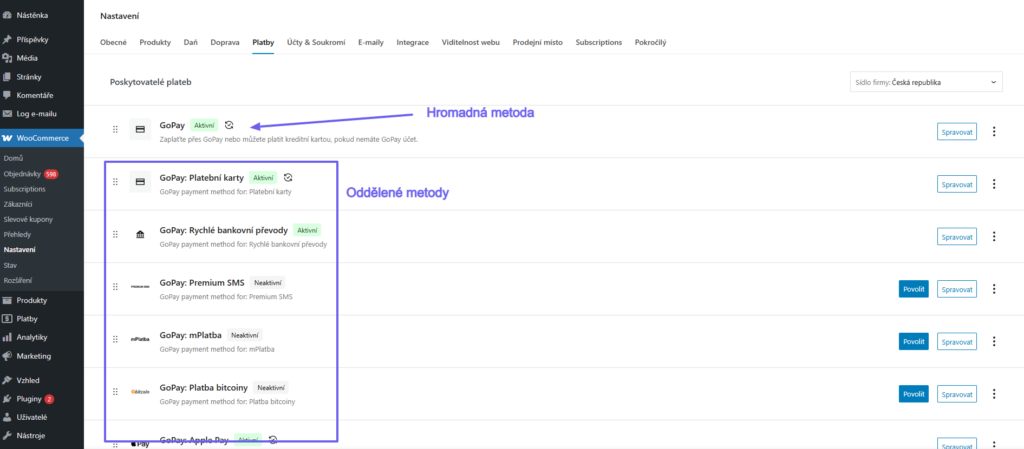
Using the “GoPay” method (grouped method; hromadá metoda), you can configure all payment options that will appear in the checkout grouped under a single payment method.
Alternatively, you can use separate payment methods (samostatné metody) — e.g. GoPay: Mobile Payments, GoPay: Credit Cards, etc.
Once you enable the method with the toggle, this payment will be available. Click on Spravovat (Manage) and continue with the payment method settings.
TIP: If you want your customers to choose the payment method only within the payment gateway interface, use the method GoPay: Výběr v platební bráně (Selection in payment gateway).
Settings for the block checkout
In the block checkout, it is necessary to:
- Have the “GoPay” (grouped; hromadná metoda) method enabled — here it serves only as a card payment method (without sub-options). If it is not active, the other methods will not work.
- Other payment methods should be configured using separate methods (samostatné metody).
Attention! It is always necessary to have the “GoPay (hromadná metoda)” (GoPay (grouped method)) payment method active. Without its activation, no other GoPay payment methods (e.g., GoPay: mPlatba) will work.
Separate Payment Methods Settings
After clicking on a payment method, you can set:
- title and description of the method displayed in the checkout
- shipping methods for which this payment method will be available
- countries for which this payment method will be available
- payment method icon displayed in the checkout
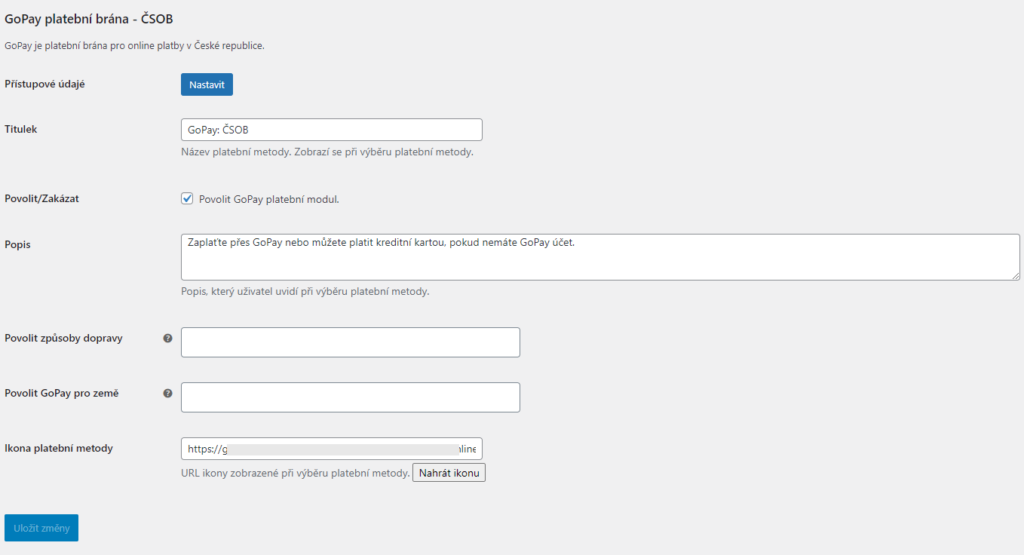
Do not forget to save the changes made.
Enabling Shipping and Countries
For the correct functioning of the payment process, it is often necessary to restrict the payment gateway only to certain countries or shipping methods.
E.g., for personal pickup, you might want to disable card payment.
In the payment method settings, you will find fields for shipping methods and countries to which the restriction will apply. If you leave the field empty, the method will be active for all countries / shipping methods enabled in the e-shop.


Apple Pay
If you want to offer the Apple Pay payment method in the checkout, it must first be activated in your GoPay account at gopay.cz
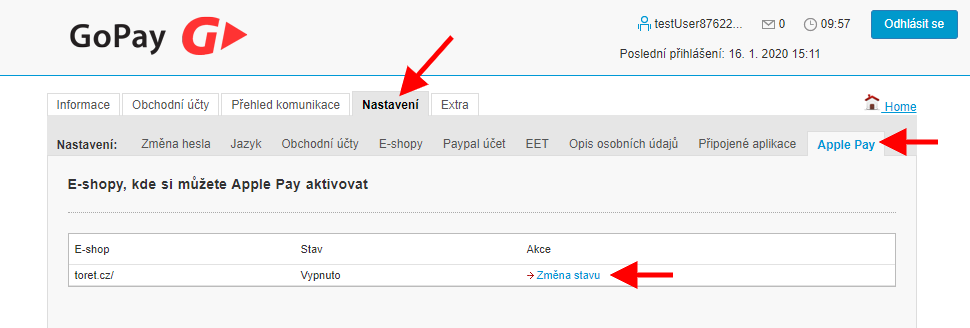
After activation in the account, you can activate the payment method GoPay: Apple Pay in the WooCommerce checkout settings (see above). Now the Apple Pay payment method will appear in your checkout.
!Attention: Apple Pay payments cannot be successfully completed in test mode because it does not allow the use of test payment cards. All payments will therefore appear rejected by the bank.
TIP: The plugin includes an Apple Pay availability check. This means that this payment method can be displayed only to users of Apple devices (it will remain hidden for others in the checkout). This check can be disabled in the plugin settings to display the method to everyone regardless (Toret plugins > GoPay Inline > Apple pay)

Settings for the grouped GoPay payment method
This is the configuration of a payment method where all GoPay payment options are combined into a single WooCommerce payment method — the “GoPay” payment method.
Attention! Payment methods configured in this method do not display when using the block editor in the checkout (Gutenberg checkout), but even so, when using the block checkout, it is necessary to have this method active. To display individual methods in Gutenberg checkout, use separate GoPay payment methods.
You perform this setting via the payment method GoPay (WooCommerce >Settings > Payments > GoPay). Here you can set:
- title and description of the method displayed in the checkout
- shipping methods for which this payment method will be available
- countries for which this payment method will be available
- payment method icon
- enabled payment methods and bank transfers
- selection, pre-selection, and sorting of methods in the checkout
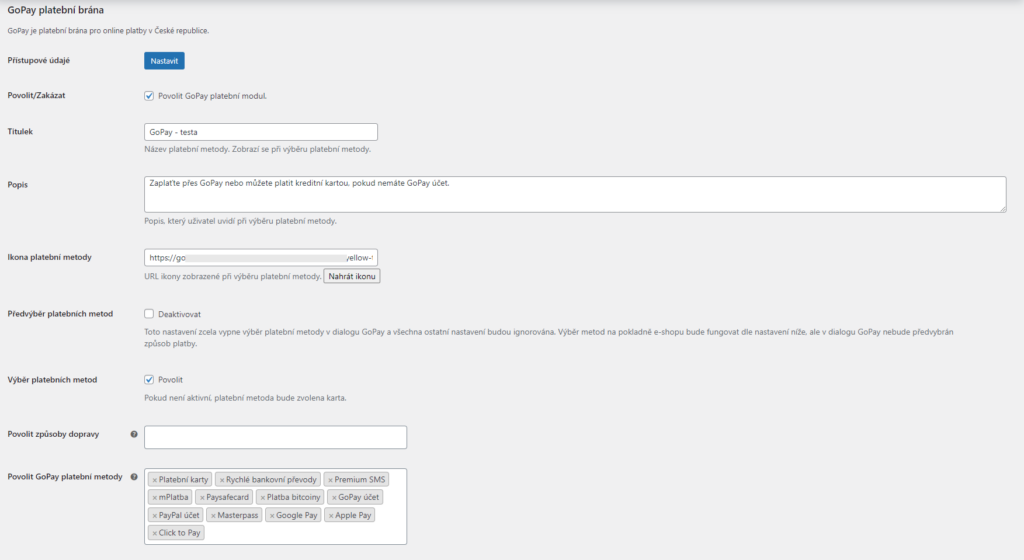
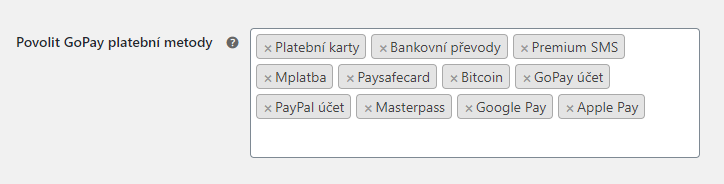
The field Povolit GoPay platební metody (Enable GoPay payment methods) is used to select methods that will be displayed in the checkout. Clicking in the field displays available payment methods, from which you select the required ones. If you leave the field empty, the method will be active for all countries / shipping methods enabled in the e-shop.
Do not forget to save the changes at the bottom of the page.
Testing Payments
You can find all data and the payment procedure for testing the payment gateway in the test integration list, which you received from GoPay after your registration was approved.
To test the plugin functionality, use these test cards:
| Card type | Card number | Card issuer country code |
|---|---|---|
| MasterCard | 5447380000000006 | CZE |
| VISA | 4444444444444448 | POL |
As the CVV/CVC code, you can enter any 3 digits, e.g., 123, and as the expiration date you can enter any date as long as it is in the future, e.g., 03/28.
The authorization result depends on the amount used.
| Amount ends with | Example | Result |
|---|---|---|
| *00 | 10,00 CZK | Authorization successful – payment completed |
| *04 | 15,04 EUR | Authorization unsuccessful – payment declined |
A condition for testing is enabled test mode in the plugin.
Once you have completed the testing, write an email to [email protected]. GoPay staff will subsequently check if you have managed to correctly integrate the GoPay payment gateway on your e-shop. If everything is in order, you will receive production data for the live operation of the payment gateway. Enter these data instead of the test ones and disable test mode. You can now accept payments through this payment gateway.
Recurring Payments (Subscriptions)
The GoPay Inline plugin can be used in combination with the WooCommerce Subscription plugin for recurring payments (subscriptions). To use recurring payments, you need to contact GoPay Inline support and request permission for recurring payments on demand.
Refunds
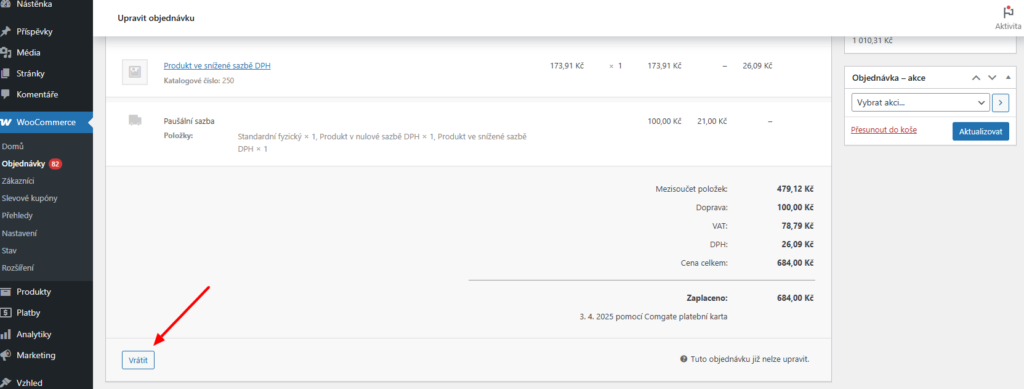
The plugin allows direct refunds via the payment gateway. You can find this function in the order detail > Refund button > Refund x CZK via GoPay Inline
Compatibility with WPML
WPML is one of the most used plugins for creating multilingual WordPress sites.
The payment gateway plugin is fully translatable using MO files, which programs like PoEdit and the Loco Translate plugin can work with.
The plugin contains detection of the selected language and sets the payment gateway dialog language accordingly.
The following languages are accepted:
- English
- German
- Russian
- Polish
- Slovak
- Czech
For any other language, Czech is automatically set.
Restricting Payment Methods Using a Filter
The selection of payment methods offered by GoPay is enabled by a select with icons for each payment method.
Since GoPay has a setting that allows selecting for which countries the offer will be displayed, you can enable selection for e.g. the Czech Republic, but not for Slovakia.
This can be problematic if you need to disable certain payment methods for some cases.
Therefore, the plugin contains the filter gopay_checkout_enabled_methods, which allows modifying the array of payment methods for GoPay.
They are:
- PAYMENT_CARD
- BANK_ACCOUNT
- PRSMS
- MPAYMENT
- PAYSAFECARD
- SUPERCASH
- GOPAY
- PAYPAL
- BITCOIN
The following function placed in the functions.php file will display only PayPal and payment card for English and German (when using WPML):
add_filter( 'gopay_checkout_enabled_methods', 'custom_en_payments' );
function custom_en_payments( $payment_methods ){

    if( ICL_LANGUAGE_CODE == 'en' || ICL_LANGUAGE_CODE == 'de' ){

        $new_array = array();

        foreach( $payment_methods as $key => $item ){
             if( $key == 'PAYMENT_CARD' ){
                  $new_array[$key] = $item;
             }
             elseif( $key == 'PAYPAL' ){
                  $new_array[$key] = $item;
             }

         }

         if( !empty( $new_array ) ){
              return $new_array;
         }


     }
     return $payment_methods;

}
Default Payment Gateway Language
The GoPay payment gateway supports several languages. Based on the billing country the customer enters in the checkout, the plugin determines in which language the gateway will be displayed.
E.g., when entering a Slovak billing address, the interface will be in Slovak.
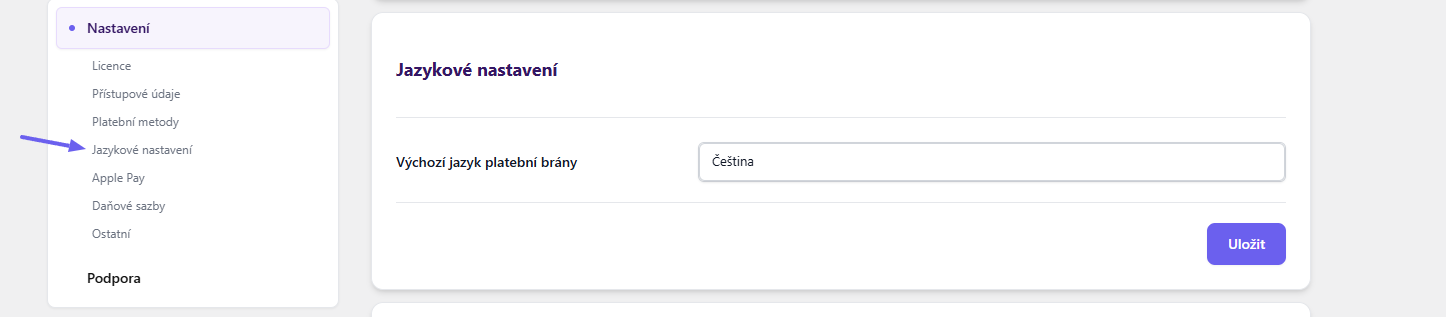
However, it is possible that the customer will be from a country other than defined in the plugin (GB, DE, PL, SK and CZ). Therefore, it is possible to select a default language for all other countries in the plugin settings Toret plugins > GoPay Inline.
For advanced settings, the plugin also contains a filter that allows manipulating the gateway language:
return apply_filters( ‚gopay_inline_default_lang‘, $lang, $order );Additional Settings for Payment Failure
The following settings apply in case payment does not occur in the payment gateway immediately after sending the order.
Adding Payment Link to Email
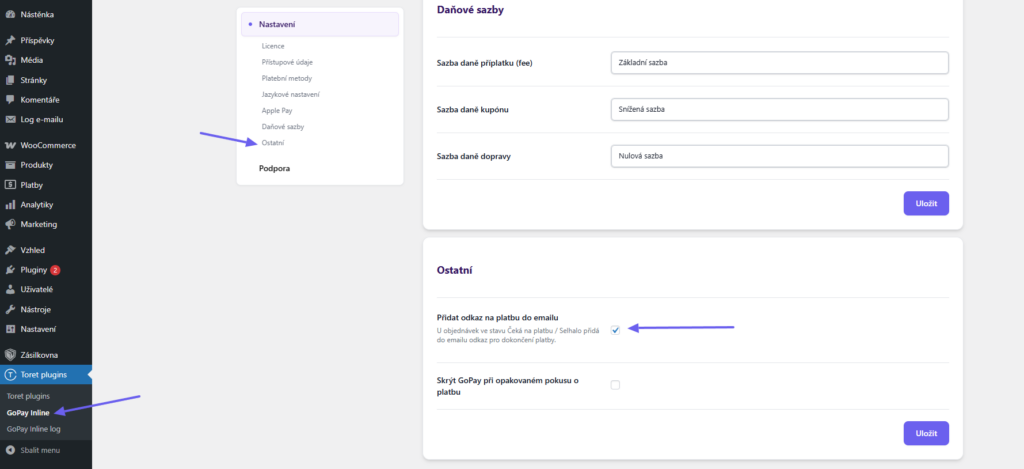
A link to pay via this payment gateway can be added to automatic emails sent in the Pending payment (Čeká na platbu) and Failed (Selhalo) order status. Enable the function in the plugin settings (Toret plugins > GoPay Inline > Obecné nastavení (General Settings)). Do not forget to save the changes made.
Hiding Payment Method on Repeated Payment Attempt
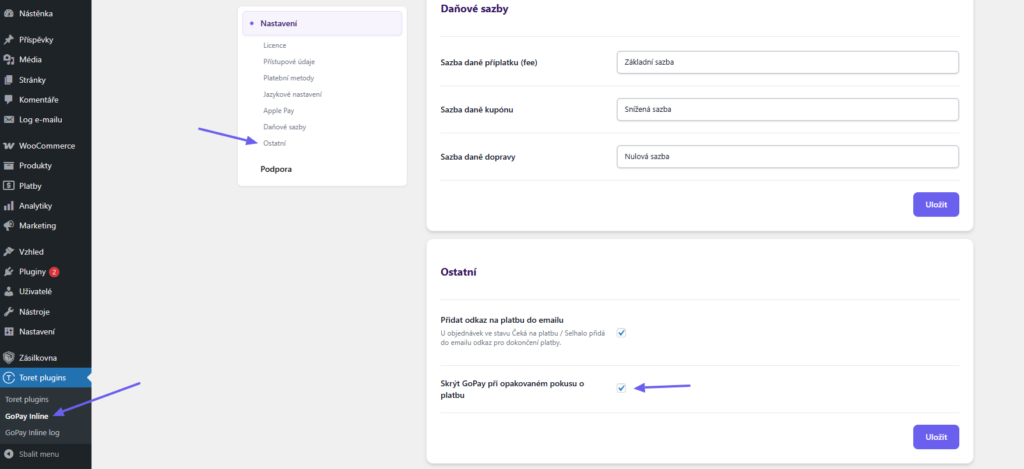
When repeating a payment attempt, this payment method can be hidden to guide the customer to another payment method. Enable the function in the plugin settings (Toret plugins > GoPay Inline > Obecné nastavení (General Settings)). Do not forget to save the changes made.
Filters
Payment Gateway Language
The payment gateway dialog can be invoked in different languages. GoPay thus allows using the payment gateway for foreign customers as well.
Unfortunately, WordPress does not have a built-in mechanism for changing the site language. Therefore, various additional plugins are used for this.
Although they allow having a multilingual site and mostly work with WooCommerce, since there are several of them, it is not always possible to determine in which language the e-shop is switched at the moment the order is made.
With most plugins, it is possible to determine the current language and adjust the language of the invoked GoPay dialog accordingly. For this case, a filter named gopay_inline_default_lang is prepared in the plugin. It accepts arguments $default_lang and $order.
The default payment gateway language is determined as follows:
- The plugin settings are checked, and if no default language is set, it is marked as CS.
- Subsequently, the customer’s country is checked, and for GB, PL, SK, DE, and RU, the corresponding language is set. If the country is different, the default language set in the first step is used.
- In the last step, the set language is returned via the aforementioned filter gopay_inline_default_lang
Function code for determining language:
function gopay_inline_get_lang( $order, $order_meta ){

$country = $order_meta[‚_billing_country‘][0];
$option = get_option( ‚woo_gopay_inline‘ );
if( !empty( $option[‚default-lang‘]) && $option[‚default-lang‘] != ‚-‚ ){
$default_lang = $option[‚default-lang‘];
}else{
$default_lang = ‚CS‘;
}

if( $country == ‚CZ‘ ){ $lang = ‚CS‘; }
elseif( $country == ‚GB‘ ){ $lang = ‚EN‘; }
elseif( $country == ‚SK‘ ){ $lang = ‚SK‘; }
elseif( $country == ‚DE‘ ){ $lang = ‚DE‘; }
elseif( $country == ‚RU‘ ){ $lang = ‚RU‘; }
elseif( $country == ‚PL‘ ){ $lang = ‚PL‘; }
else{
//Get default language
$lang = $default_lang;
}

return apply_filters( ‚gopay_inline_default_lang‘, $lang, $order );
}
Influencing Language Using Custom Function
You can influence the payment gateway language precisely using the filter in the last step.
Insert the function into the plugin or into functions.php of the active theme:
// Custom filter from payment Gateway developers
add_filter( 'gopay_inline_default_lang', 'gopay_create_payment_lang' );
function gopay_create_payment_lang(){
return 'EN';
}
// End of custom filter from payment Gateway developers
Now your payment gateway will always be in English. In case you want to display the dialog according to the selected language, you must modify the function code to reflect the current language. Which is, however, already a matter of the plugin used.
Filter for Changing Order Number in GoPay
In case you need to manipulate the order number sent to the GoPay system, you can use the filter “gopay_inline_invoice_number”
$gopay_invoice = apply_filters( ‚gopay_inline_invoice_number‘, $order_id );Filter for Payment Gateway Language
apply_filters( ‚gopay_inline_default_lang‘, $lang, $order );Changing Gateway Language Using a Filter
Although we try to make using the plugin as easy as possible, it is not possible to be prepared for all options WordPress offers.
Therefore, the plugin contains a filter through which it is possible to change the payment gateway language setting.
Using the following function, which you can insert into functions.php, you can change the gateway language. The example is for WPML.
add_filter( 'gopay_create_payment_lang', 'my_custom_gopay_function' );
function my_custom_gopay_function( $lang ){
    //Get current language
    $current_lang = ICL_LANGUAGE_CODE;
    if( $current_lang == 'en' ){
        return 'EN';
    }else{
        return 'CS';
    }
}
This function sets the payment gateway dialog to English for selected English. For other languages, the gateway will be in Czech.
Changing Client Credentials Using a Filter
Client credentials mean GoID, ClientID, and Client secret.
These data are used to establish a connection with GoPay. Using filters, you can influence their calling and change them. It is thus possible to have several accounts on GoPay and switch these accounts according to predefined conditions.
We will show you how to change data depending on which shipping method was used in the order.
The definition of filters itself looks like this:
$client_id = apply_filters( ‚gopay_inline_client_id‘, $client_id, $order_id );
$client_secret = apply_filters( ‚gopay_inline_client_secret‘, $client_secret, $order_id );
$goid = apply_filters( ‚gopay_inline_goid‘, $goid, $order_id );
Each filter, in addition to the value, also contains the order id. Using the order id, you can then obtain the order object and solve various cases and conditions.
The example is written to detect the shipping method id, however, if you use the same shipping method multiple times, you must also find out its instance, using $shipping->get_instance_id();
<?php

add_filter( 'gopay_inline_client_id', 'toret_change_client_id', 10, 2 );
function toret_change_client_id( $client_id, $order_id ){

    $order = wc_get_order( $order_id );
    $shipping = $order->get_items( 'shipping' );
    $shipping = array_shift( $shipping );

    if( $shipping->get_method_id() == 'flat_rate' ){
      return 'my_custom_client_id';
    }

    return $client_id;

}

add_filter( 'gopay_inline_client_secret', 'toret_change_client_secret', 10, 2 );
function toret_change_client_secret( $client_secret, $order_id ){

    $order = wc_get_order( $order_id );
    $shipping = $order->get_items( 'shipping' );
    $shipping = array_shift( $shipping );

    if( $shipping->get_method_id() == 'flat_rate' ){
      return 'my_custom_client_secret';
    }

    return $client_secret;

}

add_filter( 'gopay_inline_goid', 'toret_change_goid', 10, 2 );
function toret_change_goid( $goid, $order_id ){

    $order = wc_get_order( $order_id );
    $shipping = $order->get_items( 'shipping' );
    $shipping = array_shift( $shipping );

    if( $shipping->get_method_id() == 'flat_rate' ){
      return 'my_custom_goid';
    }

    return $goid;

}
Changing Order Status for Paid Transaction
Upon paying the transaction, the plugin sets the order to completed or processing status. This depends on whether it is a virtual downloadable product (completed) or not (processing).
Since this is not always desirable, the plugin contains filters that can influence this. The filter definition looks like this:
$set_status = apply_filters( „gopay_notify_virtual_product_status“, $status, $order );
$set_status = apply_filters( „gopay_notify_normal_product_status“, $status, $order );
Each filter, in addition to the value, also contains the order object. Using the order, you can then solve various cases and conditions.
Example filter for physical products:
add_filter("gopay_notify_normal_product_status", "toret_gopay_custom_paid_status", 10, 2 );

if ( !function_exists( "toret_gopay_custom_paid_status") ) {

function toret_gopay_custom_paid_status( $status, $order ) {

return "completed";

}

}
Example filter for virtual products:
add_filter("gopay_notify_virtual_product_status", "toret_gopay_custom_paid_status", 10, 2 );

if ( !function_exists( "toret_gopay_custom_paid_status") ) {

function toret_gopay_custom_paid_status( $status, $order ) {

return "processing";

}

}
Insert the filter into the child theme, function PHP, or into a custom plugin e.g. Toret Boilerplate.
Changing Order Status for Canceled or Invalid Payment
In case you do not want to use the default Cancelled status for a cancelled or invalid payment, you can modify the status to a custom one using a filter.
add_filter( 'gopay_notify_payment_canceled', 'toret_gopay_set_completed', 10, 2 );

function toret_gopay_set_completed( $status, $order ){
return ‚completed‘;
}
Replace “completed” with any other order status.
Filter for Adding Description to Individual Payment Method
In case you want to add a description to individual payment methods from the GoPay plugin, it is possible to add it using a filter.
Filter example:
add_filter('toret_gopay_select_description', 'toret_custom_description', 10, 3);

if( !function_exists( 'toret_custom_description' ) ){

function toret_custom_description( $text, $BankId, $ItemName ){

if( $BankId == 'PAYMENT_CARD' ){

$text = 'Card Description';

}

if( $ItemName == 'Platba 24' ){

$text = 'Platba 24 Description';

}

return $text;

}

}
In the example, a description is added for the Payment Card and Platba 24 payment method. If you want to add a description for other payment methods, it is necessary to define them in the filter. The description needs to be styled.
Filters for Data Sent to GoPay
- gopay_inline_order_number
- gopay_inline_order_descrition.
Plugin testing
For testing purposes, you can use:
- the subdomain “dev.domainlicense” (with the same license as for the production website)
- localhost (127.0.0.1)
Purchased plugins will also work in these locations, and you can test their implementation and compatibility here before deploying them to the website and during its use.
FAQ
Debugging Errors
Since things can always go wrong, the plugin has a built-in way of catching errors.
In the order detail where the error occurred, you will find the GoPay Inline Log, in the upper right corner, which applies only to the specific opened order.
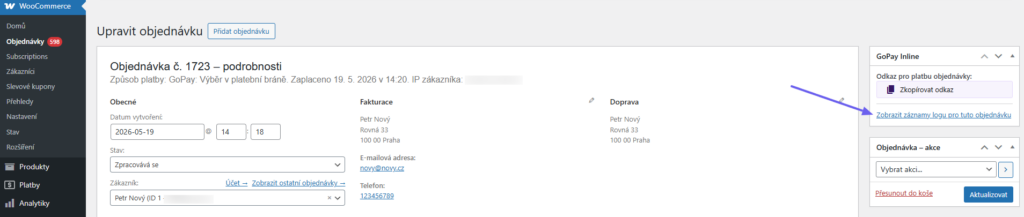
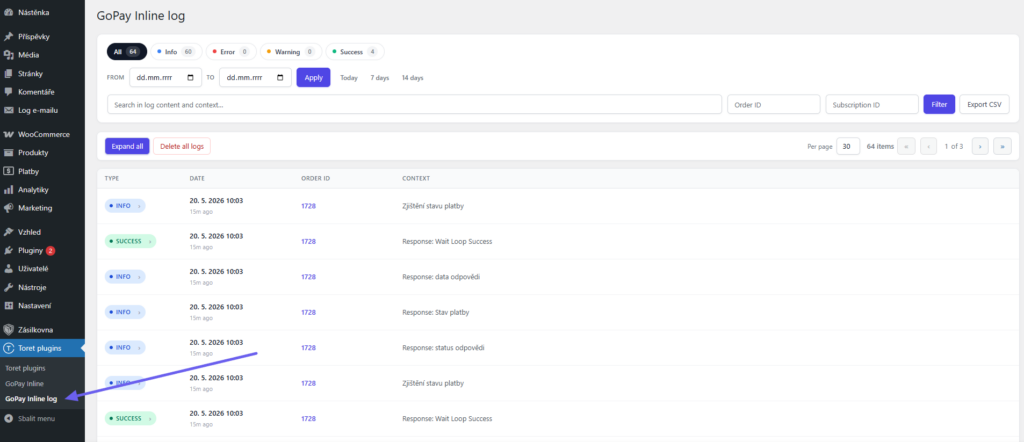
In the Toret plugins overview, you will find the GoPay Inline log, which contains all orders at once.
Unfortunately your order cannot be processed because your bank/merchant declined the transaction. Try to make the payment later, or select another payment method.
This message means that your account has not yet been approved by GoPay for card payment. Contact GoPay support.
How to get GOID and secure key
To use the GoPay payment gateway, you must have a signed contract with the provider. Subsequently, you will receive GoID and Secure Key via email, which you enter into the corresponding GoPay payment settings fields.
What is test operation
After activating the payment gateway, you receive access to the test server from GoPay. Before you are allowed to pay using GoPay, it is necessary to verify the correctness of the implementation. The test environment is used for this.
Error: IOException: Read timed out – Trouble delivering HTTP payment status change notifications
The notification URL is the address where GoPay will send you payment status changes. The plugin sets the URL itself; in case of necessity, just tell GoPay support that you use a plugin that uses Rest API and the notification URL does not need to be entered.
Where is the GoPay payment settings
You can find the payment gateway settings in the WordPress administration -> WooCommerce E-shop -> Settings -> Payments -> GoPay. Here you must correctly fill in the form with payment gateway data.
Where to insert the license key
Insert the license key you received when purchasing the plugin into the form in WordPress administration -> Settings -> WooCommerce GoPay. After its verification, the payment method will be accessible in the e-shop settings.
What does payment method selection mean
GoPay allows paying in more ways than just by card. To enable selection of other options, you define all methods you want to allow in the administration. For example, when you do not use SuperCash, you do not add it in the plugin settings.
GoPay Payment Error: Scope is empty, contact plugin support
The error GoPay payment: Scope is empty, contact plugin support is often accompanied by the error O:19:“GoPay\Http\Response“:3:{s:28:“GoPay\Http\ResponserawBody“;s:63:“SSL certificate problem: unable to get local issuer certificate“;s:10:“statusCode“;i:500;s:4:“json“;a:0:{}}
The problem is on the hosting side, where there is no new root certificate on the server.
After clicking order, the payment window does not open, but the thank you page appears immediately
Solution 1
Https is not active on the checkout page; GoPay Inline requires active https for its operation. If you do not use it, we recommend switching to it not only on the checkout page but also on the entire website.
Solution 2
Corresponding GoPay data are not entered. If they are entered with a typo, or test data do not have the test checked, the payment gateway will not be invoked. Check if you have entered the correct data.
Solution 3
The e-shop has only one tax rate, or none, and EET is checked in the plugin settings. If you do not use multiple rates for VAT, there is no need to send tax base data to GoPay. You can handle the entire setting from the GoPay account and turn off this option in the plugin.
Payment methods selection is not displayed
Although you have multiple payment methods enabled in GoPay settings, only the main one is displayed, without the possibility of selection, for example PayPal.
Solution:
Check if you have the payment description filled in. Payment method selection uses the payment method description extension.
If you will not use the description, you must insert at least a space into it. Then the payment methods selection will appear.
SCOPE is empty
Please make sure that you have open_basedir disabled on the server, with which the API setting CURLOPT_FOLLOWLOCATION is not compatible. If open_basedir is active, it needs to be disabled, or the api code modified.
If you will modify the api, you need to open the file vendor/mashape/unirest-php/src/Unirest/Request.php,
find CURLOPT_FOLLOWLOCATION and change the value to false.
Currently, there are no redirects on the api, so there should be no problem using SDK with CURLOPT_FOLLOWLOCATION disabled.
Duplicate invoices and double deduction from stock
GoPay requires setting a limit for HTTP notifications to 15 seconds, and therefore values are set in the plugin for correct notification sending.
It may happen that GoPay sends two responses at once, one returns with the customer to the e-shop and the other is sent by GoPay itself. GoPay is able to send notifications at once, i.e., the difference is thousandths of a second. For this reason, it may happen that the script runs twice. No locks, watchers, etc. work for this problem, and duplicate invoices or double stock deduction may occur.
If the plugin issues duplicate invoices or deducts more from stock, use the following filter for setting a longer notification.
function gopay_sec_count_fce() {
return 20;
}
add_filter( 'gopay_sec_count', 'gopay_sec_count_fce', 10, 0 );
Logos and checkboxes of payment methods are not displayed in checkout
If logos and checkboxes are not visible in the checkout for individual payment methods, they are blocked by the template.
The problem has an easy solution by editing CSS.
Insert the following modification into your custom CSS:
.gopay_select input[type=“radio“] {display:initial!important;} /displays check circles/
.gopay_select img {display:initial!important;} /displays logos/
Adjusting logo display in block checkout
By default, the logo is displayed above the payment method name. In case you want to have the logo to the left of the text, you can do so by adding the CSS below.
.wc-block-components-checkout-step__content .wc-block-components-radio-control__label-group >span > span {
	display:flex;
}

.wc-block-components-checkout-step__content .wc-block-components-radio-control__label-group >span > span img {
	margin-right:5px;
}