
You are on the documentation page for the TOPTRANS plugin for WooCommerce, which implements this shipping service into your e-shop.
You can purchase the TOPTRANS plugin here: Toret TOPTRANS for WooCommerce
Plugin Installation
Upon purchasing the plugin, you will receive a license key and a download link for the plugin zip file via email. You can find detailed instructions on how to install the plugin from your computer into WordPress here.
Plugin Activation
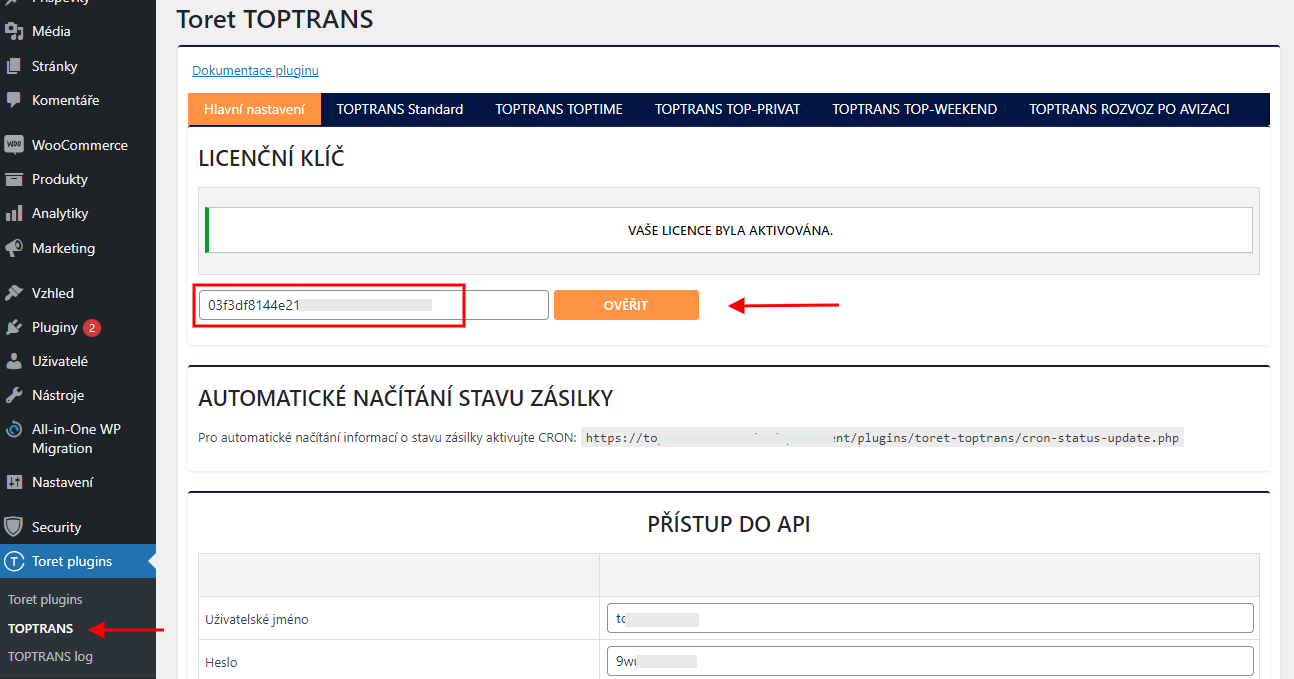
After installing the plugin, open the TOPTRANS plugin, insert the license key into the appropriate field, and click the button to activate.
Connecting to TOPTRANS
To use the TOPTRANS plugin, you must have an account created at zp.toptrans.cz.
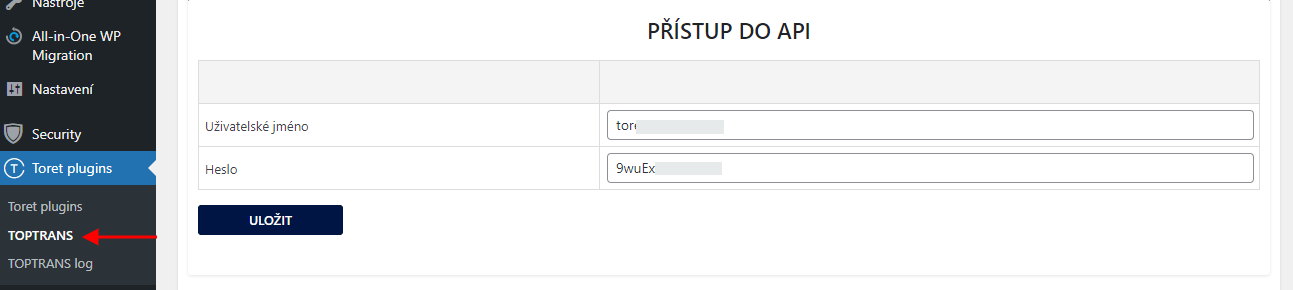
After installing and activating the plugin, proceed to its settings. This is found in the section Toret plugins → TOPTRANS. To connect the plugin with your TOPTRANS account, you need to fill in your TOPTRANS account login credentials:
- Username (Uživatelské jméno)
- Password (Heslo)
Main Settings
In addition to API access settings, you will find global settings on the main page of the plugin (Toret Plugins > TOPTRANS > Hlavní nastavení):
- Payment settings – for accepting COD payments
- Automatic package sending on order status change
- Checkout icon settings – custom icons can be uploaded, default displayed, or hidden
- Main settings (Hlavní nastavení)
- Top Comfort service
- default values for description, weight, and dimensions of the package
- administration dialogs and notifications
- Price settings – VAT, including fees in shipping price, tax class for COD fee
- Exchange rate source settings
- Mapy.com API settings (for calculating shipping price by distance)
Mapy.com API Settings
To be able to calculate shipping price according to distance, it is necessary to connect the plugin with Mapy.com API. You do this in the Main Settings of the plugin (Toret Plugins > TOPTRANS > Hlavní nastavení > Mapy.com API).

To use REST API, you will need an account on the Mapy.com portal. Login/registration can be done here.
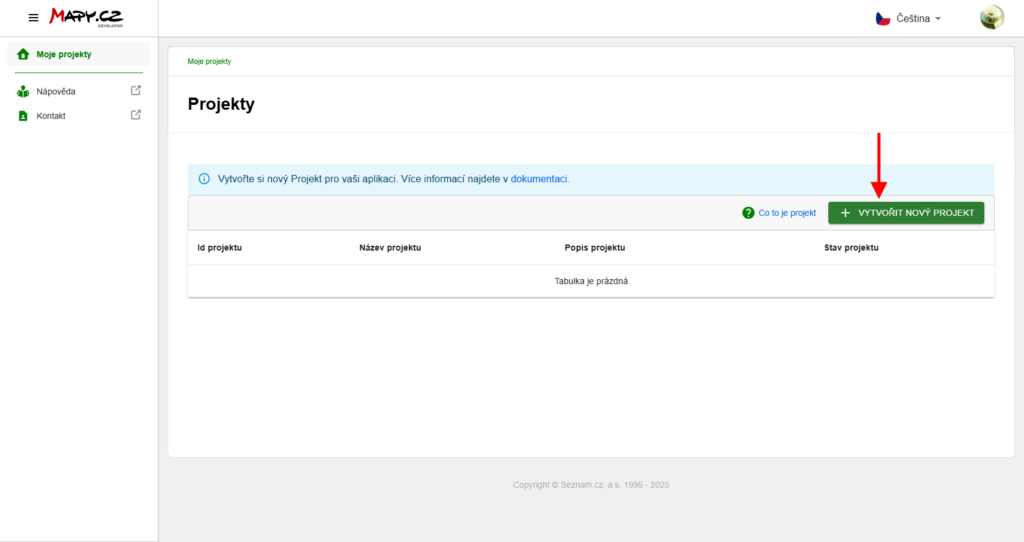
After logging in to the portal, create a project…
…and get an API key. In the project overview, you will also see available credits and their usage, or the price for purchasing more. In the Basic tariff, 250,000 credits per month are available for free.
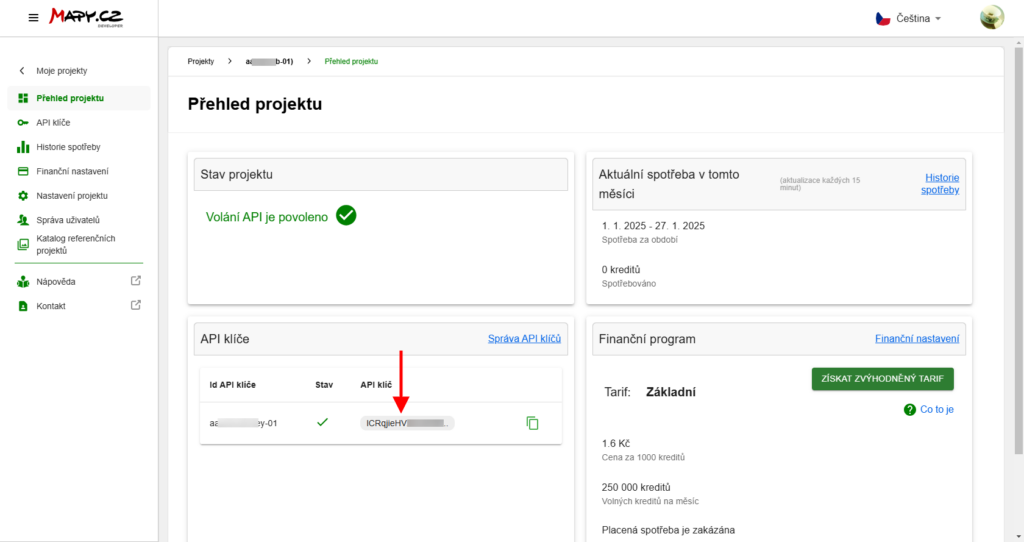
Insert the copied API key into the REST API key field in the plugin and click Save.
More information about REST API (Mapy.com)
Setting up Carriers in the TOPTRANS Plugin
Individual shipping methods can be found in the plugin on the tabs at the top of the screen (Toret Plugins > TOPTRANS). The following shipping methods are available:
- Standard (standard delivery time within 24 hours of takeover)
- TOPTIME (morning delivery by 12:00)
- TOP-PRIVAT (evening delivery 16:00-20:00)
- TOP-WEEKEND (Saturday delivery – by 13:00)
- ROZVOZ PO AVIZACI (Delivery after notification – delivery after previous telephone agreement between carrier and customer)
All types of shipping can be set for the Czech Republic and Slovakia. If VAT is set in WooCommerce, set the price in the plugin without VAT.
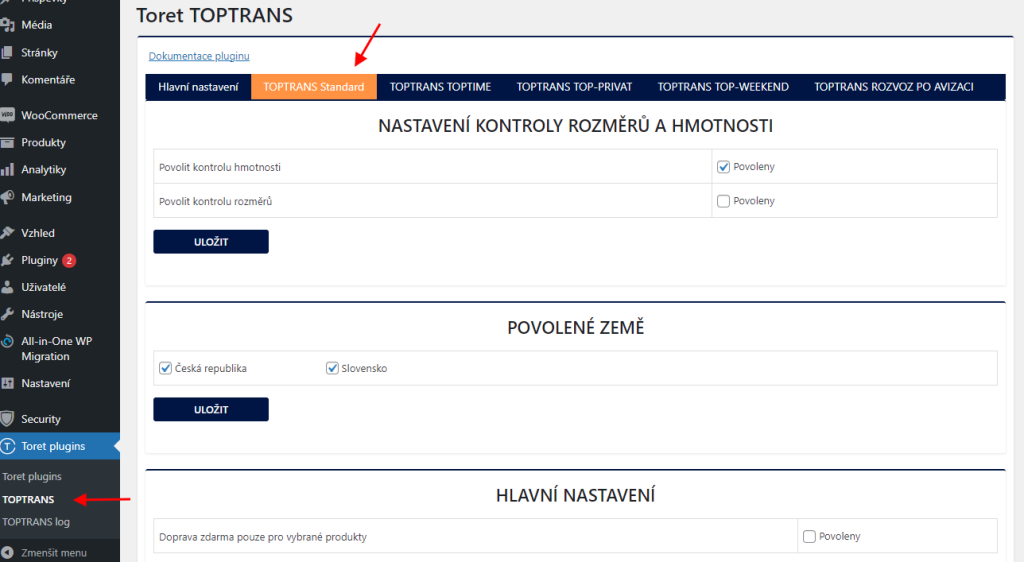
Under individual TOPTRANS shipping tabs, it is possible to set:
- maximum weight and maximum dimension of the order
- dimension and weight check
- free shipping over amount and for specific products
- shipping price settings
- uniform (flat)
- according to total order weight
- according to order dimensions
- based on distance and weight
- loading from API
- COD price uniformly or according to order price
- free COD over amount
- renaming of individual carriers is possible in the WooCommerce shipping zone directly in the carrier edit
Tip: if you want to trigger free shipping or free COD at checkout e.g. from 500, set the value 499 in the plugin.
Top Comfort Service
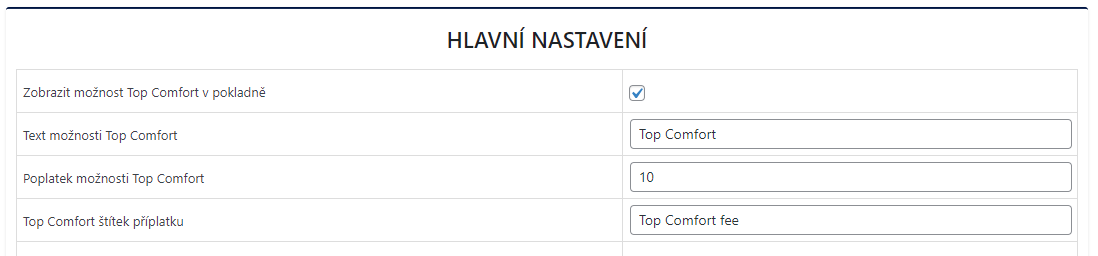
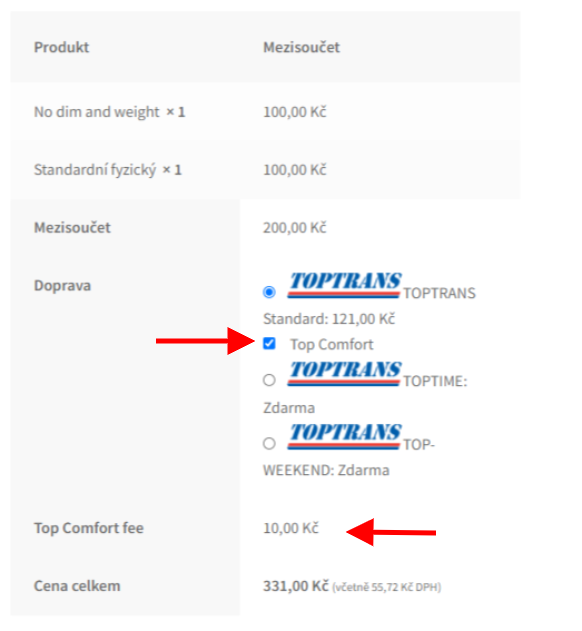
In the plugin (Toret Plugins > TOPTRANS > Hlavní nastavení), it is possible to set the Top Comfort service for all shipping methods. This involves carrying the shipment upstairs with the active assistance of the recipient, max. 80 kg/1 pc. Over 80 kg, a surcharge is charged for every started 80 kg.
For this service, you can set:
- Service text
- Service surcharge
- Surcharge label
Shipping Zone Settings
After setting up carriers in the TOPTRANS plugin, it is necessary to set up identically named carriers in WooCommerce shipping zones. Without setting them in shipping zones, carriers from the TOPTRANS plugin will not appear in checkout.
It is necessary to have a created shipping zone to which the shipping method from the TOPTRANS plugin will be added. Set the shipping method in WooCommerce > Settings > Shipping > required shipping zone > Add shipping method.
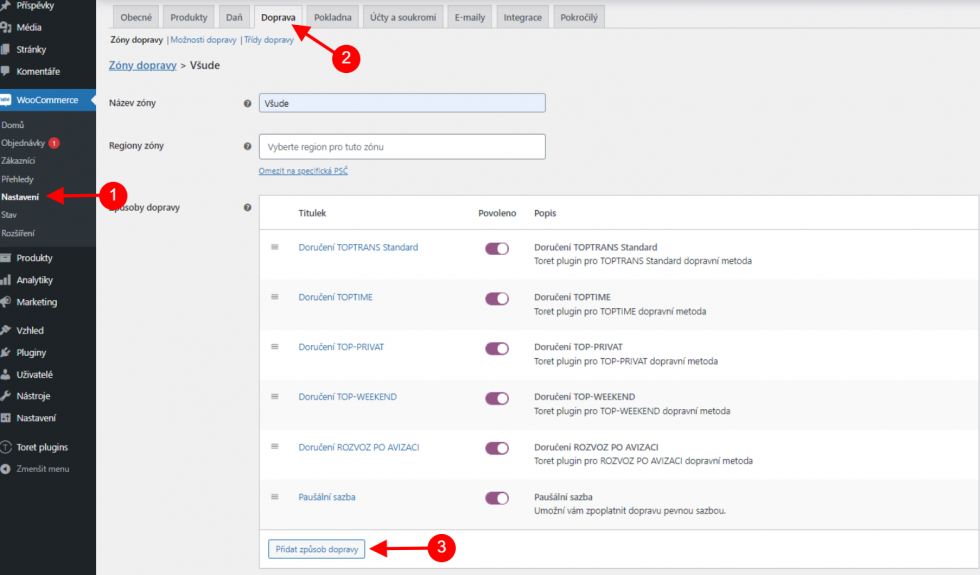
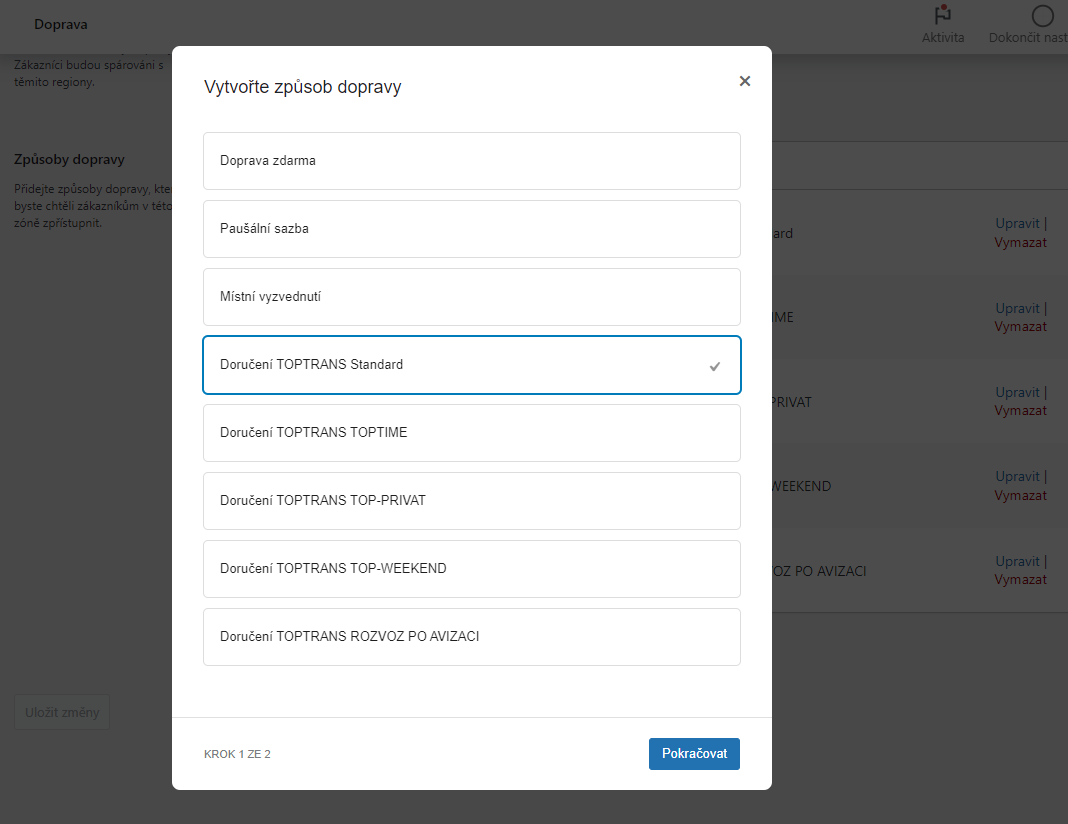
Select from the offered shipping methods and click Continue.
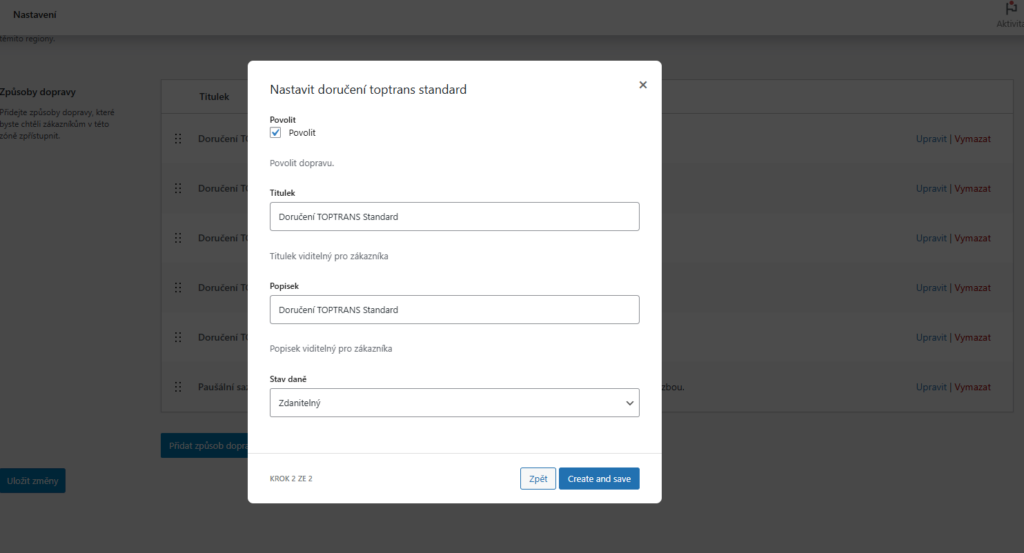
In the next step, choose the Title and Description of the shipping method and Tax Status (Taxable or None). Click Create and save. The new shipping method is created.
Shipment Submission from Web to TOPTRANS
In the plugin, you have two options for submitting a shipment to the TOPTRANS system.
Attention! Do not send the order to the TOPTRANS system unless you are ready to ship the package. By submitting the package, you indicate to TOPTRANS that you have the package ready for courier pickup.
1. Manual via button in order overview or order detail

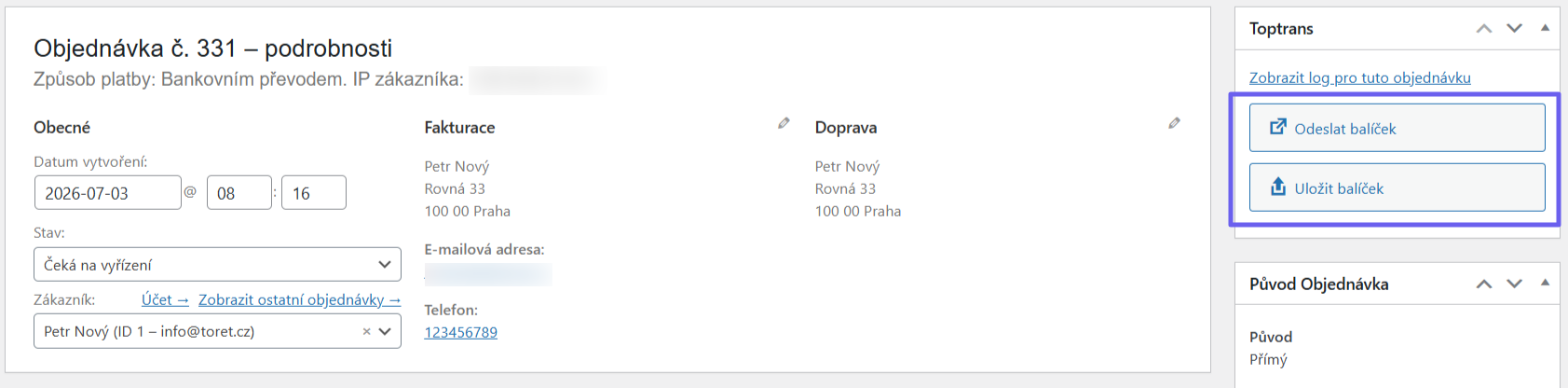
To submit the shipment, you can use the Send package (a) or Save package (b) button.
Send package: Used for the complete dispatch of the shipment – i.e., it sends data to the system, generates a label, a tracking number, and a carrier request.
Save package: Only transfers the data to the Toptrans system. You will see the order in your Toptrans account (in the Unconfirmed section), where you can still edit the shipping details. The shipping order can be completed either directly from your Toptrans account or from the e-shop administration (after saving, the Send package button will remain visible in the e-shop admin, so you can still confirm the shipping and generate labels later).

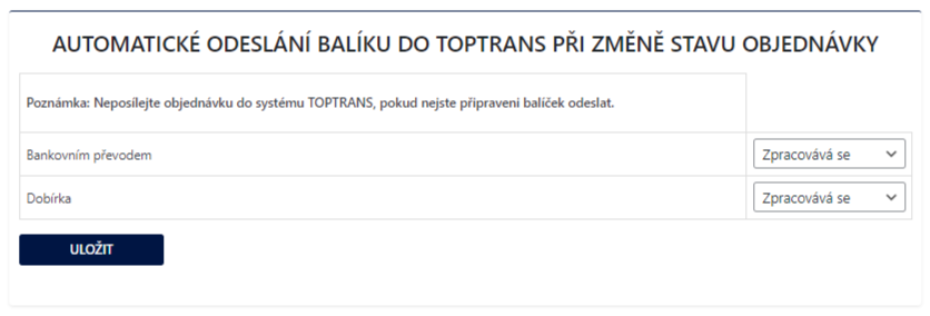
2. Automatic package sending on order status change
Automatic submission can be set in the plugin (Toret plugins > TOPTRANS > Hlavní nastavení (Main Settings)). In the case of automatic submission, the shipment is completely dispatched (including label generation, tracking number assignment, and carrier request).
Free Shipping
You set free shipping directly in the TOPTRANS plugin for each carrier. The free shipping plugin setting is “above” an amount, meaning free shipping activates on the web after exceeding the set amount in the cart.
EXAMPLE: If you want free shipping from 500, set the amount 499 in the plugin.
Tip: If you have VAT set in WooCommerce, the value for triggering free shipping is entered without VAT.
The free shipping amount setting applies only to products; the shipping price is not included.
EXAMPLE: If you have free shipping set from 500, and the cart contains a product for 450 + shipping price 65 = 515 CZK, free shipping will not be activated. It is necessary to exceed the set price with the product, i.e., to activate free shipping set this way, you need to put product(s) worth at least 500 CZK into the cart.
Free Shipping Only for Selected Products
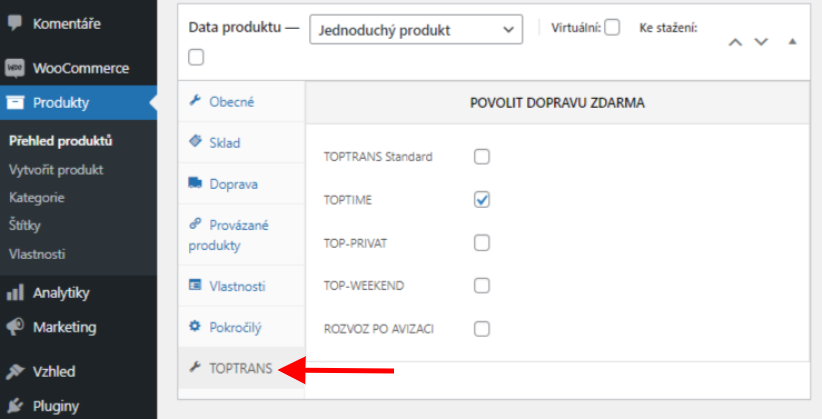
In the plugin, it is possible to set free shipping only for selected products. Settings can be found for each product on the TOPTRANS tab.
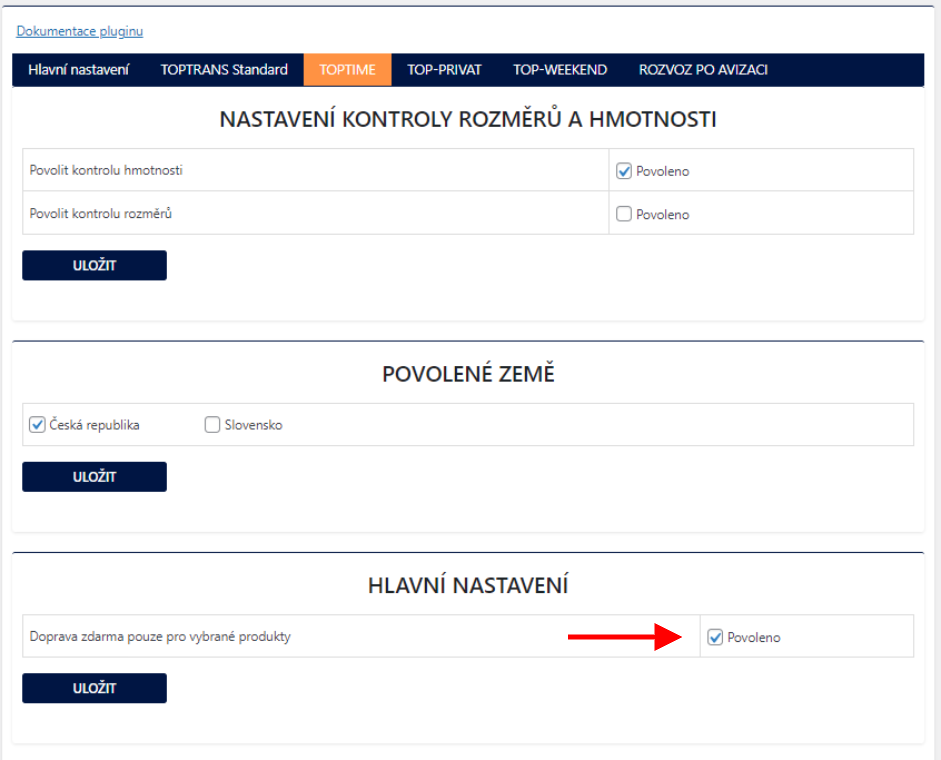
Furthermore, it is necessary to enable this function in the plugin settings for the corresponding carrier.
Printing Labels
Labels of submitted packages can be downloaded directly in the website administration.
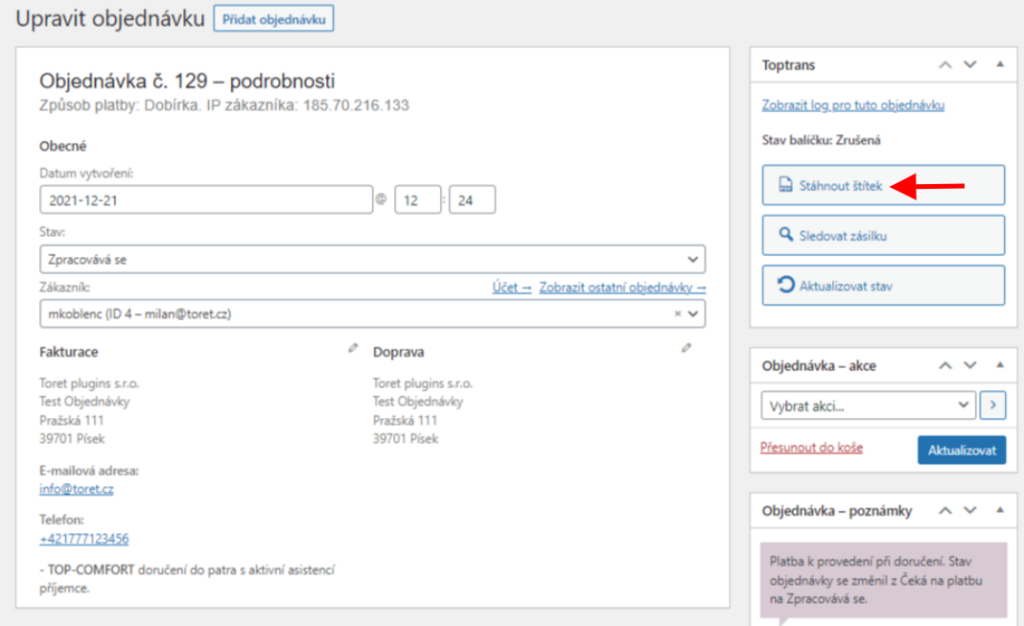
In the order overview for an order already submitted to the TOPTRANS system, click on the PDF document icon (see image) for the selected order. The label will be saved in PDF format, and then you can print it.

For a submitted shipment, the label can also be downloaded in the order detail.
Cash on Delivery (Dobírka)
For individual carriers, it is possible to set a COD surcharge for each country. For the surcharge to appear in the checkout and the information that the submitted package is COD to be transferred, it is necessary to enable the WooCommerce COD payment method (=cod) in WooCommerce settings.
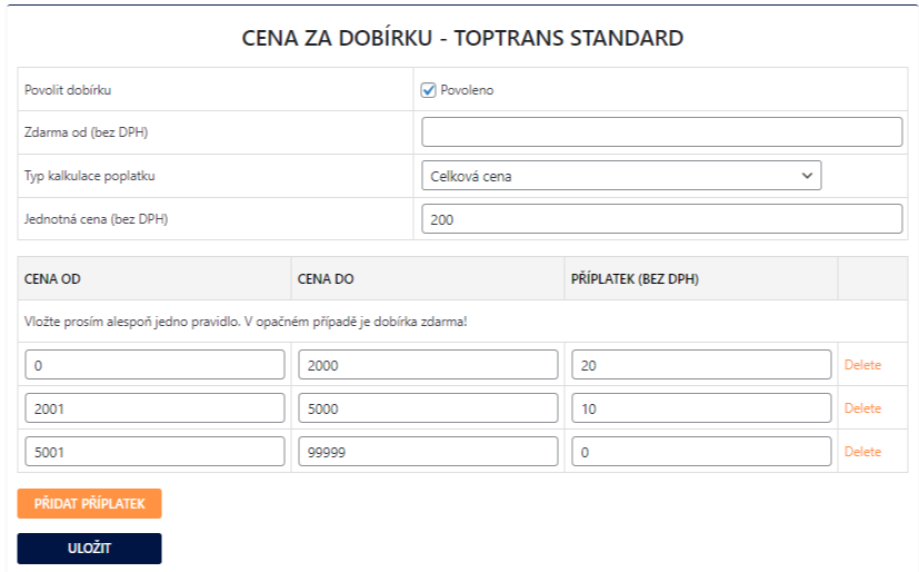
In the plugin, you can set a uniform COD surcharge and a condition for triggering free COD. You can also scale the COD surcharge according to the total order price, including the condition for free COD (see screen).
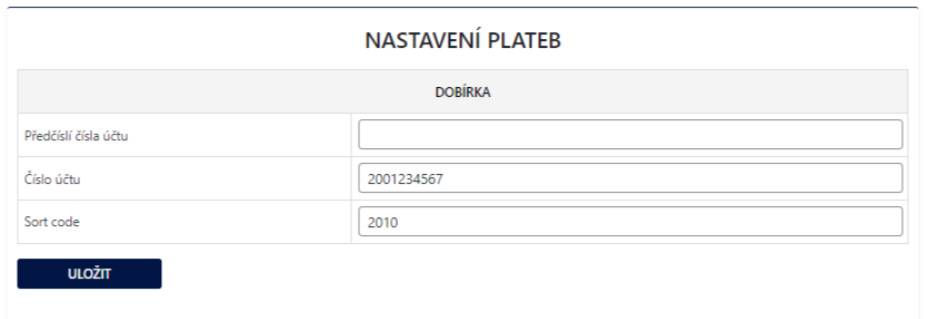
In the main plugin settings (Toret plugins >TOPTRANS > Hlavní nastavení), it is also necessary to set the bank account for COD payout.
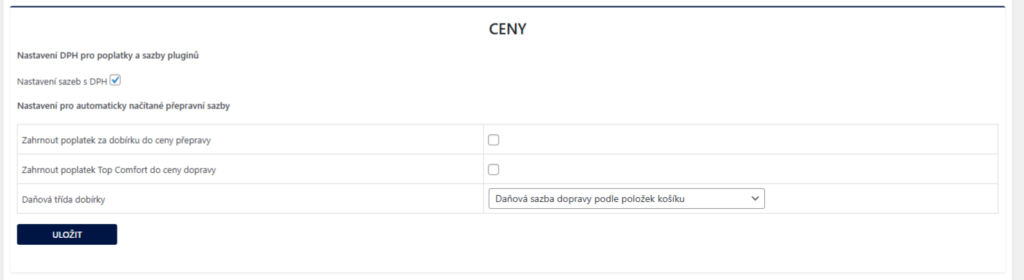
Furthermore, in Hlavní nastavení (Main Settings) > Ceny (Prices), you can enter the COD tax class. This can be fixed or determined by items in the cart. It is also possible to include the COD fee in the shipping price and not list it separately.
Displaying Shipment Status
The plugin includes a function that allows tracking the current shipment status in the order overview in the “Toptrans stav” column.

Manual Shipment Status Update
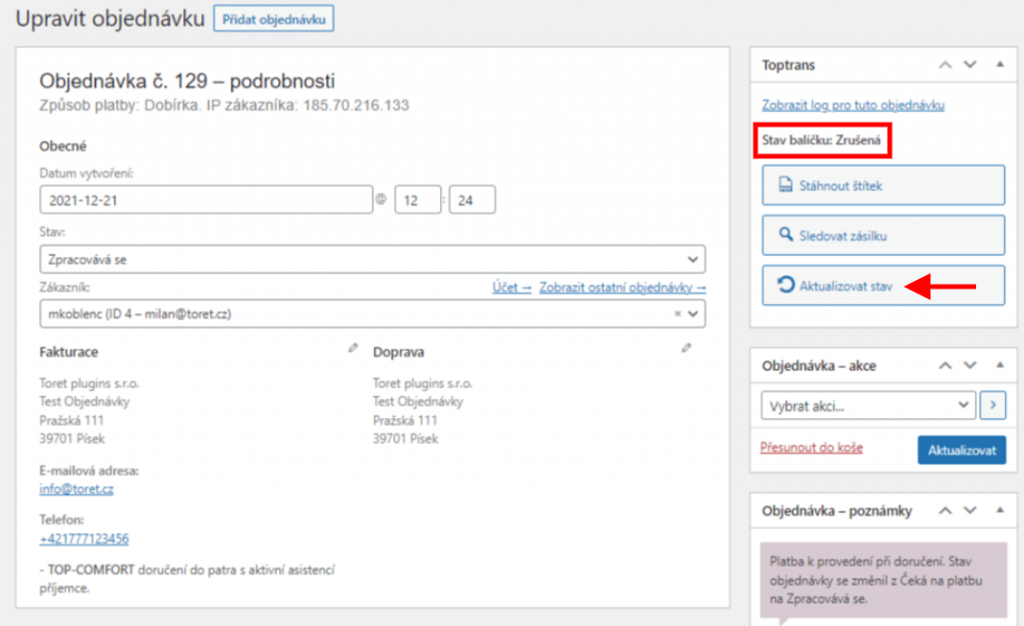
You can update the shipment status manually via the “refresh” icon. You can start the manual update in the order overview individually for each order or in the order detail.

Automatic Shipment Status Update
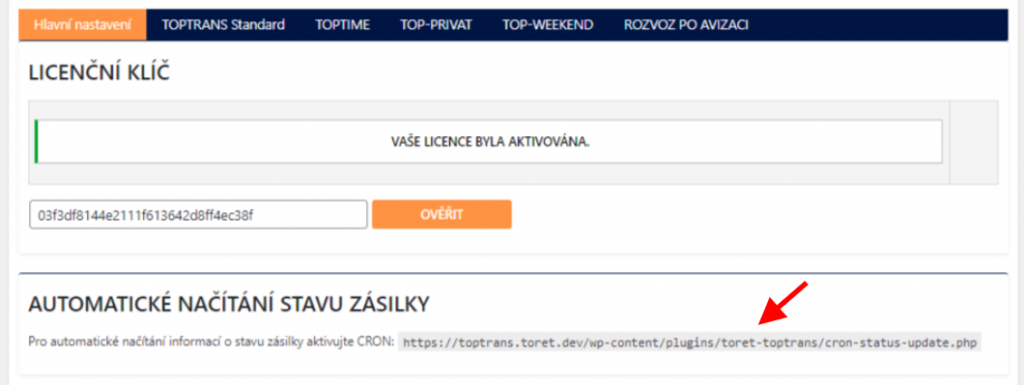
If you want to automate shipment status updates, it is necessary to set up CRON on your hosting. You can find the custom CRON URL in the main plugin settings.
Filters
Filters for Package Dimensions
- ttt_pack_width
- ttt_pack_height
- ttt_pack_length
Parameters: $rozmer, $order, $balik and $pocet_baliku
Plugin testing
For testing purposes, you can use:
- the subdomain “dev.domainlicense” (with the same license as for the production website)
- localhost (127.0.0.1)
Purchased plugins will also work in these locations, and you can test their implementation and compatibility here before deploying them to the website and during its use.