
You are on the documentation page for the Shipment Tracking CZ/SK (Sledování Zásilek) plugin, which allows adding a shipment tracking link to an order in the e-shop.
You can purchase the Shipment Tracking CZ plugin here: Toret Shipment Tracking CZ for WooCommerce
You can purchase the Shipment Tracking SK plugin here: Toret Shipment Tracking SK for WooCommerce
Plugin Installation
Upon purchasing the plugin, you will receive a license key and a download link for the plugin zip file via email. You can find detailed instructions on how to install the plugin from your computer into WordPress here.
Plugin Activation
After installing the plugin, open the WooCommerce Shipment Tracking (Sledování Zásilek) plugin, insert the license key into the appropriate field, and save.
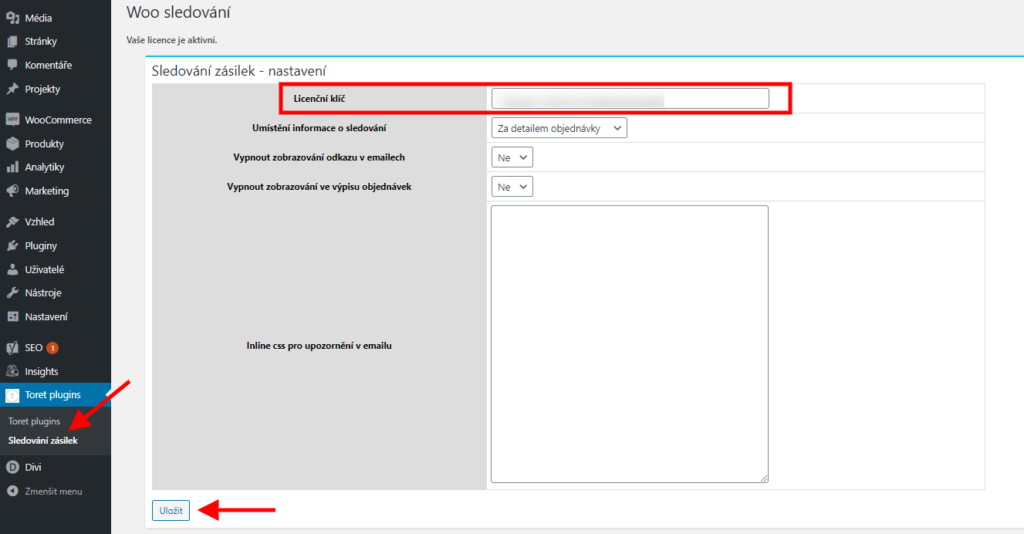
Plugin Settings and Options
The Shipment Tracking plugin adds a metabox to the order detail for inserting the shipment number and selecting the carrier. Thanks to this, a link to track the shipment in the respective carrier’s system is then added to the order email.
The procedure is as follows:
After ordering goods and creation, the order appears in the WooCommerce administration, in the Orders section. At the moment you dispatch the relevant order and receive all shipping information from the carrier, click on the order number to open its detail. In the upper right corner, you will find a field for entering data.
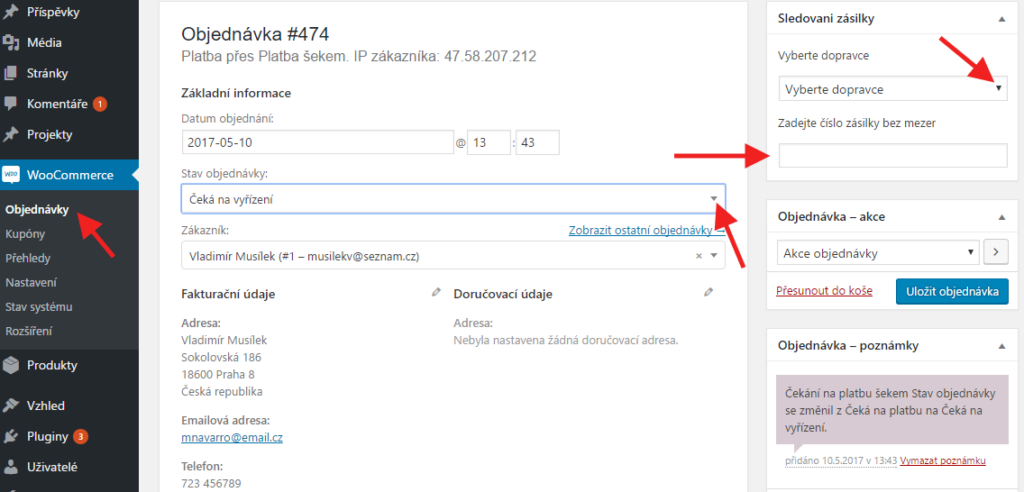
- Select the relevant carrier from the list.
- Enter the shipment number provided by the carrier in the field below. The plugin allows adding multiple shipment numbers to an order.
- Click Save Order (Uložit objednávku).
- Change the order status to Processing (Zpracovává se) or Completed (Dokončeno).
- Click Save Order (Uložit objednávku) again.
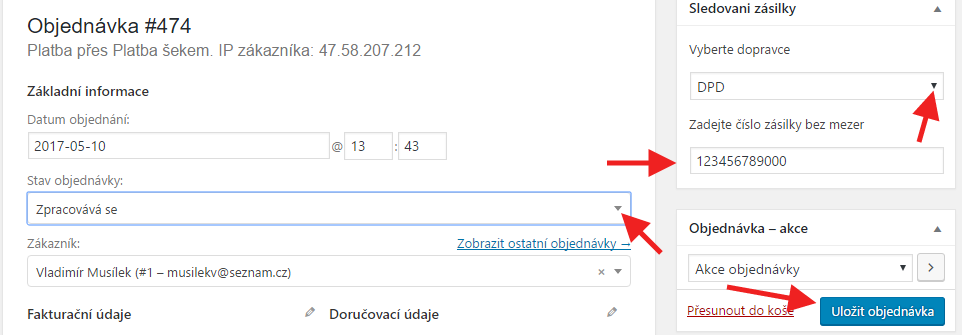
This way, an order email with a tracking link leading to the given carrier’s system will be sent to the customer. It is very important to follow this procedure, otherwise the link will not appear in the email.
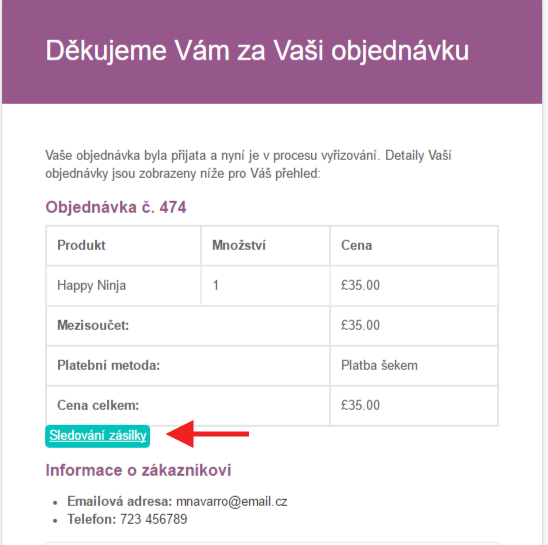
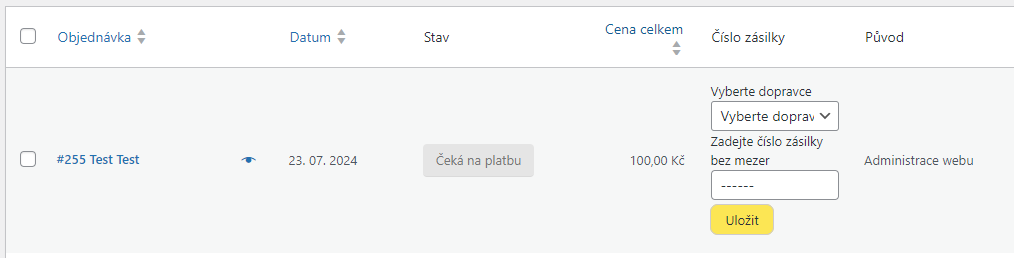
At the same time, information about the carrier and tracking code will appear in the Shipment Number (Číslo zásilky) column for the respective order in the WooCommerce order overview.

Shipment numbers can also be inserted directly from the order overview. Again, it is necessary to follow the procedure and first save the shipment number and only then change the order status to Processing or Completed so that the link is inserted into the relevant order email.
Plugin testing
For testing purposes, you can use:
- the subdomain “dev.domainlicense” (with the same license as for the production website)
- localhost (127.0.0.1)
Purchased plugins will also work in these locations, and you can test their implementation and compatibility here before deploying them to the website and during its use.