
You are on the documentation pages for the Toret AI Markdown plugin, which helps with the technical optimization of websites for AI crawlers. You can purchase the AI Markdown plugin here: Toret AI Markdown
🤖 What the plugin does
Toret Markdown adds an alternative Markdown output to every WordPress page. This is primarily intended for AI language models and agents (ChatGPT, Claude, Perplexity…), which process text in Markdown more accurately and efficiently than standard HTML.
The plugin generates three types of outputs:
- Page / post / product —
?format=markdown - Sitemap for AI —
?format=markdown-sitemap - llms.txt — instructions and context at the website root
Available URLs
| URL | Description |
|---|---|
https://vasedomena.cz/stranka/?format=markdown |
Markdown version of any page or post |
https://vasedomena.cz/?format=markdown-sitemap |
Overview of all available pages for AI agents |
https://vasedomena.cz/llms.txt |
Instructions and context for AI agents |
Plugin Installation
After purchasing the plugin, you will receive a license key and a link to download the zip file containing the plugin via email. Detailed instructions on how to install a plugin into WordPress from your computer can be found here.
Plugin Activation
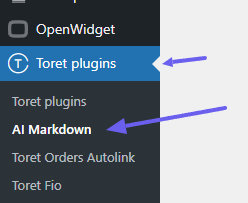
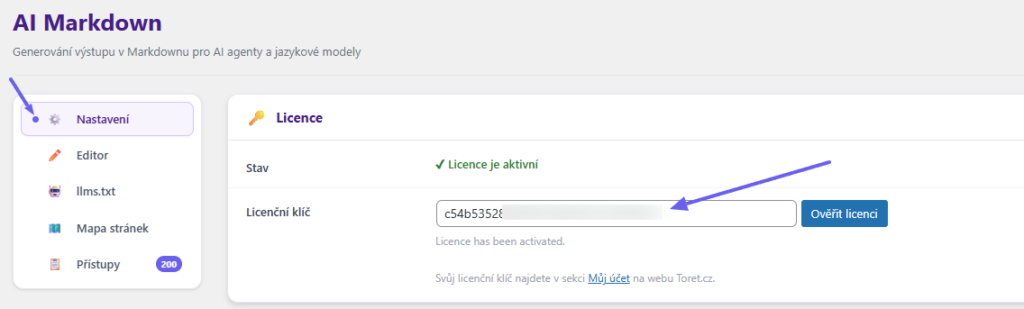
After installing the plugin, open the Toret AI Markdown plugin (Toret Plugins > AI Markdown), enter the license key into the appropriate field, and activate it using the Verify License (Ověřit licenci) button.
🚀 Quick Start
1. Enable the plugin
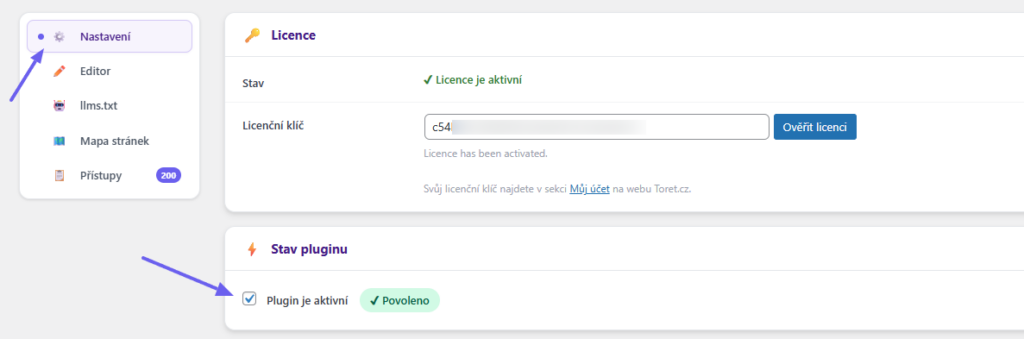
In the WordPress administration, go to Toret plugins > AI Markdown (Settings (Nastavení) tab) and ensure the Plugin is active (Plugin je aktivní) toggle is checked.
2. Test the output
Add ?format=markdown to the end of any URL on your site, e.g.:
3. Set up llms.txt
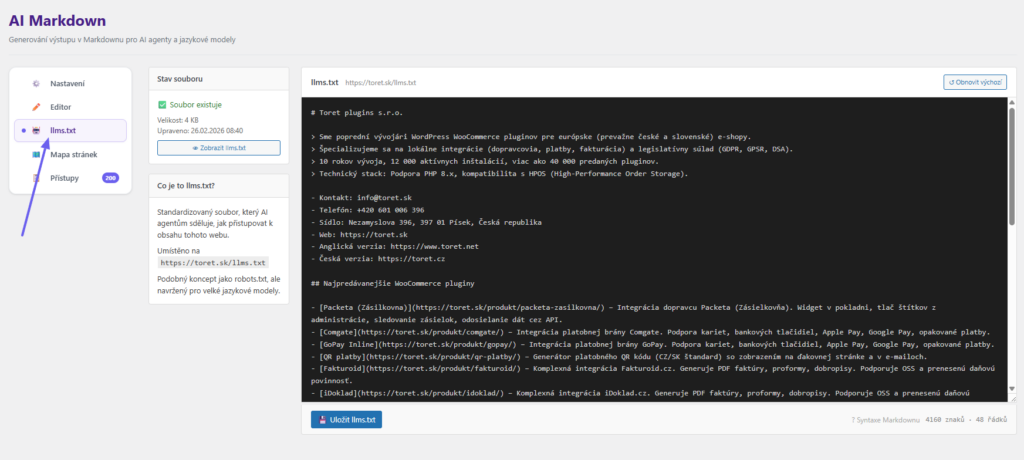
In the plugin administration, go to the llms.txt tab and edit the instructions for AI agents. The file is then publicly available at https://vasedomena.cz/llms.txt.
4. Check the sitemap
The AI sitemap is available at https://vasedomena.cz/?format=markdown-sitemap. It contains an overview of all public pages with their descriptions.
⚙️ Description of Settings
(Toret Plugins > AI Markdown > Settings (Nastavení))
General Settings
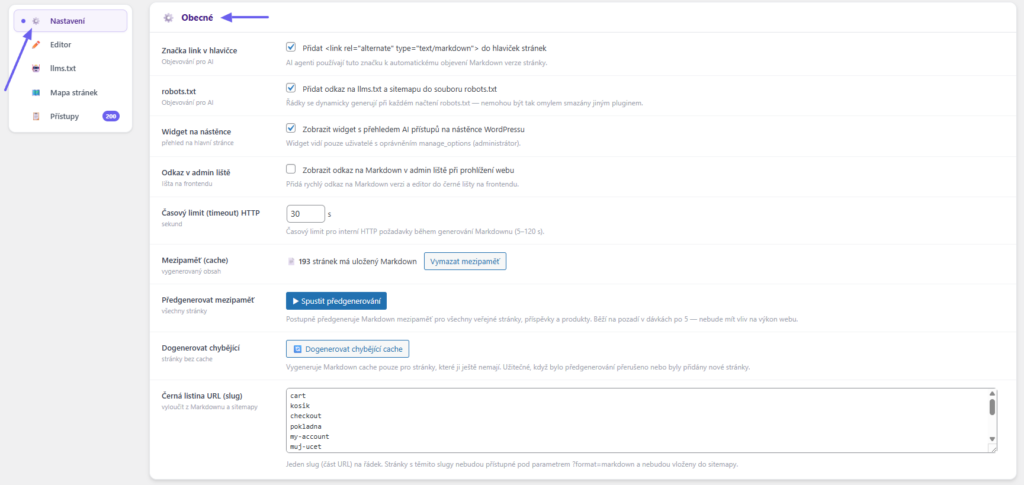
Link tag in header (link tag)
If enabled, the plugin inserts the tag <link rel="alternate" type="text/markdown"> into the <head> of every page. Modern AI agents recognize this tag and automatically load the Markdown version instead of HTML — without any intervention on your part.
If the Link tag in header (Link tag v hlavičce) option is enabled, the plugin inserts the following meta tags into the <head> of every page:
<link rel="alternate" type="text/markdown" href=".../llms.txt" title="Site Context" />
<link rel="alternate" type="text/markdown" href=".../?format=markdown" title="Page Context" />
<link rel="alternate" type="text/markdown" href=".../?format=markdown-sitemap" title="Markdown Sitemap" />
Robots.txt
Adds a link to llms.txt and the sitemap to the robots.txt file.
Content negotiation
AI agents that request content via the Accept header will receive Markdown directly. Regular browsers and users are not affected.
Content signals
Adds a preference to robots.txt allowing AI crawlers to use the content.
- AI search: Indexing for search engines (search=yes) is always enabled.
- AI input: AI tools may cite the content
- AI train: The content may be used to train AI tools
Dashboard Widget
Enables an overview of AI access on the main page (Dashboard (Nástěnka)) of the WP administration.
Admin Bar Link
Displays a link to view/edit the Markdown version in the horizontal admin bar on the frontend for quick access.
HTTP Timeout
The plugin generates Markdown by internally loading (fetching) HTML pages and converting them. The timeout determines how long to wait for a response. For slow hosting or particularly large pages, we recommend increasing the value to 30–60 s.
Cache (Mezipaměť)
Here you can see the number of pages with a generated Markdown version and a button to clear the cache.
Pre-generate cache
Creates and stores the Markdown cache for all public pages, posts, and products. Runs in the background in batches of 5 — it will not affect website performance.
Generate missing
Generates the Markdown cache only for pages that do not have it yet. Useful if pre-generation was interrupted or new pages were added.
Slug Blacklist
One slug per line. Pages on the blacklist will not return Markdown output and will not appear in the sitemap. Typically, this includes technical pages without relevant content: cart, checkout, my-account, thank-you.
Reserved words
Here you can enter text that will be rendered in Markdown exactly as written—without line breaks or wrapping—to preserve its meaning.
Access Logging (Zaznamenávání přístupů)

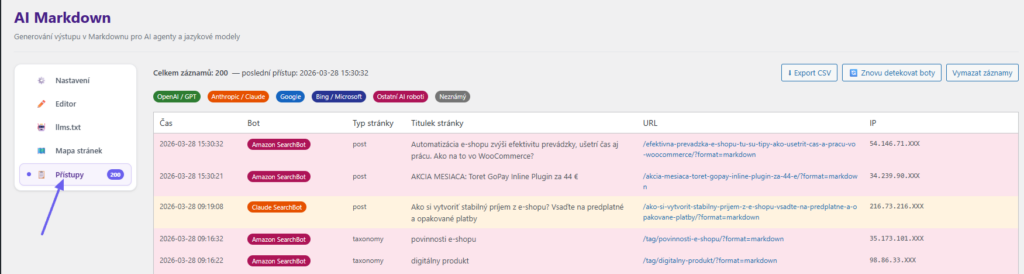
The plugin logs every access to ?format=markdown and ?format=markdown-sitemap, including bot identification (GPTBot, ClaudeBot, Googlebot…). Logging can be turned on/off using the Log accesses to the database (Zaznamenávat přístupy do databáze) checkbox.
Max. log entries – Once the limit is exceeded, the oldest entries are automatically deleted. The recommended value is 500–1000 for standard websites.
IP addresses are automatically anonymized. You can view the records in the Accesses (Přístupy) tab.
🤖 Bot Detection
Recognized Agents
Detection works by comparing the User-Agent header from the browser (case-insensitive). Recognized types and their colors in the log are:
- gpt — GPTBot, ChatGPT-User, OAI-SearchBot
- claude — ClaudeBot, Claude-User, Claude-SearchBot, Anthropic
- google — Googlebot, Google-Extended, Gemini, GoogleOther
- bing — Bingbot, BingPreview, MSNBot
- other_ai — PerplexityBot, Cohere-AI, YouBot, Diffbot, ByteSpider, AmazonBot and others
- unknown — unrecognized User-Agent
Colors in the Access Log
- Green – OpenAI / GPTBot
- Orange – Anthropic / ClaudeBot
- Blue – Google / Googlebot
- Blue-purple – Bing / Microsoft
- Pink – Other AI robots (Perplexity, Cohere, Amazon SearchBot, ByteSpider…)
- Gray – Unknown visitor
✏️ Markdown Editor
(Toret Plugins > AI Markdown > Editor)
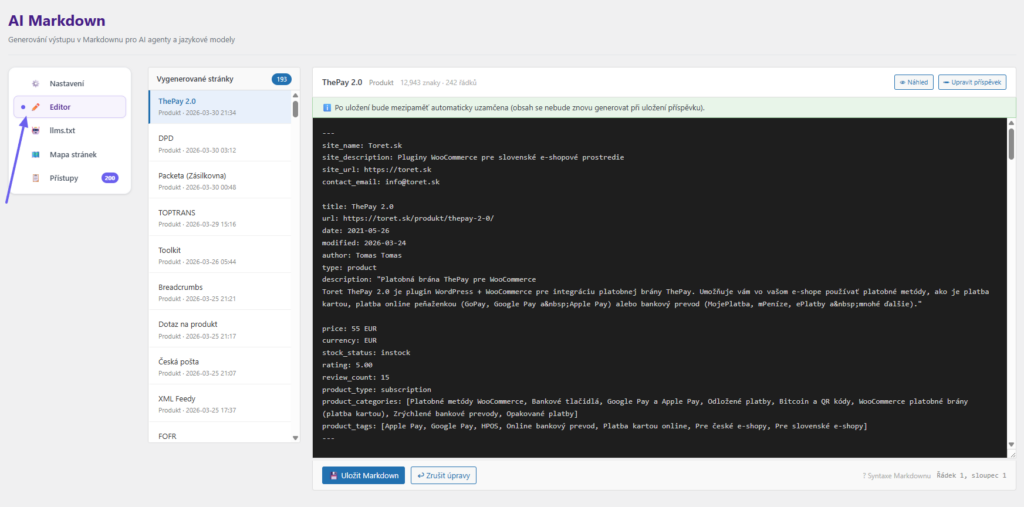
In the Editor, it is possible to modify the created Markdown versions of pages.
How the cache works
The plugin generates Markdown automatically upon every access. The result is stored in the cache (as post meta), so repeated requests are very fast and do not strain the server. The cache automatically refreshes whenever a post is edited.
Manual Editing
In the Editor tab, you can manually modify and save the Markdown of any page. Once saved, the cache is locked — the plugin will no longer automatically overwrite it. The lock can be released at any time using the button directly in the editor.
Locked Cache
Pages with a locked cache are marked in the editor with the 🔒 icon. This means the website will display exactly the content you manually set to AI agents — the plugin will not overwrite it even during subsequent post updates.
🗺️ Sitemap for AI
What the sitemap contains
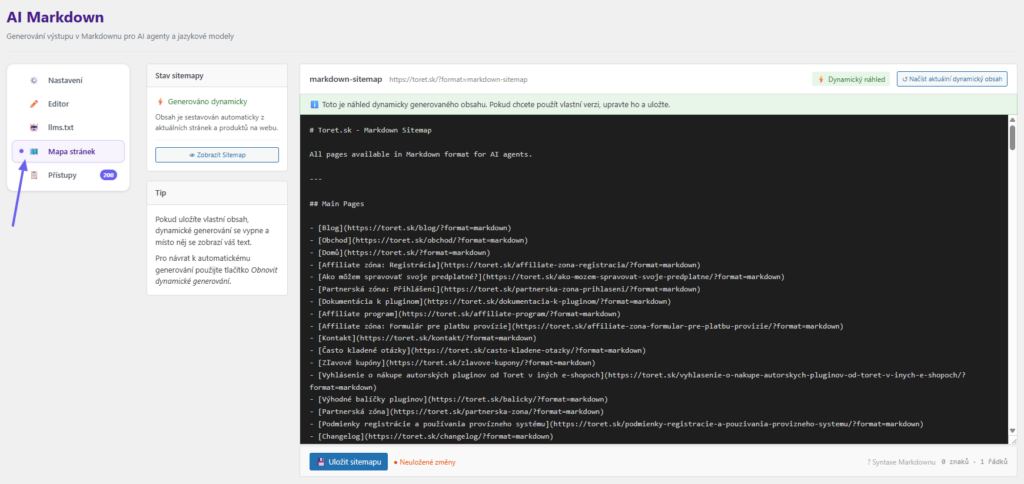
The sitemap is an overview of all public pages, posts, and products in Markdown format. For each item, it includes the title, URL, modification date, and a short description. An AI agent uses it to discover everything that exists on the site and then loads the details of specific pages.
Manual Overwrite
(Toret plugins > AI Markdown > Sitemap (Mapa stránek))
In the Sitemap tab, you can overwrite the dynamically generated content with your own text and save it. Use the Restore dynamic sitemap (Obnovit dynamickou sitemapu) button to easily return to automatic generation.
Limits and Sorting
(Toret plugins > AI Markdown > Settings (Nastavení) > Markdown Sitemap)
In the Settings (Nastavení) tab, you can set the maximum number of items and their sorting method for each content type (pages, posts, products). A value of -1 means an unlimited list, 0 hides the entire section.

🤖 llms.txt
What it is for
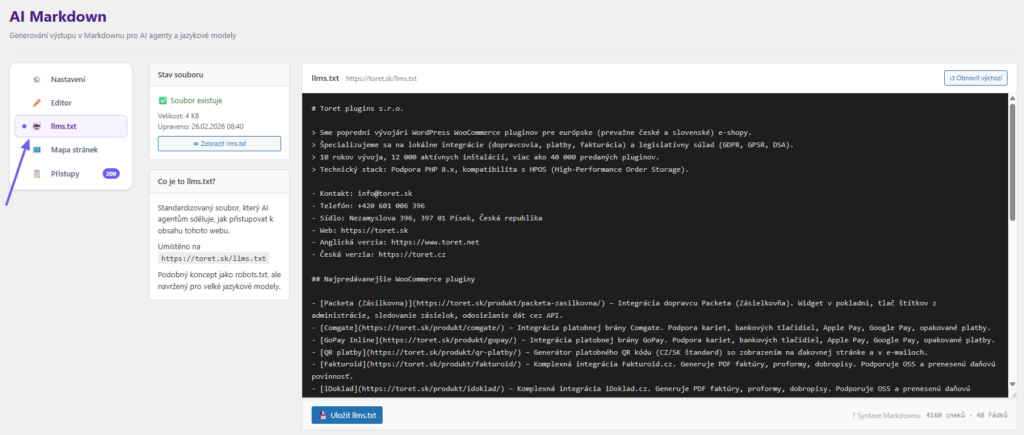
llms.txt is a standardized file (functioning similarly to robots.txt) that tells AI agents how to properly work with your website. We recommend writing here: who you are, what you offer, which pages are most important for AI, and what restrictions apply to them.
Default Content
Using the Restore default (Obnovit výchozí) button in the llms.txt tab, the plugin automatically generates basic content from your WordPress data (site title, description, contact, sitemap URL). You then simply need to supplement or manually edit the result.
📄 Metabox on Pages and Products
Where it appears
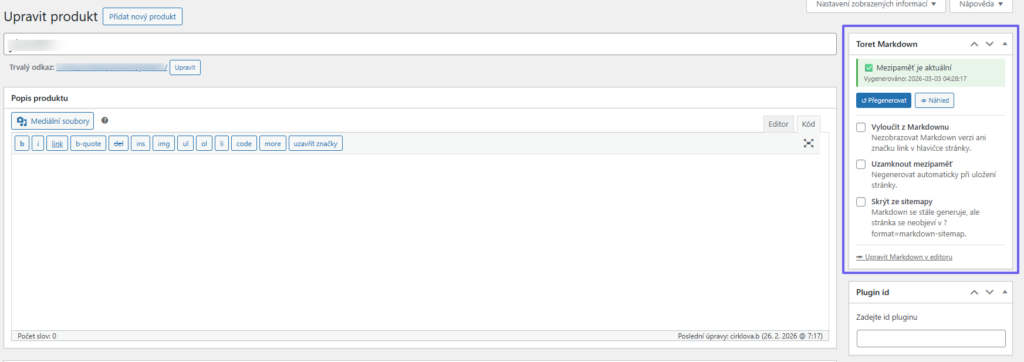
The Toret Markdown metabox is displayed in the right column of the editor for every post, page, and product. It shows the current cache status (current / not generated / excluded) and the exact date of the last generation.
Generate / Regenerate
The Generate (Generovat) (or Regenerate (Přegenerovat)) button triggers the immediate generation of the Markdown cache for that page directly from the administration, without the need to visit it. Once generated, a Preview (Náhled) link is displayed to check the output.
Exclude from Markdown
The page will not return any Markdown output — instead, standard HTML will be shown to the AI. Additionally, the <link> tag will not be inserted into the header, and the page will not be included in the sitemap.
Lock Cache
Prevents automatic regeneration of the cache when the page is saved. This is useful when you have manually edited the Markdown in the editor and do not want the plugin to accidentally overwrite it. The lock can be canceled or unlocked directly in the editor at any time.
Hide from Sitemap
The page will not appear in ?format=markdown-sitemap, but its Markdown version remains fully accessible via ?format=markdown. The difference from Exclude from Markdown is that the content still exists; it just doesn’t appear in the global overview for AI.
Link to Editor
The Edit Markdown in editor (Upravit Markdown v editoru) link at the bottom of the metabox takes you directly to the central Editor tab with the current page pre-selected.
🗂️ Settings for Categories
Where it appears
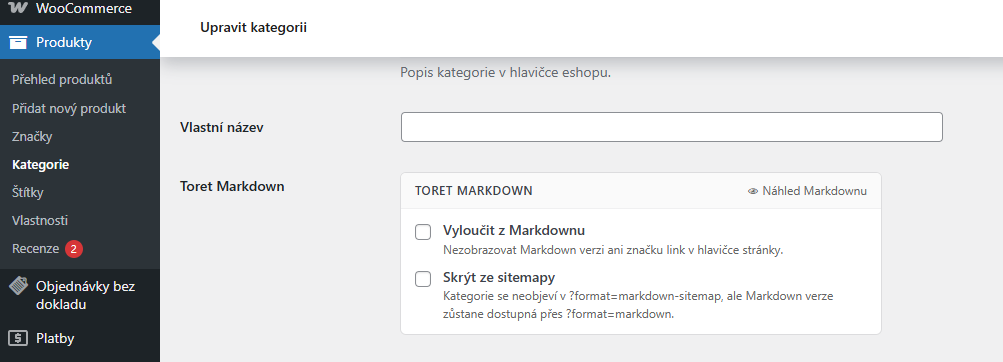
The Toret Markdown panel is displayed on the post category editing page (Posts → Categories (Příspěvky → Kategorie)). If WooCommerce is active, it works exactly the same for product categories (Products → Categories (Produkty → Kategorie)).
Exclude from Markdown
The category page will not return Markdown output, and the <link> tag will not be inserted into its header. It works exactly like the same option in the metabox for individual posts.
Hide from Sitemap
The category will not appear in ?format=markdown-sitemap, but its Markdown version remains available via ?format=markdown. There is also a direct Markdown Preview (Náhled Markdown) link on the category editing page for a quick look at the output.
🛒 WooCommerce
Products in the Sitemap
If WooCommerce is active, the sitemap automatically includes products, including their price, stock status, and category. In the settings, products can be filtered by category or their total number can be limited.
Product Frontmatter
The Markdown output of a product page contains a cleverly extended YAML header with price (price), currency (currency), stock status (in_stock), and SKU. Thanks to this, the AI agent knows the exact and current status of the product without needing to parse complex HTML.
Product Categories
On the product category page in the administration (Products → Categories), you will find a metabox for potentially excluding the entire category from the Markdown output and from the sitemap.
For Developers
🪝 WordPress Filters (Hooks)
| Filter | Description |
|---|---|
toret_markdown_post_frontmatter |
Modification of the post YAML header before closing |
toret_markdown_post_output |
Final Markdown of the page / product |
toret_markdown_term_output |
Final Markdown of the taxonomy (category, tag) |
toret_markdown_archive_output |
Final Markdown of the archive, homepage, shop |
toret_markdown_sitemap_pages_args |
get_pages() arguments in the sitemap |
toret_markdown_sitemap_posts_args |
get_posts() arguments in the sitemap |
toret_markdown_sitemap_products_args |
wc_get_products() arguments in the sitemap |
toret_markdown_sitemap_products |
Array of products after loading (object filtering) |
toret_markdown_sitemap_output |
Full final text of the sitemap |
toret_markdown_post_frontmatter
Allows modifying the post/page YAML frontmatter before the closing ---. Parameters: string $frontmatter, WP_Post $post.
add_filter( 'toret_markdown_post_frontmatter', function( $fm, $post ) {
    $fm .= 'author: ' . get_the_author_meta( 'display_name', $post->post_author ) . "\n";
    return $fm;
}, 10, 2 );
toret_markdown_post_output
Final Markdown of the post/page including the frontmatter. Parameters: string $markdown, WP_Post $post.
add_filter( 'toret_markdown_post_output', function( $md, $post ) {
    return $md . "\n\n---\nGenerated automatically.\n";
}, 10, 2 );
toret_markdown_term_output
Final Markdown of the taxonomy page (category, tag). Parameters: string $markdown, WP_Term $term.
toret_markdown_archive_output
Final Markdown of the archive page (homepage, shop, archive, search). Parameters: string $markdown, string $type, string $title.
toret_markdown_sitemap_pages_args
Arguments passed to the get_pages() function when generating the sitemap. Parameter: array $args.
toret_markdown_sitemap_posts_args
Arguments passed to the get_posts() function when generating the sitemap. Parameter: array $args.
toret_markdown_sitemap_products_args
Arguments passed to the wc_get_products() function when generating the sitemap. Parameter: array $args.
toret_markdown_sitemap_products
Array of WooCommerce products after loading, before rendering into the sitemap. Allows filtering or arbitrary sorting of objects. Parameter: array $products.
toret_markdown_sitemap_output
The entire final text of the dynamically generated sitemap. Parameter: string $output.
📌 Constants
| Constant | Value | Description |
|---|---|---|
TORET_MARKDOWN_CACHE_KEY |
_toret_markdown_cache |
Post meta key for the stored Markdown |
TORET_MARKDOWN_META_EXCLUDE |
_toret_markdown_exclude |
Post meta – exclusion from Markdown output |
TORET_MARKDOWN_META_LOCK |
_toret_markdown_lock |
Post meta – lock for automatic cache regeneration |
TORET_MARKDOWN_META_SITEMAP_EXCLUDE |
_toret_markdown_sitemap_exclude |
Post meta – hiding from the sitemap |
TORET_MARKDOWN_TERM_EXCLUDE |
_toret_markdown_exclude |
Term meta – exclusion of category from Markdown |
TORET_MARKDOWN_TERM_SITEMAP_EXCLUDE |
_toret_markdown_sitemap_exclude |
Term meta – hiding category from the sitemap |
TORET_MARKDOWN_LOG_OPTION |
toret_markdown_access_log |
Options key for the access log |
TORET_MARKDOWN_LOG_MAX |
500 |
Default max. number of log entries |
💾 Cache Logic
Storage
The generated Markdown is stored as post meta with the key _toret_markdown_cache along with a timestamp in _toret_markdown_generated_at. The cache is used only for posts/pages/products — for terms (categories) and archives, it is always generated dynamically.
Invalidation
The cache is automatically cleared when a post is saved or deleted (save_post, before_delete_post), unless a lock (_toret_markdown_lock) is set. Manual clearing of the entire cache for the whole site is available in the Settings (Nastavení) tab.
Generation
The plugin generates Markdown by internally fetching HTML pages via wp_remote_get() and parsing the result using a custom DOM converter (toret_html_to_markdown()). A special parameter _tmcb={timestamp} is added to the URL to effectively bypass CDN caches (Cloudflare, etc.).
⚙️ HTML → Markdown Converter
Implementation
The plugin does not use any external libraries for conversion. The conversion is handled by the native PHP DOMDocument in combination with a recursive walker toret_dom_node_to_markdown(). At the end, the output passes through a cleanup function toret_cleanup_markdown().
Dropped Tags
The content of <script>, <style>, <form>, <noscript>, <canvas>, and <svg> tags is completely ignored and is not transferred to the final output at all.
Complex Lists
The plugin automatically detects “complex” <ul> elements (e.g., blog listings, product feeds). Items longer than 100 characters or those containing headings are then rendered as clear sections separated by --- instead of classic bullet points.
Cloudflare Email
The plugin recognizes Cloudflare email protection (/cdn-cgi/l/email-protection#…) and automatically decodes the actual email address directly into readable output.
🔌 AJAX Endpoints
| Action | Nonce | Description |
|---|---|---|
toret_markdown_generate |
toret_markdown_ajax_generate |
Generates or regenerates the Markdown cache for a given post_id. Requires the edit_posts administrator permission. |
toret_markdown_unlock_cache |
toret_markdown_unlock_cache |
Unlocks a locked post cache — deletes the _toret_markdown_lock meta. Requires edit_post permission for the specific post. |
🗄️ Database – Stored Values
| Option / Meta Key | Type | Description |
|---|---|---|
toret_markdown_options |
option | All plugin settings as a serialized array |
toret_markdown_access_log |
option | Access log as a JSON array (max. records according to settings) |
toret_markdown_sitemap_content |
option | Manually overwritten sitemap content (empty = dynamic generation) |
toret_markdown_llms_content |
option | Content of the llms.txt file |
_toret_markdown_cache |
post meta | Generated Markdown content of the post |
_toret_markdown_generated_at |
post meta | Date and time of the last cache generation |
_toret_markdown_exclude |
post/term meta | Exclusion from Markdown output |
_toret_markdown_lock |
post meta | Lock for automatic cache regeneration |
_toret_markdown_sitemap_exclude |
post/term meta | Hiding from the sitemap |