
You are viewing the documentation for the WooCommerce plugin Toret EET 2.0.
The plugin connects your WooCommerce e-shop to EET 2.0, the Czech electronic records of sales under Act No. 180/2026 Coll., effective from 1 January 2027.
You can purchase the plugin here.
Minimum Requirements
- WordPress 6.9 or higher
- WooCommerce 11.0 or higher
- PHP 8.2 or higher with the OpenSSL extension
- MySQL 5.0 or higher
- A cash register certificate and a record unit from DIS+ on the MOJE daně portal
The plugin is compatible with HPOS (High-Performance Order Storage).
Note: On an older PHP version, the plugin does not load and the admin shows a notice with your current PHP version. Without the OpenSSL extension, sales cannot be signed and sent – the plugin warns you about this in the settings. In both cases, contact your hosting provider.
Plugin Installation
After purchasing the plugin, you will receive an email with your license key and a link to download the plugin as a ZIP file. Install the plugin the standard way:
- In the WordPress admin, go to Plugins → Add New Plugin → Upload Plugin (Pluginy → Instalace pluginů → Nahrát plugin).
- Select the downloaded ZIP file and click Install Now (Instalovat).
- Once installed, activate the plugin.
Alternatively, you can upload the contents of the ZIP file via FTP to the wp-content/plugins/ folder and activate the plugin in the plugin list.
You will find the plugin settings in the Toret plugins → EET 2 (Toret pluginy → EET 2) menu. It has four tabs: Settings (Nastavení), Recording rules (Pravidla evidence), Log and Help (Nápověda). The plugin is translated into Czech and Slovak.
Before You Start: Details from DIS+
Before setting up the plugin, prepare the following in DIS+ on the MOJE daně portal:
- Generate a cash register certificate and download the .p12 file together with its password. The certificate is valid for 366 days.
- Note down your EIČ (record identification number, usually your DIČ – tax ID) and the numbers of your record units (shops, pickup points, vehicles etc. where you accept contact payments).
TIP: You will find detailed information about EET 2.0 at eet.gov.cz and on the website of the Financial Administration (in Czech).
License Activation
(Toret plugins → EET 2 → Settings)
In the Licence section, enter the key you received by email or which you can find in My Account on toret.cz in the Licence key (Licenční klíč) field and save the settings. Once the key is verified, Active (Aktivní) appears next to the field.
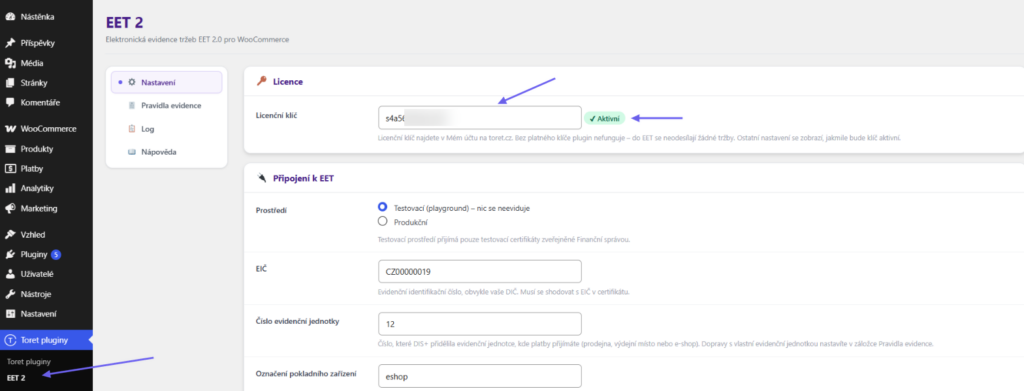
The other settings and tabs appear once the key is active.
Attention! The plugin does not work without a valid license key – no sales are sent to EET and the plugin admin only shows the license key field and the help. Sales waiting for a retry are kept and are sent once the key is active again.
Settings
(Toret plugins → EET 2 → Settings)
On the Settings tab, you enter the details from DIS+, upload the cash register certificate and verify the connection to EET. Save your changes with the Save Changes (Uložit změny) button at the bottom of the page.
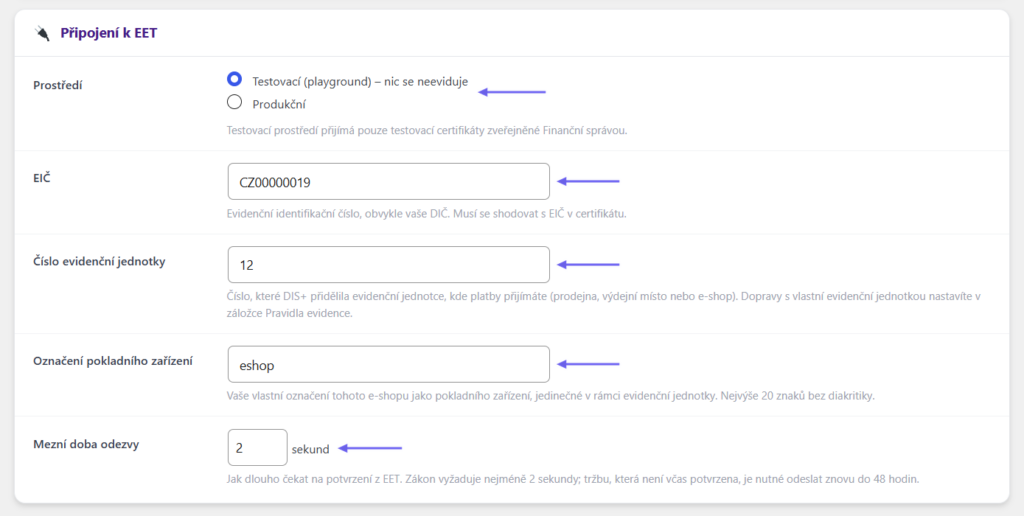
Connection to EET
- Environment (Prostředí) – Testing (playground) (Testovací (playground)) is for trying the plugin out with the test certificates of the Financial Administration; nothing is recorded. Before the first real payment, upload the production certificate and switch to Production (Produkční).
- EIČ – record identification number, usually your DIČ (tax ID), e.g. CZ12345678. It has to match the EIČ in the certificate.
- Record unit number (Číslo evidenční jednotky) – the number DIS+ assigned to the record unit where you accept most payments (shop, pickup point or e-shop). Other locations with their own number are set on the Recording rules tab. Numbers from DIS+ have at least two digits and end with 1, 2, 3 or 4 – if the number you enter does not match this format, the plugin warns you.
- Cash register designation (Označení pokladního zařízení) – your own designation of this e-shop as a cash register, e.g. eshop. It has to be unique within the record unit, up to 20 characters without diacritics.
- Response time limit (Mezní doba odezvy) – how long (in seconds) to wait for the EET confirmation. 3 to 5 seconds is usually enough; the law requires at least 2. The plugin sends a sale that is not confirmed in time again.
Cash Register Certificate
- Certificate file (Soubor certifikátu) – the .p12 cash register certificate generated in DIS+ on the MOJE daně portal.
- Certificate password (Heslo certifikátu) – fill it in only when uploading a certificate file. The password is not stored; the private key is stored encrypted.
- Stored certificate (Uložený certifikát) – after uploading, shows the EIČ from the certificate, its validity, the file name and the issuer. A test certificate of the Financial Administration is marked test certificate (testovací certifikát). The Remove certificate (Odebrat certifikát) button deletes it from the website.
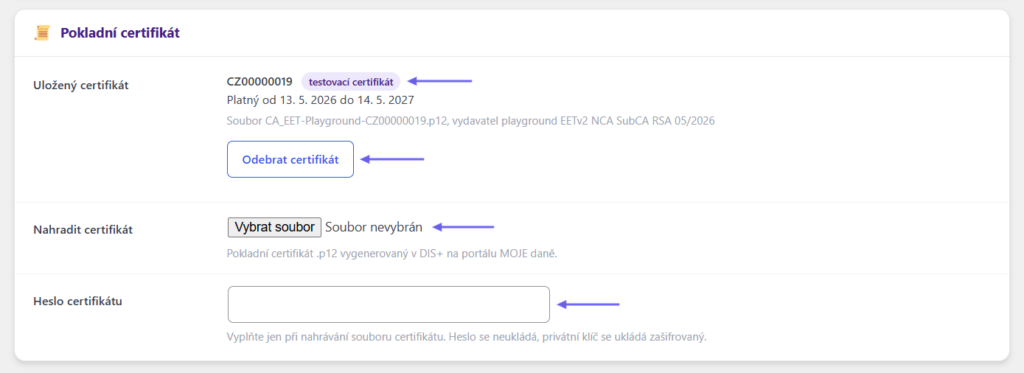
TIP: The certificate is valid for 366 days. As soon as the expiry warning appears, generate a new certificate in DIS+ and upload it in the Replace certificate (Nahradit certifikát) field.
EET Data for the Customer
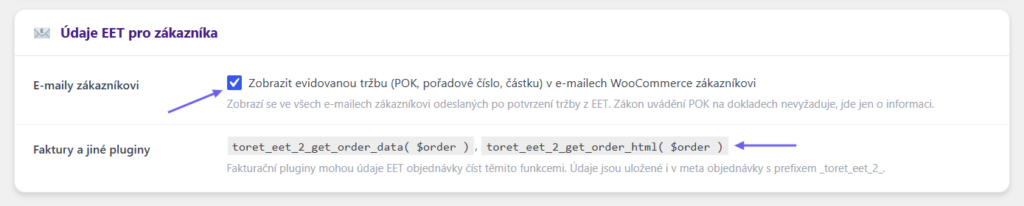
- Customer emails (E-maily zákazníkovi) – optionally shows the recorded sale (POK, sequence number, amount) in WooCommerce emails to the customer. It appears in all emails sent after EET has confirmed the sale. The law does not require the POK on documents; it is for information only.
- Invoices and other plugins (Faktury a jiné pluginy) – shows the functions invoicing plugins can use to read the EET data of an order (see For Developers).
Connection Test
The Test connection (Otestovat spojení) button sends a test sale of 0.00 CZK to EET in verification mode – nothing is recorded. The test uses the saved settings, so save your changes first. Run it after every change of the settings or the certificate.

Recording Rules
(Toret plugins → EET 2 → Recording rules)
The rules determine which payments are sent to EET and when.
TIP: You will find information on which sales have to be recorded on the Financial Administration website on EET 2.0 (in Czech).
The table lists all payment methods registered in WooCommerce. For each method, you set:
- Record (Evidovat) – turns recording on for the payment method.
- Only with shipping (Jen s dopravou) – limits the rule to the selected shipping methods, e.g. cash on delivery only with local pickup. An empty field means all shipping methods. For orders without shipping, the No shipping (virtual orders) (Bez dopravy (virtuální objednávky)) option is available.
- When to record (Kdy evidovat) – When the payment is completed (Při dokončení platby), or When the order status changes to (Při změně stavu objednávky na) a selected status.
- Round to whole CZK (cash) (Zaokrouhlit na celé Kč (hotovost)) – records the amount rounded to whole crowns, for cash taken rounded. Applies to orders in CZK only.
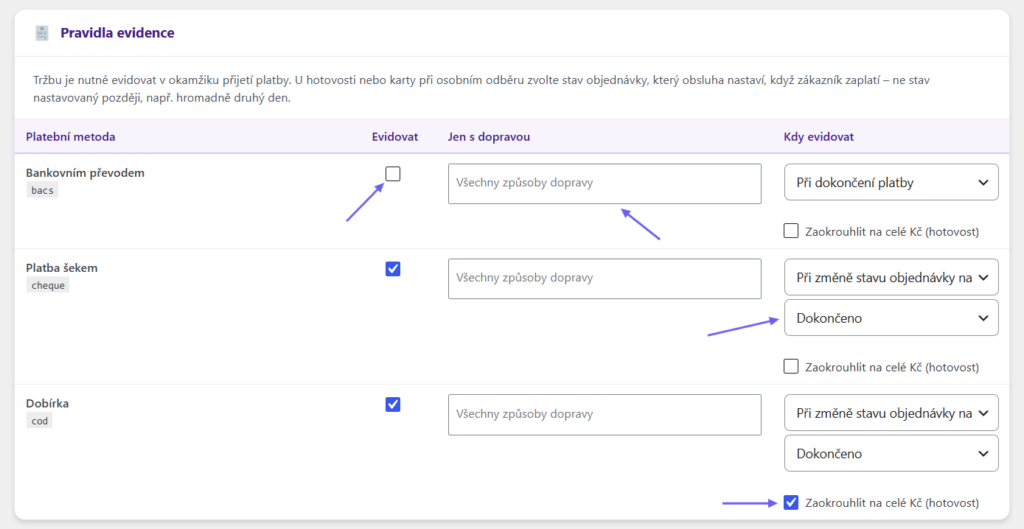
Attention! The When the payment is completed option is for payment methods that confirm the payment themselves, e.g. payment gateways or a card terminal set up as its own payment method. Cash on delivery, bank transfer and cheque never confirm the payment, so nothing is recorded with this option – choose an order status instead.
A sale has to be recorded at the moment the payment is received. For cash or card at local pickup, choose the order status your staff sets when the customer pays – not a status set later, e.g. in bulk the next day.
A rule records the order total minus the payments already recorded, so an order is not recorded twice, even if the status is set again. When part of the order was paid another way (e.g. a deposit by bank transfer), record the payment actually received in the order detail instead and do not use the rule for such orders.
Record Units by Shipping Method
A sale is recorded under the record unit where the customer paid: your shop or pickup point, or the vehicle of your own delivery. Register each of them in DIS+ and fill in for the corresponding shipping method:
- Record unit number (Číslo evidenční jednotky) – the number of the location from DIS+.
- Cash register designation (Označení pokladního zařízení) – the designation of the cash register at this location.
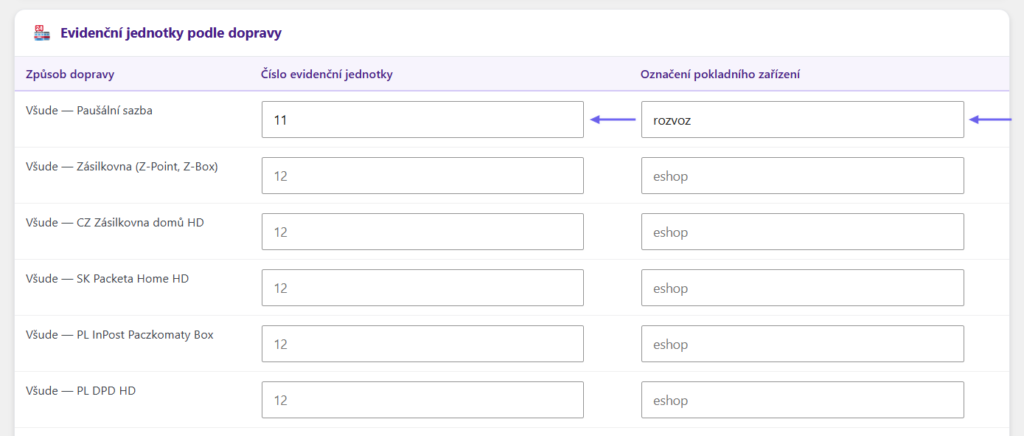
A shipping method without these details uses the record unit and cash register from the Settings tab. Each WooCommerce local pickup location has its own row.
EET in the Order
(WooCommerce → Orders → order detail → EET box)
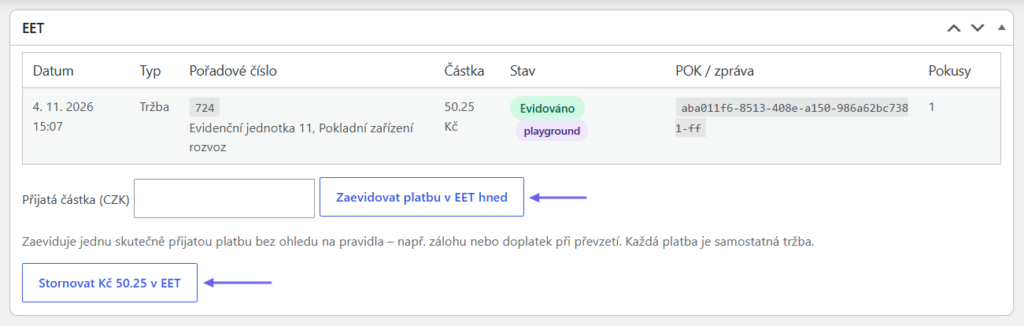
The EET box in the order detail (WooCommerce → Objednávky) shows all its sales, refunds and cancellations. For each record you see the Date, Type, Sequence number (with the record unit and cash register), Amount, Status, POK / message and the number of Attempts. Every result is also added to the order notes.
Recording a Payment Manually
The Amount received (Přijatá částka) field and the Record the payment in EET now (Zaevidovat platbu v EET hned) button record one payment actually received, regardless of the rules. Each payment is a separate sale.
EXAMPLE: The customer paid a deposit of 500 Kč by bank transfer and the remaining 1,200 Kč in cash at pickup in your shop. Only the cash part has to be recorded – enter 1200 in the Amount received field and click Record the payment in EET now. Do not use a rule for such orders, otherwise it would record the whole order total.
Cancellation
The Cancel … in EET (Stornovat … v EET) button (with the amount, e.g. Cancel Kč 471.00 in EET) cancels the recorded amount. Use it when the customer did not pay or the payment was recorded by mistake.
What Happens Automatically
- A refund made in WooCommerce is recorded as a negative sale.
- When you cancel an order with a recorded payment, the recorded amount is cancelled in EET.
Note: Changes to the items or the amount of an order that has already been recorded are not sent to EET. If you are giving money back to the customer, make a refund in WooCommerce.
Record Types and Sequence Numbers
| Type | Meaning | Sequence number |
|---|---|---|
| Sale (Tržba) | A payment received. | The order number; further payments of the same order get the suffix -P2, -P3 … |
| Refund (Vratka) | A WooCommerce refund recorded as a negative amount. | Order number-R refund ID |
| Cancellation (Storno) | A cancellation of the recorded amount without a refund (cancelled order, Cancel in EET button). | Order number-S1 |
Log and Retries
(Toret plugins → EET 2 → Log)
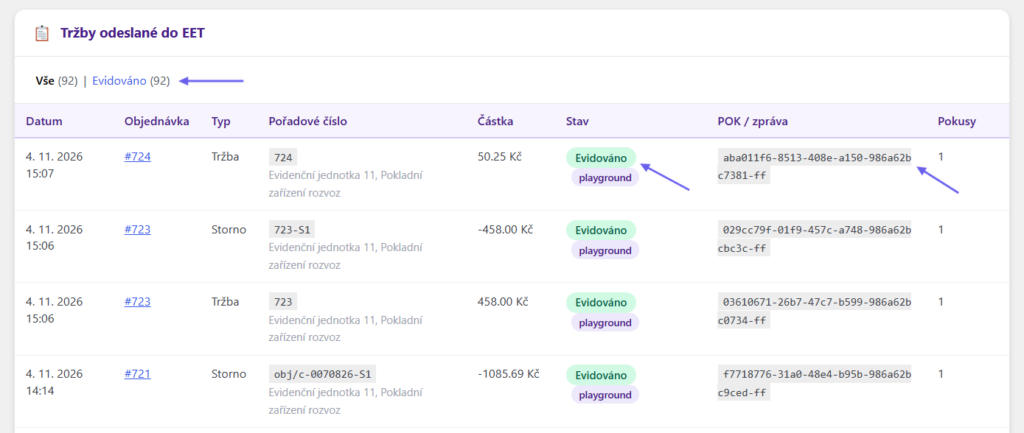
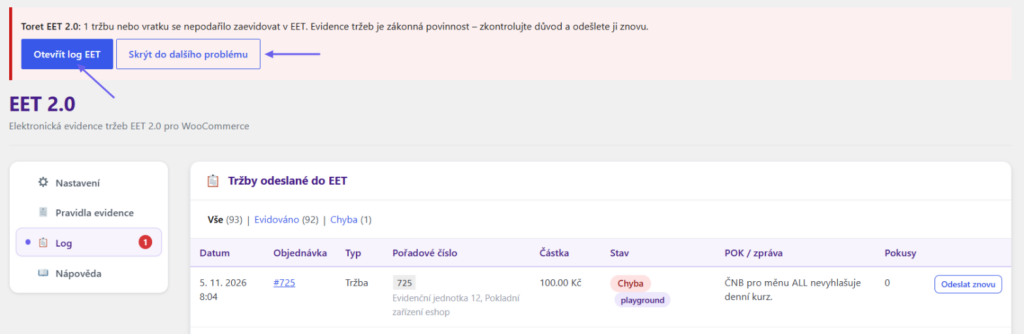
The log shows everything sent to EET, newest first, and can be filtered by status (All, Recorded, Failed …). Each row contains the Date, Order, Type, Sequence number with the record unit and cash register, Amount (with the CNB exchange rate for foreign currencies), Status, POK / message from EET and the number of Attempts. Rows sent to the testing environment are marked playground. The number next to the Log tab shows how many sales need your attention.
| Status | Meaning |
|---|---|
| Sending (Odesílá se) | The sale is being sent right now. |
| Recorded (Evidováno) | EET accepted the sale, the POK is stored. Nothing else to do. |
| Waiting for retry (Čeká na opakování) | EET did not answer or the connection failed. The plugin sends the sale again by itself after 1, 5, 15 and 30 minutes and then every hour. |
| Over 48 hours, still retrying (Po lhůtě 48 h, dál se opakuje) | The sale was not confirmed within 48 hours. The obligation to send it remains, so the plugin keeps trying every 6 hours. Check the reason in the message. |
| Failed (Chyba) | EET rejected the sale, or it could not be sent at all (missing settings, unknown currency). It is not retried – remove the cause and click Send again (Odeslat znovu). |
The Send again button is available for sales EET has not confirmed, on the Log tab and in the EET box in the order detail.
Technical details of every attempt, including the EET answers, are in WooCommerce → Status → Logs (WooCommerce → Stav → Logy), source toret-eet-2.
Notices in the Admin
When a sale cannot be recorded, a red notice appears in the WordPress admin with the number of sales or refunds that could not be recorded. Open the EET log (Otevřít log EET) takes you to the problem, Hide until the next problem (Skrýt do dalšího problému) hides the notice until a new one occurs. Once the sales are recorded, the notice disappears by itself.
Note: The testing environment of the Financial Administration has regular maintenance windows (usually on Thursday evenings and overnight). An outage at that time is not a plugin error.
Plugin testing
For testing purposes, you can use:
- the subdomain “dev.domainlicense” (with the same license as for the production website)
- localhost (127.0.0.1)
Purchased plugins will also work in these locations, and you can test their implementation and compatibility here before deploying them to the website and during its use.
FAQ and Troubleshooting
Messages and Situations
| Message or situation | What to do |
|---|---|
| The plugin does not have an active licence (Plugin nemá aktivní licenci) | No sales are sent to EET and the admin only shows the license key and the help. Enter a valid key on the Settings tab. Sales waiting for a retry are sent once the key is active. |
| EIČ or the record unit number is not set in the plugin settings. (V nastavení pluginu chybí EIČ nebo číslo evidenční jednotky.) | Fill in the Settings tab and click Send again at the sale. |
| The certificate has expired. (Platnost certifikátu vypršela.) | Generate a new certificate in DIS+, upload it on the Settings tab and send the rejected sales again from the Log tab. |
| Error 4: invalid signature (Chyba 4: neplatný podpis) | The certificate is not valid for the selected environment – e.g. a test certificate in production or a certificate after its expiry. Check the Stored certificate box. |
| Warning: EIČ differs from the certificate (Varování: EIČ se liší od certifikátu) | The sale was accepted, but the EIČ in the settings does not match the certificate. Correct the EIČ. |
| Warning: record unit number does not match the format (Varování: číslo evidenční jednotky neodpovídá formátu) | The sale was accepted, but the record unit number does not have the format of a DIS+ number. Check the number in the settings and in Record units by shipping method. |
| The POK ends with -ff (POK končí na -ff) | The sale went to the testing environment and is not recorded. Switch the environment to Production and upload the certificate from DIS+. |
| The order currency is not on the CNB list (Měna objednávky není na lístku ČNB) | EET accepts CZK only and the plugin converts other currencies at the CNB rate. A currency for which the CNB does not publish a rate cannot be converted and the sale ends up as Failed. |
| Retries come late (Opakované odeslání přichází pozdě) | Retries run through WP-Cron, which needs visitors. On a site with low traffic, run WP-Cron from a system cron job. |
| Cash on delivery is not recorded (Dobírka se nezaeviduje) | Check that the rule does not have When the payment is completed in the When to record field. For cash on delivery, choose an order status, e.g. Completed (Dokončeno). Also check the Only with shipping field. |
The Internet Connection or EET Was Down. Do I Have to Do Anything?
No, the plugin sends the sale again by itself. Only when a notice appears in the admin, open the Log tab and check the reason.
My Orders Are in Euros. How Are They Recorded?
EET accepts amounts in CZK only. The plugin converts orders in a foreign currency at the CNB exchange rate and stores the rate with the sale record – you will see it next to the amount in the log.
Customers Pay at Several Locations (Shop, Pickup Point, Own Delivery). How Do I Set It Up?
Register each location in DIS+ as a separate record unit. Then, on the Recording rules tab, in the Record units by shipping method (Evidenční jednotky podle dopravy) section, enter the record unit number and cash register designation for the corresponding shipping method.
For Developers
The EET data of an order is stored in order meta with the _toret_eet_2_ prefix. Invoicing and other plugins can read it with these functions:
| Function | Returns |
|---|---|
toret_eet_2_get_order_data( $order ) | The EET data of an order (first payment, further payments, refunds and cancellations), null when the order has not been sent to EET. |
toret_eet_2_get_order_html( $order ) | A ready-made block with the confirmed sale for invoices and documents. |
Filters
| Filter | Parameters | Purpose |
|---|---|---|
| toret_eet_2_porad_cis | $value, $order, $refund_id | The sequence number sent to EET. |
| toret_eet_2_exchange_rate | $rate, $currency | The exchange rate used for orders in a foreign currency. |
| toret_eet_2_order_data | $data, $order | The data returned by toret_eet_2_get_order_data(). |
| toret_eet_2_order_html | $output, $order, $data, $plain | The block returned by toret_eet_2_get_order_html() and printed in emails. |
Actions
| Hook | Parameters | When it runs |
|---|---|---|
| toret_eet_2_sale_sent | $record, $result | After every attempt to send a sale, refund or cancellation. |