---
site_name: Toret dokumentace
site_url: https://documentation.toret.cz
contact_email: info@toret.cz
title: Toret AI Markdown plugin documentation
url: https://documentation.toret.cz/en/toret-ai-markdown-plugin-documentation/
date: 2026-02-26
modified: 2026-10-23
author: tcirkl
type: page
---
# Toret AI Markdown plugin documentation
You are on the documentation pages for the Toret AI Markdown plugin, which helps with the technical optimization of websites for AI crawlers. You can purchase the AI Markdown plugin here: [Toret AI Markdown](https://toret.cz/produkt/ai-markdown)
Table Of Contents
1. 🤖 What the plugin does
- Available URLs
2. Minimum Requirements
3. Plugin Installation
4. Plugin Activation
5. 🚀 Quick Start
6. ⚙️ Description of Settings
- General Settings
-
- Access Logging (Zaznamenávání přístupů)
-
- Frontmatter headers (Hlavičky (Frontmatter))
7. ✏️ Markdown Editor
8. 🗺️ Sitemap for AI
9. 🤖 llms.txt
10. agents.md
11. 📄 Metabox on Pages and Products
12. 🗂️ Settings for Categories
13. 🛒 WooCommerce
14. For Developers
- 🪝 WordPress Filters (Hooks)
-
- 📌 Constants
-
- 💾 Cache Logic
-
- ⚙️ HTML → Markdown Converter
-
- 🔌 AJAX Endpoints
-
- 🗄️ Database – Stored Values
## 🤖 What the plugin does
Toret Markdown adds an alternative **Markdown** output to every WordPress page. This is primarily intended for **AI language models and agents** (ChatGPT, Claude, Perplexity…), which process text in Markdown more accurately and efficiently than standard HTML.
The plugin generates these outputs:
- Page / post / product:?format=markdownor the.mdsuffix in the URL
- Sitemap for AI:?format=markdown-sitemap
- llms.txt: instructions and context at the website root
- llms-full.txt, agents.md and sitemap_agentic_discovery.xml: extended files for AI agents
### Available URLs
| URL | Description |
| --- | --- |
| `https://vasedomena.cz/stranka/?format=markdown` | Markdown version of any page or post |
| `https://vasedomena.cz/stranka.md` | The same via the .md suffix (for categories /kategorie/index.md) |
| `https://vasedomena.cz/?format=markdown-sitemap` | Overview of all available pages for AI agents |
| `https://vasedomena.cz/llms.txt` | Instructions and context for AI agents |
| `https://vasedomena.cz/llms-full.txt` | Extended version of llms.txt with machine-readable endpoints and a complete page index |
| `https://vasedomena.cz/agents.md` | Operating manual for AI agents (store information, rules, shipping, payments) |
| `https://vasedomena.cz/sitemap_agentic_discovery.xml` | Sitemap of the files for AI agents |
## Minimum Requirements
- WordPress 6.9 or higher
- PHP 8.2 or higher
## Plugin Installation
After purchasing the plugin, you will receive a license key and a link to download the zip file containing the plugin via email. Detailed instructions on how to install a plugin into WordPress from your computer can be found [here](https://documentation.toret.cz/instalace-pluginu/).
## Plugin Activation
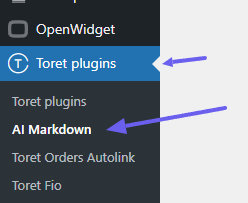
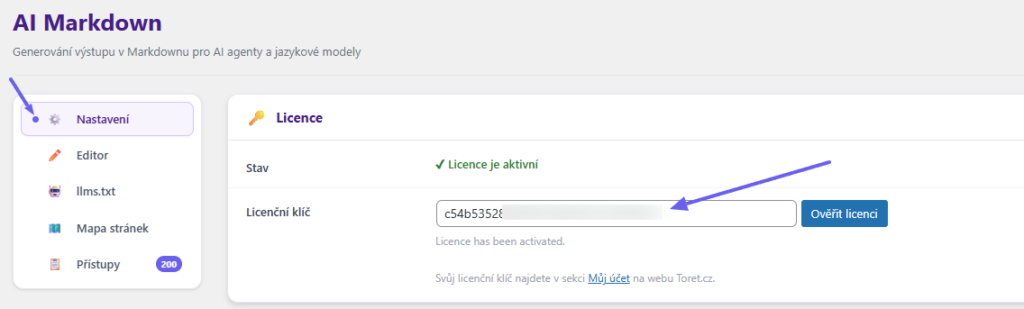
After installing the plugin, open the Toret AI Markdown plugin *(Toret Plugins > AI Markdown)*, enter the license key into the appropriate field, and activate it using the Verify License (Ověřit licenci) button.
## 🚀 Quick Start
#### 1. Enable the plugin
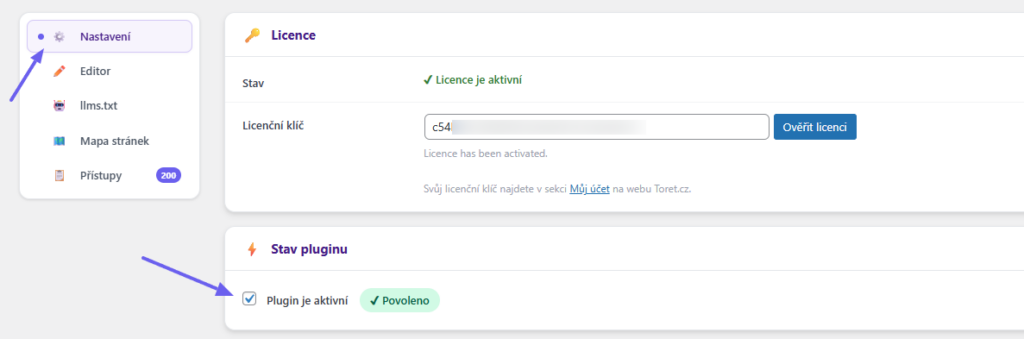
In the WordPress administration, go to **Toret plugins > AI Markdown** (*Settings (Nastavení)* tab) and ensure the *Plugin is active (Plugin je aktivní)* toggle is checked.
#### 2. Test the output
Add `?format=markdown` to the end of any URL on your site, e.g.:
https://vasedomena.cz/stranka/?format=markdown
#### 3. Set up llms.txt
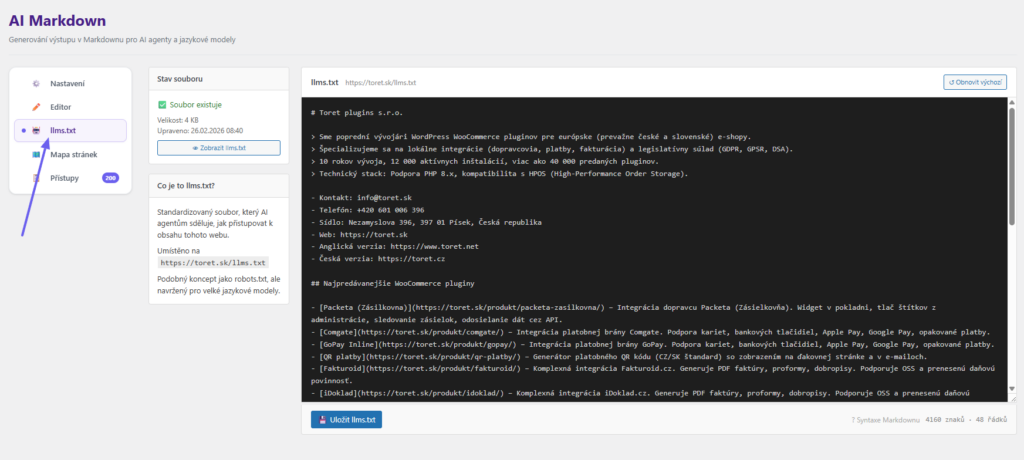
In the plugin administration, go to the *llms.txt* tab and edit the instructions for AI agents. The file is then publicly available at `https://vasedomena.cz/llms.txt`.
#### 4. Check the sitemap
The AI sitemap is available at `https://vasedomena.cz/?format=markdown-sitemap`. It contains an overview of all public pages with their descriptions.
## ⚙️ Description of Settings
(Toret Plugins > AI Markdown > Settings (Nastavení))
### General Settings
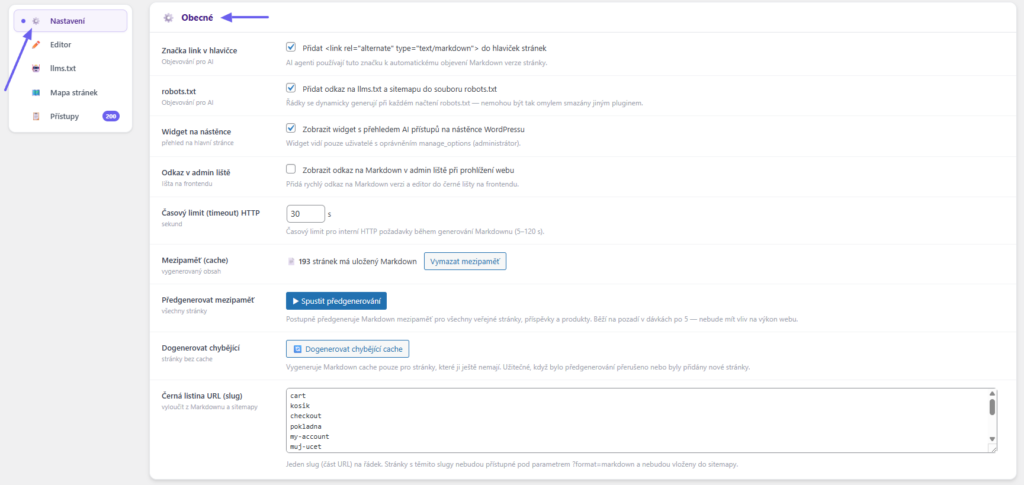
#### Link tag in header (link tag)
If enabled, the plugin inserts the tag `` into the `` of every page. Modern AI agents recognize this tag and automatically load the Markdown version instead of HTML — without any intervention on your part.
If the *Link tag in header (Link tag v hlavičce)* option is enabled, the plugin inserts the following meta tags into the `` of every page:
```
```
#### Robots.txt
Adds links to llms.txt, llms-full.txt, agents.md and the Markdown sitemap to the robots.txt file, as well as a `Sitemap:` line with the sitemap of the files for AI agents. The lines are generated dynamically each time robots.txt is loaded, so another plugin cannot delete them by accident.
#### AI discovery files (Soubory pro AI agenty)
You can enable or disable each file and feature separately. By default, all of them are enabled.
**.md URL suffix:**the addresses /stranka.md and /kategorie/index.md return the Markdown version of the page.
---
**/llms-full.txt:**an extended version of llms.txt. In addition to its content, it contains machine-readable endpoints and a complete page index.
---
**/agents.md:** an operating manual for AI agents. You edit its content on the agents.md tab.
---
**/sitemap_agentic_discovery.xml:**a sitemap of the files for AI agents. The plugin automatically adds it to the sitemap index of WordPress, Yoast SEO and Rank Math.
---
All files are generated dynamically; no physical file is created on the website.
#### Content negotiation
AI agents that request content via the Accept header will receive Markdown directly. Regular browsers and users are not affected.
Watch out for websites with full-page caching (WP Rocket, Lite Speed Cache, Cloudflare…). They return the stored HTML before WordPress runs, so the Accept header works only for pages that are not in the cache. The `?format=markdown` and `.md` addresses always work.
#### Content signals
Adds a preference to robots.txt allowing AI crawlers to use the content.
- AI search: Indexing for search engines (search=yes) is always enabled.
- AI input: AI tools may cite the content
- AI train: The content may be used to train AI tools
When the option is enabled, the plugin also sends the preferences in the `Content-Signal` HTTP header with every Markdown response, e.g. `search=yes, ai-input=yes, ai-train=no`. By default, AI input is allowed and AI train is not.
Every Markdown response also contains the `X-Markdown-Tokens` header with an estimate of the number of tokens, so the AI agent knows in advance how large the content is. Both headers are compatible with Cloudflare’s Markdown for Agents feature.
#### Dashboard Widget
Enables an overview of AI access on the main page (Dashboard (Nástěnka)) of the WP administration.
#### Admin Bar Link
Displays a link to view/edit the Markdown version in the horizontal admin bar on the frontend for quick access.
#### HTTP Timeout
The plugin generates Markdown by internally loading (fetching) HTML pages and converting them. The timeout determines how long to wait for a response. For slow hosting or particularly large pages, we recommend increasing the value to 30–60 s.
#### Cache (Mezipaměť)
Here you can see the number of pages with a generated Markdown version and a button to clear the cache.
#### Max. cache age (Max. stáří cache)
The number of days after which the stored Markdown version of a page is considered outdated. The default value is 30 days; 0 means the cache never expires. Older pages are regenerated in the background when they are requested, so changes made outside the page editor (for example in the theme, widgets or archive counts) are reflected too. The cache is also cleared automatically when the theme changes and when the plugin is updated. Pages with a locked cache stay unchanged.
#### Pre-generate cache
Creates and stores the Markdown cache for all public pages, posts, and products. Runs in the background in batches of 5 — it will not affect website performance.
#### Generate missing
Generates the Markdown cache only for pages that do not have it yet. Useful if pre-generation was interrupted or new pages were added.
#### Slug Blacklist
One slug per line. Pages on the blacklist will not return Markdown output and will not appear in the sitemap. Typically, this includes technical pages without relevant content: `cart`, `checkout`, `my-account`, `thank-you`.
#### Reserved words
Here you can enter text that will be rendered in Markdown exactly as written—without line breaks or wrapping—to preserve its meaning.
### Access Logging (Zaznamenávání přístupů)

The plugin logs every access to `?format=markdown` and `?format=markdown-sitemap`, including bot identification (GPTBot, Claude Bot, Googlebot…). Logging can be turned on/off using the *Log accesses to the database (Zaznamenávat přístupy do databáze)* checkbox.
**Max. log entries** – Once the limit is exceeded, the oldest entries are automatically deleted. The recommended value is 500–1000 for standard websites.
IP addresses are automatically anonymized. You can view the records in the *Accesses (Přístupy)* tab.
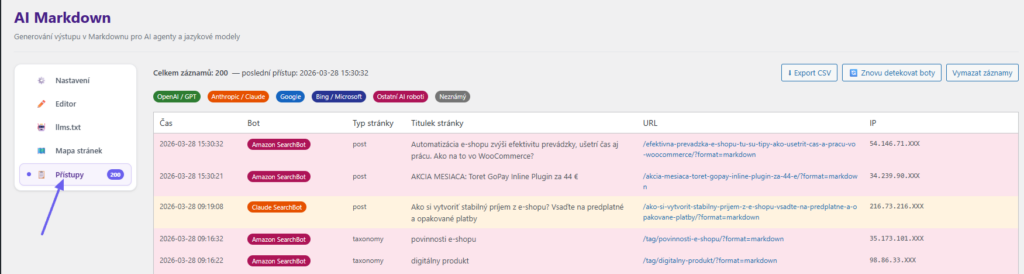
#### 🤖 Bot Detection
##### Recognized Agents
Detection works by comparing the User-Agent header from the browser (case-insensitive). The plugin recognizes over 50 AI bots, search engines and SEO crawlers. Recognized types:
- gpt:GPTBot, ChatGPT-User, OAI-Search Bot, Search GPT
- claude:Claude Bot, Claude-User, Claude-Search Bot, Anthropic
- google:Googlebot, Google-Extended, Gemini, Google Other
- bing:Bingbot, Bing Preview, MSNBot, Microsoft Copilot
- other_ai:Perplexity Bot, Applebot, Meta, CCBot, Mistral, Deep Seek, Cohere, Amazon Bot, Byte Spider and others
- search:search engines (Seznam Bot, Yandex Bot, Duck Duck Bot, Baidu…)
- seo:SEO crawlers (Ahrefs Bot, Semrush Bot, MJ12Bot…)
- unknown:unrecognized User-Agent
##### Colors in the Access Log
- Green:OpenAI / GPTBot
- Orange:Anthropic / Claude Bot
- Blue:Google / Googlebot
- Blue-purple:Bing / Microsoft
- Pink:other AI robots
- Teal:search engines
- Purple:SEO crawlers
- Gray:unknown visitor
### Frontmatter headers (Hlavičky (Frontmatter))
(Toret Plugins > AI Markdown > Settings > Frontmatter headers)
Every Markdown version of a page starts with a header in YAML format, the so-called frontmatter. From it, an AI agent immediately knows which website the content comes from and what page it is, without having to work it out from the text. The header contains information about the website and then about the specific page: title, URL, creation and modification date, content type, excerpt, categories and tags. For products, it also contains the price, currency, stock status and SKU.
#### Author (Autor)
When the option is enabled, the author field with the name of the page `author` is added to the header. It is enabled by default.
#### Site name, Site description, Site URL, Contact email (Název webu, Popis webu, URL webu, Kontaktní e-mail)
These details are inserted into the header of every Markdown page as the `site_name`, `site_description`, `site_url` and `contact_email` fields. The plugin also uses them when generating the default content of llms.txt and agents.md. If you leave a field empty, the value from WordPress is used: the site title and tagline from the general settings, the site address and the administrator e-mail. Fill in your own value if you want to show AI agents different information, for example your trade name instead of the site title, or a customer support e-mail instead of the administrator e-mail.
#### Custom fields (Vlastní pole)
Custom details to be added to the header of every Markdown page. Enter one entry per line in the `key: value` format, for example:
`language: en`
`currency: EUR`
Lines without a colon are ignored by the plugin.
## ✏️ Markdown Editor
(Toret Plugins > AI Markdown > Editor)
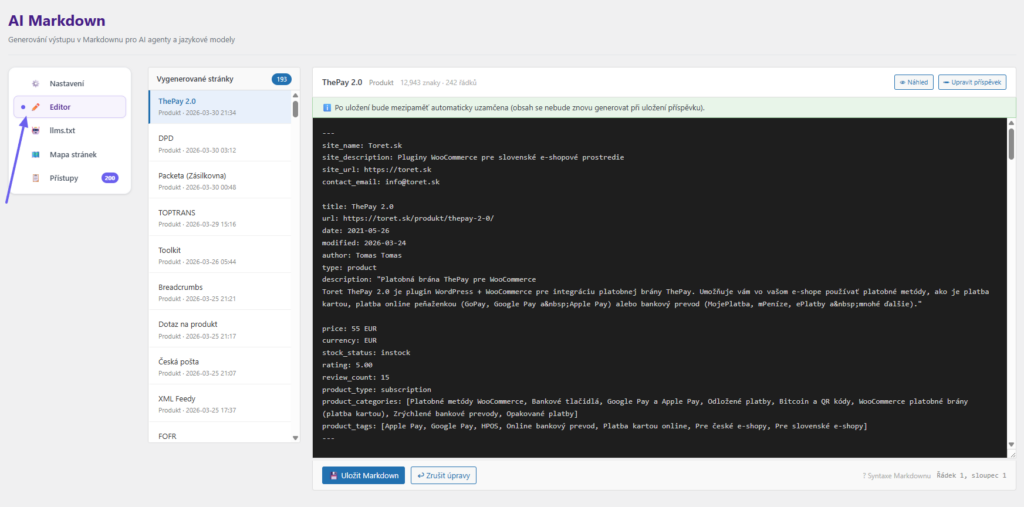
In the Editor, it is possible to modify the created Markdown versions of pages.
#### How the cache works
The plugin generates Markdown automatically upon every access. The result is stored in the cache (as post meta), so repeated requests are very fast and do not strain the server. The cache automatically refreshes whenever a post is edited.
#### Manual Editing
In the *Editor* tab, you can manually modify and save the Markdown of any page. Once saved, the cache is **locked** — the plugin will no longer automatically overwrite it. The lock can be released at any time using the button directly in the editor.
#### Locked Cache
Pages with a locked cache are marked in the editor with the 🔒 icon. This means the website will display exactly the content you manually set to AI agents — the plugin will not overwrite it even during subsequent post updates.
## 🗺️ Sitemap for AI
#### What the sitemap contains
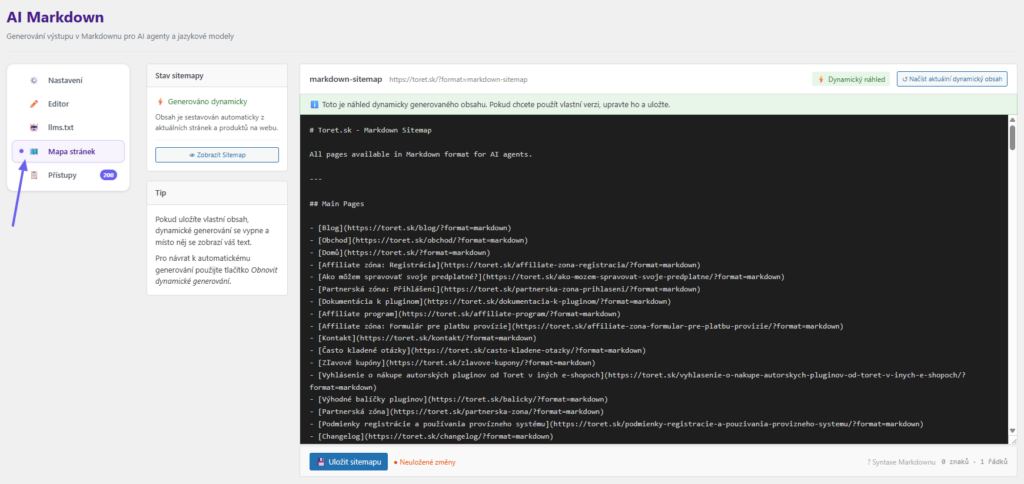
The sitemap is an overview of all public pages, posts, and products in Markdown format. For each item, it includes the title, URL, modification date, and a short description. An AI agent uses it to discover everything that exists on the site and then loads the details of specific pages.
#### Manual Overwrite
(Toret plugins > AI Markdown > Sitemap (Mapa stránek))
In the *Sitemap* tab, you can overwrite the dynamically generated content with your own text and save it. Use the *Restore dynamic sitemap (Obnovit dynamickou sitemapu)* button to easily return to automatic generation.
#### Limits and Sorting
(Toret plugins > AI Markdown > Settings (Nastavení) > Markdown Sitemap)
In the *Settings (Nastavení)* tab, you can set the maximum number of items and their sorting method for each content type (pages, posts, products). A value of `-1` means an unlimited list, 0 hides the entire section.

The sitemap and llms-full.txt also include custom content types (services, portfolio, FAQ…). Each type has its own section sorted from the newest. In the **Max. items per other content type**(Max. položek na další typ obsahu) field, you set a common limit for all these types. In the **Limit per content type (Limit pro jednotlivé typy)** section, you can limit large types, such as FAQ or a knowledge base, separately, to keep the sitemap and llms-full.txt small.
## 🤖 llms.txt
#### What it is for
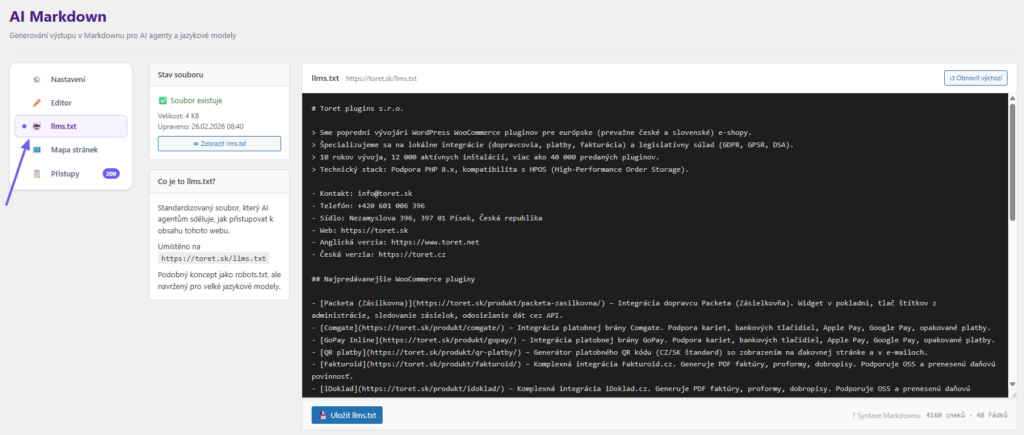
`llms.txt` is a standardized file (functioning similarly to `robots.txt`) that tells AI agents how to properly work with your website. We recommend writing here: who you are, what you offer, which pages are most important for AI, and what restrictions apply to them.
#### Default Content
Using the *Restore default (Obnovit výchozí)* button in the *llms.txt* tab, the plugin automatically generates basic content from your WordPress data (site title, description, contact, sitemap URL). You then simply need to supplement or manually edit the result.
#### How llms.txt is served
The plugin generates llms.txt dynamically in UTF-8 encoding, so no physical file is created on the website. Older versions of the plugin (before 1.1.1) saved the file to the website root; it is removed automatically when you save the editor. If you have not edited llms.txt yet, the default content is shown.
#### llms-full.txt
An extended version of llms.txt. It contains the text of llms.txt, an overview of machine-readable endpoints (Markdown version, sitemap, agents.md, Content-Signal) and a complete page index. It is generated automatically and is not edited separately.
## agents.md
(Toret Plugins > AI Markdown > agents.md)
#### What it is for
agents.md is an operating manual for AI agents, for example shopping assistants. It is available at [https://vasedomena.cz/agents.md](https://vasedomena.cz/agents.md). It contains store information, terms and conditions and other rules, shipping and payment methods, instructions for reading the catalog and rules for automated clients.
#### Dynamic and custom content
By default, the content is assembled automatically from the store settings, shipping zones, payment methods and terms pages. If you edit and save it on the tab, dynamic generation is switched off and AI agents see your version. The Restore dynamic (Obnovit dynamický) button returns to automatic generation. Load current dynamic (Načíst aktuální dynamický) inserts the current automatically generated content into the editor as a starting point for your edits.
## 📄 Metabox on Pages and Products
#### Where it appears
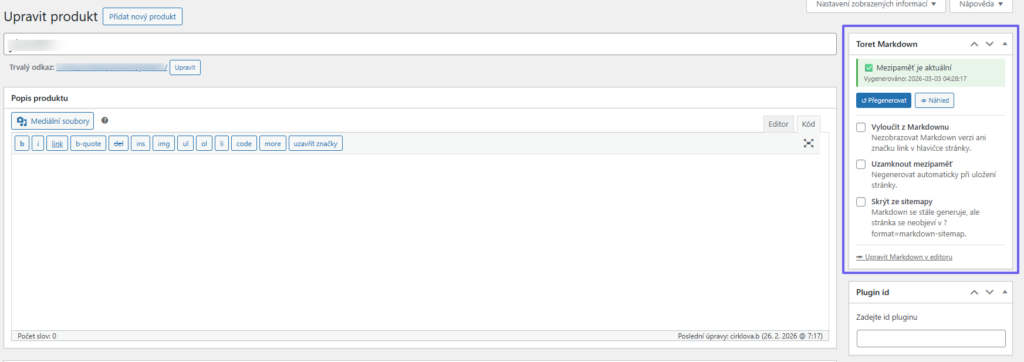
The *Toret Markdown* metabox is displayed in the right column of the editor for every post, page, and product. It shows the current cache status (current / not generated / excluded) and the exact date of the last generation.
#### Generate / Regenerate
The *Generate (Generovat)* (or *Regenerate (Přegenerovat)*) button triggers the immediate generation of the Markdown cache for that page directly from the administration, without the need to visit it. Once generated, a *Preview (Náhled)* link is displayed to check the output.
#### Download error warning
The plugin creates Markdown from the downloaded (rendered) page. If the page cannot be downloaded, the metabox warns you. Typically this happens because of a login page, password protection, maintenance mode, a firewall, an HTTP error or an empty response. The Markdown then contains only the basic content, i.e. the post text and product data, not the whole page. Check the website settings and regenerate the page.
#### Exclude from Markdown
The page will not return any Markdown output — instead, standard HTML will be shown to the AI. Additionally, the `` tag will not be inserted into the header, and the page will not be included in the sitemap.
#### Lock Cache
Prevents automatic regeneration of the cache when the page is saved. This is useful when you have manually edited the Markdown in the editor and do not want the plugin to accidentally overwrite it. The lock can be canceled or unlocked directly in the editor at any time.
#### Hide from Sitemap
The page will not appear in `?format=markdown-sitemap`, but its Markdown version remains fully accessible via `?format=markdown`. The difference from *Exclude from Markdown* is that the content still exists; it just doesn’t appear in the global overview for AI.
#### Link to Editor
The *Edit Markdown in editor (Upravit Markdown v editoru)* link at the bottom of the metabox takes you directly to the central Editor tab with the current page pre-selected.
## 🗂️ Settings for Categories
#### Where it appears
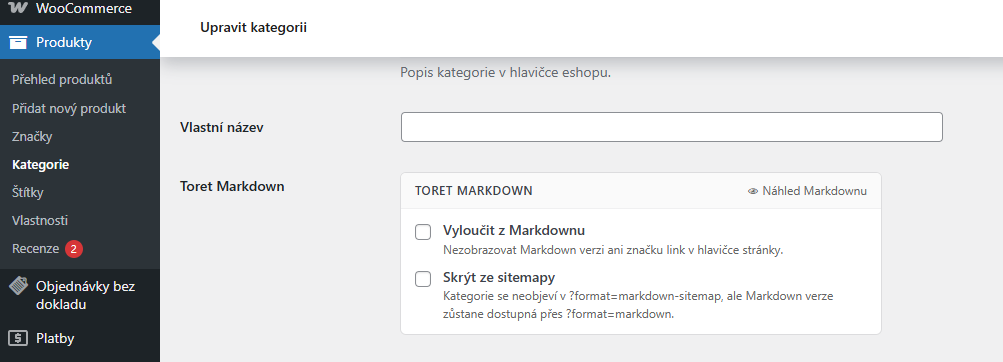
The *Toret Markdown* panel is displayed on the post category editing page (*Posts → Categories (Příspěvky → Kategorie)*). If WooCommerce is active, it works exactly the same for product categories (*Products → Categories (Produkty → Kategorie)*).
#### Exclude from Markdown
The category page will not return Markdown output, and the `` tag will not be inserted into its header. It works exactly like the same option in the metabox for individual posts.
#### Hide from Sitemap
The category will not appear in `?format=markdown-sitemap`, but its Markdown version remains available via `?format=markdown`. There is also a direct *Markdown Preview (Náhled Markdown)* link on the category editing page for a quick look at the output.
## 🛒 WooCommerce
#### Products in the Sitemap
If WooCommerce is active, the sitemap automatically includes products, including their price, stock status, and category. In the settings, products can be filtered by category or their total number can be limited.
#### Product Frontmatter
The Markdown output of a product page contains a cleverly extended YAML header with price (`price`), currency (`currency`), stock status (`in_stock`), and SKU. Thanks to this, the AI agent knows the exact and current status of the product without needing to parse complex HTML.
#### Product Categories
On the product category page in the administration (Products → Categories), you will find a metabox for potentially excluding the entire category from the Markdown output and from the sitemap.
## For Developers
### 🪝 WordPress Filters (Hooks)
| Filter | Description |
| --- | --- |
| `toret_markdown_post_frontmatter` | Modification of the post YAML header before closing |
| `toret_markdown_post_output` | Final Markdown of the page / product |
| `toret_markdown_term_output` | Final Markdown of the taxonomy (category, tag) |
| `toret_markdown_archive_output` | Final Markdown of the archive, homepage, shop |
| `toret_markdown_sitemap_pages_args` | `get_pages()` arguments in the sitemap |
| `toret_markdown_sitemap_posts_args` | `get_posts()` arguments in the sitemap |
| `toret_markdown_sitemap_products_args` | `wc_get_products()` arguments in the sitemap |
| `toret_markdown_sitemap_products` | Array of products after loading (object filtering) |
| `toret_markdown_sitemap_output` | Full final text of the sitemap |
| `toret_markdown_llms_full_output` | Final content of llms-full.txt |
| `toret_markdown_agents_default` | Default (dynamically generated) content of agents.md |
#### `toret_markdown_post_frontmatter`
Allows modifying the post/page YAML frontmatter **before** the closing `---`. Parameters: `string $frontmatter`, `WP_Post $post`.
```
add_filter( 'toret_markdown_post_frontmatter', function( $fm, $post ) {
$fm .= 'author: ' . get_the_author_meta( 'display_name', $post->post_author ) . "n";
return $fm;
}, 10, 2 );
```
#### `toret_markdown_post_output`
Final Markdown of the post/page including the frontmatter. Parameters: `string $markdown`, `WP_Post $post`.
```
add_filter( 'toret_markdown_post_output', function( $md, $post ) {
return $md . "nn---n Generated automatically.n";
}, 10, 2 );
```
#### `toret_markdown_term_output`
Final Markdown of the taxonomy page (category, tag). Parameters: `string $markdown`, `WP_Term $term`.
#### `toret_markdown_archive_output`
Final Markdown of the archive page (homepage, shop, archive, search). Parameters: `string $markdown`, `string $type`, `string $title`.
#### `toret_markdown_sitemap_pages_args`
Arguments passed to the `get_pages()` function when generating the sitemap. Parameter: `array $args`.
#### `toret_markdown_sitemap_posts_args`
Arguments passed to the `get_posts()` function when generating the sitemap. Parameter: `array $args`.
#### `toret_markdown_sitemap_products_args`
Arguments passed to the `wc_get_products()` function when generating the sitemap. Parameter: `array $args`.
#### `toret_markdown_sitemap_products`
Array of WooCommerce products after loading, before rendering into the sitemap. Allows filtering or arbitrary sorting of objects. Parameter: `array $products`.
#### `toret_markdown_sitemap_output`
The entire final text of the dynamically generated sitemap. Parameter: `string $output`.
### 📌 Constants
| Constant | Value | Description |
| --- | --- | --- |
| `TORET_MARKDOWN_CACHE_KEY` | `_toret_markdown_cache` | Post meta key for the stored Markdown |
| `TORET_MARKDOWN_META_EXCLUDE` | `_toret_markdown_exclude` | Post meta – exclusion from Markdown output |
| `TORET_MARKDOWN_META_LOCK` | `_toret_markdown_lock` | Post meta – lock for automatic cache regeneration |
| `TORET_MARKDOWN_META_SITEMAP_EXCLUDE` | `_toret_markdown_sitemap_exclude` | Post meta – hiding from the sitemap |
| `TORET_MARKDOWN_TERM_EXCLUDE` | `_toret_markdown_exclude` | Term meta – exclusion of category from Markdown |
| `TORET_MARKDOWN_TERM_SITEMAP_EXCLUDE` | `_toret_markdown_sitemap_exclude` | Term meta – hiding category from the sitemap |
| `TORET_MARKDOWN_LOG_OPTION` | `toret_markdown_access_log` | Options key for the access log |
| `TORET_MARKDOWN_LOG_MAX` | `500` | Default max. number of log entries |
### 💾 Cache Logic
#### Storage
The generated Markdown is stored as post meta with the key `_toret_markdown_cache` along with a timestamp in `_toret_markdown_generated_at`. The cache is used only for posts/pages/products — for terms (categories) and archives, it is always generated dynamically.
#### Invalidation
The cache is automatically cleared when a post is saved or deleted (`save_post`, `before_delete_post`), unless a lock (`_toret_markdown_lock`) is set. Manual clearing of the entire cache for the whole site is available in the Settings (Nastavení) tab.
#### Generation
The plugin generates Markdown by internally fetching HTML pages via `wp_remote_get()` and parsing the result using a custom DOM converter (`toret_html_to_markdown()`). A special parameter `_tmcb={timestamp}` is added to the URL to effectively bypass CDN caches (Cloudflare, etc.).
The plugin’s own requests are verified with a secret token in the `X-Toret-Markdown-Token` header, not by the User-Agent. Thanks to this, generation also passes through site-wide password protection by the Password Protected plugin, which is often used on staging websites.
### ⚙️ HTML → Markdown Converter
#### Implementation
The plugin does not use any external libraries for conversion. The conversion is handled by the native PHP `DOMDocument` in combination with a recursive walker `toret_dom_node_to_markdown()`. At the end, the output passes through a cleanup function `toret_cleanup_markdown()`.
#### Dropped Tags
The content of `