
Welcome to the documentation page for the Toret Breadcrumbs plugin, which creates custom breadcrumb navigation using menus. You can purchase the Breadcrumbs plugin here: Toret Breadcrumbs for WooCommerce
Plugin Installation
Upon purchasing the plugin, you will receive a license key and a download link for the plugin zip file via email. You can find detailed instructions on how to install the plugin from your computer into WordPress here.
Plugin Activation
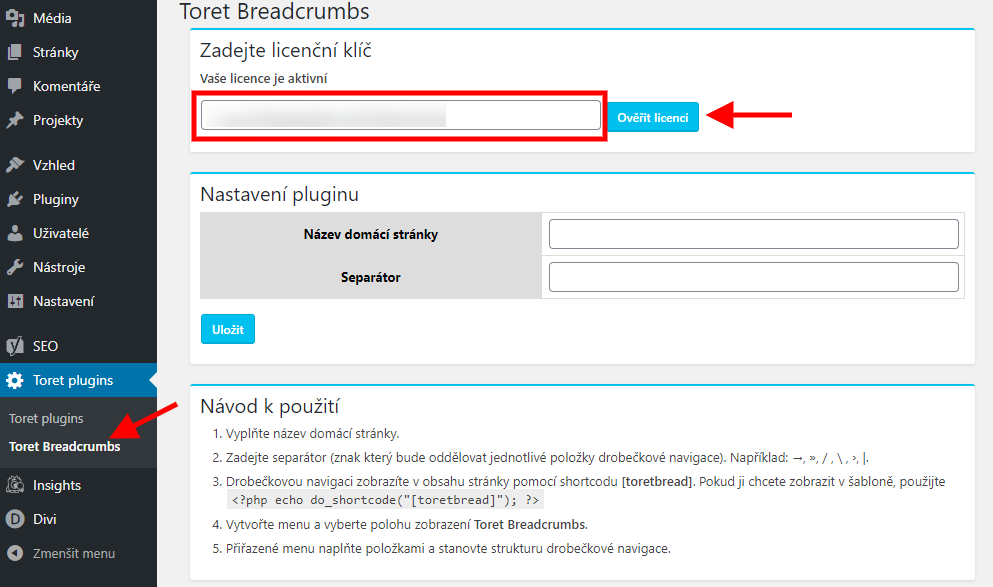
After installing the plugin, open the Toret Breadcrumbs plugin, insert the license key into the appropriate field, and verify the license.
Plugin Settings
The plugin settings contain only two items.

- Home page name (Název domácí stránky) – used to set the text for the top-level item in the breadcrumb navigation.
- Separator (Separátor) – insert the separator symbol for individual breadcrumb items.
Now you can create a menu as the structure for the breadcrumb navigation.
Inserting Breadcrumbs into the Website
Using the shortcode [[toretbread]], you can insert the menu anywhere on the page using the editor.
The inserted navigation might then look like this:
[toretbread]
In case you want to insert the breadcrumb navigation into template files, useecho do_shortcode('[[toretbread]]');
Creating and Assigning a Menu as Breadcrumb Navigation
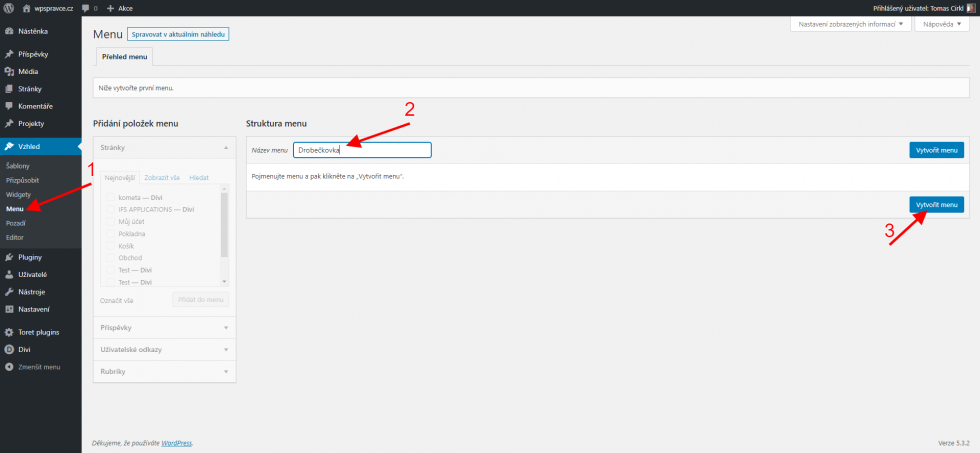
The breadcrumb navigation structure is created using WordPress menus. Go to Appearance → Menus and create a new menu.
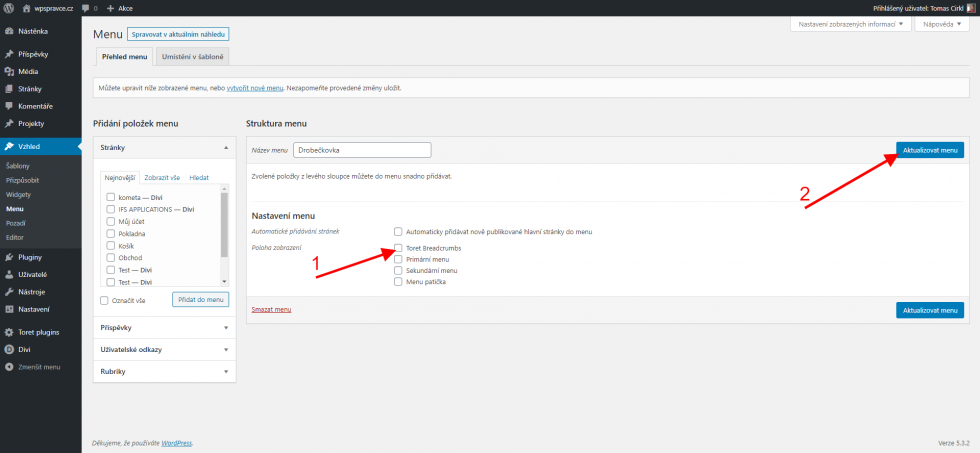
After creating the menu, set the menu display location to Toret Breadcrumbs. Update the menu.
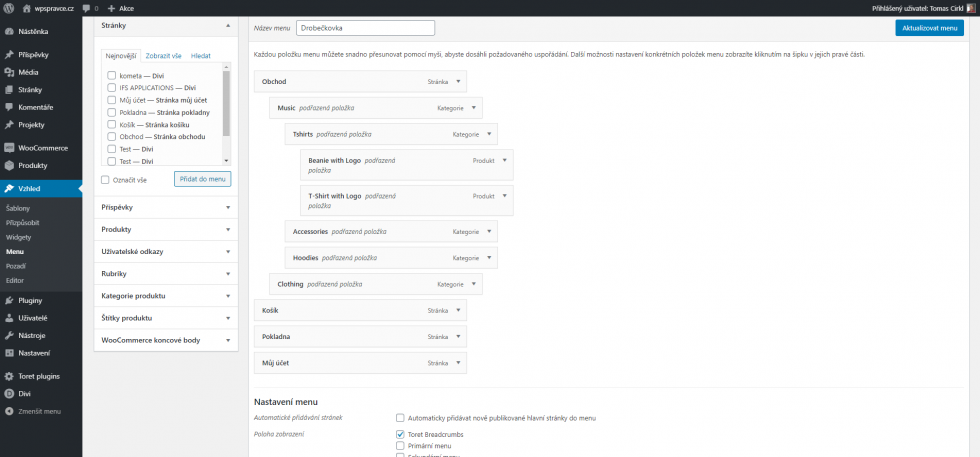
Now you can create and assemble the breadcrumb navigation structure using the standard menu creation process.
The final step is inserting the breadcrumb navigation into the website.
Testování pluginu
Pro účely testování můžete využít:
- subdoménu “dev.doménalicence” (se stejnou licencí jako pro produkční web)
- localhost (127.0.0.1)
Na těchto umístěních budou zakoupené pluginy fungovat také a můžete zde otestovat implementaci a kompatibilitu před ostrým nasazením na web i v průběhu jeho užívání.