
You are on the documentation page for the Toret ČSOB plugin, which integrates the ČSOB payment gateway into WooCommerce.
Before implementing the payment gateway, it is necessary to conclude a contract with ČSOB. More information about the payment gateway and the registration form for the payment gateway can be found here.
You can purchase the ČSOB plugin here: Toret ČSOB for WooCommerce
Plugin Installation
Upon purchasing the plugin, you will receive a license key and a download link for the plugin zip file via email. You can find detailed instructions on how to install the plugin from your computer into WordPress here.
Plugin Activation
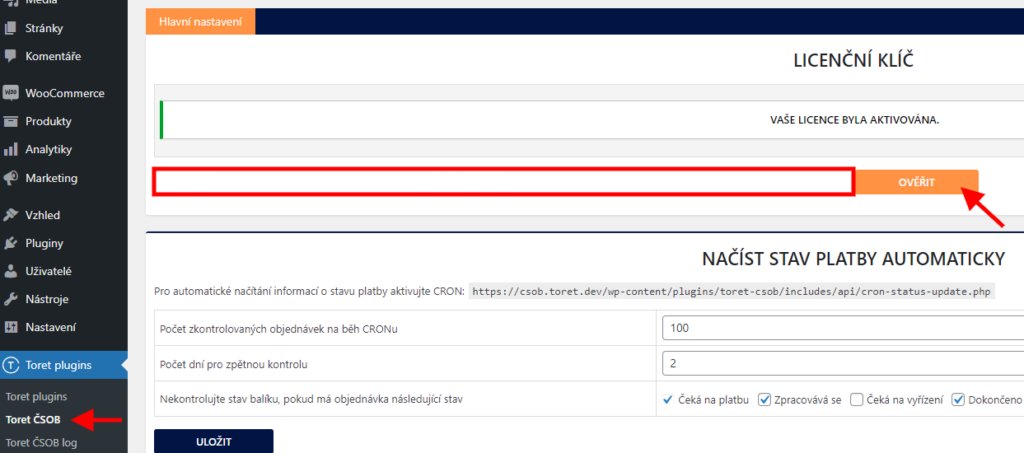
After installing the plugin, open the Toret ČSOB plugin, insert the license key into the appropriate field, and verify the license.
Step 1: Test Process
After concluding the contract, ČSOB will send you access credentials to the Posman application and an email with a request to perform test payments. Let’s go through the individual steps of the test process.
1. Generate test keys. These are generated in the integration environment here.
2. Insert the generated public key (PUB) into the integration environment via the “Upload veřejného klíče” (Upload public key) button (on the same page as point 1).
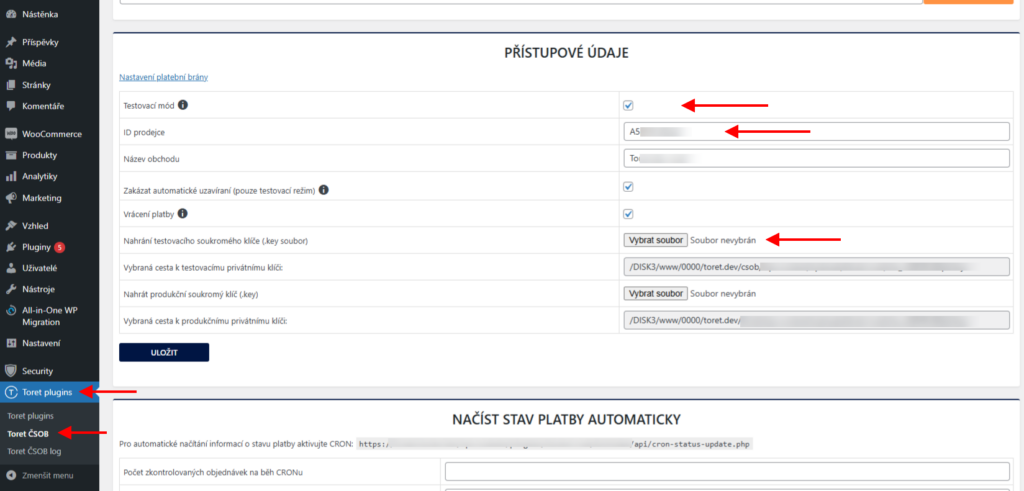
3. In the plugin settings (Toret plugins > Toret ČSOB), you must fill in the Gateway ID (Merchant ID), upload the test private key, and simultaneously enable test mode. You can find the Gateway ID in the Posman application under the “Platební brány” (Payment Gateways) tab.
4. In the checkout settings (WooCommerce > Settings > Payments), enable the ČSOB card payment method (see Payment Methods Settings).
5. Now you need to perform test payments and subsequently validate them.
Test Payments
ČSOB requires four test payments – successful, cancelled by user, expired, and reversed. A test card is prepared for test payments:
- Card No.: 4000007000010006
- CVC 100
- Expiration: any date in the future
You can learn more about test payment options at this link.
a. For a successful payment, enter the test card, and after completing the payment, you will be redirected back to the e-shop.
b. To perform a payment cancelled by user, you must click on the link “Zrušit platbu a návrat zpět do e-shopu” (Cancel payment and return to e-shop) on the payment gateway.
c. For an expired payment, you must wait 30 minutes on the payment gateway page. After 30 minutes, the payment will expire, and you will be redirected back to the e-shop.
d. For a reversed test payment, you must activate the “Zakázat automatické uzavírání” (Disable automatic closing) function in the plugin settings (Toret plugins > Toret ČSOB > Access Credentials). Subsequently, you need to create an order with payment. In the order detail, there is a “Toret ČSOB” box on the right; in this box, simply click on the “Reverzní platba” (Reverse payment) button.
Validation
After completing the test orders, it is necessary to perform validation in the test environment of the POS Merchant application (https://iposman.iplatebnibrana.csob.cz/posmerchant/).
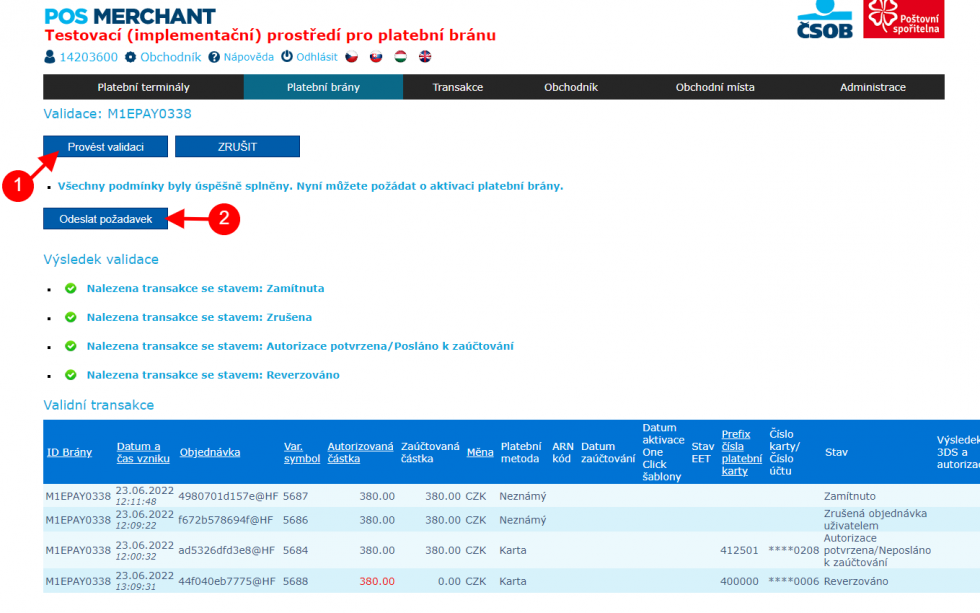
After logging in, go to the Platební brány (Payment Gateways) tab, and then access the test payment approval via the magnifying glass icon next to the payment gateway. Clicking the Provést validaci (Perform validation) button verifies the payments and displays the validation result for individual payments.
If there are green checkmarks for all test payments, you still need to click the Odeslat požadavek (Send request) button. This sends the test process for approval.
After fulfilling the test payments, ČSOB will send information about the activation of the production environment and add further instructions for launching the payment gateway. Now you can proceed to live implementation.

Step 2: Live Implementation
If ČSOB does not require you to perform test payments or if you have already successfully passed the test process in the previous step, generate production keys on the platebnibrana.csob.cz/keygen/ page, which you will use for the live environment.
- On the platebnibrana.csob.cz/keygen/ page, enter the Merchant ID and registered email address.
- Generate access keys (public and private).
- Insert the Public key into the integration environment via the “Upload veřejného klíče” (Upload public key) button (on the same page as point 1).
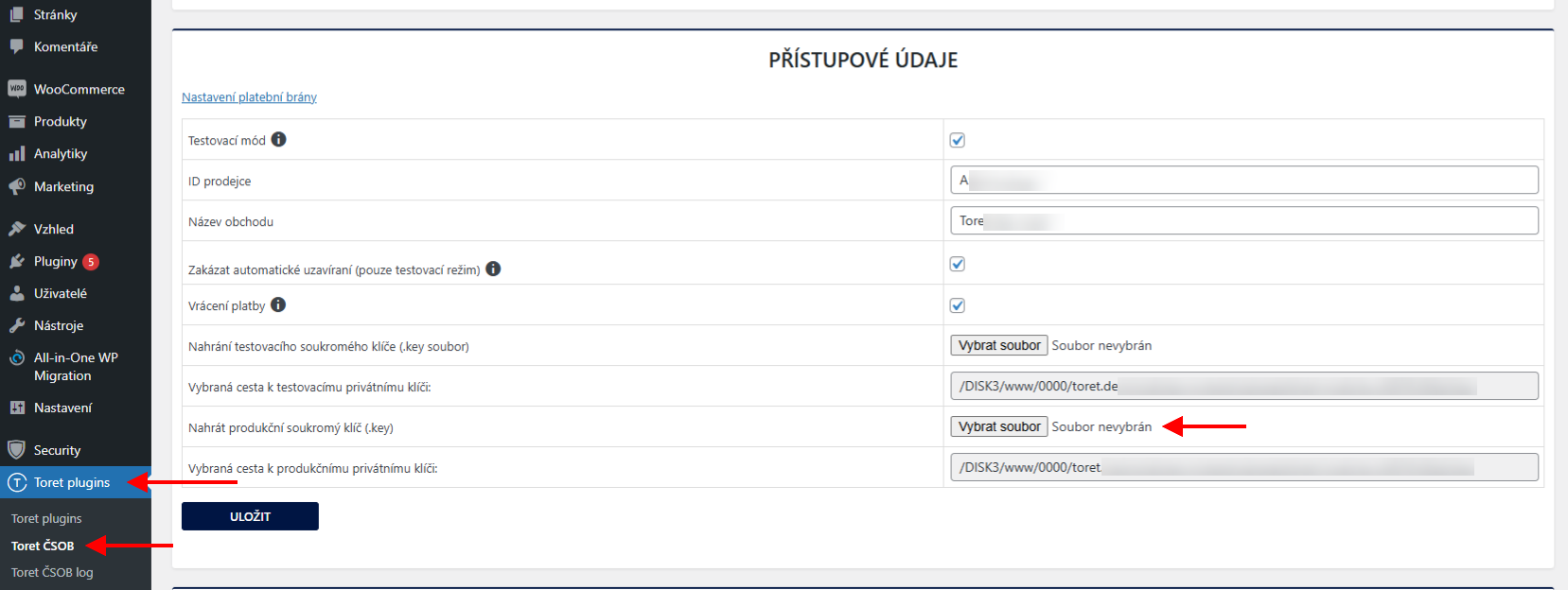
- Upload the Private key to WooCommerce in the ČSOB payment method settings (WooCommerce > Settings > Payments > ČSOB payment gateway – Upload production private key – Save changes).
- ČSOB will send an activation code to the registered address, with which you confirm the key implementation request. Confirmation takes place in the posman.csob.cz application → Platební brány (Payment gateways) → Actions column → key icon.
- Disable test mode in the payment method settings.
After saving the production keys and configuring the plugin, the payment gateway is ready to accept payments. You can easily test the connection by creating a test order with the ČSOB payment method selected. If you are redirected to the payment gateway after completing the test order, you have performed the integration correctly. Alternatively, you can complete the payment to be 100% sure of the payment gateway functionality.
Automatic Payment Status Loading
Upon payment completion, the customer is redirected to the thank you page. At the same time, a notification that the order has been paid is transmitted, and the order status changes to Processing (for physical products) or Completed (for virtual products).
However, it may happen that the customer was not redirected to the thank you page for some reason after paying for the order. In that case, the plugin has no information from the payment gateway that the order has been paid. To prevent paid orders without notification from being cancelled by WooCommerce functionality, it is necessary to set up the automatic payment status loading function.
You can find the automatic payment status loading settings under the tab Toret Plugins → Toret ČSOB.
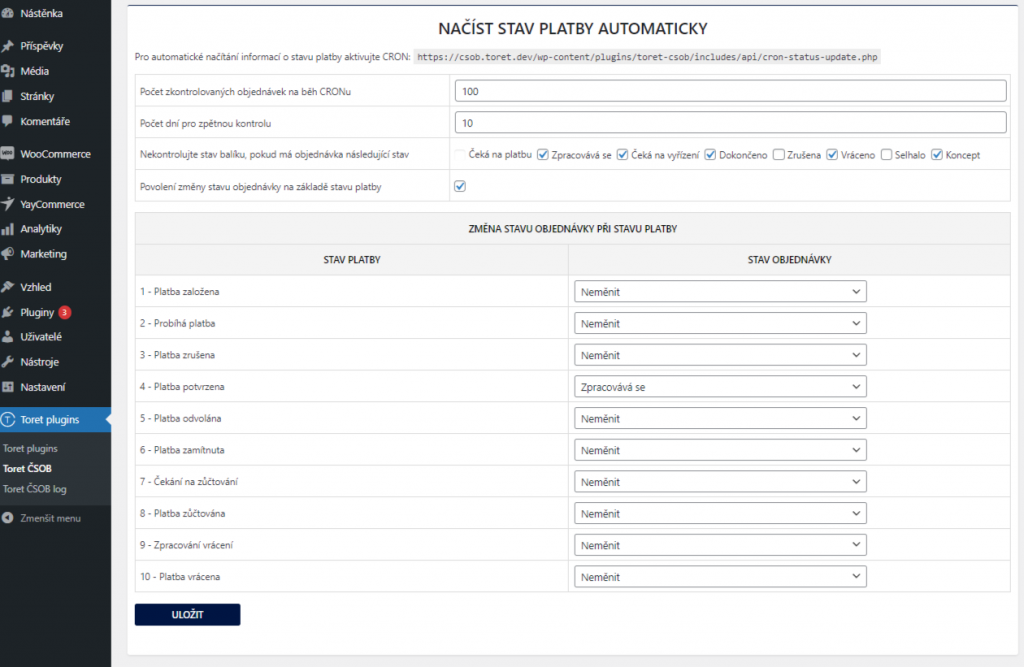
1) Set the number of days for retrospective payment status checks, i.e., in what retrospective time horizon orders will be checked.

2) If you do not want to check the payment status for all orders, you can select individual order statuses to exclude from the check. We definitely do not recommend excluding Pending Payment, Failed, and Cancelled statuses.

3) Change order status based on payment status: If you want to change the status, e.g., to “Processing” or another preferred status after confirming payment of the order, set the order status to which the order will switch for the payment status “4 – Platba potvrzena” (Payment confirmed). In payment status “4 – Payment confirmed”, the order is considered paid.
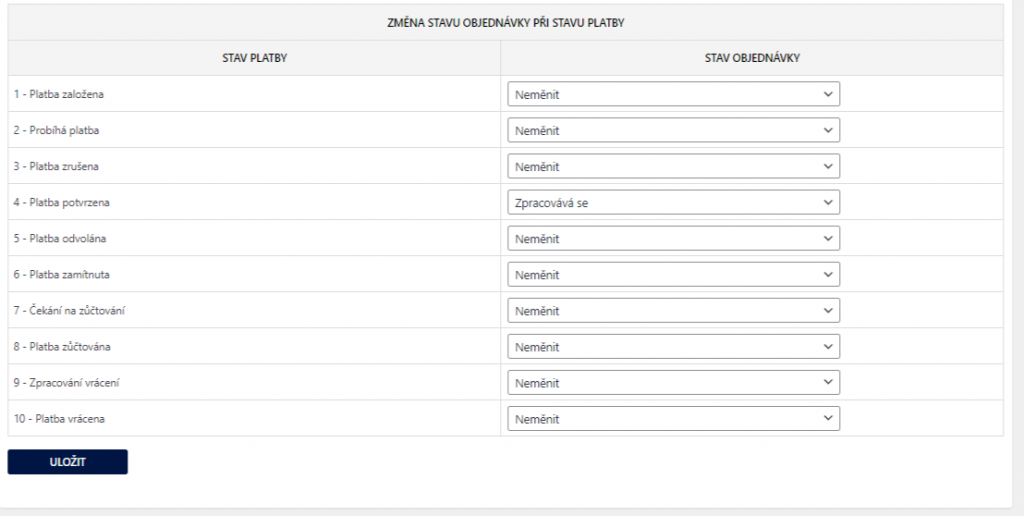
The function for changing the order status based on the payment status must be enabled by activating the checkbox.

4) For payment statuses to update according to the settings from the previous three points, you must set the CRON URL listed in your site settings on your hosting. We recommend running CRON regularly, at least once per hour.
Furthermore, it is necessary to set the number of orders that will be checked per CRON run.

Payment Methods Settings
You can find the ČSOB payment method settings in WooCommerce > Settings > Payments.
The ČSOB Platební brána (ČSOB Payment Gateway) payment method is a grouped payment method compatible with the original WooCommerce checkout, through which all available payment methods can be configured.
Attention! If you are using the block-based checkout (Gutenberg checkout), you need to use separate payment methods (e.g., ČSOB: Payment Card)
Grouped Payment Method Settings – ČSOB Payment Gateway
The grouped ČSOB Payment Gateway method is compatible only with the original WooCommerce checkout.
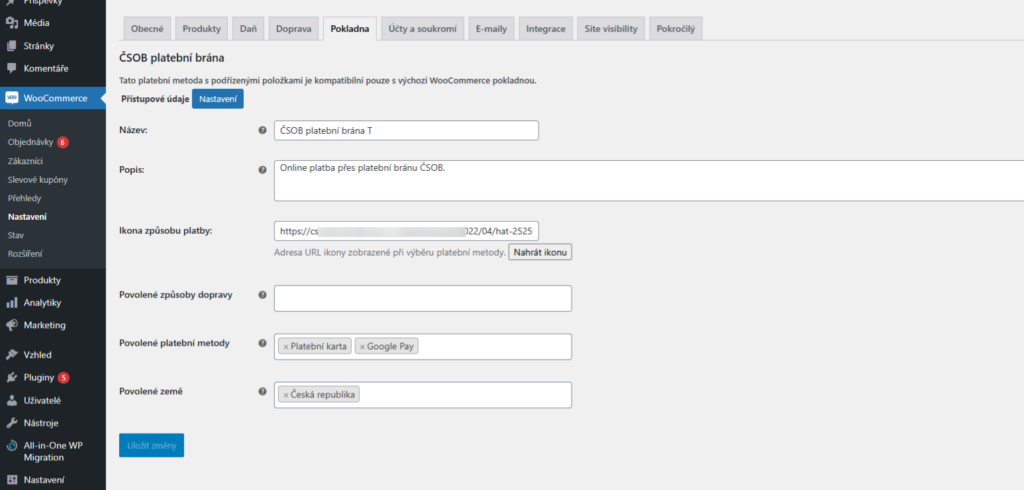
- Name: This is the name of the ČSOB payment method that will be displayed in the checkout.
- Description: The set description will be displayed in the checkout when selecting the payment method.
- Payment Method Icon: The plugin has a default icon set, but you can set a custom icon for the ČSOB payment method. The icon must be uploaded to WordPress media, and its URL inserted here in the field.
- Allowed Shipping Methods: Here you can set the payment gateway display only for selected shipping methods. If you want to use the payment gateway for all shipping methods, leave the field empty.
- Allowed Payment Methods: Here you must select at least one ČSOB payment gateway method that you want to display in the checkout. The number of methods to select is influenced by how many you have enabled by ČSOB.
- Allowed Countries: Here you can set for which countries the ČSOB payment method will be displayed in the checkout. If you want to use the payment gateway for all countries, leave the field empty.
Separate Payment Methods Settings (for Gutenberg Checkout)
Separate payment methods (e.g., ČSOB payment gateway – Payment Card) are compatible with the Gutenberg checkout.
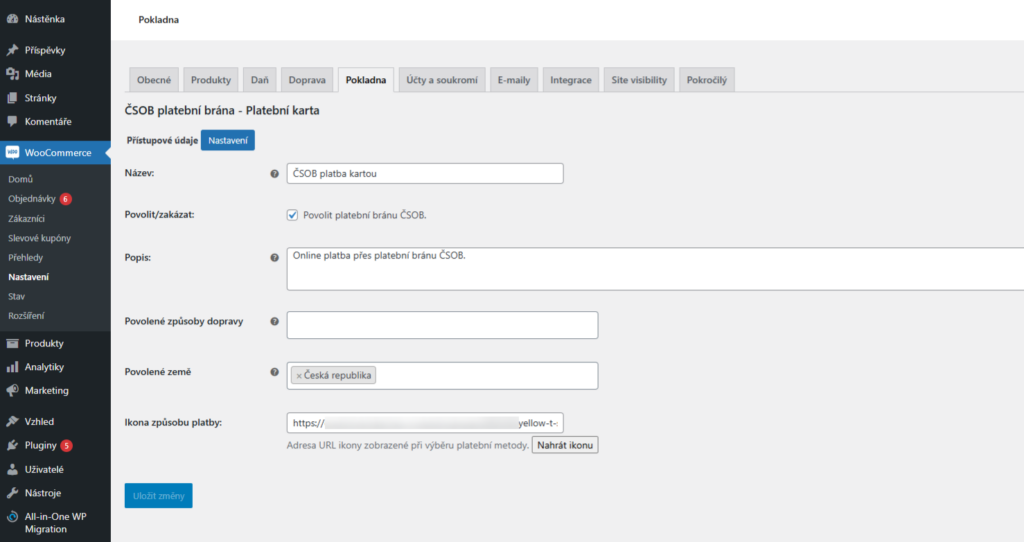
- Name: This is the name of the ČSOB payment method that will be displayed in the checkout.
- Enable/Disable – by checking this box, you determine whether customers will have this payment method available on the Checkout page or not
- Description: The set description will be displayed in the checkout when selecting the payment method.
- Allowed Shipping Methods: Here you can set the payment gateway display only for selected shipping methods. If you want to use the payment gateway for all shipping methods, leave the field empty.
- Allowed Countries: Here you can set for which countries the ČSOB payment method will be displayed in the checkout. If you want to use the payment gateway for all countries, leave the field empty.
- Payment Method Icon: The plugin has a default icon set, but you can set a custom icon for the ČSOB payment method. The icon must be uploaded to WordPress media, and its URL inserted here in the field.
Perform these settings for all payment methods you want to use.
Testování pluginu
Pro účely testování můžete využít:
- subdoménu “dev.doménalicence” (se stejnou licencí jako pro produkční web)
- localhost (127.0.0.1)
Na těchto umístěních budou zakoupené pluginy fungovat také a můžete zde otestovat implementaci a kompatibilitu před ostrým nasazením na web i v průběhu jeho užívání.