
You are on the documentation page for the Custom Branches (Vlastní pobočky) plugin, which allows you to create your own pickup points and shipping methods in WooCommerce.
You can purchase the Custom Branches and Shipping plugin here: Toret Custom Branches and Shipping for WooCommerce
- Plugin Installation
- Plugin Activation
- Pickup Point Settings
- Creating and Setting Up Individual Branches
- Shipping Zone Settings
- Creating and Setting Up Custom Shipping
- Free Shipping
- Cash on Delivery (Dobírka)
- Branch Selection in Checkout
- Mapy.com API Settings
- Custom Icons
- Custom Surcharges
- Filters
- Testování pluginu
Plugin Installation
Upon purchasing the plugin, you will receive a license key and a download link for the plugin zip file via email. You can find detailed instructions on how to install the plugin from your computer into WordPress here.
Plugin Activation
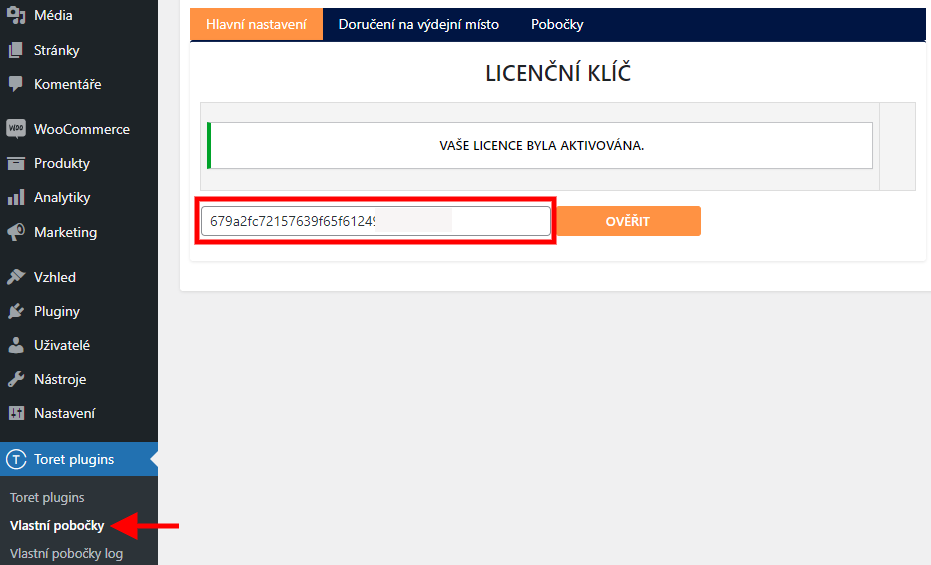
After installing the plugin, open the Custom Branches (Vlastní pobočky) plugin, insert the license key into the appropriate field, and click the button to activate.
Pickup Point Settings
After installing and activating the plugin, proceed to its settings. This is found in the section Toret plugins → Vlastní pobočky (Custom Branches) → tab “Doručení na výdejní místo” (Delivery to pickup point).
First, select the country for which you want to set up the pickup point. After saving the country, the page will reload, and settings for the pickup point for that country will be added.
For the Delivery to pickup point method, you can set order dimension and weight checks. If exceeded, the shipping will not be displayed in the checkout.
For pickup points in individual countries, you can then set:
Shipping Price
- fixed (uniform) shipping price
- scaling shipping price by weight
- scaling shipping price by dimensions
- scaling price by distance
- scaling price by quantity of purchased products
- free shipping “from”
Tip: If VAT is set in WooCommerce, set the price in the plugin without VAT.
Cash on Delivery (Dobírka)
- fixed (uniform) COD price
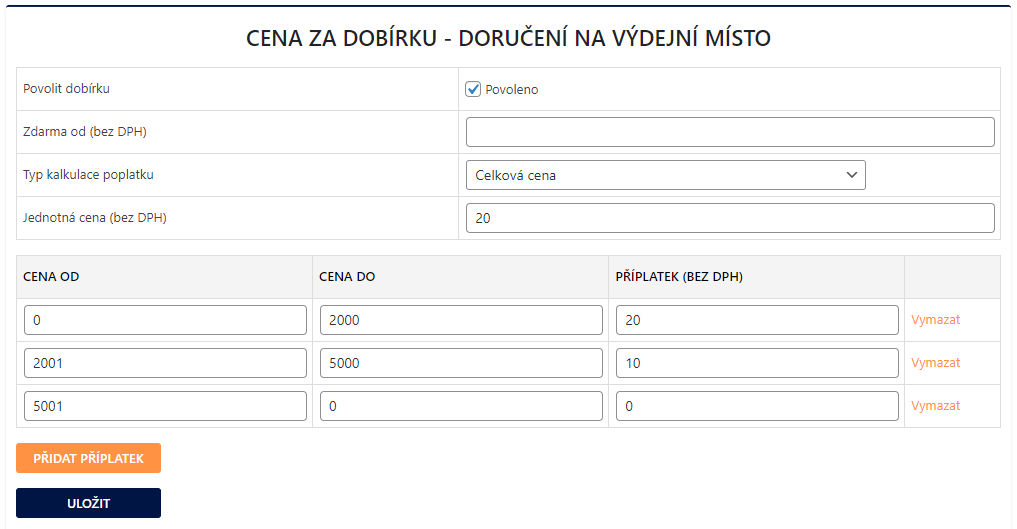
- scaling COD surcharge by total order price
- free COD “from”
Tip: if you want to trigger free shipping or free COD at checkout e.g. from 500, set the value 499 in the plugin.
Dimensions and Weight
- Maximum order weight
- Maximum allowed width, height, and depth of the product
Availability
- Display shipping from minimum or to maximum cart value
- Display shipping from minimum or to maximum quantity of products in cart
- Display shipping from minimum or to maximum product price
- Display shipping from minimum cart weight
- Do not display shipping for excluded products/categories
- Display shipping only if a required product/category is in the order
Renaming individual pickup points is possible in the WooCommerce shipping zones settings directly in the carrier edit (WooCommerce > Settings > Shipping).
Creating and Setting Up Individual Branches
After setting the country and pickup point conditions, it is necessary to add branches. Branch settings can be found under the “Pobočky” (Branches) tab in the plugin settings.
You can create branches manually or upload them to the plugin by importing a CSV file. Created branches have an “Akce” (Action) column. Each branch can be individually enabled/disabled, duplicated, edited, or deleted via icons.
Manual Branch Creation
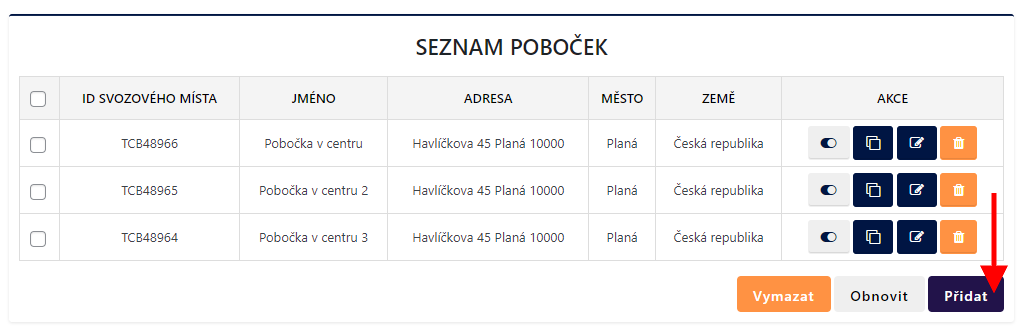
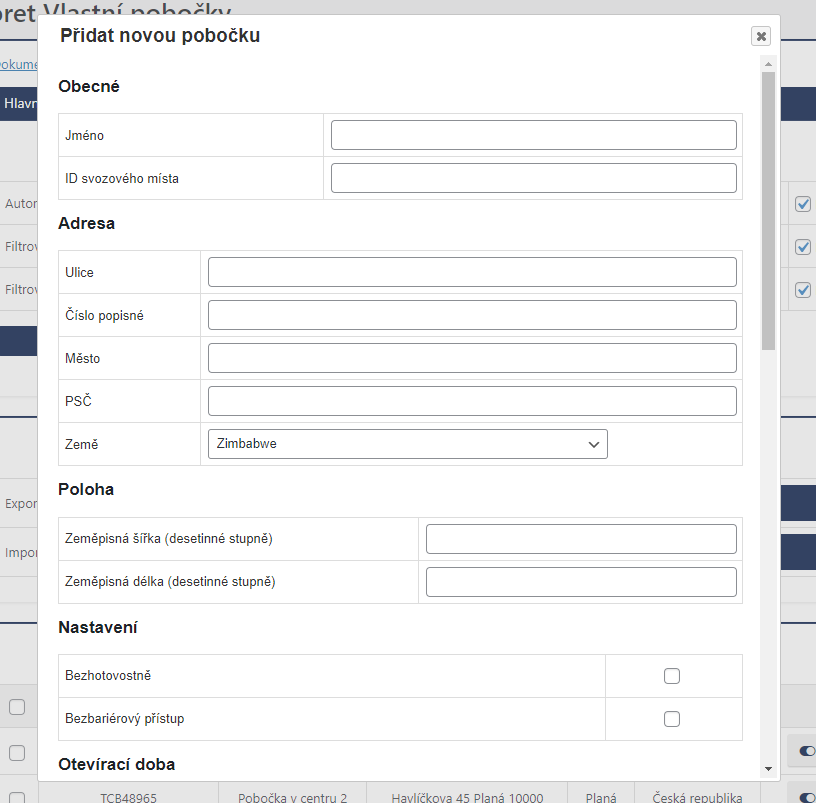
Clicking the “Přidat” (Add) button opens a table for creating a branch. Fill in the table, save, and the branch will be created in the plugin.
Creating Branches via CSV Import
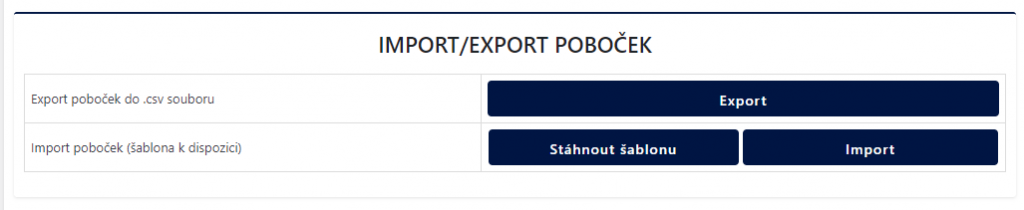
File import is performed in the plugin settings on the same tab as manual branch creation. We recommend downloading the CSV file template first to see the data structure in the document. After filling the file with branches and their values, import the file, and the branches will be automatically created. If you want to transfer set branches to another e-shop, you can easily export the created branches.
Main Branch Settings
Created branches also have their main settings, where you can enable for branches:
Automatic Branch ID Generation
- This function is practical if the Branch ID generated by the plugin is sufficient. When duplicating a branch, it creates a new Branch ID.
Filter branches by maximum allowed weight and maximum allowed dimensions
- When creating a branch, it is possible to set a limit for the weight and dimension of the package accepted at the branch. If the order exceeds this limit, the branch will be hidden on the map.
Manage stock at branch level
- After activating the plugin function, a table with created branches is added to the product detail on the “Vlastní pobočky” (Custom Branches) tab. You can set the number of items in stock for each branch for the given product. Once this product is sold with the selected branch, the stock at the branch will be deducted. In case the product is not in stock at the branch, the branch will not be displayed to the customer on the map.
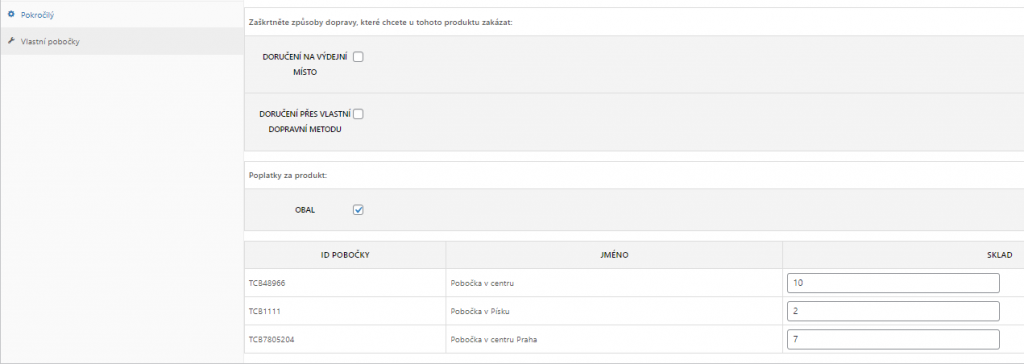
Settings at Product, Variant, and Category Level
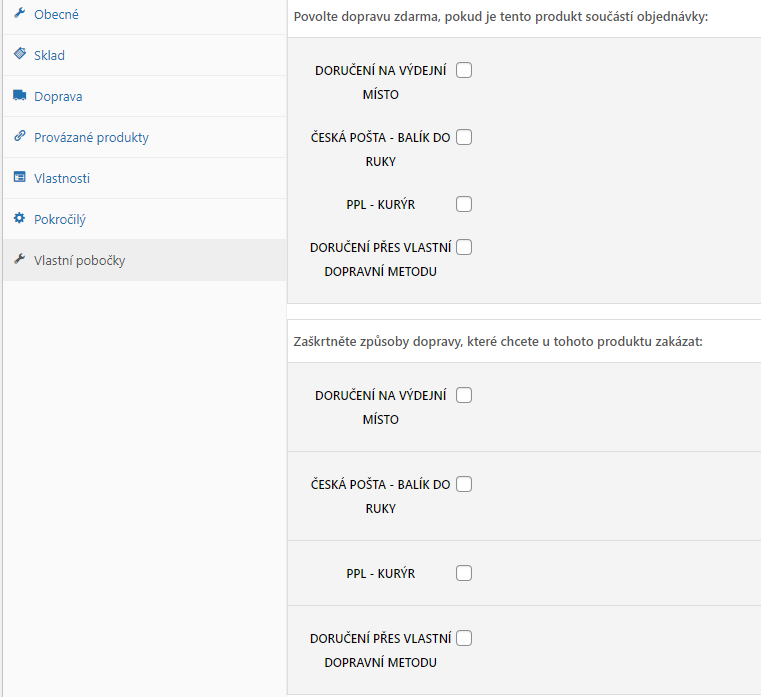
Shipping Delivery to pickup point also has individual settings at the product, variant, or category level, which you can find on the “Vlastní pobočky” (Custom Branches) tab. Here it is possible to:
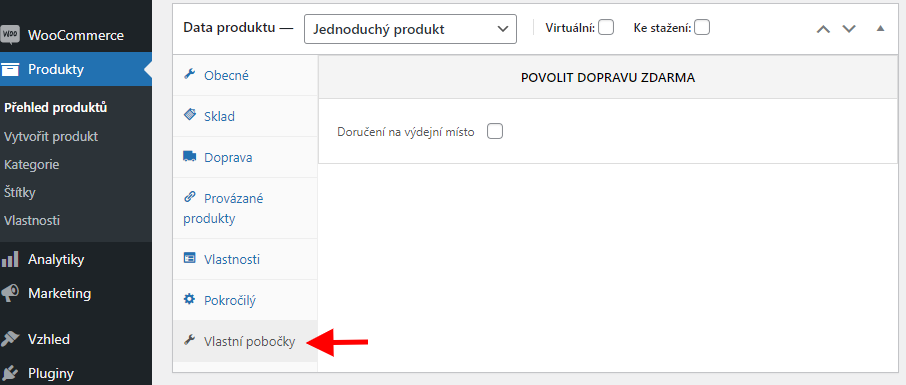
- enable free shipping if the given product is in the cart
- disable “Delivery to pickup point” for the given product
- deactivate specific branches for the given product
The same shipping setting options can also be found at the level of each category or product variant.
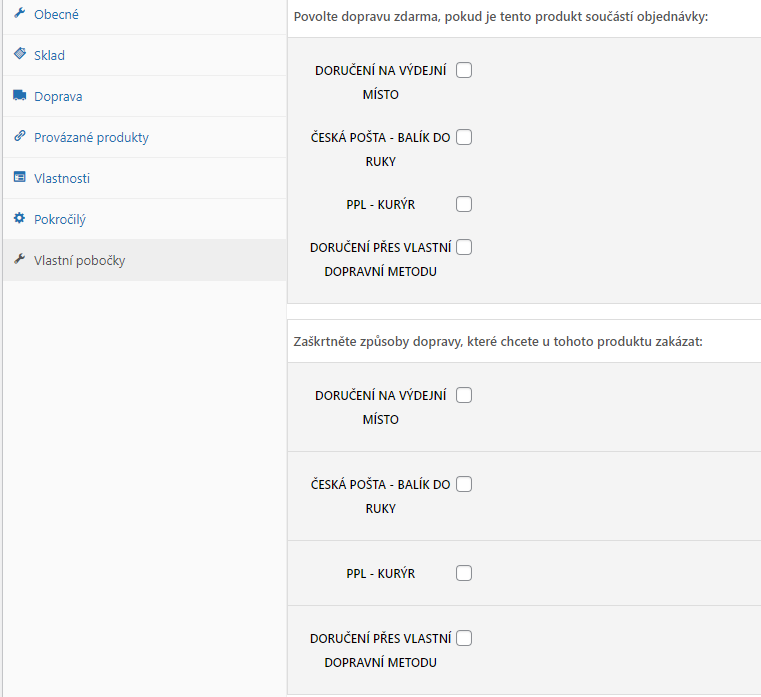
Shipping Zone Settings
After setting up pickup points and branches in the plugin, it is necessary to set up the identically named carrier in WooCommerce shipping zones (WooCommerce > Settings > Shipping > Shipping Zone). Without setting it in shipping zones, pickup points will not appear in the checkout.
Set the shipping method in WooCommerce > Settings > Shipping > required shipping zone > Add shipping method.
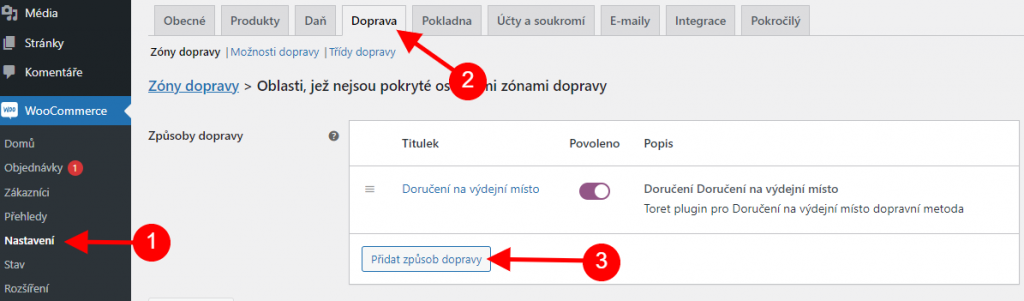
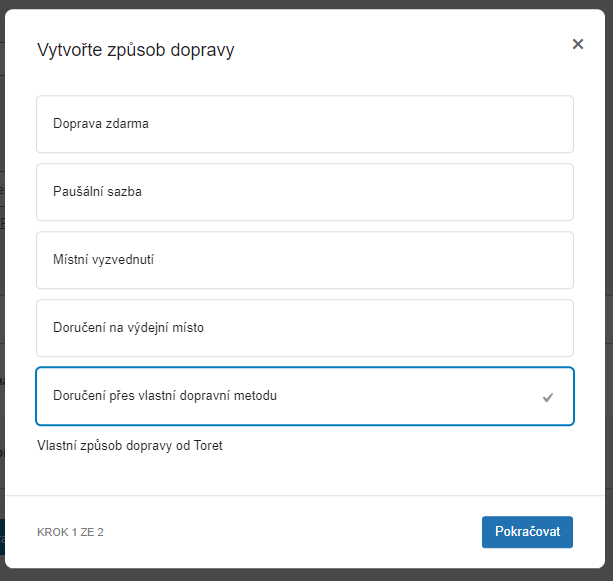
Select from the offered shipping methods and click Continue.
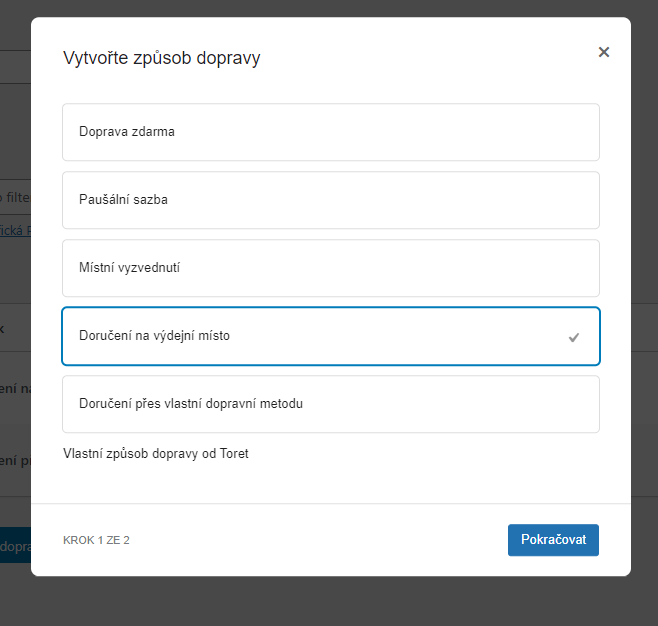
The same must be done for setting Delivery via custom shipping method (see below).
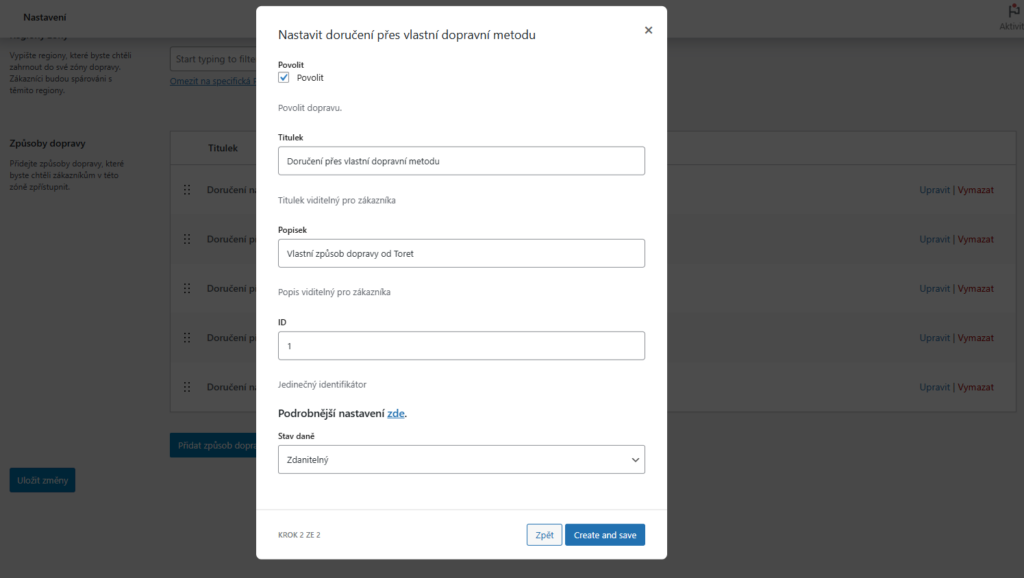
After clicking Continue, you can edit the title, description, method ID, and Tax Status (Taxable or None). Click Create and save. The new shipping method is created.
Creating and Setting Up Custom Shipping
In the plugin, in addition to the branch network, it is also possible to create custom shipping methods with different rules.
First, it is important to create the custom shipping “Doručení přes vlastní dopravní metodu” (Delivery via custom shipping method) in the WooCommerce shipping zone (see above).
When creating a shipping method, you can edit the shipping name, description, or shipping ID. You can proceed to the next step of shipping setup using the link at the end of the table (Podrobnější nastavení zde / More detailed settings here) or find advanced settings for the created shipping in the plugin Vlastní pobočky (Custom Branches) > Doručení přes vlastní dopravní metodu (Delivery via custom shipping method).
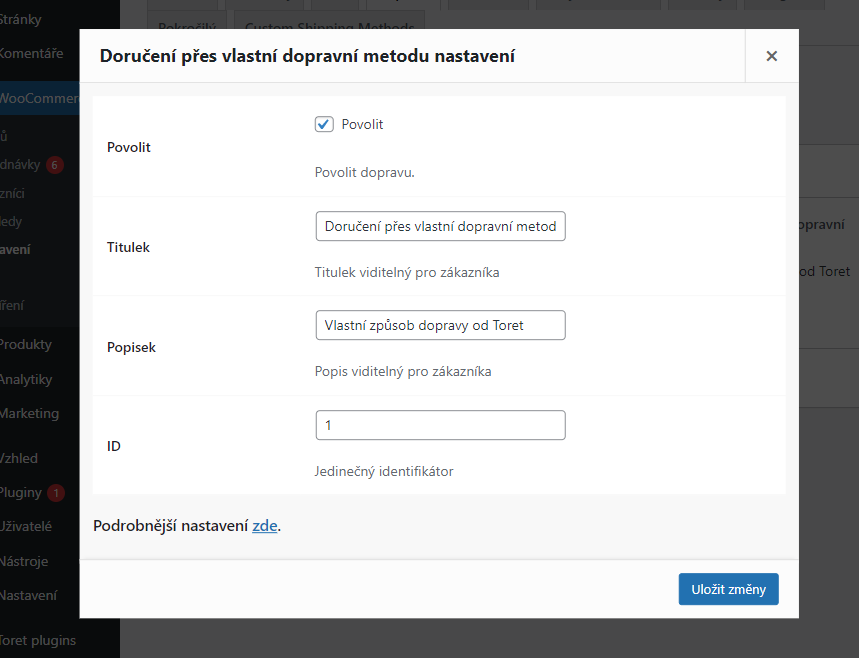
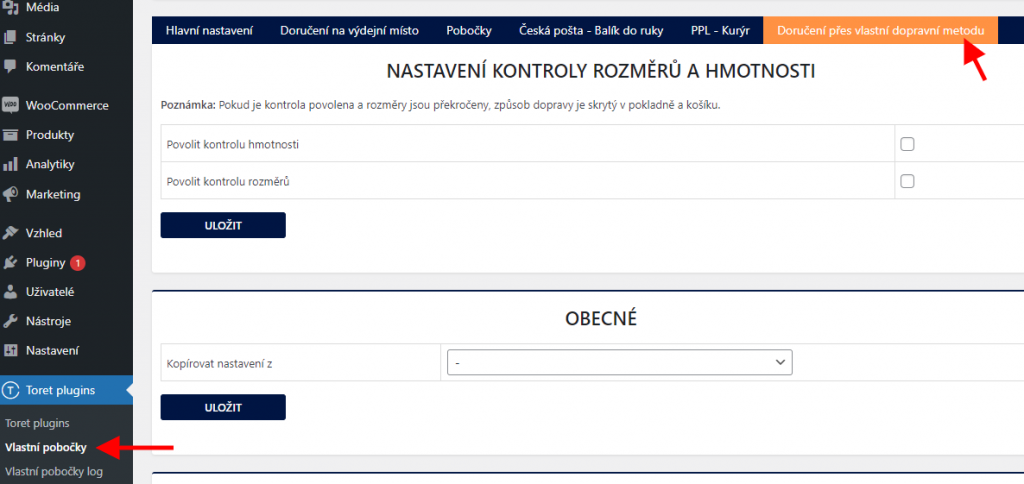
In the advanced shipping settings, it is possible to set:
Shipping Price
- fixed (uniform) shipping price
- scaling shipping price by weight
- scaling shipping price by dimensions
- scaling price by distance
- scaling price by quantity of purchased products
- free shipping “from”
Tip: If VAT is set in WooCommerce, set the price in the plugin without VAT.
Cash on Delivery (Dobírka)
- fixed (uniform) COD price
- scaling COD surcharge by order price
- free COD “from”
Tip: if you want to trigger free shipping or free COD at checkout e.g. from 500, set the value 499 in the plugin.
Dimensions and Weight
- Maximum order weight
- Maximum allowed width, height, and depth of the product
Weight and Dimension Check
If allowed dimensions or weight are exceeded, the shipping method will not be displayed in the checkout.
Availability
- Display shipping from minimum or to maximum cart value
- Display shipping from minimum or to maximum quantity of products in cart
- Display shipping from minimum or to maximum product price
- Display shipping from minimum cart weight
- Do not display shipping for excluded products/categories
- Display shipping only if a required product/category is in the order
If you already have custom shipping created, it is possible to copy settings in the newly created shipping.
Settings at Product and Category Level
Custom shipping methods also have individual settings at the product or category level, which you can find on the “Vlastní pobočky” (Custom Branches) tab. Here it is possible to enable free shipping for individual shipping methods if the given product is in the cart. You can also disable individual shipping methods for a given product. The same shipping setting options can also be found at the level of each category.
Free Shipping
You set free shipping directly in the Custom Branches plugin for each country.
The free shipping setting is “above” an amount, meaning free pickup point activates on the web after exceeding the set amount in the cart.
EXAMPLE: If you want free pickup point from 500, set the amount 499 in the plugin.
Tip: If you have VAT set in WooCommerce, the value for triggering free shipping is entered without VAT.
The free shipping amount setting applies only to products; the shipping price is not included.
EXAMPLE: If you have free shipping set from 500, and the cart contains a product for 450 + shipping price 65 = 515 CZK, the free pickup point will not activate. It is necessary to exceed the set price with the product – i.e., to activate free shipping set this way, you need to put product(s) worth at least 500 CZK into the cart.
Free Pickup Point Only for Selected Products
In the plugin, it is possible to set a free pickup point only for selected products. Settings can be found for each product on the Custom Branches tab.
Cash on Delivery (Dobírka)
On the Doručení na výdejní místo (Delivery to pickup point) and Doručení přes vlastní dopravní metodu (Delivery via custom shipping method) tabs, it is possible to set a COD surcharge. For the surcharge to appear in the checkout, it is necessary to enable the WooCommerce COD payment method (=cod) in WooCommerce settings.
In the plugin, you can set a uniform COD surcharge and a condition for triggering free COD. Or you can scale the COD surcharge according to the total order price.
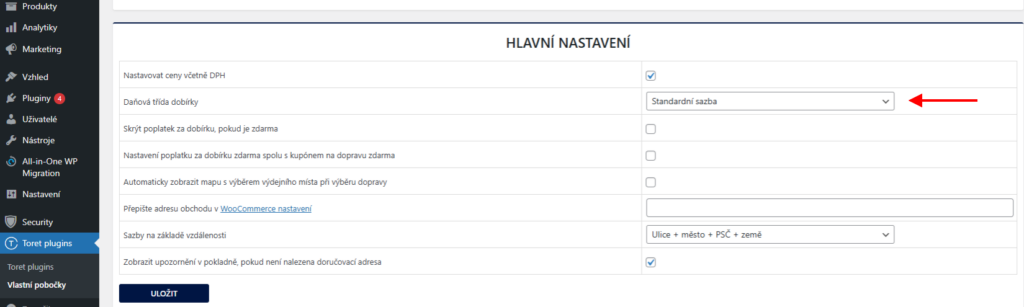
On the Hlavní nastavení (Main Settings) tab, you can further adjust COD behavior:
- Hide COD fee if free
- Set free COD if a free shipping coupon is used
COD Tax Class
VAT for the COD fee can be set fixed or based on products in the cart. This setting can be found in the Main Plugin Settings (Toret Plugins > Vlastní pobočky > Hlavní nastavení).
Branch Selection in Checkout
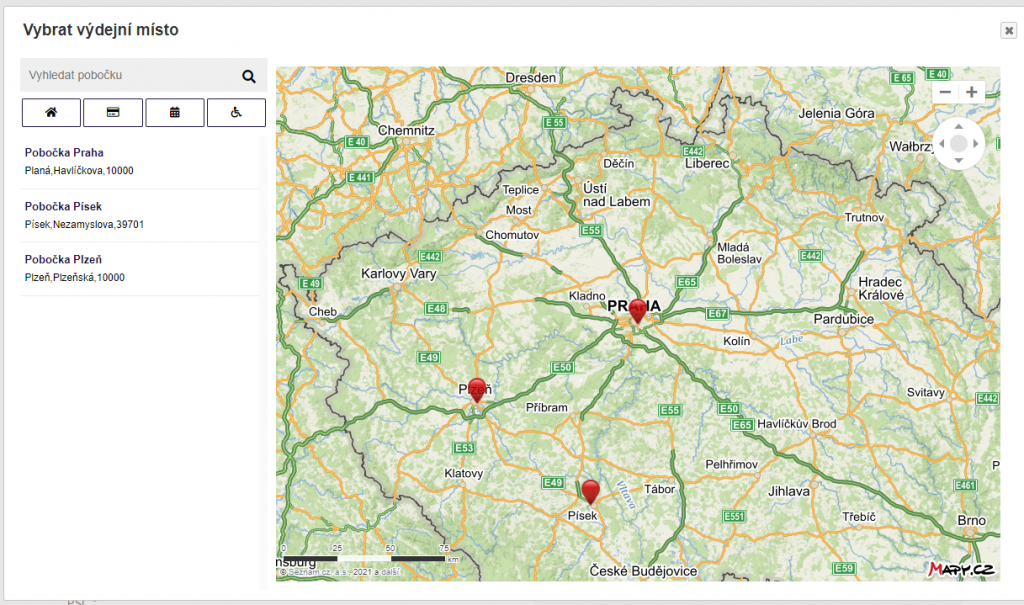
In the checkout, the branch is selected via a map widget. After opening it, the customer sees an overall overview with all set branches in a pop-up window.
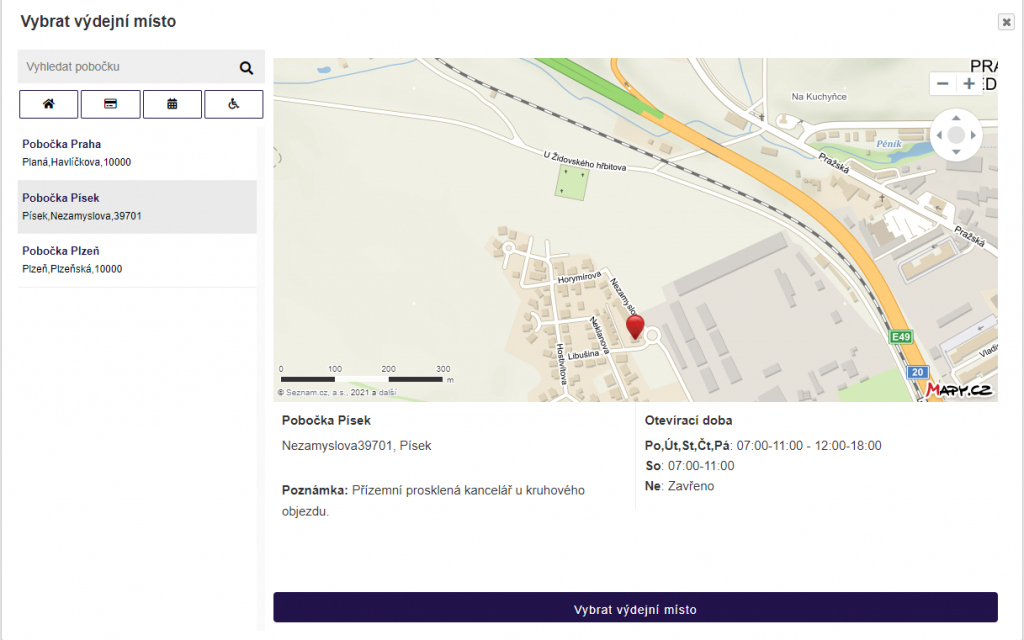
Clicking on a specific branch opens the branch detail, where the customer finds information about the branch.
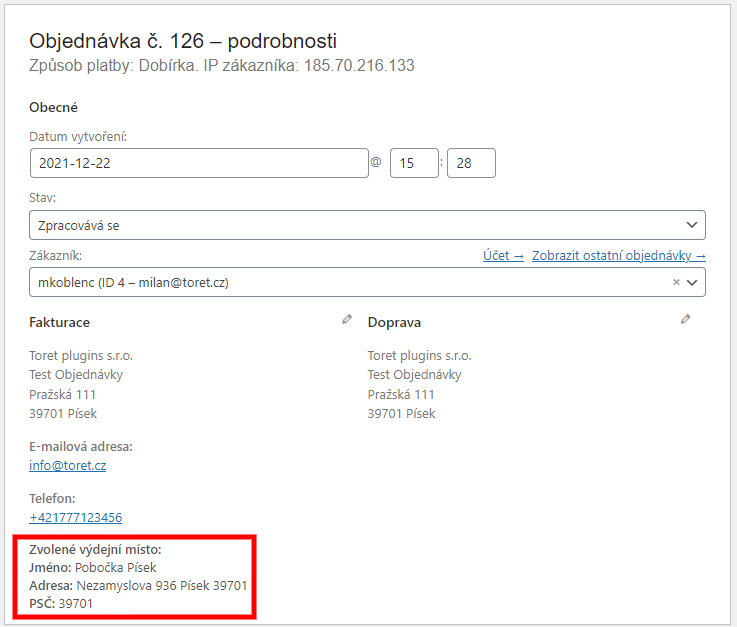
Once the customer completes the order with the selected branch, you will find information about the selected branch in the order detail.
Mapy.com API Settings
To be able to use the map widget in the checkout and calculate the shipping price by distance, it is necessary to connect the plugin with Mapy.com API. You do this in the Main Settings of the plugin (Toret Plugins > Vlastní pobočky > Hlavní nastavení > Mapy.com API).

Seznam API Version: The plugin supports REST API.
To use REST API, you will need an account on the Mapy.com portal. Login/registration can be done here.
After logging in to the portal, create a project…
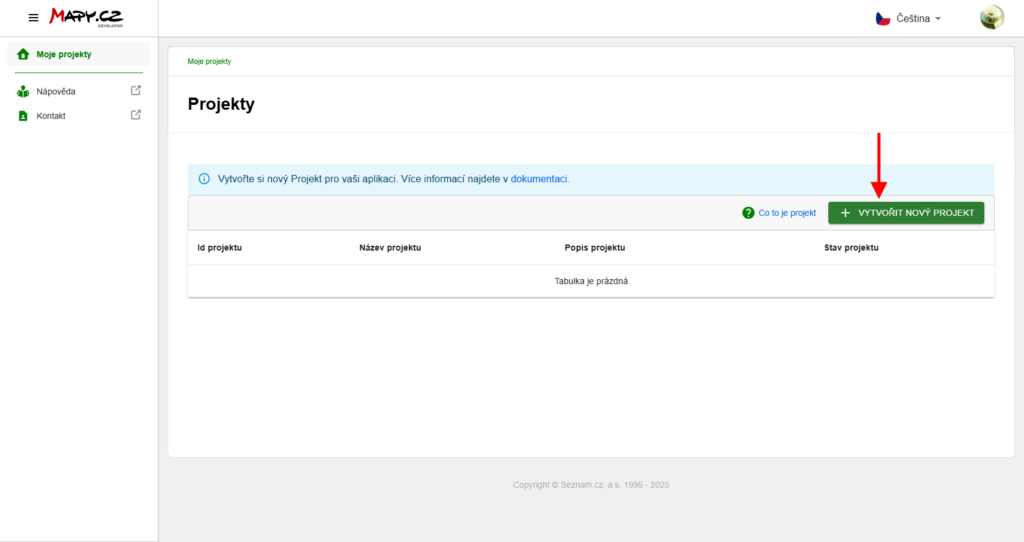
…and get an API key. In the project overview, you will also see available credits and their usage, or the price for purchasing more. In the Basic tariff, 250,000 credits per month are available for free.
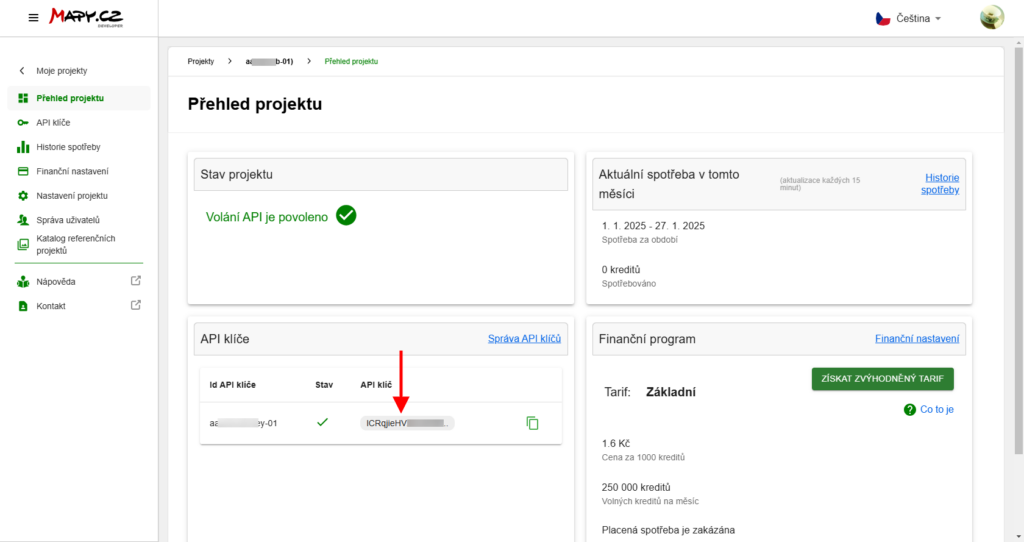
Insert the copied API key into the REST API key field in the plugin and click Save.
More information about REST API (Mapy.com)
Custom Icons
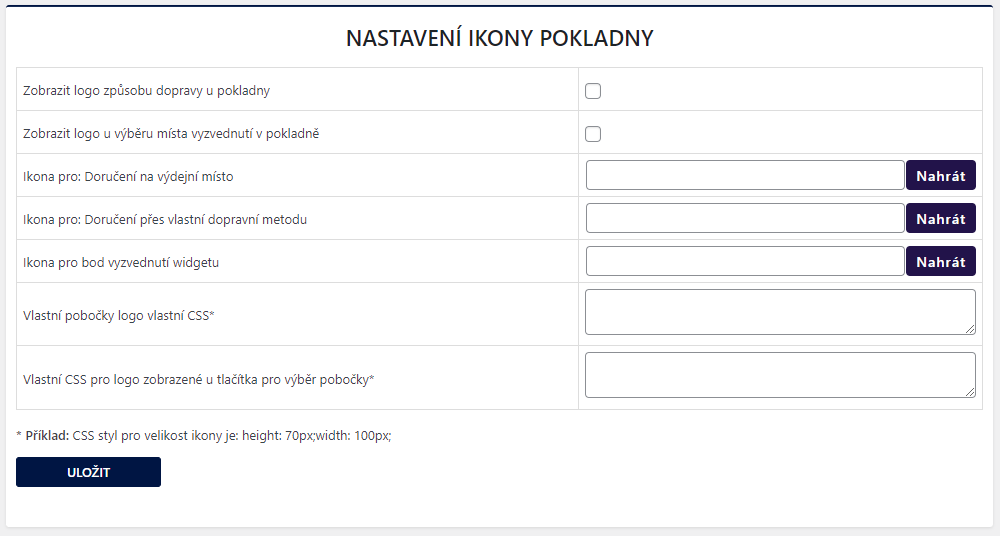
On the “Hlavní nastavení” (Main Settings) tab in the Custom Branches plugin, it is possible to set an icon for “Delivery to pickup point” shipping and for custom shipping methods. The icon must first be uploaded to media in WordPress and then it can be set in the plugin via the upload button.
It is also possible to modify the uploaded icon directly in the plugin using the CSS window.
Custom Surcharges
In the plugin, it is possible to set custom surcharges at the product, category, variant, or global level. Creation and setting of surcharges is on the “Hlavní nastavení” (Main Settings) tab in the Custom Branches plugin.
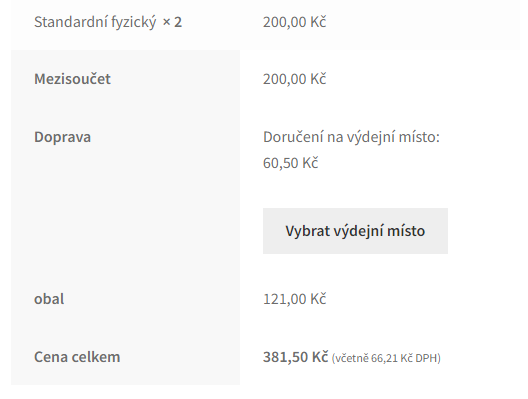
You can set name, price, scope, and visibility in checkout. If the fee is set as visible, there will be a separate line with the fee in the checkout. If the fee is hidden, it will be added to the shipping price.
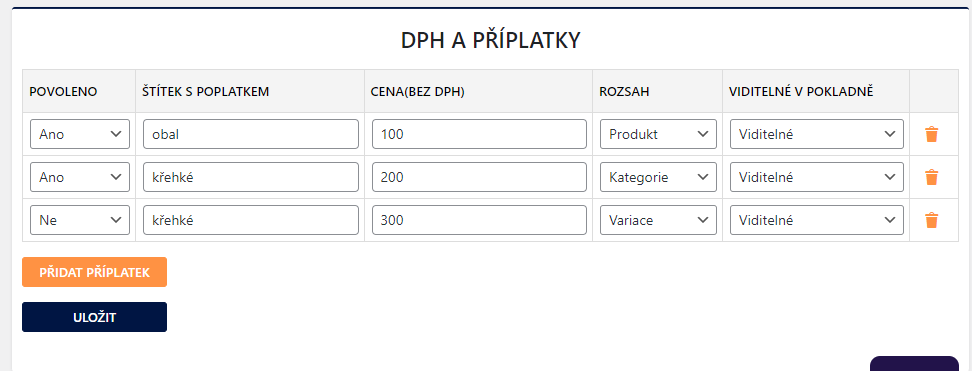
To assign the given fee to a specific product, variant, or category, it must first be created in the plugin settings and the corresponding scope selected.
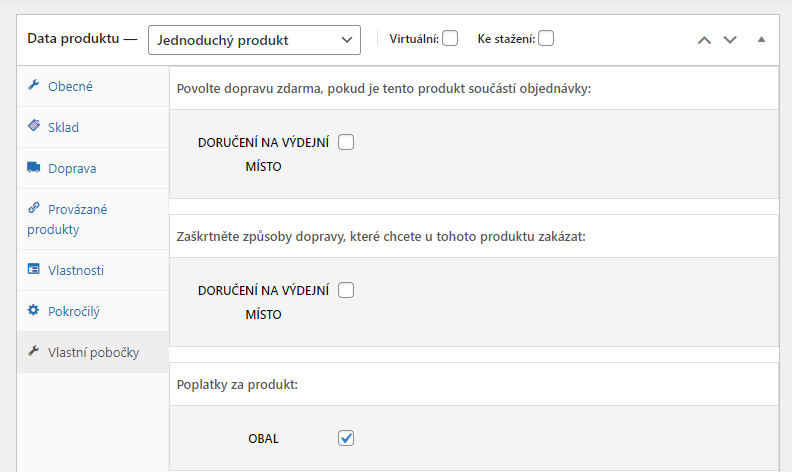
This is how the visible surcharge is displayed in the checkout:
Filters
Filter for shipping price: apply_filters(‚tcb_after_shipping_vat‘, $fee_data, $price, $method, $country)
Testování pluginu
Pro účely testování můžete využít:
- subdoménu “dev.doménalicence” (se stejnou licencí jako pro produkční web)
- localhost (127.0.0.1)
Na těchto umístěních budou zakoupené pluginy fungovat také a můžete zde otestovat implementaci a kompatibilitu před ostrým nasazením na web i v průběhu jeho užívání.