
You are on the documentation page for the WooCommerce Czech Post (Česká pošta) plugin, which implements this shipping service into your e-shop. You can purchase the Czech Post plugin here: Toret Česká pošta for WooCommerce
- Minimum Requirements
- Plugin Installation
- Plugin Activation
- Connecting to Czech Post
- Setting up Carriers in the Czech Post Plugin
- Shipping Zone Settings
- Main Plugin Settings
- Shipment Management
- Export Shipments to Czech Post Account
- Free Shipping
- VAT on COD Surcharge
- Customs Declaration (CN22/CN23)
- Plugin testing
Minimum Requirements
- WordPress 6.2 or higher
- WooCommerce 6.7 or higher
- PHP 8.1 or higher
- A PoštaOnline account for the API connection (B2BZasilka), or an account for CSV export to Pošta Online or Podání Online
Plugin Installation
Upon purchasing the plugin, you will receive a license key and a download link for the plugin zip file via email. You can find detailed instructions on how to install the plugin from your computer into WordPress here.
Plugin Activation
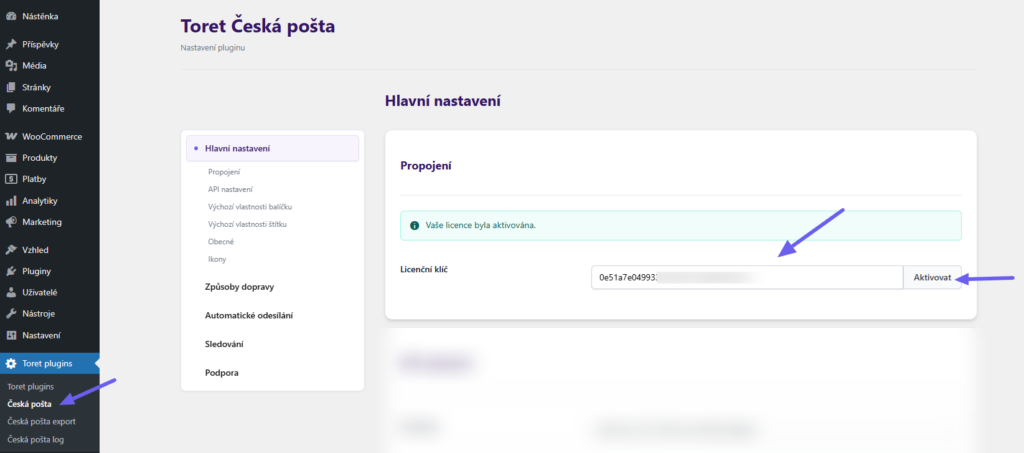
After installing the plugin, open the Toret Czech Post plugin (Toret Plugins > Česká pošta), insert the license key into the appropriate field, and click the Activate button to activate.
Connecting to Czech Post
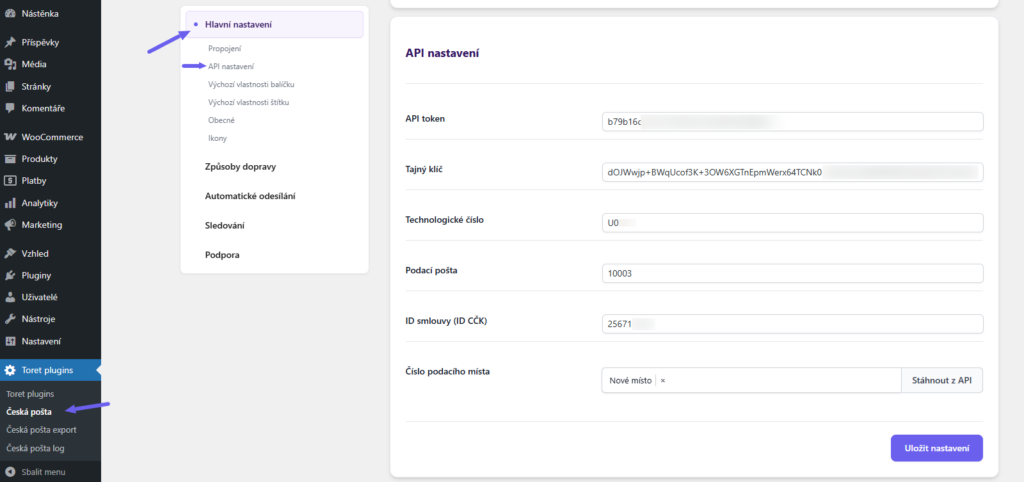
After installing and activating the plugin, continue below to the API settings section (Toret plugins > Česká pošta > API nastavení).
ATTENTION! To connect the plugin with the Czech Post B2B Parcel API, you must have a PoštaOnline account for API connection (this is not a PodáníOnline account nor a regular PoštaOnline account) – you must contact a Czech Post sales representative to create this account.
You will find the implementation details for the connection in the contract for the PoštaOnline account and enter them into the appropriate fields in the plugin.
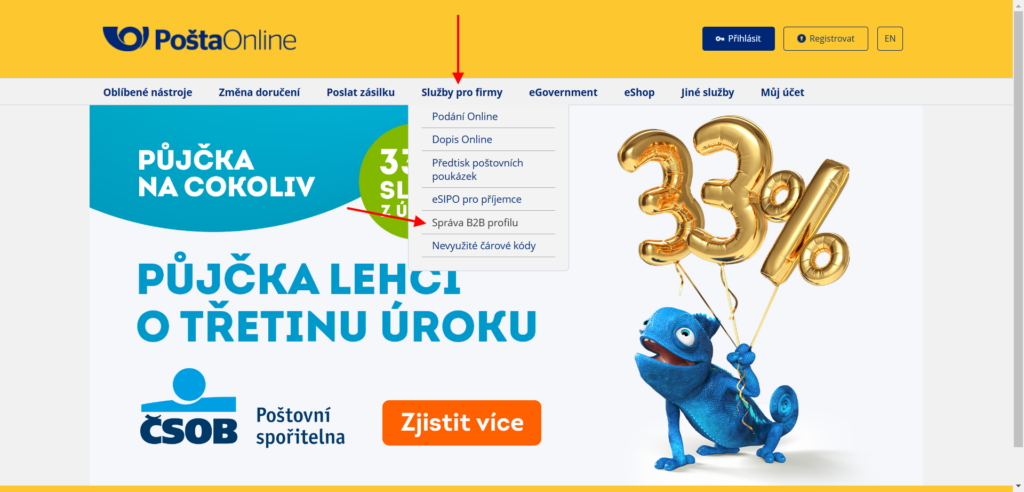
You can also generate the API token (API key) and Secret key in your PoštaOnline profile postaonline.cz > Služby pro firmy (Services for companies) > Správa B2B profilu (B2B profile management)
Note: If you already have a regular PodáníOnline account, it is possible to assign the new PoštaOnline account for API to the same contract number (upon agreement with the sales representative). You will then see shipments sent via API in your PodáníOnline account as well.
Setting up Carriers in the Czech Post Plugin
In the Toret Czech Post plugin, you can set up the use of these shipping methods:
- Balíkovna
- Balíkovna – Na adresu (To address)
- Balík Do ruky (Parcel To Hand)
- Cenný balík (Valuable Package)
- EMS (Express Mail Service)
- Doporučený balíček (Registered Package)
- Standardní balík do zahraničí (Standard Parcel Abroad)
- Cenné psaní (Insured Letter)
- Firemní psaní (Company Letter)
- Obyčejné psaní (Ordinary Letter)
- Doporučené psaní (Registered Letter)
- Doporučené psaní – Ekonomické (Registered Letter – Economic)
- Balík Nadrozměr (Oversized Parcel)
Individual shipping methods are configured in the plugin on the Způsoby dopravy (Shipping Methods) tab. (Toret Plugins > Česká pošta > Způsoby dopravy)

In column 1, you see the countries of delivery; in column 2, the carriers you have set for the given country. You can click the pencil icon button (b) to access shipping settings for a given country. You can also set global values that apply to unfilled fields for all countries (a).
The list of countries matches the official Czech Post offer for each service. The settings cover 218 countries in total. Each shipping method is offered to the customer at checkout only for the countries Czech Post actually delivers to with that service.
Activation and Configuration of Shipping Methods
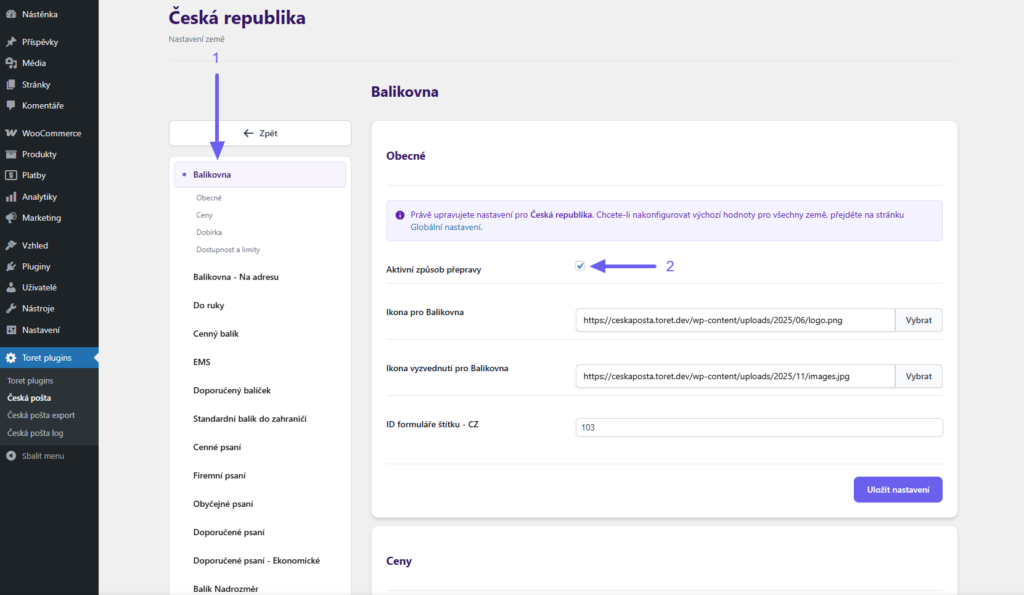
Clicking the pencil icon takes you to the settings for individual shipping methods. You will see all available shipping methods in the left column (1). Each shipping method you want to use must be activated by checking the “Aktivní způsob přepravy” (Active shipping method) checkbox. (2)
Furthermore, in this section, you can set:
- icons for display in the checkout
- Label form ID (according to Czech Post specifications)
Shipping Price Settings
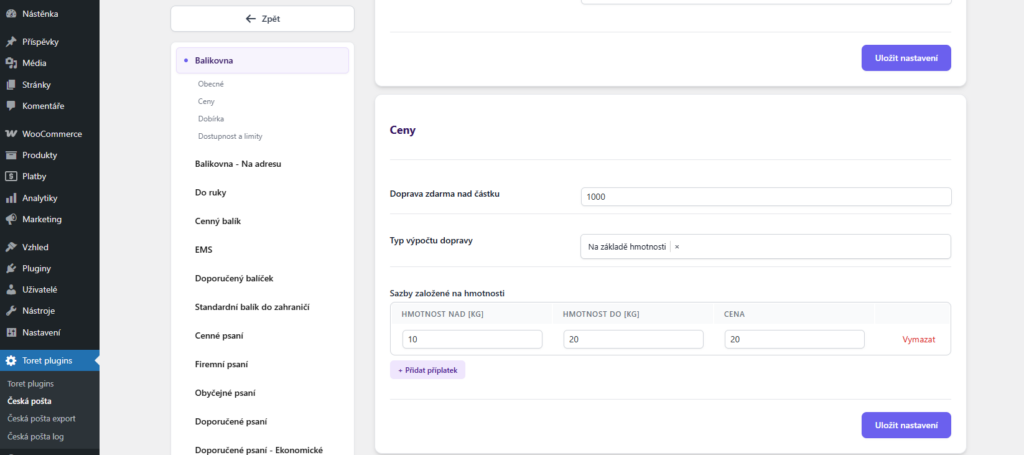
In the “Ceny” (Prices) section (below), you can set the shipping price. This can be either fixed or scaled by weight, dimensions, or order value.
Tip: If VAT is set up in WooCommerce, set the price in the plugin without VAT. Entering shipping prices with VAT can be configured in the Main Settings of the plugin.
For free shipping, you can enter an amount here, above which shipping will be free.
Tip: If you want to trigger free shipping at checkout e.g. from 500 CZK, set 499 in the plugin.
Cash on Delivery (COD) Settings
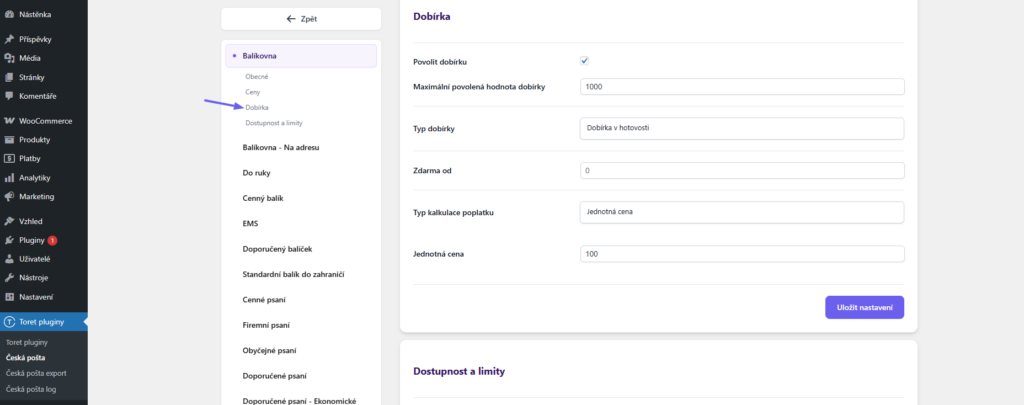
In the “Dobírka” (COD) section, you can enable COD for the given shipping method. You can further set:
- The maximum allowed COD amount – if the order exceeds this amount, COD will not be available at checkout.
- COD type (according to Czech Post specifications)
- Free COD from
- COD price – fixed or according to order value
Shipping Availability and Limits Settings
In this section, you can specify for which orders this shipping method will be offered at checkout. You can enter these criteria:
- Maximum weight in kilograms
- Minimum weight in kilograms
- Maximum width in meters
- Maximum height in meters
- Maximum length in meters
- Minimum order value
- Maximum order value
- Minimum quantity of products in the cart
- Maximum quantity of products in the cart
- Minimum product price
- Maximum product price
If the criteria are exceeded or not met, the shipping method will not be displayed to the customer at checkout.
Shipping Zone Settings
After setting up shipping methods in the Toret Czech Post plugin, it is necessary to set up identically named shipping methods in WooCommerce shipping zones. Without this setting, shipping methods from the Czech Post plugin will not appear at checkout.
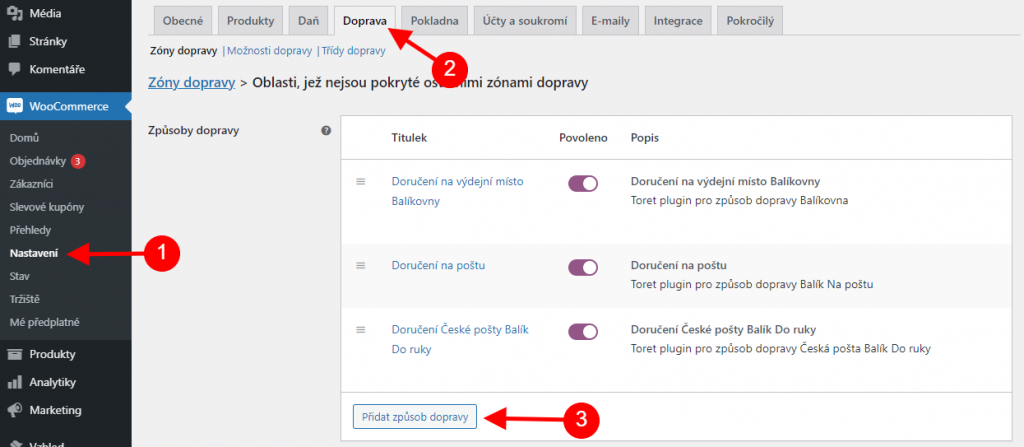
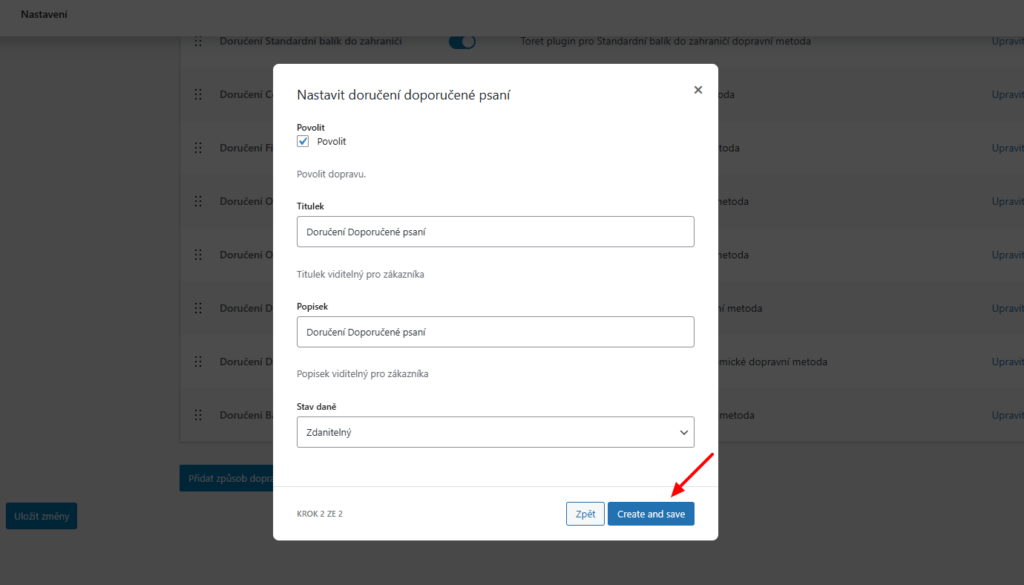
Set the shipping method in WooCommerce > Settings > Shipping > required shipping zone (e.g., Czech Republic) > Add shipping method.
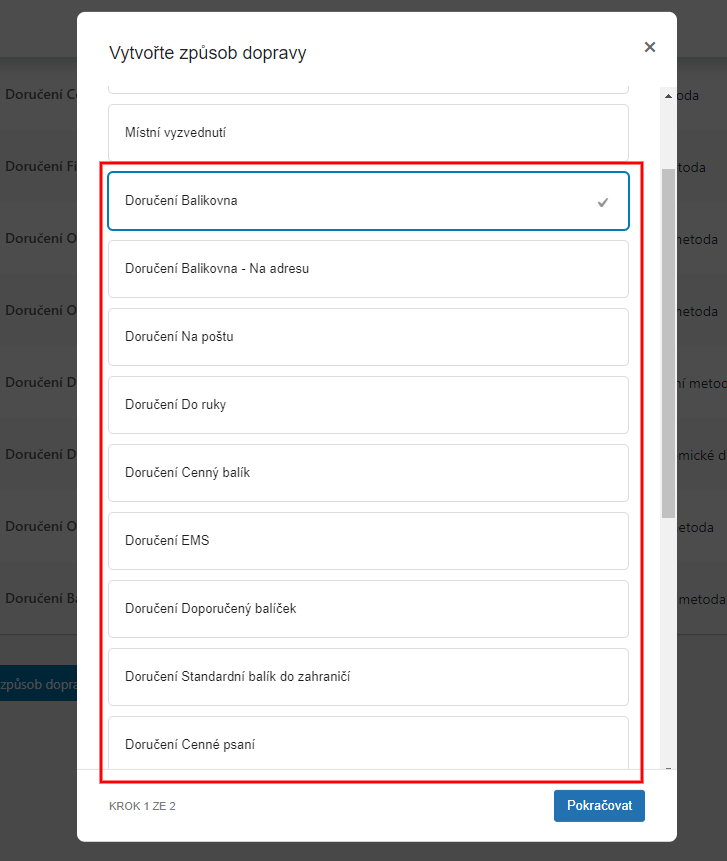
Select from the offered shipping methods and click Continue.
In the next step, choose the Title and Description of the shipping method and Tax Status (Taxable or None). Click Create and save. The new shipping method is created.
Main Plugin Settings
In the Main Settings, you can further configure a number of other functions.
Default Package Properties
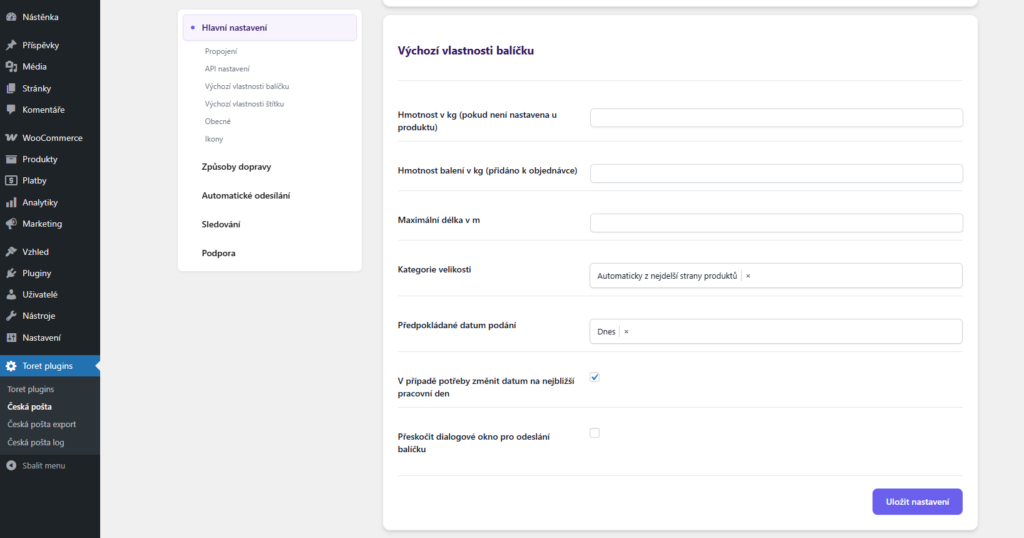
- Weight in kg – used if weight is not filled in for products
- Packaging weight in kg – added to the final package weight
- Maximum length in m
- Size category – size can be set fixed or determined from the longest side of products
- Recipient notification – determines how Czech Post notifies the recipient about the shipment. The options are E-mail and SMS (default), E-mail only, SMS only and None. Czech Post sends notifications based on the contact details passed with the shipment, so depending on the selected option the plugin sends only the phone number (for SMS), only the e-mail, both contacts, or neither.
- Estimated date of submission
- If necessary, change date to the nearest working day (if submission is not possible on the given day)
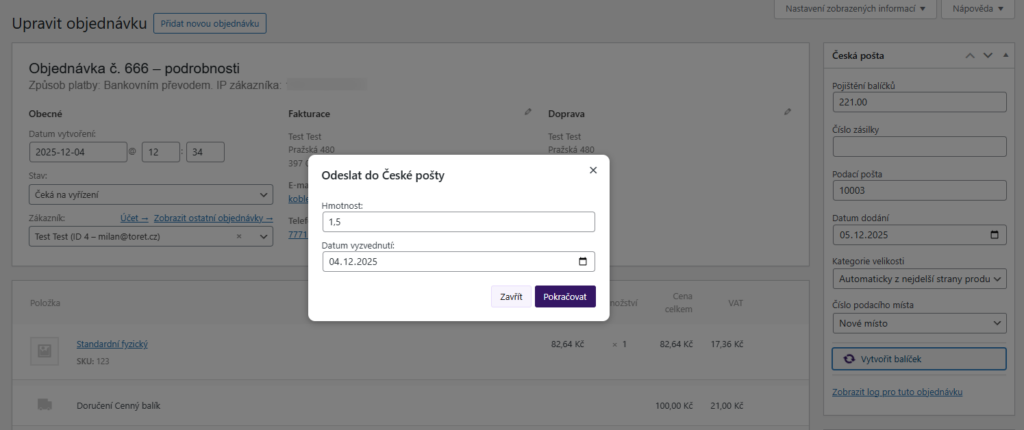
- Skip the package submission dialog – disables the window for specifying shipment details when sending and uses data from plugin settings
Default Label Properties
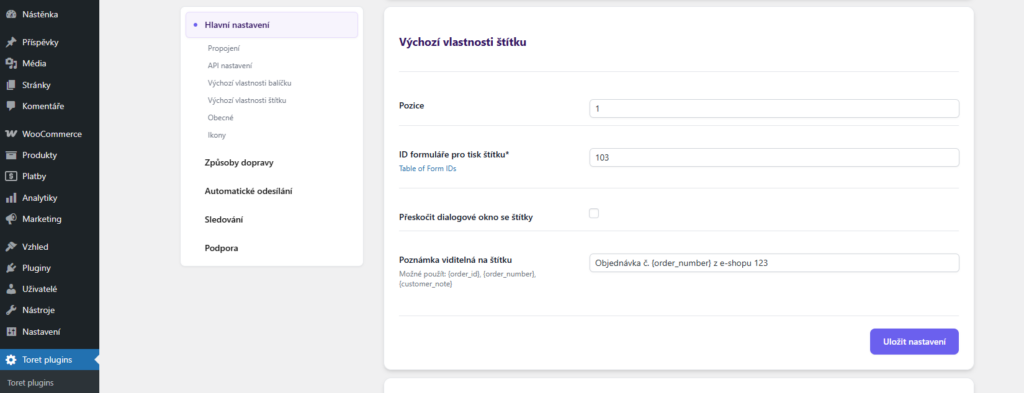
- Position (of the label on the print sheet)
- Label print form ID – label type according to Czech Post specifications
- Skip label dialog – disables the window for specifying label details when printing and uses data from plugin settings
- Note visible on label – possibility to write custom text and also use variables {order_id}, {order_number}, {customer_note}
Multiple Shipments
The function allows automatically splitting an order into multiple shipments if the set weight threshold (2) is exceeded. It is also possible to enter the packaging weight, which is automatically added to each shipment (3).
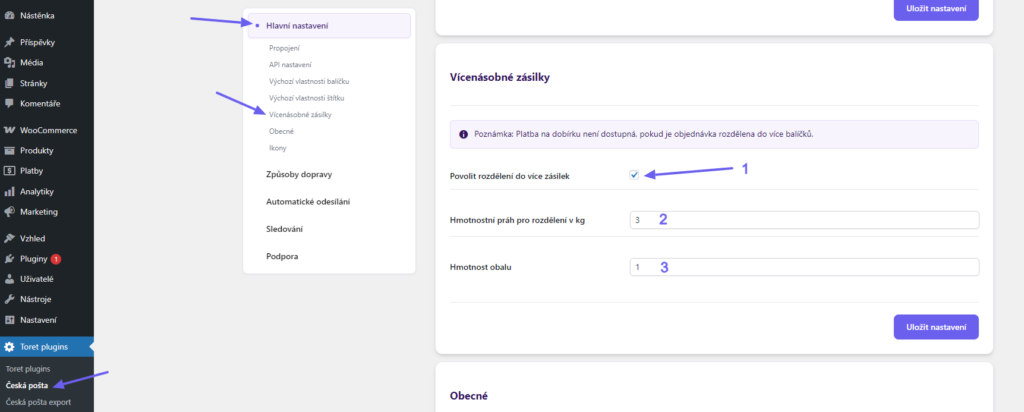
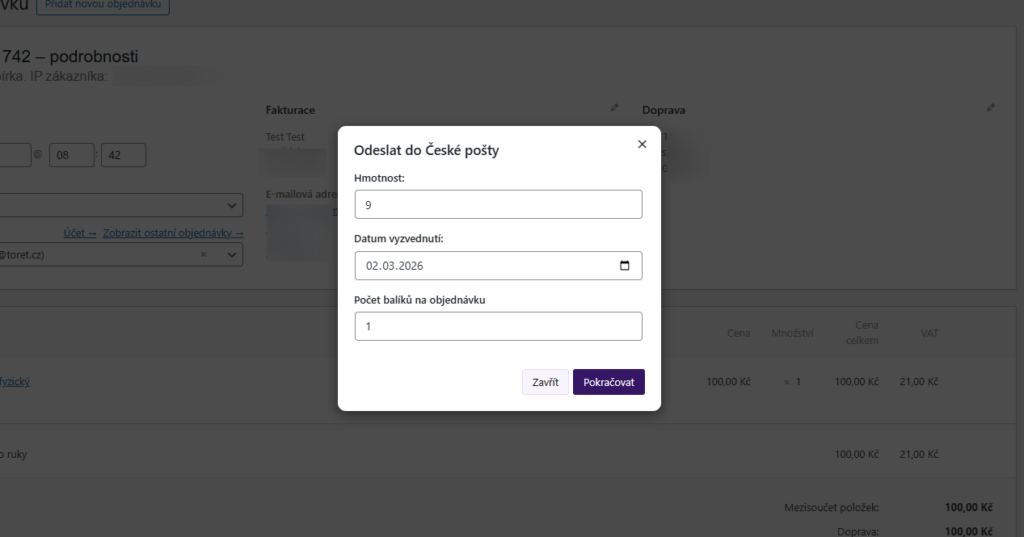
Orders can also be split into multiple packages manually – in the dialog window when creating a package (see below).
General
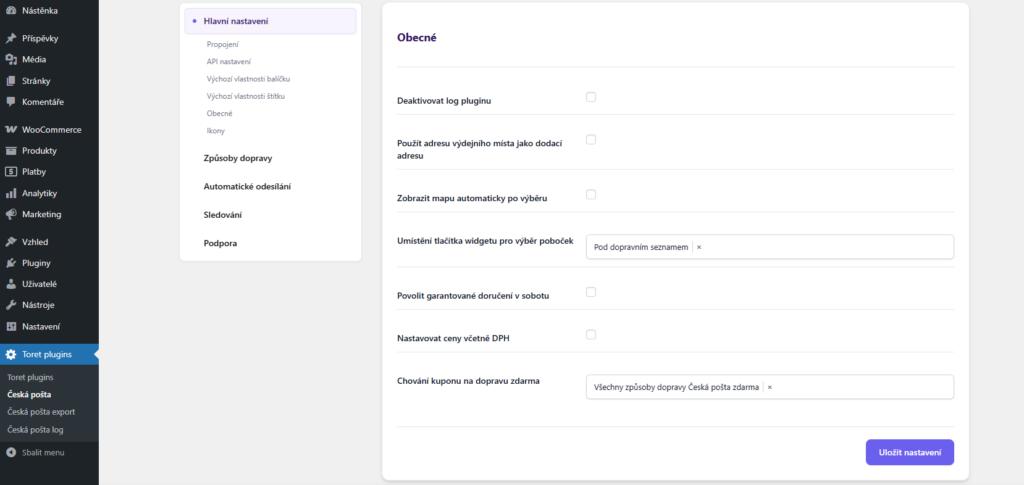
- Deactivate plugin log
- Use pickup point address as delivery address – when delivery to a pickup point is selected, the customer does not have to fill in the delivery address
- Show map automatically after selection – after selecting delivery to a pickup point, the map widget opens automatically (no need to click the button; the button remains available)
- Branch selection widget button placement – the button can be displayed immediately after the given shipping method or at the end of the shipping list
- Enable guaranteed Saturday delivery
- Set prices including VAT – If VAT is set in WooCommerce, set the price in the plugin without VAT (default state)
- Free shipping coupon behavior – free shipping coupons can be deactivated here, enabled for all shipping methods, or only for some. In the latter case, coupons must also be enabled in the settings of specific shipping methods.
Icons
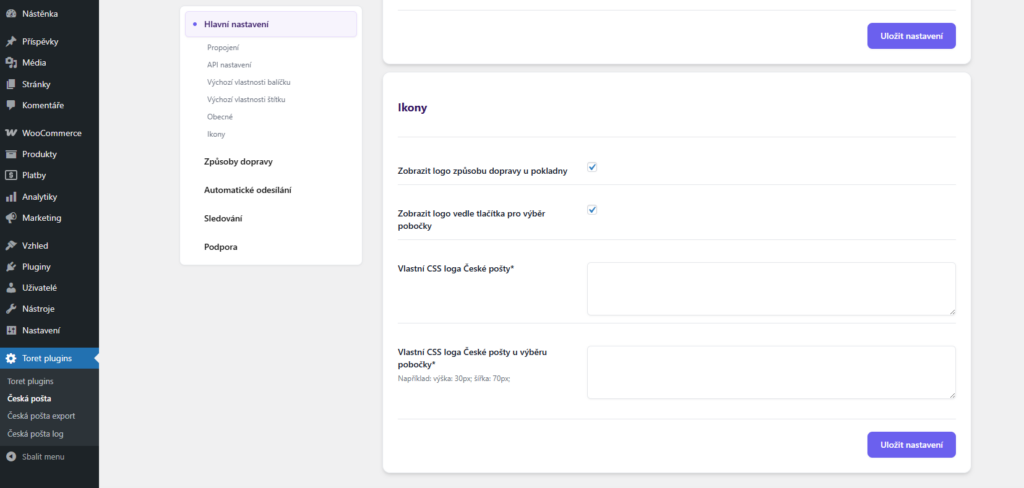
In this section, you can:
- enable displaying logos at checkout – for the shipping method and for the branch selection button
- enter CSS for both logos
Custom logos can be set directly in the settings of specific shipping methods. If you do not enter your logos, the default logos pre-set in the plugin will be used.
Shipment Management
Thanks to the connection to the Czech Post API, shipments can be completely managed from the e-shop administration.
Creating a Package
Creating a package, or sending shipment data to the Czech Post system, can be done:
Manually from the order overview or detail
To send manually, simply click the icon in the Česká pošta column in the order overview.
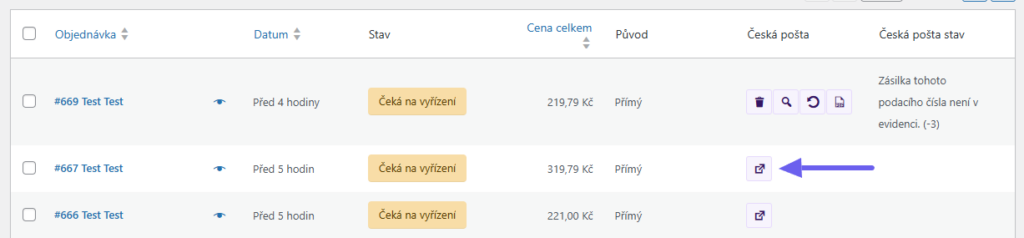
In the order detail, you will find a button for creation in the Česká pošta metabox.
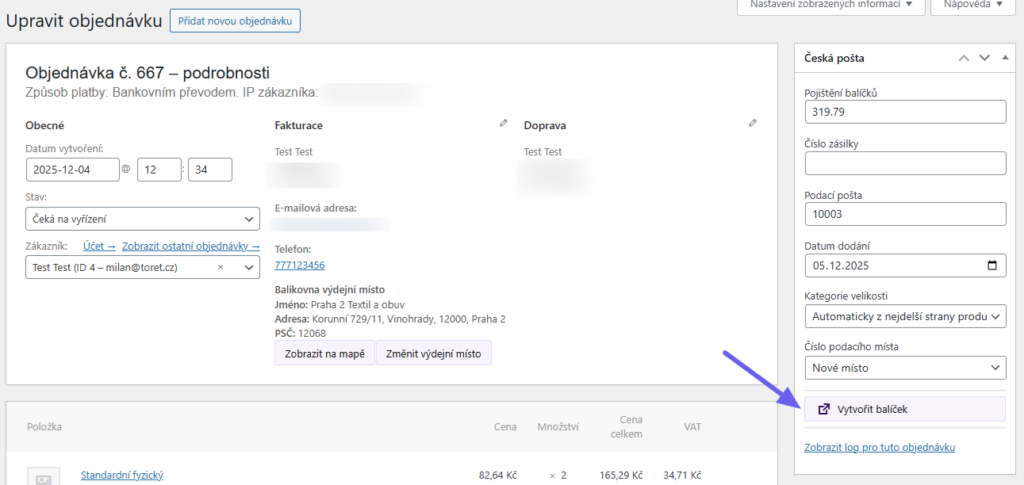
By clicking Create Package, a dialog window will open where you can edit the shipment attributes. The dialog window can be disabled in the plugin’s Main Settings to use the preconfigured attributes set in the plugin.
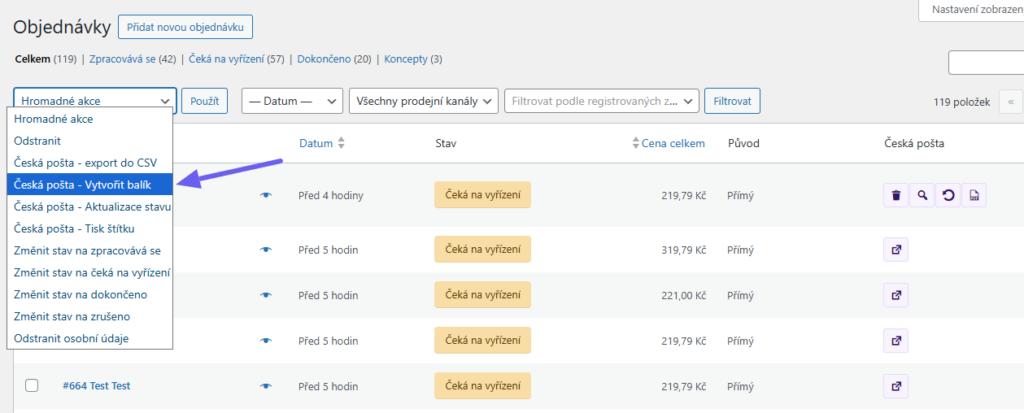
In Bulk from the Order Overview
The plugin also supports bulk actions in the order overview. You can create a package for multiple shipments at once.
Tip: If some packages cannot be created, the plugin lists the numbers of the affected orders when it finishes. You will find the reason for the error in the plugin log. After correcting the data, you can create the package for these orders again.
Automatically Based on Order Status Change
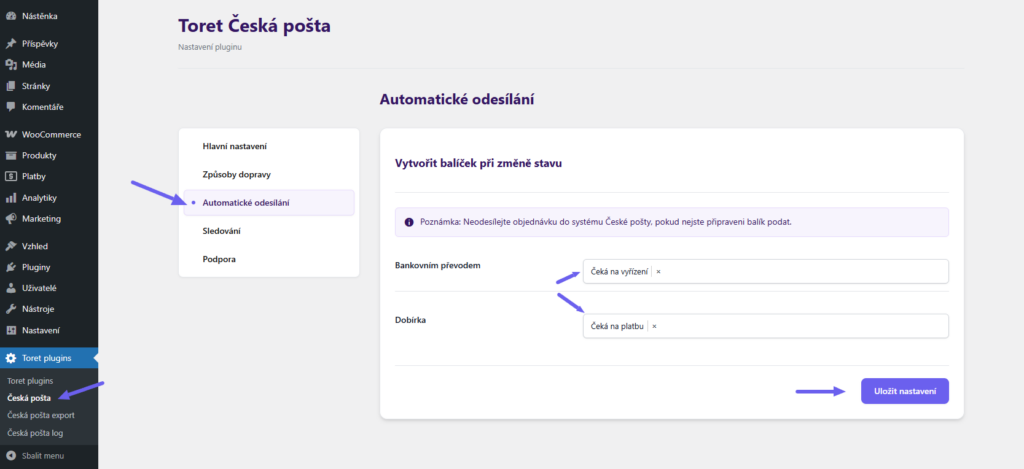
Package creation can be automated based on an order status change. You set this automatic creation in the “Automatické odesílání” (Automatic Sending) section (Toret plugins > Česká pošta > Automatické odesílání).
Here you set for individual payment methods in which order status the package will be created and data sent to the Czech Post system.
Printing Labels
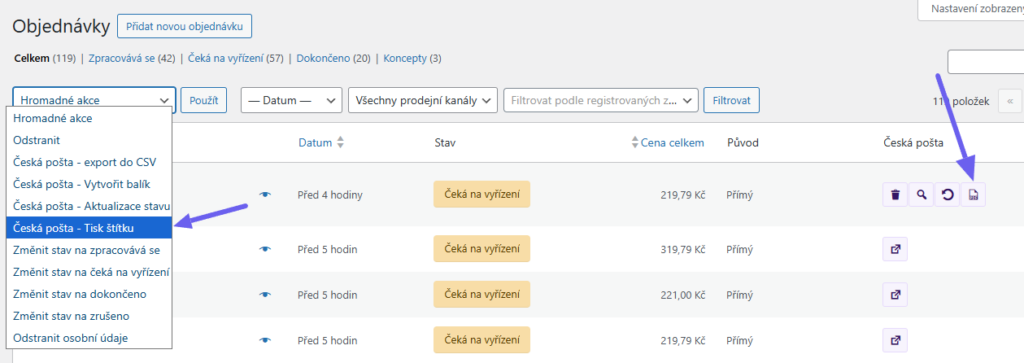
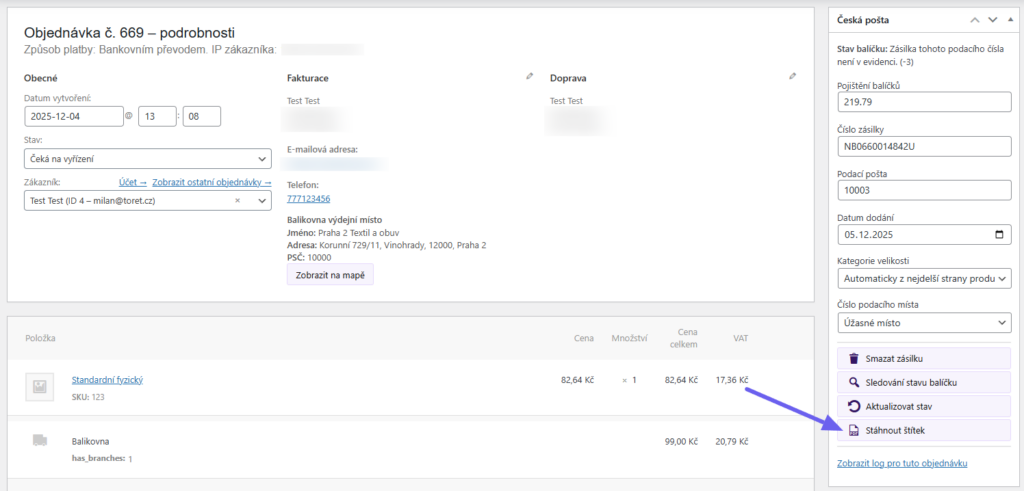
For shipments where a package has already been created, labels can be downloaded in PDF format and printed. You can do this from the overview (individually or in bulk) or from the order detail.
From Order Overview
To download a label, use the PDF file icon in the Česká pošta column or bulk actions.
From Order Detail
In the order detail, you will find a button for printing labels in the Česká pošta metabox.
Label Settings
Settings for print label position and print form ID can be reset every time you download labels in a popup window, or the popup window can be disabled and default values set in the plugin settings (Toret plugins > Česká pošta).
The label form ID can then be set separately for each shipping method in the shipping settings. A table determining which form ID can be used for specific delivery methods can be found here.
Shipment Tracking
The plugin allows tracking the status of the shipment in transit.
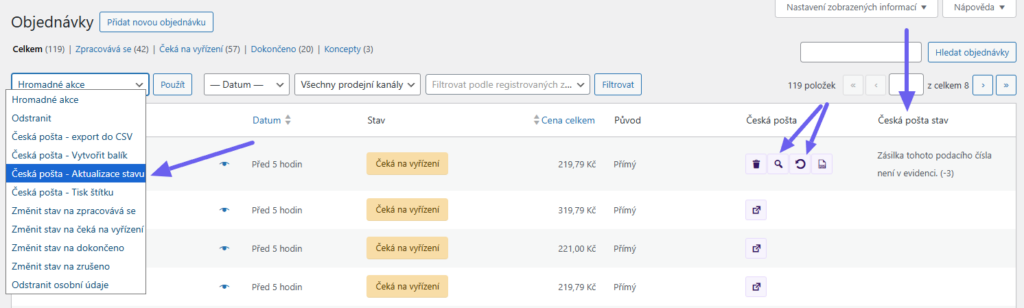
In Order Overview
In the order overview, in the Česká pošta column, you will find a magnifying glass icon that redirects you to the Czech Post system to track the shipment. The circular arrow icon loads the shipment status in transit, which you will then see in the Česká pošta stav (Status) column. Bulk actions can also be used to load shipment statuses.
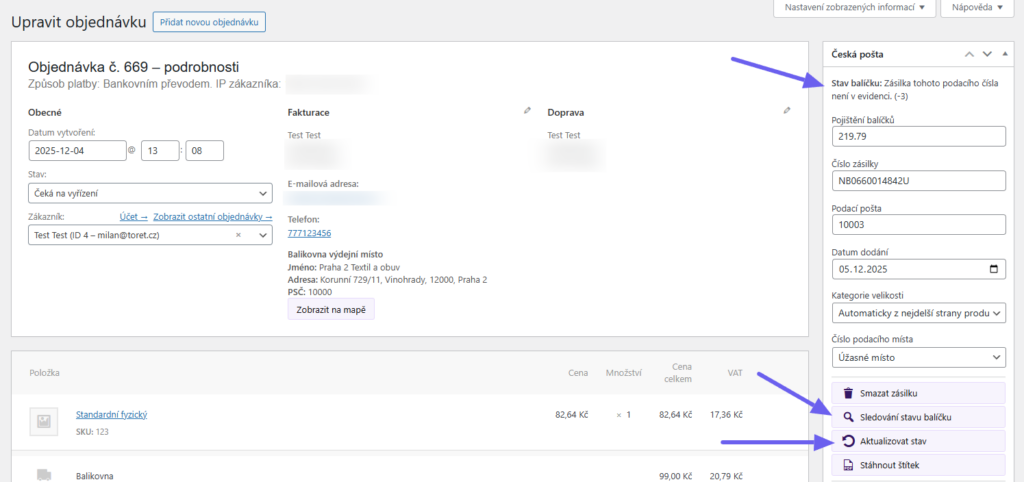
In Order Detail
The shipment status in transit can also be found in the order detail. Again, you can click through directly to the post office system or manually update the status, which will be displayed directly in the Česká pošta metabox.
Automatic Order Status Loading via CRON
Shipment statuses in transit can also be automatically loaded using CRON. You will find it in the plugin settings, in the “Sledování” (Tracking) section (Toret plugins > Česká pošta > Sledování).
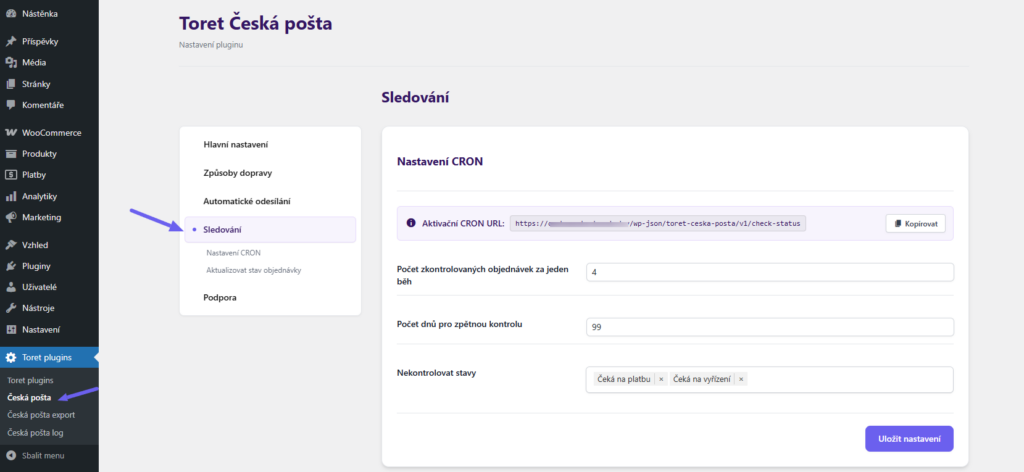
CRON must be set up on your hosting, including the required interval for its execution. In the plugin settings, you specify how many orders will be checked per CRON run, how many days back, and which order statuses will not be checked.
Order Status Change Based on Shipment Status in Transit
In the “Sledování” (Tracking) section, you can further set the order status change according to the shipment status at the carrier. Simply enable the function and assign WooCommerce order statuses to the given Czech Post statuses. Save the changes made.
E.g. Upon successful delivery of the shipment by post, the order status changes to Completed.

Link for Customers
The shipment tracking link is automatically added to the order email for customers.
Export Shipments to Czech Post Account
If you do not want to use the API connection, manual submission of shipments to the system is possible via CSV file export and subsequent import into your Czech Post account. In the plugin, you create a CSV file with shipment data, which you simply upload in the Pošta Online application of Czech Post.
Settings and the exporting itself are performed in a separate section Česká pošta export.
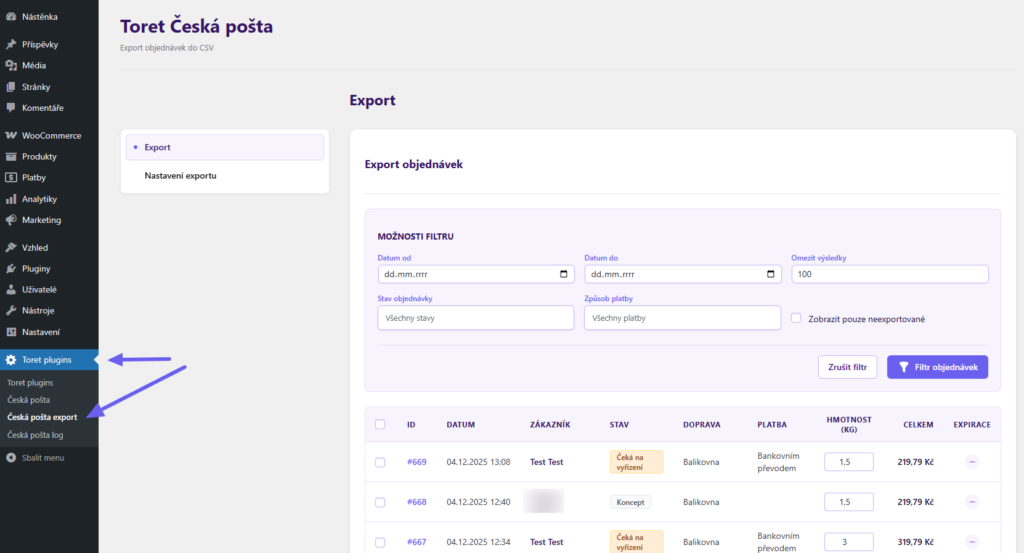
Export Settings
In the “Nastavení exportu” (Export Settings) section, you must first set which values from the order should be written to the csv file.
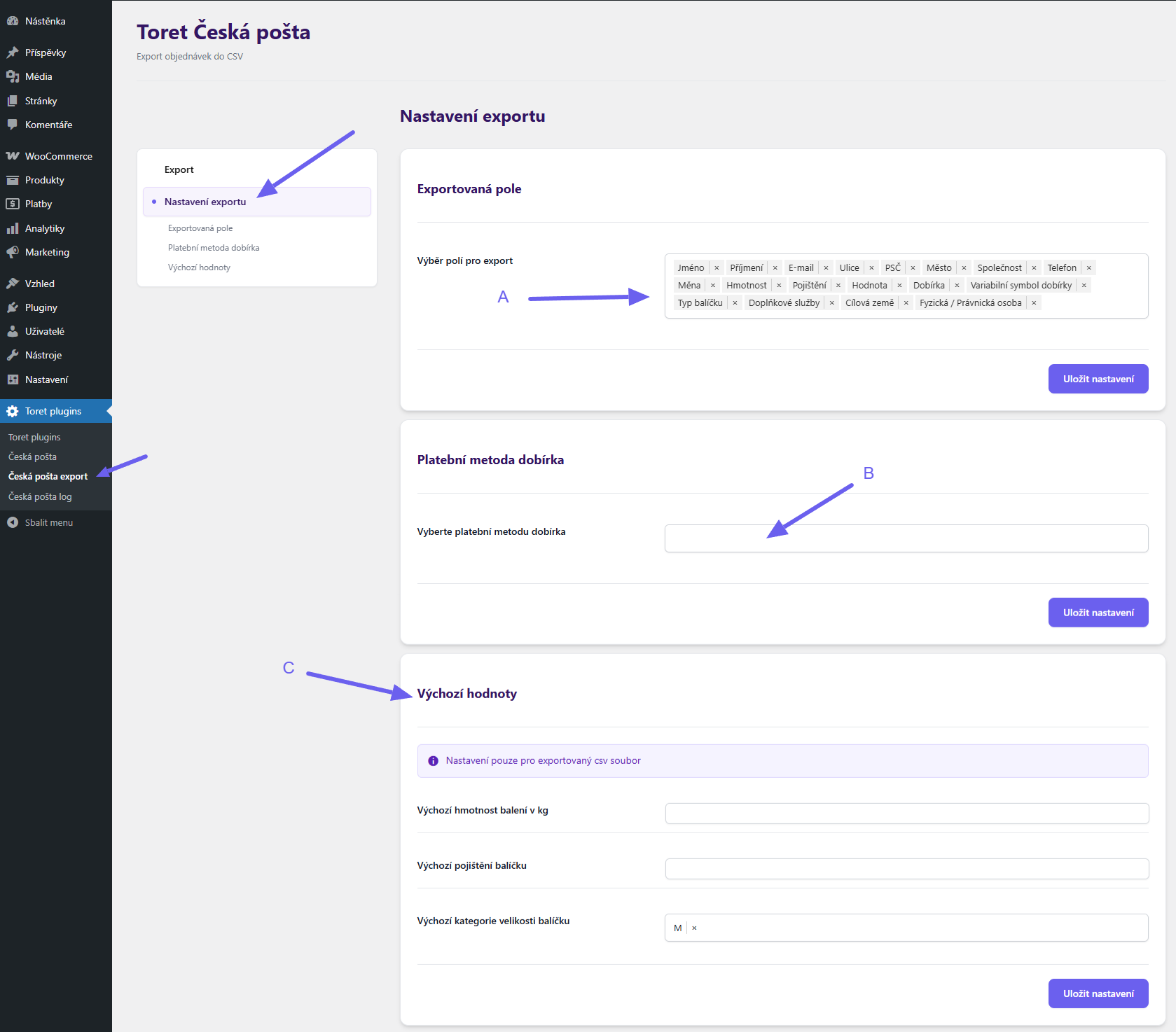
In the “Exportovaná pole” (Exported Fields) part (A), select the fields with order data that will be transferred to the csv file.
In the “Platební metoda dobírka” (COD Payment Method) part (B), select the WooCommerce payment method you use for COD in your e-shop.
In the “Výchozí hodnoty” (Default Values) part (C), set the default values for CSV export.
Export
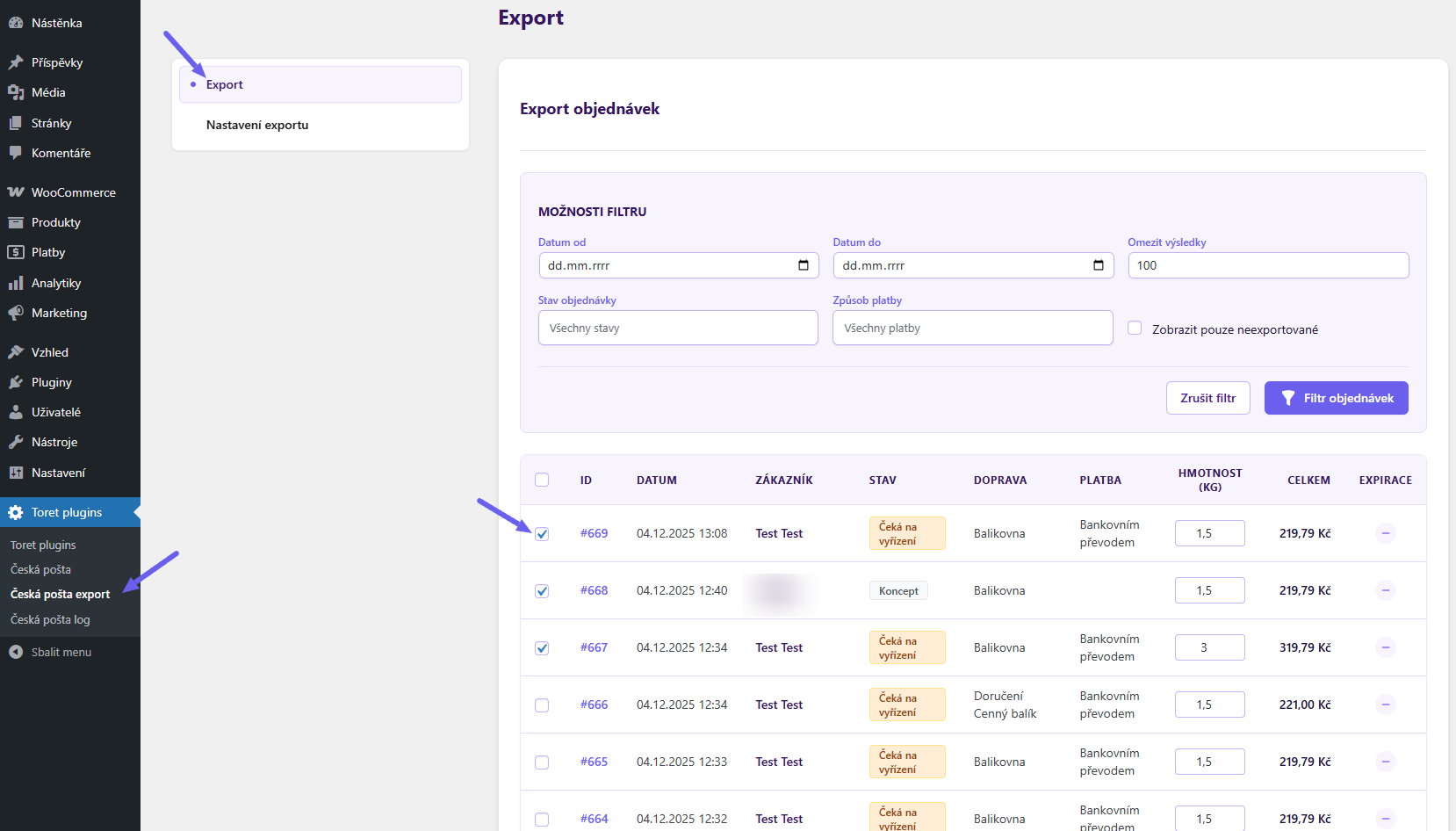
The export itself is performed in the “Export” section, where you must select the orders to be written to the csv file. Filtering options are also available. Clicking the “Export” button downloads a file with order data to your computer. You then upload this file in your Czech Post account.

Free Shipping
You can set free shipping directly in the Czech Post plugin for each shipping method (section Ceny / Prices).
The plugin’s free shipping setting is “above” an amount, meaning free shipping is activated on the website after exceeding the set amount in the cart.
EXAMPLE: If you want free shipping from 500, set the amount 499 in the plugin.
Tip: If you have VAT set up in WooCommerce, the value for triggering free shipping is entered without VAT.
The free shipping amount setting applies only to products; the shipping price is not included.
EXAMPLE: If you have free shipping set from 500, and the cart contains a product for 450 + shipping price 65 = 515 CZK, free shipping will not be activated. It is necessary to exceed the set price with the product, i.e., to activate free shipping set this way, you need to put product(s) worth at least 500 CZK into the cart.
VAT on COD Surcharge
The plugin is programmed so that the VAT of surcharges is calculated according to the VAT of products in the cart. Thus, if there is one product with 10% VAT in the cart, the VAT of COD and shipping will also be 10% (for shipping, it also depends on WooCommerce settings, whether you have a fixed standard rate or VAT setting based on cart items). If the cart contains a product with 10% and a product with 21%, 21% VAT will be applied to the surcharges.
This function was programmed after consultation with the Tax Office. However, you can set the COD VAT fixed using a filter here:
/*** Custom tax class for COD price calculation **/
add_filter('tcp_taxclass_dobirka', 'custom_taxclass_dobirka');
function custom_taxclass_dobirka($tax_class){
return 'nulova-sazba'; // tax slug
}
Insert the slug of the tax class you want to use for the COD surcharge into the filter. You can find the slug in the URL of the tax class when you are in its settings. It is listed after selection=
E.g., https://ceskaposta.toret.dev/wp-admin/admin.php?page=wc-settings&tab=tax§ion=nulova-sazba
To prevent the filter from being deleted during the next Czech Post plugin update, it must be inserted into a child theme or into an empty plugin, e.g., https://toret.cz/produkt/boilerplate/.
Customs Declaration (CN22/CN23)
Since version 3.5.0, the plugin automatically attaches an electronic customs declaration (CN22/CN23) to shipments outside the EU customs territory. The data for the customs declaration comes from three sources:
- default values in the plugin settings (category, country of origin, additional service, etc.),
- customs data on products and variations (HS code, customs goods description, country of origin),
- the submission dialog, where the data for a specific shipment can be adjusted before sending.
The customs declaration is attached automatically whenever the shipping address is outside the EU. Based on the postcode, the plugin also recognizes customs territories inside EU member states that are not part of the customs union (Canary Islands, Ceuta, Melilla, Åland Islands, Livigno, Campione d’Italia, Heligoland, Büsingen, Madeira, Azores, Mount Athos, French overseas territories) – the customs declaration is attached for these as well.
Tip: Under the Universal Postal Union rules (from 1 January 2026), international registered and insured letters may contain documents only. For these methods the plugin always uses the Document category. To ship goods, use a parcel service.
Tip: For shipments to the USA, Canada, Australia, Brazil, Mexico and Spain, Czech Post also requires the state or province in the address. The plugin takes it automatically from the State / County field of the order. If the customer leaves the field empty, Czech Post rejects the shipment. Keep this field required at checkout for these countries.
Customs Declaration Settings
You set the default values in the Main Plugin Settings in the Customs declaration (CN22/CN23) section (Toret Plugins > Česká pošta > Obecné / General).
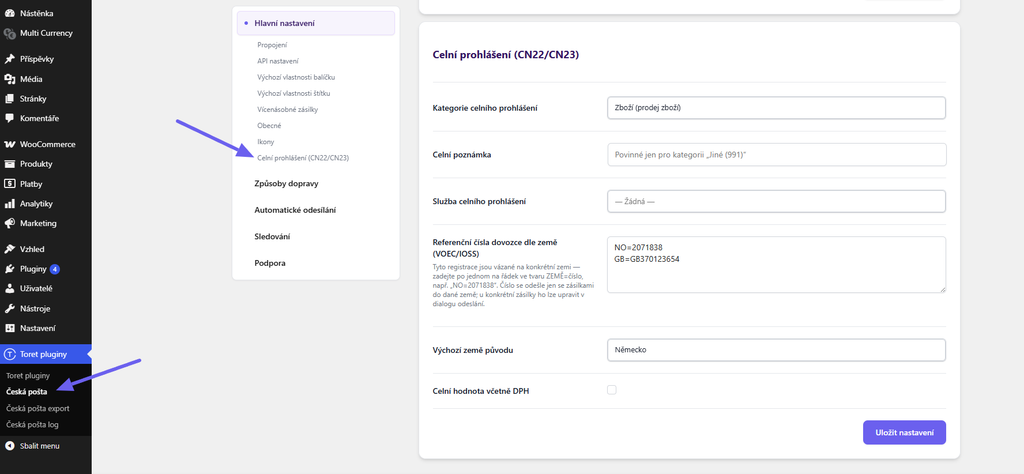
- Customs declaration category – the type of the shipment contents. The options are Goods (sale of goods), Returned goods, Commercial sample, Document and Other (requires a note). For a regular e-shop, keep Goods (sale of goods).
- Customs note – filled in only for the Other (991) category, where Czech Post requires it. Leave the field empty for the other categories.
- Customs declaration service – an additional Czech Post service attached to shipments outside the EU: 43 or 44. Use service 44 (own export customs clearance) only if you file the export declaration yourself – the plugin then requires the MRN code in the submission dialog. Unless Czech Post tells you otherwise, keep None – for parcel services (e.g. EMS) the Czech Post system adds the customs services itself.
- Importer reference numbers by country (VOEC/IOSS) – importer registration numbers required by some countries (e.g. the VOEC number for Norway). Enter one per line as
COUNTRY=number, e.g.NO=2071838. The number is sent only with shipments to that country. - Default country of origin – used for products that have no country of origin filled in. The default value is Czech Republic.
- Customs value includes VAT – when checked, VAT is included in the customs value of the goods. By default, the customs value is taken from the order line price excluding VAT.
Customs Data on Products and Variations
You can fill in the HS code, customs description and country of origin directly on the product. In the product detail, in the Product data box, you will find the Czech Post tab with the Customs declaration (CN22/CN23) section.
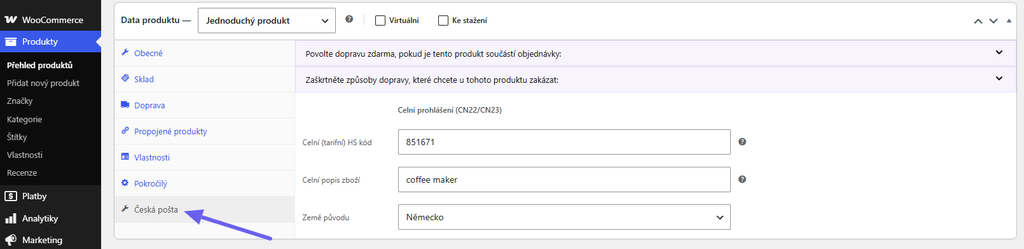
- Customs HS (tariff) code – the Harmonized System tariff code of the goods (e.g. 6109 for T-shirts). You can find the code in the customs tariff (TARIC).
- Customs goods description – the description of the goods for the customs declaration. Defaults to the product name when left empty.
- Country of origin – the country where the goods were manufactured. If you keep Use default, the country from the plugin settings is used.
The same fields are available for the individual variations of a variable product. A value filled in on a variation takes precedence over the value on the parent product.
The item weight in the customs declaration is taken from the product weight in WooCommerce, the customs value from the order line price. The product weight is therefore required for shipments outside the EU – without it, the shipment cannot be submitted.
Tip: The customs data on products is optional. If you do not fill it in, you enter the HS code and the other values in the submission dialog for each shipment. For regularly shipped goods, however, it is more convenient to have the data filled in on the products – the dialog then only needs to be checked and confirmed.
Customs Declaration in the Submission Dialog
If the shipping address is outside the EU customs territory, the dialog window for creating a package shows an additional Customs declaration (CN22/CN23) section. The data is pre-filled from the plugin settings, the products and the order, and you can adjust it freely before sending.
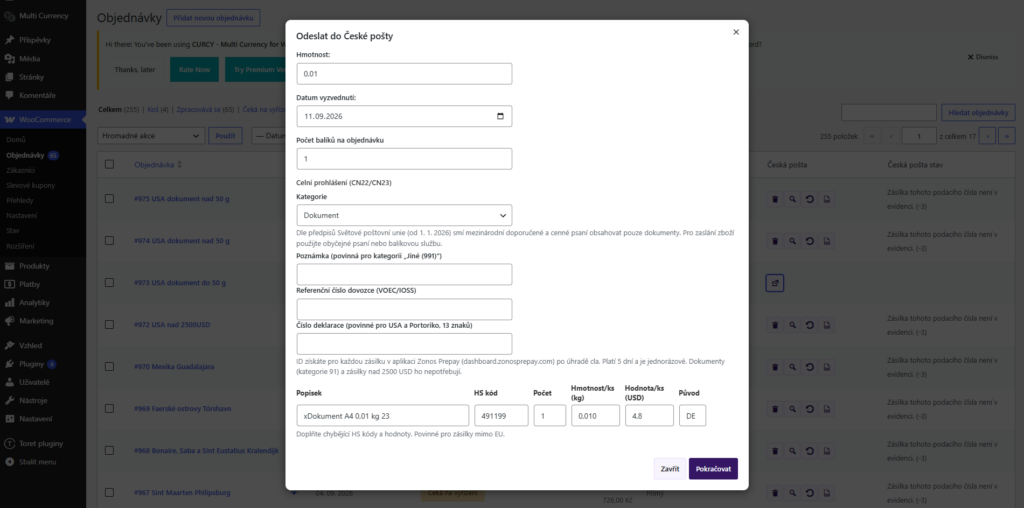
In the upper part of the dialog you can adjust:
- Category and Note – pre-filled from the plugin settings.
- Importer reference number (VOEC/IOSS) – pre-filled from the plugin settings according to the destination country; you can change or delete it for the specific shipment.
- MRN code (export declaration) – shown only when service 44 is used. Without the MRN code, Czech Post rejects the shipment.
- Declaration ID – shown only for shipments to the USA and Puerto Rico. This is the 13-character ID from the Zonos Prepay application, which Czech Post requires for shipments of goods with a value of up to USD 2,500. It is not filled in for documents (Document category) and shipments over USD 2,500.
Below them is an editable goods table – one row for each physical order item:
- Description – the customs goods description (from the product, or the product name).
- HS code – the tariff code of the goods.
- Qty – the number of pieces. Refunded pieces are not included in the declaration.
- Weight/pc (kg) – the net weight of one piece.
- Value/pc – the customs value of one piece in the currency shown in the column header. For shipments to the USA and Puerto Rico, Czech Post requires the value in USD – the plugin converts it automatically using the current Czech National Bank exchange rate.
- Origin – the two-letter code of the country of origin (e.g. CZ).
Virtual products are not shown in the table. The data adjusted in the dialog is saved to the order and takes precedence over the data on the products and in the plugin settings.
Tip: Czech Post allows at most 20 rows in a customs declaration. If the order has more items, the plugin warns you in the dialog – merge items with the same HS code into one row and adjust the quantity, weight and value so that the declaration covers the whole shipment.
Before sending, the plugin checks that every item has a description, HS code, quantity, weight, customs value and country of origin. If any of these is missing, the package is not created and the plugin shows a list of the missing data that needs to be filled in in the dialog.
Bulk and Automatic Submission
When creating packages in bulk from the order overview and when sending automatically based on the order status, the submission dialog is not shown. In these cases the customs declaration is built only from the data on the products and the default values in the plugin settings. If you submit shipments outside the EU in bulk or automatically, make sure the products have the HS code, weight and, where needed, the country of origin filled in – otherwise the submission fails with an incomplete customs declaration error and the shipment has to be submitted manually from the order detail.
EXAMPLE: You sell T-shirts made in Turkey and a customer from Norway orders 2 pieces. On the product you fill in the HS code 6109, the customs description Cotton T-shirt and the country of origin Turkey; in the plugin settings, the importer reference numbers contain the line NO=<your VOEC number>. When creating the package, the plugin pre-fills the customs declaration: category Goods, 1 row – Cotton T-shirt, HS code 6109, quantity 2, weight from the product, value per piece from the order, origin TR – and attaches your VOEC number to the shipment. Just check it and click Continue.
Plugin testing
For testing purposes, you can use:
- the subdomain “dev.domainlicense” (with the same license as for the production website)
- localhost (127.0.0.1)
Purchased plugins will also work in these locations, and you can test their implementation and compatibility here before deploying them to the website and during its use.