
You are on the documentation pages of the WooCommerce Fakturoid plugin, which connects your e-shop with the Fakturoid invoicing system.
An account in the Fakturoid system is a requirement to use the plugin. You can purchase the Fakturoid plugin here: Toret Fakturoid for WooCommerce
- Plugin Installation (Instalace pluginu)
- Plugin Activation (Aktivace pluginu)
- Connection to Fakturoid (Napojení na Fakturoid)
- General Settings (Základní nastavení)
- Document Settings (Nastavení dokumentů)
- Payment Methods (Platební metody)
- VAT Rate Mapping (Přiřazení DPH sazeb)
- Issuing Invoices and Proforma Invoices (Vystavování faktur a proforma faktur)
- Sending Documents to Customers (Odesílání dokumentů zákazníkům)
- Settlement of Proformas and Invoices (Uhrazování proforem a faktur)
- Issuing Tax Documents (Vystavování daňového dokladu)
- Issuing Credit Notes (Vystavování dobropisu)
- Displaying ID and VAT ID Fields (Zobrazení polí pro IČ a DIČ)
- Automatic Bank Transfer Payment Pairing (Notifications and Webhook) (Automatické párování plateb převodem (Notifikace a Webhook))
- Bank Accounts for Different Currencies (Bankovní účty pro různé měny)
- VAT (DPH)
- Document Download Links (Odkazy ke stažení dokumentů)
- Email and My Account Information Settings (Nastavení informací v e-mailu a v sekci Můj účet)
- Settings for Emails Sent from Fakturoid (Nastavení e-mailů odesílaných z Fakturoidu)
- Stock Synchronization Settings (Nastavení synchronizace skladu)
- WooCommerce > Fakturoid Synchronization (Synchronizace WooCommerce > Fakturoid)
- Fakturoid > WooCommerce Synchronization (Synchronizace Fakturoid > WooCommerce)
- Excluding Payment Methods (Vyloučení platebních metod)
- Exporting Products from WooCommerce to Fakturoid (Export produktů z WooCommerce do Fakturoidu)
- Importing Stock Status from Fakturoid (Import stavu skladu z Fakturoidu)
- Product Pairing (Párování produktů)
- Deleting Exported Products – IMPORTANT (Mazání exportovaných produktů – DŮLEŽITÉ)
- Product Tags (Štítky produktů)
- Frequently Asked Questions (Časté dotazy)
- Error Debugging (Debugování chyb)
- Setting the tax rate for Cash on Delivery (COD) for shops using multiple tax rates
- Invoice is not issued for one specific order, but works for others
- Everything is set to non-VAT payer, but Fakturoid issues an invoice with VAT
- Invoice is not being issued and the order log shows "Create user problem/Could not create contact"
- Reverse Charge Settings (Nastavení přenesení daňové povinnosti)
- Invoice was not saved with error: {“errors”:{“client_name”:[“is a required field”],”subject_id”:[“Contact does not exist.”]}}
- Filters
- Plugin testing
Plugin Installation (Instalace pluginu)
After purchasing the plugin, you will receive a license key and a link to download the zip file with the plugin by email. You can find detailed instructions on how to install a plugin from your computer into WordPress here.
Plugin Activation (Aktivace pluginu)
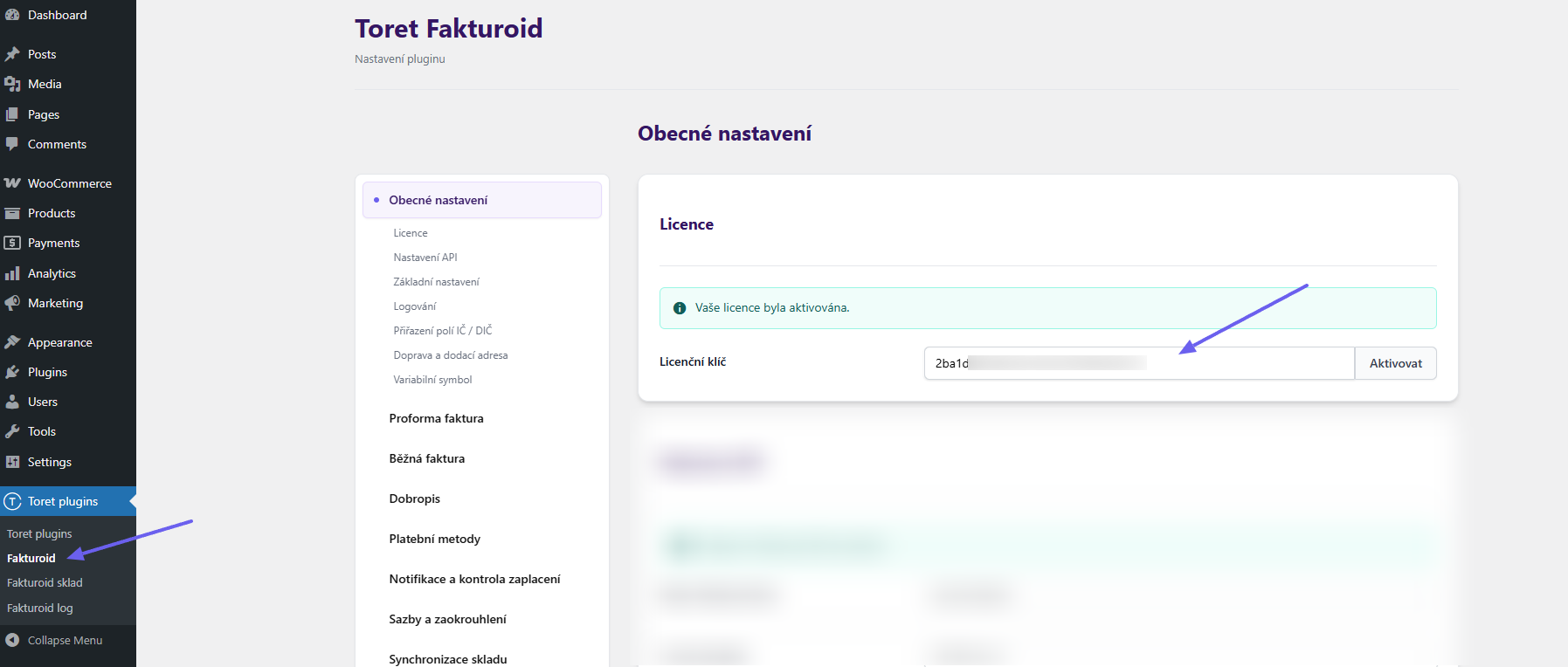
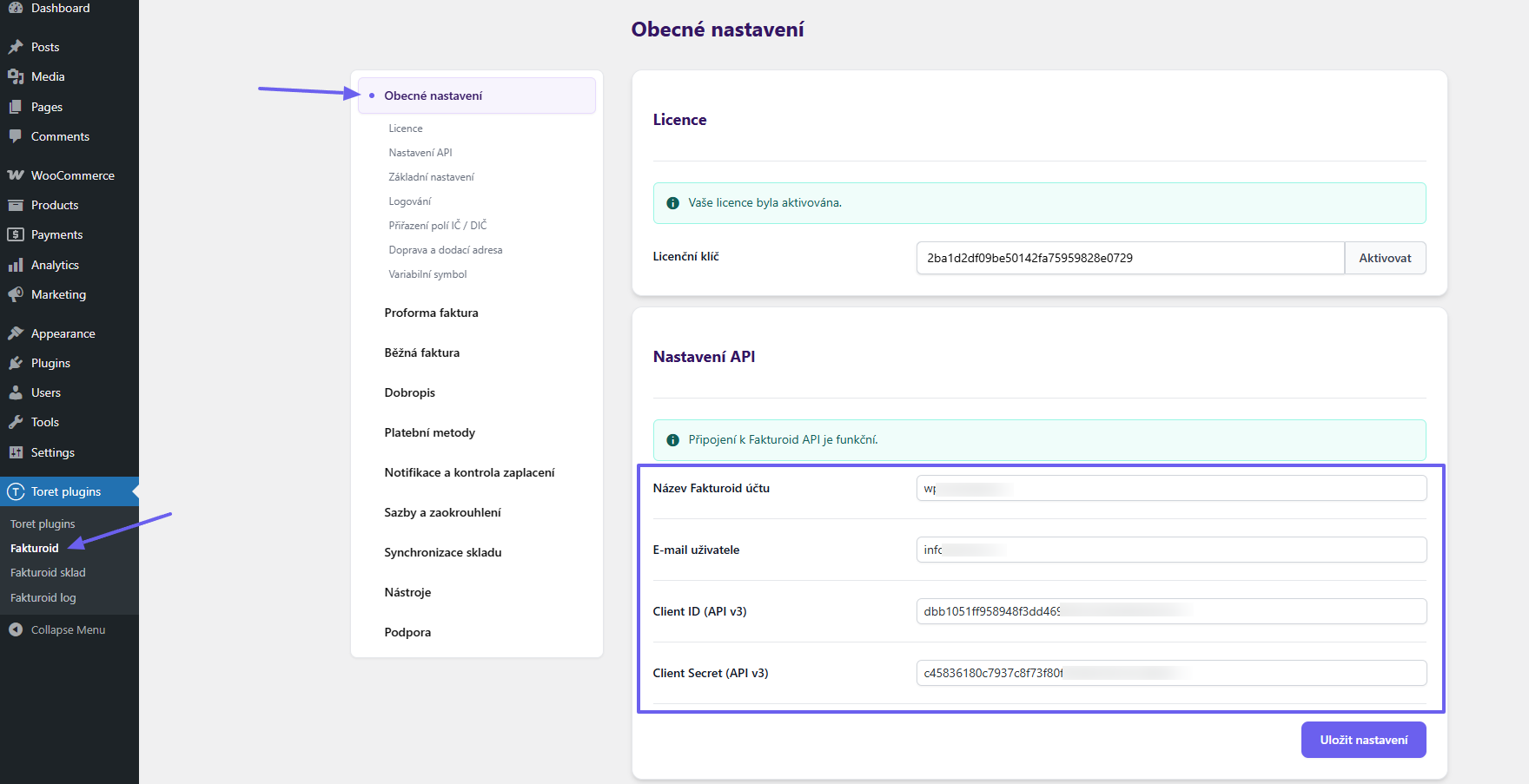
After installing the plugin, you can find its settings in the sidebar under Toret plugins → Fakturoid. Enter the license key into the field and activate it using the button.
Connection to Fakturoid (Napojení na Fakturoid)
For the plugin to function correctly, you must connect it with Fakturoid. The following implementation data is used for the connection:
- Fakturoid account name (název Fakturoid účtu)
- User email under which you are registered on Fakturoid (e-mail uživatele)
- Client ID (for API v3)
- Client Secret (for APIv3)
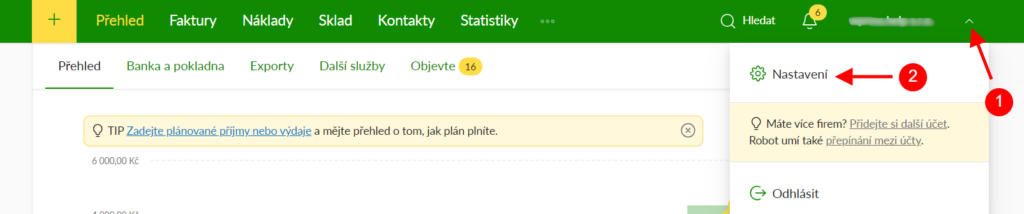
You can obtain this information in your Fakturoid user account. Click on the arrow at the top right (1) and then on Settings (Nastavení) (2).
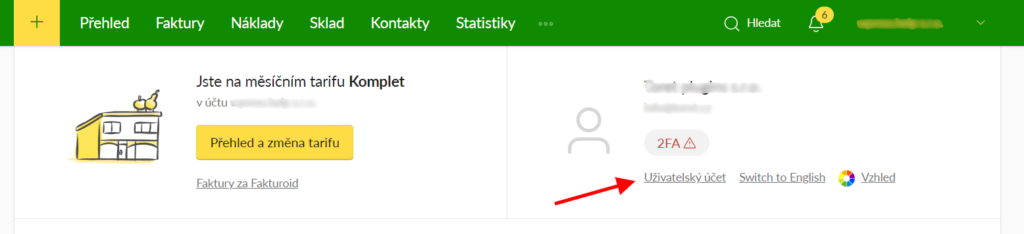
On the next page, click on User Account (Uživatelský účet).
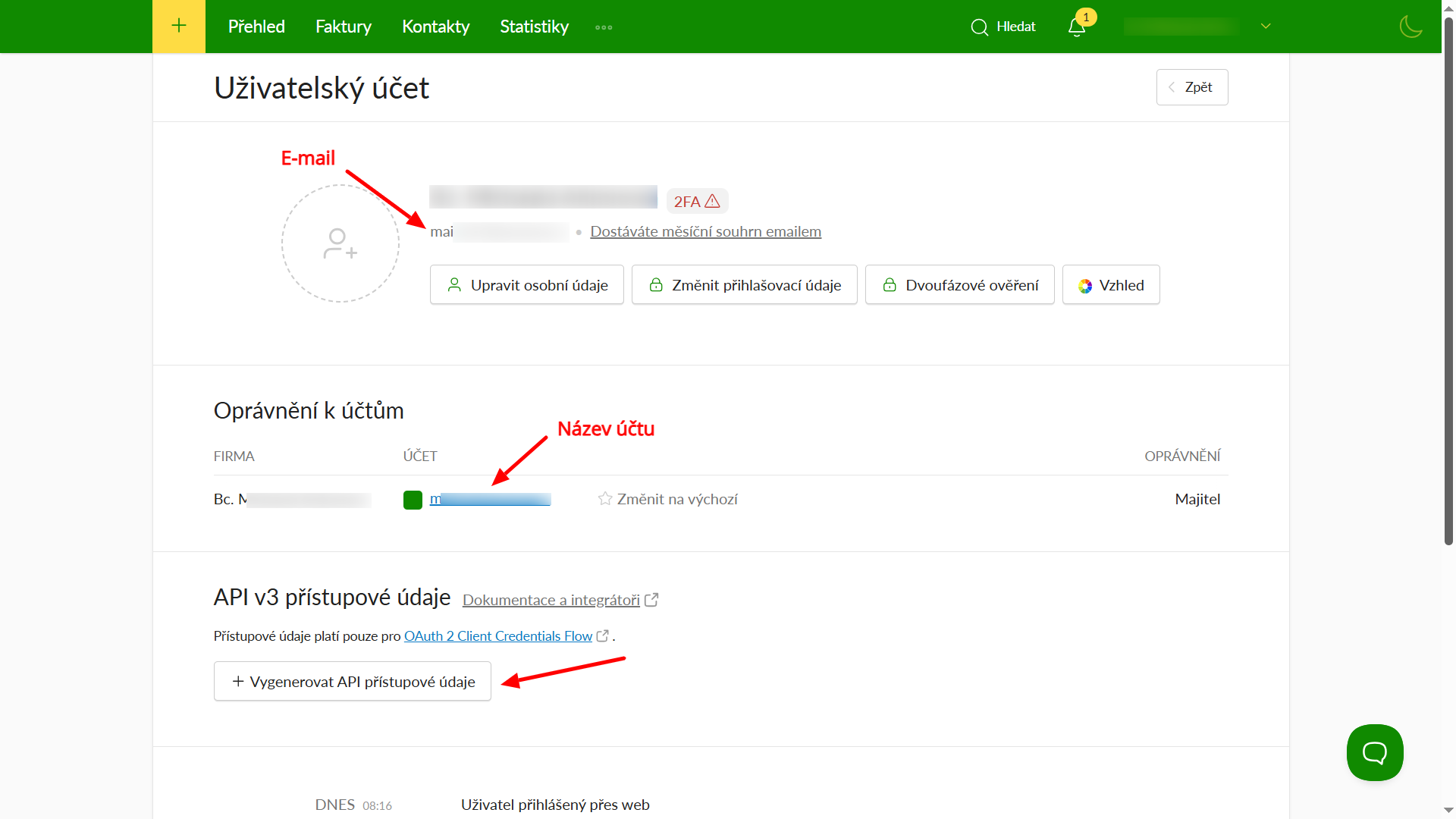
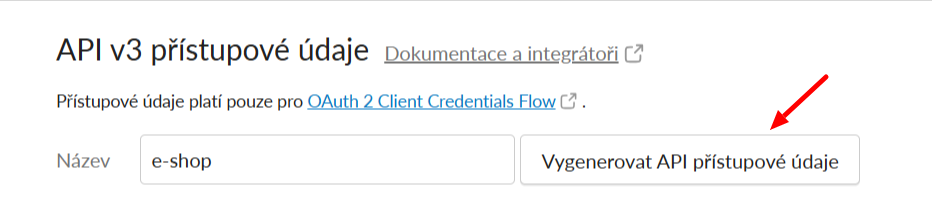
You are now in your user account. Here you will find the email and account name fields. To obtain both Client ID and Client Secret, click on Generate API access credentials (Vygenerovat API přístupové údaje).
A text field will appear where you enter a name (for reference only) and click Generate API access credentials (Vygenerovat API přístupové údaje) again.
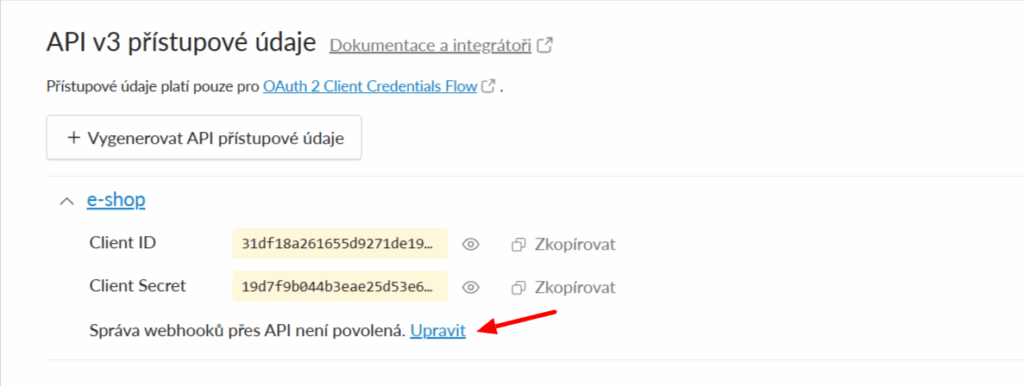
Now you need to enable Webhook Management via API (Povolit Správu webhooků přes API). Click on Edit (Upravit)…
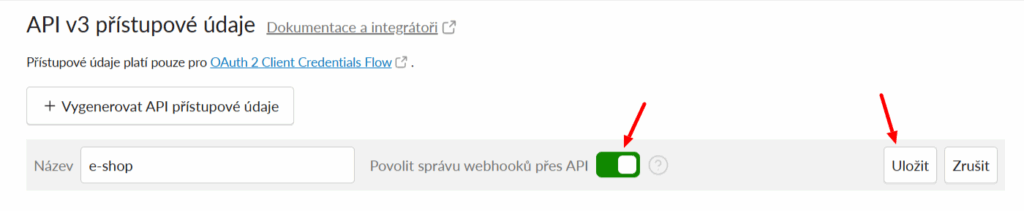
…enable webhook management with the toggle and click on Save (Uložit).
Now you can copy the access credentials.
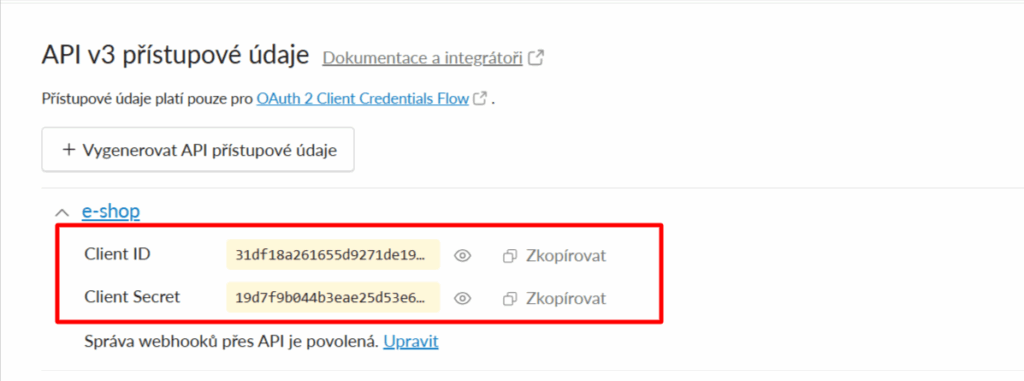
In the plugin settings (Toret plugins > Fakturoid), paste the implementation data into the respective fields. After entering the data, do not forget to save the changes made (at the bottom).
General Settings (Základní nastavení)
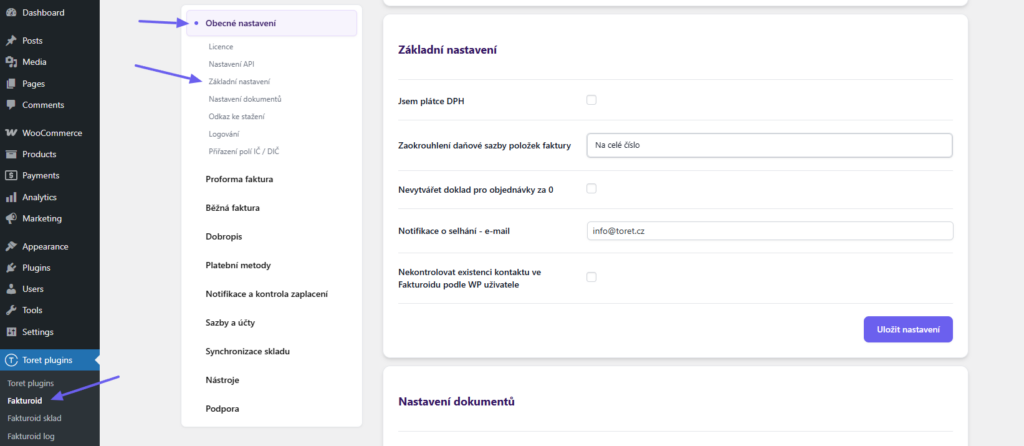
(Toret plugins > Fakturoid > General Settings (Obecné nastavení) > Basic Settings (Základní nastavení))
In the Basic Settings (Základní nastavení) section, you can configure:
- I am a VAT payer (Jsem plátce DPH): Check this if you are a VAT payer
- Tax rate rounding for invoice items (Zaokrouhlení daňové sazby položek faktury): Rounding can be chosen as a whole number or to one decimal place
- Do not create document for orders for 0 (Nevytvářet doklad pro objednávky za 0): No invoice will be issued for free orders
- Failure notification – email (Notifikace o selhání – e-mail): Fill in the email to which a notification will be sent in case of an error (invoice not issued)
Document Settings (Nastavení dokumentů)
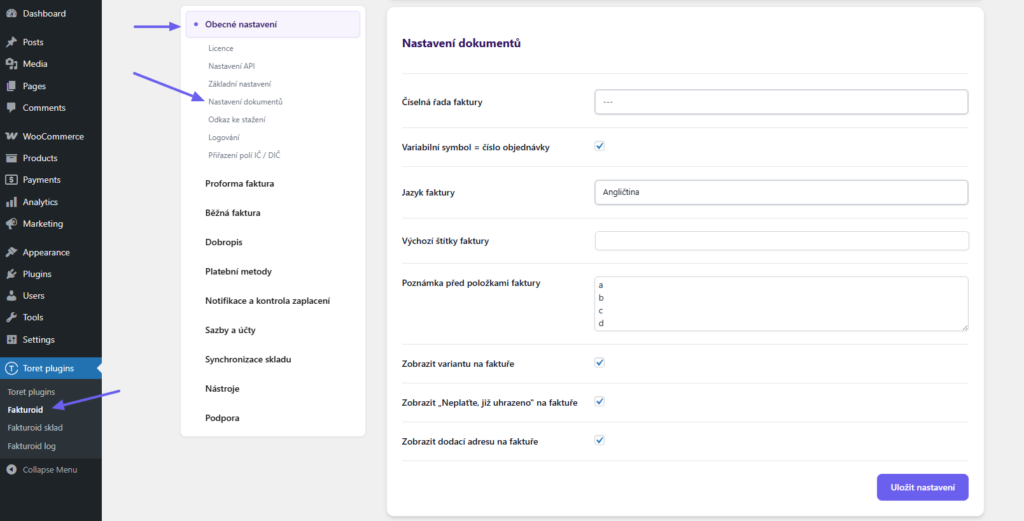
(Toret plugins > Fakturoid > General Settings (Obecné nastavení) > Document Settings (Nastavení dokumentů))
Number Sequence Settings (Nastavení číselné řady)
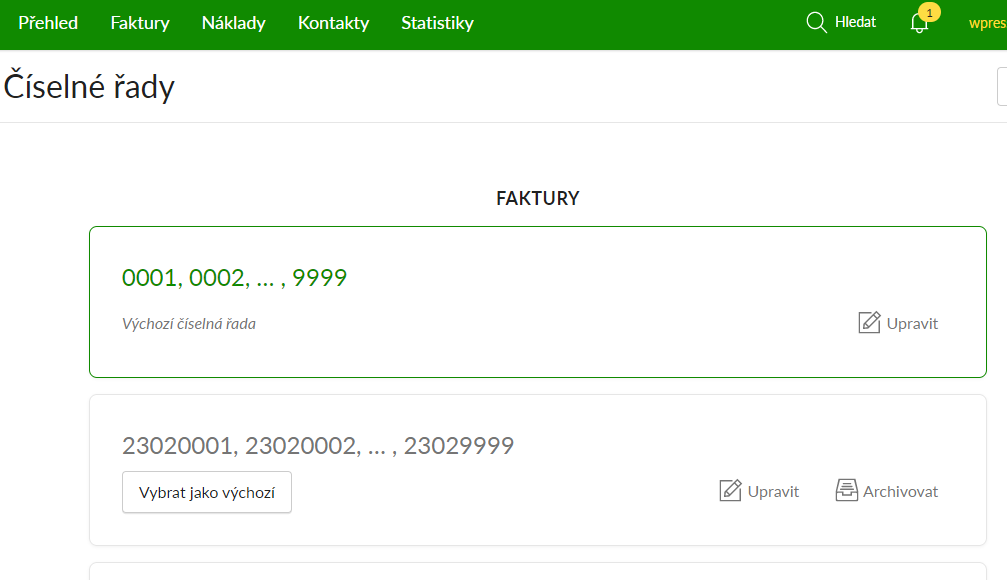
In the plugin, it is possible to select one of the created number sequences in the Fakturoid service administration.

The selected number sequence can only be used for generating invoices, provided that the invoice is not preceded by a proforma. If a proforma is generated, the default sequence set in the Fakturoid service will be used for the invoice number, regardless of the number sequence set in the plugin.
Variable Symbol (Variabilní symbol)

If checked, the WooCommerce order number is used as the variable symbol.
If not, the variable symbol is set as the internal invoice number from Fakturoid.
Changing the variable symbol using a filter:
add_filter( 'fakturoid_variabilni_symbol', 'toret_fakturoid_vs' );
function toret_fakturoid_vs( $order_id ){
$order = wc_get_order( $order_id );
return $order->get_order_number();
}
Document Language and Content (Jazyk a obsah dokumentů)
The following can also be set for documents:
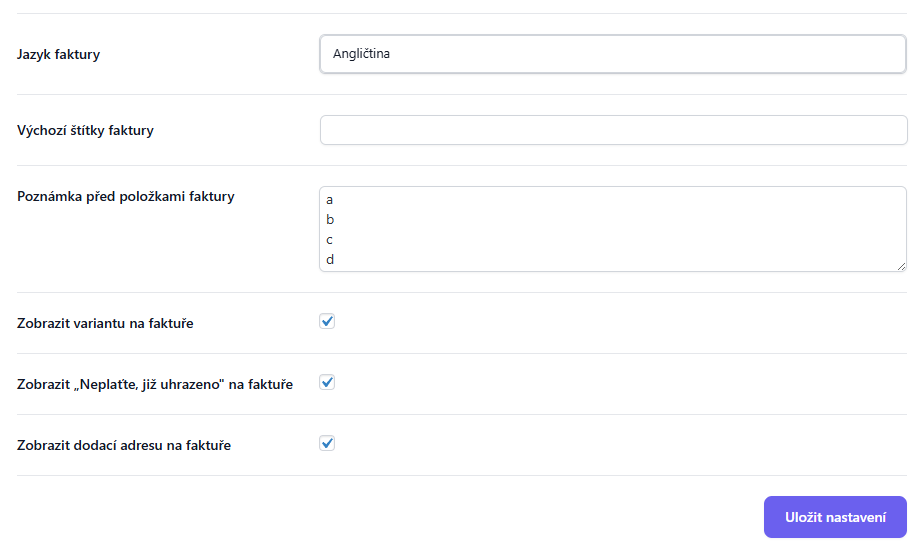
- Invoice language (Jazyk faktury): Automatic by user or selected language
- Default invoice tags (Výchozí štítky faktury): Labeling generated documents for further work in the Fakturoid administration
- Note before invoice items (Poznámka před položkami faktury): Enter text that will appear on the invoice. Multiline text can be created.
- Show variation on invoice (Zobrazit variantu na faktuře): Displays the name of the selected variation of a variable product.
- Show “Do not pay, already settled” (Zobrazit „Neplaťte, již uhrazeno”) on web invoice and PDF
- Show delivery address on invoice (Zobrazit dodací adresu na faktuře): Both the billing and delivery address of the customer will be displayed on the invoice.
Payment Methods (Platební metody)
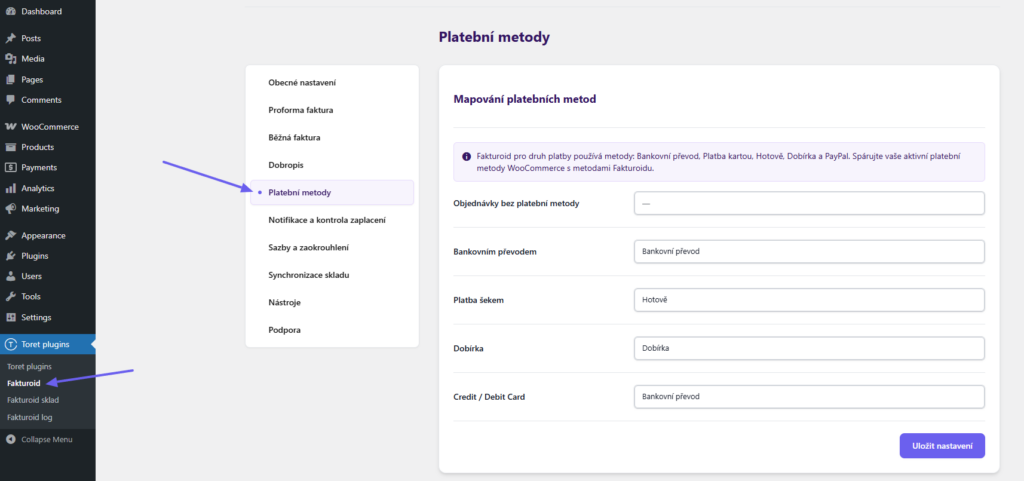
(Toret plugins > Fakturoid > Payment Methods (Platební metody))
! For correct invoice creation, you must map your payment methods with the payment methods used by Fakturoid.
The plugin will list all your payment methods (left). In the dropdown, select the Fakturoid payment method that you will assign to your method.
VAT Rate Mapping (Přiřazení DPH sazeb)
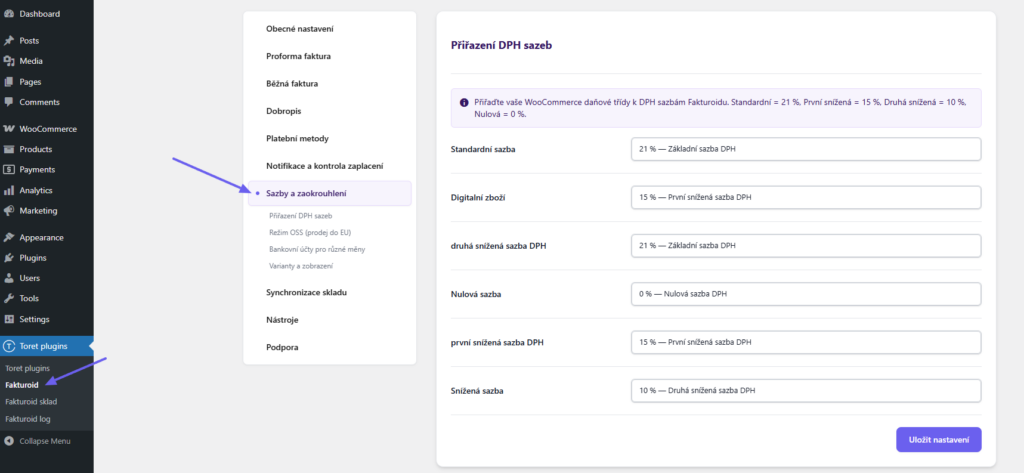
(Toret plugins > Fakturoid > Rates and Accounts (Sazby a účty) > VAT Rate Mapping (Přiřazení DPH sazeb))
! Invoicing is not possible without rate mapping.
The plugin lists your tax rates (left). In the dropdown, select the Fakturoid rate that you will assign to your rate.
Issuing Invoices and Proforma Invoices (Vystavování faktur a proforma faktur)
Invoices and proformas can be created manually or automatically using the Fakturoid plugin.
Manual Invoice Issuance (Manuální vystavování faktur)
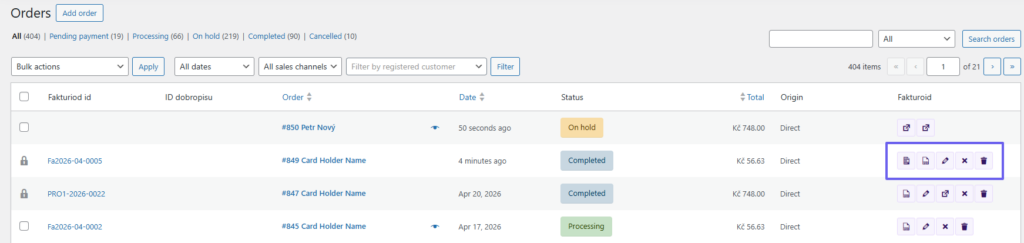
You can manually issue an invoice for an order from the order overview. In the Fakturoid column, you will find buttons for issuing a proforma and an invoice (1). The issued document can then be found in the Fakturoid ID (Fakturoid id) column (2).
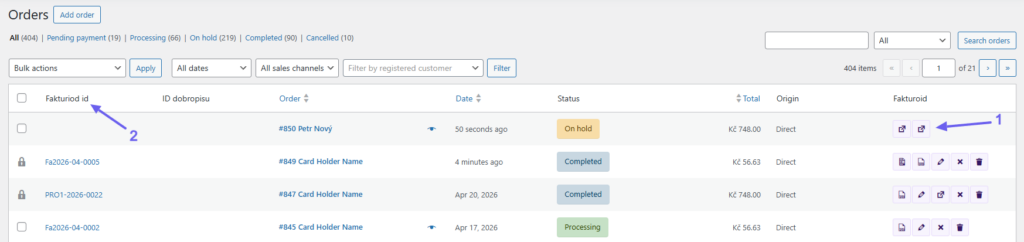
For orders with an already issued document, you will find buttons for its management in the Fakturoid column – download (stáhnout), edit (upravit), delete (smazat).
Attention! If you want to edit documents by clicking the pencil icon, you must be logged into the Fakturoid system. Otherwise, it is not possible to click through to the document details in Fakturoid.
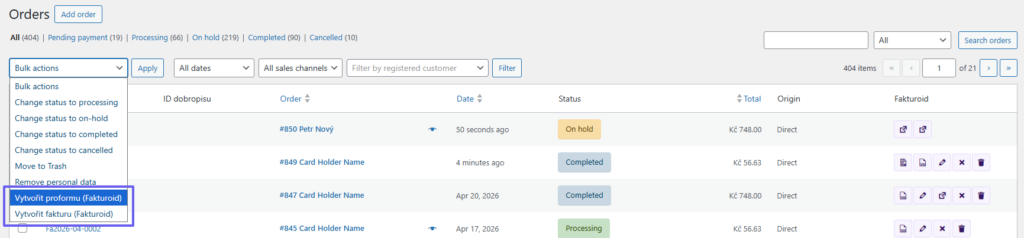
In the order overview, Bulk Actions (Hromadné akce) can also be used to issue invoices and proformas.
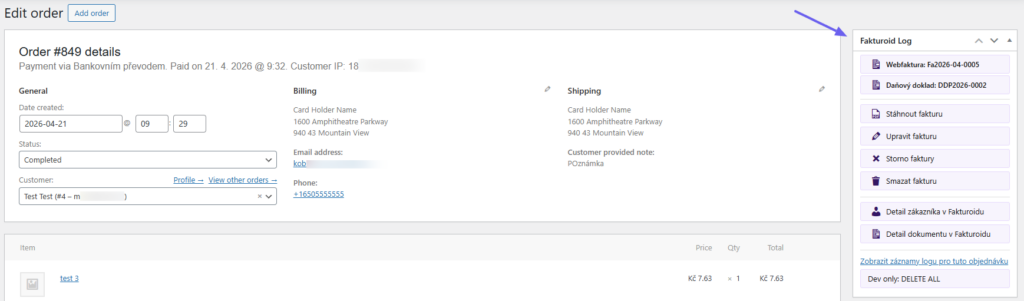
The same functions for issuing/managing documents can be found in the metabox in the details of each order.
Automatic Issuance (Automatické vystavování)
Invoices and proformas can also be issued automatically thanks to the plugin, based on order status changes.
Proforma Invoice (Proforma faktura)
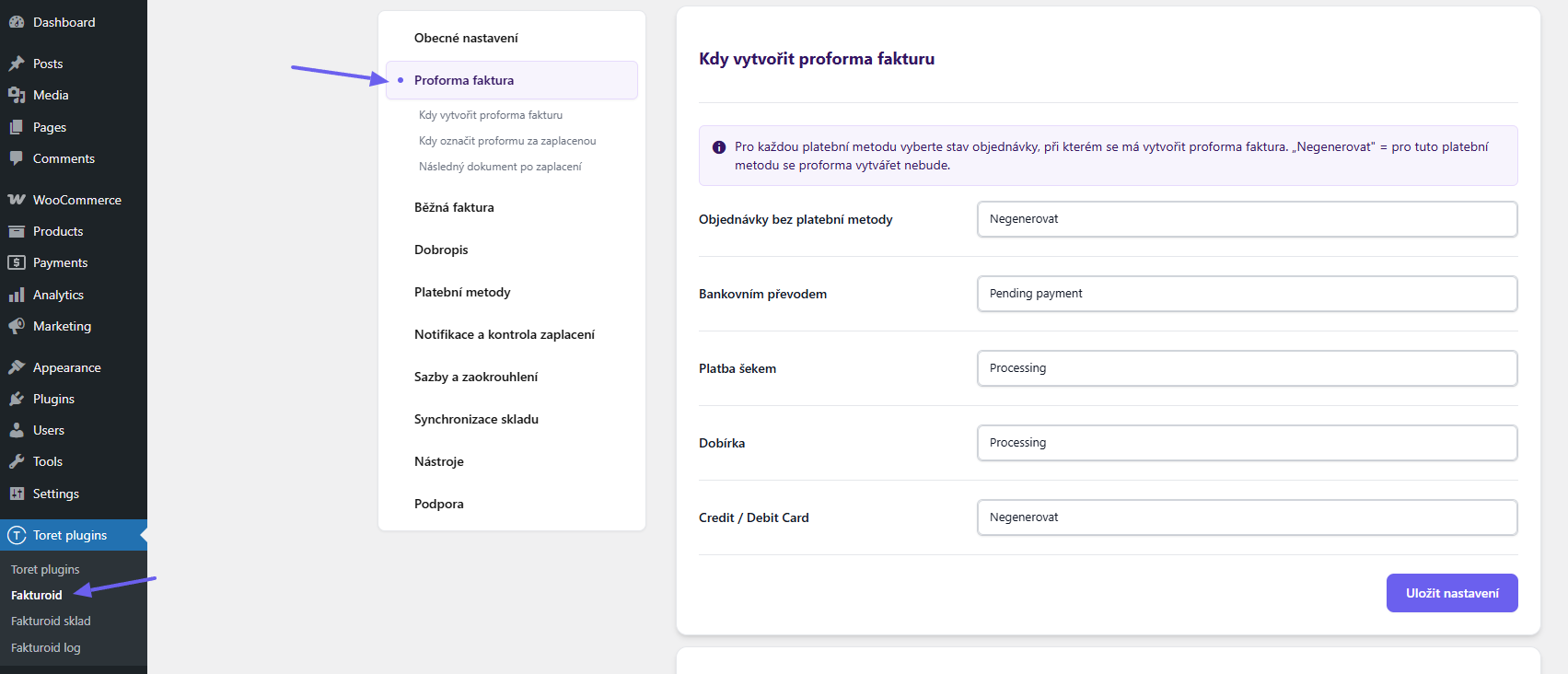
(Toret plugins > Fakturoid > Proforma > When to create proforma invoice (Kdy vytvořit proforma fakturu))
In the proforma settings, assign the order statuses for individual payment methods in which proformas will be generated.
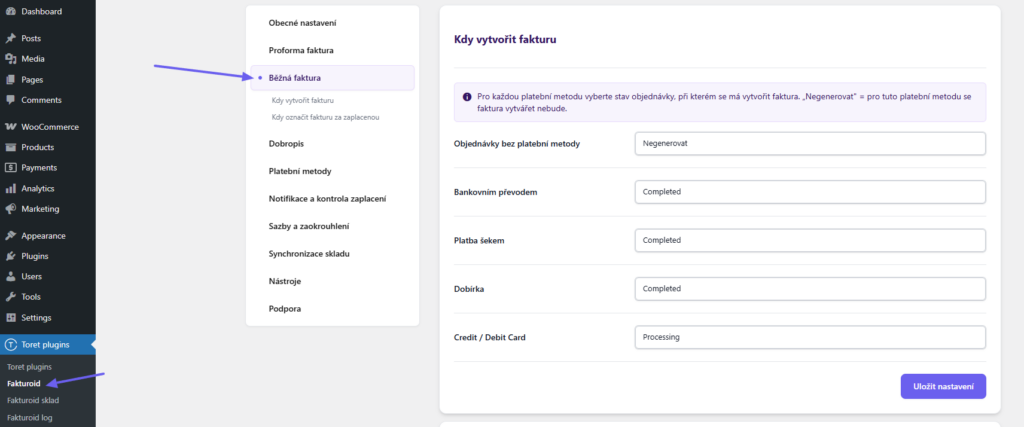
Regular Invoice (Běžná faktura)
(Toret plugins > Fakturoid > Regular Invoice (Běžná faktura) > When to create invoice (Kdy vytvořit fakturu))
In the invoice settings, assign the order statuses for individual payment methods in which invoices will be generated.
Sending Documents to Customers (Odesílání dokumentů zákazníkům)
A link for customers to download proformas, invoices, and other documents is automatically attached to the automated WooCommerce order status emails. More see here
Settlement of Proformas and Invoices (Uhrazování proforem a faktur)
(Toret plugins > Fakturoid > Proforma invoice (Proforma faktura) > When to mark proforma as paid (Kdy označit proformu za zaplacenou))
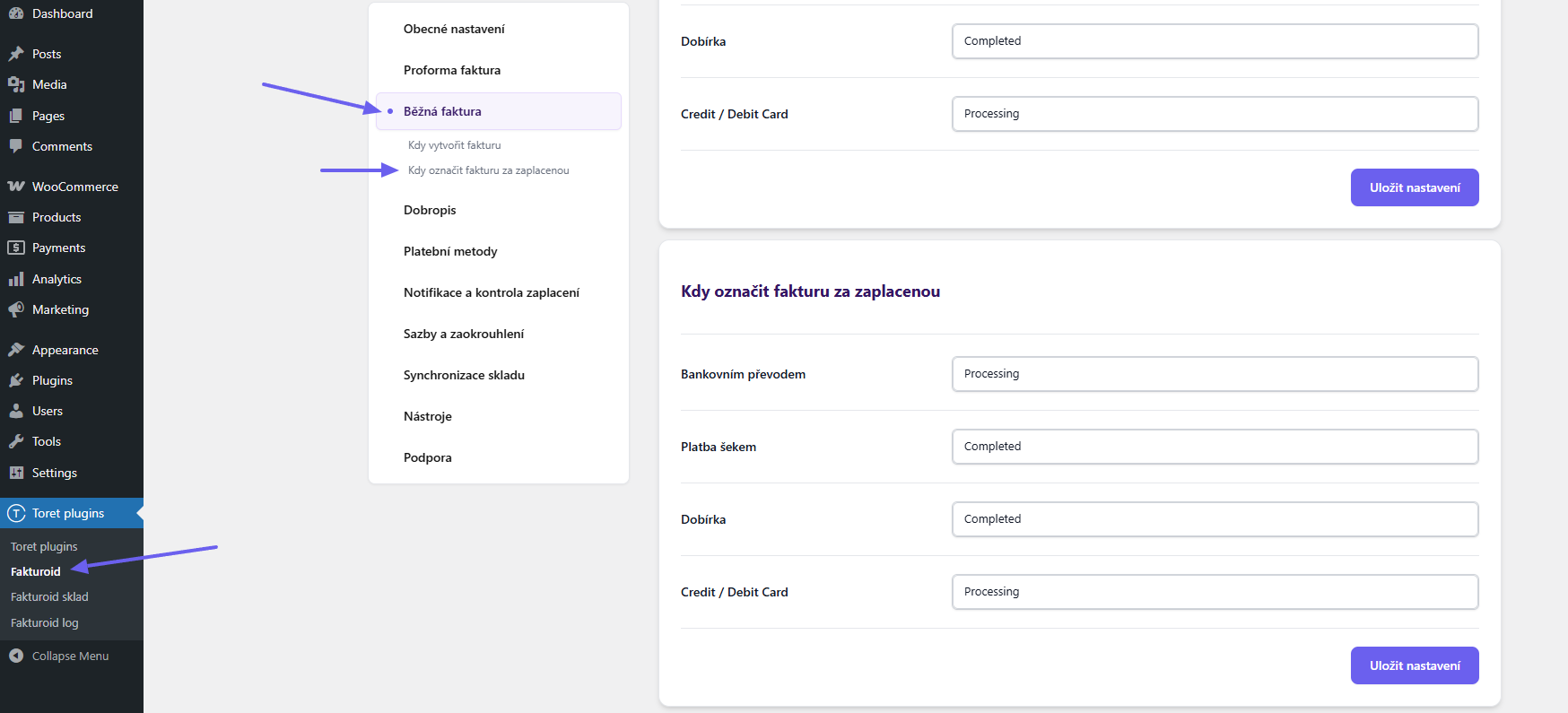
(Toret plugins > Fakturoid > Regular invoice (Běžná faktura) > When to mark invoice as paid (Kdy označit fakturu za zaplacenou))
To have your invoices automatically marked as paid, the plugin allows you to set order statuses for individual payment methods. An invoice is marked as settled the moment the given order is switched to the set status.
For bank transfer payments, automatic pairing of received payments and invoices can be set, see further.
Issuing Tax Documents (Vystavování daňového dokladu)
(Toret plugins > Fakturoid > Proforma invoice (Proforma faktura) > Subsequent document after payment (Následný dokument po zaplacení))
In the plugin settings, you can choose the type of document to be created after the proforma invoice is settled – regular invoice, tax document, or nothing.
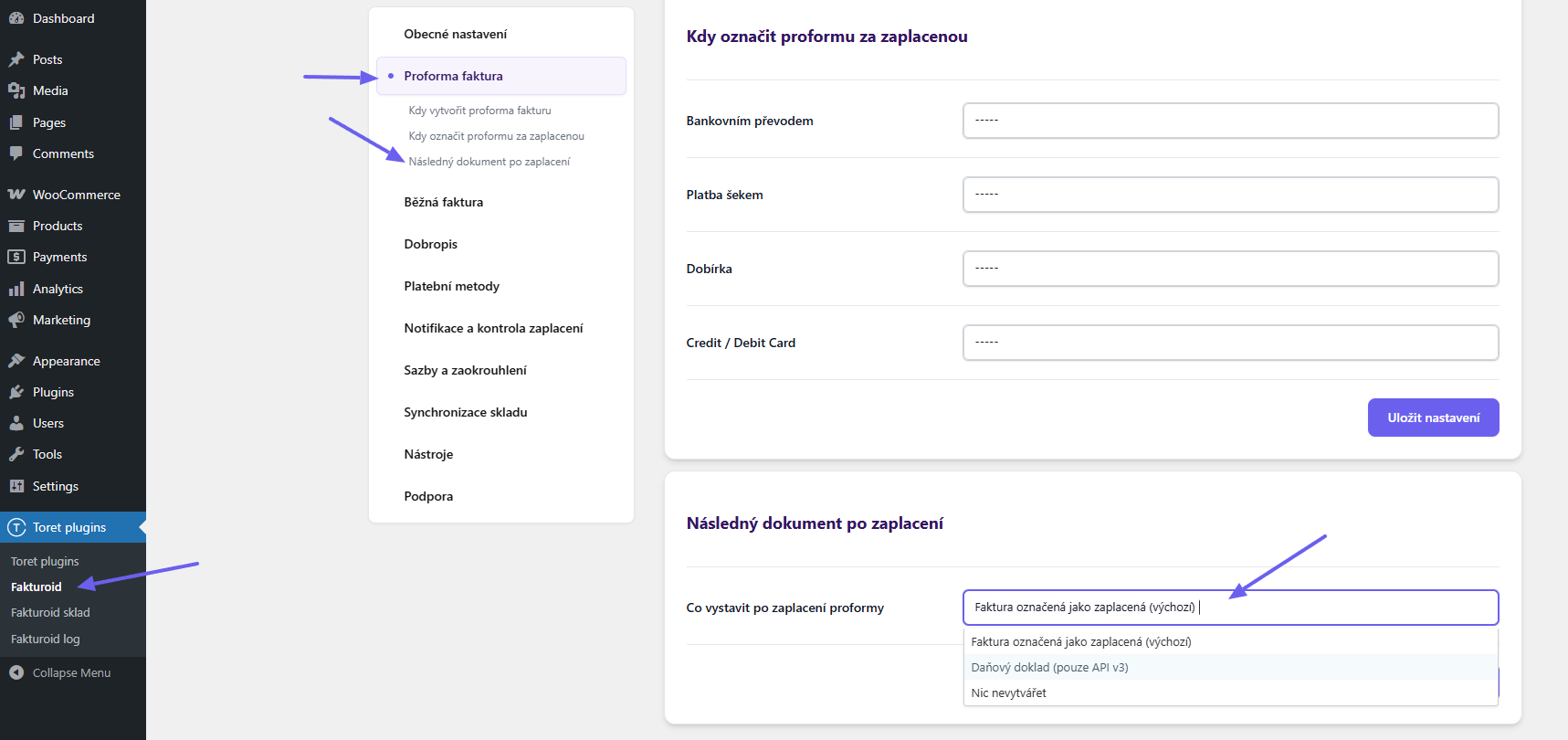
Tax documents are created:
a. automatically after proforma settlement (by changing order status)
b. manually in the order overview or detail

Issued tax documents can be downloaded in the order overview or detail.

After a tax document is issued, it is possible to issue a clearing invoice with zero amount. Issuance is possible manually from the order overview or detail.

Issuing Credit Notes (Vystavování dobropisu)
Through the Fakturoid plugin, it is possible to create credit notes (dobropisy) for issued invoices.
! Attention, credit notes can only be issued if you have taxes enabled in WooCommerce.
Number Sequence Settings (Nastavení číselné řady)
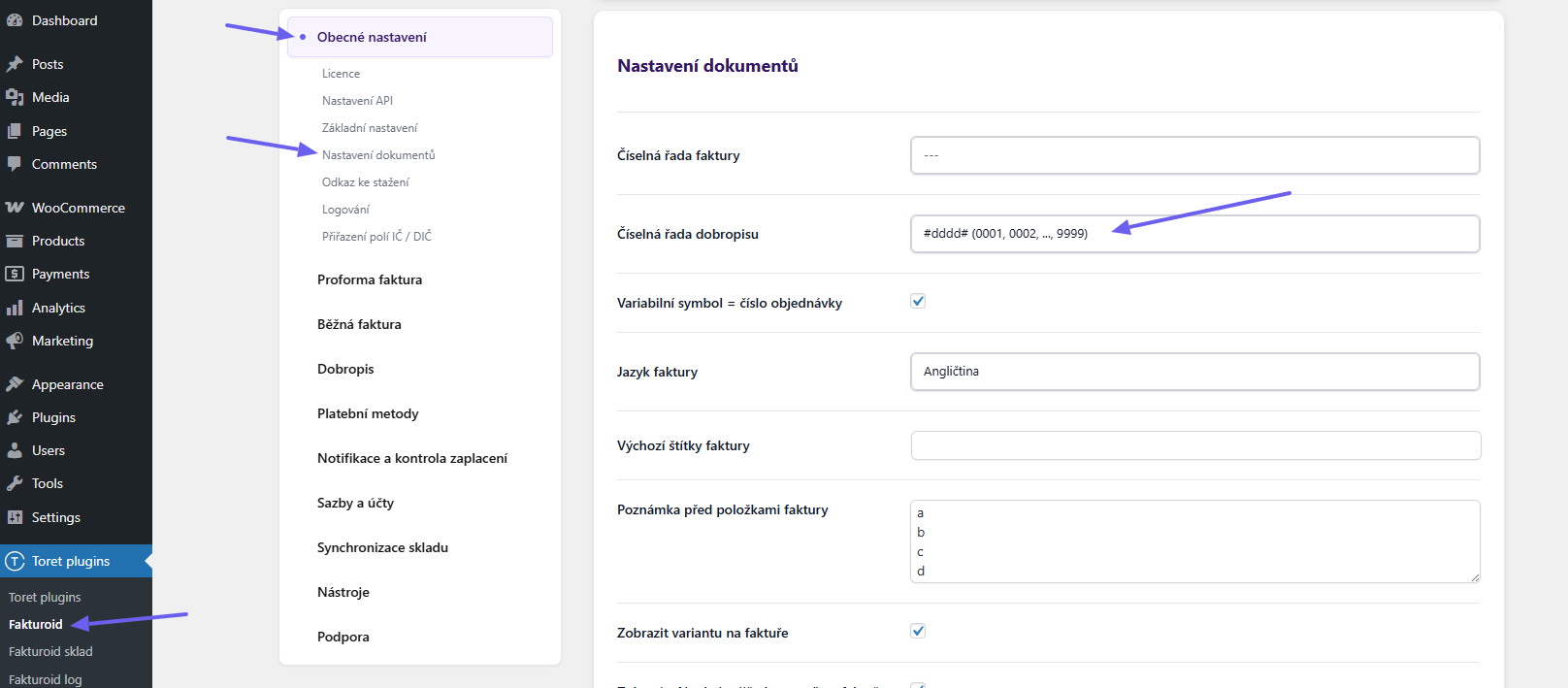
First, it is necessary to create a number sequence for credit notes in the Fakturoid account administration (Settings (Nastavení) → Number Sequences (Číselné řady)). You can set the format according to your own preferences.
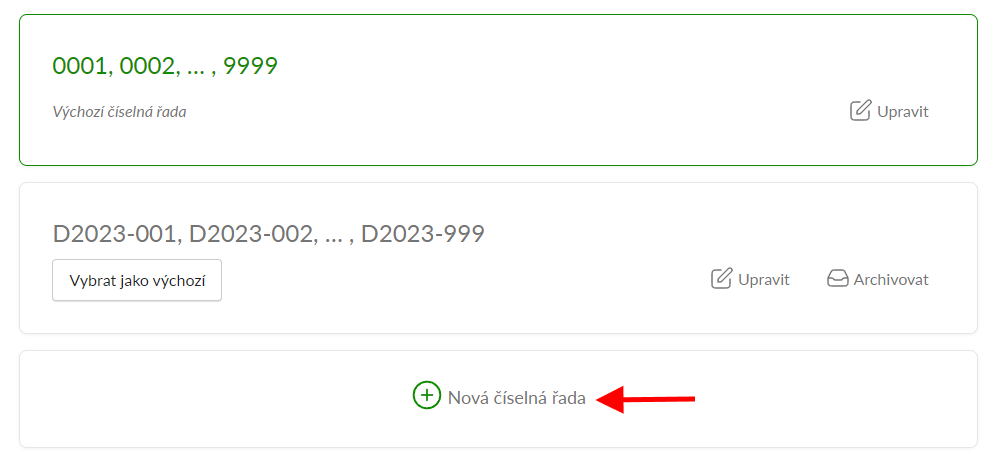
Subsequently, it is necessary to assign the number sequence for credit notes in the Fakturoid plugin settings. The settings can be found in General Settings (Obecné nastavení) > Document Settings (Nastavení dokumentů) > Credit Note Number Sequence (Číselná řada dobropisu).
Paid/unpaid credit note (Uhrazený/neuhrazený dobropis)
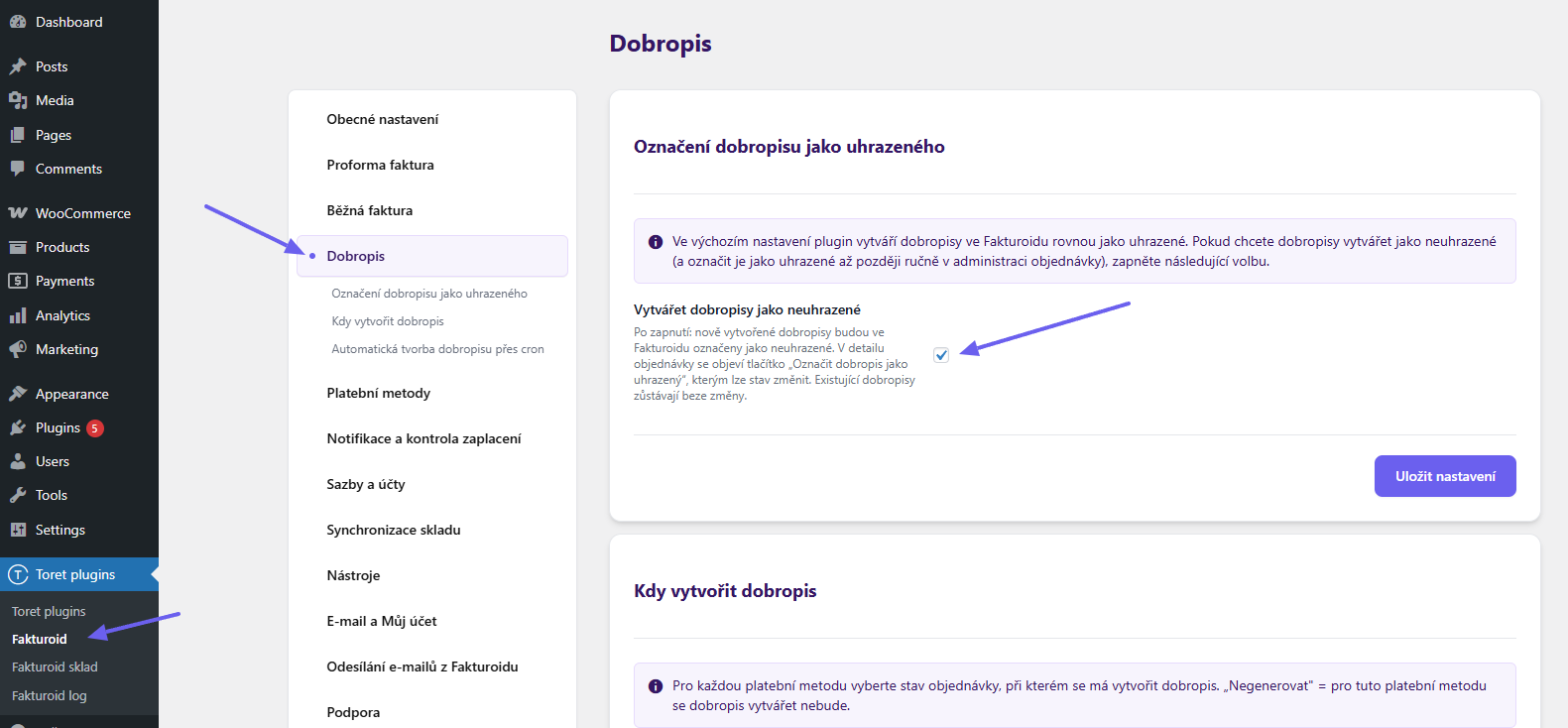
A credit note can be issued as already paid (default) or unpaid (with manual payment).
You can set the payment status in the Credit Note section (Toret plugins > Fakturoid > Credit note (Dobropis) > Marking a credit note as paid (Označení dobropisu jako uhrazeného)).
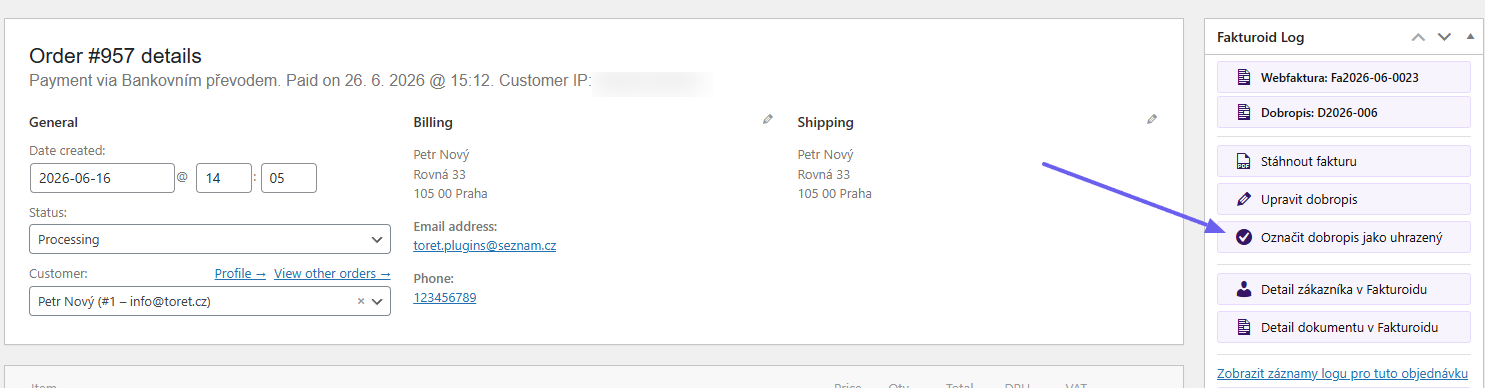
Unpaid credit notes can be paid in the order details (Fakturoid metabox).
Issuing a Credit Note (Vystavení dobropisu)
A credit note can be issued automatically upon order status change or manually by clicking a button.
Automatic Issuance (Automatické vystavení)
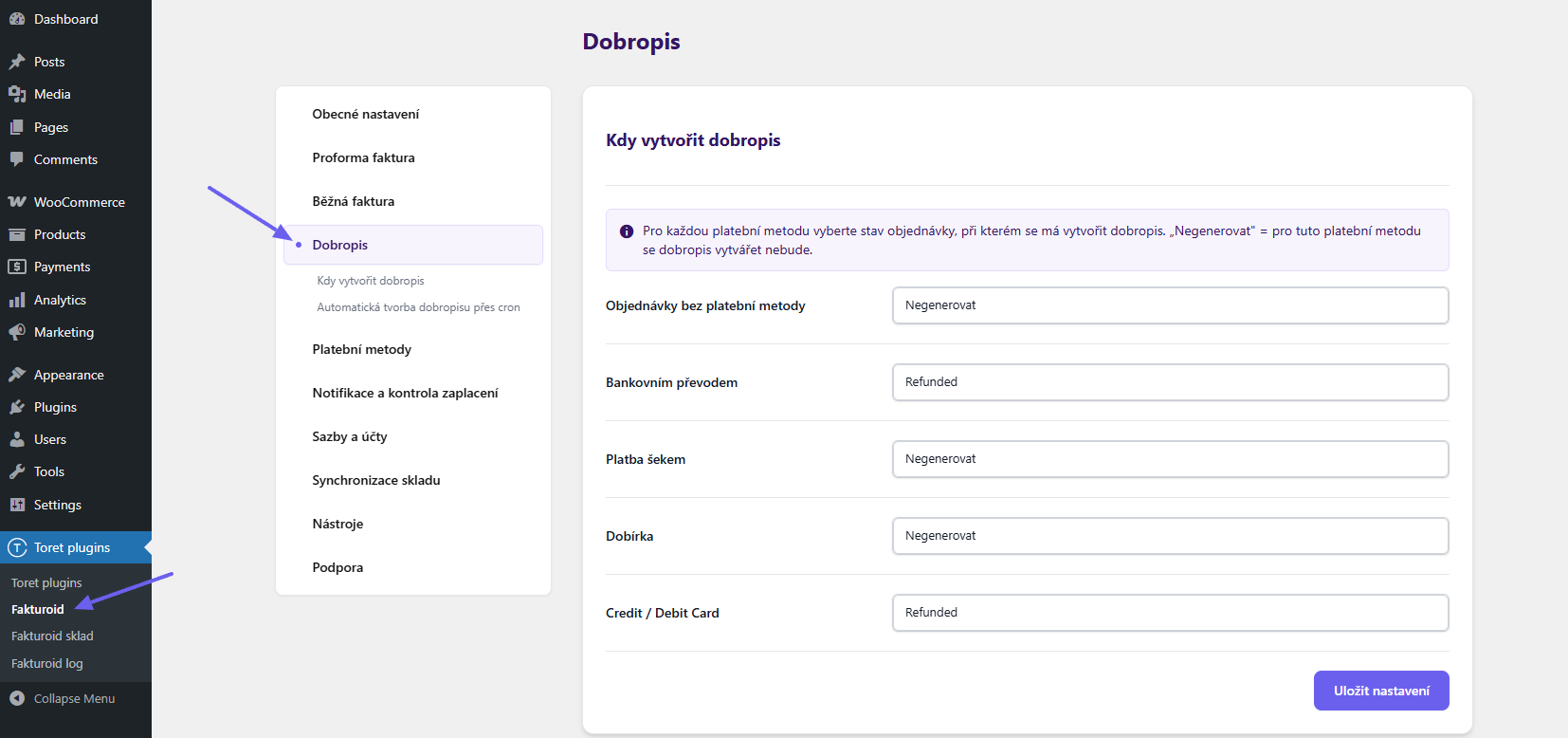
(Toret plugins > Fakturoid > Credit Note (Dobropis) > When to create credit note (Kdy vytvořit dobropis))
For automatic credit note issuance, it is necessary to set order statuses for individual payment methods in the Fakturoid plugin. The Refunded (Vráceno) status, which is directly in WooCommerce, is ideal for issuing a credit note. As soon as the order switches to the set status, the credit note is issued.
Automatic Credit Note Creation via Cron (Automatická tvorba dobropisu přes cron)
Credit notes can also be automatically created using a cron that checks orders. (In this way, credit notes can be issued retroactively – e.g., if you did not have automation set up before or were migrating from another solution.)
- URL for creating a cron on the hosting
- Function activation (Aktivace funkce)
- Number of working days after which the credit note is created
- Checked order statuses
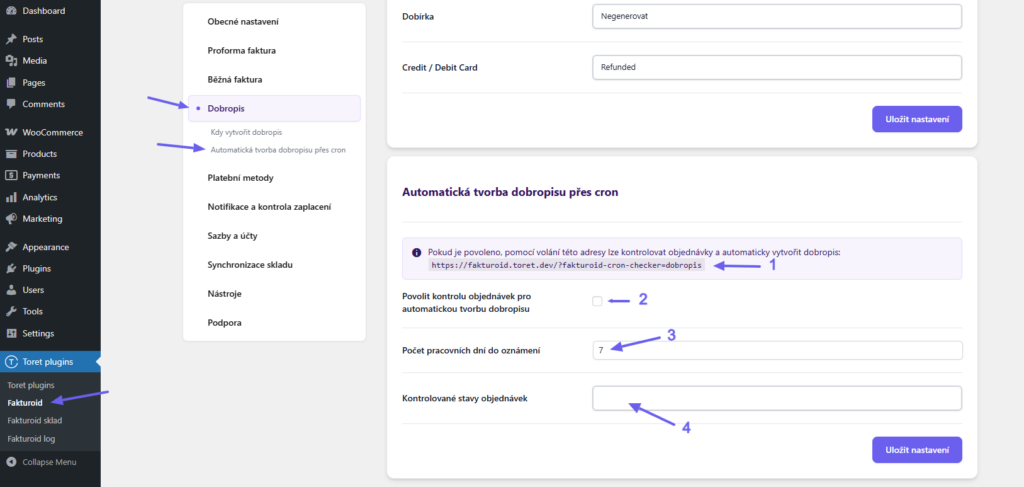
Manual Credit Note Issuance (Manuální vystavení dobropisu)
A credit note can also be issued manually via buttons that the Fakturoid plugin adds to the order overview or to the details of each order.
In the order overview, there is an icon of two arrows in the column, which can be used to manually issue a credit note.

In the order detail in the Fakturoid box, a credit note can be issued using the button.
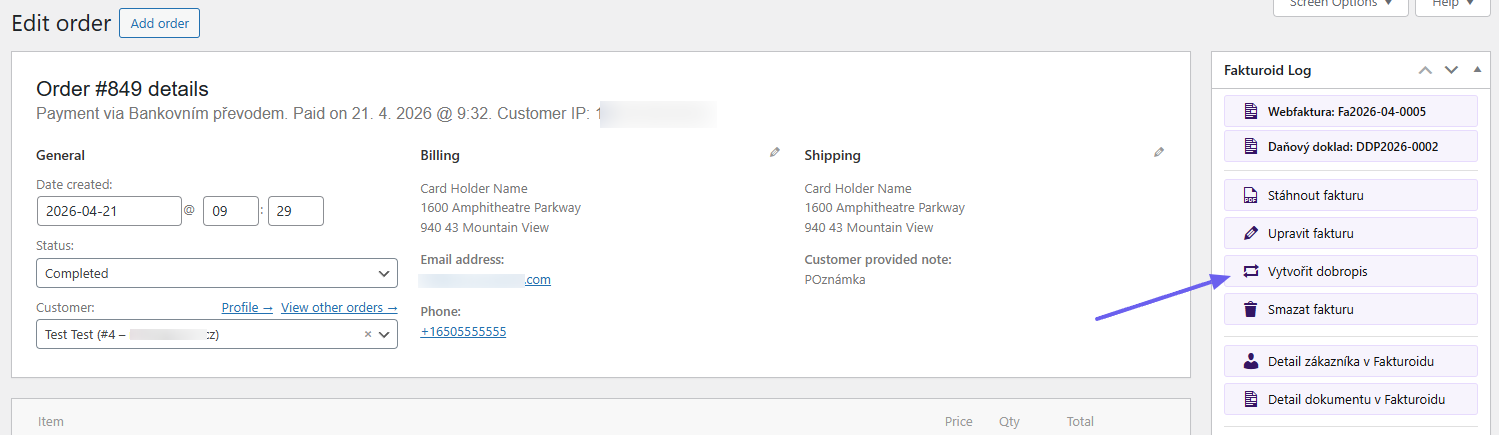
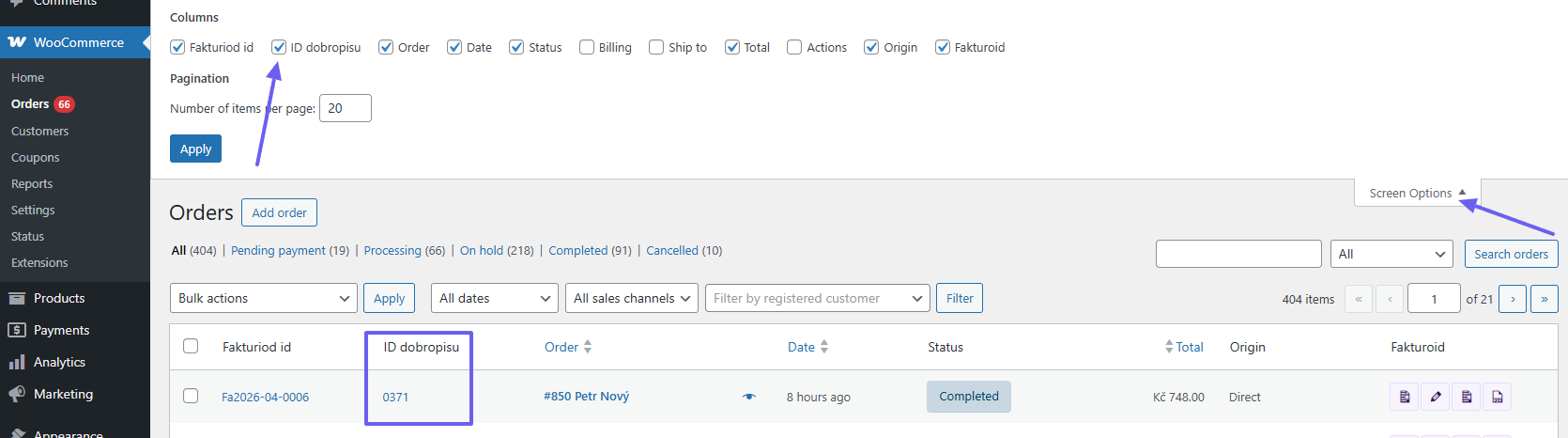
Once the credit note is issued, a new document icon will be in the order overview, under which the credit note can be viewed and downloaded, also a pencil icon will be added, through which it is possible to go to the credit note detail in the Fakturoid service administration.

The order overview also contains a “Credit Note ID (ID dobropisu)” column, where under the credit note number is a link to the issued credit note. The column can be freely turned on or off in the order overview via “Screen Options (Nastavení zobrazených informací)”.
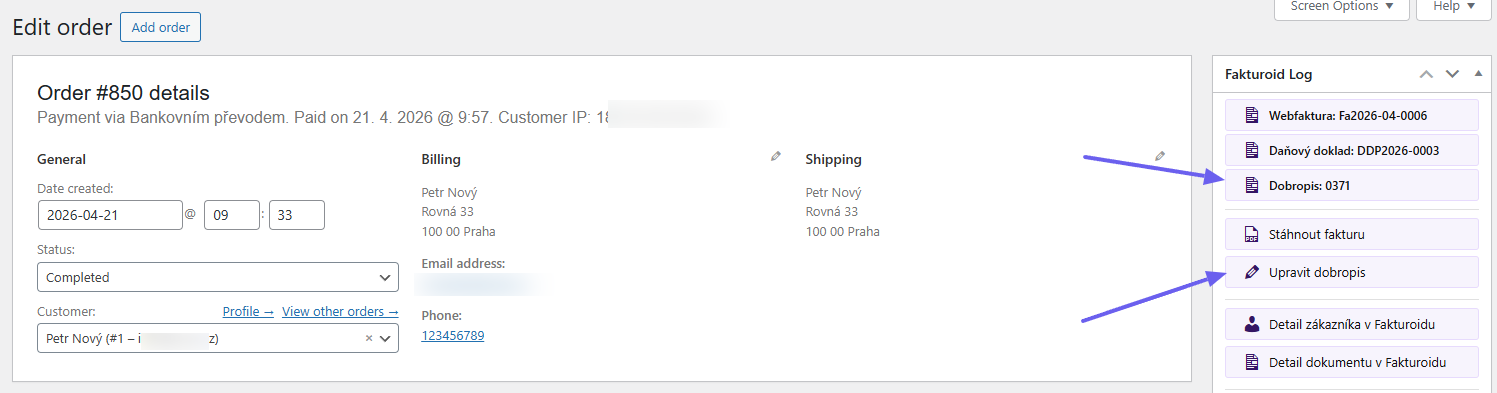
After issuing the credit note, it is also possible to view and download the credit note from the order detail. Likewise, it is possible to go to the credit note detail in the Fakturoid service administration via the button.
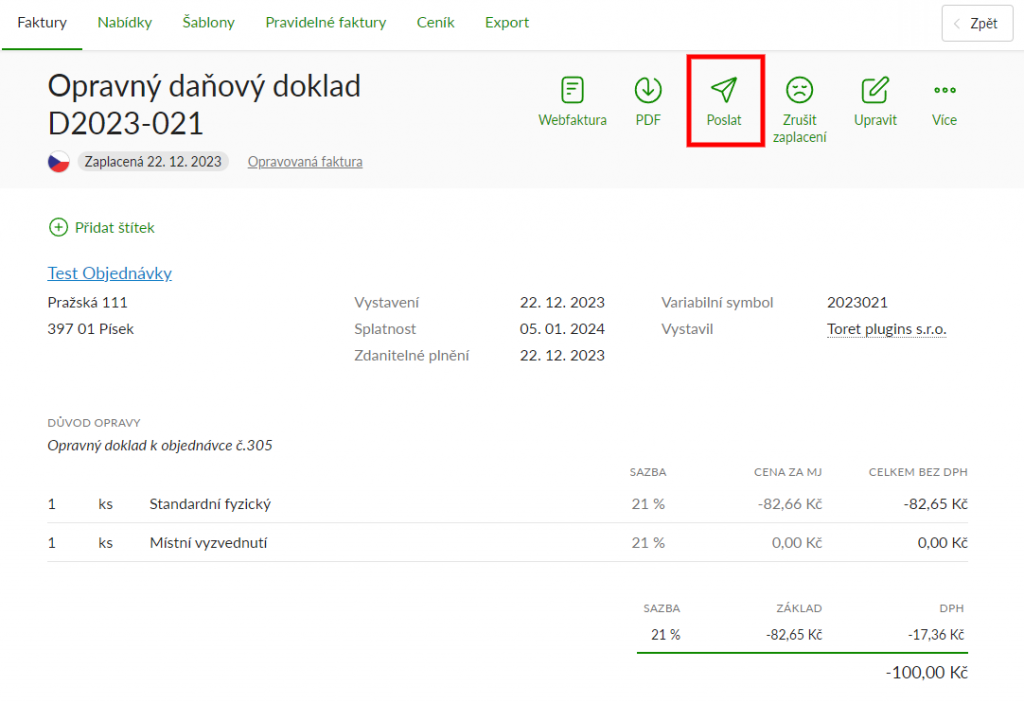
The issued credit note can be sent to the customer through the Fakturoid service administration. To send the credit note, there is a “Send (Poslat)” icon in its detail.
Displaying ID and VAT ID Fields (Zobrazení polí pro IČ a DIČ)
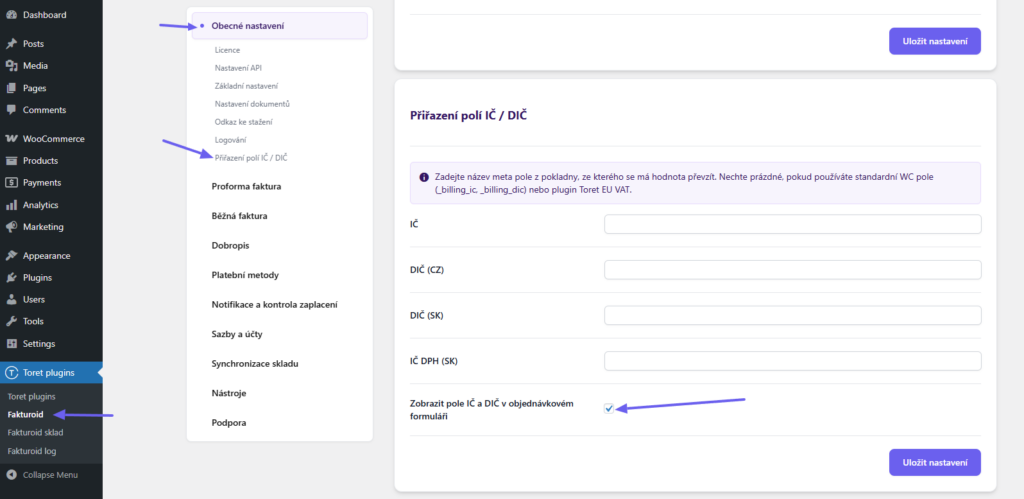
(Toret plugins > Fakturoid > General Settings (Obecné nastavení) > ID/VAT ID field mapping (Přiřazení polí IČ/DIČ))
The Fakturoid plugin can add ID and VAT ID fields to the checkout. Simply activate this function in the settings.
ID/VAT ID fields from other plugins (Pole pro IČ/DIČ z jiných pluginů)
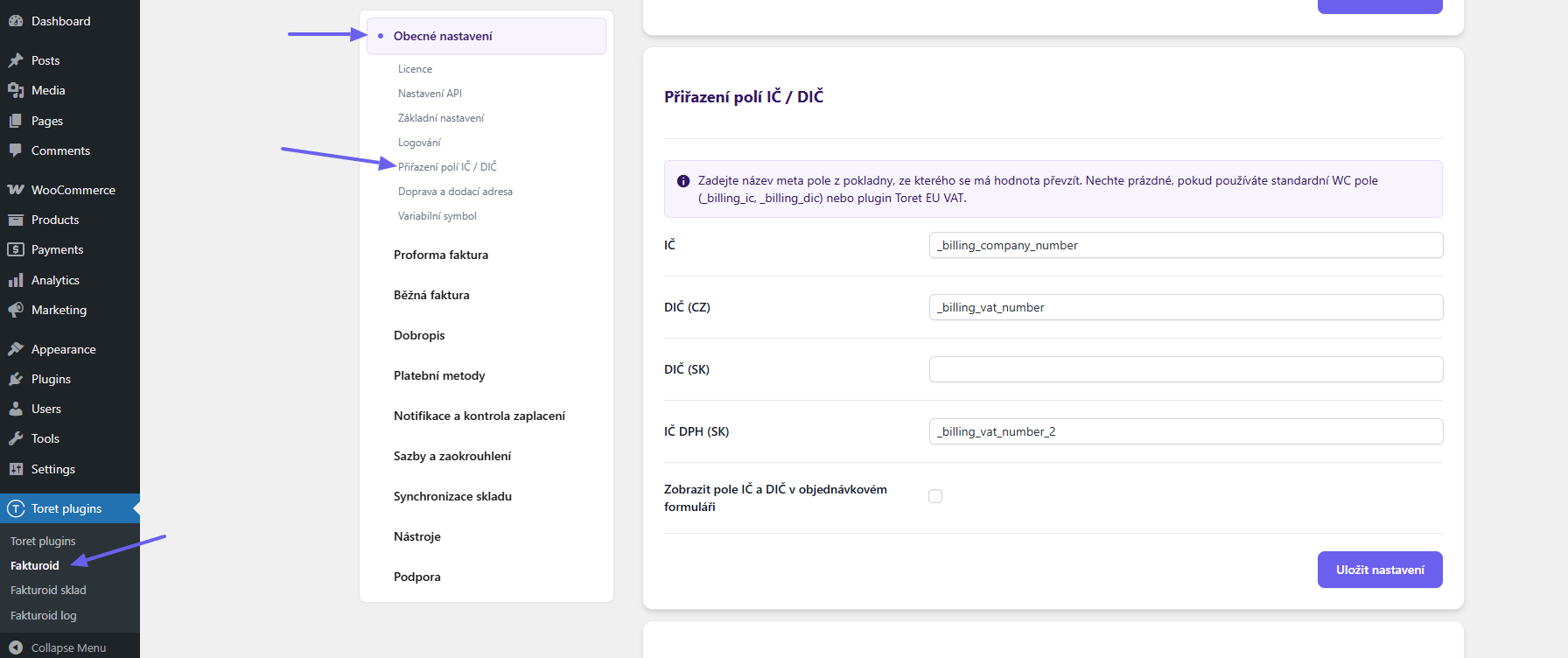
If you use ID and VAT ID fields from another plugin in the checkout, you need to map them so that the filled-in values are inserted into the invoice.
TIP: When using the Toret EU VAT plugin to add fields and reverse charge, mapping is not required. The plugins are mutually compatible.
To add ID/VAT ID fields, you can use custom fields, add them with a third-party plugin, or use our free plugin: Toret IČ/DIČ.
In all cases, however, it is necessary to set the ID/VAT ID field meta from the checkout in the Fakturoid plugin settings under the “ID and VAT ID field mapping (Přiřazení polí pro IČ a DIČ)” function. Meta fields will vary with each plugin or custom modification.
The plugin automatically recognizes ID, VAT ID, and VAT ID from common plugins: Toret EU VAT, Kybernaut IČO DIČ, and from standard fields (_billing_ic, _billing_dic, _billing_dic_dph). Fill in the fields only if you are using a custom meta key that is not in the list of supported ones – the filled-in value takes precedence over automatic recognition.
Automatic Bank Transfer Payment Pairing (Notifications and Webhook) (Automatické párování plateb převodem (Notifikace a Webhook))
The Fakturoid plugin allows for orders paid by bank transfer to completely automate the payment pairing process followed by a change in order status.
In a few easy steps, you can set up the plugin for automatic payment pairing.
1. Pairing the bank account with the Fakturoid service. Instructions from Fakturoid here: https://www.fakturoid.cz/podpora/automatizace/parovani-plateb-s-bankou
2. Webhook Settings, which you can find in the plugin settings (Toret plugins > Fakturoid > Notification and payment check (Notifikace a kontrola zaplacení)).
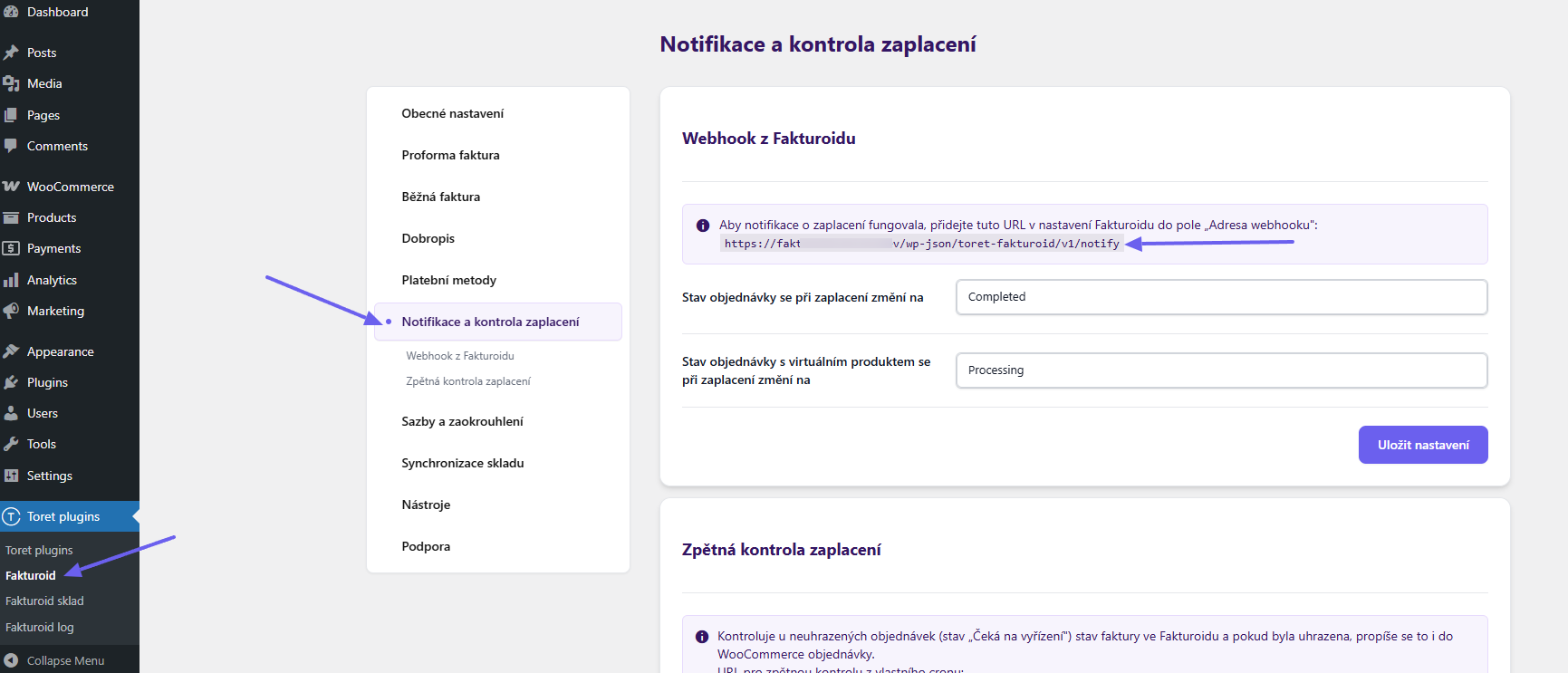
You set up the Webhook in the Fakturoid service administration > Settings (Nastavení) > Connection to other applications (Napojení na jiné aplikace) > Webhooks (Webhooky) > New webhook (Nový webhook).
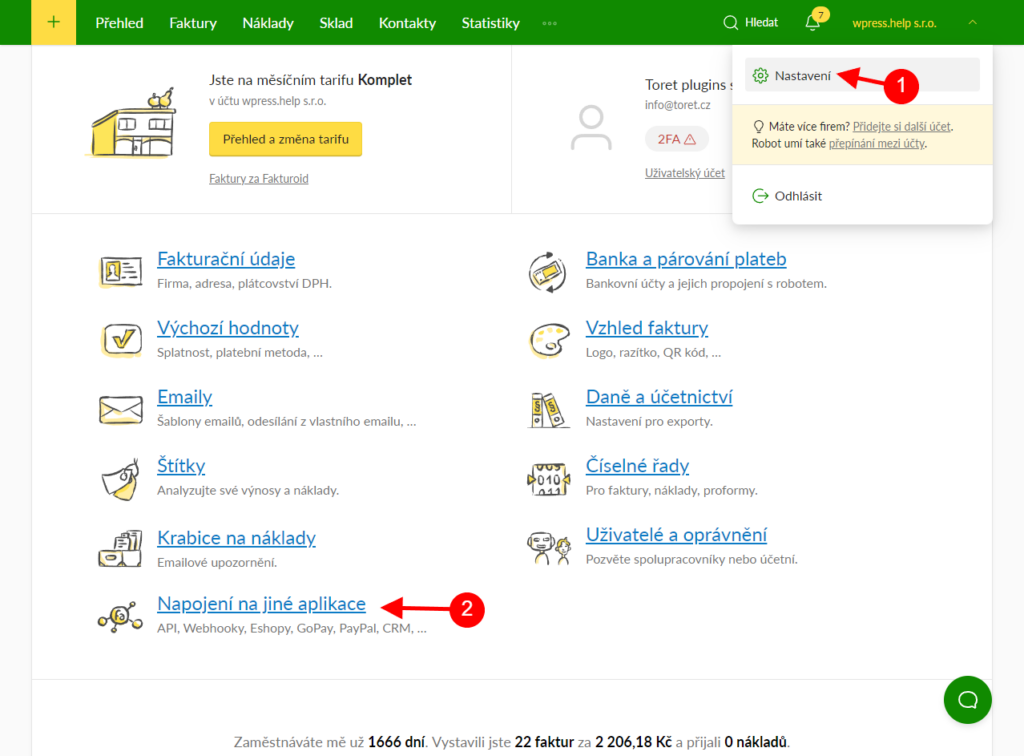
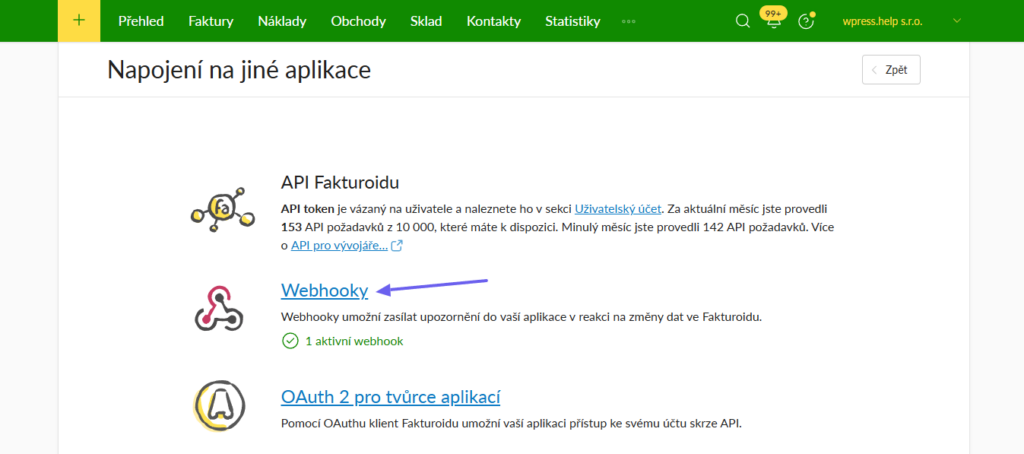
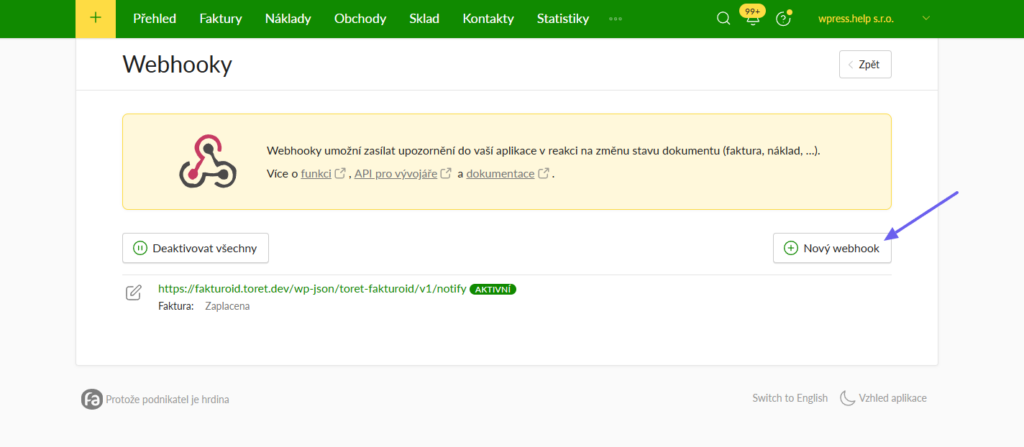
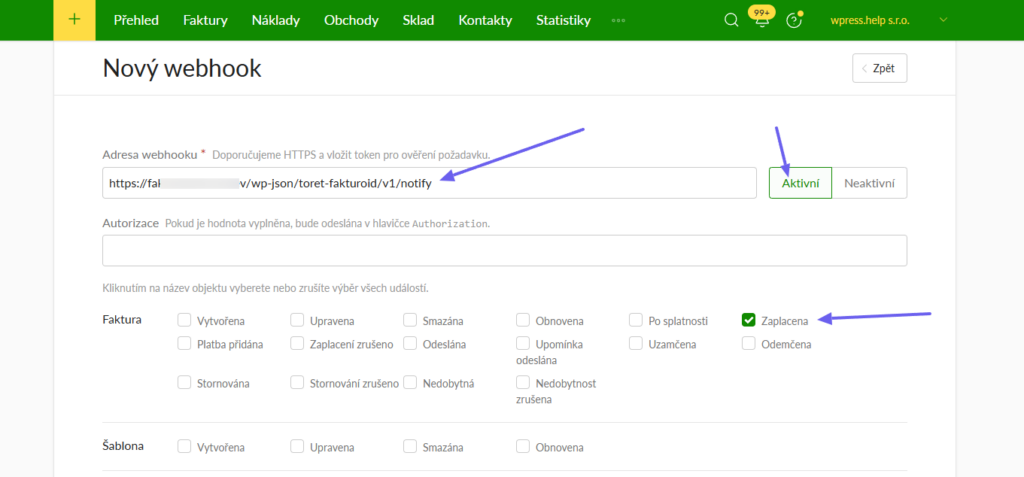
3. Setting the order status to which the order switches after pairing the payment with the document. The status is set within the same function where the Webhook is listed: Notification and payment check (Notifikace a kontrola zaplacení)
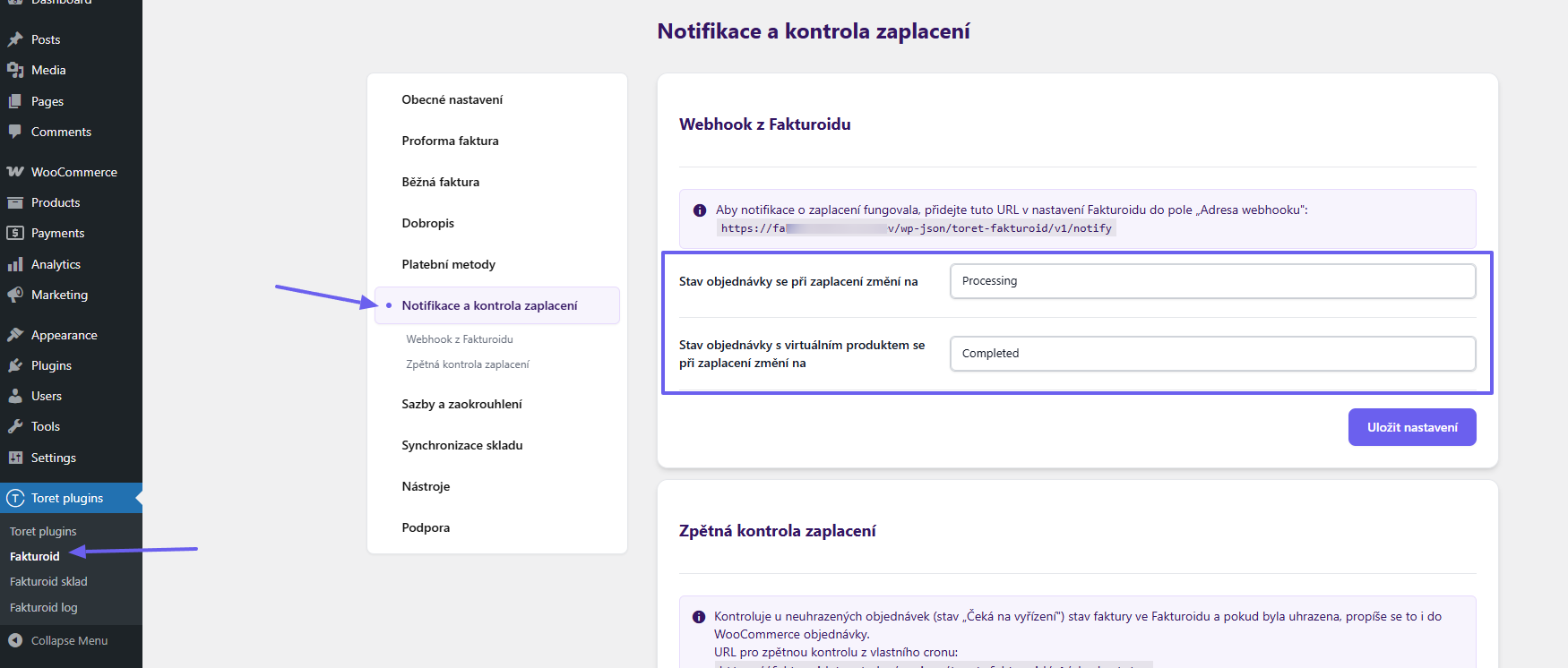
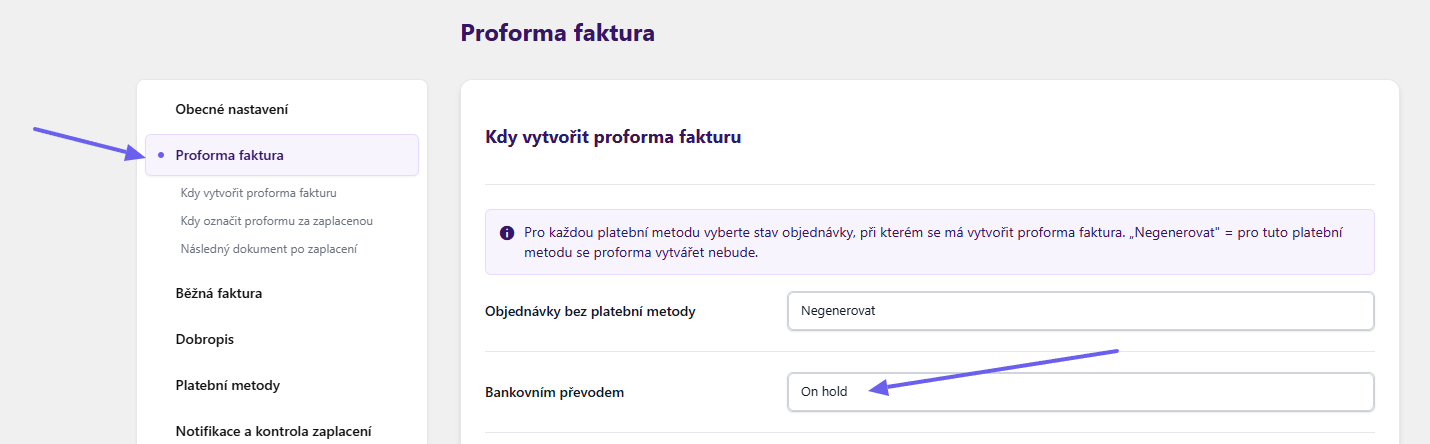
4. Proforma Creation Settings. For the whole process to work, it is necessary to set the plugin to first create a proforma when an order is created. This is standardly created for orders paid by bank transfer. A proforma is not necessary for other payment methods.
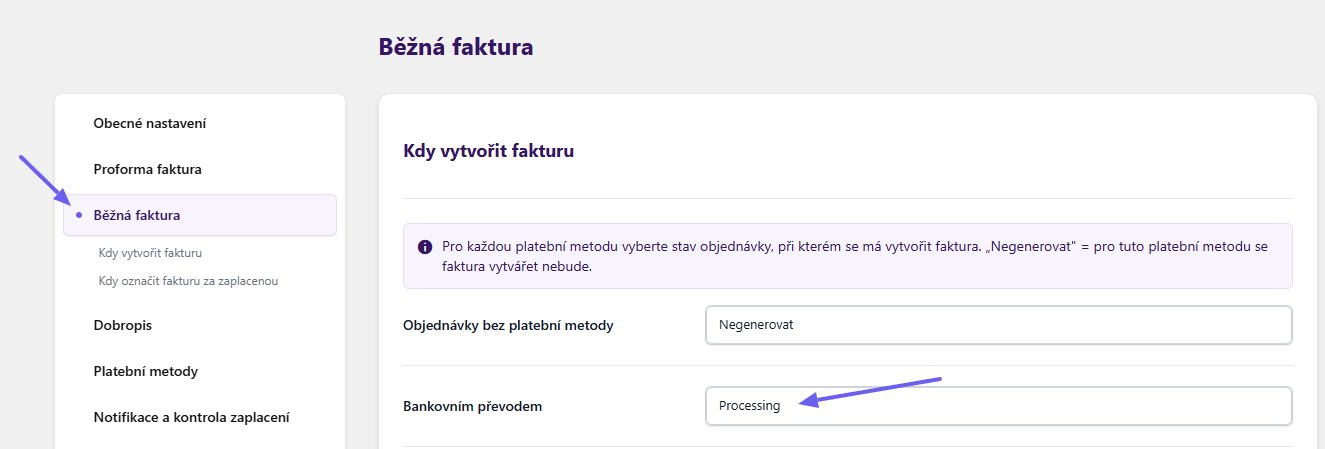
5. Automatic Invoice Creation Settings. In the final step, we recommend setting the invoice generation for orders with bank transfer to the status you have set as the target after payment. This will automatically create an invoice after the status of the paired order changes.
How does it work?
A customer creates an order with the bank transfer payment method. This order is standardly in the “On hold (Čeká na vyřízení)” status. The plugin automatically creates a proforma. Once the customer pays for the order, the Fakturoid service pairs the payment with the proforma and marks the proforma as paid. Using the webhook, information is sent from Fakturoid to the website that the proforma is paid. The plugin then switches the order to the set status (here “Processing (Zpracovává se)”). If invoice generation is set in the plugin for this order status for bank transfer payments, an invoice is automatically issued.
For the status change to occur after the proforma is marked as paid, the order must be in the “On hold (Čeká na vyřízení)” status. If the order is in a status other than “On hold (Čeká na vyřízení)”, the status change after payment pairing will not occur.
Bank Accounts for Different Currencies (Bankovní účty pro různé měny)
(Toret plugins > Fakturoid > Rates and Accounts (Sazby a účty) > Bank accounts for different currencies (Bankovní účty pro různé měny))
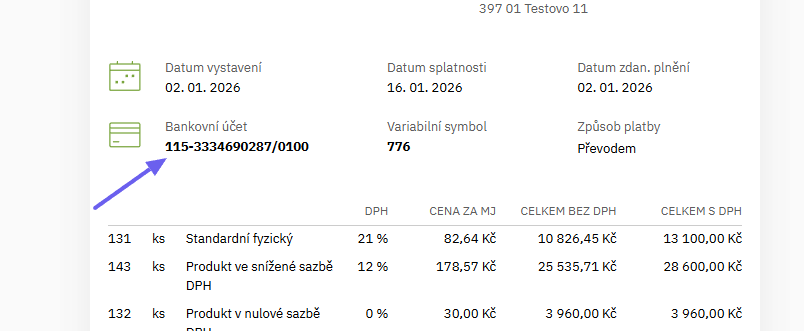
In the plugin settings, you can set bank accounts for different currencies. The plugin automatically loads the bank accounts set in the Fakturoid system. By checking the corresponding checkbox, you determine which account will be used for the given order currency.
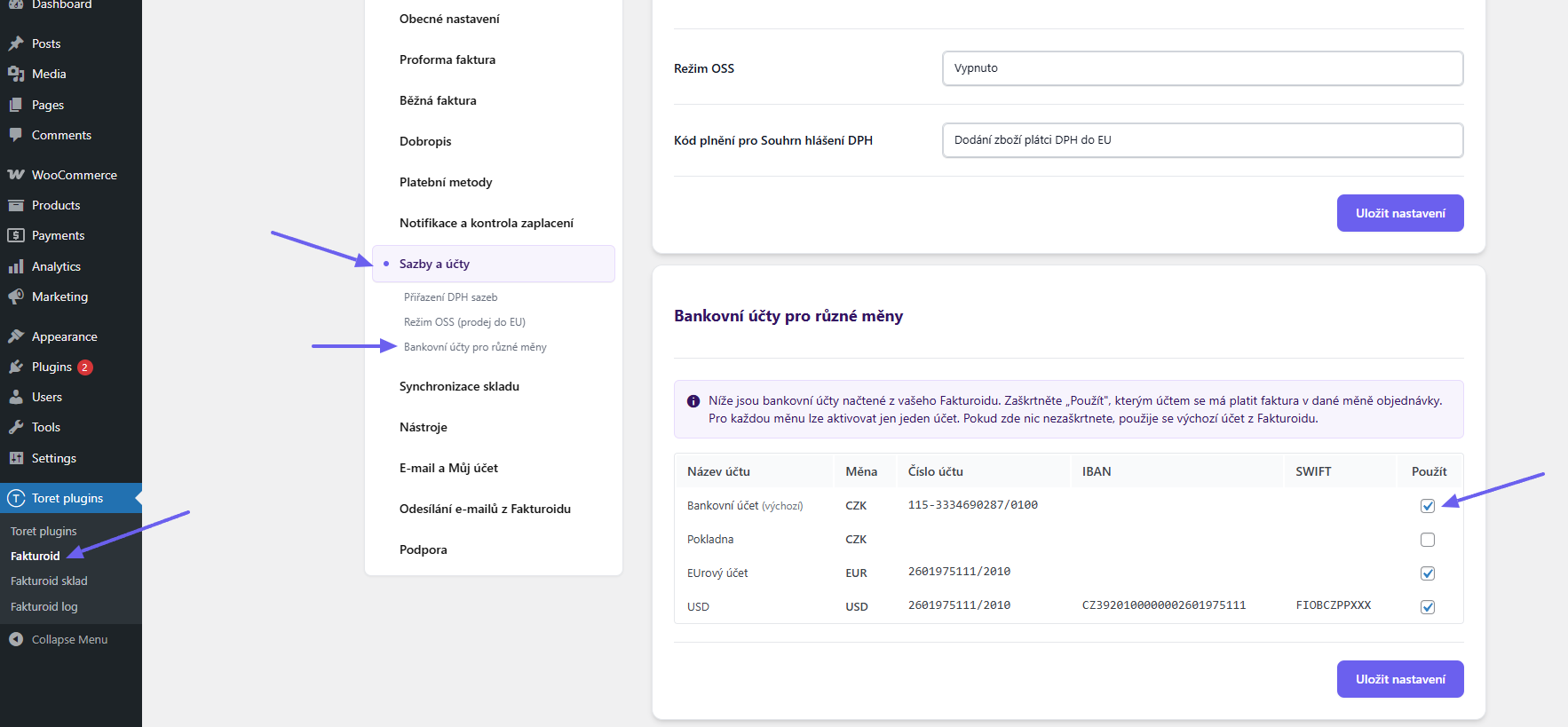
The account number according to the order currency will then appear on the invoice.
VAT (DPH)
Fakturoid calculates the VAT of the items itself when generating the invoice. It is important that two decimal places are set in the WooCommerce settings on the General tab. If zero decimal places are set here, Fakturoid will calculate VAT from the rounded amount, and the total amount on the invoice will not match the amount in the WooCommerce order.
If you do not want to display decimal places for prices on the website while having two decimal places set in WooCommerce, insert a script into the child theme to hide zeros after the decimal point.
add_filter( 'woocommerce_price_trim_zeros', '__return_true' );Settings for entering prices excluding/including VAT in WooCommerce (Nastavení zadávání ceny bez/vč. DPH ve WooCommerce)
If you have product price entry set to excluding VAT in WooCommerce, this setting can in some cases cause an incorrectly issued invoice. Due to the different way of rounding in WooCommerce and Fakturoid, a penny difference may occur. We recommend changing the product price entry setting to including VAT, where this incompatibility does not occur.
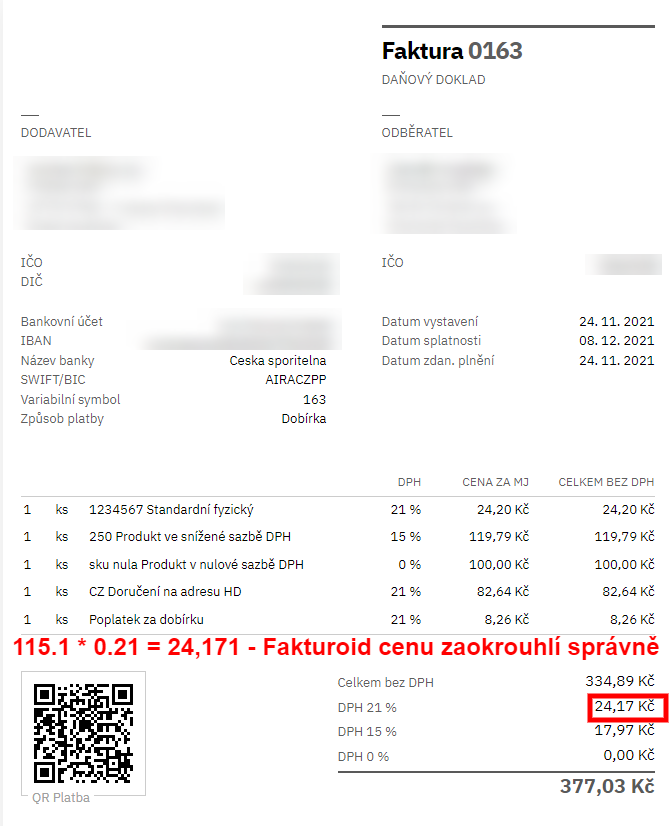
Example: See the WooCommerce order screenshot where the 21% VAT price is rounded incorrectly by WooCommerce, and the invoice screenshot where the correct VAT is calculated by Fakturoid. Two decimal places are set in WooCommerce.
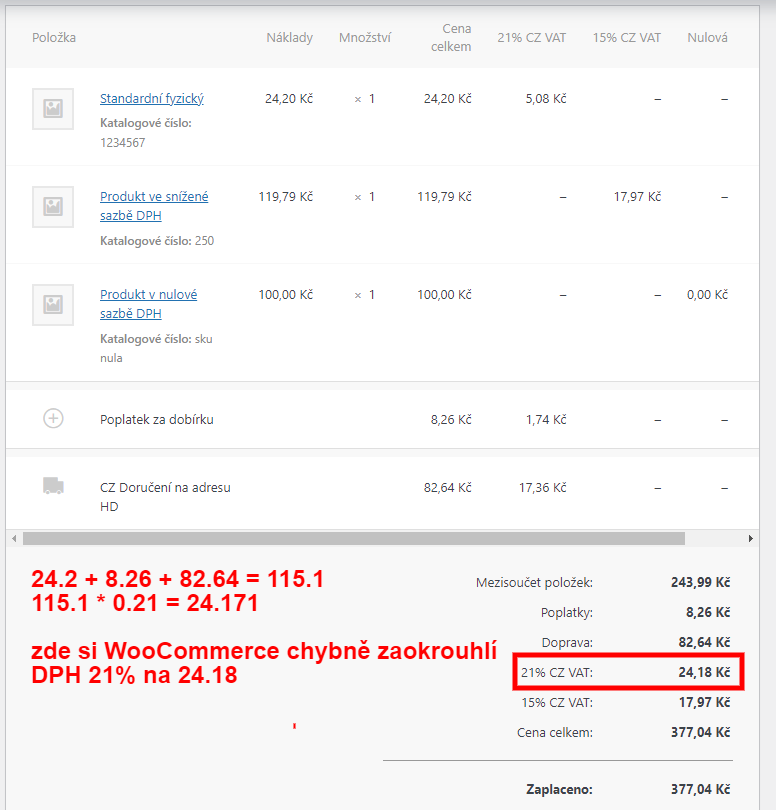
In case of setting price entry excluding VAT in WooCommerce, prices excluding VAT are sent to Fakturoid, and Fakturoid calculates the VAT itself. Here is the invoice for the incorrectly rounded order.
OSS (One stop shop)
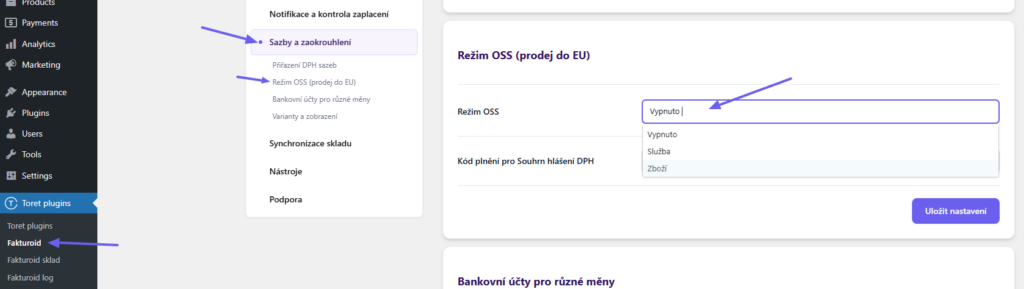
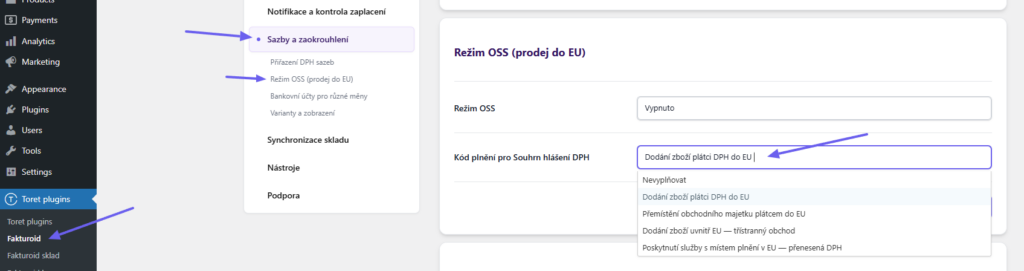
(Toret plugins > Fakturoid > Rates and Accounts (Sazby a účty) > OSS Mode (Režim OSS))
If you invoice in OSS mode, you need to turn it on in the plugin. Choose the Goods (Zboží) or Services (Služby) option according to your assortment.
Fulfillment Code Settings (Nastavení kódu plnění)
In the plugin administration (Toret plugins > Fakturoid > Rates and Accounts (Sazby a účty)), you can also set the Fulfillment Code (Kód plnění) for the VAT Summary Report (Souhrnné hlášení DPH).
Document Download Links (Odkazy ke stažení dokumentů)
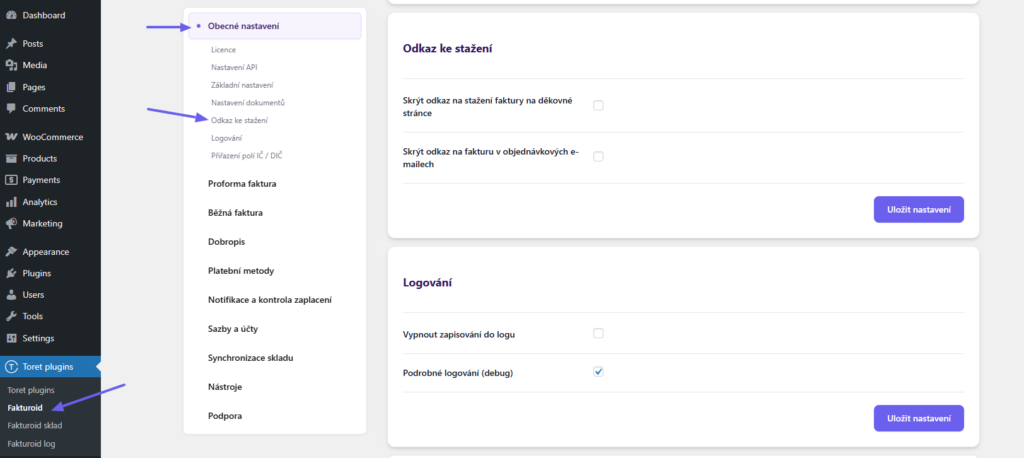
(Toret plugins > Fakturoid > General Settings (Obecné nastavení) > Download link (Odkaz ke stažení))
Document download links are standardly displayed to customers on the thank-you page, in the WooCommerce order email, and in the customer account. Links appear only if the document is issued.
Display of links can be restricted:
- Hide the invoice download link on the thank-you page
- Hide the invoice link in order emails
TIP: If you do not want to attach links to WooCommerce emails, you can send automated emails with documents directly from Fakturoid. You set everything up in your Fakturoid account.
Displaying the Invoice Link on a Custom Thank-You Page (Zobrazení odkazu na fakturu na vlastní děkovné stránce)
When using a custom thank-you page, it is possible to place the download link using the shortcode [fakturoid_invoice_link]
Displaying the Invoice Link in a Custom Email (Zobrazení odkazu na fakturu na vlastní děkovné stránce)
The Fakturoid plugin adds an invoice link (button) to WooCommerce emails. If the e-shop uses emails created by a third-party plugin or custom emails, it is necessary to use the woocommerce_email_after_order_table hook in the custom email for the invoice button to appear.
Adding the invoice link can be turned off in the plugin settings, see here.
Email and My Account Information Settings (Nastavení informací v e-mailu a v sekci Můj účet)
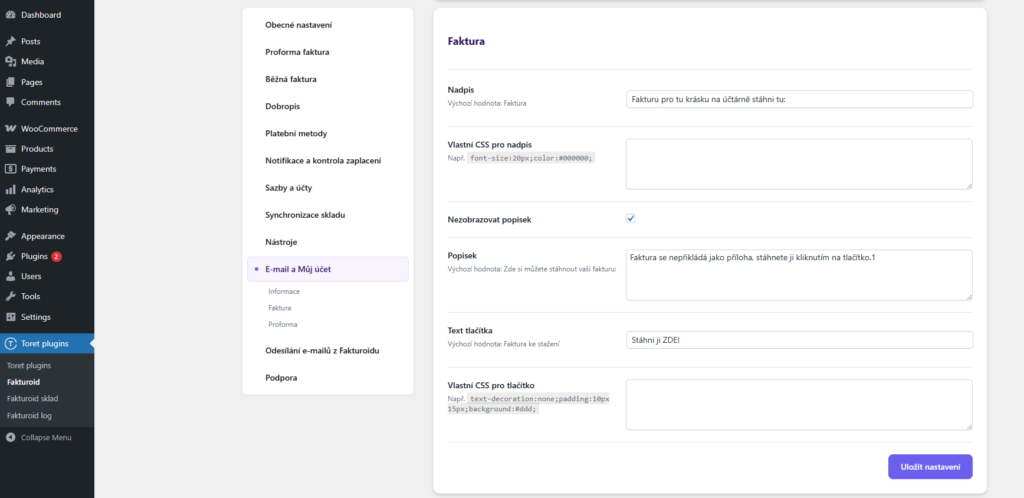
Customers will find links to download proformas and invoices in the email and in the My Account section. You can customize their display in the plugin settings (Toret plugins > Fakturoid > Email and My Account (E-mail a Můj účet)). You can modify:
- heading (including CSS)
- button text (including CSS)
- label
If you leave the fields empty, the default wording set in the plugin will be used. Everything is set separately for the proforma and separately for the invoice.
Settings for Emails Sent from Fakturoid (Nastavení e-mailů odesílaných z Fakturoidu)
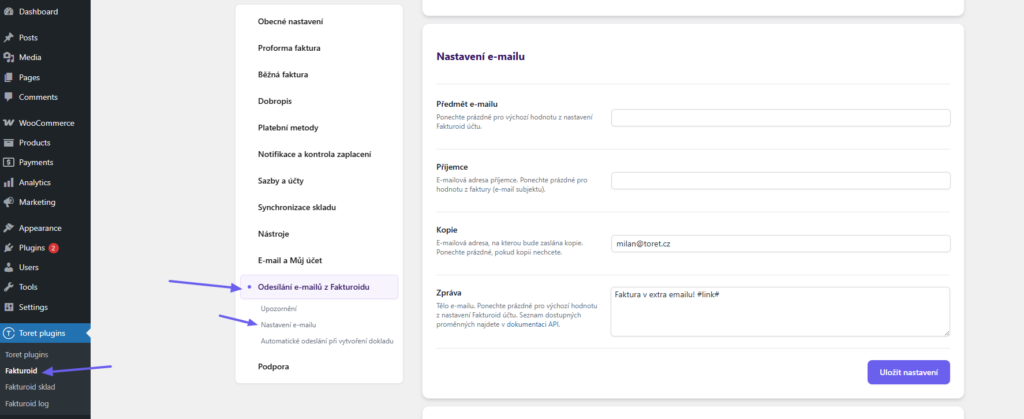
(Toret plugins > Fakturoid > Sending emails from Fakturoid (Odesílání e-mailů z Fakturoidu))
In addition to adding the invoice link to automated emails sent from WooCommerce, you can also set up emails that are sent directly by the Fakturoid system. These emails with the invoice link are sent immediately after the corresponding document is created. This sending can be set for invoices, proformas, and credit notes.
In the plugin settings, simply check the document type for which you want to send these invoices.
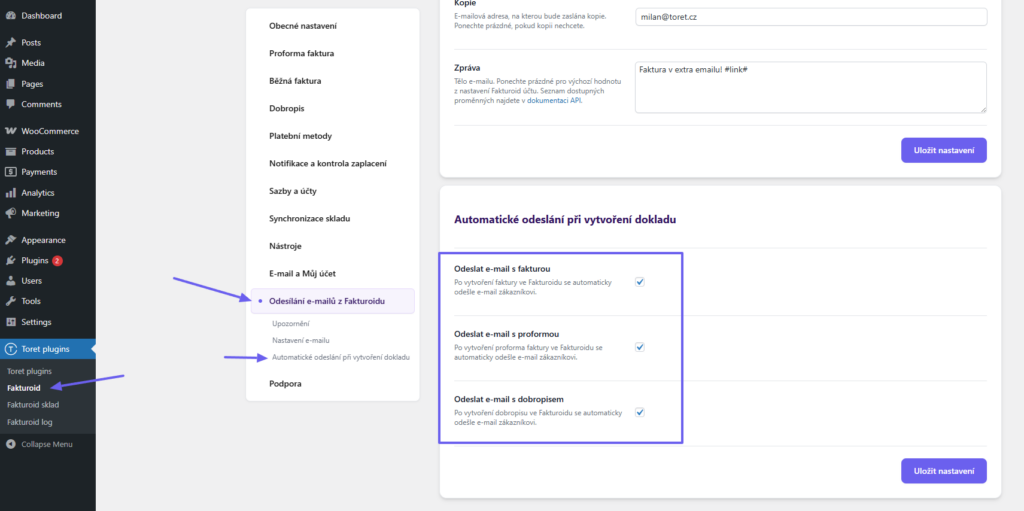
You can modify the email subject, set recipients, CC, and the email content. If you leave the fields empty, default values will be used.
Stock Synchronization Settings (Nastavení synchronizace skladu)
(Toret plugins > Fakturoid > Synchronizace skladu)
Through the Fakturoid plugin, it is possible to synchronize inventory between WooCommerce and Fakturoid.
WooCommerce > Fakturoid Synchronization (Synchronizace WooCommerce > Fakturoid)
Here you can configure synchronization from WooCommerce to Fakturoid. The setup is done in several steps:
- Enable the feature in the plugin
- Select the synchronization type (Typ synchronizace)
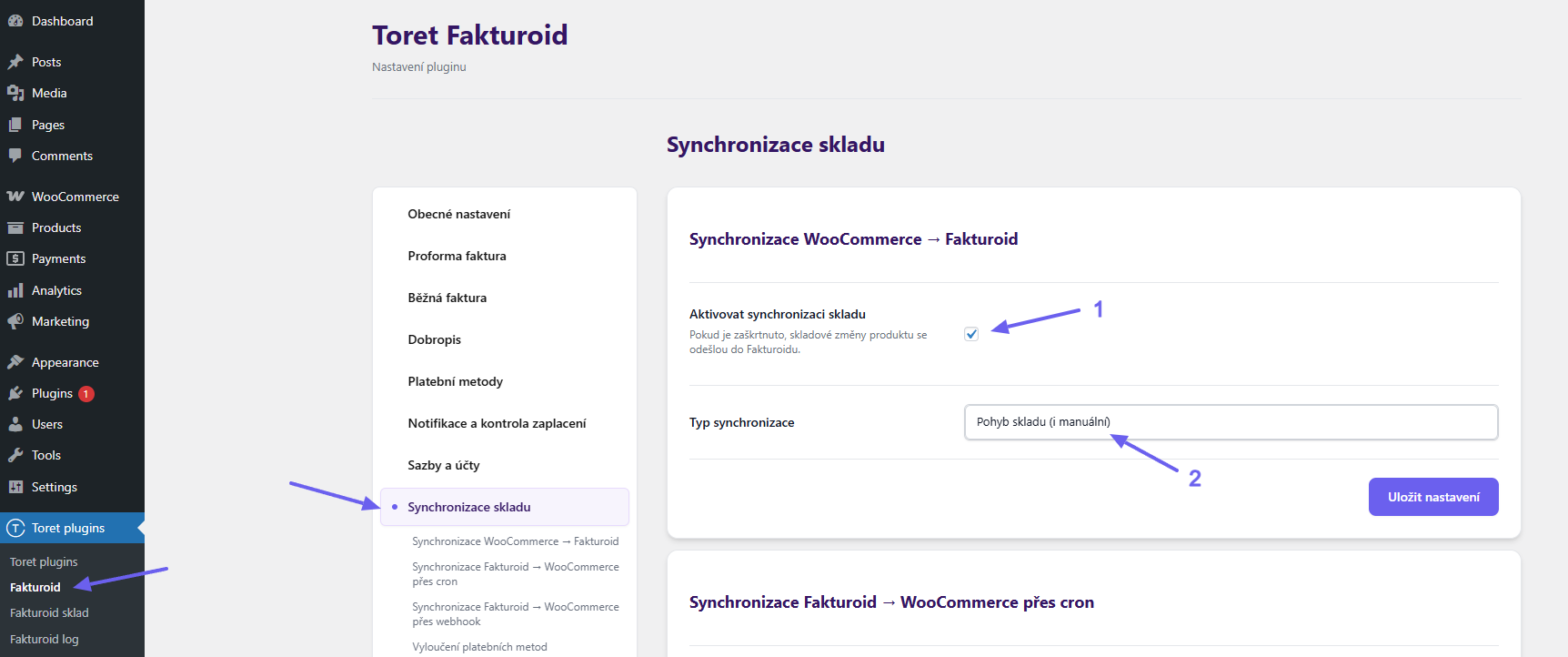
Stock movement (including manual) (Pohyb skladu (i manuální)): Stock availability (number of pieces in stock) for the imported product in Fakturoid is adjusted even if you manually adjust it for the product in WooCommerce, e.g., manually restock the given product. At the same time, the number of pieces in stock will be synchronized during an order or order cancellation.
Decrease stock level (used by order) (Snížení úrovně skladu (používá objednávka)): This function adjusts the stock count in Fakturoid only via orders. In the case of a manual change in stock status, the stock on the Fakturoid side is not synchronized.
Fakturoid > WooCommerce Synchronization (Synchronizace Fakturoid > WooCommerce)
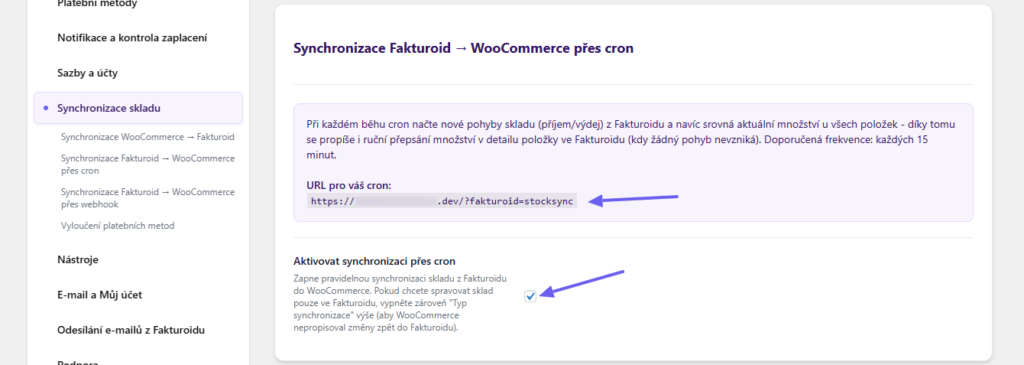
Synchronization from Fakturoid to WooCommerce can be done via cron or webhook. We recommend using a combination of both methods.
Synchronization via cron (Synchronizace přes cron) requires setting up a cron job on your hosting provider. It works with a delay (depending on the cron interval), but it is reliable. The cron URL can be found directly in the plugin, and you can configure it in your hosting account.
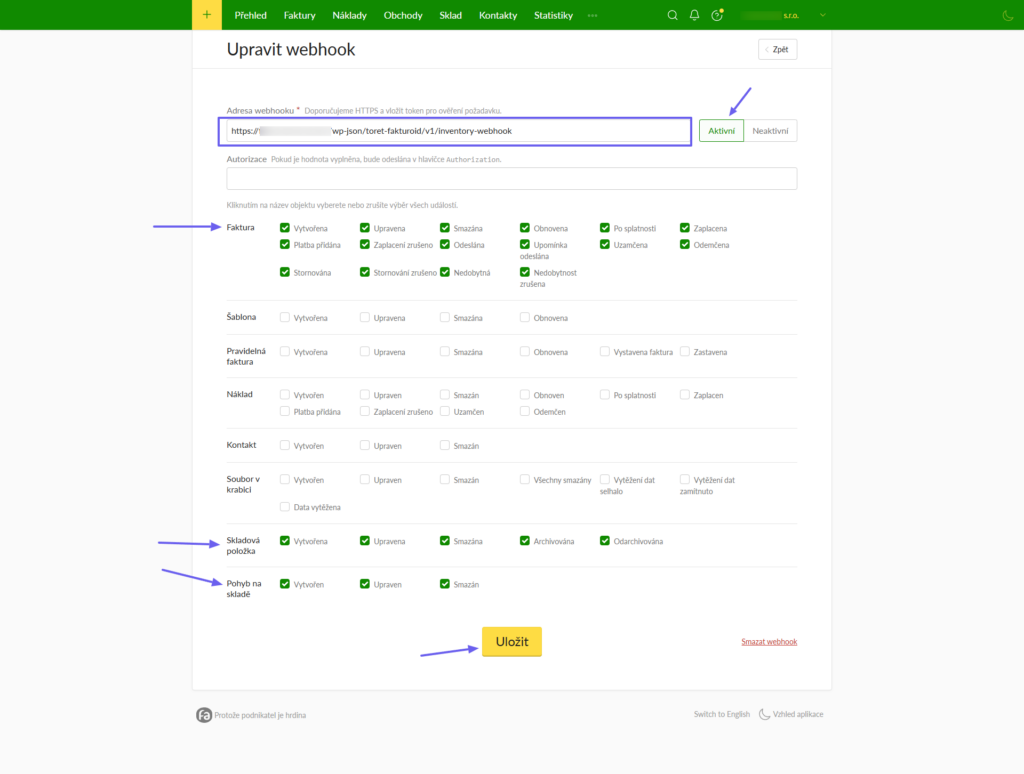
Synchronization via webhook (Synchronizace přes webhook) works based on instant notifications from Fakturoid. The webhook URL can be found directly in the plugin, and it needs to be configured in the Fakturoid administration panel.
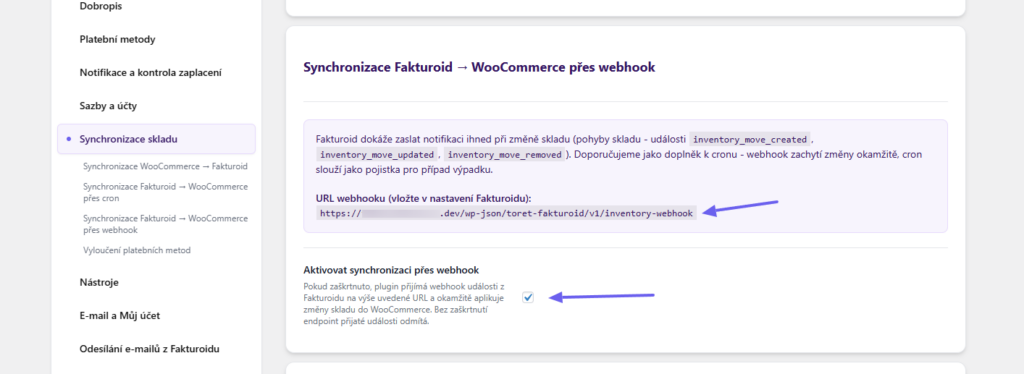
Webhook settings on Fakturoid:


In the new webhook, enter the URL and enable all events in the Invoice (Faktura), Inventory Item (Skladová položka), and Stock Movement (Pohyb na skladě) sections.
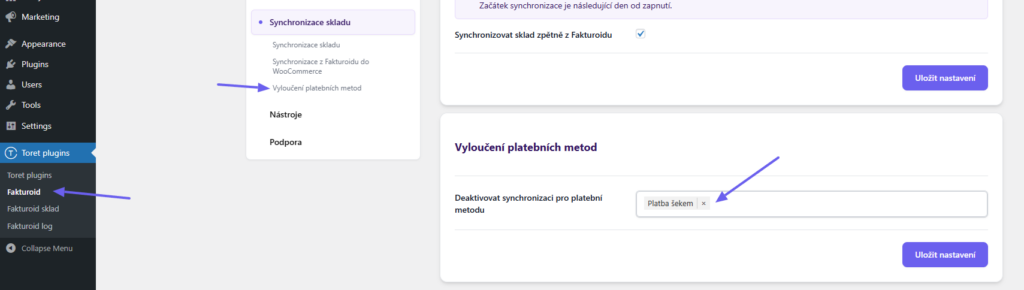
Excluding Payment Methods (Vyloučení platebních metod)
Furthermore, you can set payment methods for which stock synchronization will not occur.
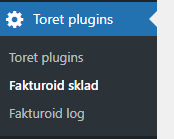
After saving the settings, the Fakturoid Stock (Fakturoid sklad) tab will appear in the left administration menu under Toret plugins. If this tab does not appear after saving, refresh the page, e.g., with the F5 key.
Exporting Products from WooCommerce to Fakturoid (Export produktů z WooCommerce do Fakturoidu)
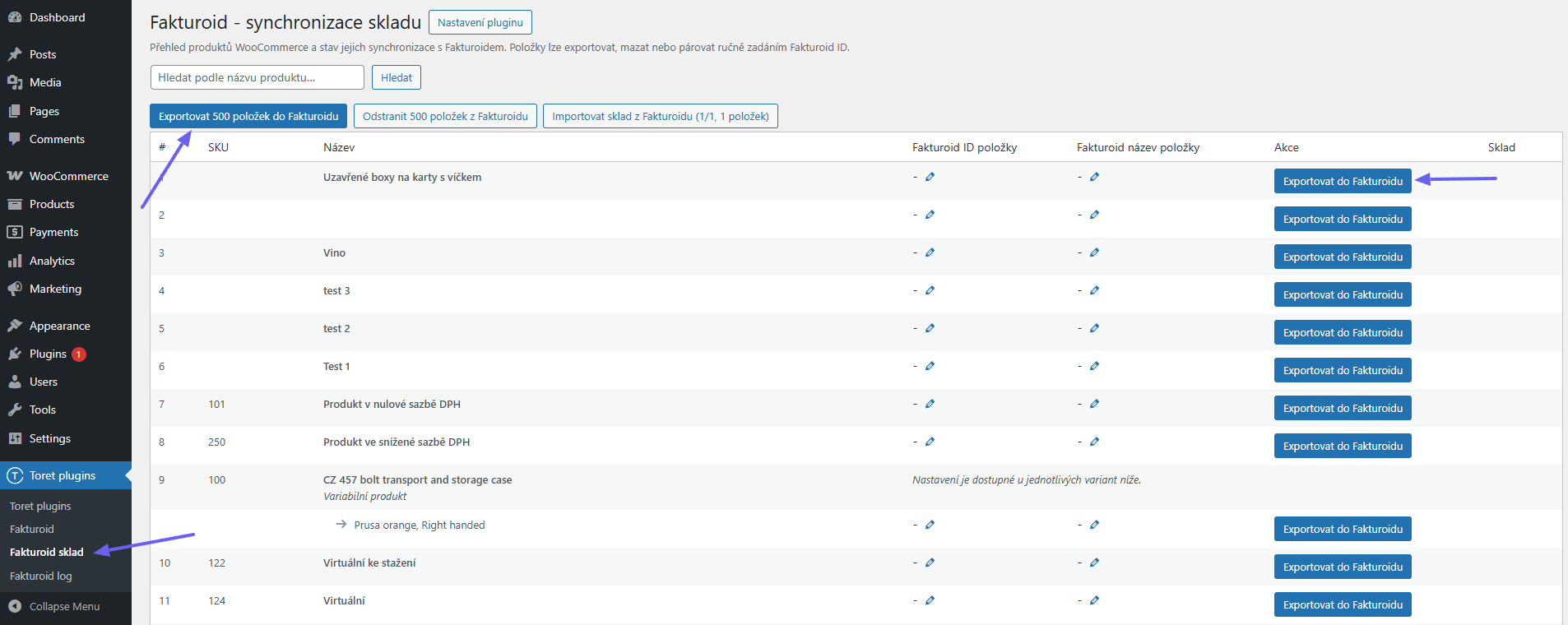
(Toret plugins > Fakturoid Stock (Fakturoid sklad))
To avoid creating products manually in Fakturoid, you can export them from WooCommerce.
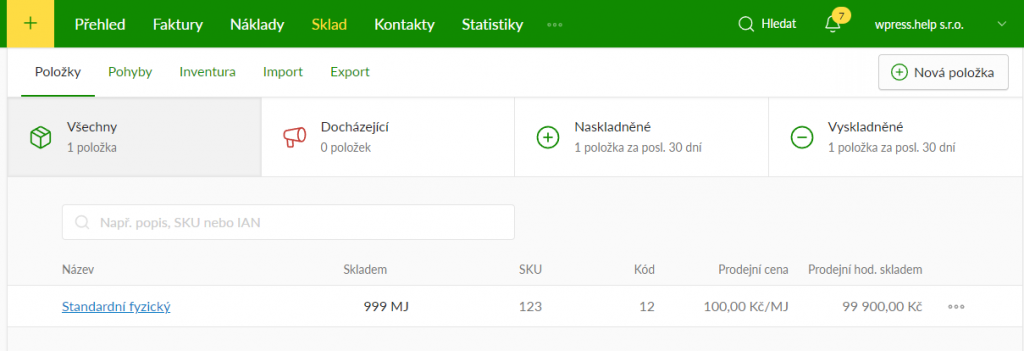
The Fakturoid Stock page lists the products in WooCommerce. Using the “Export item to Fakturoid (Exportovat položku do Fakturoidu)” button, a product with stock inventory is created in the Fakturoid service. As the “Code (Kód)” value in the Fakturoid service, the product ID or catalog number (SKU) is transferred, if filled in. You can also export products from WooCommerce to Fakturoid in batches of 500 using the button above the table.
Importing Stock Status from Fakturoid (Import stavu skladu z Fakturoidu)
If the stock statuses in WooCommerce do not match the stock status in Fakturoid, you can use the “Import stock from Fakturoid (Importovat sklad z Fakturoidu)” function. After clicking the button, the stock for products in WooCommerce will be updated according to the values in Fakturoid. (Toret plugins > Fakturoid Stock (Fakturoid sklad))
Product Pairing (Párování produktů)
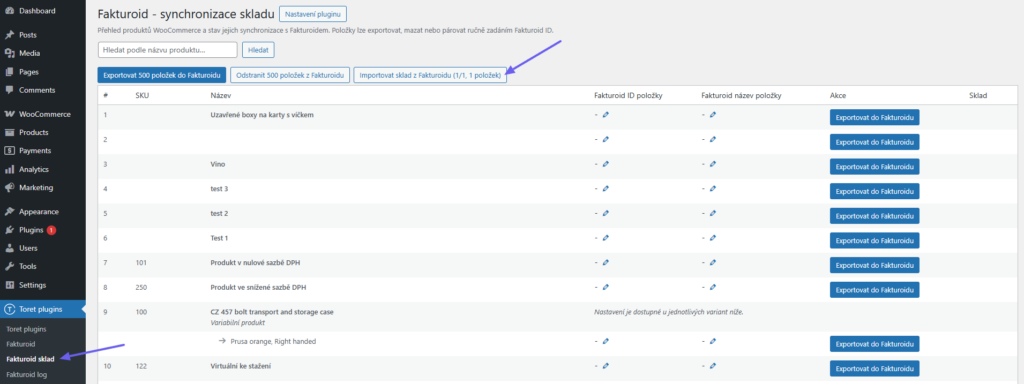
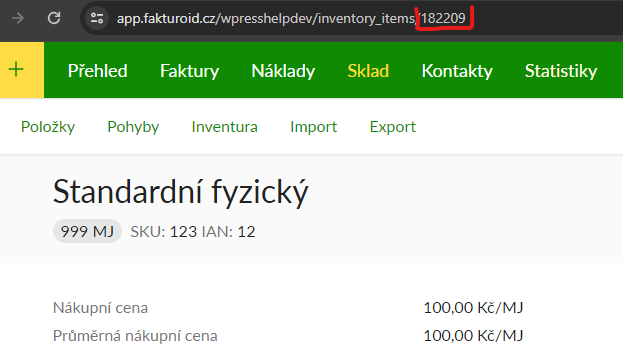
In the event that you already have products created in Fakturoid and want to pair them with products from WooCommerce, it is sufficient to edit the value in the “Fakturoid Item ID (Fakturoid ID položky)” column to the already created product ID on the Fakturoid side before exporting products. The product ID is after the slash at the end of the URL in the Fakturoid product detail (see screen below).
Copy the ID from the product detail in the Fakturoid service.
Paste the ID into the Fakturoid Item ID (Fakturoid ID položky) field for the product you want to pair, save, and then click the product export button.

Once the product is paired, the stock value, price, and barcode in Fakturoid are updated to the values of the product from WooCommerce.
Deleting Exported Products – IMPORTANT (Mazání exportovaných produktů – DŮLEŽITÉ)
Always delete exported products via the Fakturoid Stock (Fakturoid sklad) table using the red “Delete item in Fakturoid (Odstranit položku ve Fakturoidu)” button. If you were to delete an exported product via the Fakturoid service administration, it would no longer be possible to delete the product via the table until the database is cleared (and that is not a task for an average user). In case an exported product is deleted via the Fakturoid service, it is necessary to delete the _fakturoid_nazev_polozky and _fakturoid_id_polozky metadata in the database to re-export the product.

Product Tags (Štítky produktů)
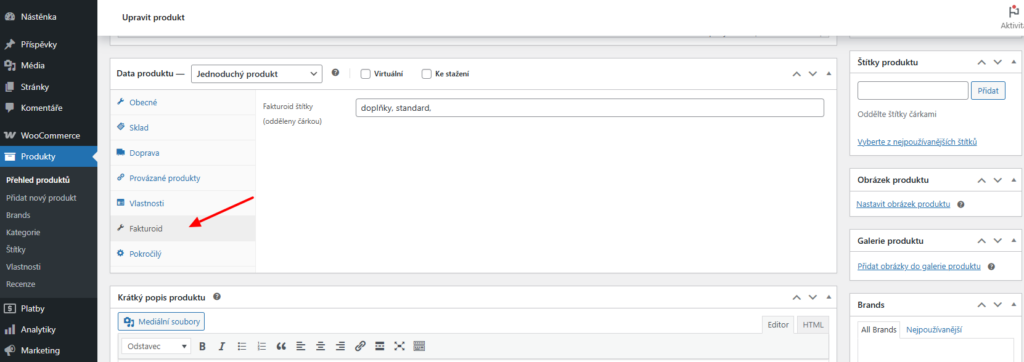
In the product detail, you can enter Fakturoid tags, which will be transferred to Fakturoid during synchronization.
Plugin testing
For testing purposes, you can use:
- the subdomain “dev.domainlicense” (with the same license as for the production website)
- localhost (127.0.0.1)
Purchased plugins will also work in these locations, and you can test their implementation and compatibility here before deploying them to the website and during its use.
Frequently Asked Questions (Časté dotazy)
Error Debugging (Debugování chyb)
Since something can always go wrong, the plugin has built-in ways to catch errors.
Fakturoid log
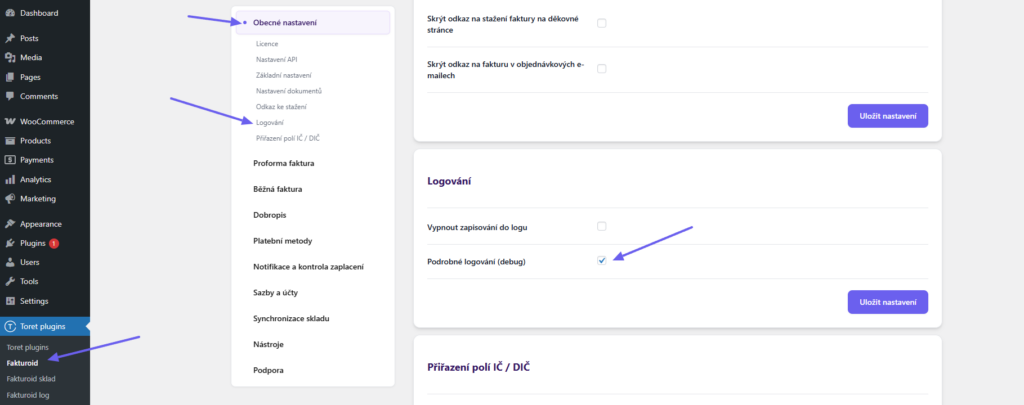
You turn on logging in the general settings of the plugin (Toret plugins > General Settings (Obecné nastavení) > Logging (Logování)).
Detailed logging (debug) records all steps during invoice creation. Use only for problem diagnostics. ATTENTION: Generates a large amount of logs! We recommend turning it off after solving the problem.
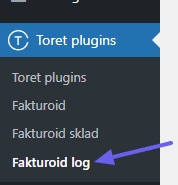
You can find the records under the Fakturoid log tab (Toret plugins > Fakturoid log)
The notify_log.txt file (on FTP in the plugin folder)
Not only errors but also data sent to Fakturoid or saved by the plugin are recorded here. By reviewing these logs, your developer can determine at which stage a problem occurred.
Order Notes (Poznámky k objednávce)
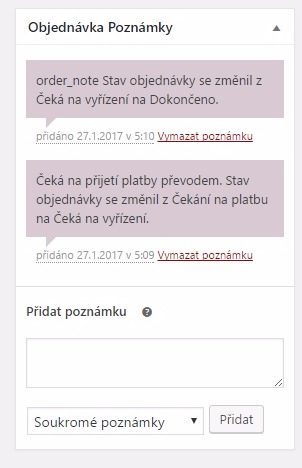
If the data is not successfully sent to the Fakturoid system, the response is saved as an order note. This allows you to quickly identify if the issue lies in incorrect order data.
A basic identification of a problem is the absence of an invoice ID in the first column of the order list.
You can find the notes in the order detail:
Setting the tax rate for Cash on Delivery (COD) for shops using multiple tax rates
If you sell products with multiple tax rates and want to automatically set the tax rate applied to the COD fee from Toret.cz plugins based on the items in the cart, you need to use the filter listed below:
- Zásilkovna: zasilkovna_taxclass_dobirka
Subsequently, use the filter to set the COD tax rate according to the products in the order.
Example for the Zásilkovna plugin, where three tax rates are defined: standard, reduced, and zero.
add_filter('zasilkovna_taxclass_dobirka', 'zasilkovna_taxclass_dobirka_fce', 10,1);
function zasilkovna_taxclass_dobirka_fce($TaxClass){
$CartTaxes = WC()->cart->get_cart_item_tax_classes();
$TaxStandart = false;
$TaxReduced = false;
$TaxZero = false;
foreach ($CartTaxes as $ct){
    if($ct == ''){
        $TaxStandart = true;
    }elseif ($ct == 'snizena-sazba'){
        $TaxReduced = true;
    }elseif ($ct == 'nulova-sazba'){
        $TaxZero = true;
    }
}

if($TaxStandart === true){
    $TaxClass = '';
}elseif ($TaxReduced === true){
    $TaxClass = 'snizena-sazba';
}elseif ($TaxZero === true){
    $TaxClass = 'nulova-sazba';
}
return $TaxClass;
}
Invoice is not issued for one specific order, but works for others
Check the information entered in the order. The customer may have filled in some details incorrectly, causing an error during the transfer to the Fakturoid system. The most common errors are in the ID/VAT ID fields.
Everything is set to non-VAT payer, but Fakturoid issues an invoice with VAT
Enable the Enable taxes (Povolit daně) option (by checking Enable tax rates and calculations) in WooCommerce → Settings.
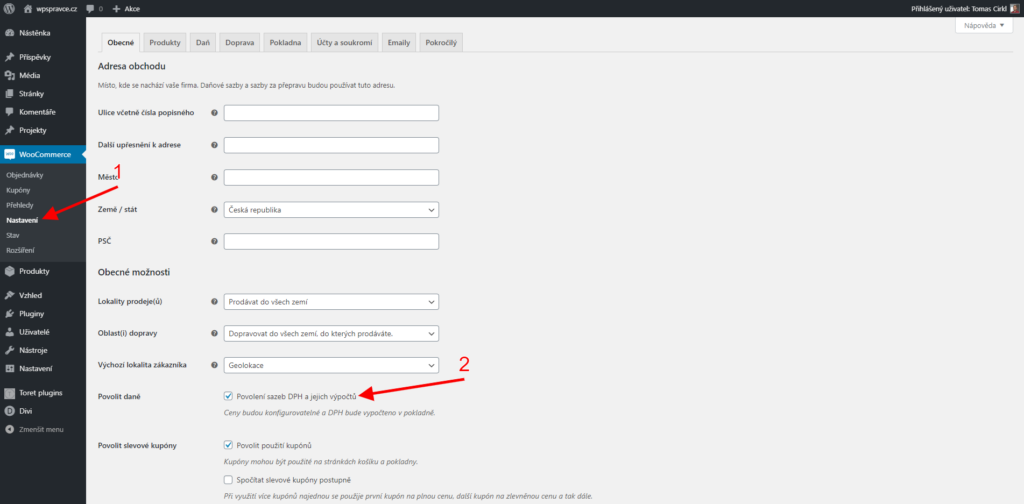
Then go to the Tax (Daň) tab (1) and set Prices entered with tax to “No, I will enter prices exclusive of tax” (2) and check + delete any entered Standard rates (3) if necessary.
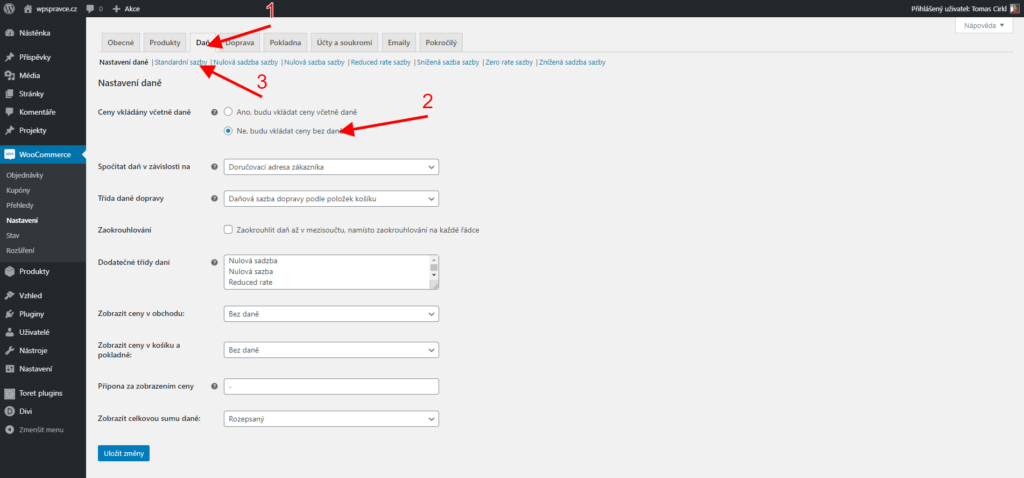
Finally, disable Enable taxes in WooCommerce again.
Invoice is not being issued and the order log shows “Create user problem/Could not create contact”
This error appears if Fakturoid was unable to create a customer/contact.
In the plugin settings, check the “Fakturoid Account Name” field. If the account name is correct, check if you have available space in Fakturoid to create a new contact. (For example, the Fakturoid Free version is limited to only 5 contacts.)
Reverse Charge Settings (Nastavení přenesení daňové povinnosti)
Described in the article Fakturoid: How to set up reverse charge in WooCommerce.
Invoice was not saved with error: {“errors”:{“client_name”:[“is a required field”],”subject_id”:[“Contact does not exist.”]}}
The error Invoice was not saved with error: {“errors”:{“client_name”:[“is a required field”],”subject_id”:[“Contact does not exist.”]}} can occur if you delete a contact in the Fakturoid administration that is already saved in a WordPress user account. After that, an invoice cannot be created for this account because it cannot pair with the contact on the Fakturoid side.
Go to the WordPress user profile detail from the order where the invoice cannot be issued and find the Fakturoid ID field. Delete the value in this field, save the user, and then you will be able to issue an invoice for the order.
Filters
VAT Adjustment for Fees
This filter is intended for setting a fixed VAT value of 21% for fees (e.g., COD fee).
add_filter( 'fakturoid_fee_vat_rate', 'fakturoid_fee_vat_rate_fce', 10, 2 );
function fakturoid_fee_vat_rate_fce( $fee_tax, $order ) {
return 21;
}
VAT Adjustment for Shipping
This filter is intended for setting a fixed VAT value of 21% for the shipping price.
add_filter( 'fakturoid_shipping_vat_rate', 'fakturoid_shipping_vat_rate_fce', 10, 2 );
function fakturoid_shipping_vat_rate_fce( $shipping_tax, $order ) {
return 21;
}
VAT Adjustment for a Product
This filter is intended for setting a fixed VAT value of 21% for the product price.
add_filter( 'fakturoid_custom_vat_rate_item', 'fakturoid_custom_vat_rate_item_fce', 10, 2 );
function fakturoid_custom_vat_rate_item_fce( $product_dph, $data ) {
return 21;
}
Function to Mark an Invoice as Paid During Online Payment
The plugin includes the function fakturoid_pay_invoice.
The function sends the order ID, takes the order with the invoice, and sends it to Fakturoid to mark the invoice as paid.
Provide this function to your programmer; they will implement it according to your personal requirements.
The function can be called from anywhere.
This function has been part of the plugin since version 1.5.16.
Filter for Using a Custom Number Sequence
The plugin includes the function fakturoid_number_format.
The filter allows you to change the format of the invoice number being sent.
Provide this filter to your programmer; they will implement it according to your personal requirements.
The function can be called from anywhere.
This function has been part of the plugin since version 1.5.18.
Example of use with the Sequential Order Number for WooCommerce plugin and a custom number sequence.
Function to modify the invoice number:
add_filter( 'fakturoid_number_format', 'custom_fakturoid_number_format', 10, 2 );
function custom_fakturoid_number_format( $number, $order ){
$order_number = $order->get_order_number();
$lenght = strlen( $order_number );
if ( $lenght == 1 ) {
$number = '000' . $order_number;
} elseif ( $lenght == 2 ){
$number = '00' . $order_number;
} elseif ( $lenght == 3 ){
$number = '0' . $order_number;
} elseif ( $lenght == 4 ){
$number = $order_number;
}
return '8133' . $number;
}
Used filter:
if ( !empty( $number_format ) && false === $proforma_status ) {
$number = str_replace( '{order_id}', $order->get_order_number(), $number_format );
$invoice_array['number'] = apply_filters( 'fakturoid_number_format', $number, $order );
}
Changing Invoice Language Based on Country
If you want to adjust the invoice language according to the country’s language and the default settings do not suit you, you can use a filter.
Example showing the setting of the SK language for an order to Slovakia below:
add_filter( 'fakturoid_invoice_lang' , 'fakturoid_invoice_lang_fce', 10, 2);
function fakturoid_invoice_lang_fce( $lang, $order ){
if( strtolower( $order->get_billing_country() ) == 'sk' ){
return 'sk';
}else{
return $lang;
}
}
Single product has a 1 cent difference, but the total price matches
In rare cases, due to various VAT settings in WooCommerce, it may happen that the price for one of the products on the invoice after VAT calculation is 1 cent higher or lower. However, the total order price will be correct.
In this case, you can try using a filter.
add_filter( 'fakturoid_vat_mode', 'fakturoid_vat_mode_fce', 10, 1 );
if( !function_exists( 'fakturoid_vat_mode_fce' ) ){
function fakturoid_vat_mode_fce($VatMode){
return 'without_vat';
}
}
Insert the filter into your child theme’s functions.php or into a snippet plugin.
If the prices on the invoice are incorrect for almost all products, the problem is likely in the decimal places settings in WooCommerce. This only affects shops with VAT enabled. When using VAT, it is necessary to have two decimal places set in WooCommerce → General → Number of decimals. If zero or one decimal place is set, values rounded by WooCommerce are passed to Fakturoid, which then calculates VAT from them – resulting in mismatched amounts.