
You are on the documentation page for the One by Allegro plugin for WooCommerce, which implements this shipping service into your e-shop. You can purchase the One by Allegro plugin here: Toret One by Allegro for WooCommerce
- Plugin Installation
- Plugin Activation
- Connecting to One by Allegro
- Branch Import and CRON Settings
- Main Settings
- Setting up Carriers in the One by Allegro Plugin
- Shipping Zone Settings
- Shipment Submission from Web to One by Allegro
- Ordering Package Pickup
- Free Shipping
- Printing Labels
- Automatic Shipment Status Loading
- Order Status Change Based on Shipment Status
- Filters
- FAQ
- Testování pluginu
Plugin Installation
Upon purchasing the plugin, you will receive a license key and a download link for the plugin zip file via email. You can find detailed instructions on how to install the plugin from your computer into WordPress here.
Plugin Activation
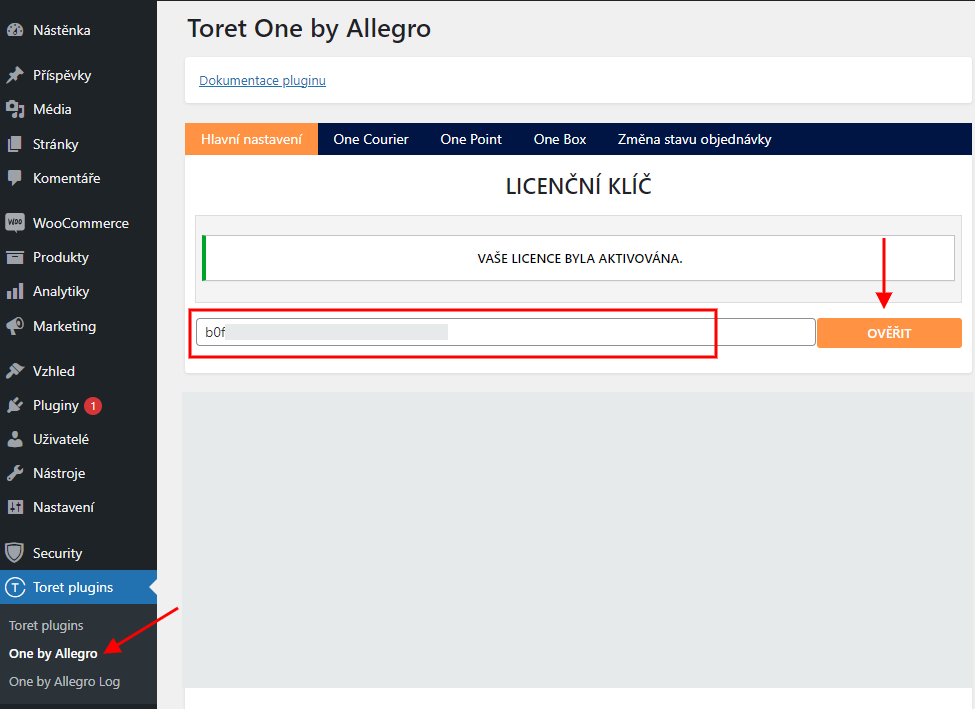
After installing the plugin, open the One by Allegro plugin, insert the license key into the appropriate field, and click the button to activate.
Connecting to One by Allegro
To use the One by Allegro plugin, you must have an account created in One by Allegro or at wedo.cz and use API type V2.
After installing and activating the plugin, proceed to its settings. This is found in the section Toret plugins → One by Allegro.
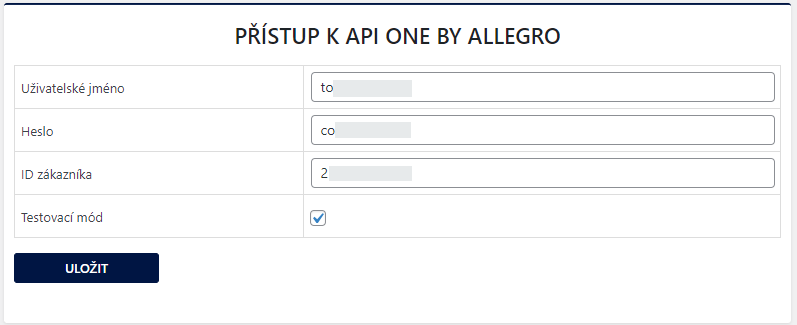
To connect the plugin with your account, you need to fill in:
- username
- password
- Customer ID (ID zákazníka)
Verification Process in Test Mode and Obtaining Live Implementation Data
To use One by Allegro (hereinafter referred to as One) in live operation, you must go through the verification process for submitting shipments.
- Request a test Customer ID for your account from One support.
- Insert this ID into the plugin in addition to the username and password and enable test mode.
- One requires performing 8 test orders in the test environment:
- Two Czech (one with COD, one without COD)
- Two Slovak (one with COD, one without COD)
- Two shipments to pickup points (1 with COD, 1 without COD)
- Two EURODIS shipments (one with COD, one without COD). EURODIS shipments are foreign shipments (excluding Slovakia), e.g., Germany or France.
- After creating eight test orders, send the numbers of all eight shipments to customer support for verification (sending labels of submitted packages is sufficient).
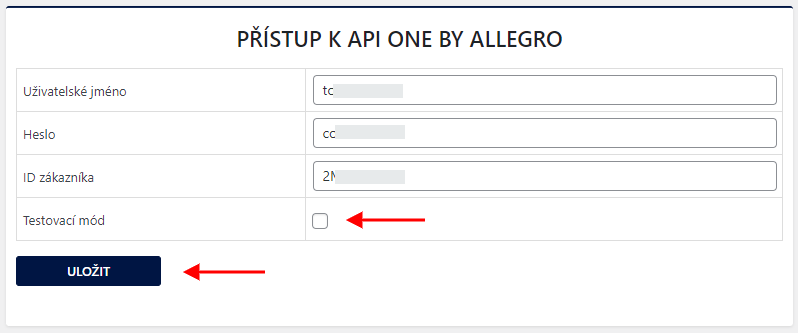
- Once One verifies the labels, they will send live implementation data for connection (Customer ID). The last step is to insert this live implementation data into the plugin and then it is necessary to turn off test mode.
Branch Import and CRON Settings
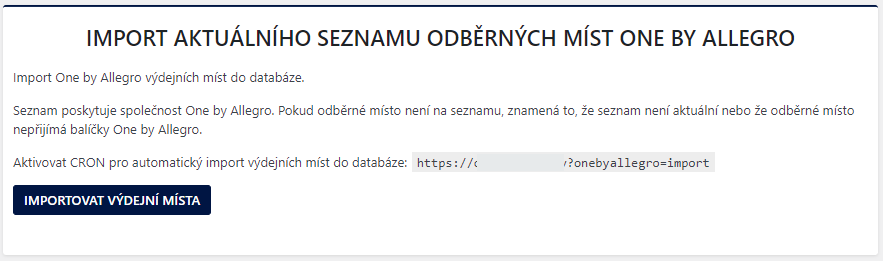
To display One pickup points and boxes on the map in the checkout, it is necessary to load branches first. You can perform the first load using the “Importovat výdejní místa” (Import pickup points) button. Then we recommend setting up CRON for regular branch updates. The CRON URL for your website is listed in the One plugin settings on the “Hlavní nastavení” (Main Settings) tab.
Main Settings
On the Main Settings tab (Toret Plugins > One by Allegro > Hlavní nastavení), you further configure:
- automatic ordering and pickup address
- label format and references
- icons for display in checkout (upload custom, display default, or do not display)
- default package count and weight
- VAT, COD tax class, and custom surcharges
- exchange rate settings
Setting up Carriers in the One by Allegro Plugin
In the One plugin, you can set up shipping:
- One Courier (delivery to address)
- One Point (delivery to pickup point)
- One Box (delivery to box)
If VAT is set in WooCommerce, set the shipping prices in the plugin without VAT.
One Courier
Under the One Courier tab, it is possible to set up delivery to an address for the Czech Republic and 34 other countries.
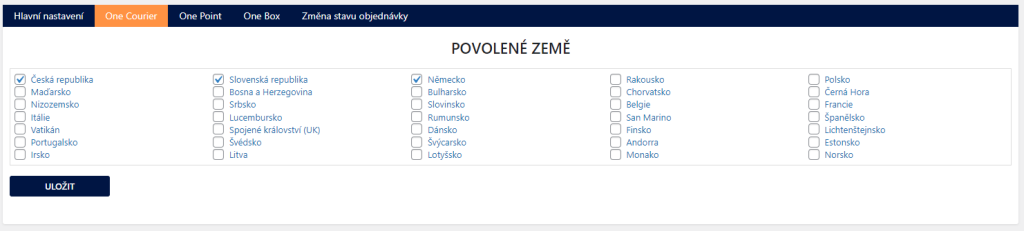
For individual countries, it is possible to set:
- shipping price – flat, based on weight or dimensions, or load via carrier API
- free shipping over amount
- availability by order value, weight, quantity of products in the cart, or product price
- COD surcharges, free COD over amount, and maximum allowed COD
Tip: if you want to trigger free shipping or free COD at checkout e.g. from 500,-, set 499 in the plugin.
If you do not fill in individual values for countries, those in the main settings of One Courier (Toret Plugins > One by Allegro > One Courier > Hlavní nastavení) will be used as default.
One Point
On the One Point tab, you can set conditions for delivery to pickup points in the Czech Republic.
You can set:
- shipping price – flat, based on weight or dimensions, or load via carrier API
- free shipping over amount
- availability by order value, weight, quantity of products in the cart, or product price
- COD surcharges, free COD over amount, and maximum allowed COD
One Box
The One Box shipping service for delivery to pickup boxes can be set for the Czech Republic. The setting options are the same as for the previous shipping types.
Shipping Zone Settings
After setting up carriers in the One plugin, you need to set up identically named carriers in WooCommerce shipping zones. Without setting them in shipping zones, carriers from the One plugin will not appear at checkout.
It is necessary to have a created shipping zone to which the shipping method from the One plugin will be added. Set the shipping method in WooCommerce > Settings > Shipping > required shipping zone > Add shipping method.
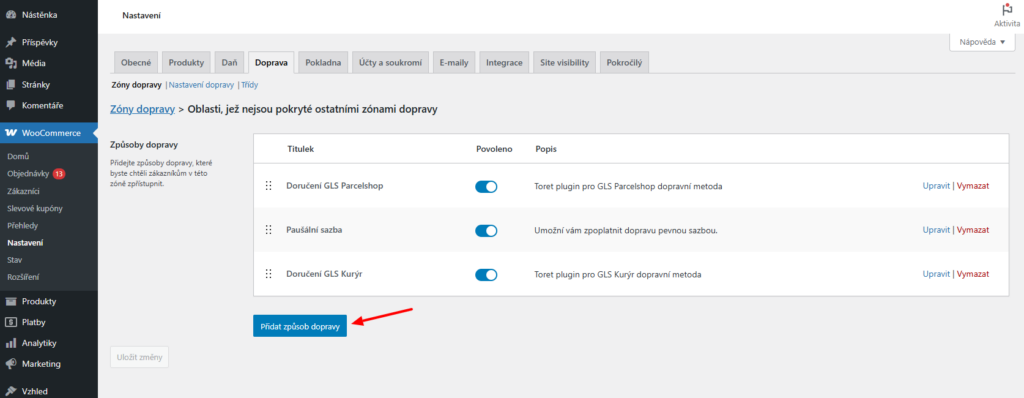
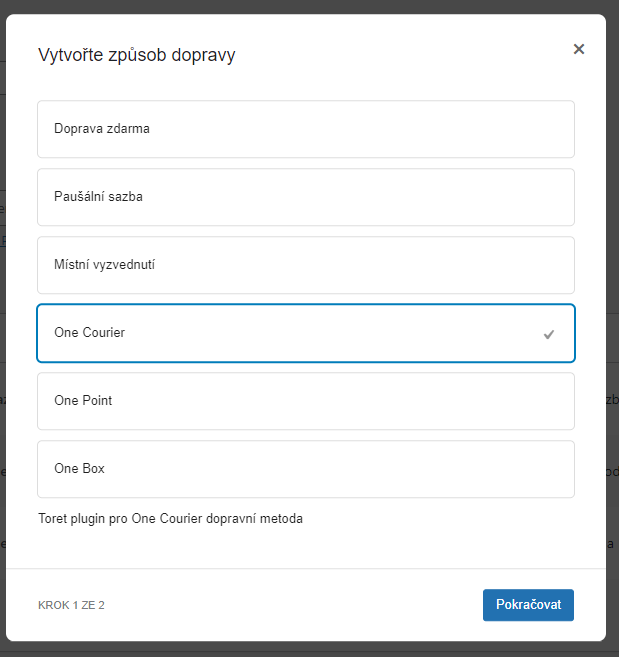
Select from the offered shipping methods and click Continue.
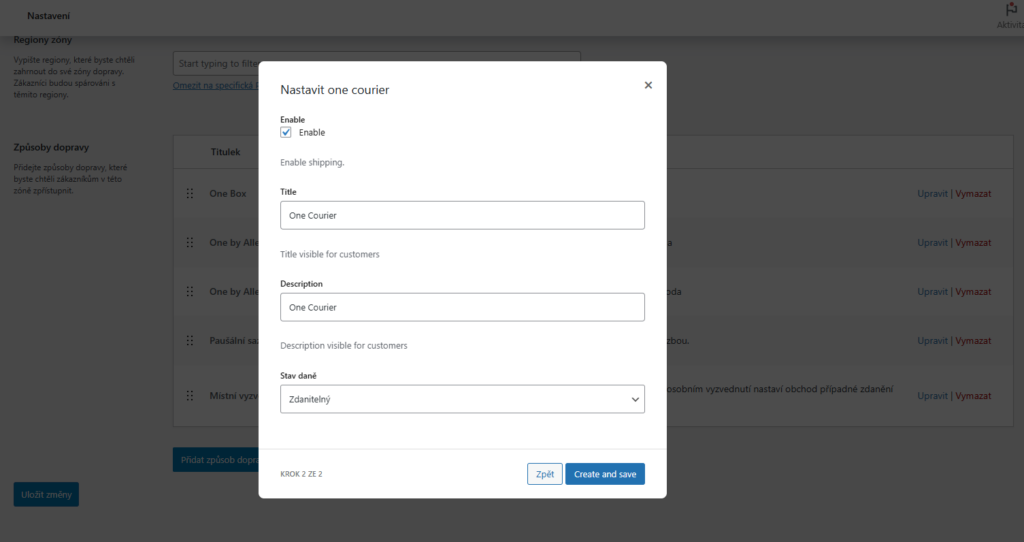
In the next step, choose the Title and Description of the shipping method and Tax Status (Taxable or None). Click Create and save. The new shipping method is created.
Shipment Submission from Web to One by Allegro
You have two options for submitting a shipment to the One system in the plugin.
Submitting a package requires weight. We recommend setting the weight at the product level; without set weight for products, automatic shipment submission upon order status change will not work.
Manual
A shipment can be submitted manually via a button in the order overview or in the order detail.

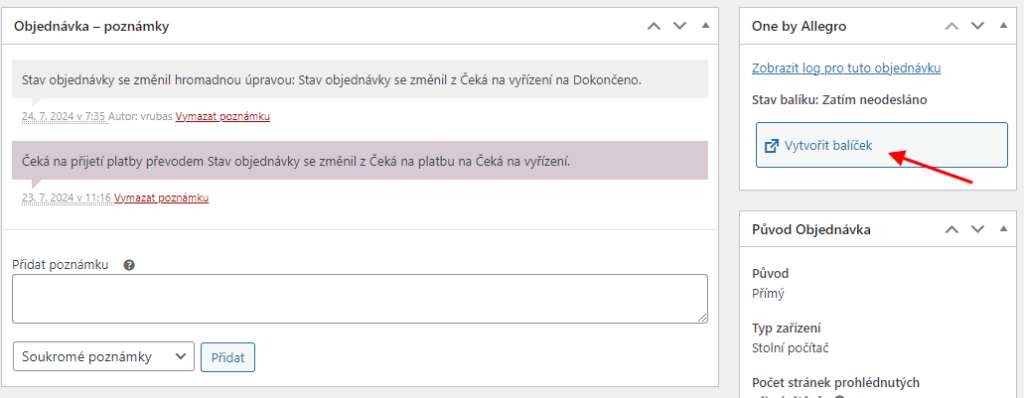
Automatically on Order Status Change
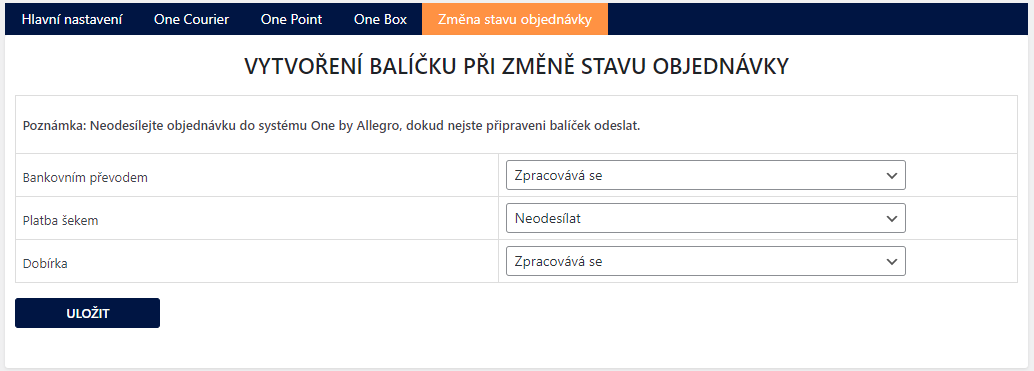
Automatic submission can be set in the plugin One by Allegro > Změna stavu objednávky (Order status change) > Vytvoření balíčku při změně stavu objednávky (Create package on order status change). Here you set order statuses for individual payment methods in which the package will be automatically created and data sent to the One system.
Ordering Package Pickup
Via the plugin, it is possible to order package pickup. Ordering pickup can be done in two ways.
Manual
In the order overview for orders submitted to the One system, there is a car icon. Clicking the icon displays a box above the order overview with the option to select the date for ordering package pickup.

On the Hlavní nastavení (Main Settings) tab, you can enable the function Automaticky naplánovat vyzvednutí v nejbližším možném termínu, pokud vybrané datum není dostupné (Automatically schedule pickup on the nearest possible date if the selected date is unavailable).

Automatic Pickup Ordering
On the tab Hlavní nastavení (Main Settings) > Objednávka vyzvednutí a adresa vyzvednutí (Pickup order and pickup address) in the One plugin, it is possible to set automatic ordering of shipment pickup for the next day upon shipment creation.

Free Shipping
You set free shipping directly in the One plugin in the carrier settings for the given country (e.g. Toret Plugins > One > One Courier > Czech Republic).
The free shipping plugin setting is “above” an amount, meaning free shipping activates on the web after exceeding the set amount in the cart. E.g. if you want free shipping from 500,-, set the amount 499 in the plugin.
Tip: If you have VAT configured in WooCommerce, the value for triggering free shipping is entered without VAT.
The free shipping amount setting applies only to products; the shipping price is not included.
EXAMPLE: If you have free shipping set from 500,-, and the cart contains a product for 450,- + shipping price 65,- = 515,- CZK, free shipping will not be activated. It is necessary to exceed the set price with the product – i.e., to activate free shipping set this way, you need to put product(s) worth at least 500,- CZK into the cart.
Printing Labels
Labels of submitted packages can be downloaded directly in the website administration.
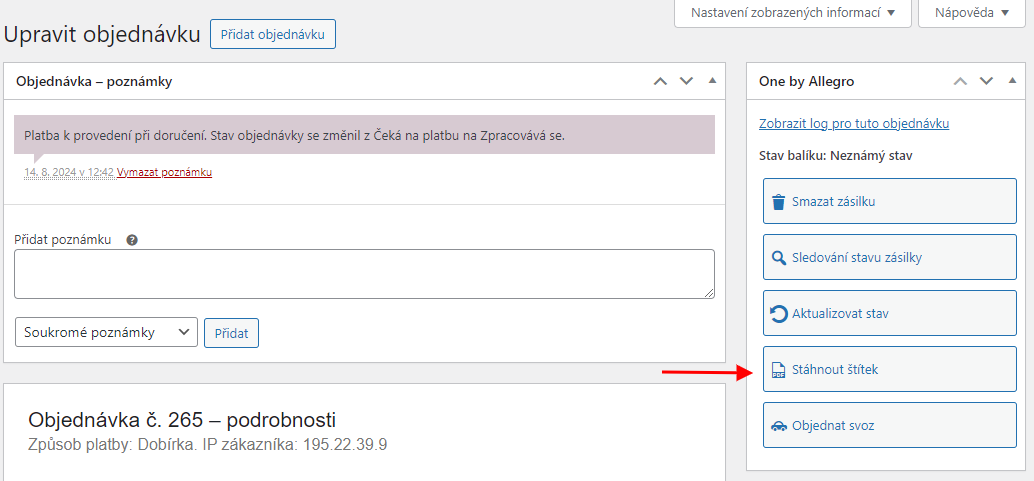
In the order overview, you will find a PDF document icon for orders already submitted to the One system (see image). Click on it for the selected order, the label will be saved in PDF format, and then you can print it.

For a submitted shipment, the label can also be downloaded in the order detail.
Automatic Shipment Status Loading
In the order overview in the “One by Allegro stav” (One by Allegro status) column, the status of the shipment is indicated.
The automatic shipment status loading function has its own detailed settings, which you can find in the section Toret Plugins → One by Allegro → Změna stavu objednávky (Order status change) → Automatické načítání stavu zásilky (Automatic shipment status loading).
If you want to see the current shipment status, you need to set up CRON, which you can find in the One by Allegro settings → Změna stavu objednávky (Order status change).
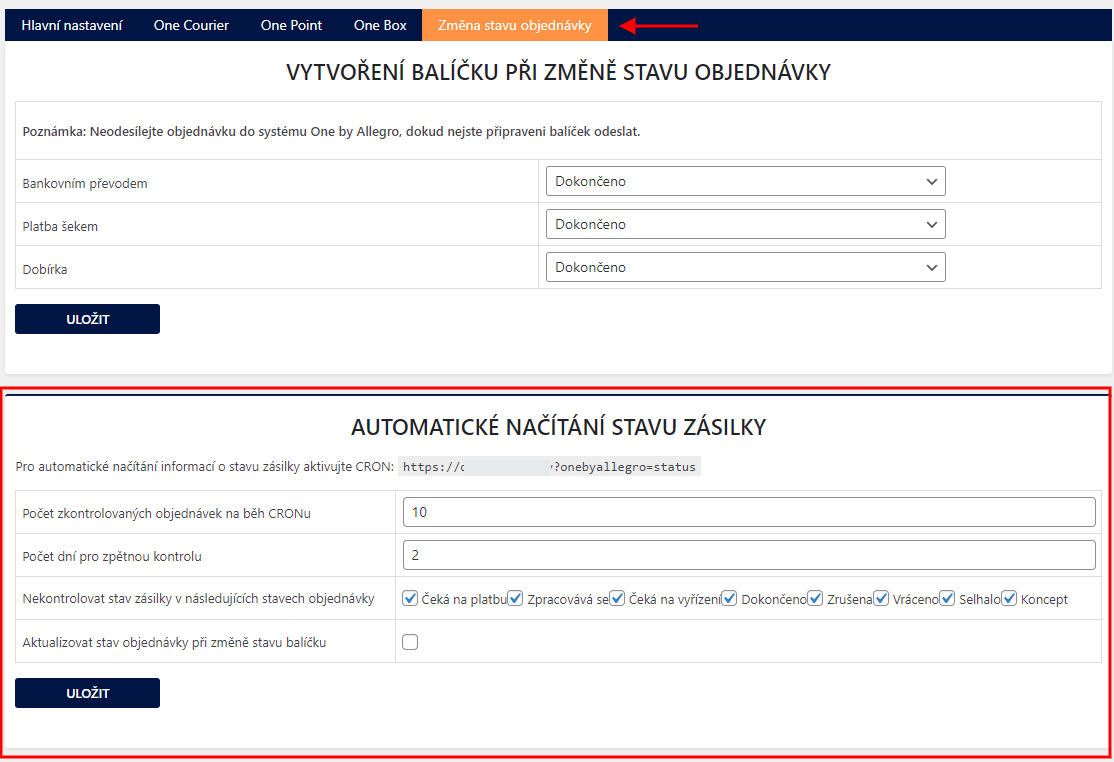
Počet zkontrolovaných objednávek na běh CRONu (Number of orders checked per CRON run)– here you can set how many orders are checked during one CRON run.
Počet dní pro zpětnou kontrolu (Number of days for retrospective check) – number of days for orders for which the status of One packages will be checked retrospectively.
Nekontrolovat stav zásilky v následujících stavech objednávky (Do not check shipment status in the following order statuses) – here you can determine in which order statuses the package status at One will not be checked.
Order Status Change Based on Shipment Status
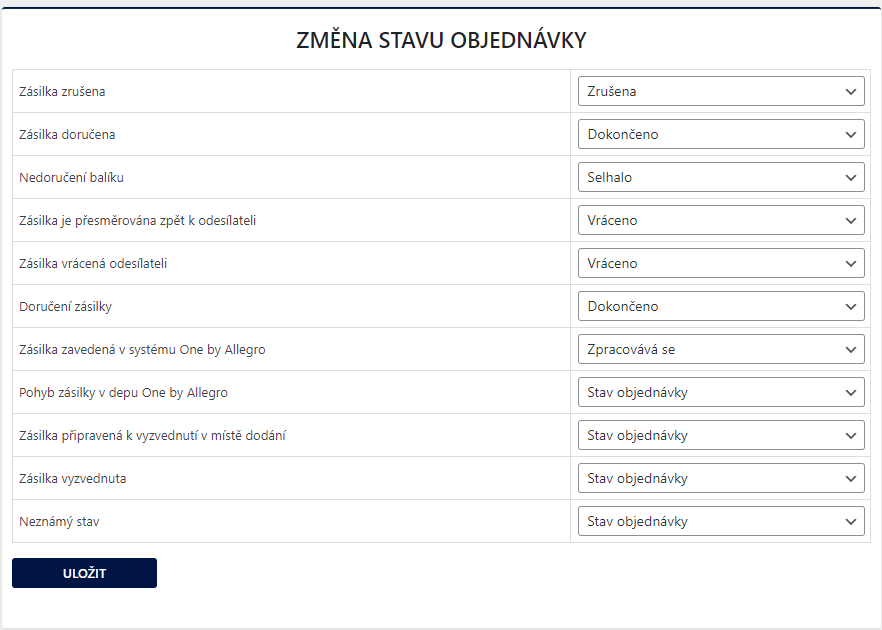
If the function for automatic shipment status loading is already set in the plugin, it is possible to set the order status change based on the shipment status change.
The function for changing the order status according to the package status is in the section Toret Plugins → One by Allegro → Změna stavu objednávky (Order status change) → Změna stavu objednávky (Order status change).
You can set the desired order status to which the order changes (in the right column) for shipment statuses in the One system (left column).
Filters
- for limiting available product types for calculating total weight – tone_disabled_weight_types
Testování pluginu
Pro účely testování můžete využít:
- subdoménu “dev.doménalicence” (se stejnou licencí jako pro produkční web)
- localhost (127.0.0.1)
Na těchto umístěních budou zakoupené pluginy fungovat také a můžete zde otestovat implementaci a kompatibilitu před ostrým nasazením na web i v průběhu jeho užívání.
FAQ
Error: Unexpected status: 22:Přihlášený uživatel nemá oprávnění používat XML server. (Logged in user does not have permission to use XML server.)
According to the written error, you have not yet passed the verification process in test mode with One and have not obtained sharp implementation data.
To be able to use One in live operation, you need to go through the verification process for submitting shipments.
- Request the test Customer ID set in the One account from One support.
- Insert test implementation data into the plugin in addition to the username and password and enable test mode.
- One requires performing 8 test orders in the test environment:
- Two Czech (one with COD, one without COD)
- Two Slovak (one with COD, one without COD)
- Two shipments to pickup points (1 with COD, 1 without COD)
- Two EURODIS shipments (one with COD, one without COD). EURODIS shipments are foreign (excluding Slovakia), for example Germany or France.
- After creating eight test orders, send the numbers of all eight shipments to One support for checking (sending labels of submitted packages is sufficient).
- Once One verifies the labels, they will send live implementation data for connection (Customer ID) and the last step is to insert this live implementation data into the plugin and then it is necessary to turn off test mode.