
You are on the documentation page for the Toret Zásilkovna (Packeta) plugin for WooCommerce, which implements this shipping method into your e-shop.
You can purchase the Zásilkovna plugin here: Toret Zásilkovna for WooCommerce
- Plugin Installation
- Plugin Activation
- Connecting to Zásilkovna (Packeta)
- Countries and Carriers
- Shipping Methods Settings
- Shipping Zone Settings
- Functions in General Settings
- Free Shipping
- Exchange Rates
- Managing Shipments in Zásilkovna Plugin
- Shipments in Zásilkovna System
- Age Verification
- Disabling Carrier for Product
- Disabling Delivery to Z-Boxes
- Setting Package Weight for Manual Order Sending with Zero Weight
- Automatic Shipment Status Loading
- Order Status Change Based on Shipment Status
- FAQ and Troubleshooting
- Debugging Errors
- Shipment Sender is not (Correctly) Entered
- Sender Name Contains the & Character
- WooCommerce Pay for Payment Plugin
- Select Branch Button Not Working
- COD Surcharge Not Displaying
- COD Surcharge Not Displaying with Free Shipping
- VAT is Incorrectly Calculated for Shipping and COD Prices
- How to Reactivate License in Plugin
- PHP Warning: allow_url_fopen=0 Displays When Updating Carriers
- Order with COD is Not Sent to Zásilkovna System
- Forbidden – Error When Loading Carriers
- Original URL Still Attributes After License Key Reset
- Cannot Load Carriers (Countries)
- How to Set Zásilkovna Plugin to Avoid Increasing Shipping Price Due to Relabeling (Zero Weight)
- Shipment Value for Insurance Purposes is Not Entered. Please Enter It.
- Submission Error: faultRequestErrorAn error occured parsing request
- Using Filters
- Filter for Setting Order Weight
- Filter for Setting Submitted Shipment Statuses
- Filter for Setting COD VAT
- Filter dobirka_is_virtual_product_in_cart
- Filter zasilkovna_order_number
- Filter zasilkovna_allow_multiple_submissions
- Filter zasilkovna_filter_id_cost
- Filter zasilkovna_express_ostrava_cz_cost
- Filter zasilkovna_express_praha_cz_cost
- Filter zasilkovna_express_brno_cz_cost
- Filter zasilkovna_dpd_cz_cost
- Filter cesko_nejlevnejsi_doruceni_shipping_cost
- Filter zasilkovna_cp_cz_cost
- Filter zasilkovna_shipping_cost
- Filter for Modifying Free Shipping Text
- Filter zasilkovna_group_print_services_format
- Disabling autoload parameter for Toret Zásilkovna option
- Hooks
- Plugin testing
Plugin Installation
After purchasing the plugin, you will receive a license key and a download link for the plugin zip file via email. You can find detailed instructions on how to install the plugin from your computer into WordPress here.
Plugin Activation
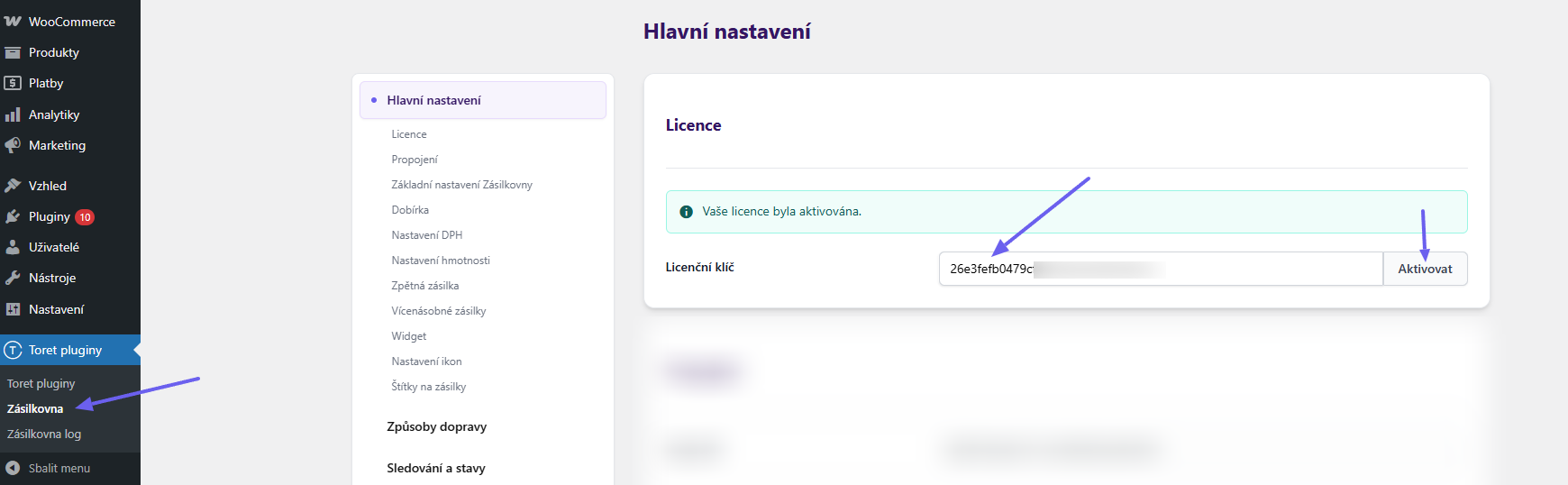
(Toret plugins > Packeta)
After installing the plugin, open the Zásilkovna plugin, insert the license key into the appropriate field, and click the button to activate.
Connecting to Zásilkovna (Packeta)
To use the Zásilkovna plugin, you must have an account created with Zásilkovna. If you do not have an account, you can register here.
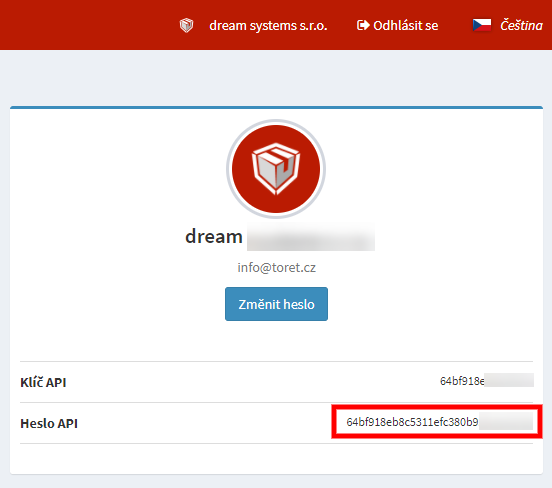
After logging into the Zásilkovna system, click on the account name in the top bar.

Your account information will be displayed. In the right part, you will find the API Password (Heslo API), which you will need for implementation. Copy it.
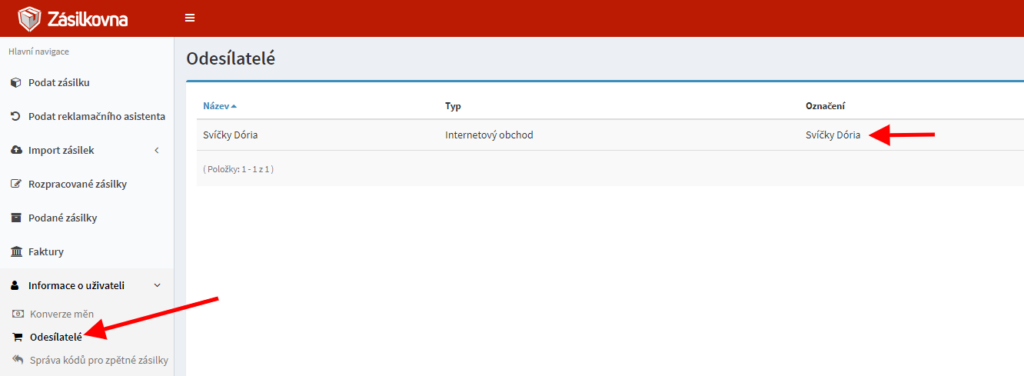
In addition to the API password, you will also need the e-shop designation (označení e-shopu) that you entered when creating the sender. You can also get this value in the Zásilkovna system as follows:
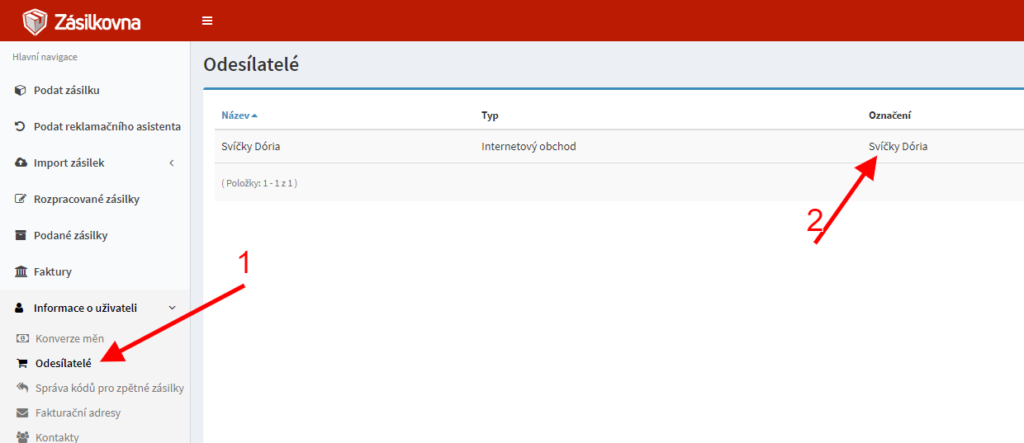
Open the section Informace o uživateli (User Information) → Odesílatelé (Senders) in the left menu. Here you will find the designation field, the value of which needs to be copied.
You must insert the value from the “Označení” (Designation) field into the plugin exactly, including diacritics. In case the designation contains the character “&”, it is necessary to modify the designation in the Zásilkovna account administration so that it does not contain this character. Otherwise, the connection would fail.
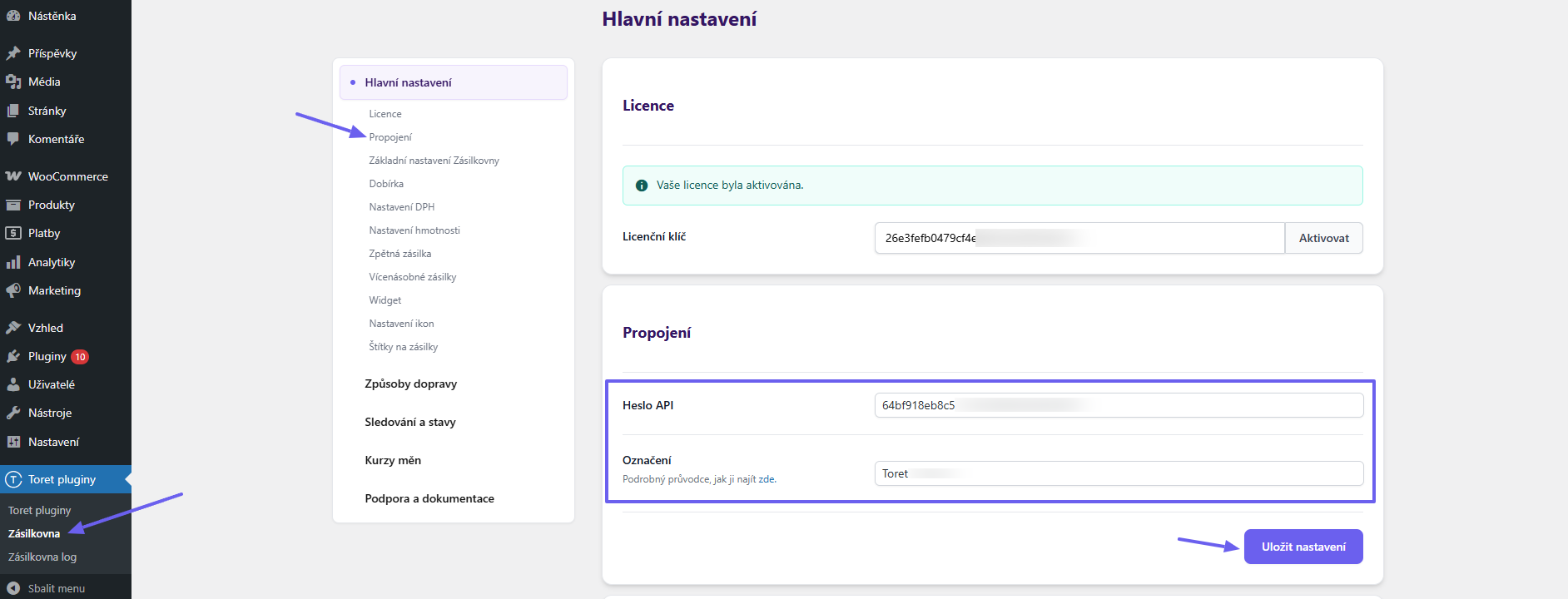
Insert the copied implementation data API Password and Designation into the relevant fields in the plugin settings and save with the button.
Countries and Carriers
Enabling External Pickup Point Display
Zásilkovna uses either its own (official) or external (partner – this applies mainly to foreign countries) pickup points. If you also want to use external pickup points, it is necessary to enable them in your Zásilkovna account, see video.
Loading Available Carriers
Go to the Dopravci (Carriers) tab, where it is necessary to load the list of available carriers.
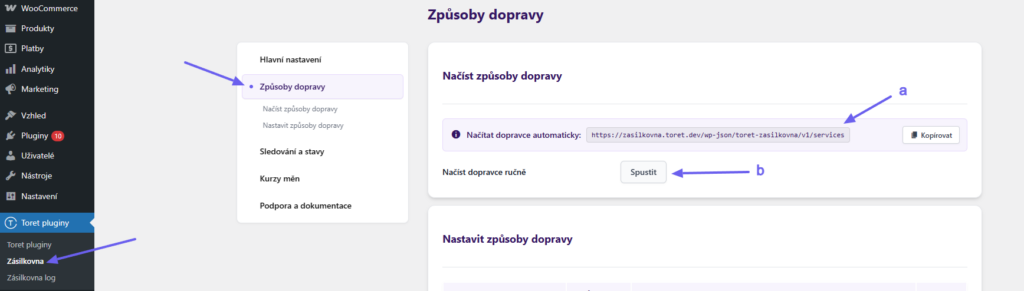
You have two loading options:
- Automatic loading via CRON (a)
- Manual loading via button (b)
For regular carrier updates, we recommend setting up a CRON job on your website hosting. We recommend setting the CRON execution interval to once every 12 hours.
After setting up CRON on the hosting, you don’t have to wait for the CRON to run, but you can load the carriers manually using the button for the first time.
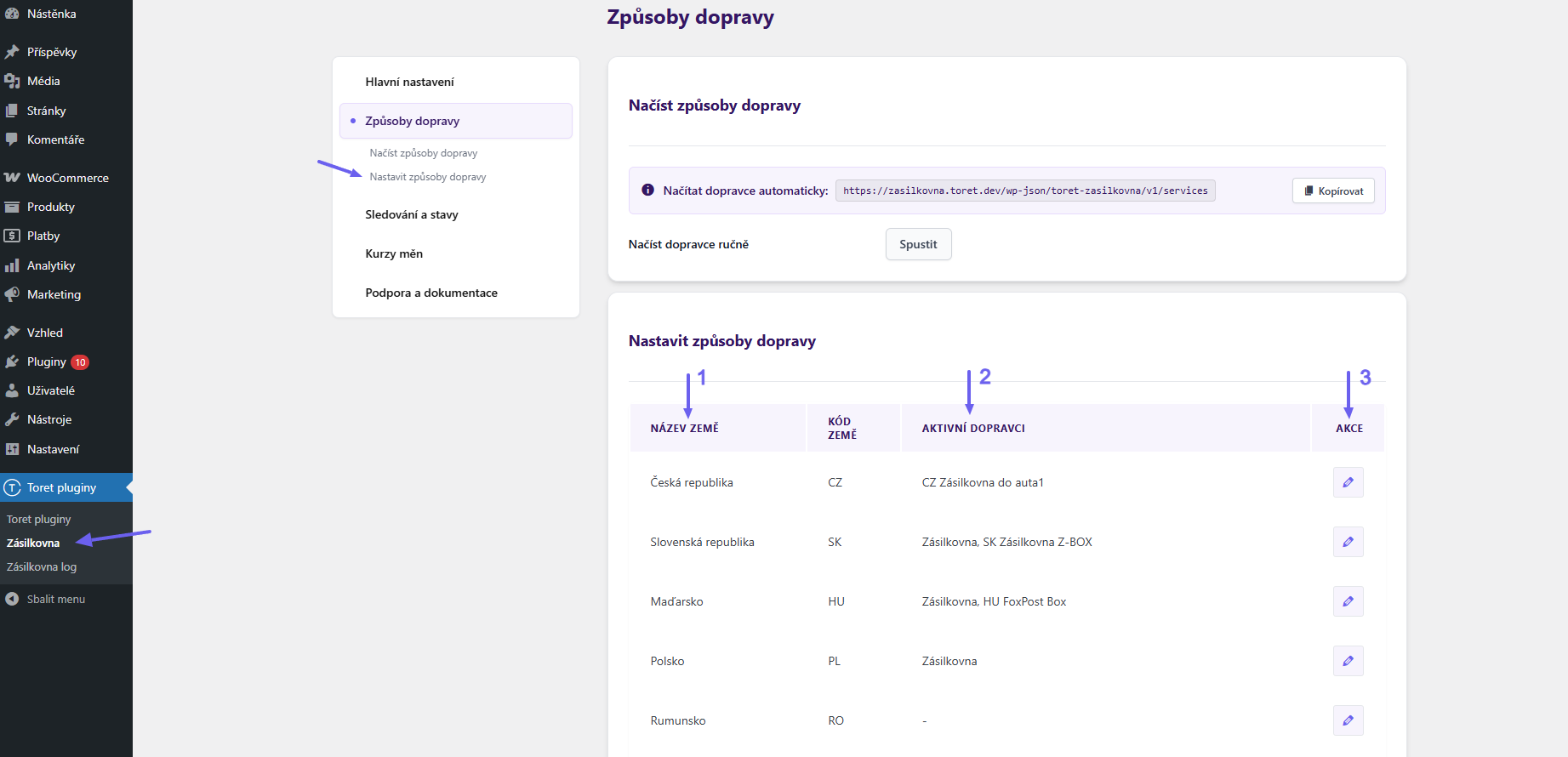
After loading carriers, available countries for delivery will appear below in the Země (Countries) box. In the next step, we will activate and specify individual shipping methods offered by the Zásilkovna plugin
The first column (1) lists country names. The Active Carriers column (2) shows carriers you have enabled in the e-shop. In the Actions column (3), you will find a Settings button that takes you to the carrier settings for the given country.
Shipping Methods Settings
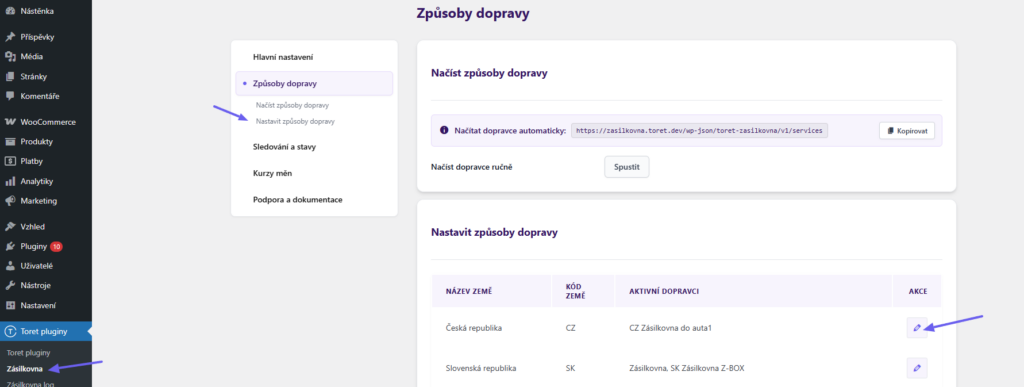
On the Shipping Methods tab, click the Settings button for the country you want to set up delivery for.
On the next page, you will find an overview of the available shipping methods for the given country in the left column. Select the shipping method you want to configure.
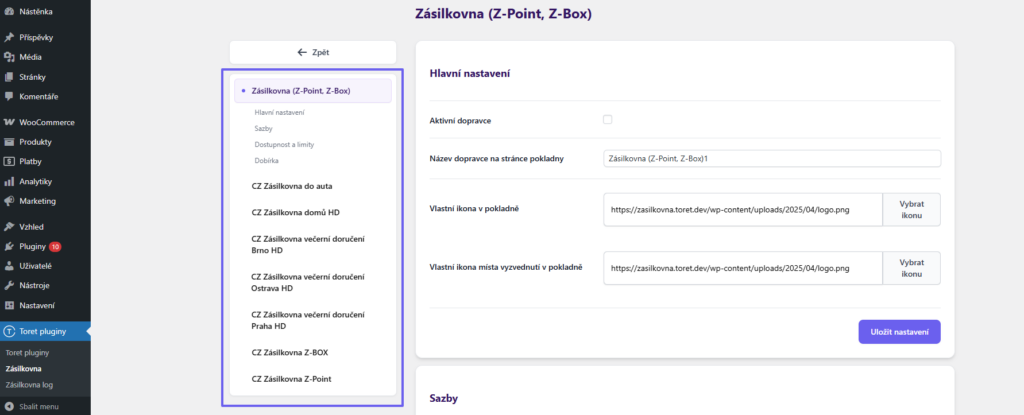
TIP: For delivery to parcel lockers and pickup points, you can set these options up in one method – Zásilkovna (Z-Point, Z-Box) – or separately for each option – Zásilkovna Z-Point, Zásilkovna Z-Box.
Enable the carrier by checking the “Activate carrier” checkbox and click “Save.”
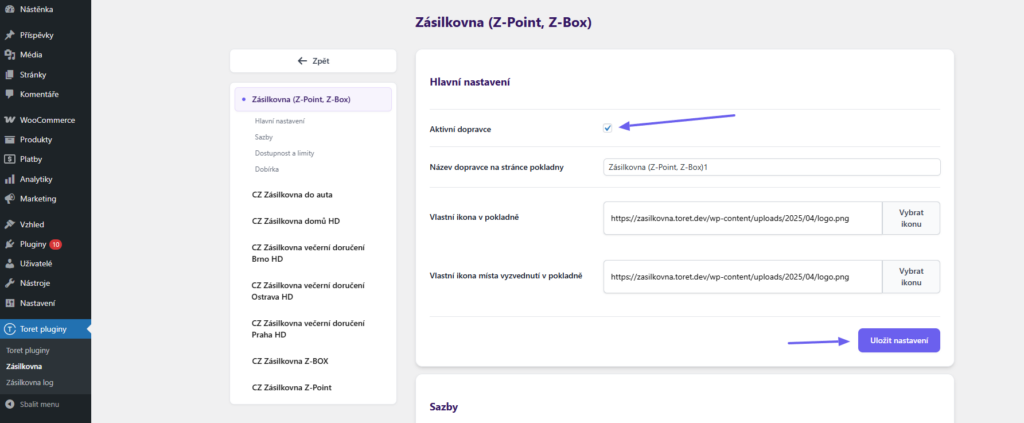
For each available shipping method in the plugin, it is possible to set:
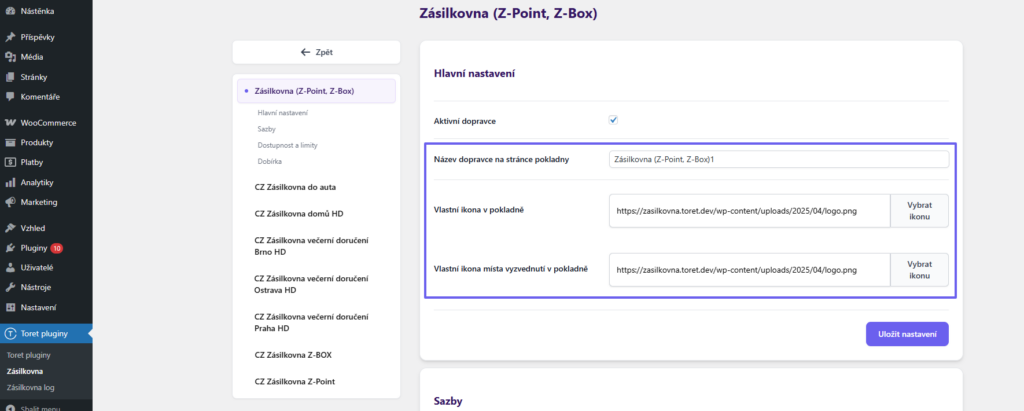
Settings for icons and the name in the checkout
- carrier name on the checkout page
- custom icon in checkout – displayed next to the shipping method
- custom pickup point icon in checkout – displayed on the button used to open the widget for selecting a pickup location
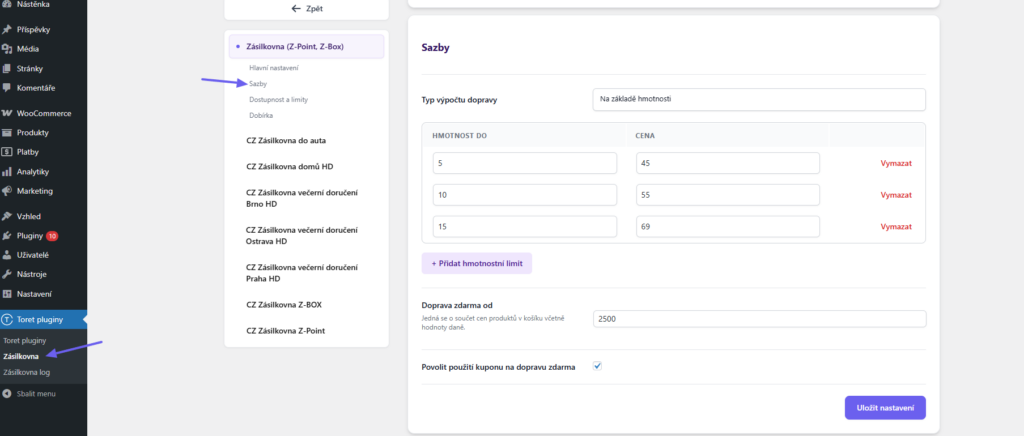
Rates (Shipping price settings)
- shipping cost calculation type – you can choose a flat rate, or pricing based on weight, dimensions, or order total
- fixed price or custom rules for calculating the shipping cost
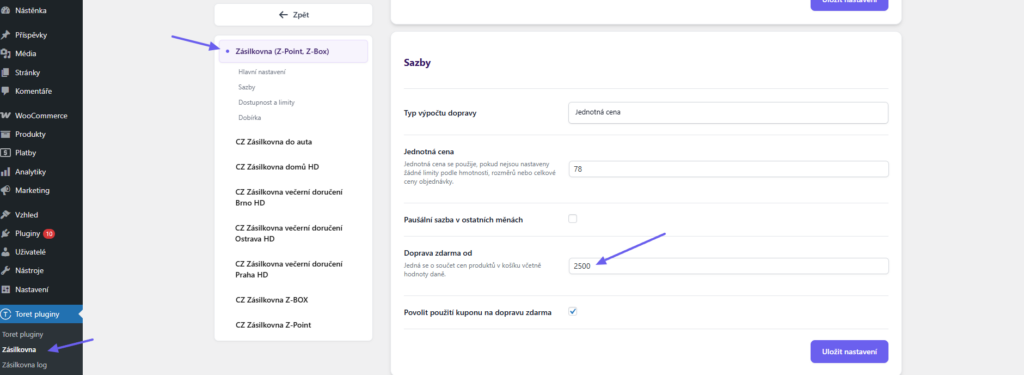
- free shipping from – enter the amount from which free shipping is applied. The total price of all products in the cart including tax is taken into account.
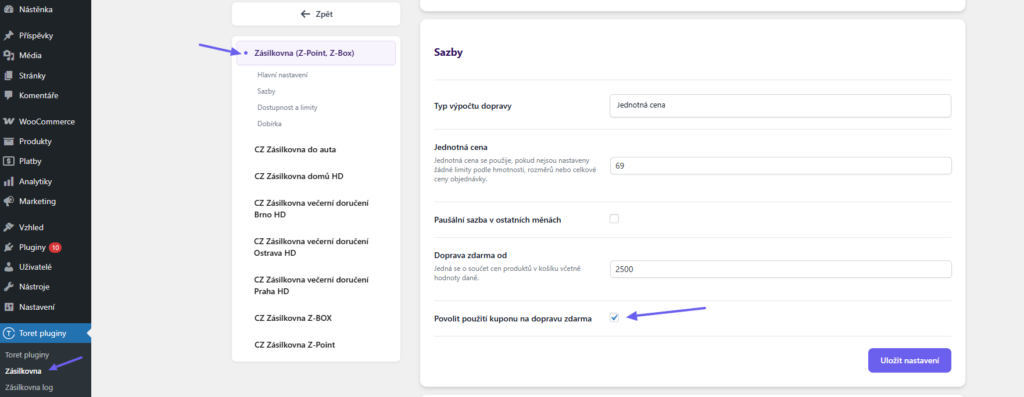
- allow use of free shipping coupon – enables coupons for this shipping method
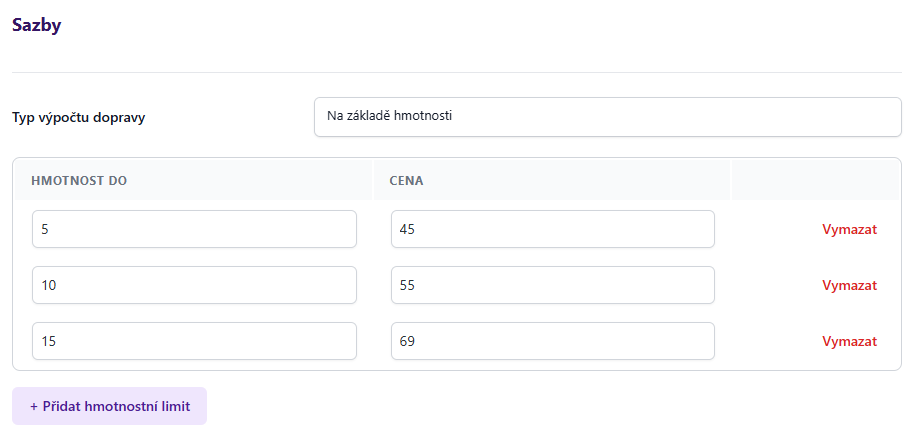
Shipping Price Scaling
In the plugin, you can set shipping prices by weight, dimensions, or order value for the carrier.
After selecting the shipping calculation type in the dropdown, fields for entering values and price will appear. Clicking the Přidat limit (Add limit) button adds a new row for entering quantity and price. The entered limits are calculated inclusively.
Availability and limits (Shipping condition settings)
- maximum weight – if this value is exceeded, the shipping method will not be available in checkout
- maximum cart total price – if this value is exceeded, the shipping method will not be available in checkout
- enable parcel dimension check – when enabled, the following values can be applied:
- maximum single side length – if this value is exceeded, the shipping method will not be available in checkout
- maximum sum of three sides – if this value is exceeded, the shipping method will not be available in checkout
Cash on delivery (COD settings)
The price and conditions for cash on delivery are set separately for each shipping method in the Zásilkovna plugin (Toret plugins → Zásilkovna → Shipping methods). In addition to these settings, it is also necessary to enable the cash on delivery payment method in WooCommerce settings (see below).
- maximum COD value – COD will not be available for orders above this amount
- COD fee calculation type – you can choose a flat rate or tiered pricing based on order value
- fixed price or custom rules for tiered pricing
- fixed COD surcharge for additional currencies – here you can enter fixed COD surcharges for other currencies used in your e-shop. The rate is applied according to the order currency.
Disabling cash on delivery for individual carriers
If cash on delivery is enabled but you do not want it to be available for a specific configured carrier, enter the value 0 (zero) in the “Maximum COD amount setting” field (4) for that carrier.
TIP: Cash on delivery cannot be configured for all shipping methods – it depends on the carrier’s rules. If COD is not available for a given shipping method, the COD section will not appear in its settings.
Setting up the cash on delivery payment method in WooCommerce
After configuring cash on delivery for carriers, you also need to set up cash on delivery directly in WooCommerce (WooCommerce → Settings → Payments → Accept offline payments → Cash on delivery).
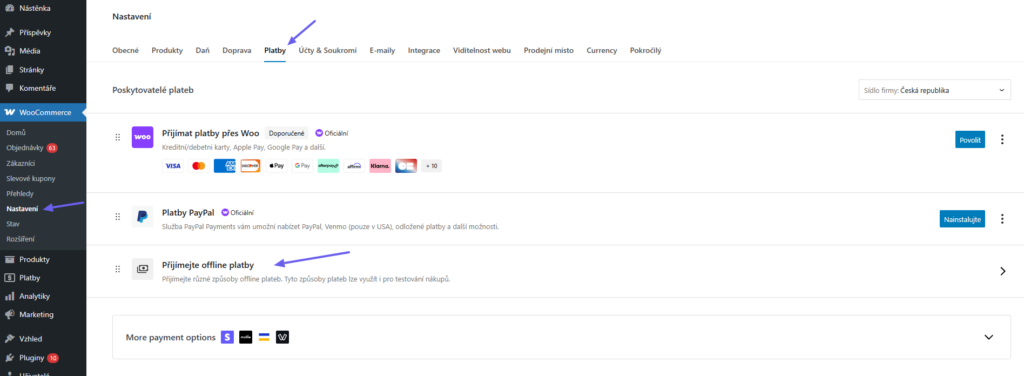
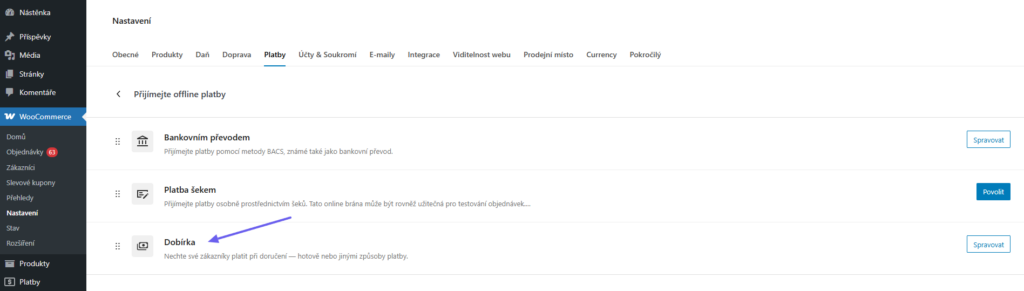
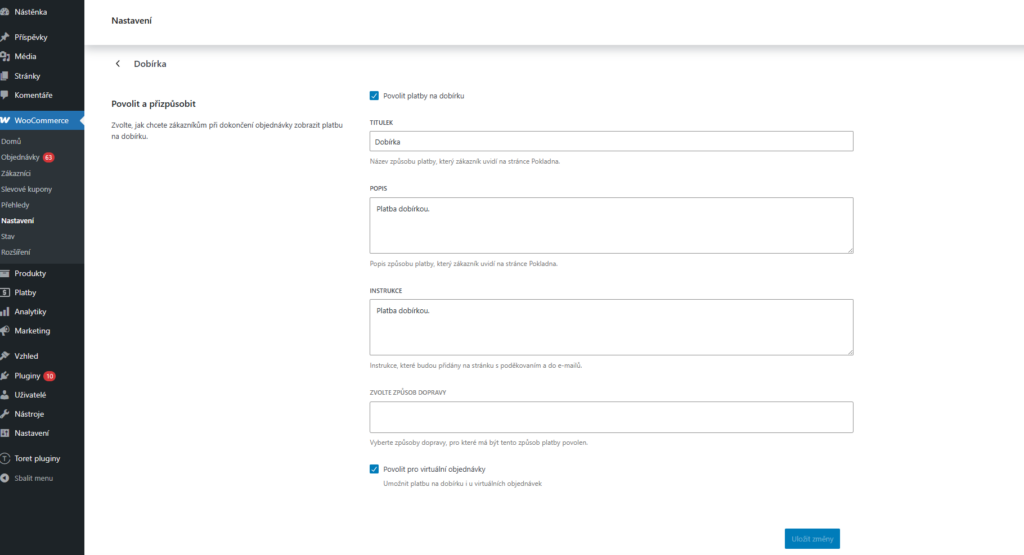
The cash on delivery settings will open, where:
- Check the box to enable cash on delivery payments
- In Title, enter how the payment method will be named and displayed
- In Description, write how the payment will be described to the customer and how it will appear
- Instructions are important information for the customer, which will be shown on the Thank You page and in the confirmation email
- In the field Select shipping method, enter Zásilkovna or leave it empty = enabled for all
- Save the settings by clicking Save changes
Cash on delivery will be displayed when placing an order in Checkout or after completion on the Thank You page, in the confirmation email, or in the order overview in My Account after the customer logs in to your website.
Shipping Zone Settings
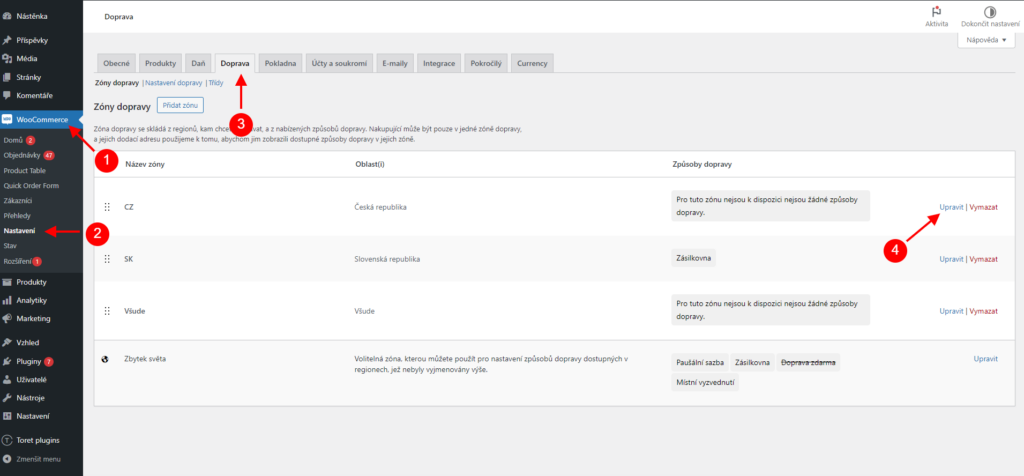
After setting up carriers in the Zásilkovna plugin, it is also necessary to set up the identically named carrier in WooCommerce shipping zones. Without its setting in shipping zones, carriers from the Zásilkovna plugin will not appear in the checkout.
You can find shipping zone settings in WooCommerce > Settings > Shipping > Edit.
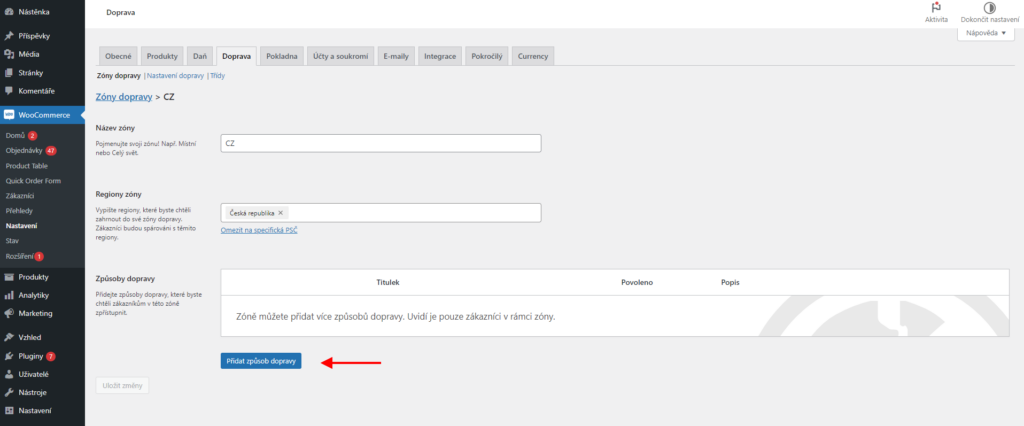
In the selected zone, click on Add shipping method.
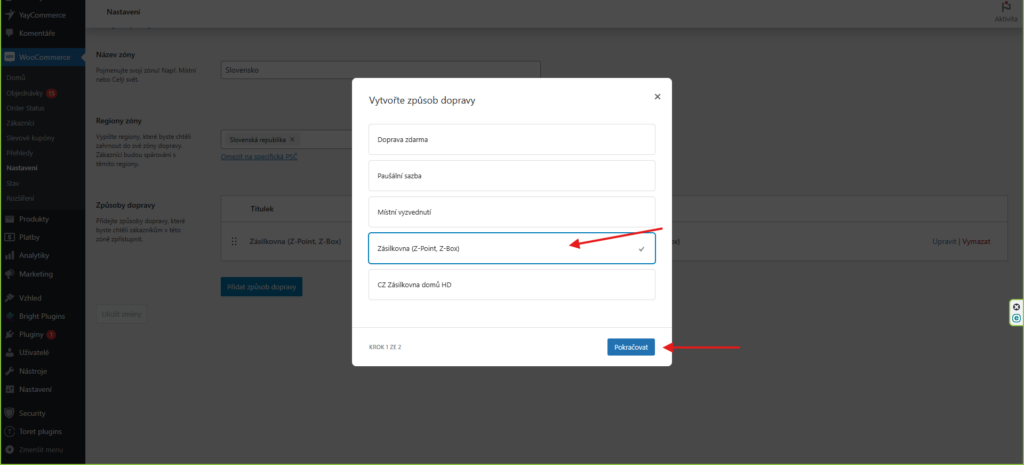
In the window that opens, click on the selected carrier e.g. Zásilkovna (Z-Point, Z-Box) and then on Continue.
Attention! A separate shipping method is available for each carrier. Make sure you enable the same shipping method you set in the plugin.
Now you have this shipping method enabled.
Functions in General Settings
(Toret plugins → Packeta → General Settings)
Let’s look at the plugin setting options in the Hlavní nastavení (General Settings) part.
We showed license settings, implementation data, and carrier settings for individual countries in the previous steps. Now we will focus on other sections on the Hlavní nastavení tab.
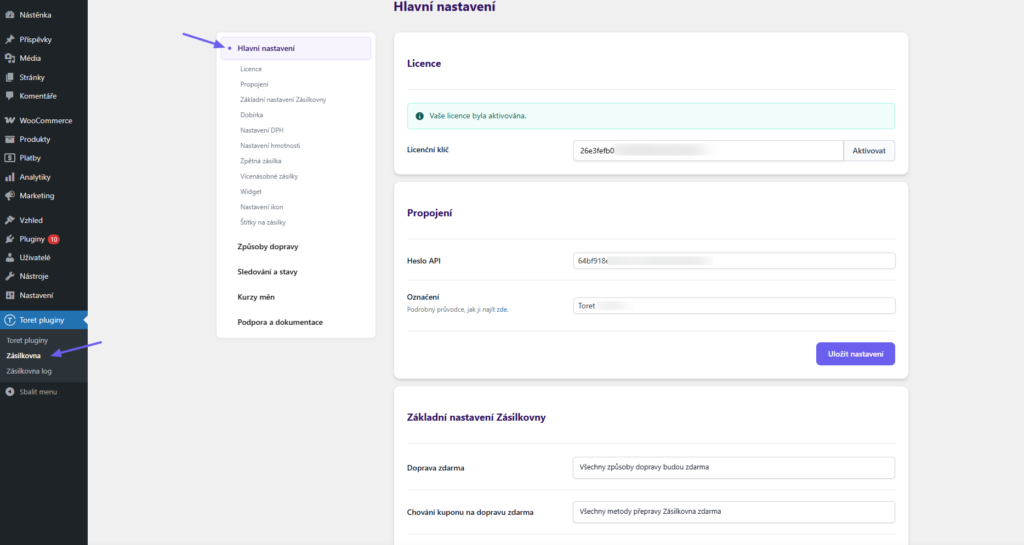
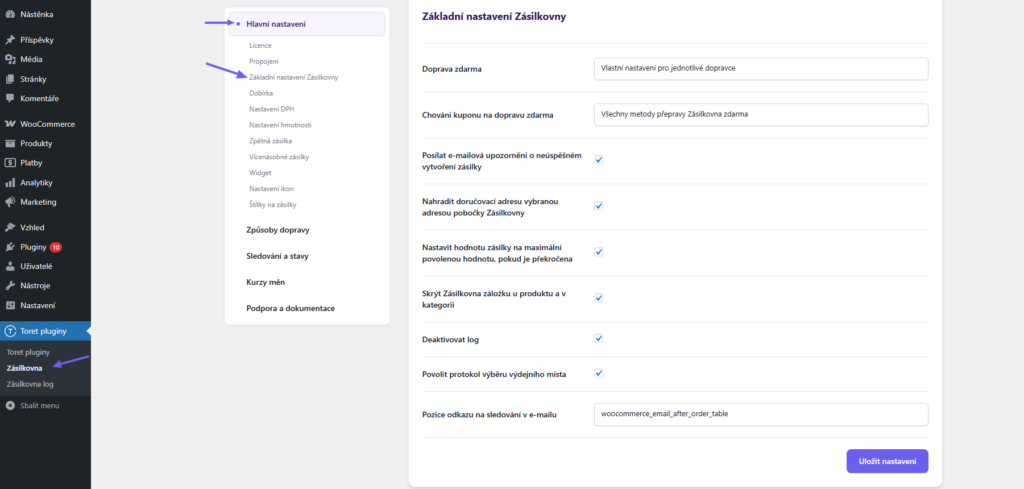
Packeta basic settings
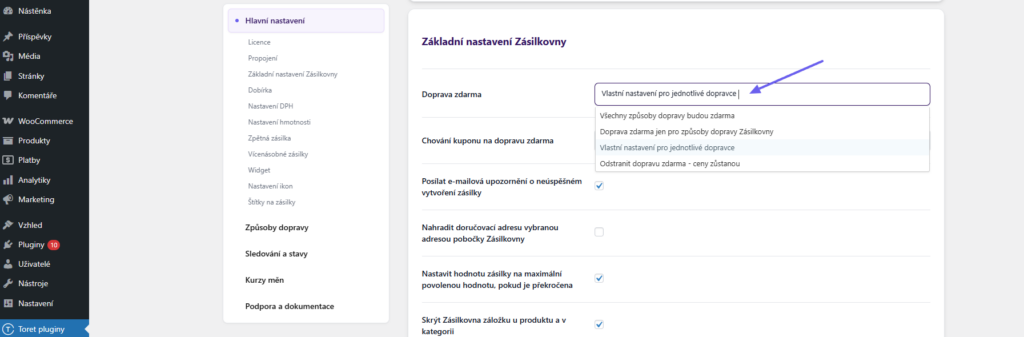
- Free shipping: Here you can set free shipping globally. You can choose
- all shipping methods free
- free shipping only for Zásilkovna
- free shipping in shipping selection – free shipping will follow settings for individual carriers
- remove free shipping – free shipping will not be applied
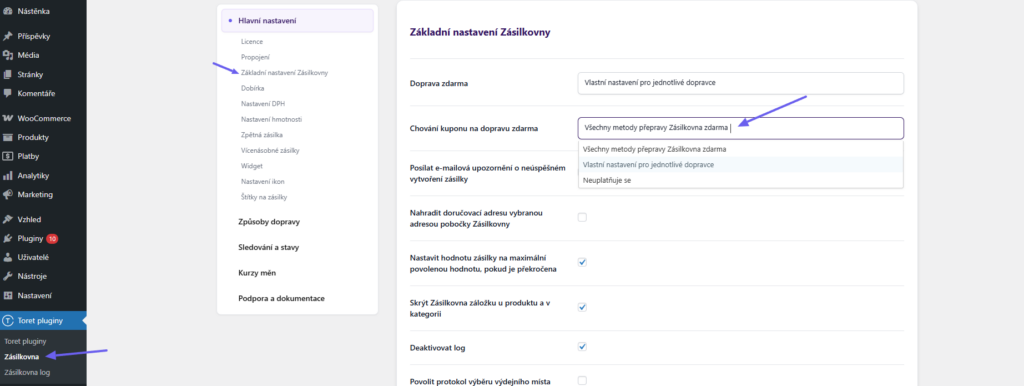
- Free shipping coupon behavior: Here you can adjust how free shipping coupons work
- All Packeta shipping methods free – the coupon can be applied to all Packeta shipping methods
- Custom settings for individual carriers – coupon usage is enabled in the settings of each specific shipping method
- Not applied – free shipping coupons will not be active
- After checking the function Send email notifications about failed shipment creation an email will be sent from WordPress to the administrator if the shipment is not created.
- The function Replace delivery address with selected Packeta branch address overwrites the delivery address in the order detail with the branch address – customers will not have to unnecessarily fill in their address.
- Set shipment value to maximum allowed value if exceeded
- Hide Packeta tab on product and in category – the Packeta settings tab in product and category details will not be displayed
- Deactivate log
- Enable pickup point selection log: Enables logging for the pickup point selection process.
- Tracking link position in email: Here you can select the position hook where the tracking link will be displayed in the automatic email for the customer
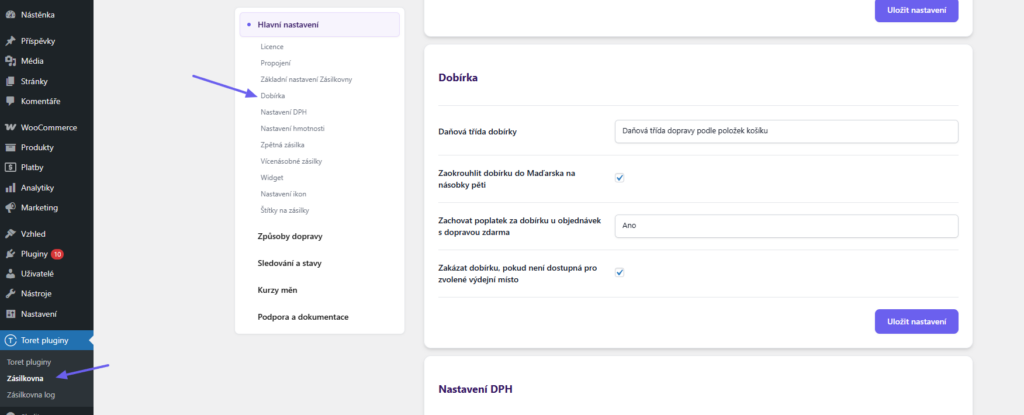
Cash on Delivery (Dobírka) – general settings
- COD tax class: Can be set fixed according to entered rates in WooCommerce or according to the tax rate of items in the order
- Round COD to Hungary to multiples of five: For sending COD to Hungary, this function rounds the COD amount to multiples of five (i.e. 0 or 5).
- Keep COD fee for orders with free shipping: The COD surcharge for orders with free shipping can be kept or COD left without a fee
- Disable COD if not available for selected pickup point: If the customer selects a pickup point in the checkout that does not allow COD payment, COD will be hidden in the checkout
TIP: You set the fee calculation type and the fee amount itself for each carrier separately on the Carriers tab (see Carrier Settings)
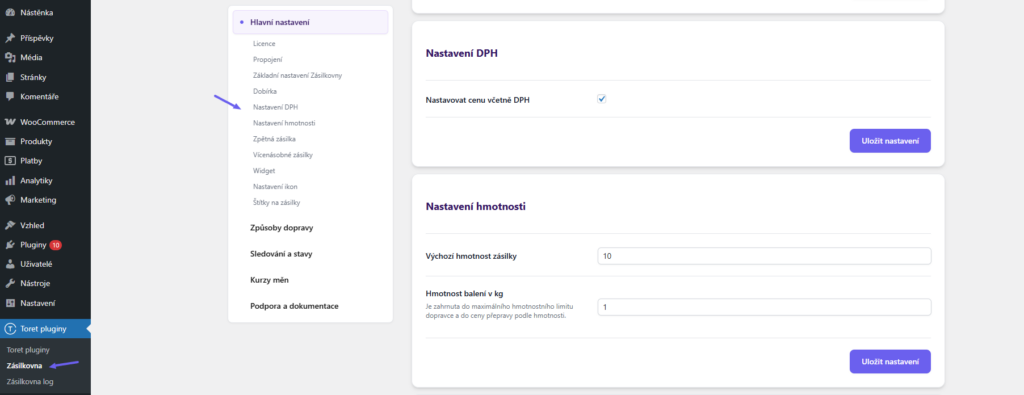
Price Settings (VAT)
If you have taxes (VAT) enabled in WooCommerce, you can activate the function Set price including VAT in the plugin. Then it is possible to enter prices including VAT in the plugin.
TIP: You set specific shipping prices for each carrier separately on the Carriers tab (see Carrier Settings)
Weight Settings
Here you can set the default shipment weight, which will be used if the weight is not entered directly in the carrier settings or for products. Packaging weight is automatically added to the shipment. This weight is included in weight limits and is also used to determine shipping cost based on weight.
Return Shipment
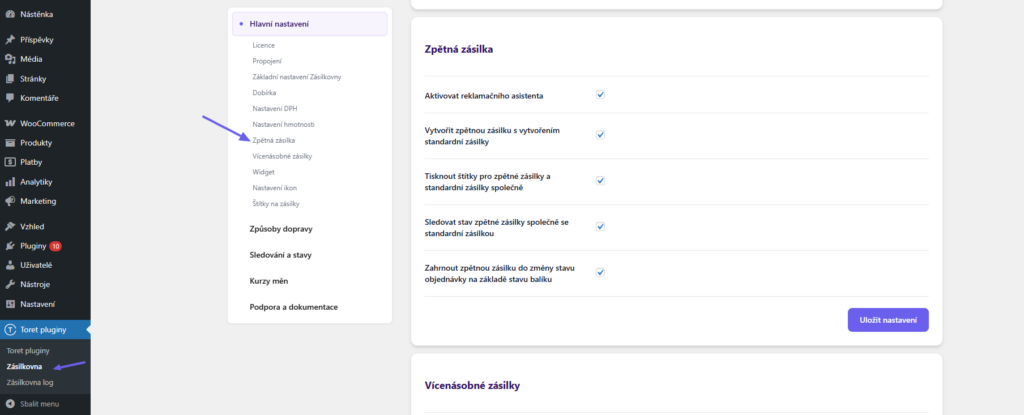
Here you can set up a return shipment, which is used for transport from the customer back to the e-shop (in case of a complaint or return).
- Activate complaint assistant – turns on the return shipment function
- Create return shipment with creation of standard shipment – when creating a package, a return shipment is also automatically created
- Print labels for return shipments and standard shipments together – when printing labels, the one for the return shipment is automatically printed (you can e.g. pack it in the shipment)
- Track return shipment status together with standard shipment – turns on return shipment status tracking
- Include return shipment in order status change based on package status – allows changing order status according to return shipment status in transit
Multiple Shipments
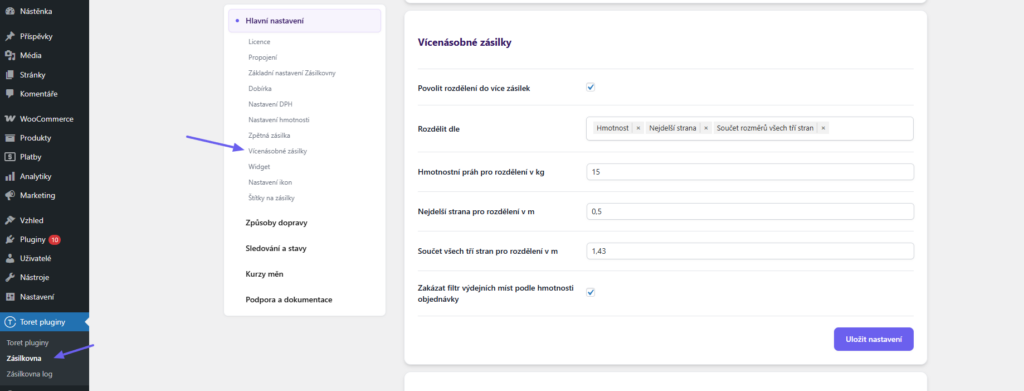
Here you can enter the splitting of the order into multiple packages.
- Enable splitting into multiple shipments – turns on the function
- Split by: Click to select the criterion by which you want to split shipments. You can select multiple criteria by holding the ctrl key.
- Split threshold – enter the threshold above which another shipment will be created. Units used are kg or m, according to the selected criterion.
- Disable pickup point filter by order weight – allows selecting even those pickup points that would not be displayed due to high order weight, but thanks to splitting into multiple lighter shipments, they can be used
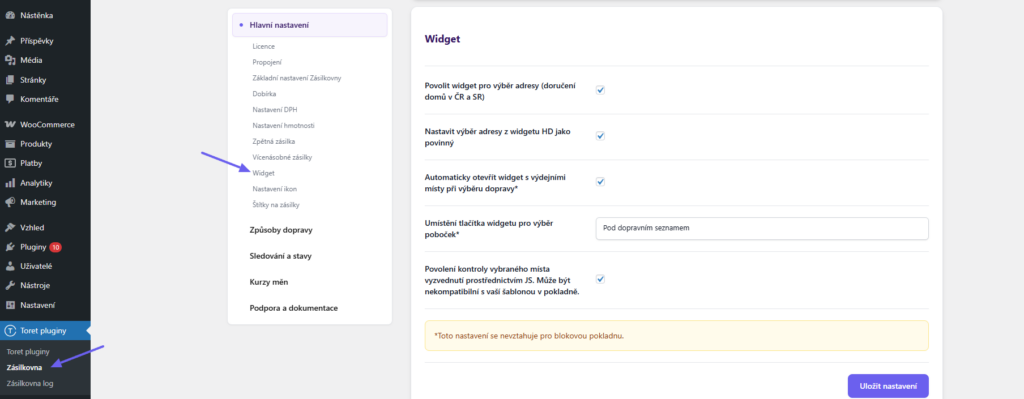
Widget
- Enable widget for address selection (home delivery in CZ and SK) – turns on the widget for address delivery too
- Set address selection from HD widget as mandatory – if delivery address is not selected from the widget, the order cannot be sent
- Automatically open widget with pickup points when selecting shipping: If the customer selects a shipping method with branch selection in the checkout, the map widget opens automatically. The customer does not have to click extra. The button to open the map remains if e.g. the customer wanted to change the branch additionally.
- Placement of widget button for branch selection: Here you can set whether you want to display the button directly under the given shipping method or at the end of the shipping list.
- Enable checking of selected pickup point via JS (may be incompatible with your checkout theme)
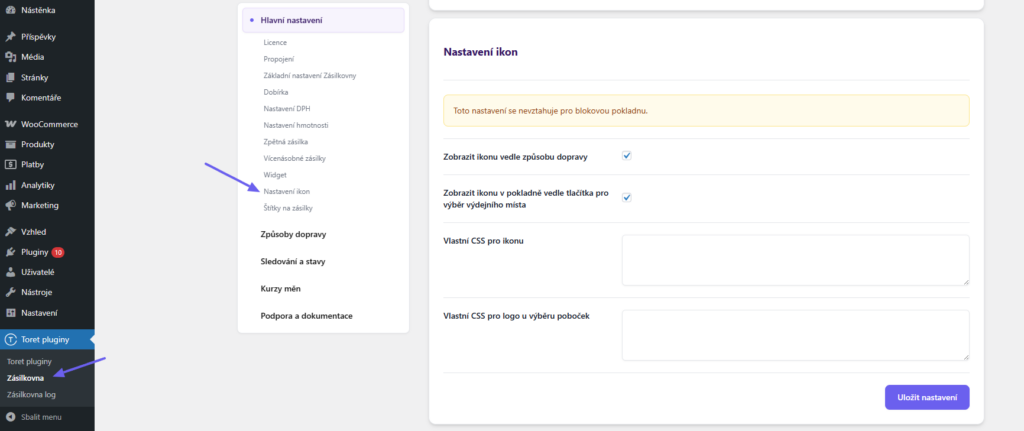
Icon Settings
Here you set icons that will be displayed in the checkout. You can:
- Display icon next to shipping method
- Display icon in checkout next to the pickup point selection button
- enter custom CSS for icon
- enter custom CSS for logo at branch selection
Plugin includes pre-set carrier icons/logos. If you want to display custom icons, you can upload them in the settings of individual shipping methods.
Note: Icons are only displayed in the standard WooCommerce checkout (shortcode). In the block-based checkout, icons are not shown.
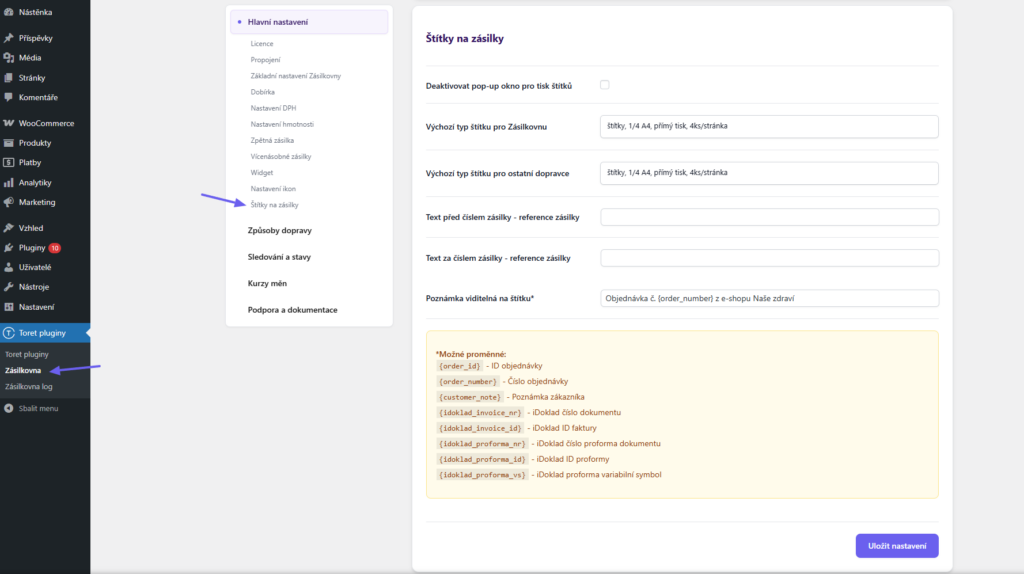
Label Settings
- Deactivation of pop-up window for label printing is used if you preset default label types and do not use another format. Then the pop-up window is just an unnecessary extra step before printing labels.
- Default label type for Zásilkovna is set for Zásilkovna’s own shipping (Zásilkovna pickup points, Home delivery). The set label format will be preselected in the pop-up window before printing, or in case of deactivating the pop-up window, the label will be downloaded directly in the preset format.
- Default label type for other carriers is set for external carriers of Zásilkovna (Slovenská pošta, Hermes etc.). The set label format will be preselected in the pop-up window before printing, or in case of deactivating the pop-up window, the label will be downloaded directly in the preset format.
- Text before/after package number: Here you can insert additional text.
- Note visible on label: Here you can enter a note that will be written on the package label. You can insert regular text and also use variables for Order ID or Number and customer note. When using the iDoklad plugin, you can also use variables for invoice or proforma number or ID and proforma variable symbol.
Free Shipping
You set free shipping directly in the Zásilkovna plugin globally in General Settings (Toret plugins → Zásilkovna → Hlavní nastavení) and then individually for individual shipping methods in their settings (Toret plugins > Zásilkovna > Způsoby dopravy > Nastavení). The plugin also supports coupons for free shipping.
In Hlavní nastavení (General Settings) you can globally set free shipping for all shipping methods, only for Zásilkovna methods, according to carrier settings, or disable free shipping.
In carrier settings you set free shipping from. Free shipping is then activated on the web from the amount in the cart. The free shipping amount setting applies only to products, shipping price is not included.
EXAMPLE: If you want free shipping from 500, set the amount 500 in the plugin.
EXAMPLE: If you have free shipping set from 500, and there is a product for 450 + shipping price 65 = 515 CZK in the cart, free shipping will not be activated. So, to activate free shipping set this way, it is necessary to put product(s) worth at least 500 CZK into the cart.
Filter for Free Shipping
In case you need to modify this behavior in a more advanced way, the plugin contains a filter:
apply_filters( ‚zasilkovna_free_shipping_rates‘, $rates, $old_rates, $package );Using it, you influence the $rates value, which is sent to the filter woocommerce_package_rates.
In the filter, $rates is the modified value, $old_rates contains the original, unchanged value received into the function.
The Zásilkovna plugin cannot be used in combination with the default Free shipping method in WooCommerce, but it is necessary to use the free shipping settings contained in the plugin.
Free Shipping for Product or Category
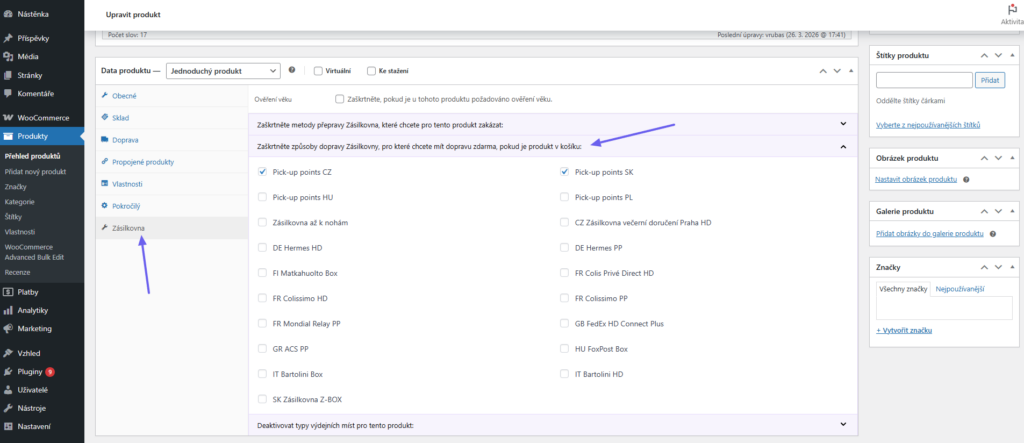
You can also set free shipping for individual shipping methods in the product or category detail.
Free Shipping Coupons
Using free shipping coupons must first be enabled in the Main Settings of the plugin (Toret plugins > Zásilkovna > Hlavní nastavení). Here you can enable coupons for all shipping methods, for selected methods, or disable them.
If you choose the option of coupons only for selected shipping methods, it is necessary to subsequently enable coupons in the settings of specific carriers (Toret plugins > Zásilkovna > Způsoby dopravy > Nastavení).
Exchange Rates
In the plugin settings (Toret plugins → Zásilkovna → Kurzy měn) there is an option to set exchange rates for calculating shipping prices.
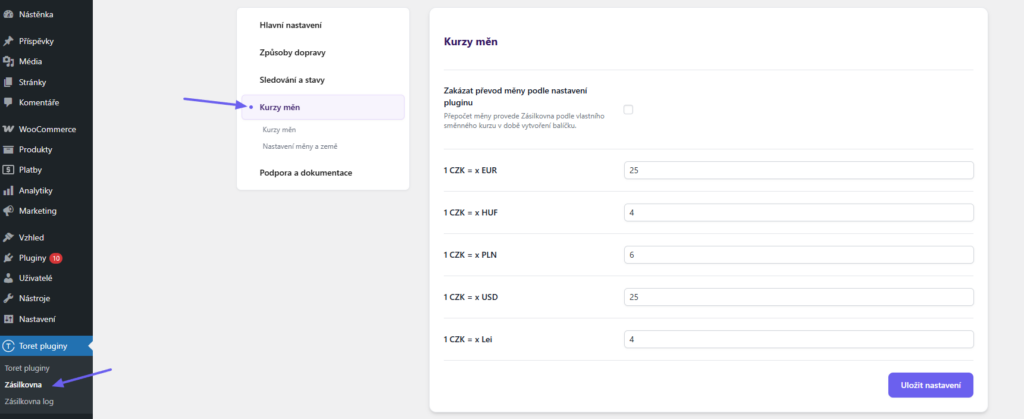
Fields are available for all used currencies, meaning Euro, Dollar, Hungarian Forint, Polish Zloty, and Romanian Lei.
If you activate the function Zakázat převod měny podle nastavení pluginu (Disable currency conversion according to plugin settings), Zásilkovna’s own rate will be used for conversion.
Shipment Currencies
Zásilkovna allows setting the currency in which it will accept the shipment for some countries. At the same time, WooCommerce allows you to use multiple currencies. Therefore, it is necessary to determine the procedure how currencies will be converted depending on the country where the order will be directed.
Zásilkovna can perform currency conversion itself. More information on currency conversion can be found in the administration of your account at zasilkovna.cz
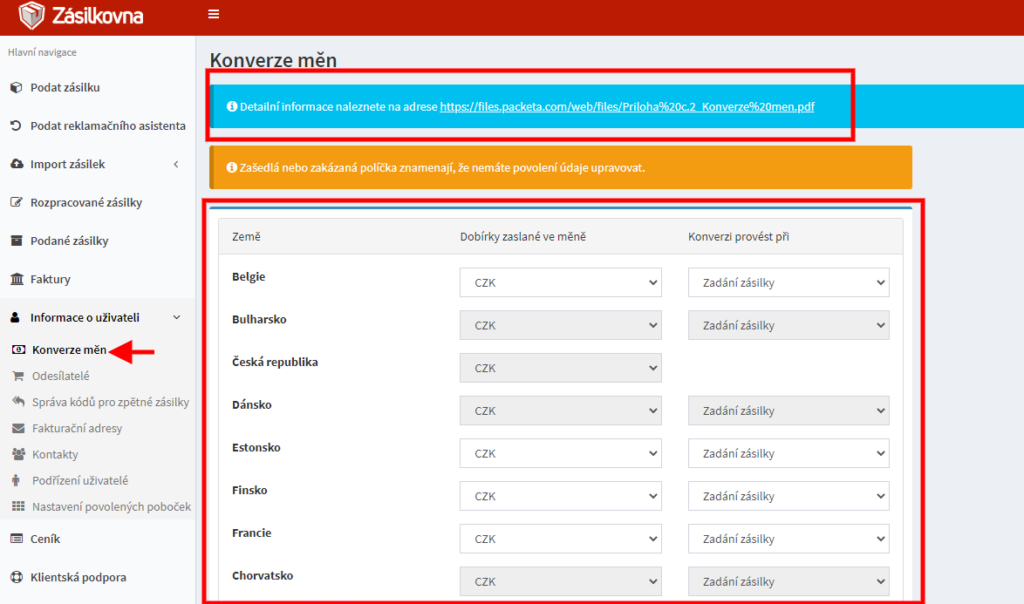
In case you want to use custom currency conversion according to your own rate, you must set it in the Zásilkovna plugin. Here (Toret plugins → Zásilkovna → Kurzy měn) is the option to set exchange rates for calculating shipping prices.
Managing Shipments in Zásilkovna Plugin
In the following video, you will get acquainted with the options for managing shipments with the Zásilkovna plugin.
Below we describe individual functions in more detail.
Creating shipments (dispatching)
Shipments for Zásilkovna can be created manually or automatically.
Manual dispatch
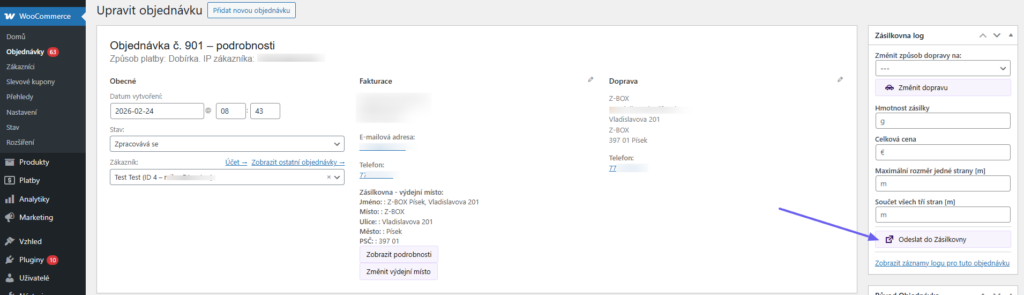
Manual shipment creation is possible from the order overview or from the order detail page.
In the order overview, you can create a shipment by clicking button (b) in the Zásilkovna column or using the bulk action (a).

In the order detail, you can create a shipment by clicking the “Send to Zásilkovna” button in the Zásilkovna metabox.
Automatic Shipment Submission
In the plugin, it is possible to set automatic sending of data to Zásilkovna, i.e., when the order status changes, the shipment is submitted to Zásilkovna.
Settings for automatic shipment submission are under the “Automatické odesílání” (Automatic Sending) tab in the Zásilkovna plugin.
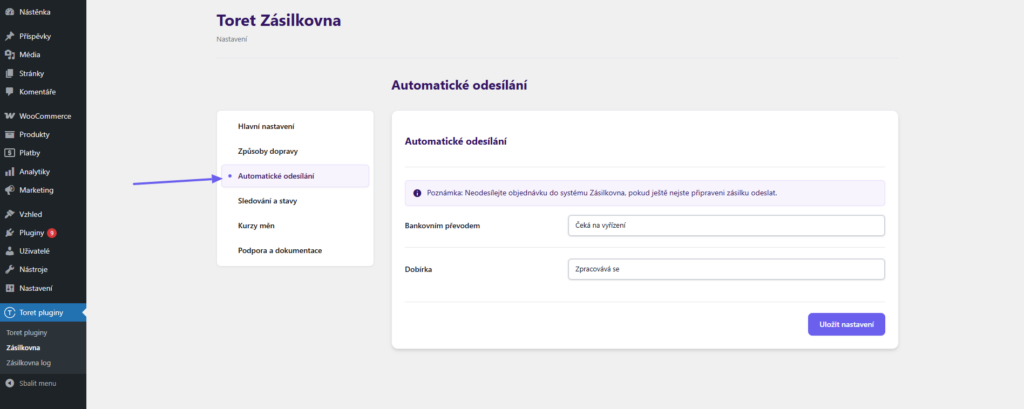
You simply assign order statuses for individual payment methods at which data will be sent to Zásilkovna. After making changes, do not forget to click Uložit (Save).
Note: The plugin requires shipment weight for submission. If your products do not have weight set, automatic submission will not work. In such a case, you will see an exclamation mark icon in the order overview for orders containing products without defined weight. If such a state has occurred on the web, it is necessary to add weight to products. The plugin will take the weight from the order, and the exclamation mark for addition will not appear for new orders.
Printing Shipment Labels
The plugin offers multiple ways to print a shipping label.
Individual printing of a label can be done:
- In order overview: For each submitted order, there is a PDF file icon. Clicking on it opens a menu where you can choose the format and position of the label.

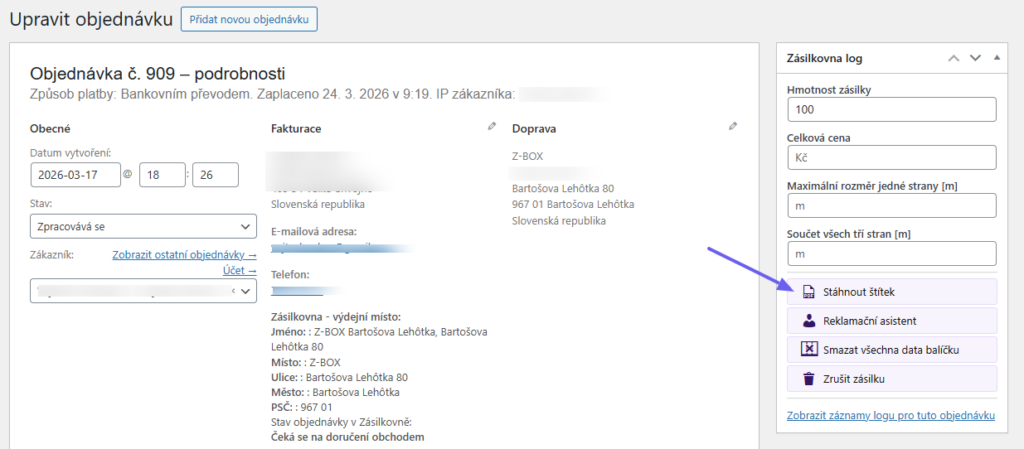
- In order detail: After clicking on an order, you will find a button to download the label on the right side. Here it is also possible to choose the format and position of the label.
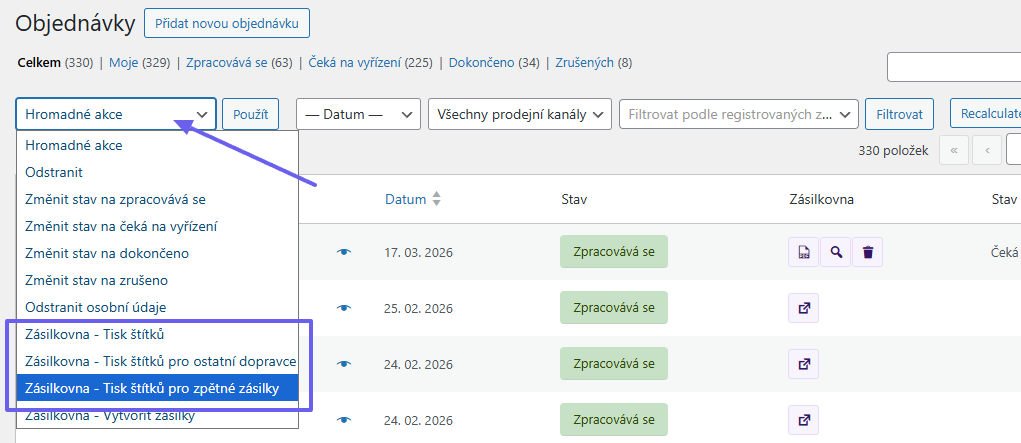
Bulk printing of labels has three options:
- Zásilkovna – Print labels is an option for printing package labels when it concerns their own delivery services. For example, Zásilkovna Pickup Points or Zásilkovna Home.
- Zásilkovna – Print labels for other carriers is an option for printing package labels when it concerns external carriers of Zásilkovna. For example, Hermes, Slovenská pošta, etc.
- Zásilkovna – Print labels for return shipments allows printing labels for complaints or returning goods back to the e-shop
Custom Label Position
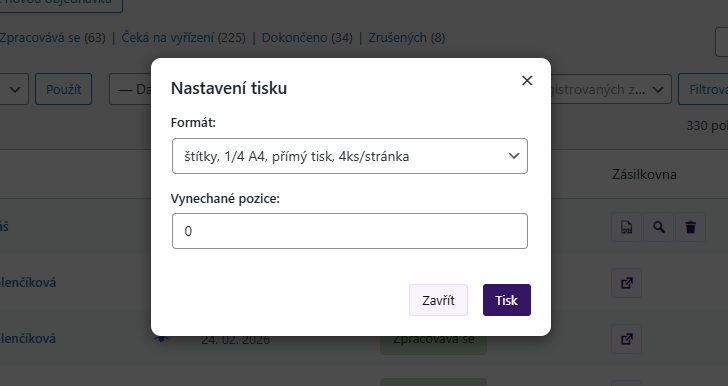
For both individual and bulk printing, it is possible to choose the label position on the page. After clicking the label download icon or selecting bulk printing, an inline window appears where you can select the format and possibly the position for printing.
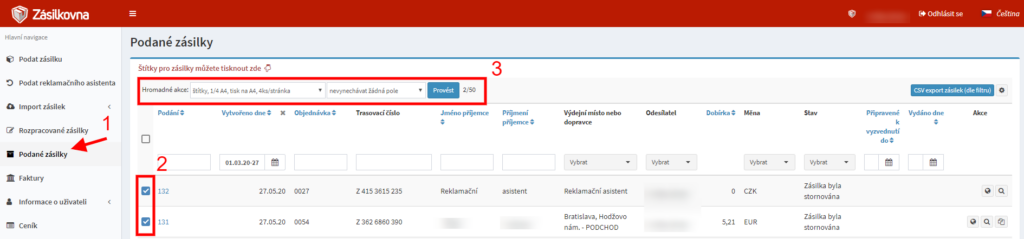
Printing labels is also possible directly from the Zásilkovna administration from your account in the section „Podané zásilky“ (Submitted shipments). Here you can also print multiple labels at once.
Displaying Errors in Order
If order data is not sent to Zásilkovna, the error is saved in the Zásilkovna log and possibly in notes in the order detail in the right column. In case you do not know how to remove the error, write to support [email protected] or contact online support at toret.cz and send the full text of the error message.
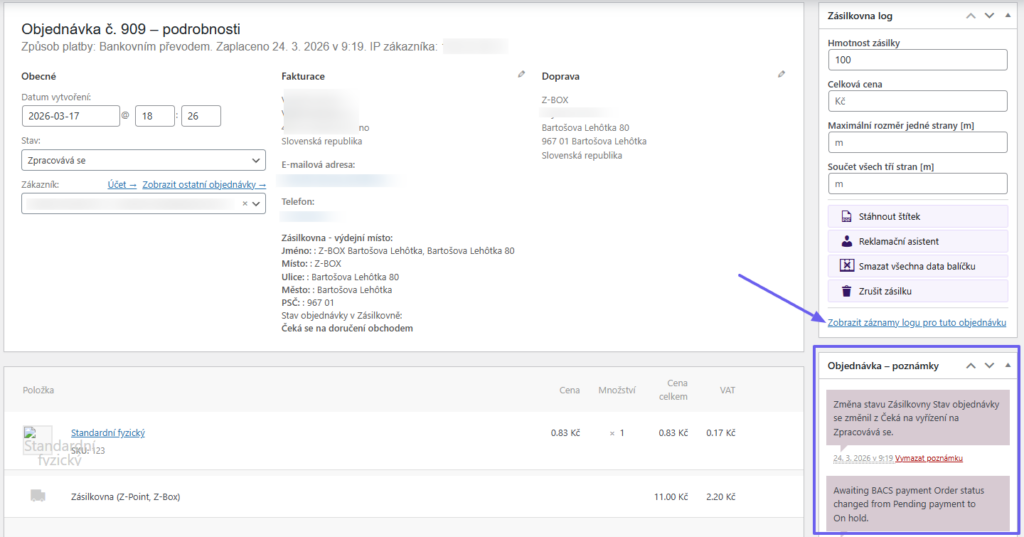
Shipment Tracking
After creating an order, information about the selected branch is displayed, along with a link to track the shipment in:
- emails
- in order detail
- in customer account
- in order detail in administration.
Display in Email
In case it is Zásilkovna, Paczkomaty, or Nova Postha, which have branches, branch data is displayed in the email.
If the shipment is already registered in the system, a shipment tracking link is also displayed to customers. If the service (for example Česká Pošta) does not have branches, only the link will be displayed.
Tracking link position in the automatic email can be changed in the Main Plugin Settings. In the Basic Zásilkovna Settings section, select the desired hook (Toret plugins > Zásilkovna > Hlavní nastavení > Základní nastavení Zásilkovny > Pozice odkazu na sledování v e-mailu).
Custom Emails
In case you use custom emails using a third-party plugin, or have modified emails, it is possible that the information about the selected branch and the tracking link are not displayed in emails for customers. What to do?
Check if the emails contain the hook woocommerce_email_after_order_table, to which the selected branch with tracking link is bound. Alternatively, add the hook in the email at the place where you want to display the selected branch and shipment tracking link.
Displaying Orders
After sending the shipment to Zásilkovna, information about it is saved to the e-shop and will be displayed at the order in the WordPress administration and simultaneously on the Zásilkovna portal.
First, let’s show how the display looks in the WooCommerce administration and what are the important data here.
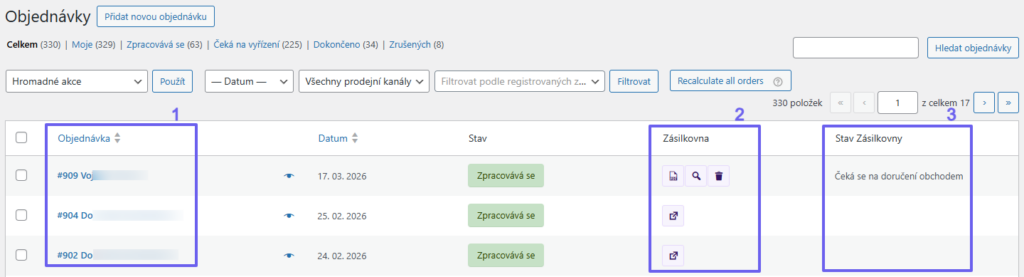
1. Order ID
In the column marked “Objednávka” (Order) is the order number under which it also appears in Zásilkovna.
2. Zásilkovna
The Zásilkovna column deserves a more detailed explanation. Orders having a button with a PDF file icon in the column have an assigned tracking number. This means the shipment was successfully created, and the PDF file icon serves to download the label.

If the order does not have an assigned tracking number, it means the shipment was not sent to the Zásilkovna system. The icon with a square and an arrow pointing up right serves for manual sending to Zásilkovna.

This situation can occur if an error occurred during automatic sending of the order to the Zásilkovna system, or the order status for sending to Zásilkovna is different from what was selected when setting up the plugin. Therefore, we recommend checking orders and possibly sending them manually.
Next to the label print icon is a person icon – complaint assistant. Clicking this icon creates a new return shipment for a complaint. A return shipment can also be created in the Zásilkovna administration → Submitted shipments.
The person icon changes to an icon of two arrows arranged in a rectangle. Clicking this arrow downloads the complaint label.
The trash can icon serves to delete the shipment from the Zásilkovna system.
If you click on the magnifying glass icon, you enter the Zásilkovna website with a pre-filled tracking number to track the shipment.
3. Zásilkovna Status
In this column, you see what status the shipment is in at Zásilkovna. If you want to see the current shipment status, it is necessary to set up CRON, which you can find in the Main Plugin Settings → Automatic shipment status loading. More in the section Automatic shipment status loading.
4. Return Shipment Status
In this column, you will see the status of shipments sent back using the complaint assistant.
Shipments in Zásilkovna System
In the Zásilkovna → Podané zásilky (Submitted shipments) administration, all submitted shipments are listed, including shipments from the complaint assistant. In the Order, Tracking Number, and Status columns, the information matches what you see for orders in WooCommerce.
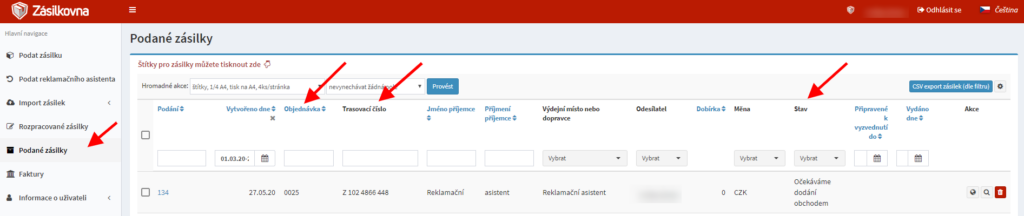
Age Verification
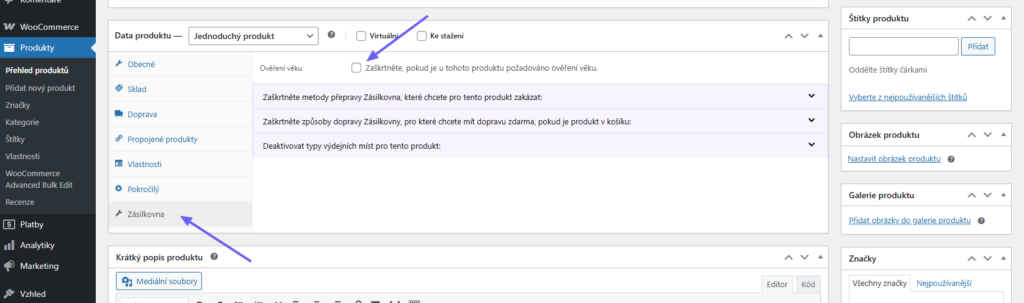
Integration into Zásilkovna supports age verification for selected products. Everything works automatically, and if the carrier supports this service and there is at least one product in the order that requires age verification upon delivery, the entire order will require age verification.
That a product needs age verification upon delivery you set in the product detail on the Zásilkovna tab, where checking the Ověření věku (Age Verification) requirement is sufficient for activation.
Disabling Carrier for Product
Using the plugin, you can disable selected carriers for a specific product, variant, or category.
Disabling carrier at product level:
You can find the setting when editing the product in the Product Data box and Zásilkovna tab.
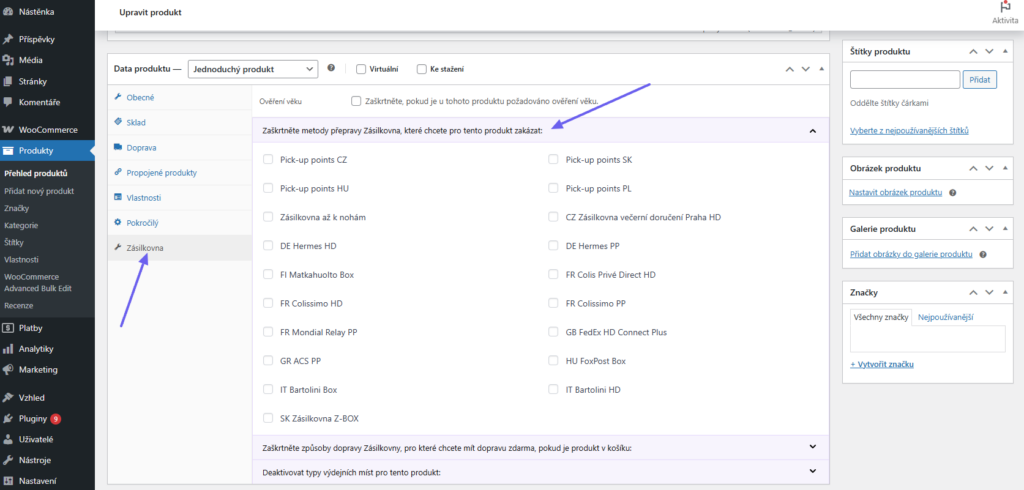
Disabling carrier at product variant level:
For each variant separately, it is possible to disable individual carriers from the Zásilkovna plugin. Their disable option can be found in the variant settings.
Disabling carrier at category level:
You can also disable carriers from the Zásilkovna plugin for each category. You can disable both when creating a new category and when editing an already created category.
Attention! If the order consists of multiple products and at least one product has this restriction set, the selected carrier is not available for the order.
Disabling Delivery to Z-Boxes
When selecting shipping to a pickup point, pickup boxes are also displayed in the widget by default. Delivery to boxes can be disabled for a specific product, variant, or category. If any of these products is in the order, pickup boxes will not be offered to the customer.
You perform the setting in the product/variant/category detail.
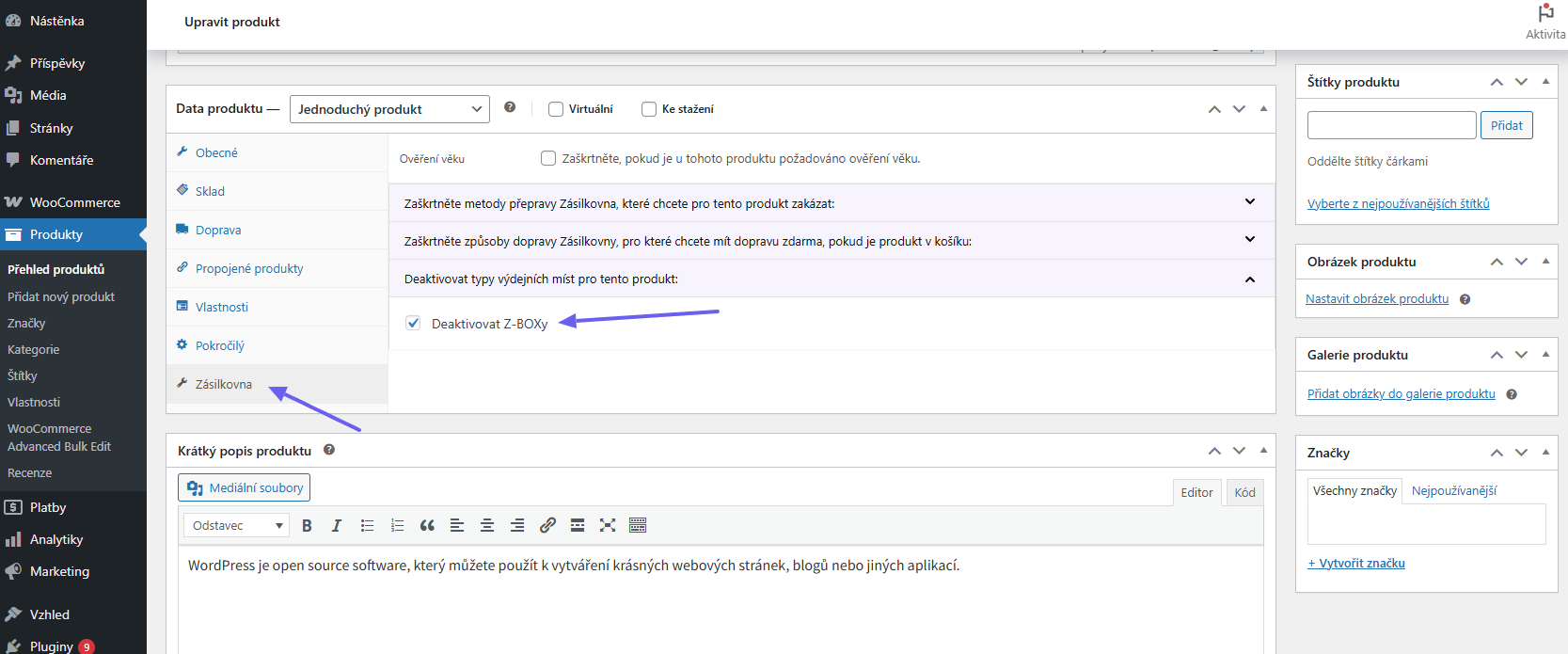
Setting Package Weight for Manual Order Sending with Zero Weight
In case you use manual sending of the order to Zásilkovna and the order contains products that do not have a set weight, you can enter the package weight manually.
For an order for manual sending to Zásilkovna without a defined weight, a button with an exclamation mark icon appears in the Zásilkovna column.

After clicking the button, a form for entering the order weight appears.

The weight unit for entering the package weight is automatically set according to the settings in WooCommerce.
After entering the weight and clicking Save, the standard button for sending the shipment appears. The shipment can now be sent by clicking this button.

Don’t want to enter weight via exclamation mark before sending shipment?
If you do not want to manually enter the weight before sending, it is necessary that all products have a set weight. Then the plugin will take the weight of products from the order and the exclamation mark will not appear.
The second option is to enter a default shipment weight in the Main Plugin Settings, which will be used for all orders.
Automatic Shipment Status Loading
In the order overview in the Zásilkovna Status column, the status of the shipment is indicated. If you want to see the current shipment status, it is necessary to set up CRON on your hosting, which you can find in the plugin settings on the Sledování (Tracking) tab.

Počet dní pro zpětnou kontrolu (Number of days for retrospective check) – number of days for orders for which the package status in Zásilkovna will be checked retrospectively.
Nekontrolovat stav zásilky v následujících stavech objednávky (Do not check shipment status in the following order statuses) – here you can determine in which order statuses the package status in Zásilkovna will not be checked. We recommend excluding Failed, Cancelled, Returned, and Completed statuses.
Nekontrolovat stav balíku v těchto stavech zásilky (Do not check package status in these shipment statuses) – here you can define when the package status in Zásilkovna will no longer be checked. We recommend selecting Successfully delivered, Returned to sender, and Shipment cancelled.
Attention! In case you used a custom function modification checking shipment statuses using a filter with an older version of the plugin (up to 5.7.0), it is necessary to delete or comment out the custom modification after updating the plugin to 5.7.0 and higher. If you leave the custom modification active, the shipment status check will not work.
Order Status Change Based on Shipment Status
In the plugin on the Sledování (Tracking) tab, you can further set automatic order status change based on shipment status. Simply enable the function by checking the Povolit změnu stavu objednávky na základě stavu zásilky (Enable order status change based on shipment status) checkbox and assign order statuses to shipment statuses used by Zásilkovna. Do not forget to save the changes made.

Plugin testing
For testing purposes, you can use:
- the subdomain “dev.domainlicense” (with the same license as for the production website)
- localhost (127.0.0.1)
Purchased plugins will also work in these locations, and you can test their implementation and compatibility here before deploying them to the website and during its use.
FAQ and Troubleshooting
Debugging Errors
Since things can always go wrong, the plugin has a built-in way of catching errors.
In the order detail where the error occurred, you will find the Zásilkovna Log in the upper right corner, which applies only to the specific opened order.
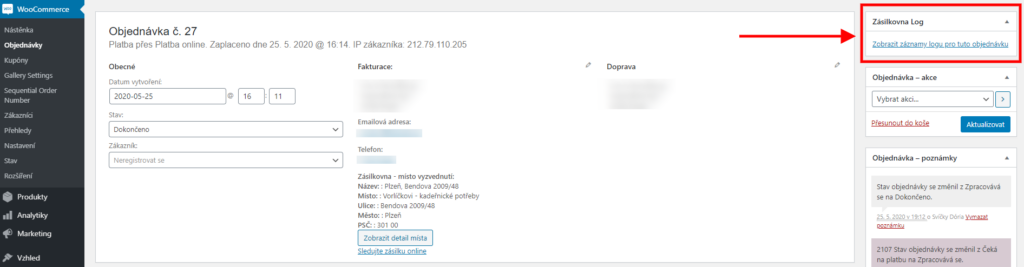
In the Toret plugins overview, you will find the Zásilkovna log, which contains records about all orders at once.
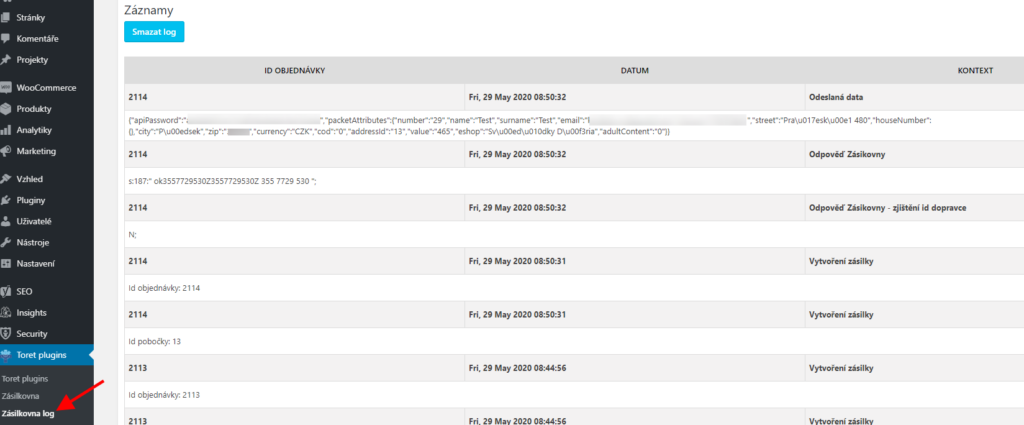
Shipment Sender is not (Correctly) Entered
If this error appears, you do not have the shop name filled in correctly.
The shipment sender is you, or your shop. And besides the API key, Zásilkovna identifies you by the shop name.
In your Zásilkovna account, you can have several shops and the system cannot distinguish. You can find the shop name in the Zásilkovna administration and it must exactly match what you filled in.
Diacritics and spaces in the name can also be a problem.
You can find the shop name after logging into the Zásilkovna administration in the menu Informace o uživateli (User Information) → Odesílatelé (Senders).
Sender Name Contains the & Character
In case the designation contains the character “&”, it is necessary to modify the designation in the Zásilkovna account administration so that it does not contain this character.
If the designation contained the & character, sending orders from the web to Zásilkovna via the plugin would fail.
WooCommerce Pay for Payment Plugin
The WooCommerce Pay for Payment plugin is not compatible with the WooCommerce Zásilkovna plugin. Using both plugins simultaneously can cause a conflict. The Zásilkovna plugin contains its own settings for COD surcharges.
Select Branch Button Not Working
In case nothing happens after clicking the Select Branch button, it is necessary to check if there are errors listed in the console. (CHROME – right mouse button-> last item “INSPECT” -> second tab “CONSOLE”).
Blocked ads errors do not matter, but for example, an error from Google Tag Manager or a theme error matters. If you have such an error, it needs to be removed because it blocks some checkout functions and thus branch selection.
COD Surcharge Not Displaying
It is important to use a decimal point, not a comma, when entering the price. The plugin evaluates a comma as an error and the surcharge will not be listed.
It is also important to check whether you are using the COD shipping method from the Zásilkovna plugin and not the default WooCommerce COD.
COD Surcharge Not Displaying with Free Shipping
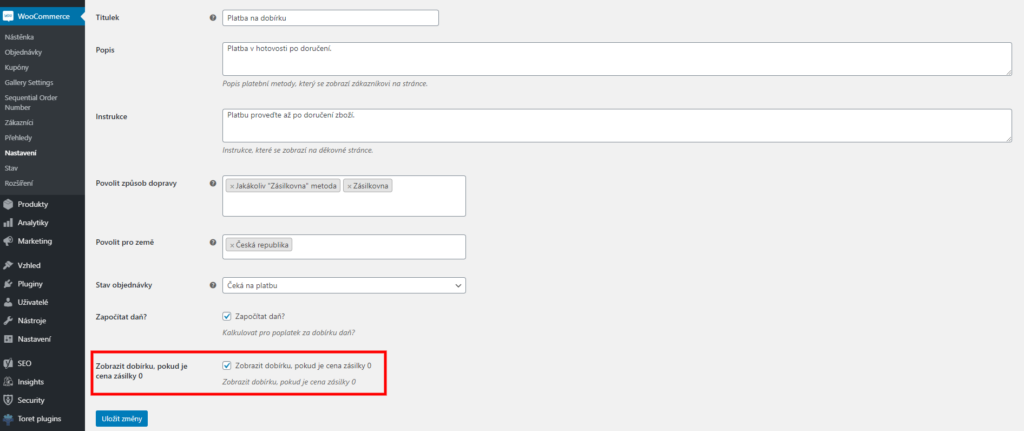
Is COD not displaying with free shipping even though COD is set and you have checked “KEEP COD SURCHARGE FOR FREE SHIPPING” in the Zásilkovna plugin settings?
In this case check WooCommerce → Settings → Payments → Cash on delivery and check Enable for shipping methods (Zobrazit dobírku, pokud je cena zásilky 0) at the very bottom.
VAT is Incorrectly Calculated for Shipping and COD Prices
The plugin takes VAT settings from WooCommerce. If the resulting sum does not match (and the price is entered without VAT in the plugin), check if you have entered the amount with a decimal point.
How to Reactivate License in Plugin
If you need to re-enter the plugin license into the plugin (for example after a reset or you want to replace it) follow this procedure:
Delete the currently entered license → Save settings → Insert new license → Click the Activate button → Save settings.
PHP Warning: allow_url_fopen=0 Displays When Updating Carriers
The allow_url_fopen library is used to load branches, check if you have it enabled on your hosting.
Order with COD is Not Sent to Zásilkovna System
The Zásilkovna plugin contains its own COD payment method, which must be active. The default COD payment method from WooCommerce does not know how to pass information about COD to the Zásilkovna system.
Go to WooCommerce → Settings → Payments and check the COD settings.
Everything is detailed in the Cash on Delivery (Dobírka) section.
Forbidden – Error When Loading Carriers
In case an error message appeared when loading carriers:
Forbidden
You don’t have permission to access this resource.
The resulting Forbidden error is on the hosting side, where access to run the PHP script for loading carriers is blocked. You need to contact your hosting to allow you to run this URL.
Original URL Still Attributes After License Key Reset
You probably have the base URL set using a PHP function. The plugin loads this data from the database, here it will be necessary to edit the URL. You can find it in the table [prefix]_options and rows siteurl and home. You must edit the address in this database according to the pattern: https://yoururl.cz
Cannot Load Carriers (Countries)
After loading carriers, carriers/countries are not displayed in the plugin?
Variant A
The API key from Zásilkovna is probably entered incorrectly in the plugin. Check it. Ideally, copy it again. BEWARE of possible spaces at the beginning or end of the key.
Where to Find the API?
Log in to the Zásilkovna administration and then click on your name in the top bar.
Information about your account will be displayed and in the right part you will find the API Key and API Password, check both these data if they are correct in the plugin.
Variant B
The Zásilkovna plugin may be incompatible with another third-party plugin.
We are aware of incompatibility with:
- Hide my WP, which makes it impossible to load Zásilkovna branches. For the Hide my WP plugin, it is necessary to force an exception for Zásilkovna or have the plugin deactivated to load carriers.
Variant C
If the error “Zásilkovna API key is not filled” is displayed on the page when loading carriers and you have already checked the correctness of the implementation data in the plugin, clear Cookies and Cache memory in the browser and then reload carriers again.
Error: Call to a member function get_shipping_country() on null
Check if you have the country selection window hidden in the checkout. For the correct functionality of the plugin, this window must not be hidden.
How to Set Zásilkovna Plugin to Avoid Increasing Shipping Price Due to Relabeling (Zero Weight)
You have two options for setting:
- When using automatic sending
If you want to use automatic sending to Zásilkovna (for example on the thank you page), you must have weight set for all products. Then the weight of the entire order is automatically transferred to the Zásilkovna system. - When using manual sending
If you use manual sending to Zásilkovna, deactivate automatic sending on the Odesílat automaticky (Send automatically) tab of the Zásilkovna plugin.
Then send the orders to the Zásilkovna system manually from the order overview. In case an order appears without a filled weight, you will be prompted to fill it in before sending.
Shipment Value for Insurance Purposes is Not Entered. Please Enter It.
The problem is that the price is 0 CZK and Zásilkovna will not accept this value and wants the package price for insurance purposes.
To submit a shipment with zero value, insert the function written below into the child theme or custom plugin:
function extend_zasilkovna_ticket_value( $price, $order, $zasilkovna_option, $zasilkovna_id){

return $order->get_subtotal();

}
add_filter( "zasilkovna_ticket_value", "extend_zasilkovna_ticket_value",10,4);
Submission Error: faultRequestErrorAn error occured parsing request
Zásilkovna validates the data being sent when submitting a shipment. With this error, Zásilkovna minds the data sent for the order in question.
Click to open the detail of billing and shipping information. Check the filled data if they contain unusual characters. For example, the special character &, which companies sometimes use in their name, causes issues. Just delete the special character, update the order, and then submit the shipment.
Using Filters
The Zásilkovna plugin currently contains the following filters:
- zasilkovna_shipping_cost– Zásilkovna
- cesko_nejlevnejsi_doruceni_shipping_cost – Zásilkovna cheapest delivery to address
- zasilkovna_cp_cz_cost – Czech Post CZ
- zasilkovna_dpd_cz_cost – DPD CZ
- zasilkovna_express_brno_cz_cost – Express delivery Brno
- zasilkovna_express_praha_cz_cost – Express delivery Prague
- zasilkovna_express_ostrava_cz_cost – Express delivery Ostrava
Each filter accepts three values:
- $cost – current shipping price
- $country – selected country
- $weight – weight of items in cart
Every function used in the filter should return the $cost value. If you want to deactivate shipping, just set $cost to false.
Dynamic filter
- zasilkovna_‘.$filter_id.’_cost
Other filters
- zasilkovna_allow_multiple_submissions
- zasilkovna_order_number
- zasilkovna_dobirka_shipping_id
- zasilkovna_free_shipping_rates
- zasilkovna-sledovani-link
- dobirka_is_virtual_product_in_cart
Filter for Setting Order Weight
Filter definition
$weight = apply_filters( 'zasilkovna_packeta_weight_check', $weight );Filter example
add_filter( 'zasilkovna_packeta_weight_check', 'zasilkovna_packeta_weight_check_fce', 10, 1 );
function zasilkovna_packeta_weight_check_fce( $weight ){
return 1;
}
Warning: Use of the filter is at your own risk, Zásilkovna issued a statement that it will relabel packages in case of deficiencies and charge for this for each applied label. It may also happen that the branch can be selected by the customer because you have set the weight for the order using a filter, but the goods in the cart have no weight, Zásilkovna finds out that the package does not weigh as much as is on your label and that the branch to which the package was supposed to be delivered accepts e.g. packages only up to 5 kg. Thus, it will not be possible to deliver your package to this branch and they will redirect the package to another branch. The best solution is to add the actual weight to each product instead of a filter, set the weight in the product detail once, and you have the weight solved for all future orders.
Filter for Setting Submitted Shipment Statuses
If you want to add more order statuses to the function that will be checked, you can modify this function using a filter:
apply_filters( 'zasilkovna_status_cron_order_status',array('wc-pending', 'wc-processing', 'wc-on-hold'))If you want to adjust the number of orders per CRON run, you can modify this function using a filter:
'limit' => apply_filters( 'zasilkovna_status_cron_limit', 20 )Filter for Setting COD VAT
Filter definition:
$tax_class = apply_filters( 'zasilkovna_taxclass_dobirka', $FeeData['tax_class'] );(includes/class-zasilkovna-fee.php line:89)
Filter example:
add_filter( 'zasilkovna_taxclass_dobirka','change_cost_zasilkovna_for_product', 10, 1 );
function change_fee_zasilkovna( $FeeData ){
$FeeData = [ "tax_class" => "21", ];
return $FeeData;
}
Filter dobirka_is_virtual_product_in_cart
The filter is part of the COD payment method in the is_virtual_product_in_cart method, which returns false or true depending on whether the order contains a product that is not virtual.
If the order contains only virtual products, COD should not be displayed, the method returns false. You can change the default behavior using the filter.
Filter definition
return apply_filters( 'woo_doprava_is_virtual_product_in_cart', $has_virtual, $this );- $has_virtual – true/false
- $this – COD payment method object
Filter zasilkovna_order_number
The filter is part of the classes class-zasilkovna-ticket-claim.php and class-zasilkovna-ticket.php.
It accepts values $order_number and $order. It serves to possibly modify the order number that is sent to Zásilkovna by default.
Filter definition
$zasilkovna_order_number = apply_filters( 'zasilkovna_order_number', $order_number, $order );- $order_number – order number
- $order – order object
add_filter( ‘zasilkovna_order_number’, ‘change_zasilkovna_order_id’, 10, 2 );
function change_zasilkovna_order_id( $order_number, $order ){
$order_number = get_post_meta( $order->get_id(), 'variable_symbol', true );
return $order_number;
}
Filter zasilkovna_allow_multiple_submissions
The filter is part of the classes class-zasilkovna-admin.php and class-zasilkovna-ticket.php.
Its only value is false. The default behavior of the plugin is not to allow sending a shipment to Zásilkovna if a shipment is already created. If you return true using the filter, you will be allowed to resend the shipment.
Filter definition
apply_filters(‚zasilkovna_allow_multiple_submissions‘, false)Filter zasilkovna_filter_id_cost
The filter is part of the class class-shipping-helper.php.
This filter is dynamic and is common for multiple shipping methods. Its function is the same as for similar filters, it allows manipulation of the shipping price.
Filter definition
$cost = apply_filters( ‚zasilkovna_‘.$filter_id.’_cost‘, $cost );$cost – shipping price
Values of variable filtr_id
austria-at
germany-de
germany-dpd
de-hermes
fr-colissimo
gb-royal-mail
gb-hermes
hu-nejlevnejsi-doruceni
hungary-hu
dpd-hu
transoflex-hu
su-posta
li-posta
it-gls
pl-nejlevnejsi-doruceni
poland-pl
pl-mail-24
pl-inpost
pl-paczkomaty
slovensko-doruceni
slovenska-posta
express-bratislava
slovensko-kuryr
ro-nejlevnejsi-doruceni
dpd-ro
fan-ro
ro-cargus
gls-sl
dpd-bl
bg-speedy-office
ukrajina-doruceni
ua-nova-posta
Filter zasilkovna_express_ostrava_cz_cost
The filter is part of the class class-zasilkovna-shipping.php.
Accepts shipment price and is intended for Express delivery Ostrava shipping.
Filter definition
$cost = apply_filters( 'zasilkovna_express_ostrava_cz_cost', $cost );- $cost – shipping price
Filter zasilkovna_express_praha_cz_cost
The filter is part of the class class-zasilkovna-shipping.php.
Accepts shipment price and is intended for Express delivery Prague shipping.
Filter definition
$cost = apply_filters( ‚zasilkovna_express_praha_cz_cost‘, $cost );- $cost – shipping price
Filter zasilkovna_express_brno_cz_cost
The filter is part of the class class-zasilkovna-shipping.php.
Accepts shipment price and is intended for Express delivery Brno shipping.
Filter definition
$cost = apply_filters( 'zasilkovna_express_ostrava_cz_cost', $cost );- $cost – shipping price
Filter zasilkovna_dpd_cz_cost
The filter is part of the class class-zasilkovna-shipping.php.
Accepts shipment price and is intended for DPD Czech Republic shipping.
Filter definition
$cost = apply_filters( 'zasilkovna_dpd_cz_cost', $cost );- $cost – shipping price
Filter cesko_nejlevnejsi_doruceni_shipping_cost
The filter is part of the class class-zasilkovna-shipping.php.
Accepts shipment price and is intended for Zásilkovna cheapest delivery to address shipping.
Filter definition
$cost = apply_filters( 'cesko_nejlevnejsi_doruceni_shipping_cost', $cost );- $cost – shipping price
Filter zasilkovna_cp_cz_cost
The filter is part of the class class-zasilkovna-shipping.php.
Accepts shipment price and is intended for Czech Post shipping.
Filter definition
$cost = apply_filters( 'zasilkovna_cp_cz_cost', $cost );- $cost – shipping price
Filter zasilkovna_shipping_cost
The filter is part of the class class-zasilkovna-shipping.php.
Accepts shipment price and is common for all countries that contain shipping to Zásilkovna pickup point.
Filter definition
$cost = apply_filters( 'zasilkovna_shipping_cost', $cost, $moje_country, $weight );- $cost – shipping price
- $weight – total cart weight
- $moje_country – selected delivery country
- Usage example – changing shipping price if a specific product is in the cart.
<?php
add_filter( ‘zasilkovna_shipping_cost’, ‘change_cost_zasilkovna_for_product’ );
function change_cost_zasilkovna_for_product( $cost ){
$items = WC()->cart->get_cart();

foreach($items as $item => $values) {
    if( $values['data']->get_id() == 31 ){
       $cost = $cost * 3;
    }
}

return $cost;
}
Filter for Modifying Free Shipping Text
The filter is part of the class class-zasilkovna-shipping.php.
With the filter, you modify the text “Zdarma” (Free) for shipping when free shipping conditions are met.
Filter definition:
apply_filters( 'zasilkovna_free_shipping_label', $text );(includes/class-zasilkovna-shipping.php line:474)
Filter example:
add_filter( 'zasilkovna_free_shipping_label', 'zasilkovna_free_shipping_label_fce', 10, 1);
function zasilkovna_free_shipping_label_fce( $text ){
return 'doprava je zdarma';
}
Filter zasilkovna_group_print_services_format
In case the default label download format does not suit you, it is possible to modify it using the filter zasilkovna_group_print_services_format.
Allowed values can be found here.
<?php
add_filter( ‘zasilkovna_shipping_cost’, ‘change_cost_zasilkovna_for_product’ );
function change_cost_zasilkovna_for_product( $cost ){
$items = WC()->cart->get_cart();

foreach($items as $item => $values) {
    if( $values['data']->get_id() == 31 ){
       $cost = $cost * 3;
    }
}

return $cost;
}
Disabling autoload parameter for Toret Zásilkovna option
This is an irreversible change in the database, we strongly recommend making a backup before proceeding.
UPDATE wp_options SET autoload = 'no' WHERE option_name LIKE '%zasilkovna%';Hooks
| Hook | Hook description |
|---|---|
zasilkovna_print_label_success | After successful label printing |
zasilkovna_bulk_print_label_success | After successful bulk label printing |