
You are on the documentation page for the Toret Slovenská pošta (Slovak Post) plugin for WooCommerce, which implements this shipping service into your e-shop.
To use the Slovenská pošta plugin, you must have an ePodací hárok account created with Slovak Post.
You can purchase the Slovenská pošta plugin here: Toret Slovenská pošta for WooCommerce
Plugin Installation
Upon purchasing the Slovenská pošta plugin, you will receive a license key and a download link for the plugin zip file via email. You can find detailed instructions on how to install the plugin from your computer into WordPress here.
Plugin Activation
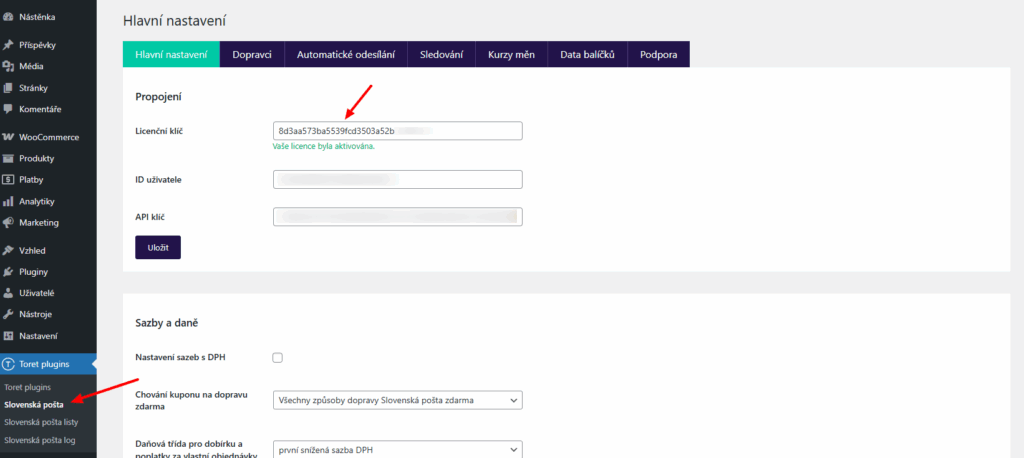
After installing the plugin, open the Toret Slovenská pošta plugin, insert the license key into the appropriate field, and click the button to activate.
Connecting to Slovak Post
After installing and activating the plugin, continue to its settings. This is found in the section Toret plugins → Slovenská pošta
To connect, you need to insert access credentials into the designated fields. You need:
- User ID (userId)
- API Key (apiKey)
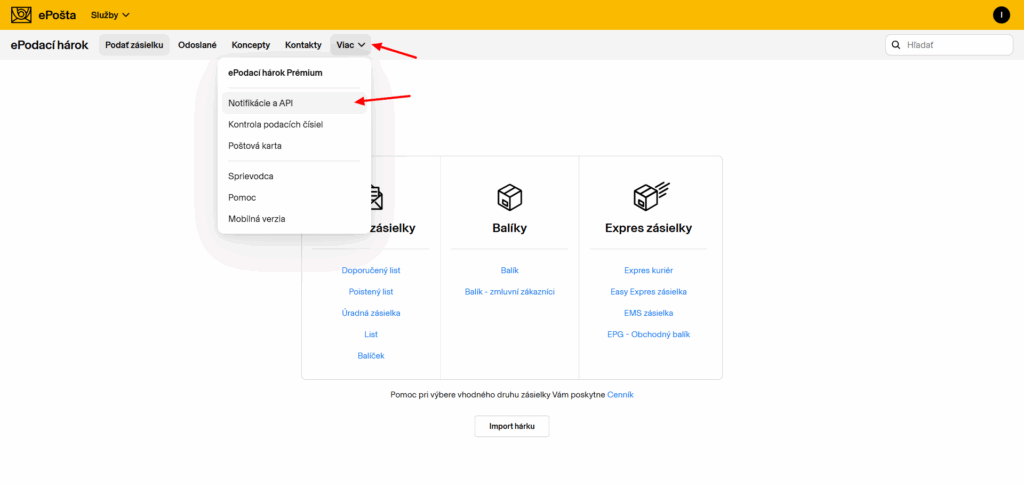
You can get these details in your Slovak Post account ePodací hárok > Viac (More) > Notifikácie a API (Notifications and API))
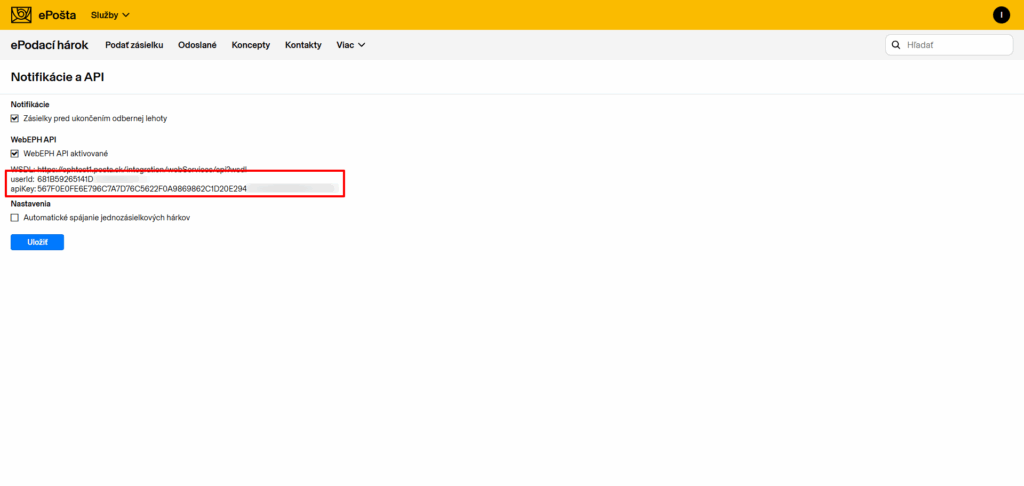
Copy them and paste them into the appropriate fields in the plugin.
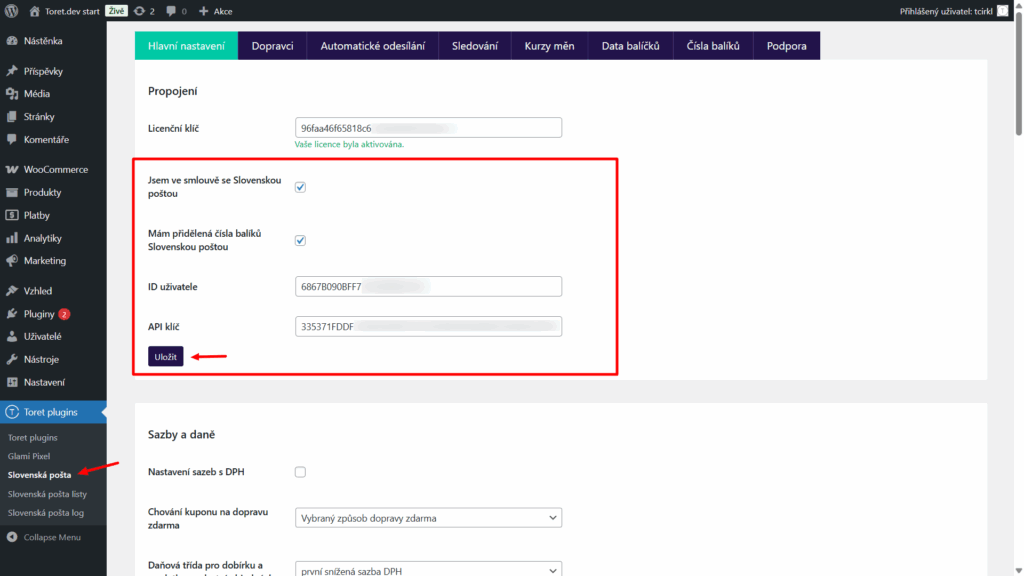
If you have a contractual relationship with Slovak Post or have been assigned custom parcel numbers, check the appropriate checkboxes.
Save.
Now your e-shop is connected to the Slovak Post system.
Assigned Parcel Numbers
If you have assigned parcel numbers from the post office, you enter them on the “Čísla balíků” (Parcel Numbers) tab separately for individual shipping methods.
TIP: To make the parcel numbers tab visible, you must check the “Mám přidělená čísla balíků” (I have assigned parcel numbers) checkbox on the Main Settings tab (see previous step)
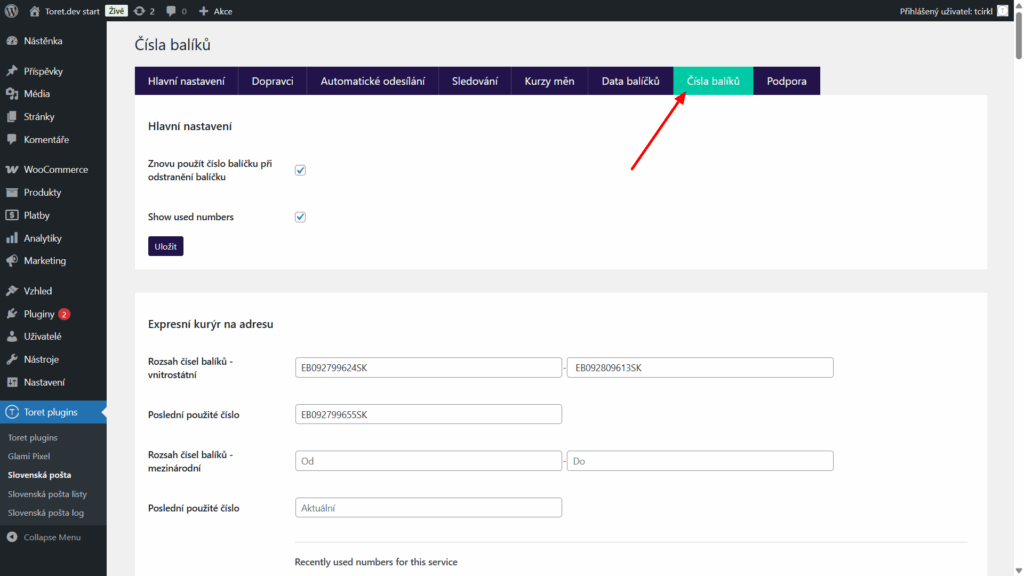
Main Settings
On the Main Settings tab (Toret plugins > Slovenská pošta), you can further configure:
- Rates and Taxes
- VAT
- COD tax class
- free shipping coupon behavior (do not apply, all methods, selected shipping methods)
- Custom surcharges, which can be set globally and individually according to various criteria
- Sender address (necessary for courier pickup)
- Widget settings
- automatic widget opening
- button placement
- replacing delivery address with pickup point address
- limiting pickup points by cart weight
- Bank account for sending COD
- Icon display settings for shipping methods shown in checkout
- Other settings
- hide zero COD fee
- activate log
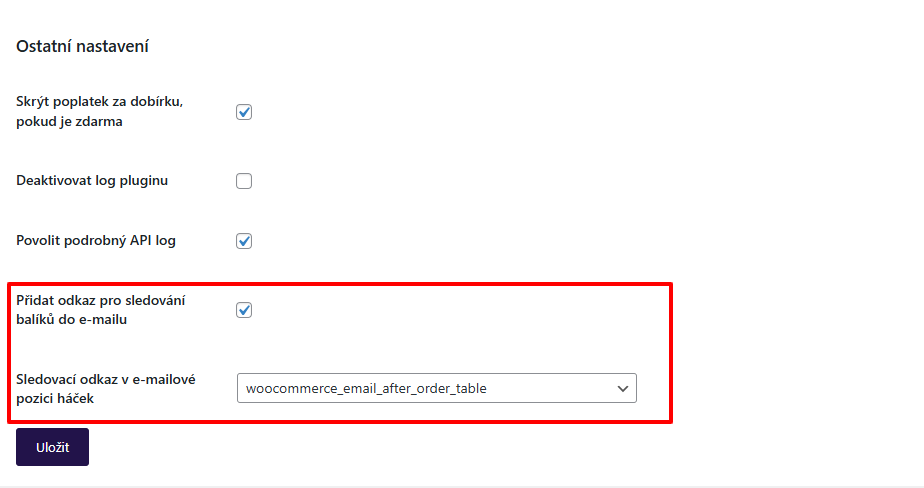
- add package tracking link to email
- link position in email
Setting up Carriers in the Slovenská pošta Plugin
Individual delivery types and their settings can be found in the Slovenská pošta plugin on the Dopravci (Carriers) tab (Toret Plugins > Slovenská pošta > Dopravci). First, it is necessary to add shipping methods to your shipping zones in WooCommerce. You can click through directly via the Nastavení (Settings) button.
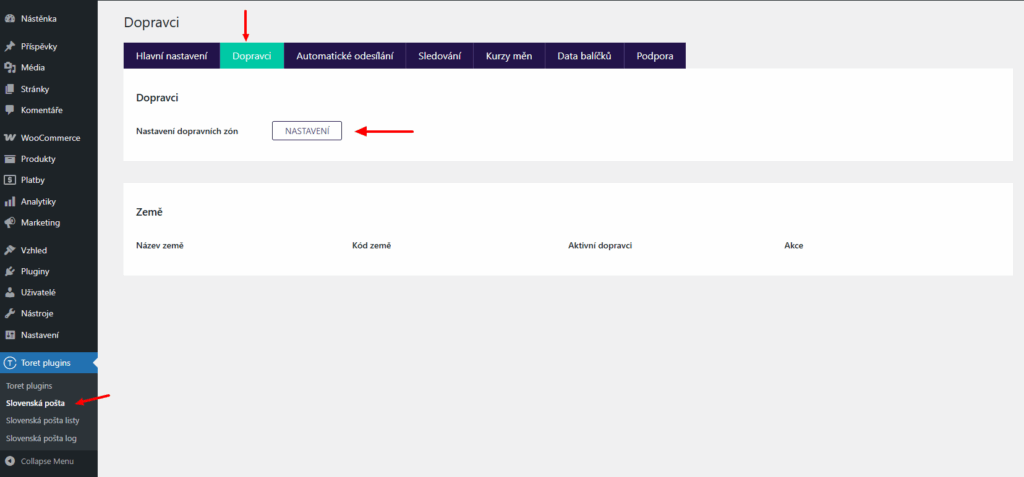
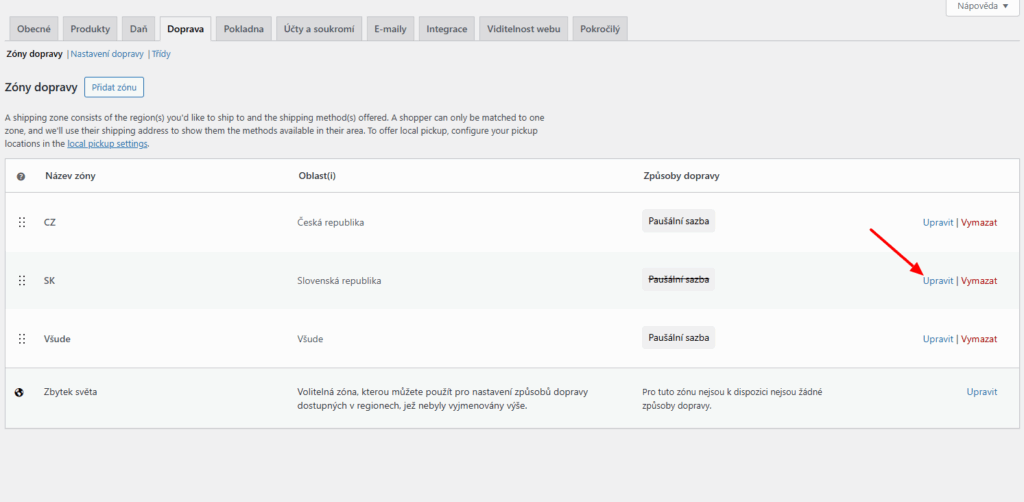
Add the shipping methods you want to provide in the given zone to the required shipping zone. Click on Upravit (Edit)…
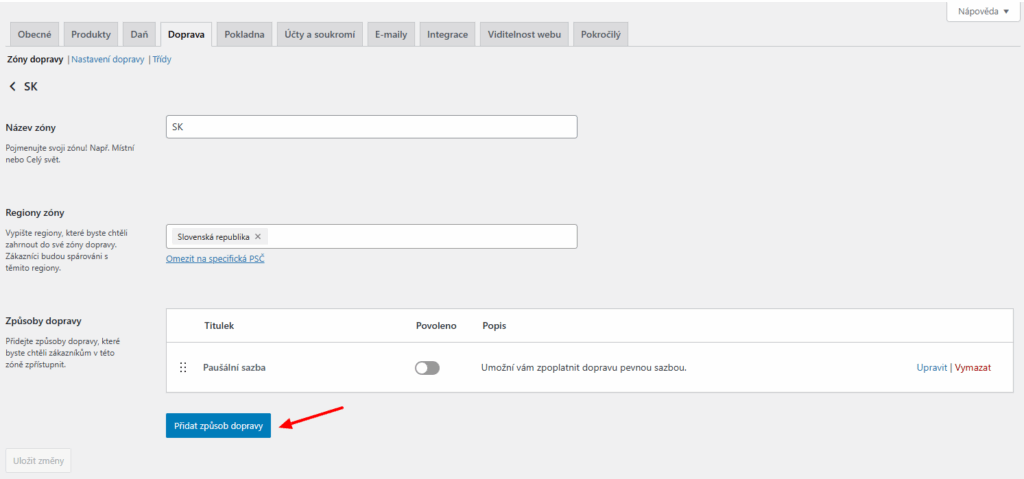
…then on Přidat způsob dopravy (Add shipping method)...
…and select the required shipping method in the pop-up window.
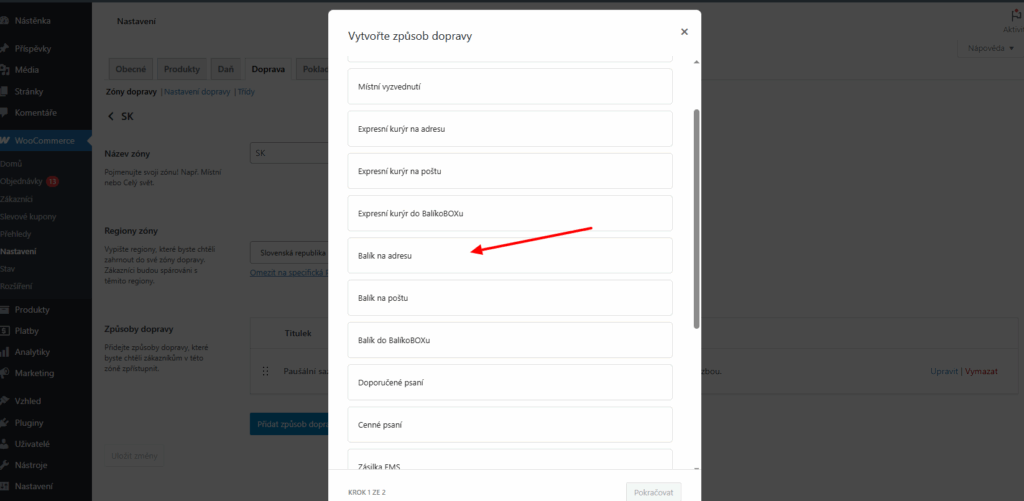
After clicking Pokračovat (Continue), the method is added. For further settings, return to the plugin on the Dopravci (Carriers) tab. Here you will already see the active carrier. Click the Nastavení (Settings) button.
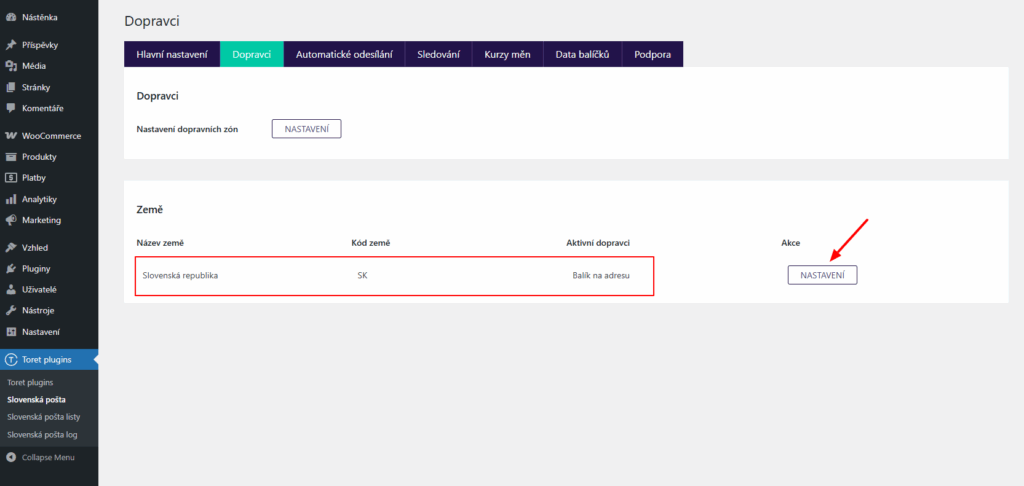
After clicking the button, you can start setting up shipping methods. For each, you can set:
- Custom title – displayed in checkout as shipping name
- Enable free shipping coupon – enables the use of coupons for the given shipping method
- Custom checkout icon – displayed in checkout next to the shipping method
- Custom pickup point icon in checkout – displayed on the button to open the map widget
- Shipment storage time – period how long the package can be in the hands of the post office before successful delivery or return to e-shop
- Shipping availability in checkout by: (if the order does not meet specified criteria, the shipping method will not be displayed in checkout)
- Maximum and minimum weight [kg]
- Maximum dimension [cm]
- Maximum volume [cm3]
- Minimum and maximum cart value
- Minimum and maximum quantity in cart
- Minimum and maximum product price
- Shipping price
- flat
- scaled by weight
- Free shipping from amount
- COD (Dobírka)
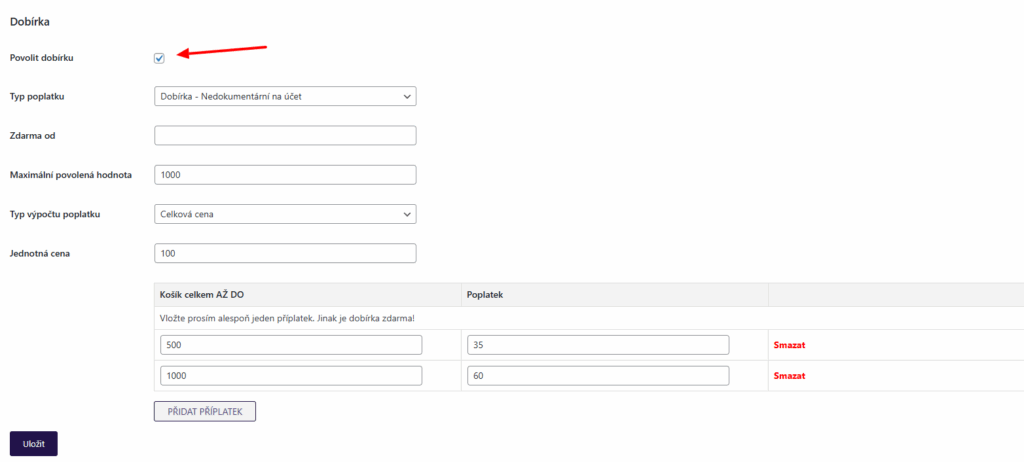
- Payout type (to account, to address, postal order)
- Free from
- Maximum allowed value
- Fee calculation type (flat or scaled by order value)
Shipping Price Settings
If VAT is set in WooCommerce, set the price in the plugin without VAT.
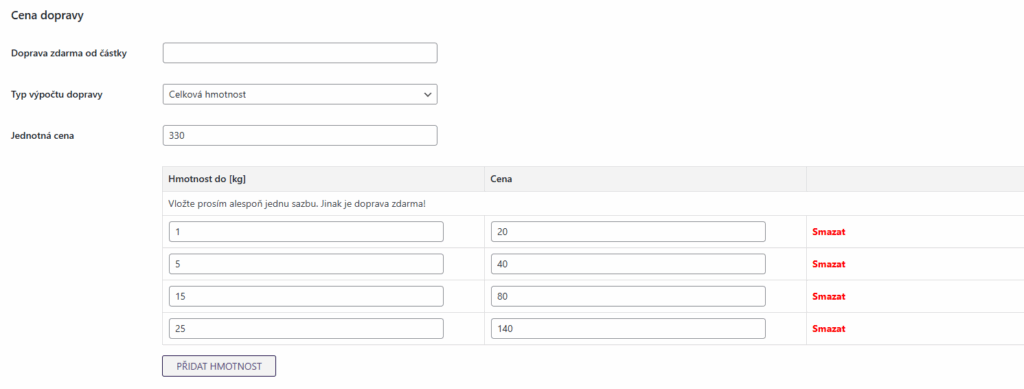
Price can be set separately for each shipping method and country (Toret plugins > Slovenská pošta > Dopravci > Nastavení). In the Shipping calculation type field, choose whether to use a flat price or define price rules based on weight.
You can also enter the free shipping threshold for the given shipping method here.
Free Shipping
You set free shipping directly in the Slovenská pošta plugin (Toret Plugins > Slovenská pošta > Dopravci > Nastavení) for each shipping type, for each country separately.
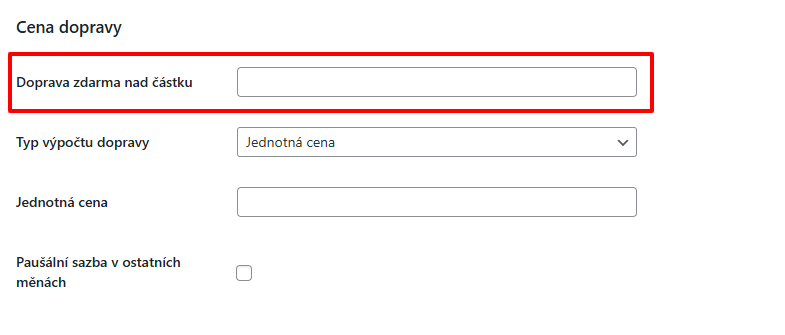
The free shipping setting is “above” an amount, meaning free shipping activates on the web after exceeding the set amount in the cart.
EXAMPLE: If you want free shipping from 500, set the amount 499 in the plugin.
Tip: If you have VAT set in WooCommerce, the value for triggering free shipping is entered without VAT.
The free shipping amount setting applies only to products; the shipping price is not included.
EXAMPLE: If you have free shipping set from 500, and the cart contains a product for 450 + shipping price 65 = 515 CZK, free shipping will not be activated. It is necessary to exceed the set price with the product, i.e., to activate free shipping set this way, you need to put product(s) worth at least 500 CZK into the cart.
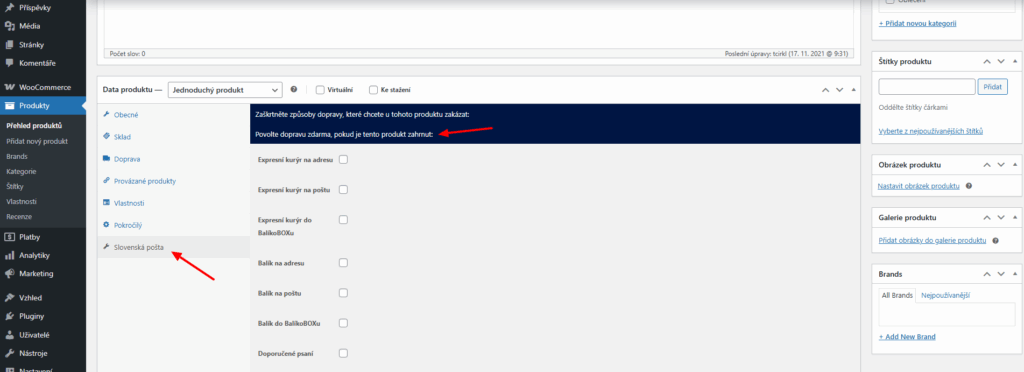
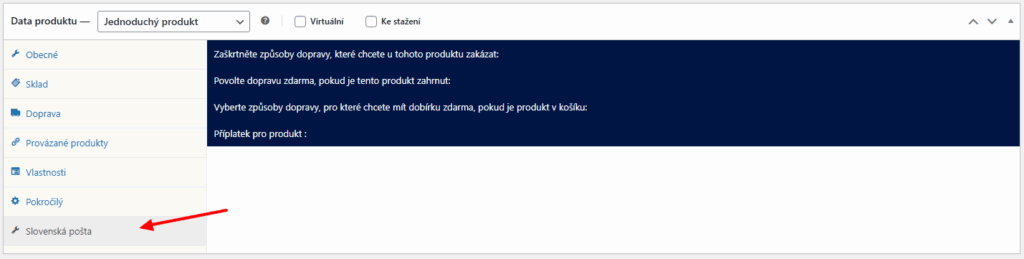
You set free shipping for a specific product in the product detail on the Slovenská pošta tab.
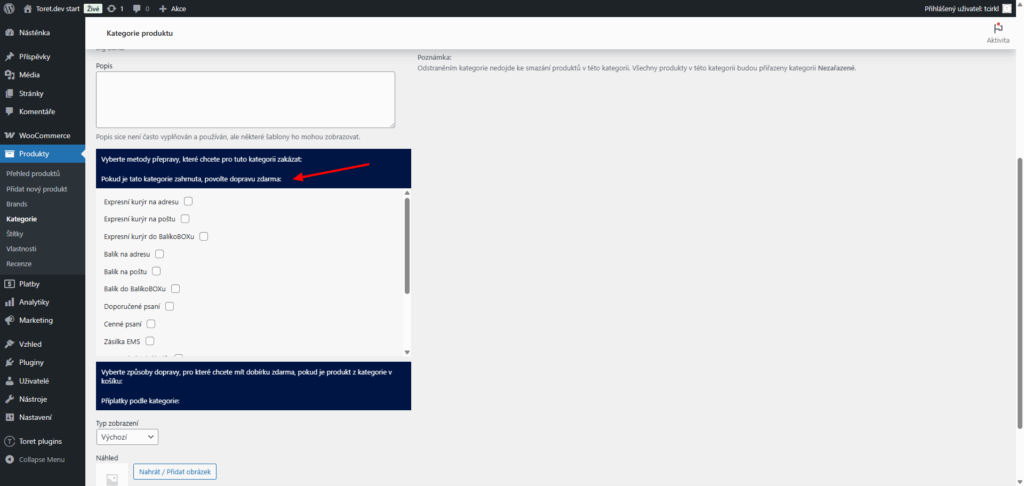
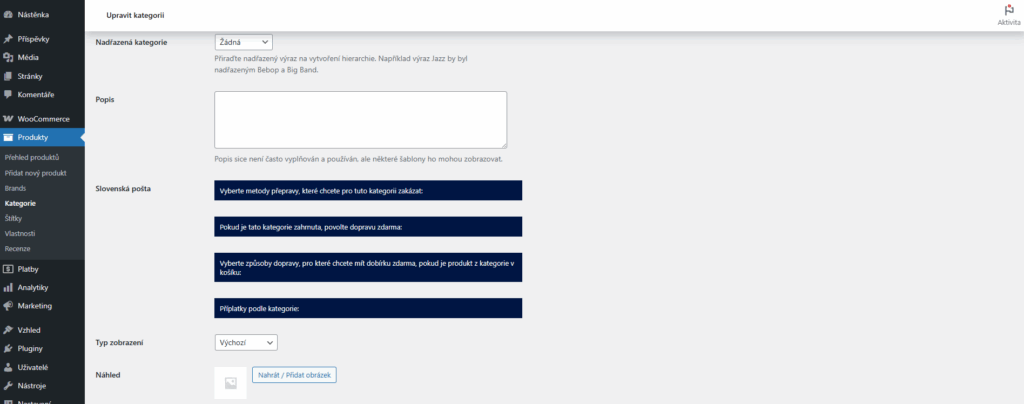
Free shipping for goods from a specific product category can be enabled in the category settings.
Free Shipping Coupons
The plugin supports coupons for free shipping. These can be set globally – for all shipping methods, or for a specific delivery type. You set coupon behavior in the main plugin settings (Toret plugins > Slovenská pošta > Hlavní nastavení).
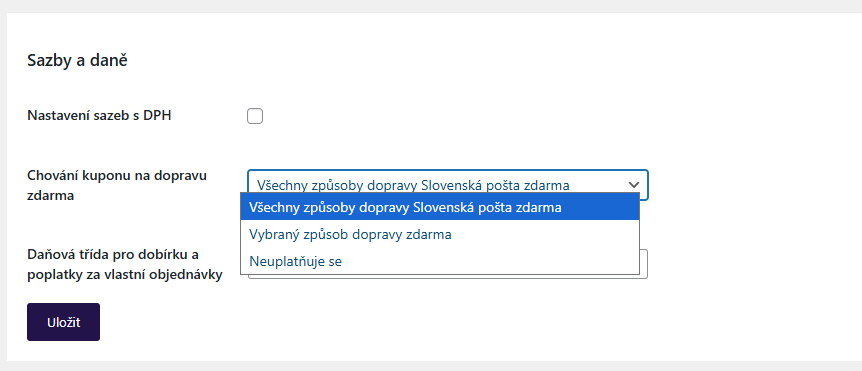
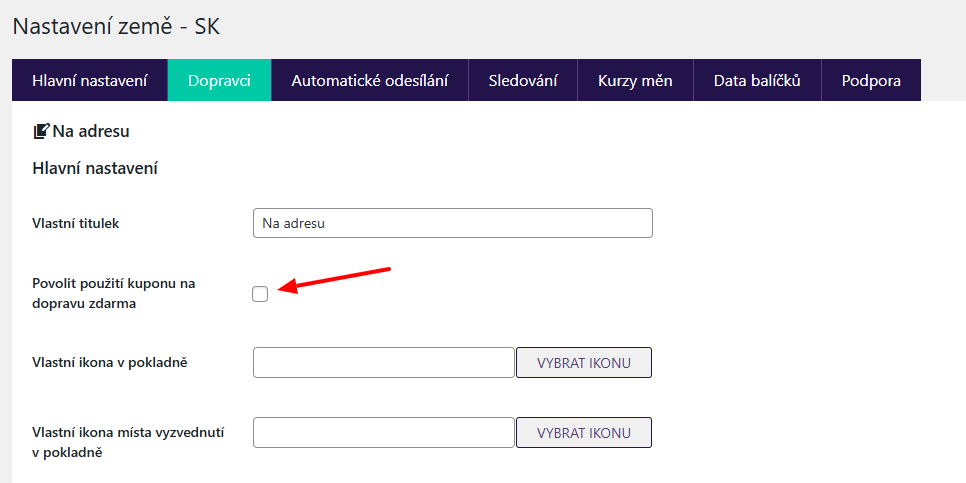
If you want coupons active only for certain shipping methods, select the Vybraný způsob dopravy zdarma (Selected free shipping method) option. Coupons then must be enabled in the settings of the specific method for which you want to apply them.
Cash on Delivery (Dobírka)
The plugin supports the cash on delivery payment method. COD can be set separately for individual countries and shipping methods in settings on the Carriers tab (Toret plugins > Slovenská pošta > Dopravci > Nastavení).
First, you need to enable COD by checking the checkbox. Furthermore, it is possible to select how the COD will be paid to you (fee type), limit, surcharge amount and type (flat or according to order value), and threshold for free COD.
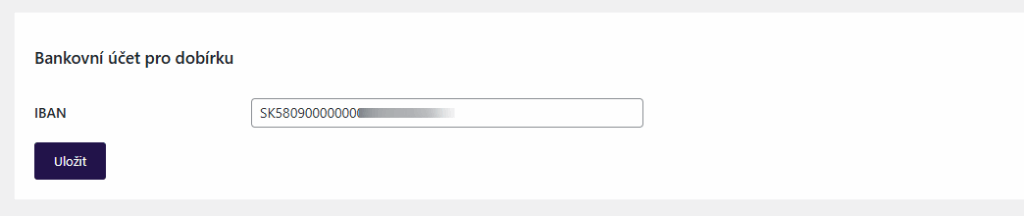
If you want to receive COD payments to an account, enter your account number in the Main Settings of the plugin (Toret Plugins > Slovenská pošta > Hlavní nastavení)
Product and Category Level Settings
The Slovenská pošta plugin also adds additional setting options to product and category details.
In the product detail, you can set:
- Free shipping for product
- Disable shipping method
- Free COD for product
- Surcharge for product (Must first be created in the main plugin settings)
In category detail, you can set:
- Disable shipping method
- Free shipping
- Free COD
- Disable delivery boxes
- Surcharge by category (Must first be created in the main plugin settings)
Package Data
For shipping packages, it is necessary to assign additional data to them. You can set this data as default – i.e., automatically the same for all shipments – or set them for each shipment individually (when creating a shipment). These are:
- shipment weight
- number of shipment pieces
- storage time at post office
- insurance
- packaging type (standard/non-standard)
- reception method (posting at post office/courier pickup)
- package class (1st, 2nd)
- payment method (how you pay postage)
- services (delivery by 10 AM, delivery advice, fragile, delivery info, do not forward, do not store, do not return, bulky, repeated delivery, authorization excluded, return confirmed documentation, personal delivery only, goods exchange)
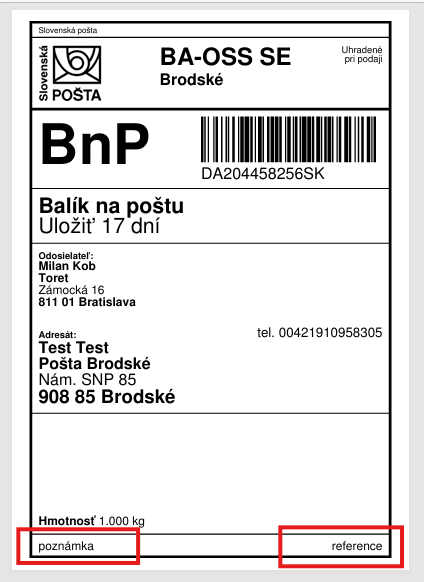
- note (printed on label)
- reference (printed on label)
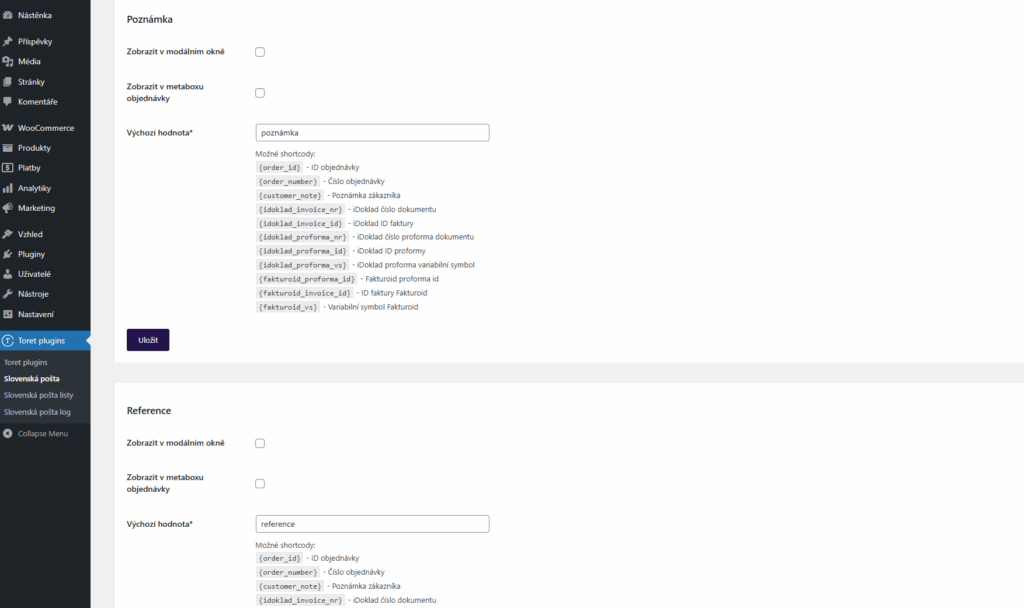
In the plugin settings, on the Package Data tab (Toret plugins > Slovenská pošta > Data balíčků), you can enter default data and turn off display in the modal (pop-up) window – in this case, the entered data will be used for all shipments and you do not have to fill them in again.
The second option is to enable display in the modal window and fill in these data for each shipment separately when creating it.
When activating the option Zobrazit v metaboxu objednávky (Display in order metabox), a field for filling in will be added to the order detail.
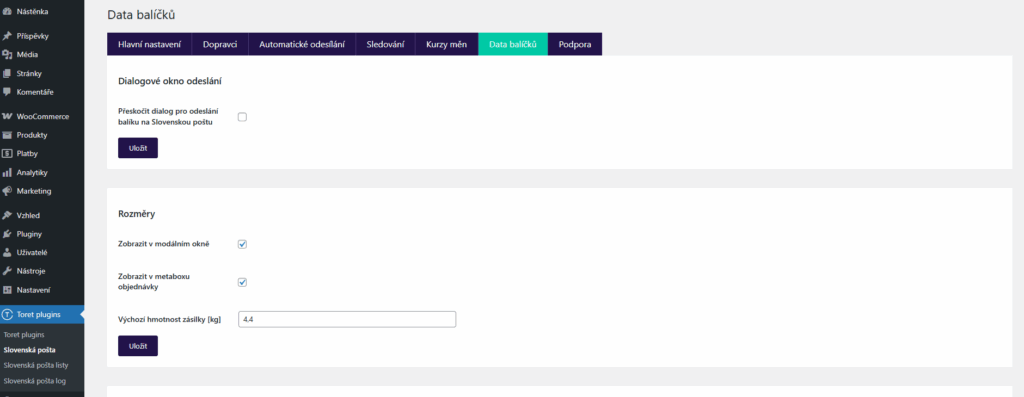
Shipment Submission
Submitting a shipment to the Slovak Post system takes place in two phases:
- Creating a shipment on the shipment sheet
- Sending the shipment sheet to the Slovak Post system
Creating a shipment and sending the sheet is possible both manually and automatically. Below we will look at all these methods.
Attention! For sending, it is essential to have the shipment weight entered. This can be automatically calculated from product weights if you have them listed, or it can be set in the plugin on the Package Data tab.
1. Creating a Shipment
1.1. Manual Shipment Creation
Manual shipment creation is possible both from the overview…

and from the order detail.
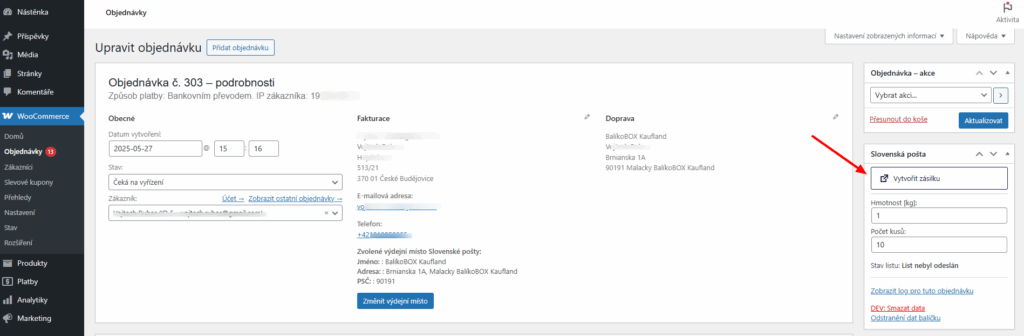
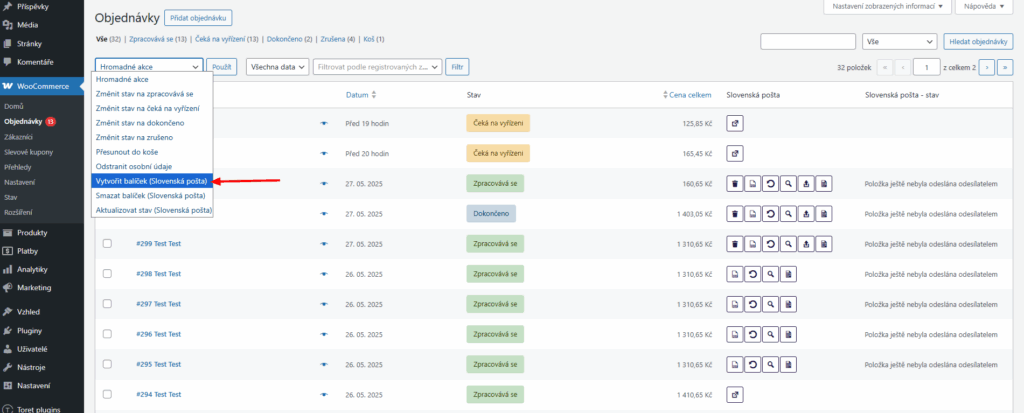
In the order overview, you can also use bulk actions.
The pop-up window that appears during creation can be turned on/off or its fields modified on the Data balíčků (Package Data) tab, see Package Data.
1.2. Automatic Shipment Creation on Order Status Change
Automatic shipment creation creates a shipment when the order status changes to the selected status.
ATTENTION! For automatic creation to work, it is essential to have the weight entered – either for products or default shipment weight on the Data balíčků (Package Data) tab.
You set automatic shipment creation on the Automatické odesílání (Automatic Sending) tab. Assign the order status in which the shipment will be created to individual payment methods.
Do not forget to save the changes made.
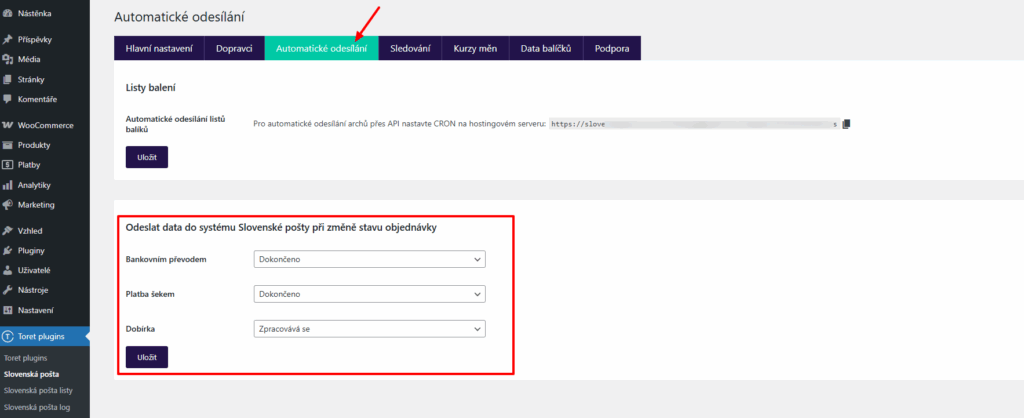
2. Sending the Shipment Sheet
2.1. Manual Sending of Shipment Sheet
You will find all shipment sheets in the sidebar, in the section Slovenská pošta listy (Slovak Post Sheets) (Toret plugins > Slovenská pošta listy). Here you will find which orders are on the given sheet, whether the sheet was sent, and other details. Here it is possible to send sheets – individually and in bulk.
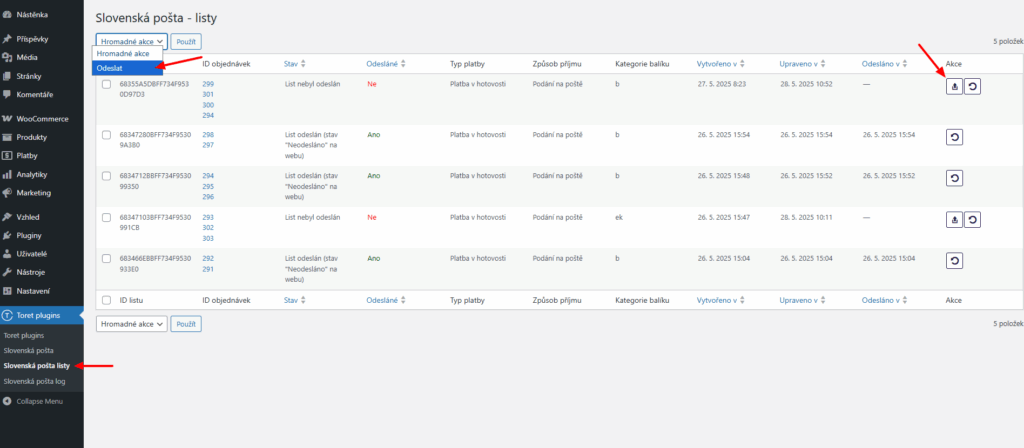
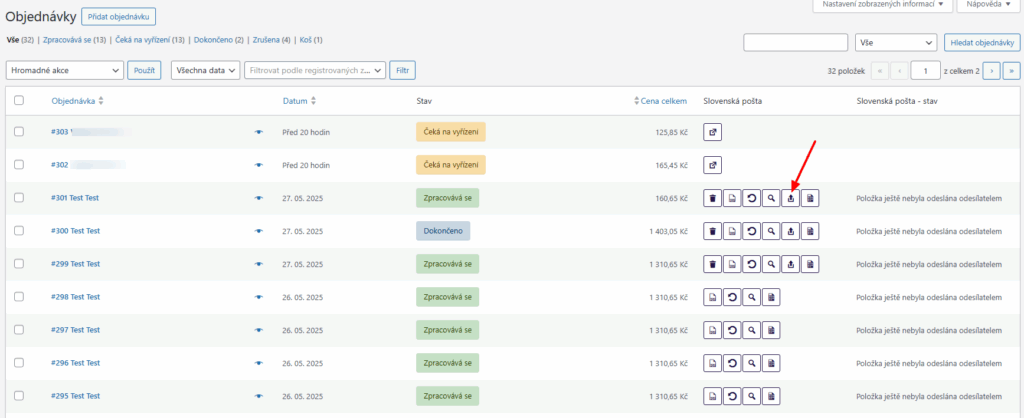
Sheets can also be sent from the order overview…
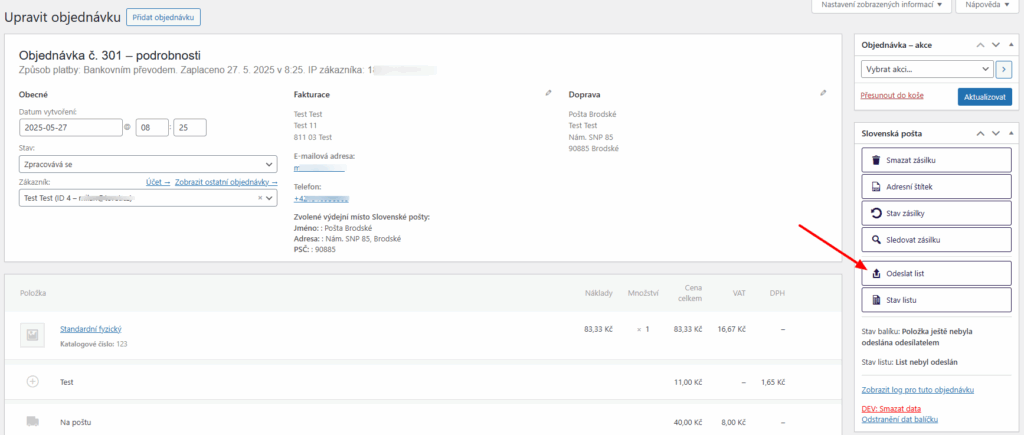
…and from their detail.
2.2. Automatic Sending of Shipment Sheets
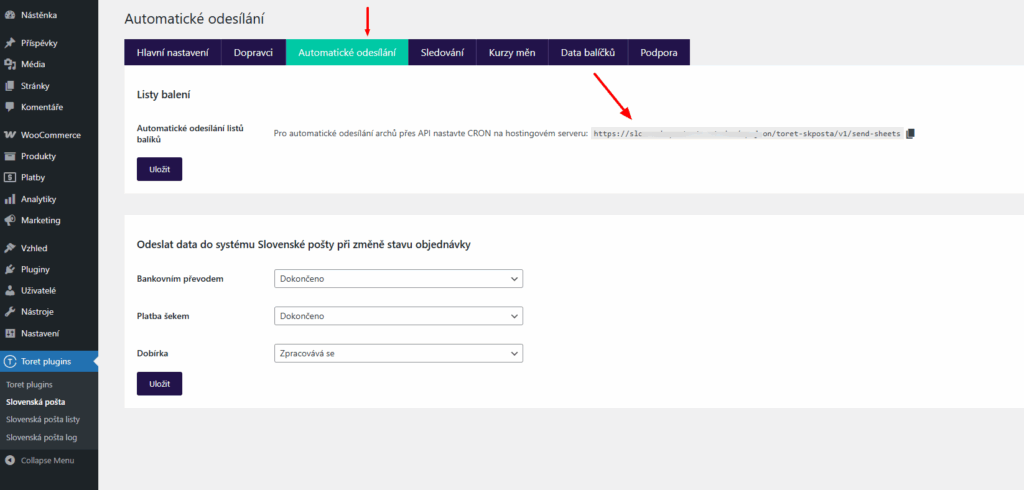
Sending shipment sheets can be automated using CRON. You set this CRON on your hosting. Shipment sheets will be regularly sent to the Slovak Post system according to the time interval you set for CRON.
You can find the CRON URL on the Automatické odesílání (Automatic Sending) tab (Toret Plugins > Slovenská pošta > Automatické odesílání).
Ordering Pickup (Svoz)
Ordering pickup is possible if you set the reception method to courier pickup in the shipment data. Sending the relevant sheet will then order the pickup.
The reception method can be set in the Data balíčků (Package Data) tab as default for all shipments or in the dialog box when creating individual shipments.
Printing Labels
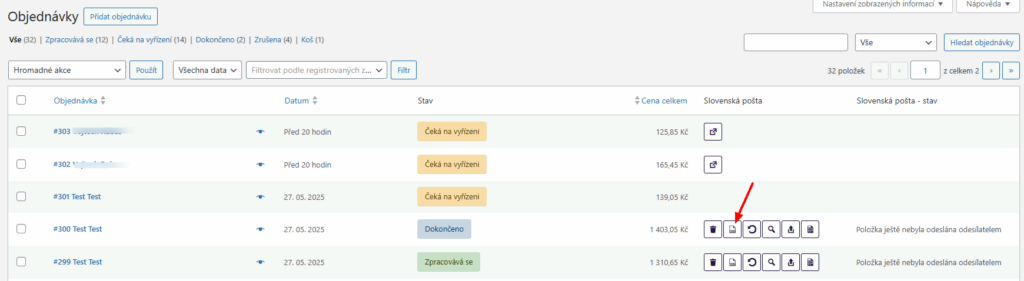
Shipment labels can be downloaded from the overview…
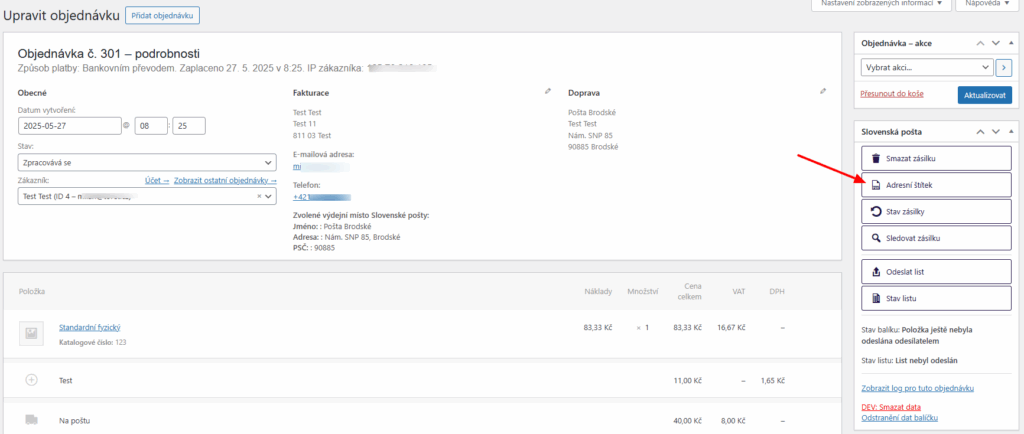
…or order detail.
It is possible to attach a note and reference to the label
You can enter the note and reference as default (same for all shipments) or individually in the dialog box when creating a shipment. You can set the display of fields in the dialog box and default values on the Data balíčků (Package Data) tab (Toret plugins > Slovenská pošta > Data balíčků)
Shipment Tracking
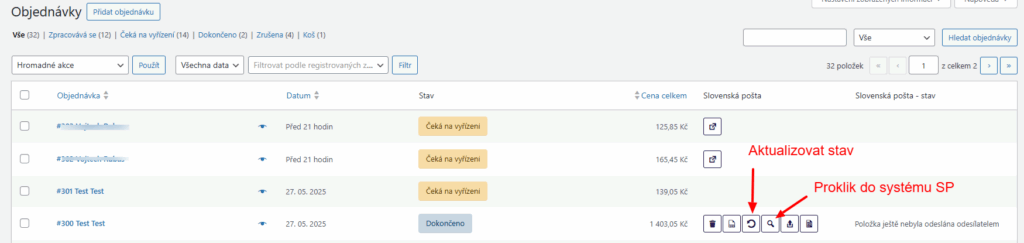
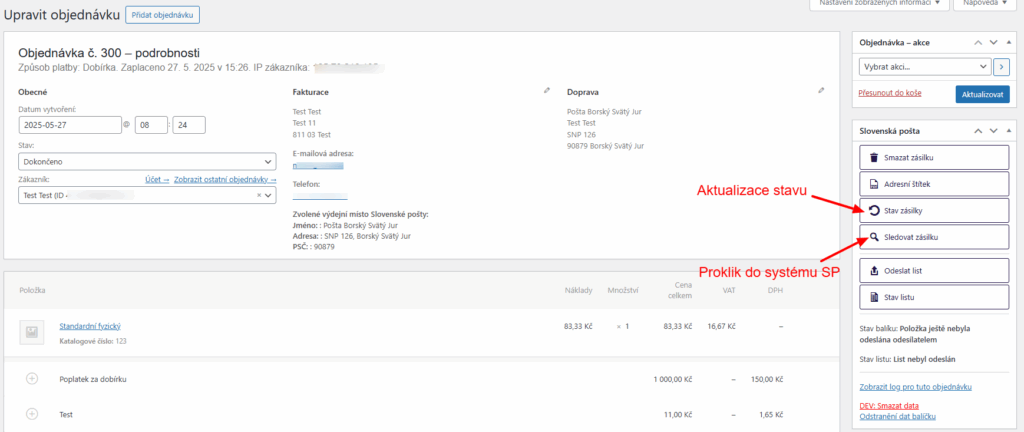
To check the shipment status, it is possible to update its status manually or click directly into the post office system on the shipment detail. Both are possible from the overview…
…and order detail.
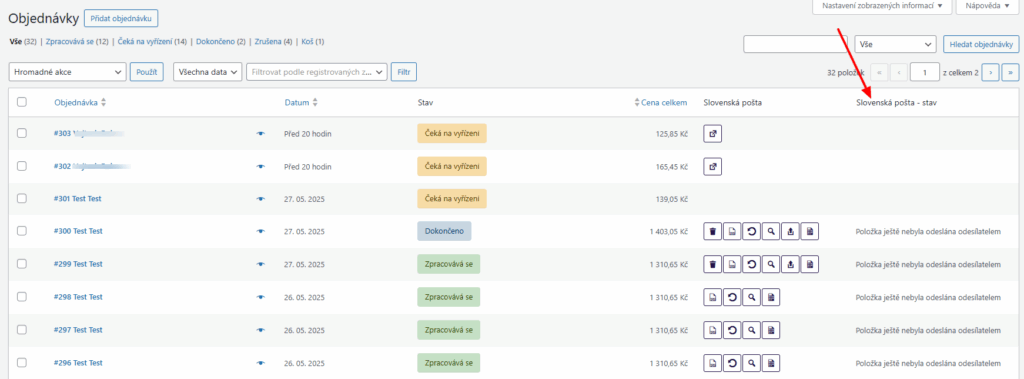
You will then see current shipment statuses in the overview…
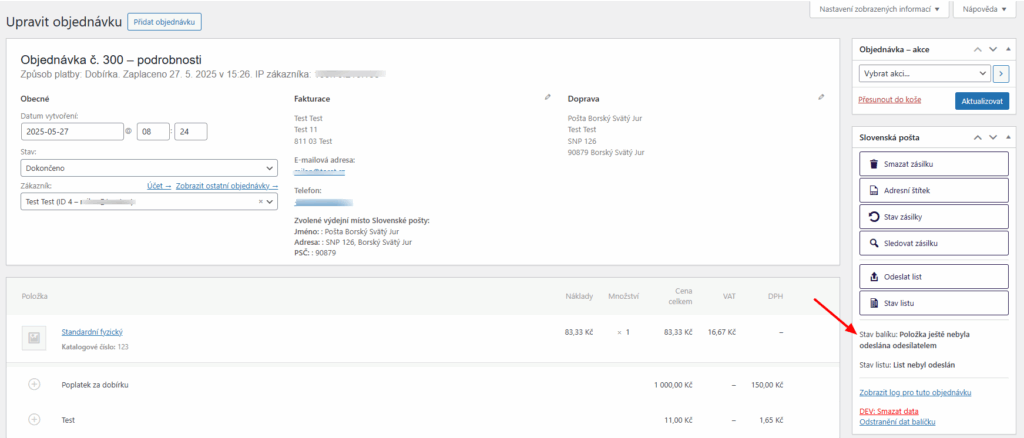
…and order detail.
Shipment status can also be loaded automatically, see below.
Automatic Shipment Status Loading
To track the shipment status in transit directly in the administration, you can use cron. You find it on the Sledování (Tracking) tab (Toret Plugins > Slovenská pošta > Sledování). Then set up the cron in your hosting including the required execution interval.
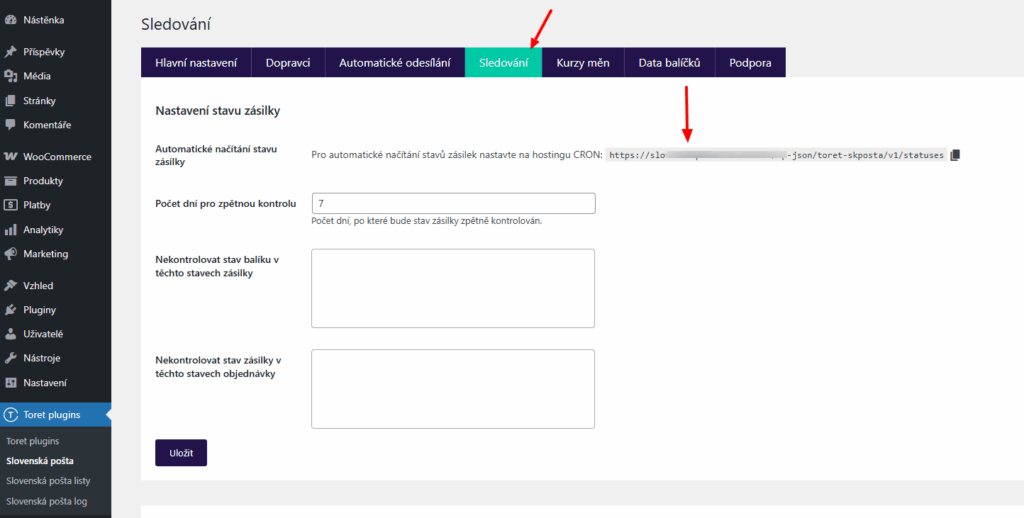
The settings Počet dní pro zpětnou kontrolu (Number of days for retrospective check), Nekontrolovat stav balíku v těchto stavech zásilky (Do not check package status in these shipment statuses) and Nekontrolovat stav zásilky v těchto stavech objednávky (Do not check shipment status in these order statuses) serve to streamline the check and reduce server load (especially in case of high numbers of items to check).
You will then see current shipment statuses in the overview…
…and order detail.
Order Status Change Based on Shipment Status in Transit
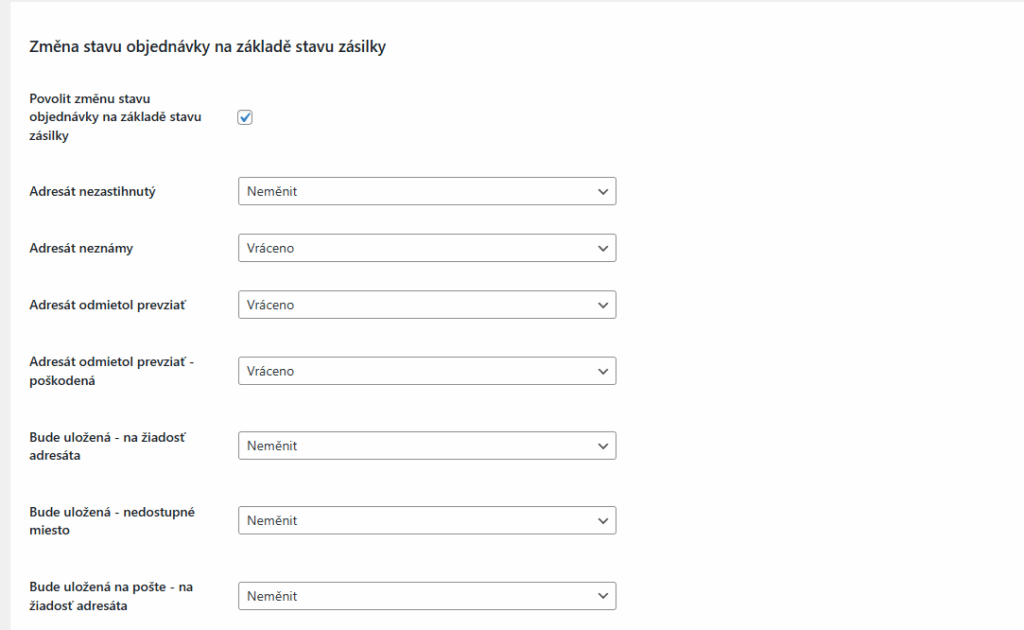
On the Sledování (Tracking) tab, you can further enable changing the order status according to the shipment status at the carrier. Simply assign WooCommerce order statuses for given Slovak Post statuses and save the changes made.
E.g. Upon successful shipment delivery, the order status changes to Completed.
Tracking Link in Customer Email
The plugin allows automatic addition of a tracking link to WooCommerce order emails. You can find the setting for this function in the main plugin settings (Toret Plugins > Slovenská pošta > Hlavní nastavení). Here it is possible to activate the function and select the link placement in the email from the offered hooks.
Testování pluginu
Pro účely testování můžete využít:
- subdoménu “dev.doménalicence” (se stejnou licencí jako pro produkční web)
- localhost (127.0.0.1)
Na těchto umístěních budou zakoupené pluginy fungovat také a můžete zde otestovat implementaci a kompatibilitu před ostrým nasazením na web i v průběhu jeho užívání.
FAQ
Custom VAT Rate for COD Surcharge
You set the VAT rate for COD in the Main Settings of the plugin, Rates and Taxes section. The tax rate can be determined by items in the cart or set fixed.