
You are on the documentation page for the Toret Toolkit for WooCommerce plugin, which modifies and extends WooCommerce functions in compliance with valid legislation.
You can purchase the Toolkit plugin here: Toret Toolkit for WooCommerce
Plugin Installation
Upon purchasing the plugin, you will receive a license key and a download link for the plugin zip file via email. You can find detailed instructions on how to install the plugin from your computer into WordPress here.
Plugin Activation
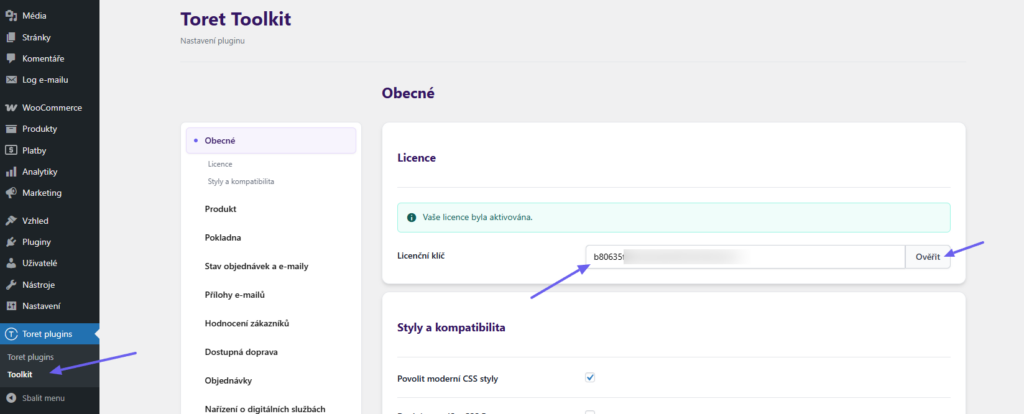
After installing the plugin, open the Toret Toolkit plugin, insert the license key into the appropriate field, and click the button to activate.
Styles and Compatibility
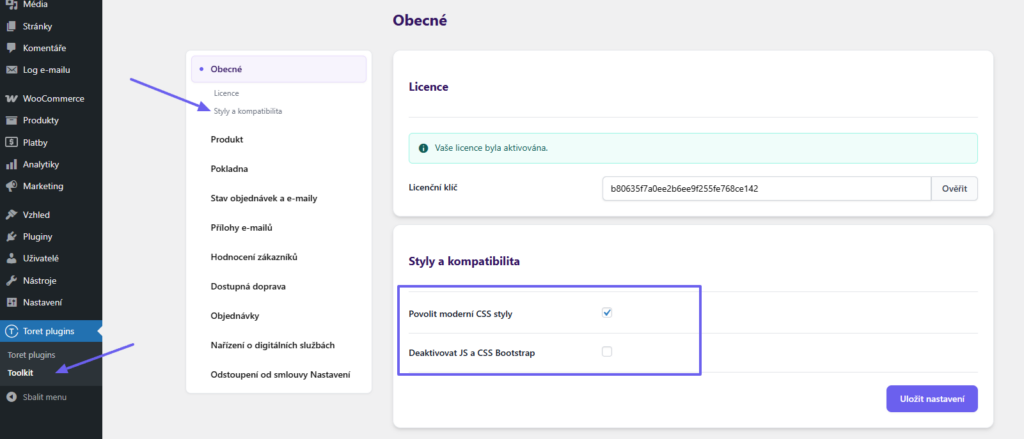
On the Hlavní nastavení (Main Settings) tab, it is possible to adjust the appearance and compatibility of functions as follows:
- Enable modern CSS styles: Activates css styles for a more modern display of functions on product pages
- Disable JS and CSS Bootstrap: Deactivates styles – in case of incompatibility with the e-shop theme
Product
The Produkt (Product) section contains settings for individual functions related to WooCommerce products.
Sales Price Tracking
The plugin logs price changes and alerts to the lowest set price in the last 30 days (in the product detail in administration).
In the plugin settings, just check the function Povolit sledování ceny produktu a kontrolu prodejní ceny (Enable product price tracking and sales price check) (a). Clear price records by clicking the Vymazat celý log (Clear entire log) button (b).
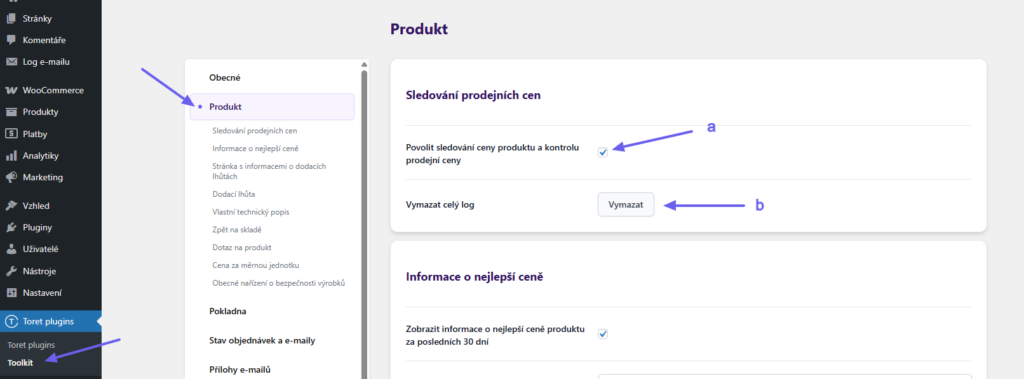
After saving, a Sledování cen (Price Tracking) box is added to the product detail on the Toret Toolkit tab. The box automatically displays the lowest price in the last 30 days.
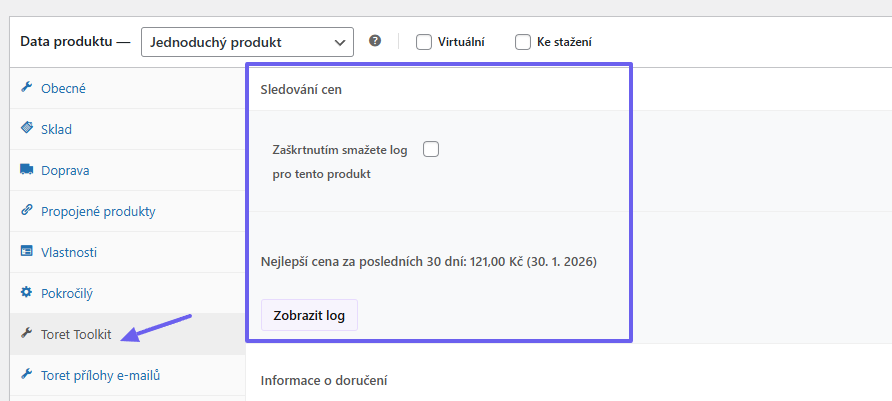
It is also possible to open the log, which lists the product price history.
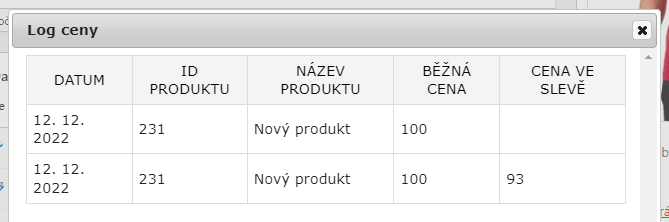
In the Sledování cen (Price Tracking) box, it is possible to delete the log, just check the checkbox and save the product.
Best Price Information on Product Page
In the plugin, it is possible to enable the function display lowest price on product page for the last 30 days. (a) For this function, it is necessary to have Sledování prodejních cen (Sales Price Tracking) enabled (see above).
The notification is displayed only if two conditions are met:
- the product has a sale price set
- in the last 30 days, a sale price/regular price lower than the current sales price was set
The place where the lowest price information is displayed can be adjusted in the settings by selecting a hook (b), where the information will be hooked. The text of the information can be modified (c).
In the Zdroj pro výpočet nejlepší ceny (Source for best price calculation) row (d), you can set whether the best price is calculated from the regular price, sale price, or the lowest of both.
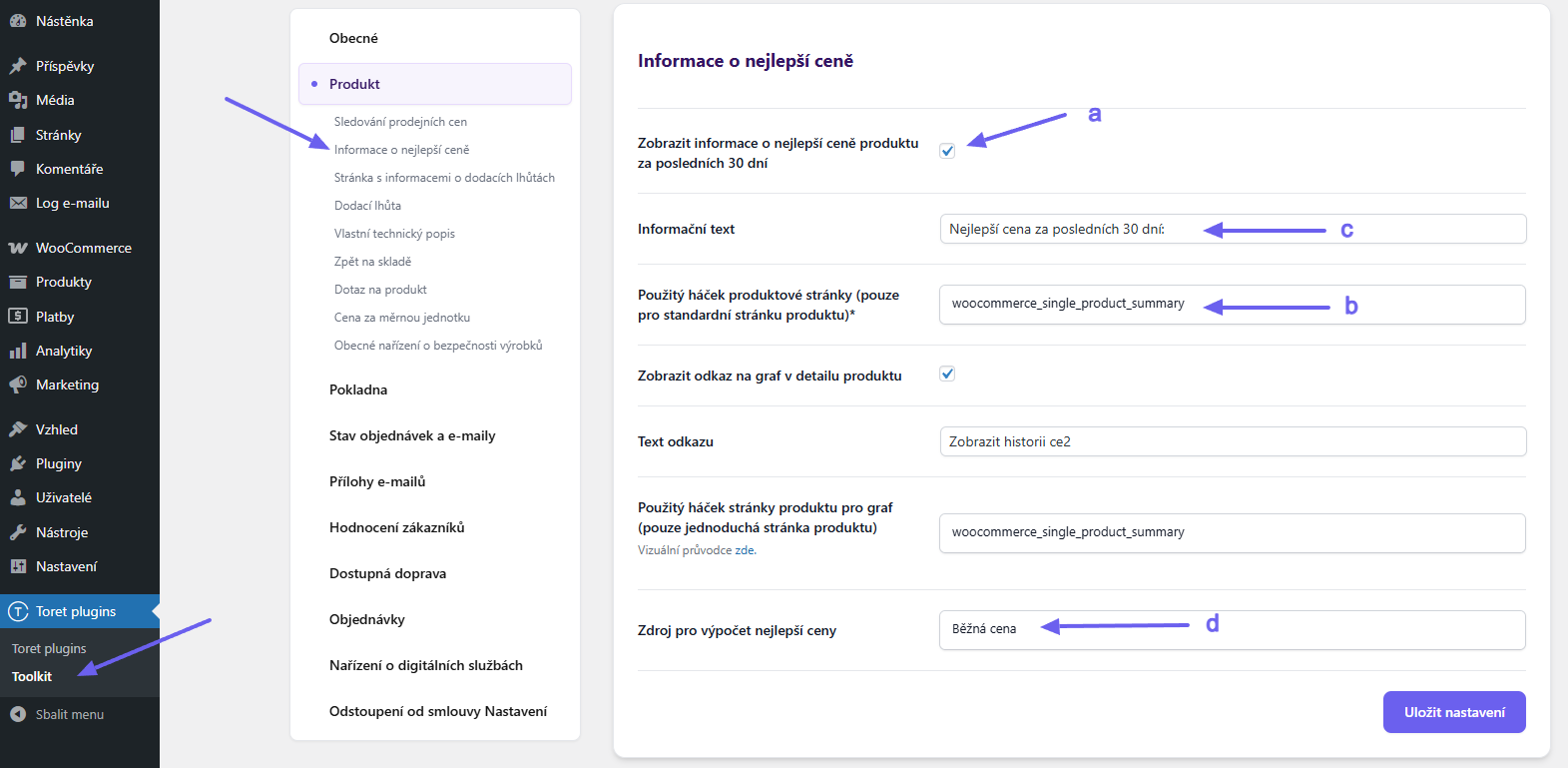
Upon meeting the conditions, the lowest price information is displayed with the product.

Price History Graph Display
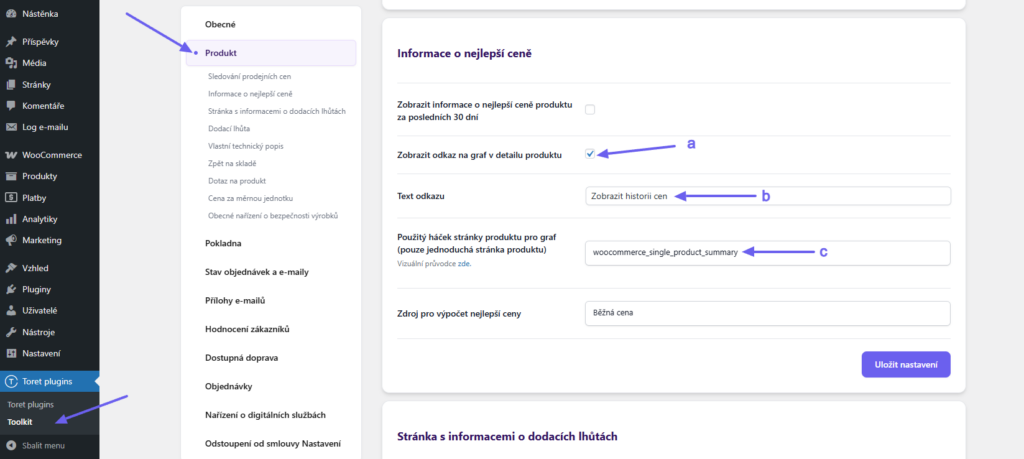
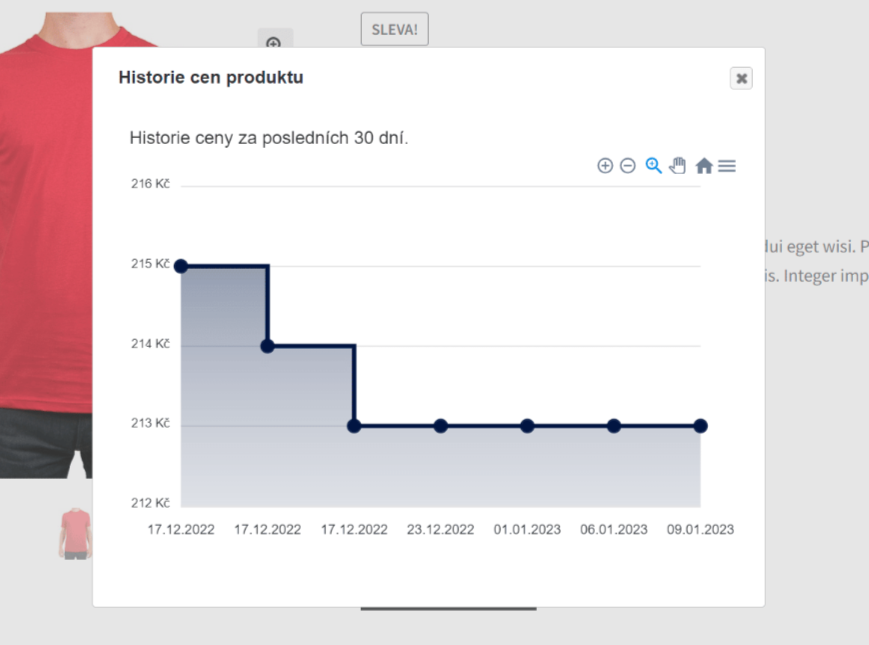
In the setting of the Informace o nejlepší ceně (Best Price Information) function, you can activate the graph display function (a), set the link text to the graph (b), and select a hook (c) where the link will be displayed on the product page. The graph itself is displayed in a pop-up window after clicking the link.
The graph shows the product price development over time. The graph timeline is the same as the maximum period for discount calculation (30 days).
Delivery Information / Delivery Times Page
It is also possible to set a link on the product page leading to your page with delivery information.
TIP: To display shipping price information in a pop-up window, use the function on the Doprava (Shipping) tab.
First, it is necessary to create a page in WordPress where information about shipping provided on the e-shop will be listed.
In the plugin settings (Toret plugins >Toolkit > Produkt (Product) > Stránka s informacemi o dodacích lhůtách (Delivery Times Info Page)), check the checkbox Zobrazit odkaz na stránku s informacemi o doručení (Display link to delivery info page) (a). Insert the page link into the Odkaz stránky (Page link) field (b). Choose the link name that will be displayed to customers (c) and select the hook (d) location where the link will be displayed on the product page.
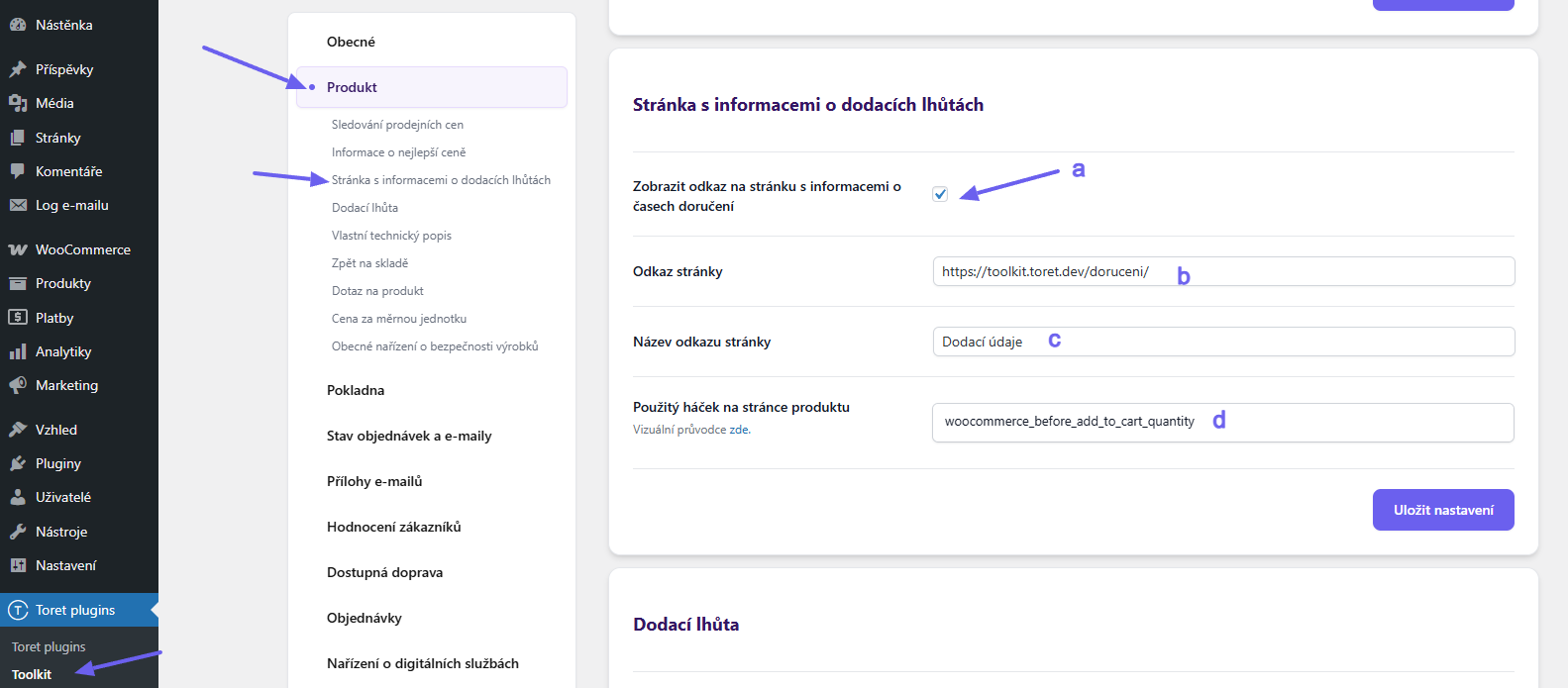
Then a link to the page with shipping information will be displayed with the product.


Delivery Time
The plugin allows setting a global delivery time, which is automatically applied to all products, or an individual delivery time for specific products.
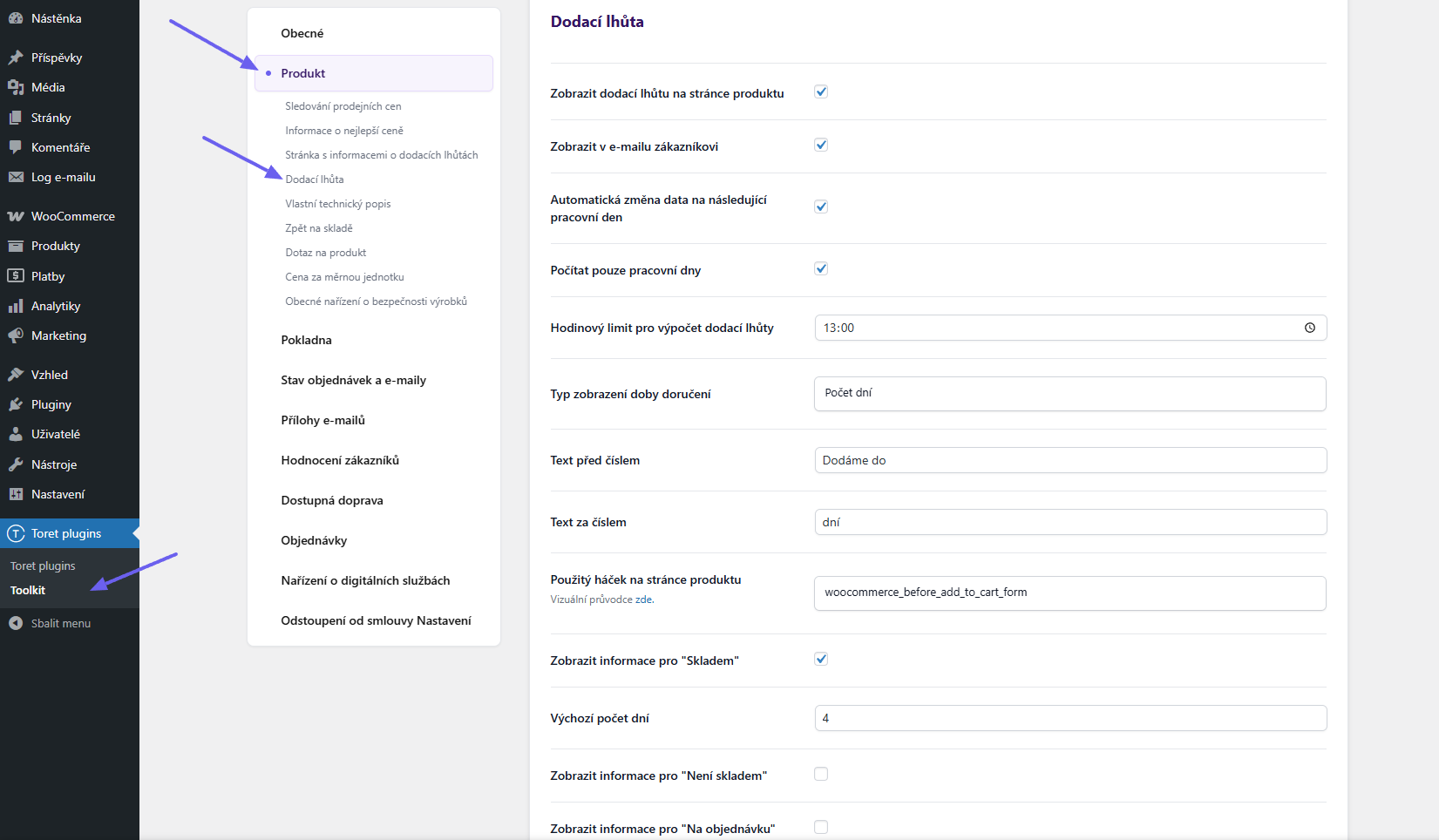
Global settings for delivery time can be found on the Produkt (Product) tab (Toret plugins > Toolkit) and offers these options:
- display on product page
- display in customer email
- automatic date change to next working day
- count working days only
- hour limit for delivery time calculation – after exceeding the set time limit, an extra day is added to the time
- delivery time display type – time can be displayed as date/number of days
- modify text before/after number
- select hook for placement (overview of hooks can be found in the visual guide)
- display and set individually for “In stock”, “Out of stock”, and “On backorder” statuses
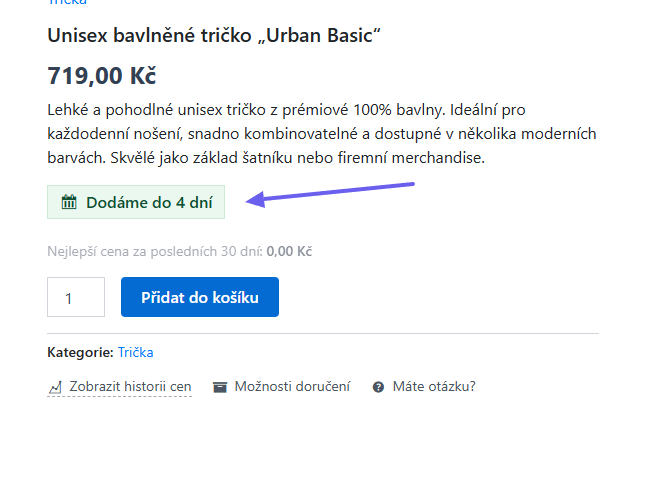
The delivery time is displayed with the product like this:
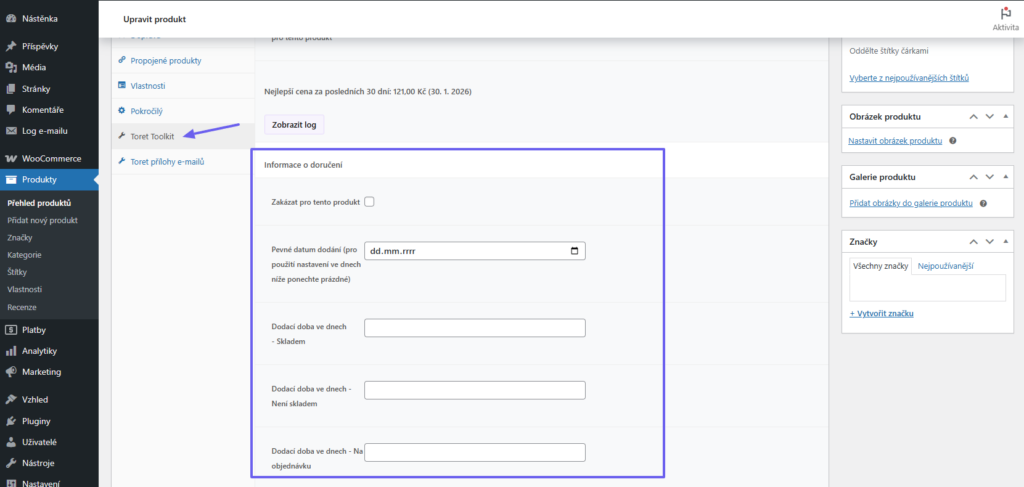
Individual delivery time settings for specific products are done in the product detail (Produkt > Data produktu > Toret Toolkit).
Custom Technical Description
For a product, it is possible to activate the display of a custom tab in the plugin settings, where the technical description of the product will be listed, and enter the default tab name.
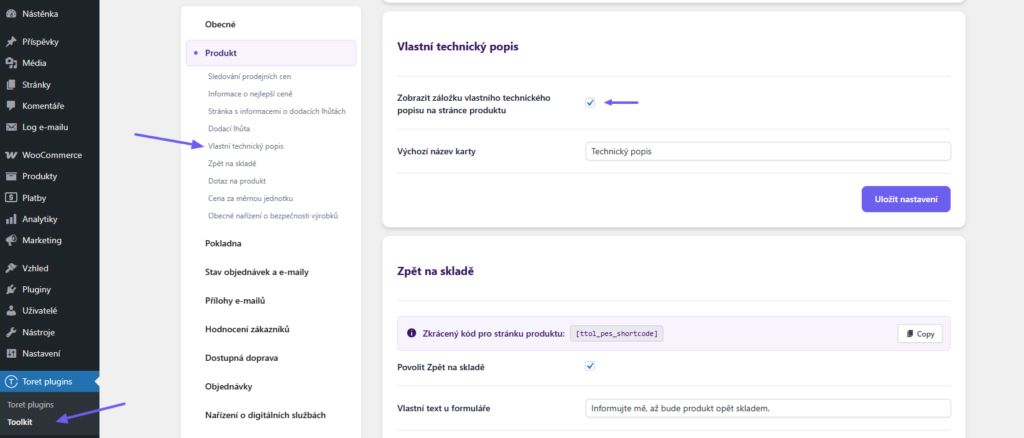
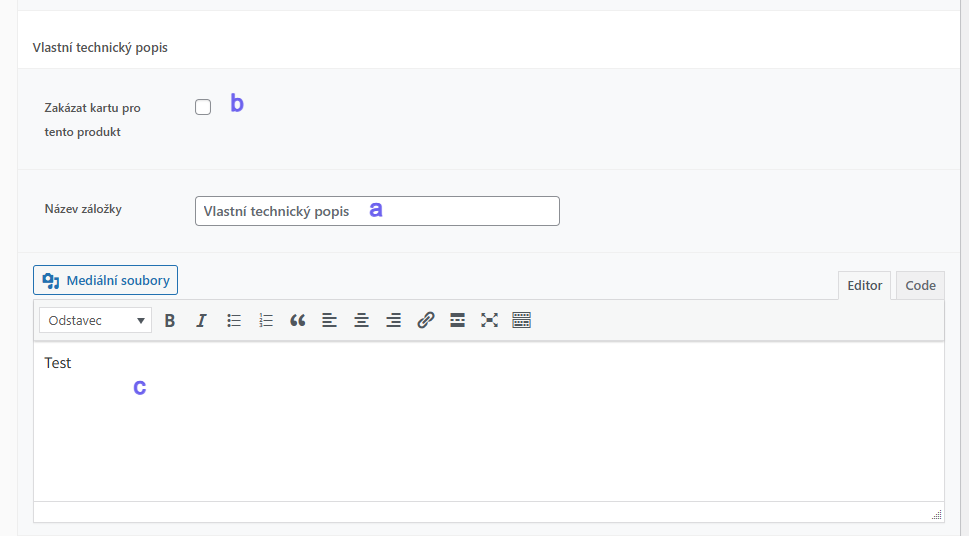
In the product detail (Produkt > Data produktu > Toret Toolkit) you then set:
- tab name for specific product (a)
- hide tab for given product (b)
- tab content (c)
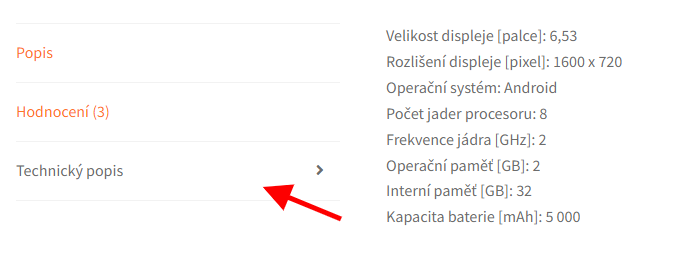
The technical description will be displayed as a new tab with the product.

Back In Stock (Watchdog)
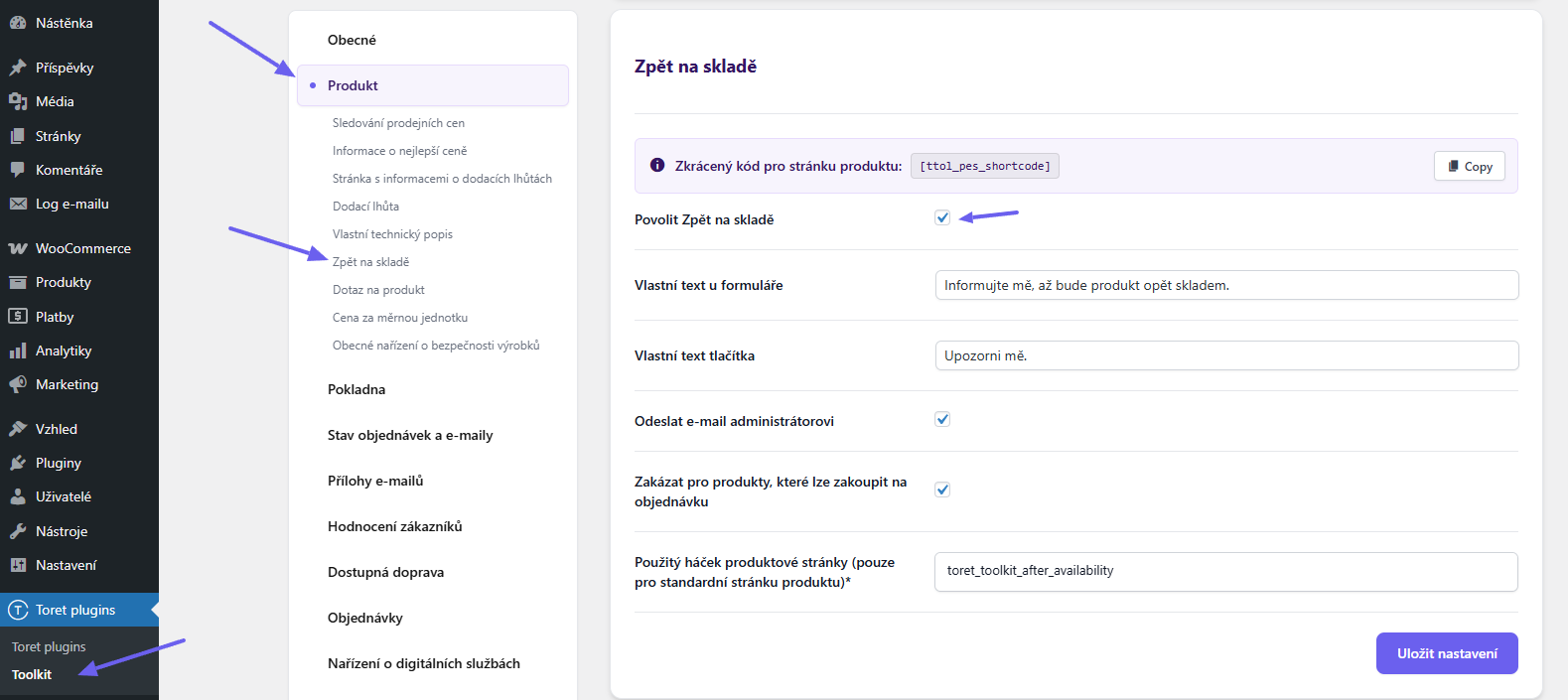
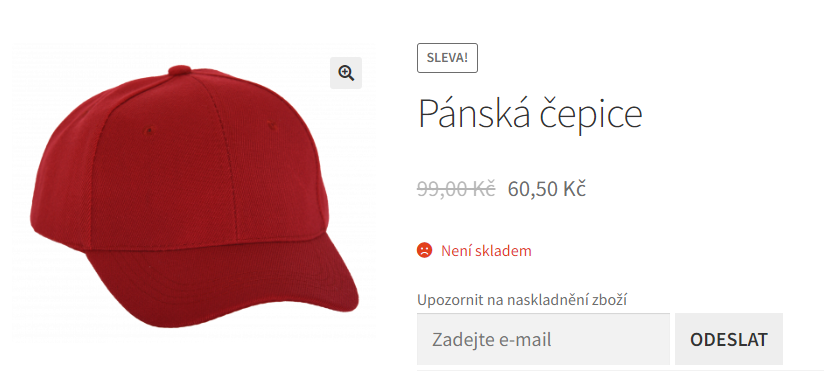
The Zpět na skladě (Back In Stock) function works as a watchdog. For products that are out of stock, a form for entering the customer’s email is displayed. The form can also be inserted using a shortcode, which you can find in the function settings.
As soon as the product is restocked, the system automatically sends an email to the customer with a notification about restocking and a link to the product.
In the plugin settings, you can customize the text above the email field and the button text, select the location on the page using a hook (or use a shortcode) and enable email notification for the administrator (when the form is sent by the customer).
Part of the subscription is also email address verification using a sent link, which is generated immediately after subscribing. Only after confirming this link is the user truly subscribed. The plugin thus meets GDPR requirements.
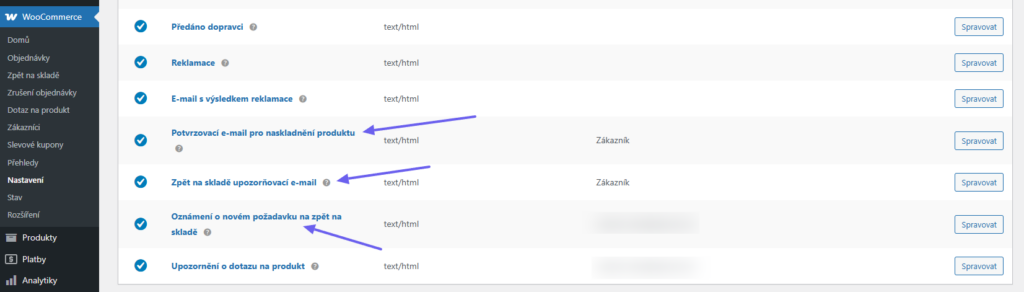
Emails sent by the plugin are based on the WooCommerce design and can also be modified in the relevant section (WooCommerce > Settings > Emails). Here you can edit both emails for the customer (confirmation of subscription; restocking notification) and email notification for the administrator.
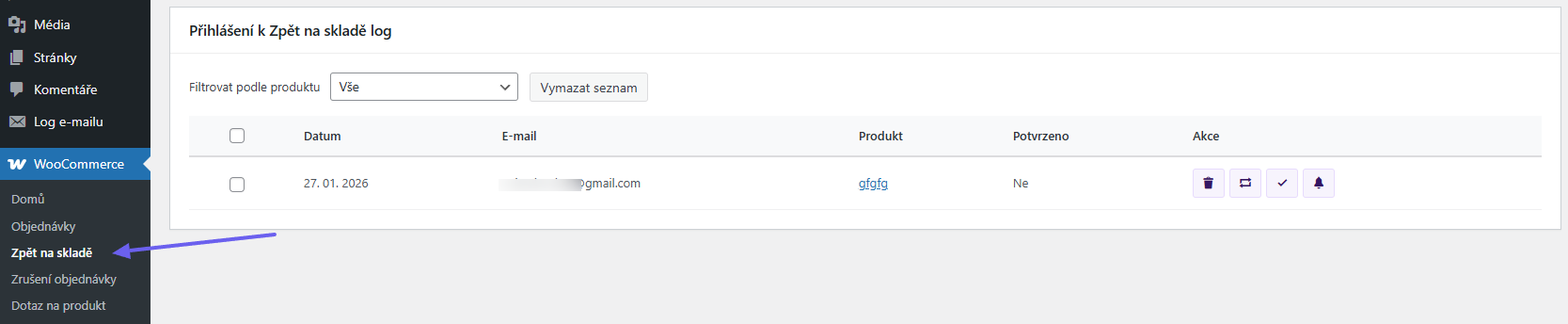
Subscribed users who want to be notified about restocking can be found in the log in the WooCommerce administration (WooCommerce > Back In Stock), where you can manage them. At the same time, you can see which product they are interested in, whether they have confirmed the verification link, and whether they have already been notified about possible restocking.
In the action column, it is possible to delete a row in the log, resend the confirmation email, manually confirm the subscription, or manually send a restocking notification. Once the customer is notified, the row in the log is automatically deleted.
It is also possible to filter here by individual products for which customers have subscribed to restocking information, or delete the entire log via the “Vymazat seznam” (Clear list) button.
Product Enquiry
The plugin allows setting the option to ask a question about the product for each product. The module must first be activated (Povolit modul Dotaz na produkt / Enable Product Enquiry module).
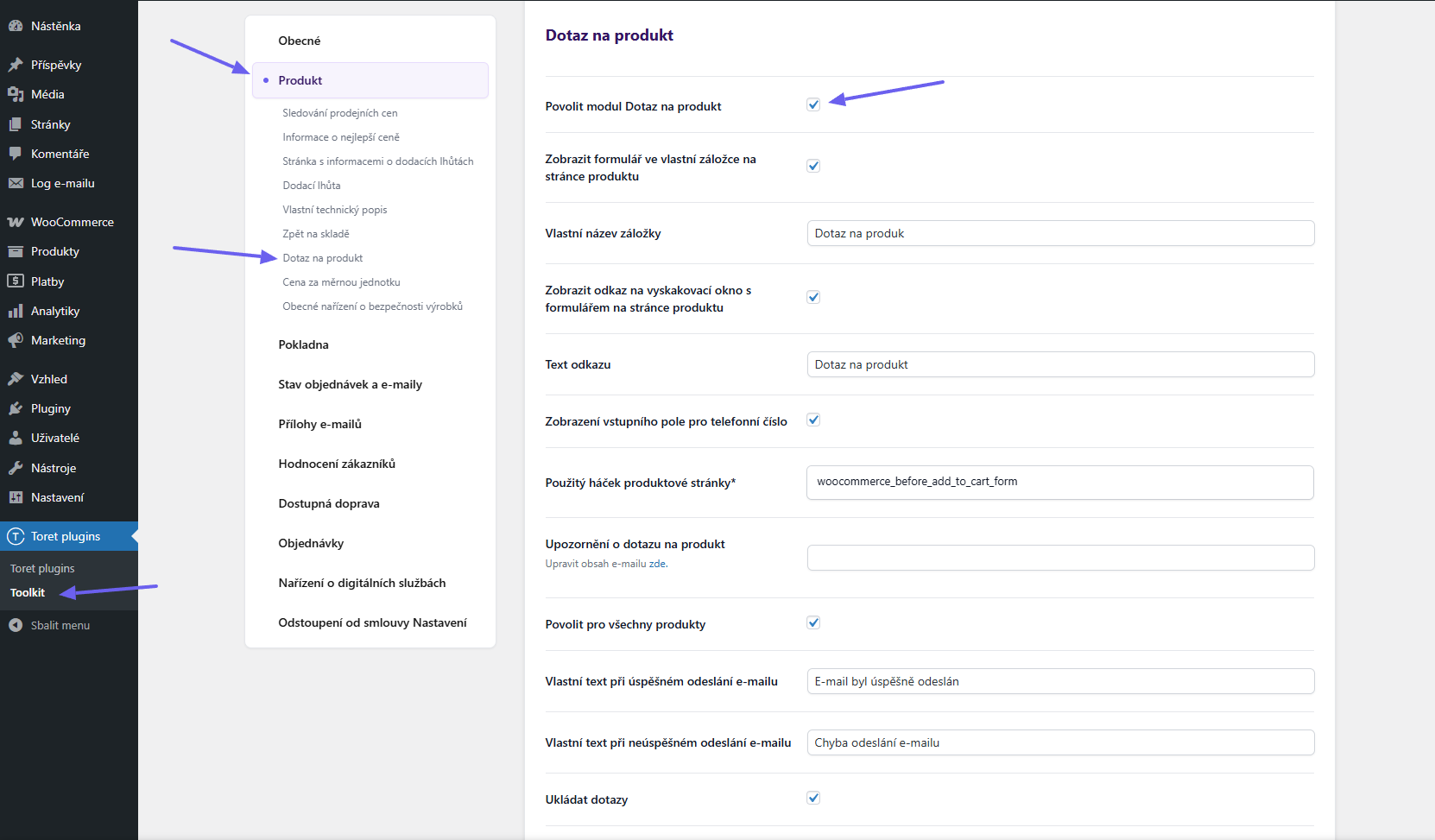
The form can be set as a tab on the product or as a link that opens a pop-up window. Texts for the tab and link can be customized. If the field remains empty, the default text is used.
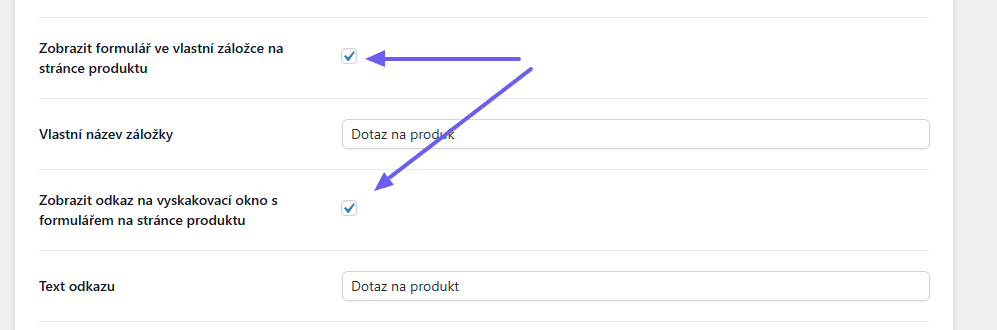
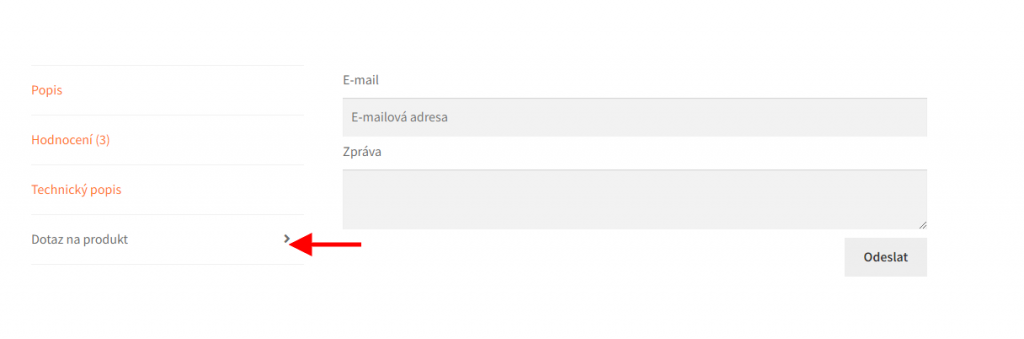
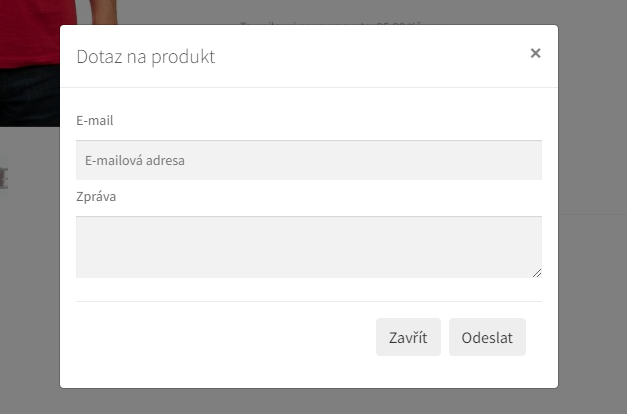
The place where the link to the pop-up window is displayed can be adjusted in the settings by selecting a hook on the product page.
It is also possible to set in the settings:
- display field for entering customer phone number
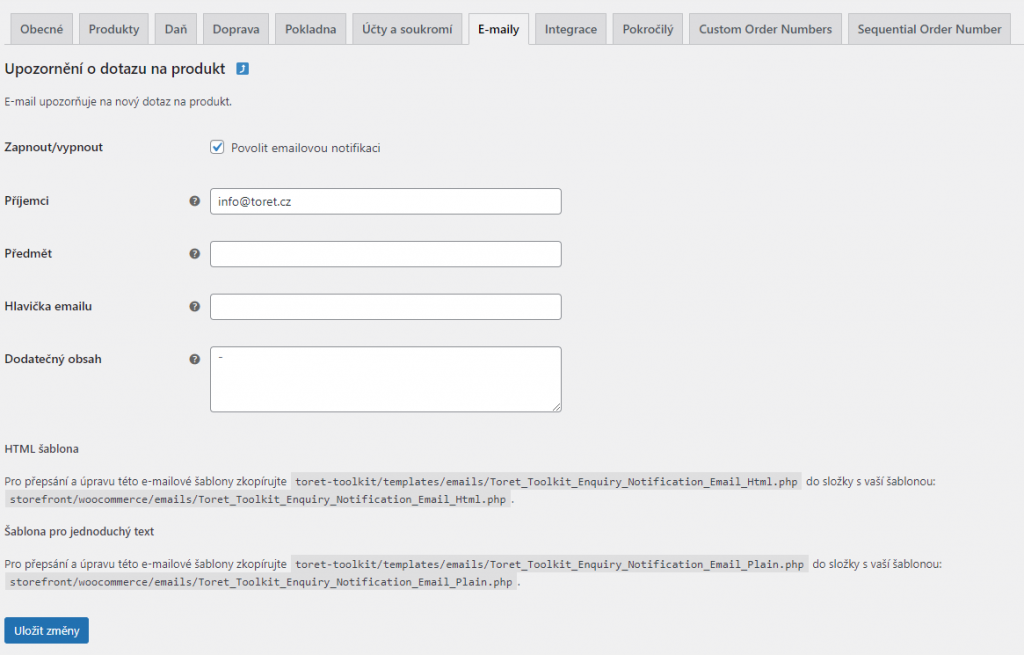
- email to which notification about the enquiry will be sent (for administrator)
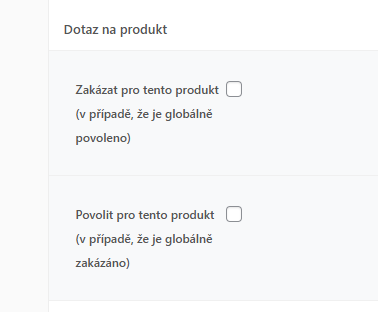
- enable for all products (permission can also be adjusted in product detail)
- custom wording displayed after successful/unsuccessful email sending
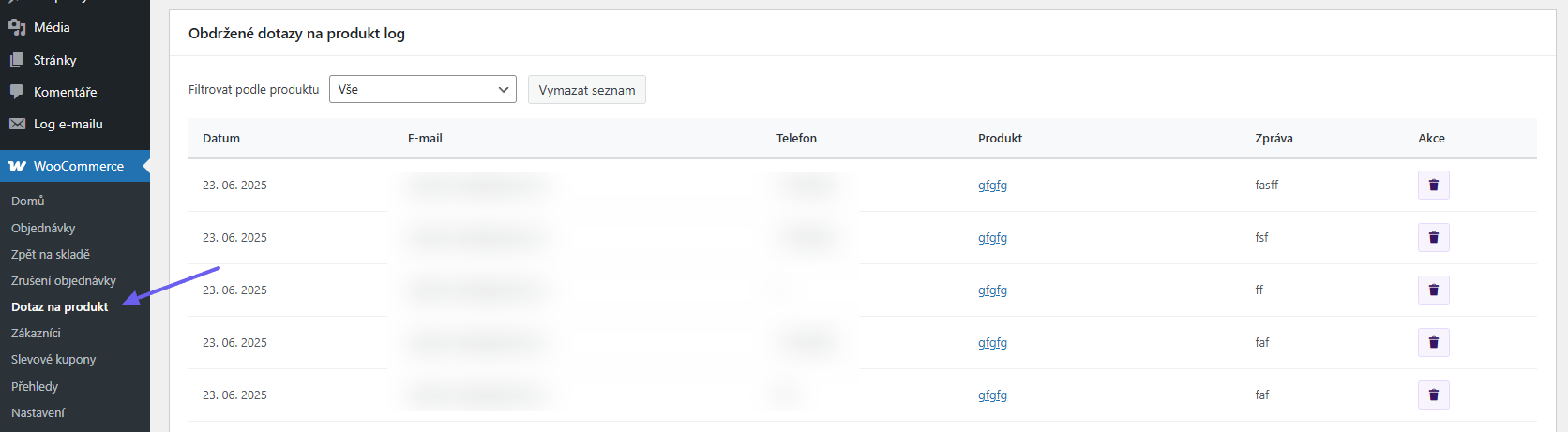
- saving enquiries (saved enquiries can be found in WooCommerce > Product Enquiry)
After sending the enquiry, a message with the enquiry, customer email, and link to the inquired product will arrive at the email set in WordPress.
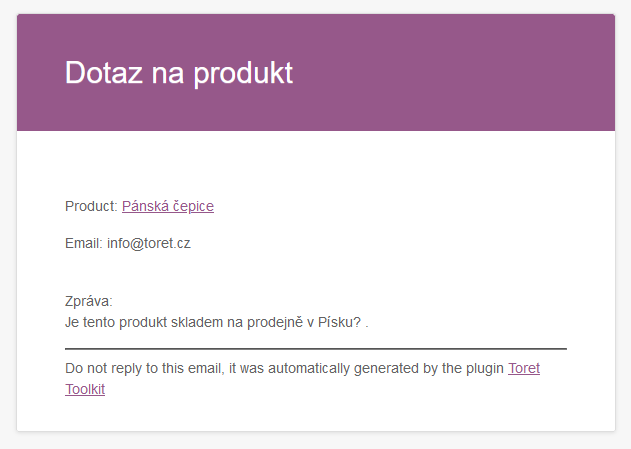
Email content can be freely modified (WooCommerce > Settings > Emails)
In the plugin settings, it is possible to enable saving enquiries to a table. You can find it in WooCommerce → Product Enquiry.
In the plugin settings, you can select the option to display the product enquiry for all products. Alternatively, in the product detail (Product > Product Data > Toolkit > Product Enquiry), the enquiry can be deactivated for the given product. Conversely, if the product enquiry is not enabled globally, it is possible to enable the enquiry for the product only for selected products.
Price per Unit
If you want to display the price per unit for products, it is necessary to enable the Cena za měrnou jednotku (Price per Unit) module (checkbox) in the plugin settings for the product (Toret plugins > Toolkit > Produkt).
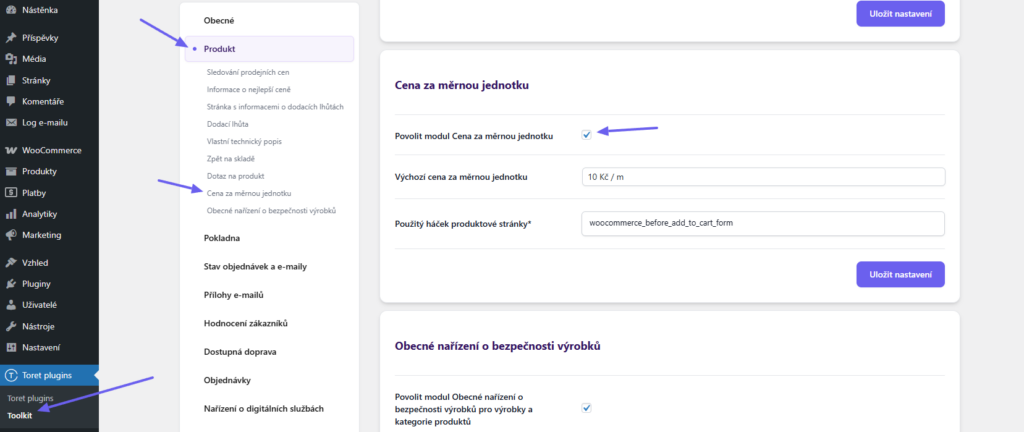
Subsequently, you can select a hook(Použitý háček produktové stránky) – the place where the price will be displayed on the product page. You can find an overview of hooks here.
Default price per unit: The value entered here will be propagated to all products if no individual value is entered in the product settings.
Individual prices for each product can be entered in the product detail (Product > Product Data >Toret Toolkit > Price per Unit).

General Product Safety Regulation (GPSR)
The plugin allows displaying manufacturer information for products. You perform this function setting on the Product tab in the plugin settings. (Toret plugins > Toolkit > Produkt > Obecné nařízení o bezpečnosti výrobků (General Product Safety Regulation))
- Activate the module in the plugin settings (1)
- You can enter a custom name for the information tab or use the default (2)
- Save
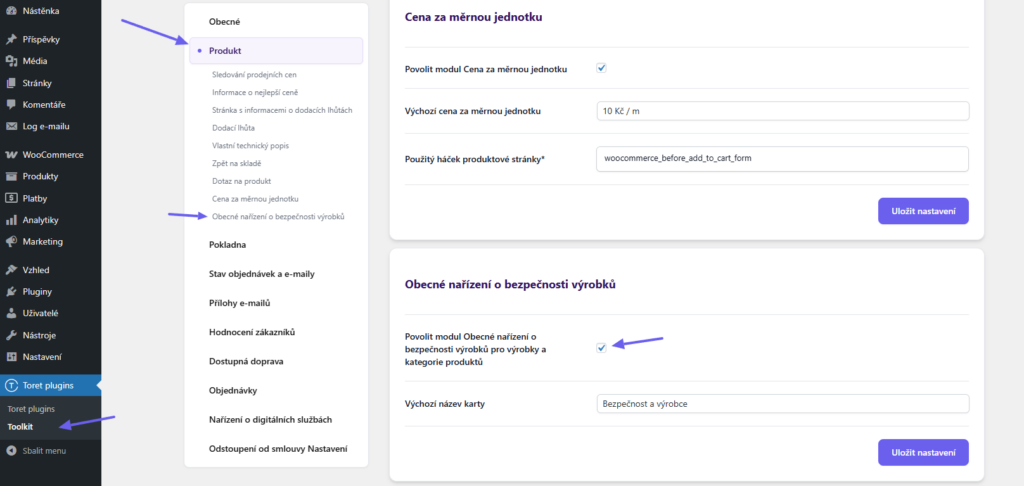
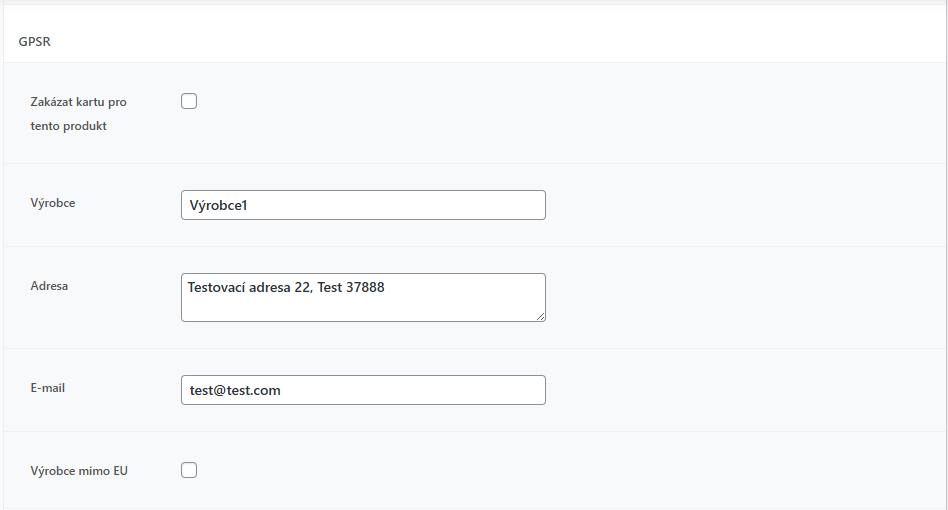
After activating the module, manufacturer information can be entered in the product detail > Product Data > Toret Toolkit > GPSR
…or in the category detail. Data entered for a category is automatically displayed for all products assigned to this category.
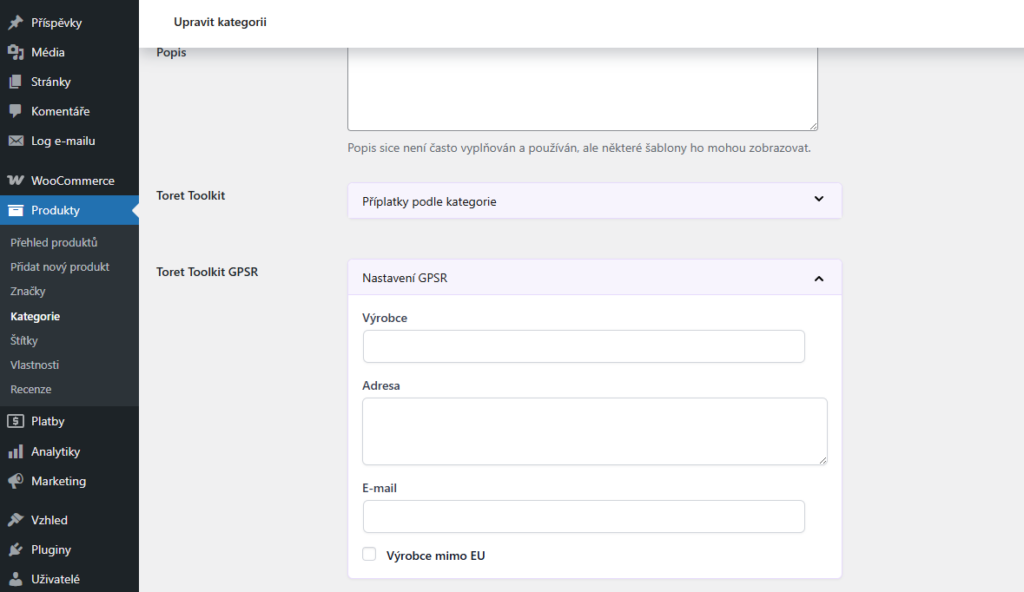
Data entered for a product takes precedence over data for a category. I.e., if you have filled in data for both the product and the category, the ones entered for the product will be displayed.
Checkout
On the next tab, it is possible to edit information on the checkout page.
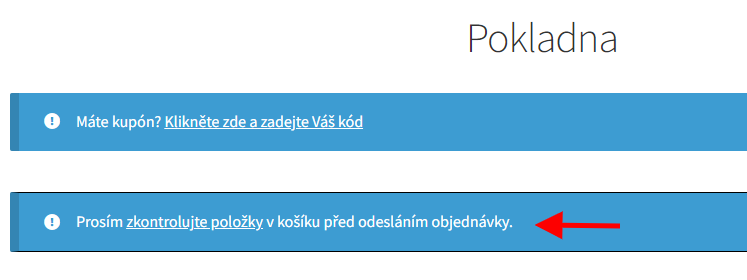
Cart Check Warning
In the checkout, it is possible to enable a prompt for the customer to check the cart before sending the order.
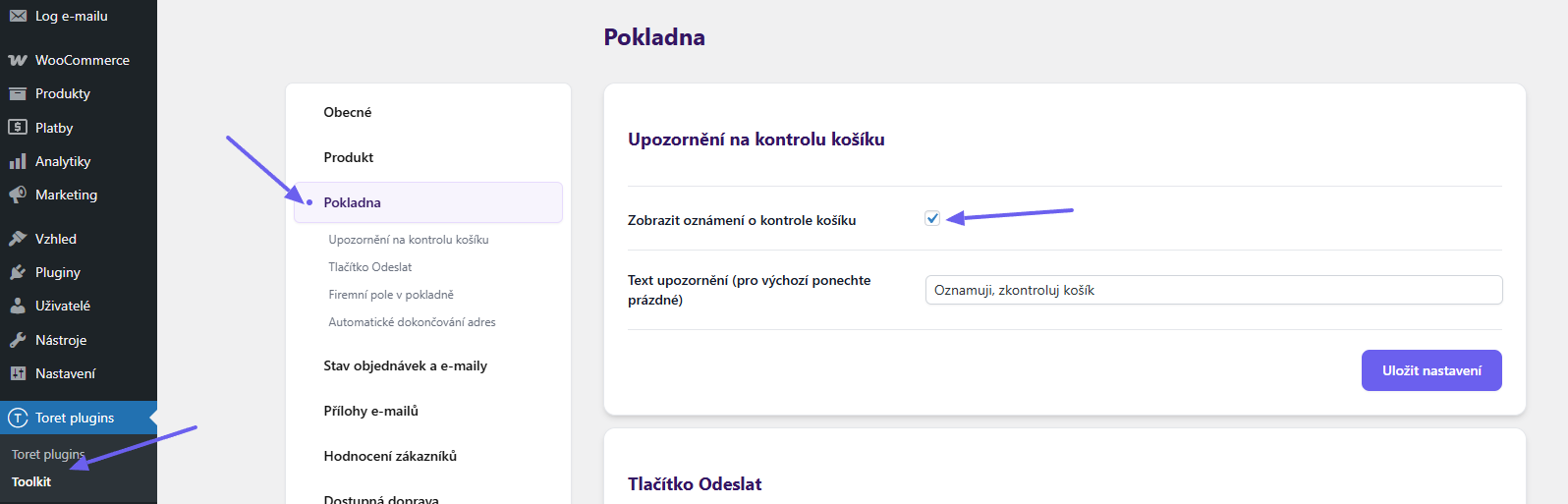
It is possible to set custom wording for the prompt or leave the field empty. In that case, the default wording set by the plugin is used.
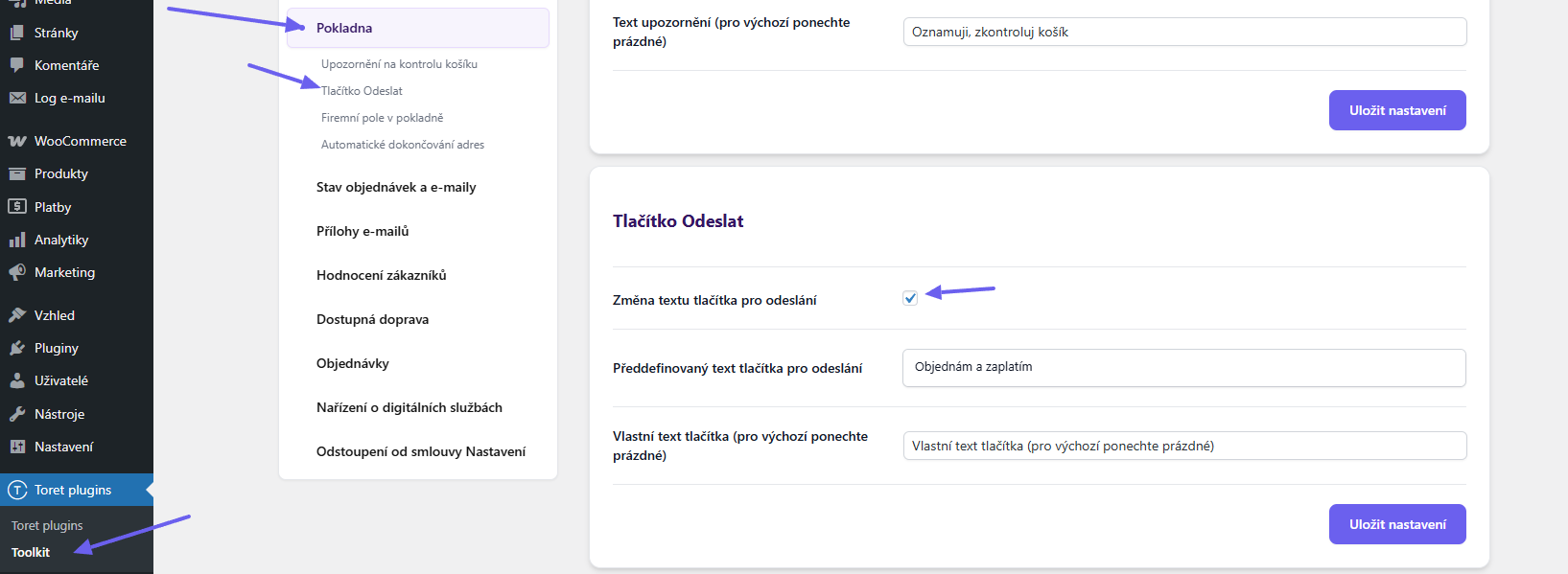
Submit Button
In this section, you can change the text of the order submit button. The plugin includes predefined texts compliant with consumer law (“button amendment”), or you can choose custom text.
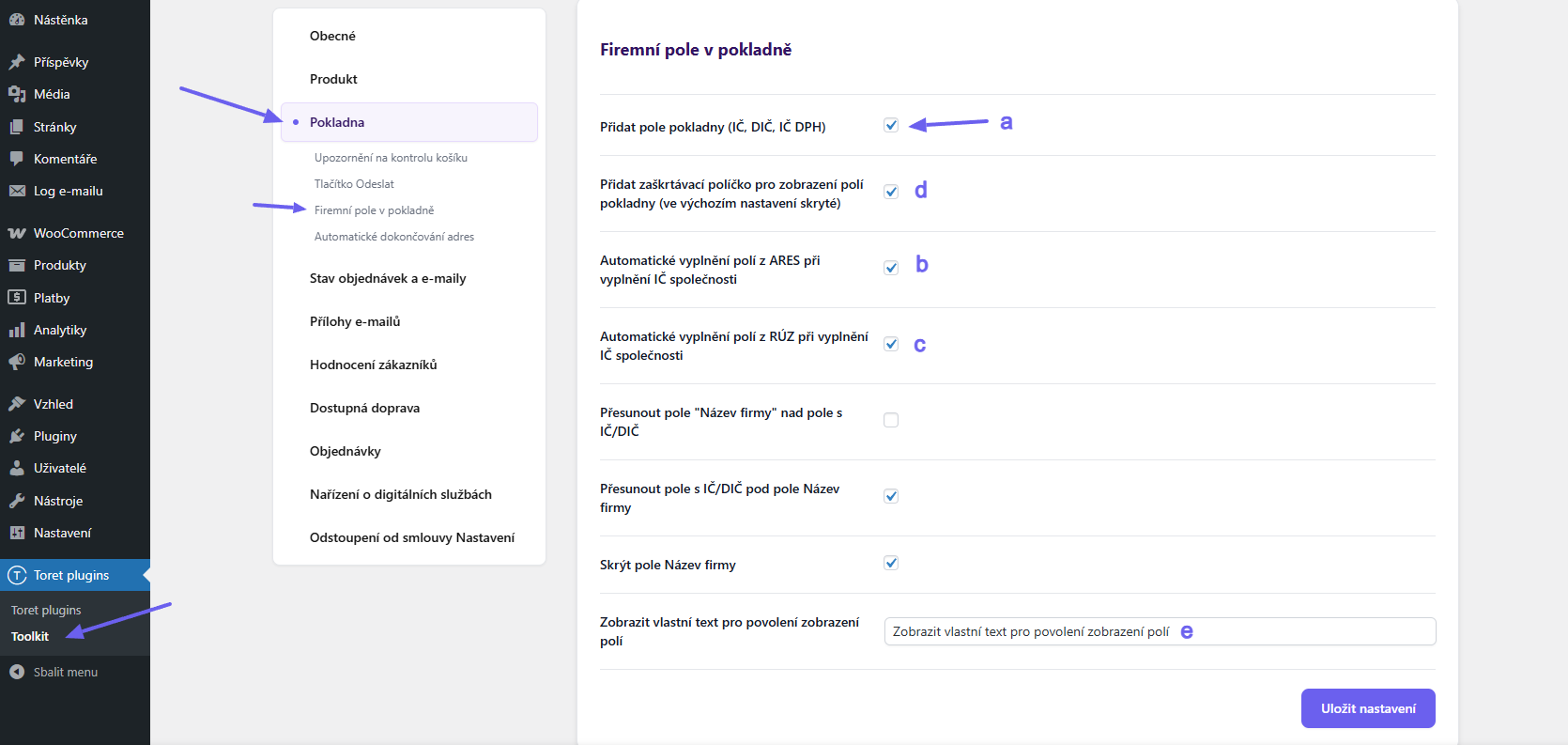
Company Fields in Checkout
Using the plugin, you can add fields for Company ID, Tax ID, VAT ID (a) to the checkout and enable automatic field filling in the checkout with data from ARES (b) or RÚZ (c) – for SK. Just activate the functions.
It is also possible to set fields in the checkout to be hidden and displayed only after checking a box (d) + adjust the text at the checkbox (e).
Automatic Address Completion (Autocomplete)
Activating this function offers address suggestions in the checkout when filling in the street. After selecting a suggested address, the city name and postal code are automatically filled in the checkout. The address is loaded from the Mapy.com service via API.
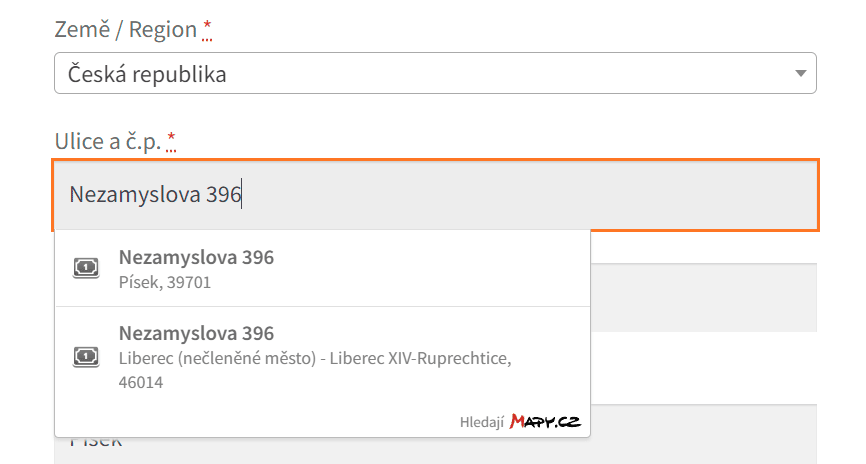
Enable automatic address completion in the plugin (Toret plugins > Toolkit > Pokladna (Checkout)). Address suggestion can be limited by the entered country in the checkout.
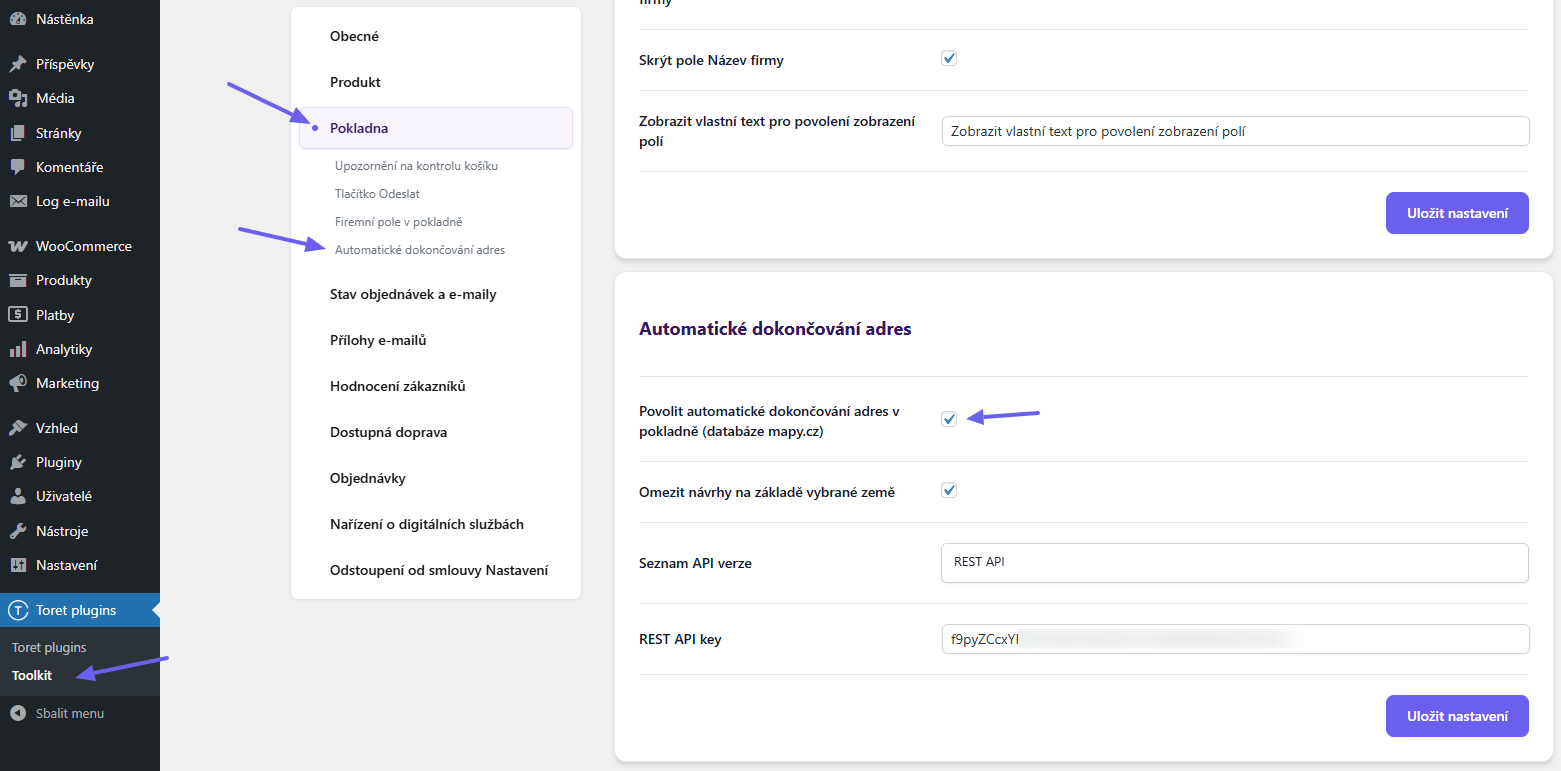
API version list: Currently, REST API is supported.
To use REST API, you will need an account on the Mapy.com portal. Login/registration can be done here.
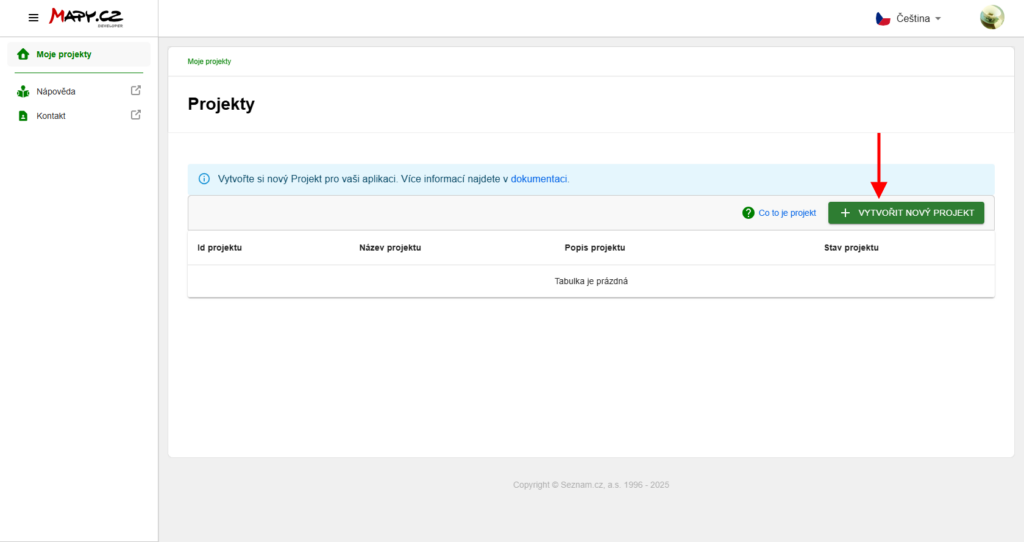
After logging in to the portal, create a project…
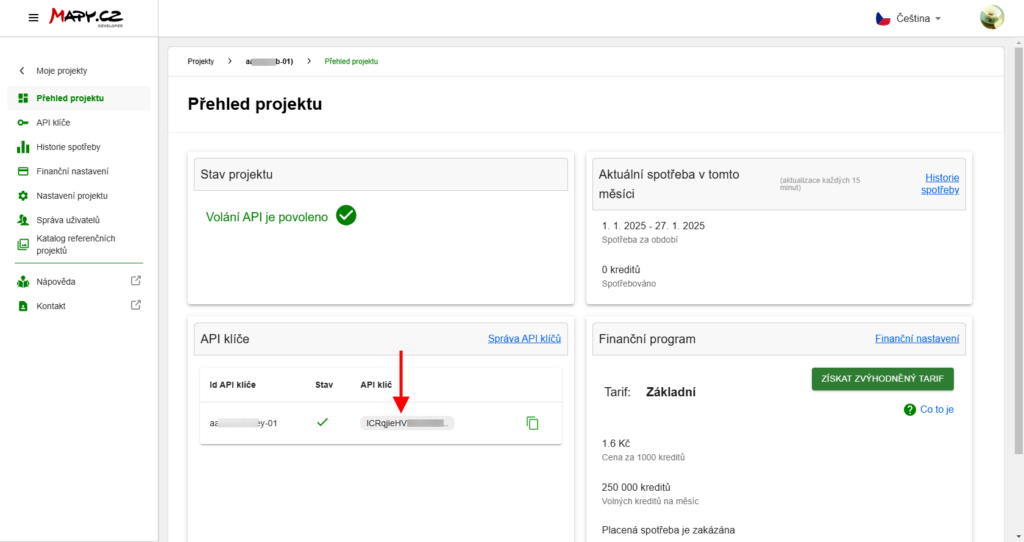
…and get an API key. In the project overview, you will also see available credits and their usage, or the price for purchasing more. In the Basic tariff, 250,000 credits per month are available for free.
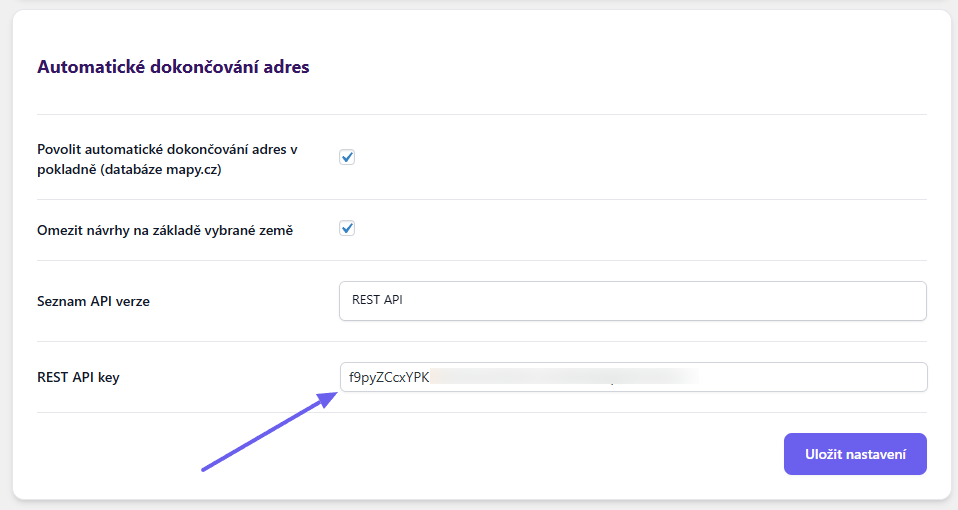
Insert the copied API key into the REST API key field in the plugin and click Save.
More information about REST API (Mapy.com)
Order Statuses
Complaint (Reklamace)
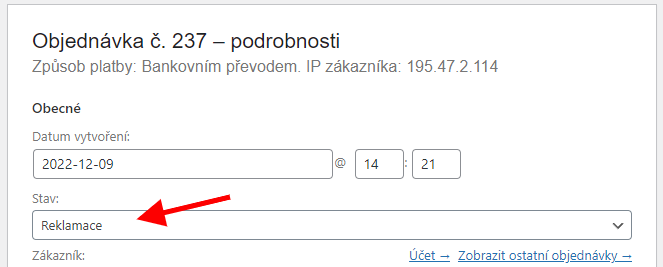
The plugin adds a new order status “Reklamace” (Complaint) to WooCommerce. It also allows adding the result of the complaint to the order as a note.
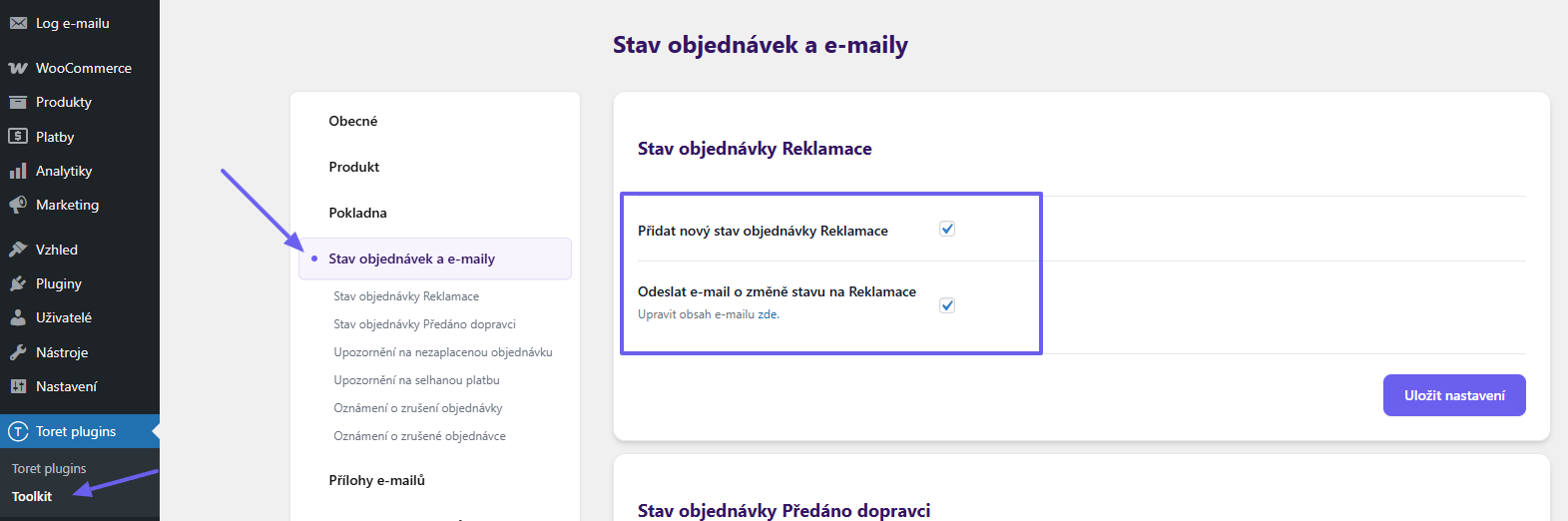
When changing the order to the Reklamace status, an informative email in the style of WooCommerce emails is automatically sent to the customer. The content of this email can be customized in email settings (WooCommerce > Settings > Emails > Reklamace)
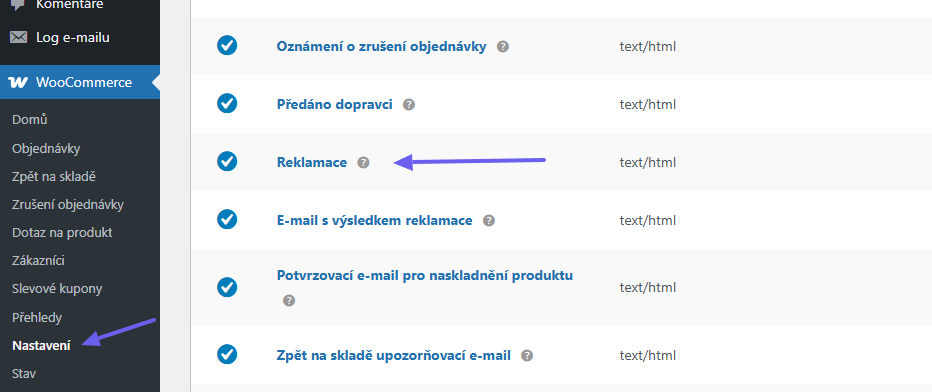
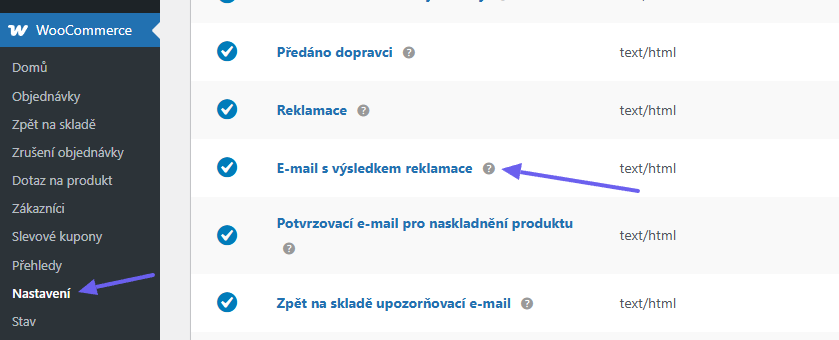
Simply write the result of the complaint into the box in the order detail and update the order. An email with the result is sent to the customer just like when changing the order to the Complaint status. You can also customize the email with the complaint result in WooCommerce > Settings > Emails > Email s výsledkem reklamace (Email with complaint result).

Handed over to carrier (Předáno dopravci)
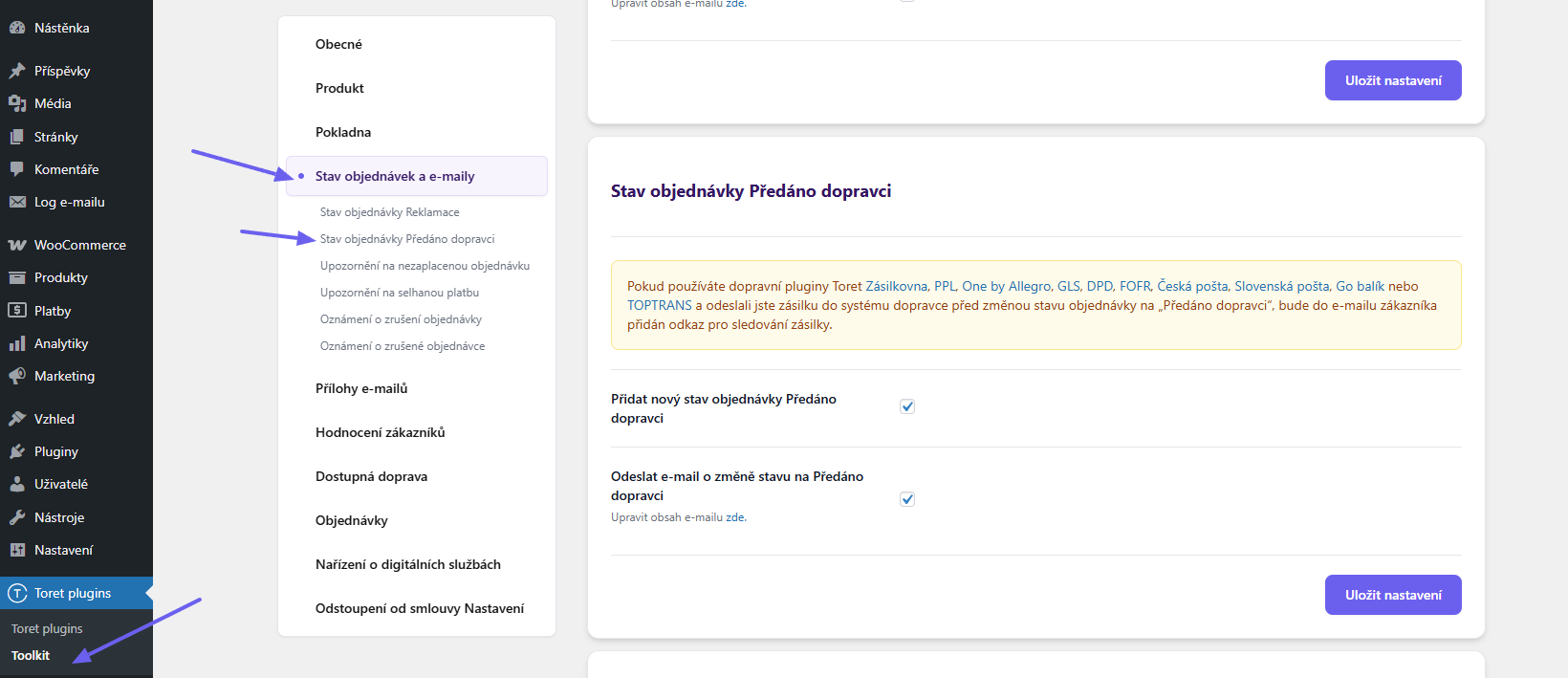
With the plugin, you add a custom status Předáno dopravci (Handed over to carrier). After changing the order status to Předáno dopravci you can set an email in the style of WooCommerce to be sent to the customer.
In case you use Toret shipping plugins and the shipment is already created in the carrier’s system before changing the order to the Předáno dopravci status, a shipment tracking link is also added to the customer’s email.
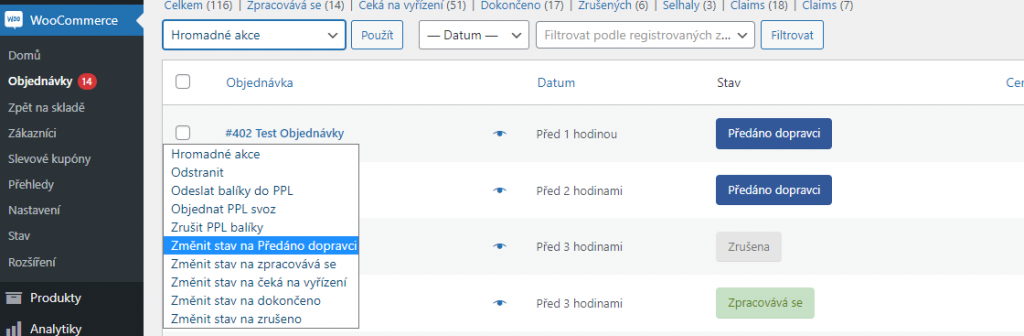
You can switch the order status from the order detail or using bulk actions.
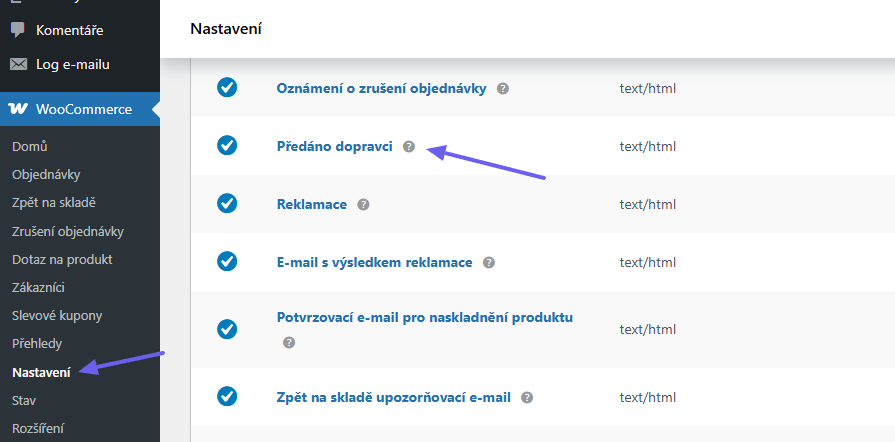
The automatic email for the Handed over to carrier status can be customized in WooCommerce email settings (WooCommerce > Settings > Emails > Předáno dopravci).
Unpaid Order Notification
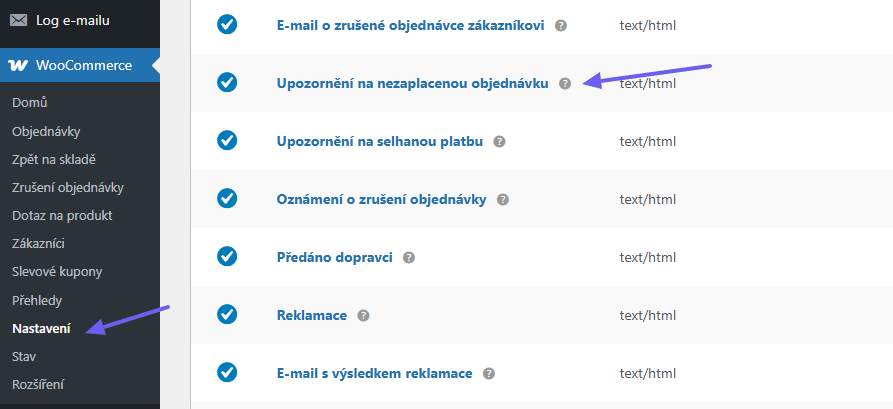
This function automatically sends an email notification to the customer if the order is in the Pending payment (on-hold) status for a set number of days. The plugin contains a cron URL for checking unpaid orders, which you set on your hosting. We recommend running CRON at least twice a day.
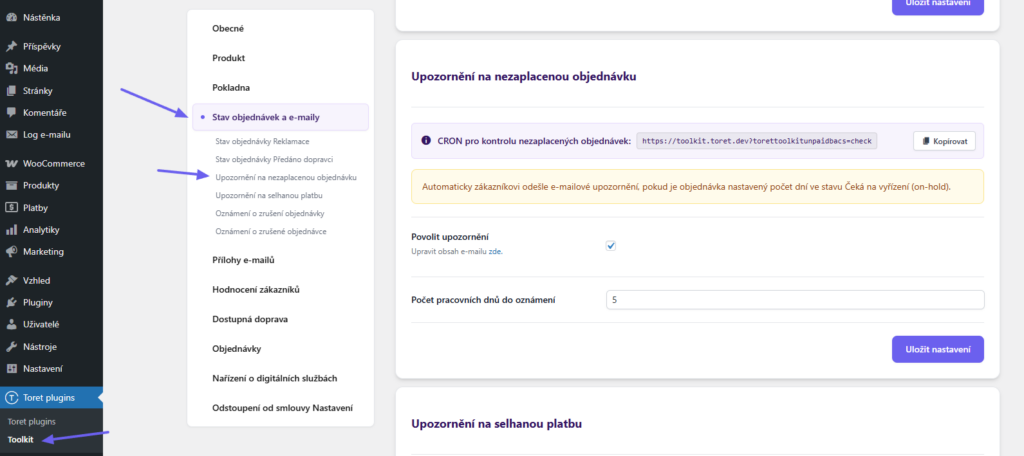
The notification email can be customized in WooCommerce email settings (WooCommerce > Settings > Emails > Předáno dopravci (Handed over to carrier)).
Failed Payment Notification
In case payment fails e.g. via a payment gateway and the order status changes to Failed, the plugin sends an email notification to the customer. This function automatically sends an email notification to the customer if the order is in the Pending payment (on-hold) status for a set number of days. The plugin contains a cron URL for checking failed payments, which you set on your hosting. We recommend running CRON at least twice a day.
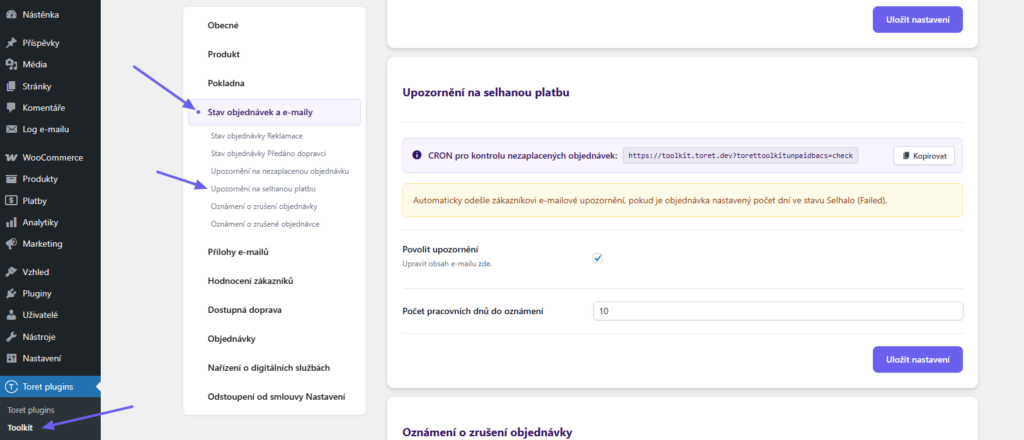
The notification email can be customized in WooCommerce email settings (WooCommerce > Settings > Emails > Upozornění na selhanou platbu (Failed payment notification)).
Order Cancellation Notification
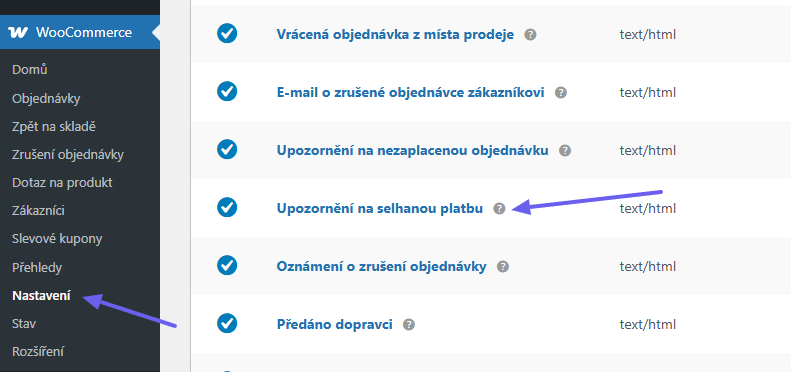
This function automatically cancels the order and sends an email notification to the customer if the order is in the Pending payment (on-hold) status for a set number of days.
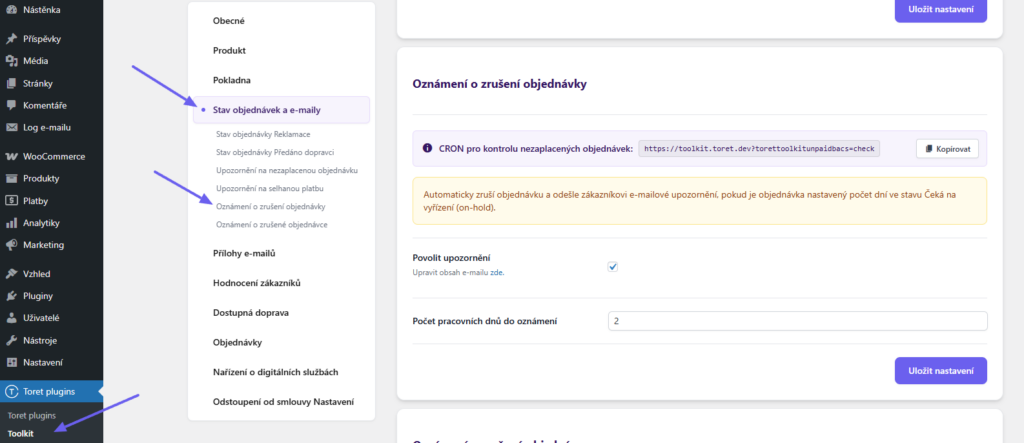
The notification email can be customized in WooCommerce email settings (WooCommerce > Settings > Emails > Oznámení o zrušení objednávky (Order cancellation notification))
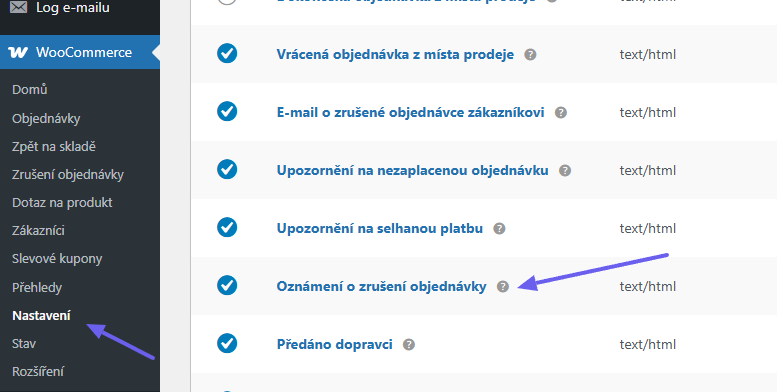
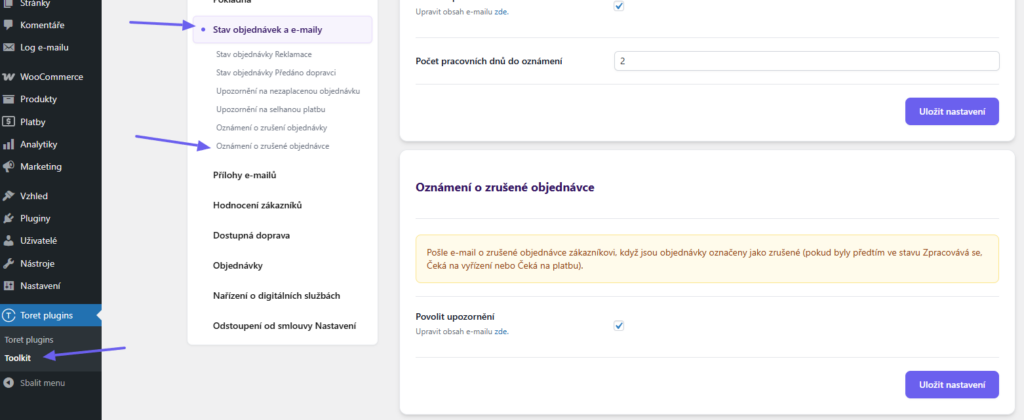
Cancelled Order Notification
The function has a very similar name to the one in the previous section, but this one does something else. If an order is cancelled in WooCommerce, the e-shop is notified by email, but the customer receives no information about the order cancellation. Activating this function sends an email about the cancelled order to the customer. The email is sent only if orders in Processing, Pending payment, or On-hold status are cancelled.
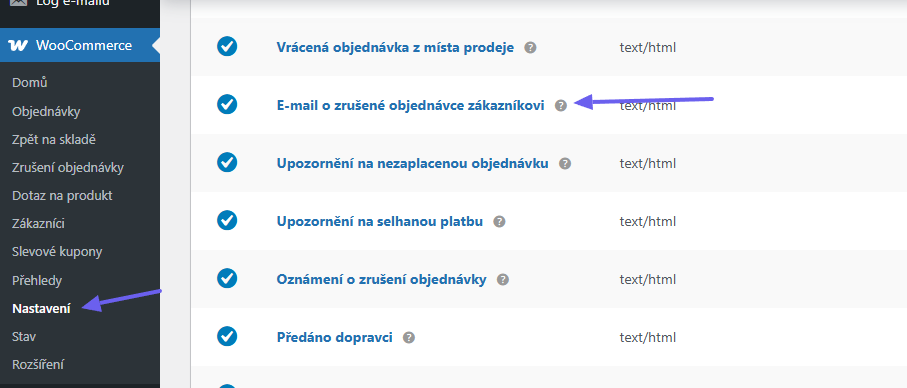
The notification email can be customized in WooCommerce email settings (WooCommerce > Settings > Emails > E-mail o zrušené objednávce zákazníkovi (Cancelled order email to customer) )
Email Attachments
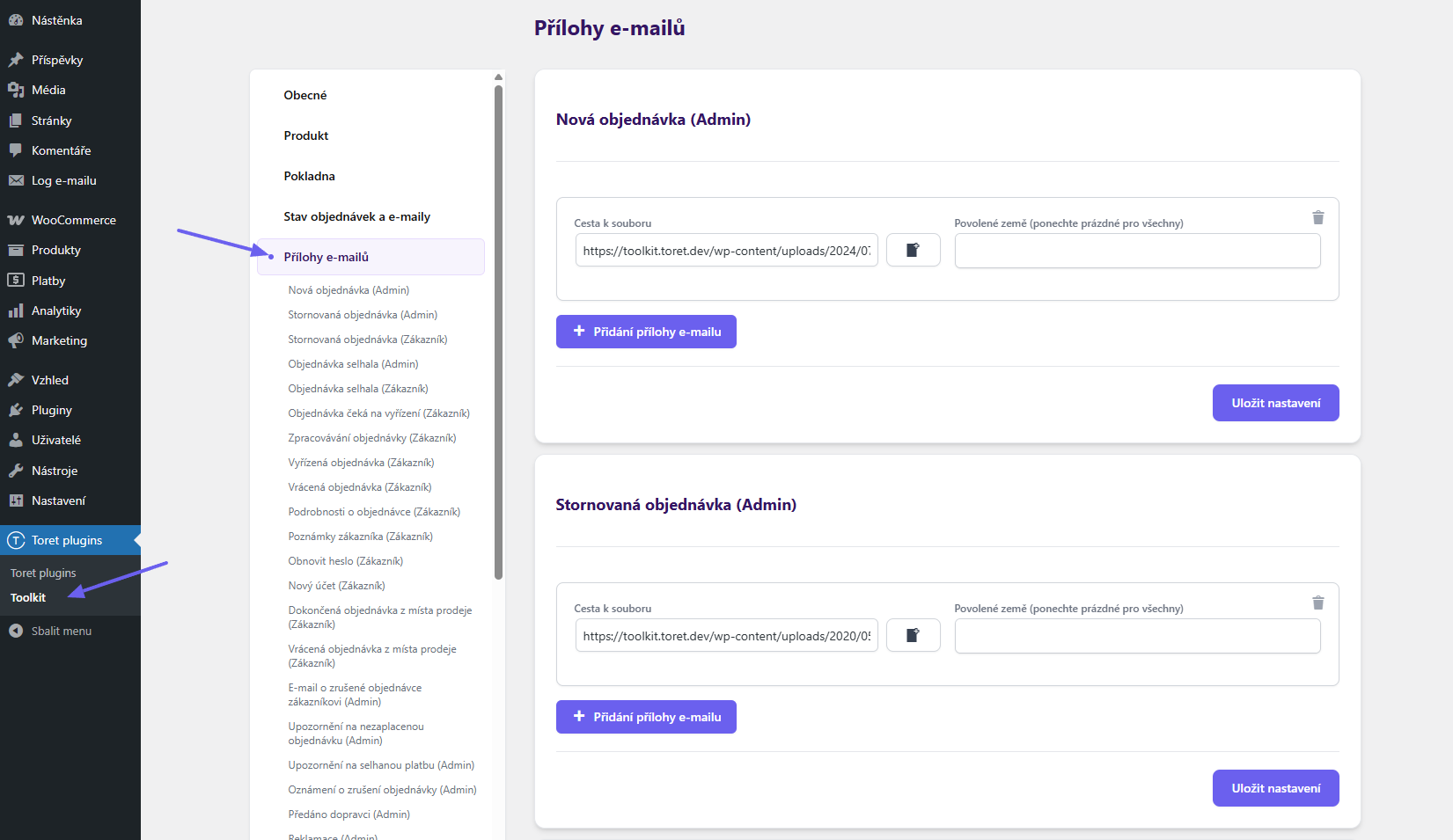
In the plugin settings, it is possible to attach any number of attachments to any WooCommerce email.
Sending an attachment can be conditioned by the customer’s country. It is thus possible to have, for example, different attachments set for customers in the CR or SR.
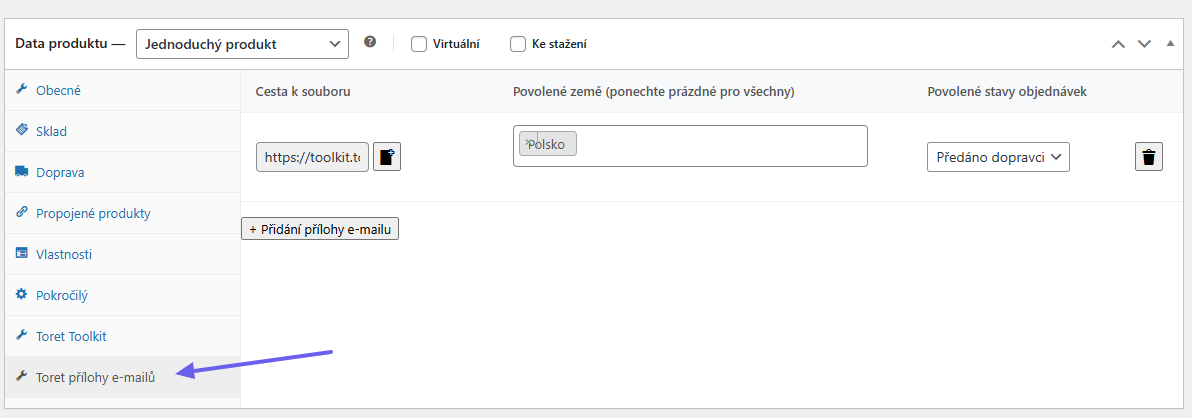
It is also possible to set an attachment for individual products. Attachment settings are for each product on the Toret přílohy e-mailů (Toret email attachments) tab. Again, attachments can be conditioned by the customer’s country and also select the order status to whose email the attachment should be attached.
Reviews (Hodnocení)
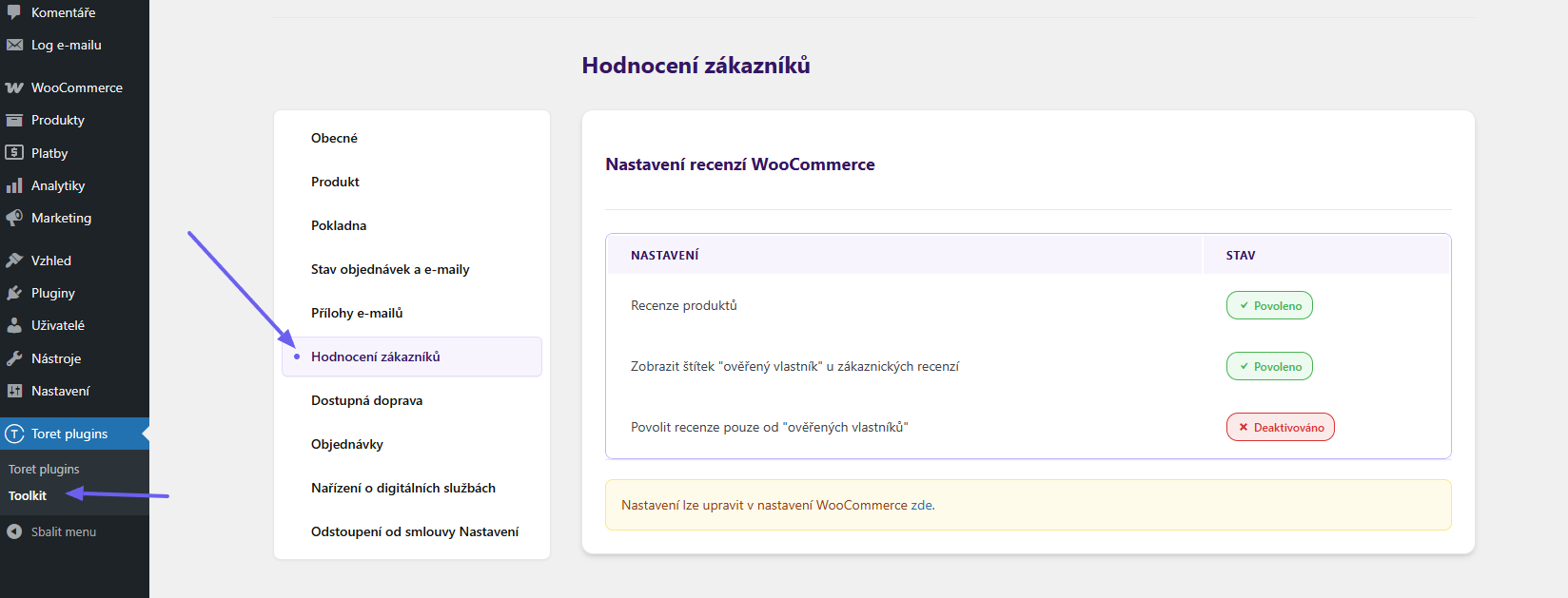
In the plugin settings, there is a reviews settings check. WooCommerce itself can be set up to meet review requirements without any intervention. In case it is set that only customers who purchased the product can review, you don’t have to deal with anything more.
But if you want to have open reviews, it is necessary to display whether the review is:
- verified
- unverified
- sponsored
Using the plugin, it is possible to add their origin to reviews and at the same time this information is written to the product rating.
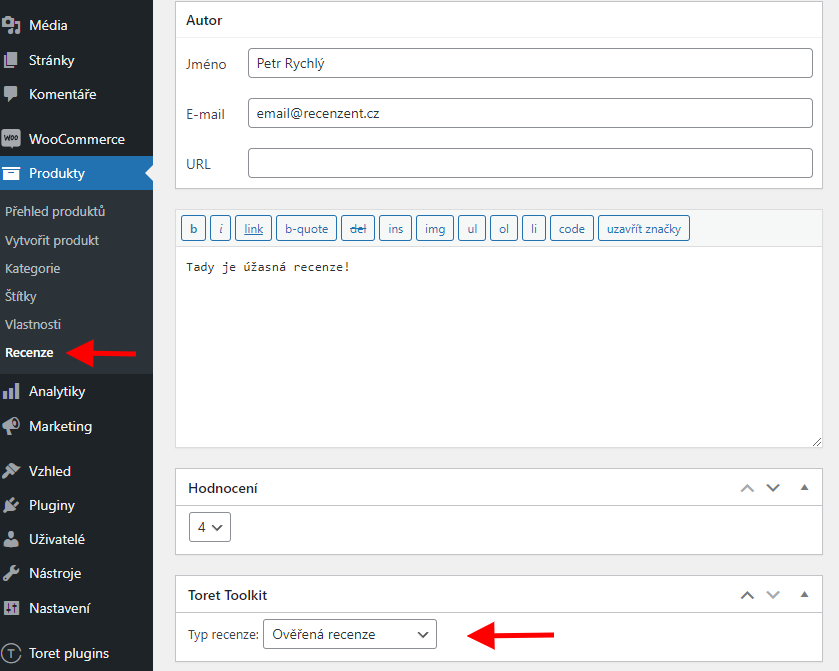
The plugin displays how reviews are set in WooCommerce.
Available Shipping (Dostupná doprava)
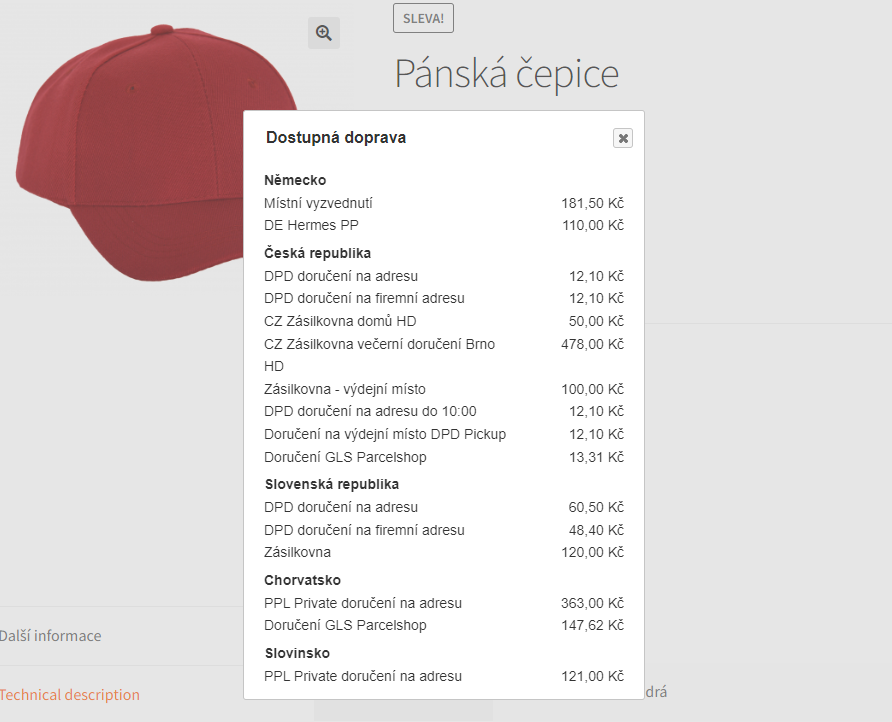
The function setting on the Doprava (Shipping) tab is an alternative to the Stránka s informacemi o doručení (Delivery info page) function on the Produkt (Product) tab. The function on the Doprava tab creates content automatically and there is no need to create a static page, because the shipping methods overview is displayed in a pop-up window on the product page.
In the settings on the Dostupná doprava (Available shipping) tab, enable display on the product page, set the link text, and select a hook where the link will be displayed on the product page. Using a checkbox, methods with free shipping can be excluded from display. If you want to use the shipping methods overview on your own page, you can display it by inserting a shortcode.
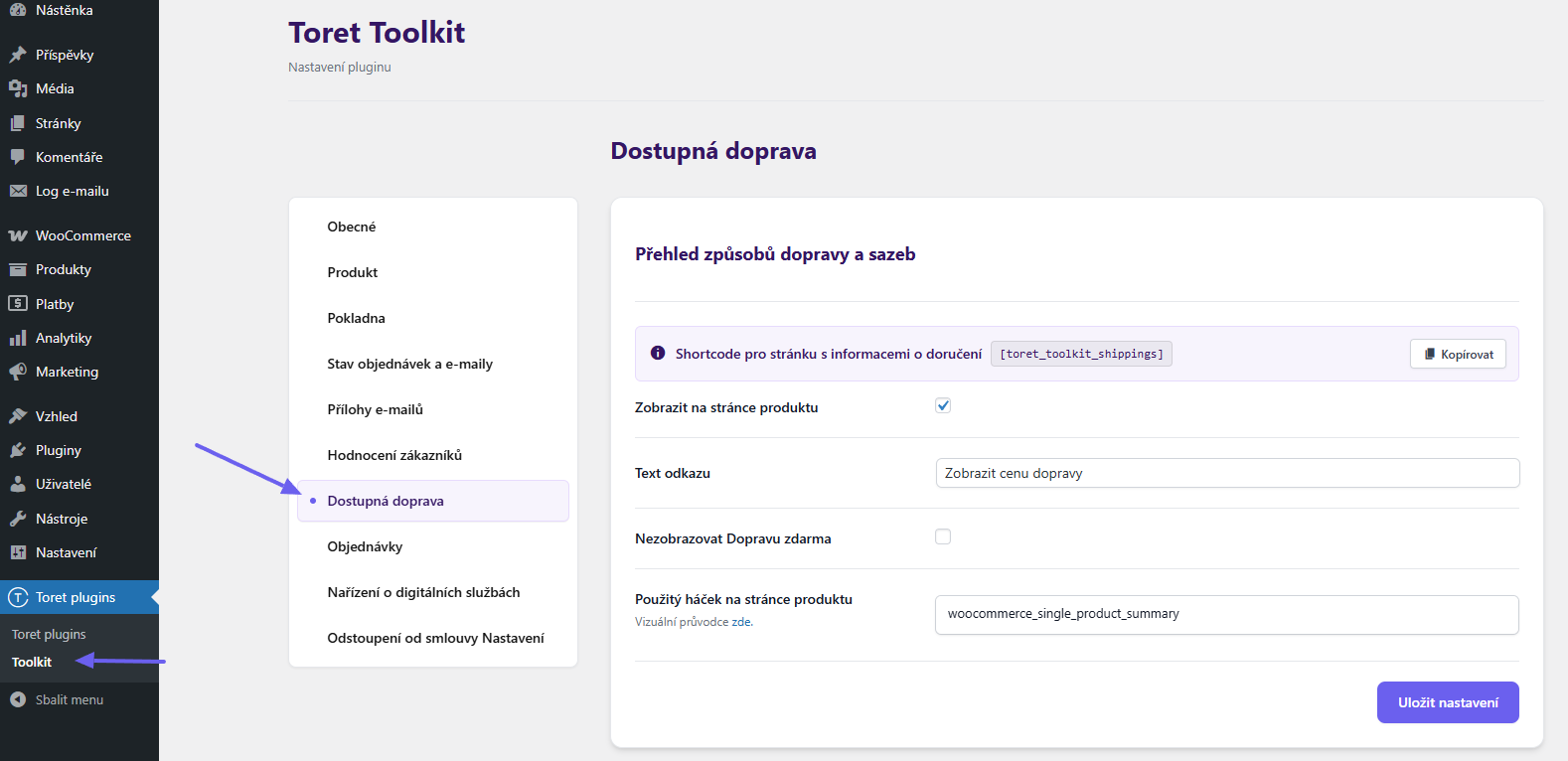
Another big advantage over a static page is that the shipping methods overview is displayed in a pop-up window. The customer is therefore not redirected to another page but remains on the product page.
How does automatic shipping method loading work?
The plugin loads all default shipping methods from WooCommerce (Flat rate and Local pickup) and all shipping methods from Toret plugins into the pop-up window. In the pop-up window, it divides them according to individual shipping zones or countries in which shipping methods are set.
Only shipping methods and prices of the given product are loaded into the pop-up window, so the customer knows exactly where they can order the product and how much shipping costs for the product they are currently viewing. If you use shipping price scaling by weight, distance, or price or have free shipping set FROM, the function in the pop-up window can also reflect this information for each product separately.
Orders (Objednávky)
Toret plugins > Toolkit > Objednávky
Custom Surcharges (Vlastní příplatky)
The Toolkit plugin allows adding custom surcharges (fees) to the order.
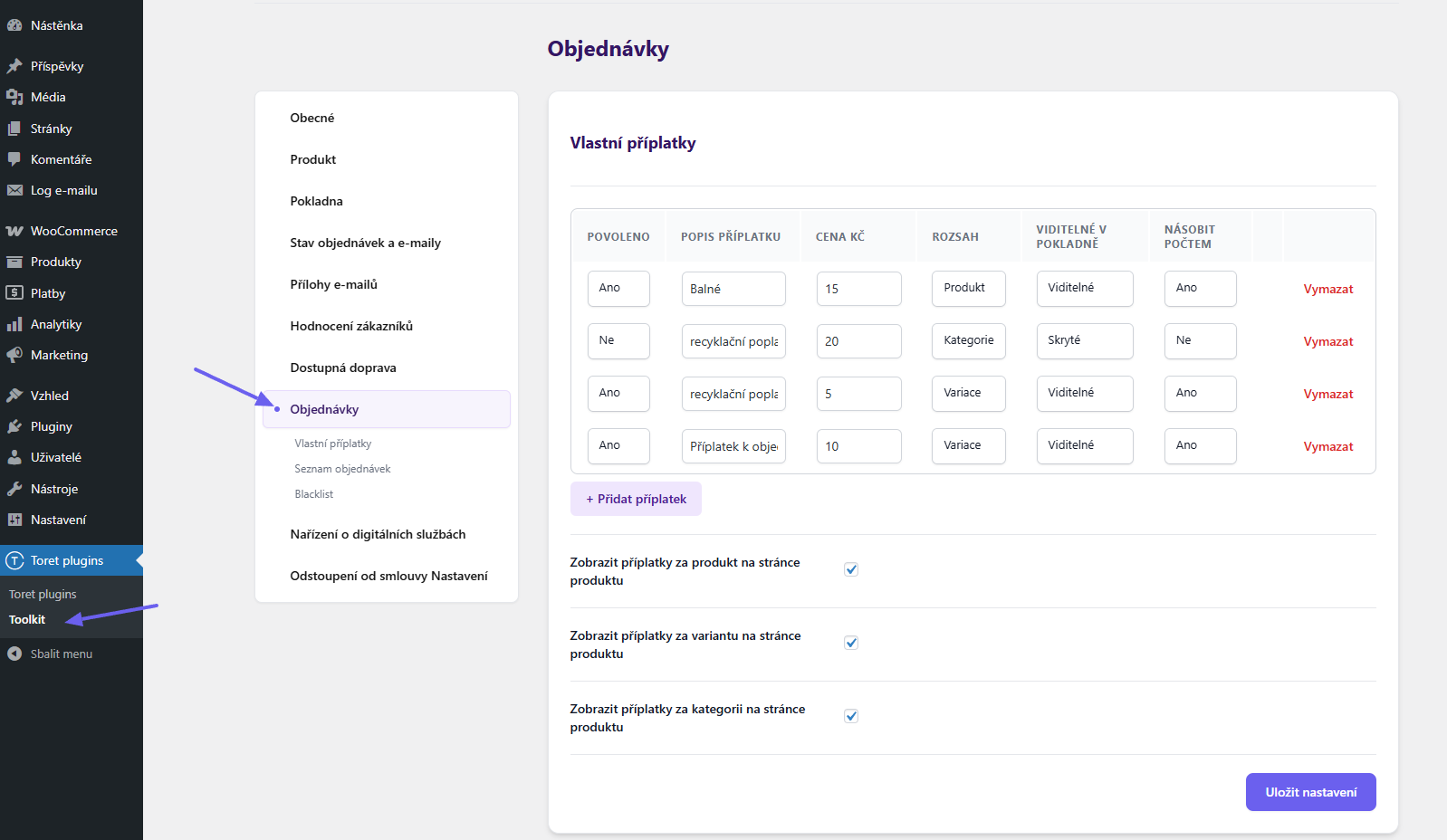
On the Objednávky (Orders) tab, you create a surcharge. Set the surcharge description, price (excluding VAT), scope and visibility in checkout, and multiplication by quantity.
It is possible to set these scopes:
- Produkt (Product): You can activate the created surcharge only for specific products – in the product detail on the “Toret Toolkit” tab.
- Kategorie (Category): The surcharge can be activated for selected categories and will thus be used for products in these categories. Surcharge activation is in the detail of each category setting.
- Variance (Variation): A surcharge with variation scope can be activated in the detail of each variation (at the end of settings).
- Globální (Global): The surcharge applies from its creation for all products in all categories.
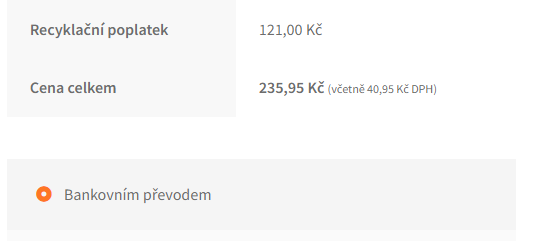
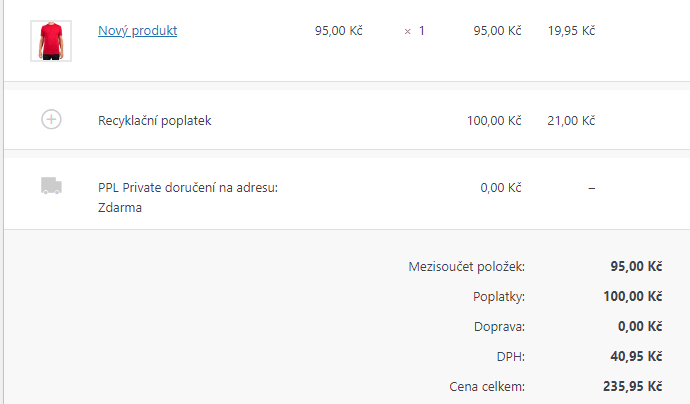
Visibility in checkout: If you set the surcharge to be hidden, it will be added to the shipping price and will not be listed as a separate surcharge. Visible will be displayed as another order item.
Multiply by quantity: This function determines whether the given fee can be charged multiple times in one order or only once. Ex. When buying two pieces of the same product, if multiplication is enabled, the fee will be charged twice. If multiplication is rejected, only once.
Surcharges for product, variation, and category can also be displayed on the product page – by checking the appropriate checkbox.
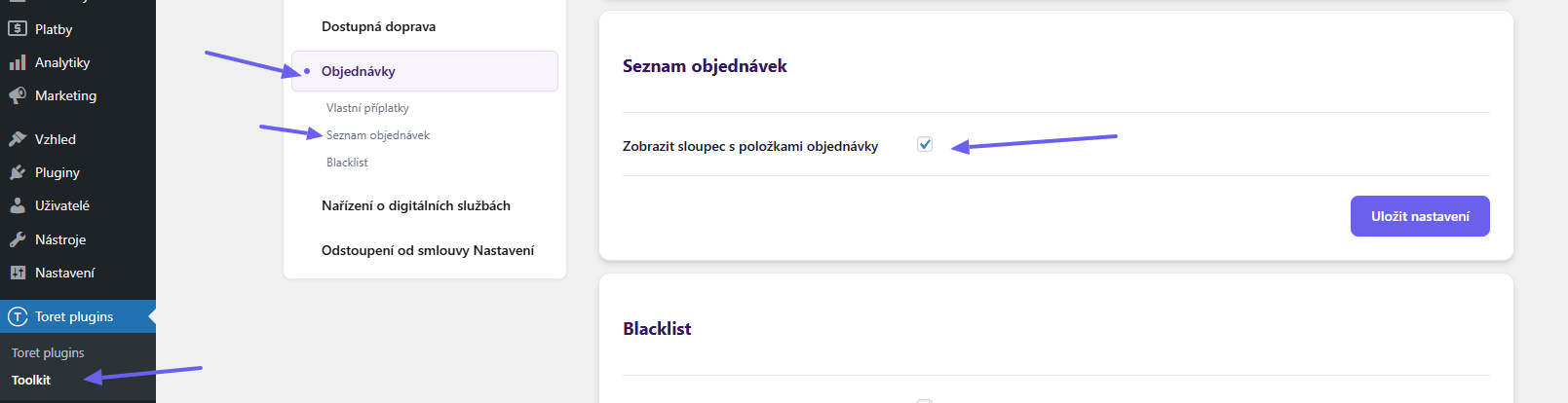
Order List
Toret plugins > Toolkit > Objednávky
The Toolkit plugin allows adding a column to the order overview that displays order items. For this function, it is necessary to enable it by checking the checkbox.
Blacklist
Toret plugins > Toolkit > Objednávky
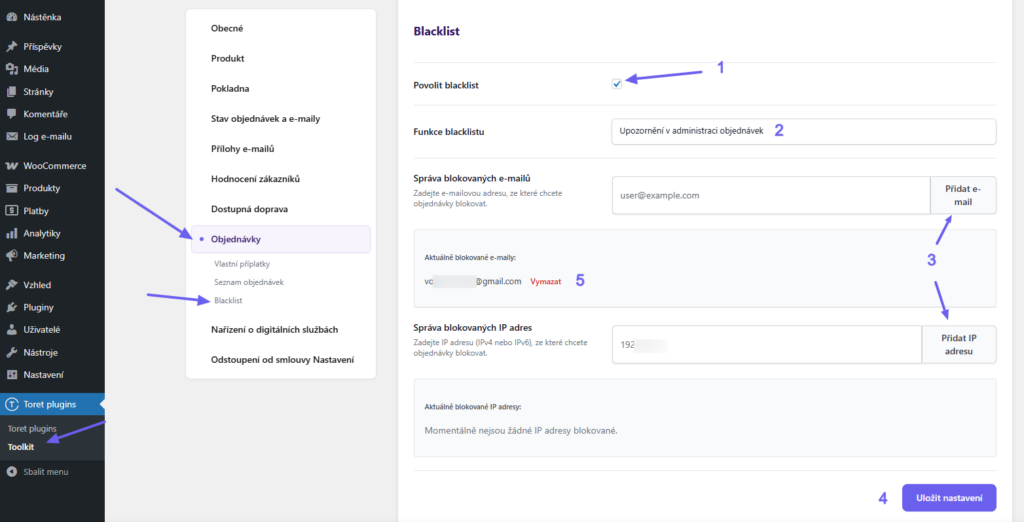
The Blacklist function can be used to create a list of problematic email and IP addresses. For these addresses, you can:
- block order creation or
- display alerts in order administration
To use, check the Povolit blacklist (Enable blacklist) option (1), select the desired action (2), and add addresses (3). Save the changes made (4). Addresses can also be deleted from the lists (5).
Digital Services Act (DSA)
On the Nařízení o digitálních službách (Digital Services Act) tab, you will find functions that will help you meet the requirements of this regulation.
Publishing Mandatory Information – Shortcode
To publish mandatory information on the web (contact email and communication language), use the shortcode [toret_toolkit_dsa]. Fill in the email and communication language on the Nařízení o digitálních službách tab.
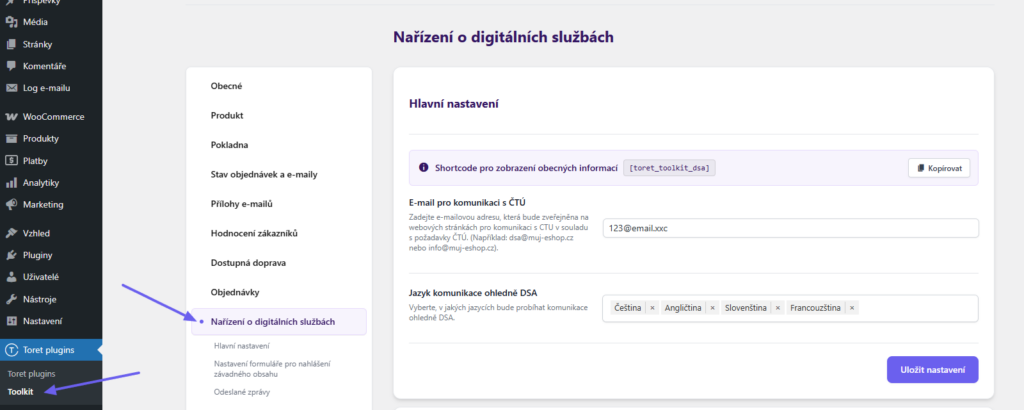
Using the shortcode, place the information on the selected page.
Form for Reporting Illegal Content
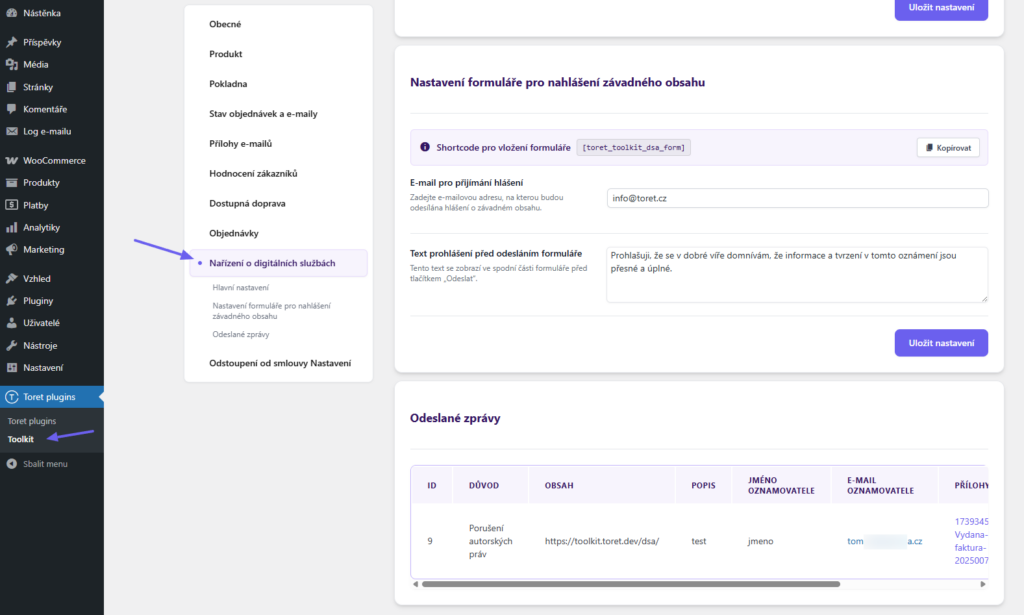
On the tab Nařízení o digitálních službách (Digital Services Act) > Nastavení formuláře pro nahlášení závadného obsahu (Illegal content reporting form settings), you can set:
- email for receiving reports, where received reports will be sent
- declaration text before submitting the form: this text will be displayed at the checkbox before the submit button. If you leave the field empty, the default text will be used
Insert the form on the selected page using the shortcode [toret_toolkit_dsa_form].
Received reports can be seen, in addition to email, also in the plugin settings on the tab Nařízení o digitálních službách (Digital Services Act) > Odeslané zprávy (Sent messages).
Withdrawal from Contract (Odstoupení od smlouvy)
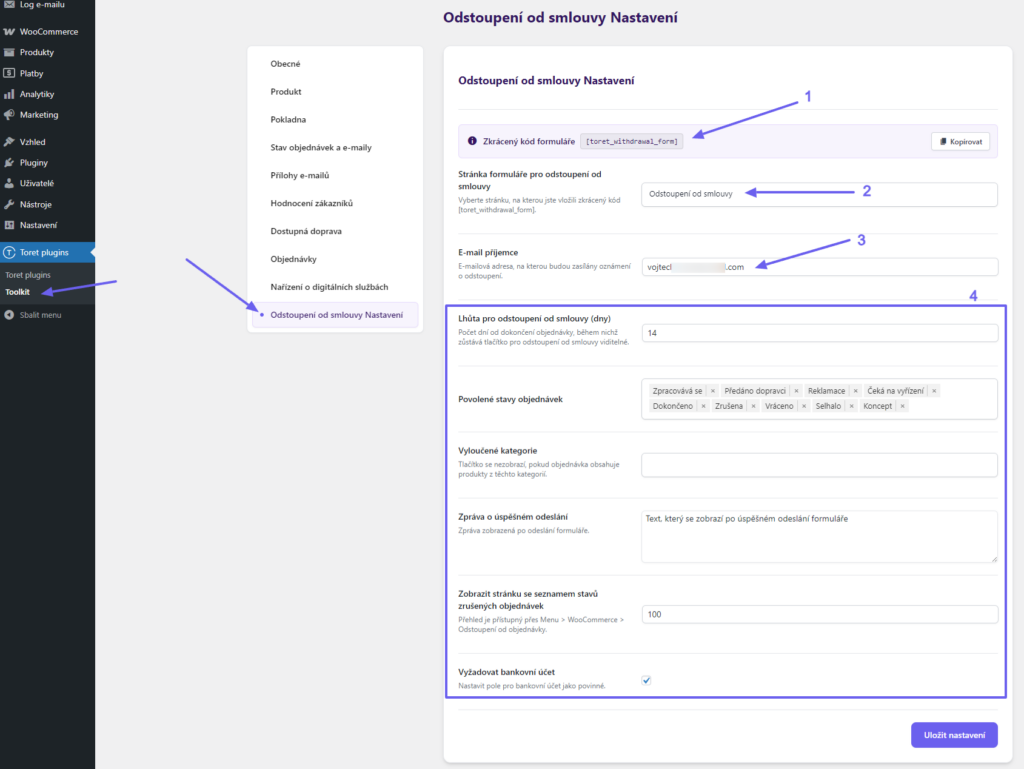
The withdrawal from contract function allows offering customers a form for withdrawal from the contract according to the Financial Services Act and the amendment to the Civil Code of 2026.
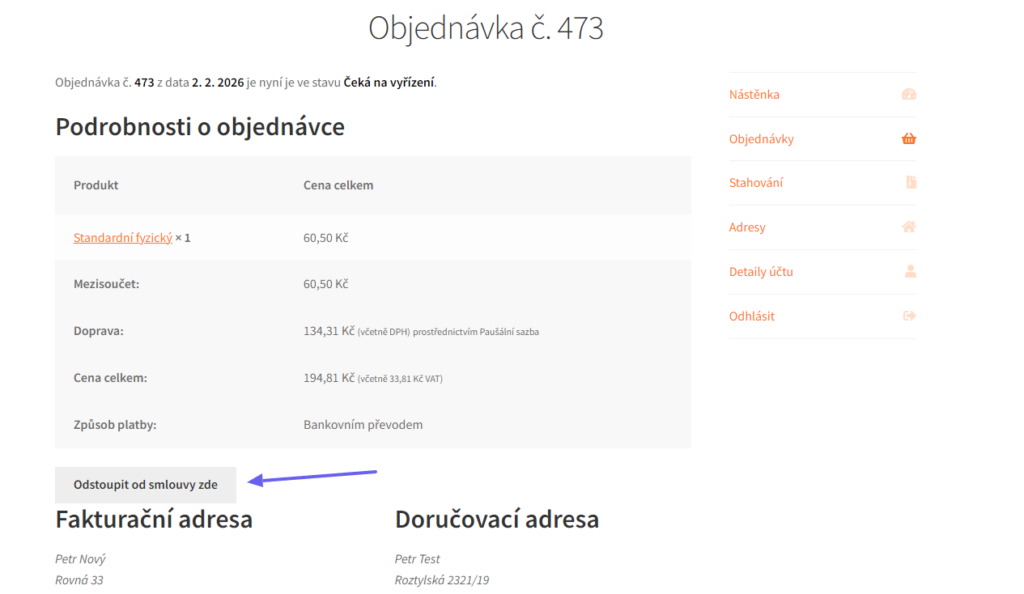
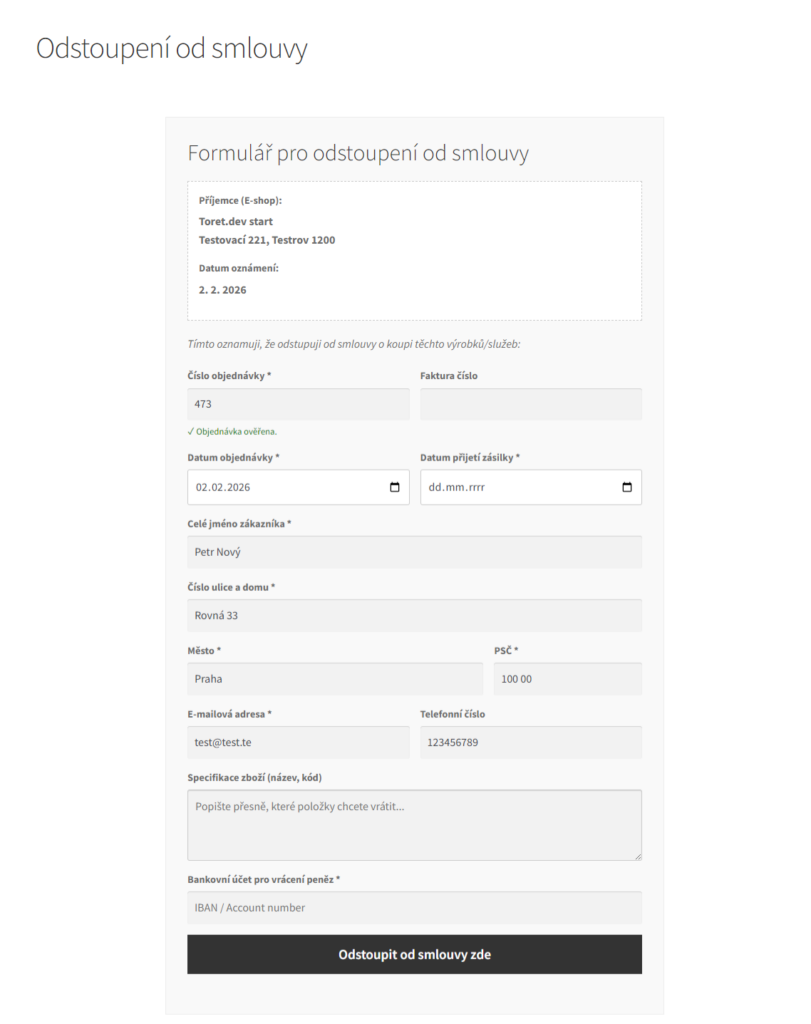
Using the shortcode toret_withdrawal_form, you can insert a withdrawal form on your chosen page. For logged-in customers, a withdrawal button is displayed in the order detail in the account, which takes them to a pre-filled form.
When filling in the order number in the form, its correctness is automatically verified; for logged-in users, data is also filled in. After sending the request, a confirmation with a summary of the entered data will be sent to the customer’s email.
- Insert the form shortcode on your chosen page. You can find the shortcode in the plugin settings Toolkit > Odstoupení od smlouvy (Withdrawal from contract)
- In the settings, select the page where the shortcode is located.
- Enter the recipient email – a notification will be sent to this email (administrator) that the customer has requested withdrawal from the contract.
- Set details:
- Withdrawal period (in days) – number of days from order completion for which the button remains visible in the customer account
- Allowed order statuses – in given order statuses, the button will be displayed in the customer account
- Excluded categories – if the order contains goods from the entered category, the button will not be displayed in the customer account
- Success message – Text displayed after successful form submission
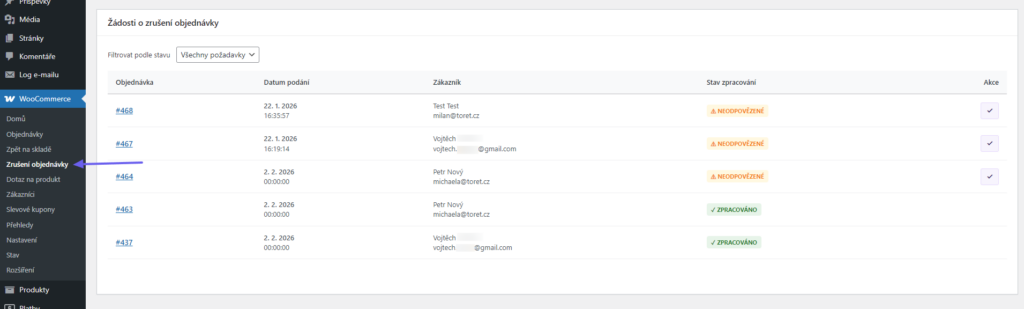
- Display page with list of cancelled order statuses – sets how many items are displayed on one page of the overview of orders where withdrawal occurred. The overview is accessible via Menu > WooCommerce > Zrušení objednávky (Order cancellation).
- Require bank account – sets the bank account field in the form as mandatory
Testování pluginu
Pro účely testování můžete využít:
- subdoménu “dev.doménalicence” (se stejnou licencí jako pro produkční web)
- localhost (127.0.0.1)
Na těchto umístěních budou zakoupené pluginy fungovat také a můžete zde otestovat implementaci a kompatibilitu před ostrým nasazením na web i v průběhu jeho užívání.