
You are on the documentation page for the WooCommerce Vyfakturuj plugin, which connects the e-shop and the Vyfakturuj invoicing system.
Before starting the implementation, it is necessary to have an account in the Vyfakturuj system with a tariff that supports connection via API.
You can purchase the Vyfakturuj plugin here: Toret Vyfakturuj for WooCommerce
Plugin Installation
Upon purchasing the plugin, you will receive a license key and a download link for the plugin zip file via email. You can find detailed instructions on how to install the plugin from your computer into WordPress here.
Plugin Activation
After installing the plugin, open the WooCommerce Vyfakturuj plugin, insert the license key into the appropriate field, and save.
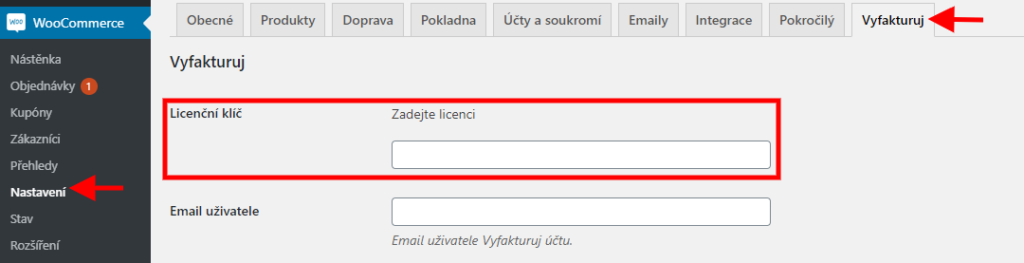
Connecting with Vyfakturuj
After installation and activation of the plugin, first connect the plugin with your Vyfakturuj account. Insert the implementation data in the Vyfakturuj plugin settings in the appropriate field (WooCommerce → Settings (Nastavení) → Vyfakturuj):
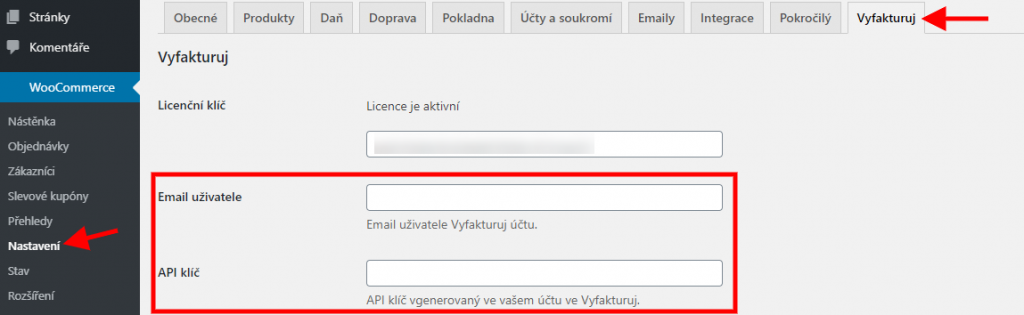
User Email
The email you use to log in to Vyfakturuj.
API key
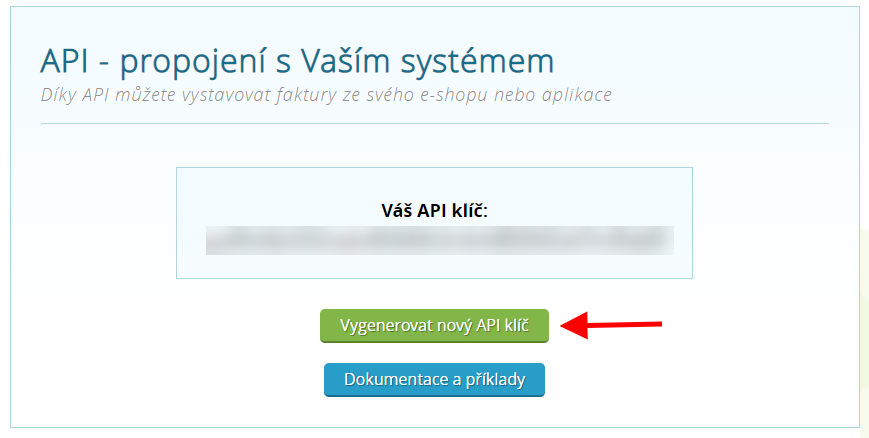
You can find the API key in Vyfakturuj → Connection (Napojení) column → API tab.
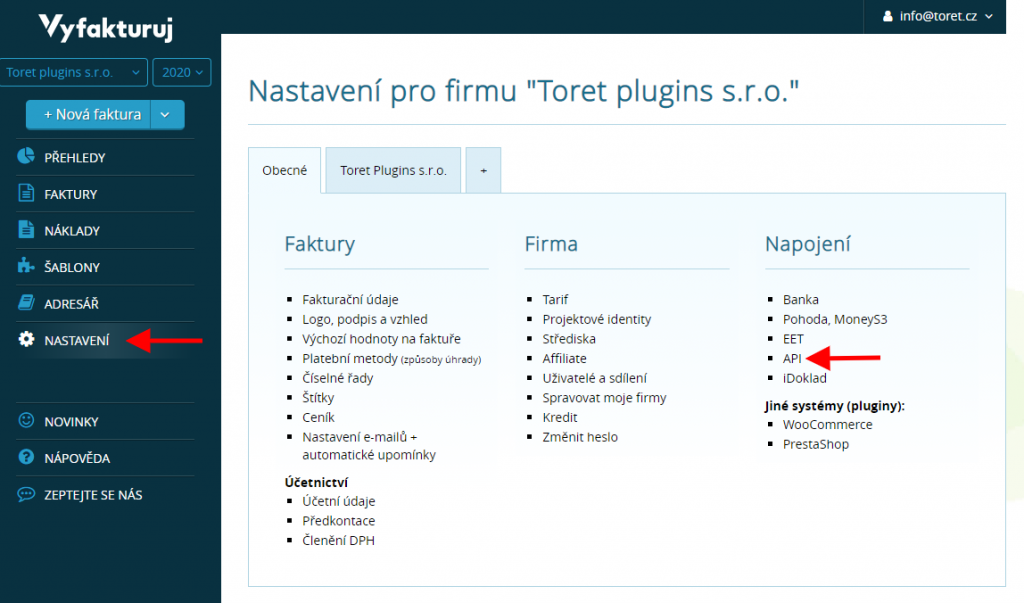
After clicking on the API tab, the following window opens, and clicking the button will generate the required API key.
After inserting and saving the implementation data, it is possible to start configuring the plugin.
Sending Order to Vyfakturuj
First of all, it is necessary to set up the creation of invoice, proforma invoice, credit note, and their sending to Vyfakturuj. Again, go to WooCommerce → Settings (Nastavení) → Vyfakturuj.
Pairing Payment Methods
First, pair the payment methods you use in your e-shop with Vyfakturuj methods.

Manual Issuing of Proformas, Invoices, and Credit Notes
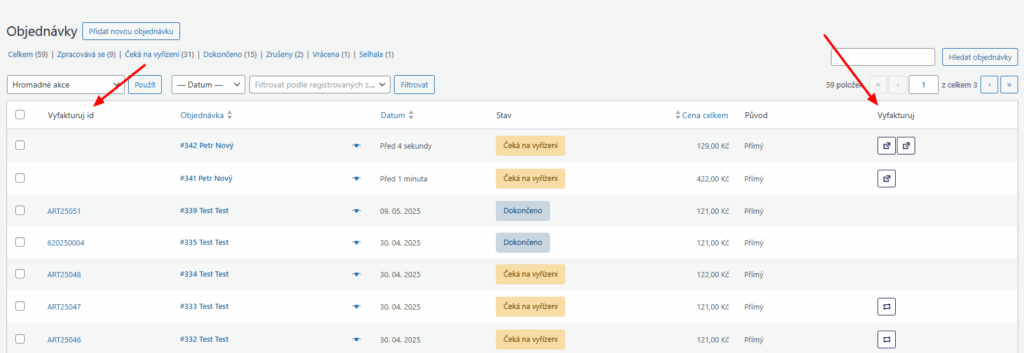
You can manually issue invoices, proformas, and credit notes from the order overview and detail.
In the order overview in the Vyfakturuj column, use the buttons “Odeslat fakturu” (Send Invoice), “Odeslat proformu” (Send Proforma), and “Odeslat dobropis” (Send Credit Note). Issued documents will be seen in the overview in the Vyfakturuj ID column. A link to the issued document is automatically added to the order email.
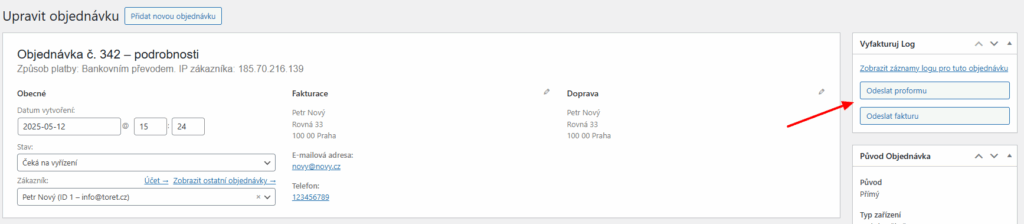
In the order detail, there is an option to issue invoices and proformas in the Vyfakturuj metabox.
Automatic Issuing of Proformas, Invoices, and Credit Notes
Automatic issuing of invoices and proformas can be set in the plugin settings (WooCommerce > Settings (Nastavení) >Vyfakturuj).
If you decide to issue proforma (advance) invoices, you can set for each payment method in which order status the proforma will be created. If you do not want to use a proforma for some payment methods, leave it set to “Negenerovat” (Do not generate). What you choose here will also affect the settings for creating the invoices themselves – tax documents.
ATTENTION! For proforma settings, do not use the Pending payment (Čeká na platbu) status. This is a status that does not send an email in the default WooCommerce settings, so the proforma will not be sent to the customer. This status is intended for online payments, and upon non-receipt of payment within a time interval (usually 1 hour), the order is cancelled.
For proformas, we recommend using the On hold (Čeká na vyřízení) or Processing (Zpracovává se) status. You can also choose from other document types offered by Vyfakturuj, which will be automatically issued in the set order statuses.
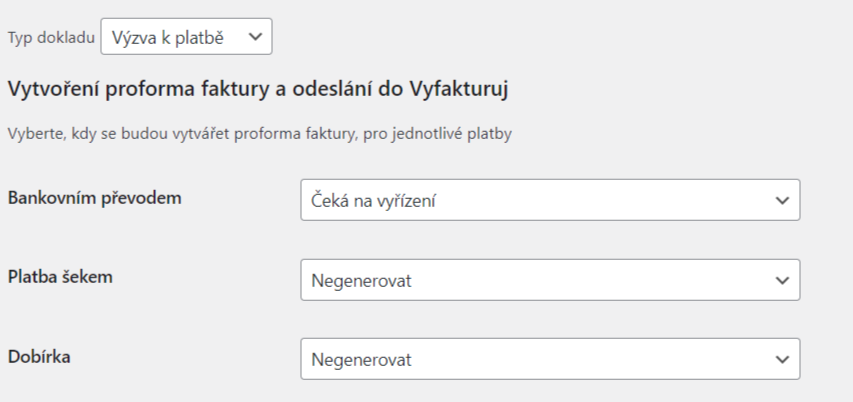
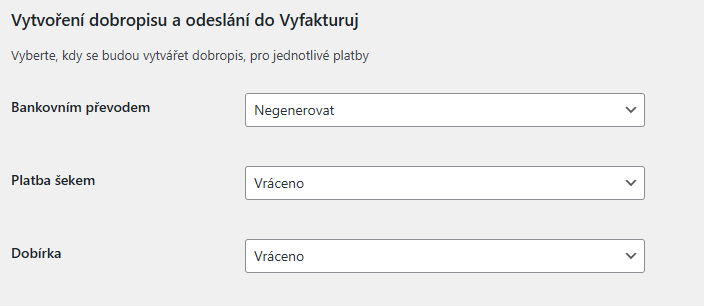
When setting up invoice sending, you can set for each payment method in which order status the invoice will be created. If you do not use some payment methods, leave it set to “Negenerovat” (Do not generate).
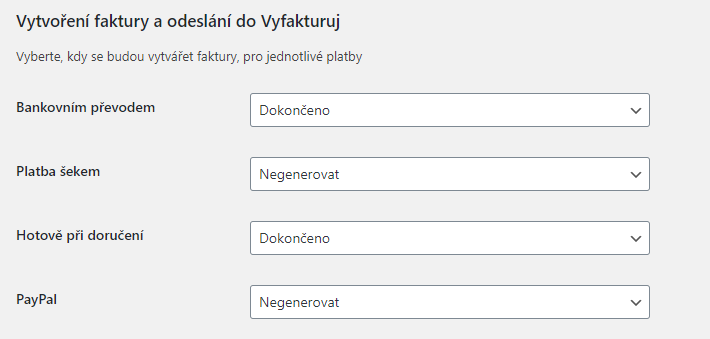
This setting determines when data will be sent to Vyfakturuj.
For example: If for the “Bank transfer” option you want to send the customer a proforma invoice based on which they will pay, set the status On hold (Čeká na vyřízení) here. Sending the order and issuing the relevant invoice itself will not be realized until the payment on your account is paired with the proforma invoice and the order is in the Completed status. In the next step for this payment method, you will need to set invoice issuance to the Completed (Dokončeno) status, and then an already paid invoice – tax document – will be automatically issued.
Another example could be payments “Cash on delivery” (dobírka). Here, logically, there is no need to issue an advance document, because the client will pay in cash either directly to the courier or at the post office or branch. So here, in the proforma invoice sending settings, we choose the option Negenerovat (Do not generate) and in the next step for invoice settings, a status e.g. Processing (Zpracovává se), so that the invoice is generated and sent to Vyfakturuj immediately after order processing, and thus could be sent with the goods on delivery or was ready with the goods for pickup at the branch.
Similarly, automatic issuing of credit notes can be set.
Paying Invoices (Marking as Paid)
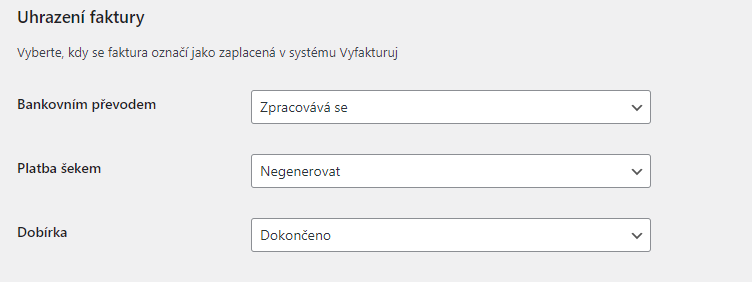
To mark invoices as paid, it is necessary to define order statuses for individual payment methods. The moment the order switches to this status, the invoice will be marked as paid in the Vyfakturuj system as well.
Number Series ID Settings
In the next step, we will go through the number series settings in detail. This setting differs if you generate only invoices from the case where you generate proformas in addition to invoices.
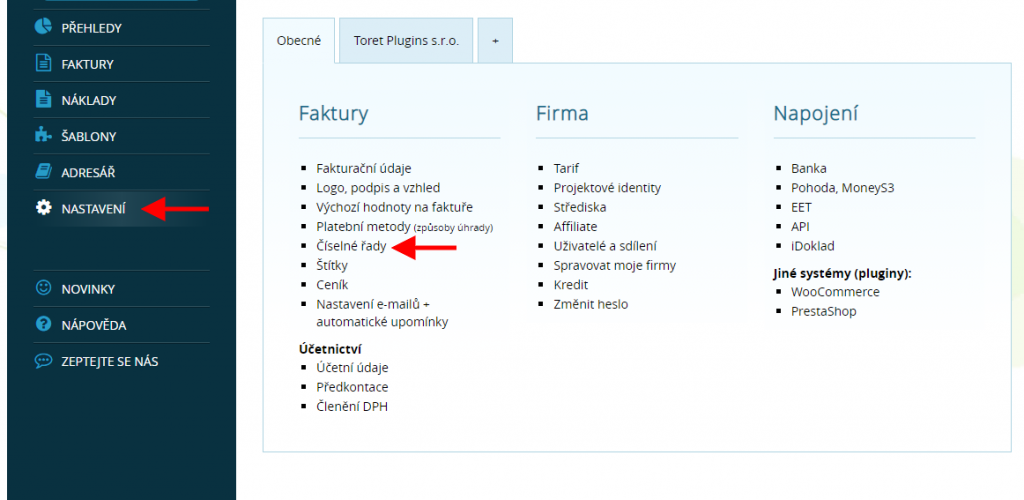
First, set the number series format in the account Vyfakturuj → Nastavení (Settings) → Číselné řady (Number Series)
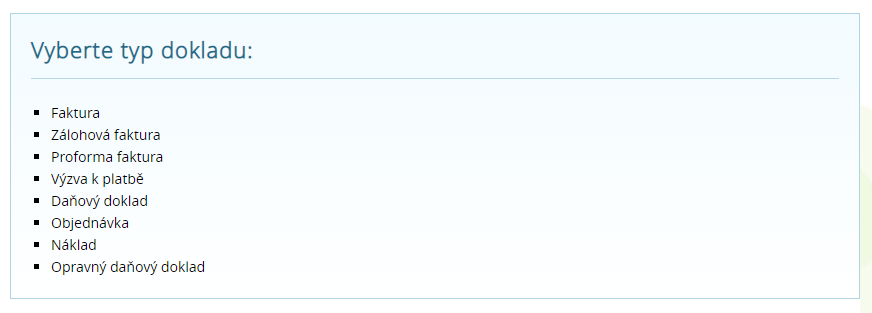
In the next step, select in the crossroads for which document type you want to set the number series.
Using the + Přidat číselnou řadu (+ Add number series) button, create a number series, which will be written into the list of created number series.
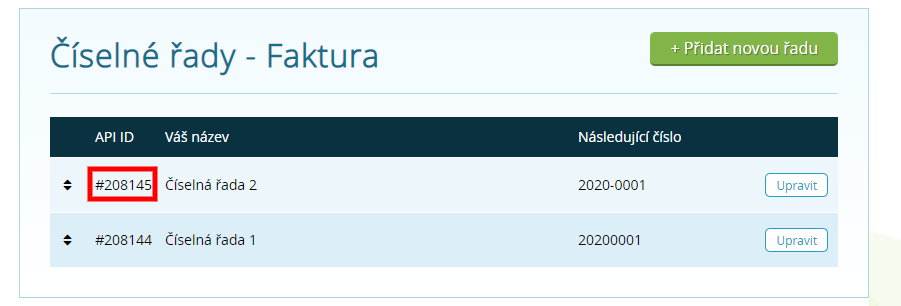
Variant 1: Generating Invoices Without Proforma
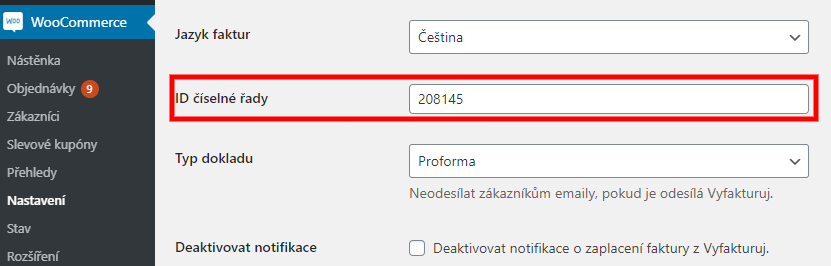
In the plugin settings, insert the API ID of the number series (without the hash #) into the ID číselné řady (Number Series ID) field – see img. above, which you created in the Vyfakturuj administration.
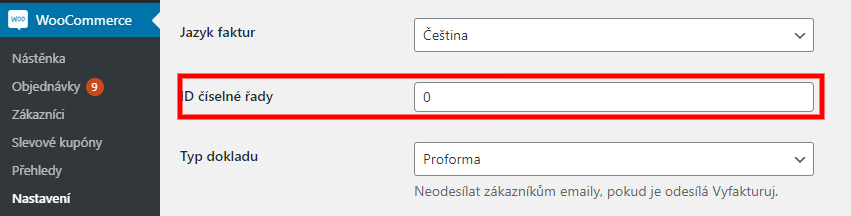
Variant 2: Generating Invoices and Proformas
Set number series for both variants in the Vyfakturuj administration and in the plugin settings insert 0 (zero) into the ID číselné řady (Number Series ID) field, the plugin will automatically take the number series from the first row in the Vyfakturuj administration for both variants. If you have multiple number series created for one of the variants, move the one you want to use for the given document type to the first position.
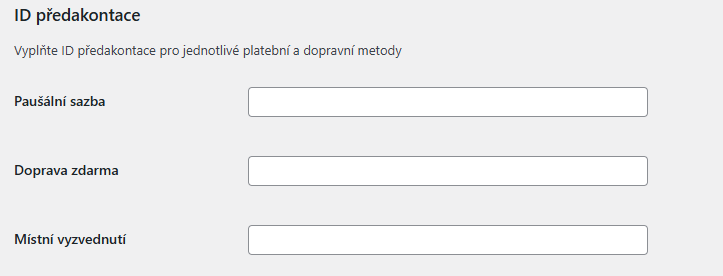
Pre-accounting ID Settings
If you use pre-accounting, you can enter the ID for individual payment and shipping methods set in WooCommerce in the plugin settings (WooCommerce > Settings (Nastavení) > Vyfakturuj).
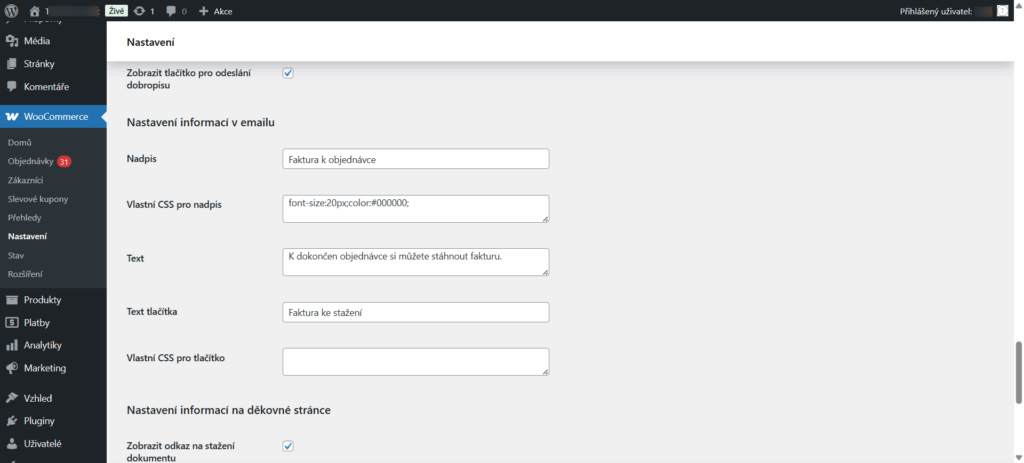
Email Information Settings
The plugin allows customizing the text of the email with documents. You can set a custom title, text, and button text, including custom CSS.
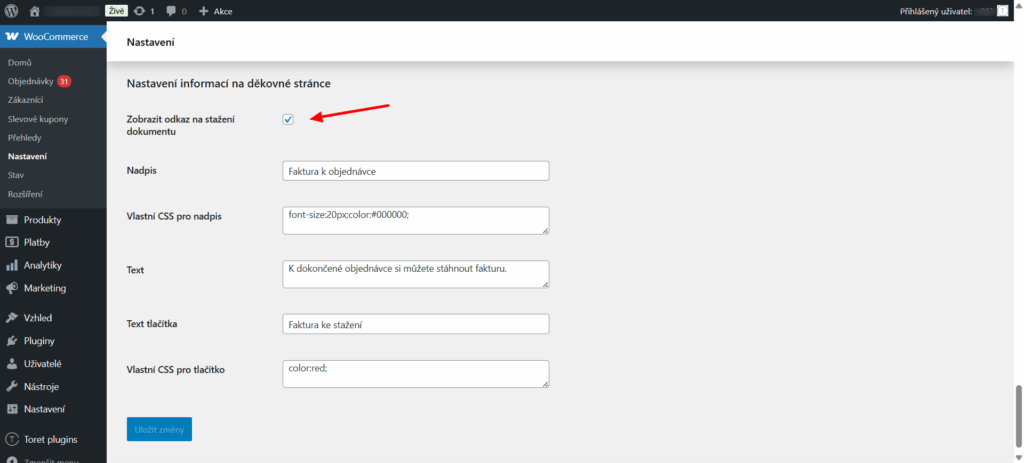
Thank You Page Information Settings
The plugin allows displaying a link to download the issued document to the customer on the thank you page. Simply enable the function by checking the checkbox. You can set a custom title, text, and button text, including custom CSS.
Other Settings
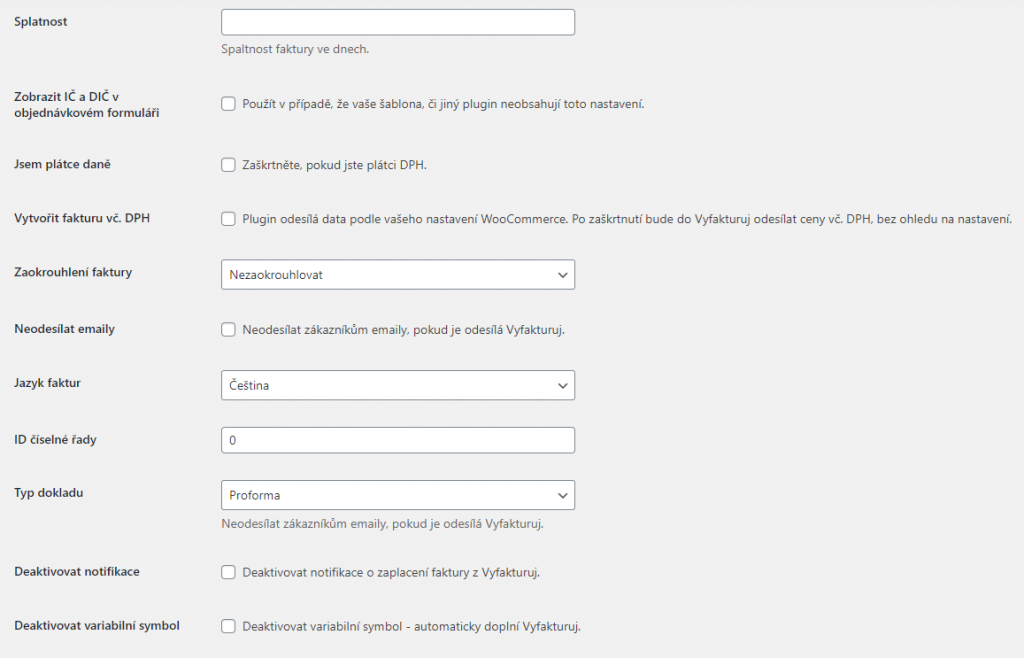
Failure Notification: Here you can fill in an email to which you will receive a notification in case the document issuance fails.
Maturity: Here you set the invoice maturity in days.
Display IČ and DIČ (Company ID and VAT ID) in order form: Check the checkbox if your theme or another plugin does not contain this setting. The function adds fields for Company ID and VAT ID to the checkout.
I am a VAT payer: Check the checkbox if you are a VAT payer.
Send in OSS mode: Here you enable the OSS (One stop shop) mode if you are registered in it with your e-shop.
Create invoice incl. VAT: The plugin takes over the VAT settings from WooCommerce; after checking the checkbox, invoices will be sent to Vyfakturuj with VAT regardless of WooCommerce settings.
Invoice Rounding: Here you can set whether not to round invoices, otherwise choose the rounding method.
Do not send emails: After checking the checkbox, emails will not be sent to customers if Vyfakturuj sends them.
Invoice Language: For invoices, you can choose from the following languages: Czech, Slovak, German, English.
Disable Notifications: By checking the checkbox, no notification about the invoice being paid will come from Vyfakturuj to the web, and the order status will not automatically change to Completed.
Disable Variable Symbol: By checking the checkbox, you disable the variable symbol.
VAT
Vyfakturuj calculates VAT items itself when generating an invoice according to WooCommerce VAT settings.
It is important that two decimal places are set in WooCommerce settings on the General tab. If zero decimal places are set here, it may happen that Vyfakturuj calculates from a rounded amount and the total amount on the invoice will not agree with the amount in the order in WooCommerce.
Pairing Invoice with Payment and Subsequent Order Status Change
The Vyfakturuj invoicing service supports the function of pairing payments with the bank.
1) First, it is necessary to set up pairing in internet banking according to the Vyfakturuj manual: https://podpora.redbit.cz/navod/parovani-plateb-s-bankou/
2) In the plugin settings, the checkbox “Disable notifications” must NOT be checked. This function must be enabled for the paid invoice notification to come from Vyfakturuj to the web.
How does it work?
The customer places an order on the e-shop with payment by transfer to a bank account. For the created order, the plugin generates a proforma or invoice according to the settings. The customer pays to the account, which passes the information to Vyfakturuj, and the proforma or invoice is marked as paid. A notification goes from the Vyfakturuj account to the web that the invoice is paid, and the plugin changes the order to the “Completed” (Dokončeno) status.
Filters
The following filters are available in the plugin for advanced adjustments:
- vyfakturuj_create_invoice_on_status with parameters $status, $payment_method, $order and $document_type for changing the status at which the document is created
- vyfakturuj_pay_invoice_on_status with parameters $status, $payment_method and $order for changing the status at which the document is marked as paid
Hiding Decimal Places in Prices
If you do not want to display decimal places for prices on the web when two decimal places are set in WooCommerce, insert a script to hide zeros after the decimal point into the child theme.
add_filter( 'woocommerce_price_trim_zeros', '__return_true' );Adjusting Order Status Change After Payment Pairing
If the status to which the order switches after pairing the payment with the invoice does not suit you, it is possible to program any status using a filter. The filter definitions are listed below.
$new_status = apply_filters( 'vyfakturuj_proforma_webhook', 'completed', $order );
$new_status = apply_filters( 'vyfakturuj_proforma_webhook', 'completed', $order );
$new_status = apply_filters( 'vyfakturuj_invoice_webhook', 'completed', $order );
Example filter for changing order status to Processing status by marking invoice as paid:
/**
* $status - default: complete
* $order - WC_Order
*
* @param $status
* @param $order
*
* @return string
*/
function vyfakturuj_invoice_webhook_callback ($status,$order){
/*
* Default WooCommerce statuses:
* pending
* processing
* on-hold
* completed
* cancelled
* refunded
* failed
*/
return 'processing';
}
add_filter('vyfakturuj_invoice_webhook','vyfakturuj_invoice_webhook_callback',10,2);
Insert the filter into the child theme or into an empty plugin e.g. https://toret.cz/produkt/boilerplate/.
VAT Adjustment for Shipping
In case a different VAT value for shipping is sent to Vyfakturuj, you can use the following filter to correct it.
$shipping_tax = apply_filters( 'vyfakturuj_shipping_vat_rate', $shipping_tax, $this->order );
FAQ
Compatibility with WPML or WOOCS plugin
If you use WPML or the WOOCS plugin, everything will be recalculated automatically.
Testování pluginu
Pro účely testování můžete využít:
- subdoménu “dev.doménalicence” (se stejnou licencí jako pro produkční web)
- localhost (127.0.0.1)
Na těchto umístěních budou zakoupené pluginy fungovat také a můžete zde otestovat implementaci a kompatibilitu před ostrým nasazením na web i v průběhu jeho užívání.