
You are on the documentation page for the Toret Velkoobchod (Wholesale) for WooCommerce plugin, which adds wholesale sales capabilities to your e-shop.
You can purchase the Wholesale plugin here: Toret Velkoobchod for WooCommerce
Plugin Installation
Upon purchasing the plugin, you will receive a license key and a download link for the plugin zip file via email. You can find detailed instructions on how to install the plugin from your computer into WordPress here.
The plugin is translated into Czech, Slovak and German.
Plugin Activation
After installing the plugin, open the Toret Velkoobchod plugin, insert the license key into the appropriate field, and click the button to activate.
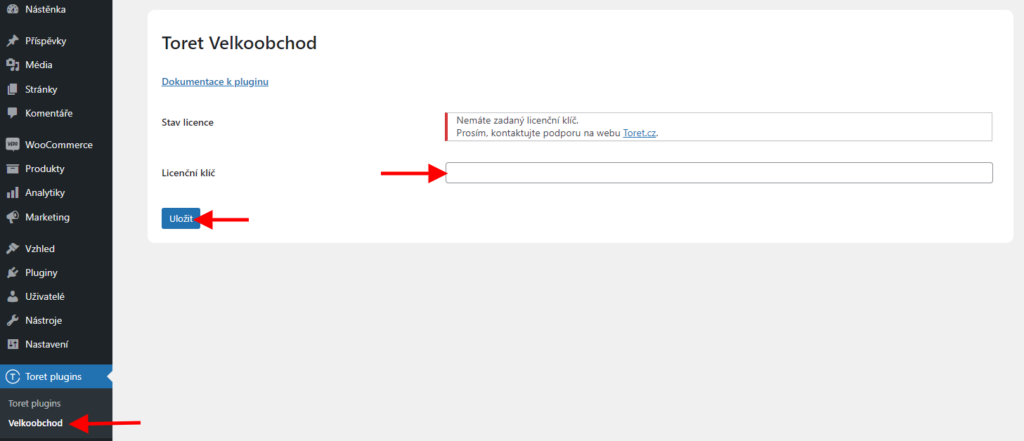
After installation and activation, it is time to configure the Wholesale plugin.
Wholesale Customer Registration
1. Registration
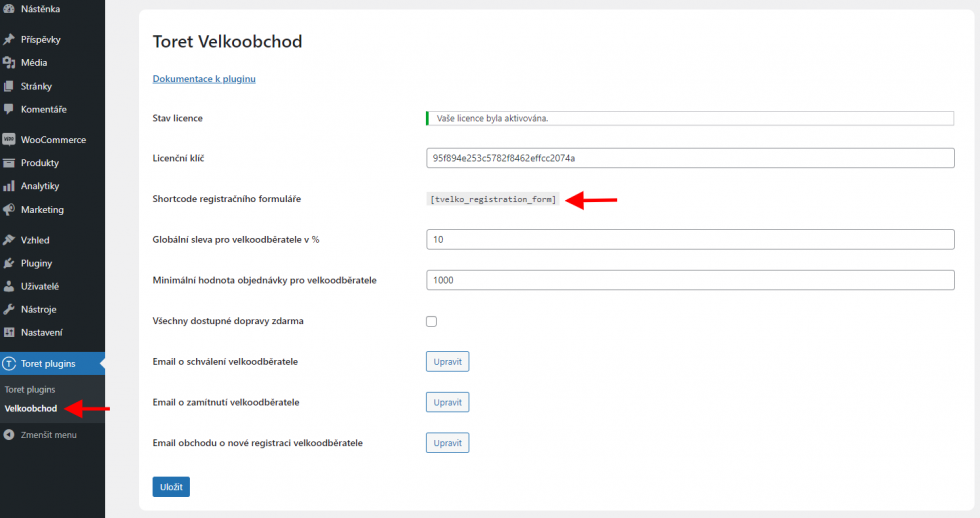
For a customer to register as a wholesale subscriber, it is necessary to add a registration form to the website. Add the form using the shortcode [tvelko_registration_form] to any page on the website where you want to place the form. You can also find the shortcode in the plugin settings Toret plugins → Velkoobchod.
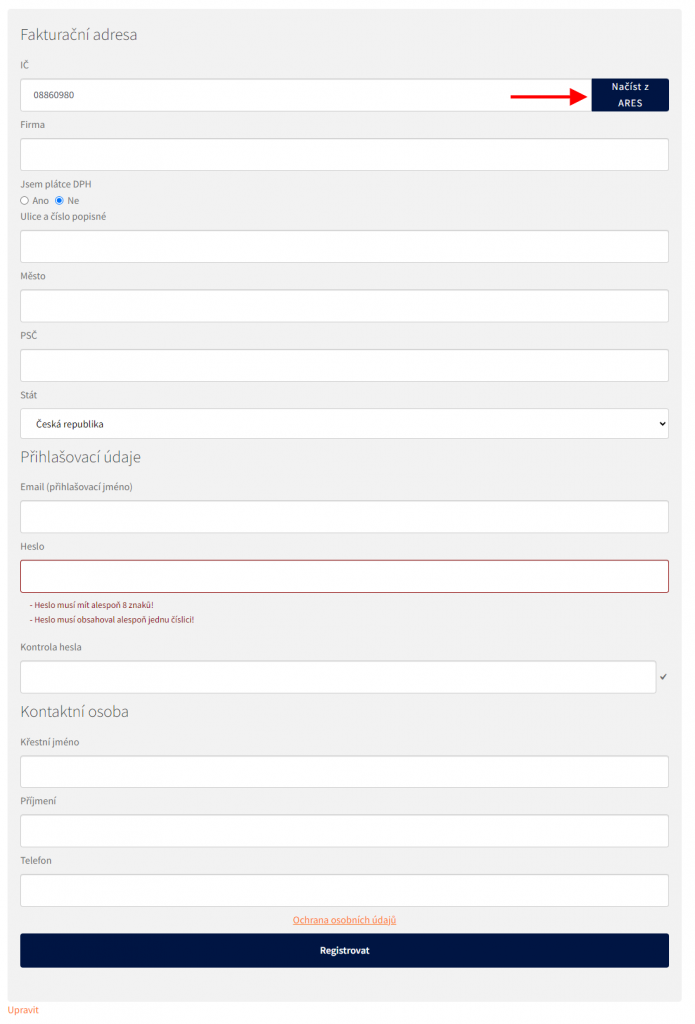
The registration form allows automatic filling of data. After entering the Company ID (IČ), users will see a button to load data from the ARES (CZ) or RÚZ (SK) database, or it is possible to fill in the data manually.
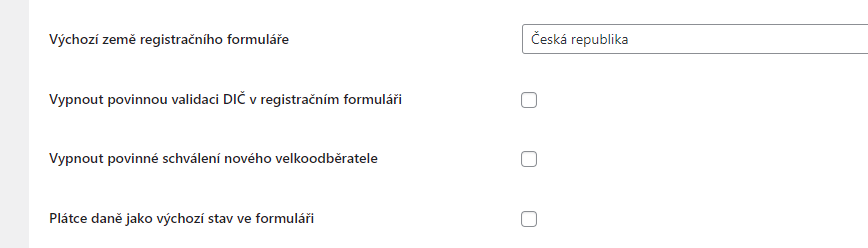
In the plugin settings (Toret plugins >Velkoobchod), the registration process can be further customized:
- Set default country for registration form
- Disable mandatory VAT ID validation in registration form
- Disable mandatory approval of new wholesale customer
- VAT payer as default state in form
2. Approval or Rejection
Once the customer completes the registration, you will receive information about the registration on the email set in WordPress.
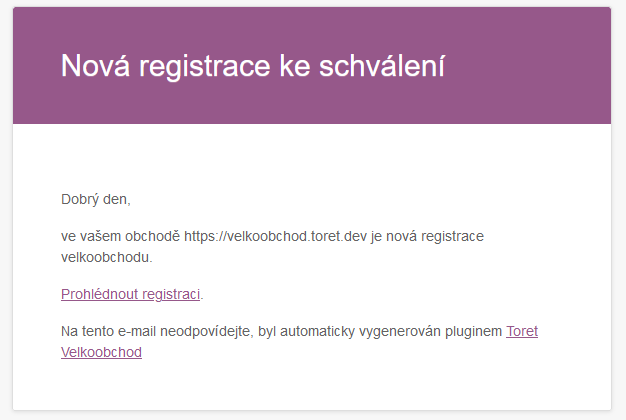
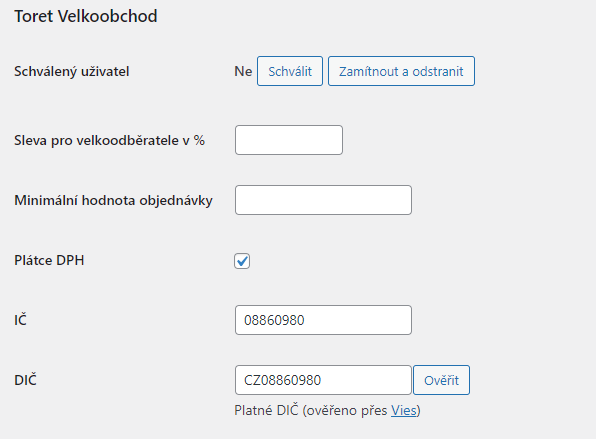
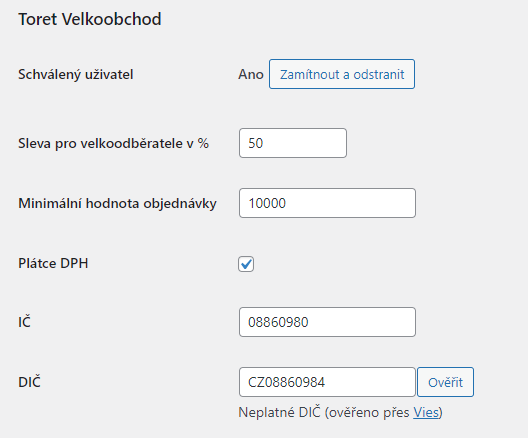
Via the “Prohlédnout registraci” (View registration) link, you can go straight to the detail of the registered user who has the role Velkoodběratel (Wholesale Customer). Approval or rejection of a new wholesale customer can be done in the user detail in the Toret Velkoobchod section.
In the user detail, you will also find discount settings and minimum order value for this wholesale customer. Settings at the user level override global settings in the plugin.
If the wholesale customer is a VAT payer, it is possible to verify the entity via VIES.
In the overall WordPress user overview, the plugin adds several columns where you can see if the user is approved for wholesale, what wholesale discount is set, and if they are a VAT payer.

3. Emails
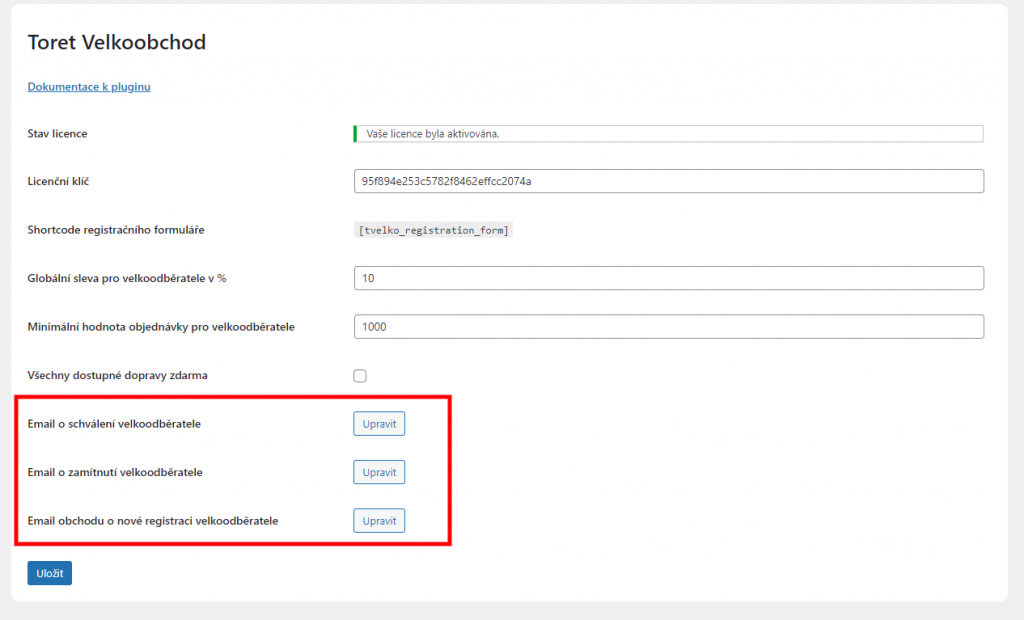
Once the user is approved or rejected, they will receive a message about the registration result at their registration email. In the plugin settings, it is possible to access the settings of each email via the “Upravit” (Edit) button and modify the email or turn off its sending.
4. Adding Link for Terms and Conditions
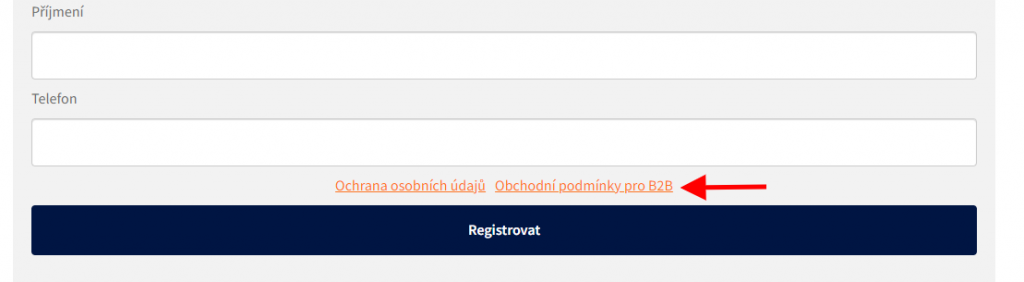
In the plugin settings, it is possible to add a link to the Terms and Conditions page at the end of the registration form and use custom wording for the link.

Setting Wholesale Discounts and Conditions
Setting discounts and conditions is possible at four levels:
- global
- user level
- product level
- category level
Discount calculation can be performed only from the regular price or can also include sale prices. You can find this option in the plugin settings (Toret Plugins > Velkoobchod).

1. Global
The global discount level setting applies to all users who do not have an individual discount set in their user role.
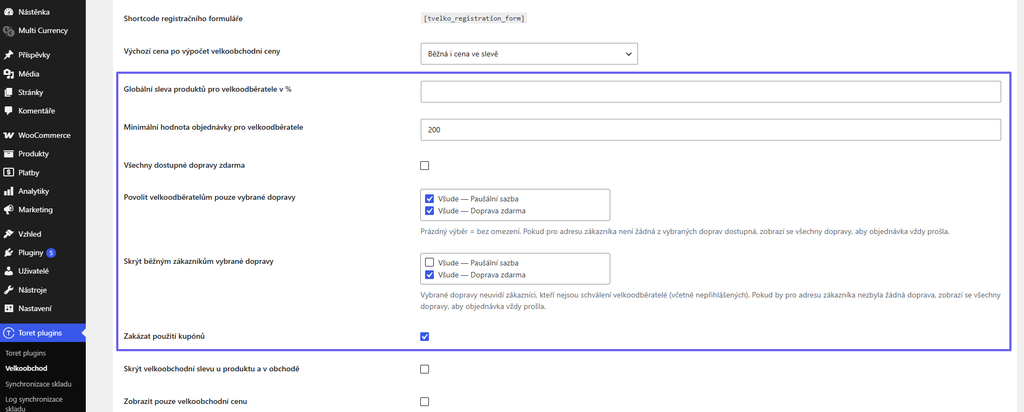
The global discount is set directly in the plugin (Toret plugins → Velkoobchod). It is possible to set a percentage discount that applies to all products in the cart that are not excluded from the discount. You can also disable the use of discount coupons.
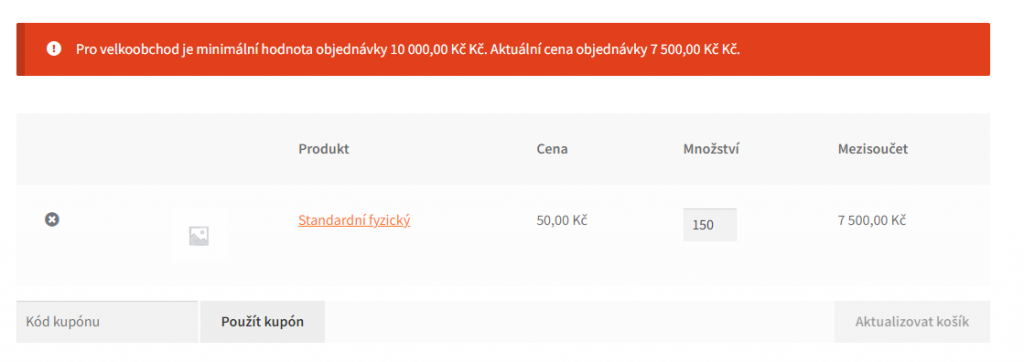
In addition to the global discount, it is possible to set a global minimum order value for wholesale customers. If there are goods with a lower value in the cart, the order cannot be completed.
Tip: If you use a multi-currency plugin (CURCY, WPML/WCML or YayCurrency), the minimum order value and the tiered discount bands based on the order price are automatically converted to the currency the customer is shopping in. Enter the values in the store’s main currency.
In the global settings, you can also adjust shipping for wholesale customers:
- All available shipping methods free (Všechny dostupné dopravy zdarma) – wholesale customers get all shipping methods for free.
- Allow wholesale customers only selected shipping methods (Povolit velkoodběratelům pouze vybrané dopravy) – only the selected shipping methods are offered to wholesale customers at checkout. An empty selection means no restriction.
- Hide selected shipping methods from regular customers (Skrýt běžným zákazníkům vybrané dopravy) – the selected shipping methods are not shown to customers who are not approved wholesale customers, nor to visitors who are not logged in.
If no shipping method would remain for the customer’s address after the restriction, all shipping methods are shown so that the order can always be completed.
A little lower in the settings, you can also enable tiered discounts (Povolit postupné slevy objednávky). The tiered discount type (Typ postupné slevy) determines what the discount amount depends on:
- Weight (Hmotnost) – based on the total weight of the order,
- Number of items (Počet kusů) – based on the total number of items in the cart,
- Total price (Cena celkem) – based on the total order price,
- Number of items per product (Počet kusů jednotlivých produktů) – the discount is evaluated separately for each product based on the number of its items in the cart. Items of different variations of one product are added together.
You set the individual discount bands in the Tiered order discounts (Postupné slevy u objednávky) table.

2. User Level
Discount or minimum order value at the WordPress user level override the global settings. They can be set for each user with the Velkoodběratel (Wholesale Customer) role.
Import/Export of User Discounts
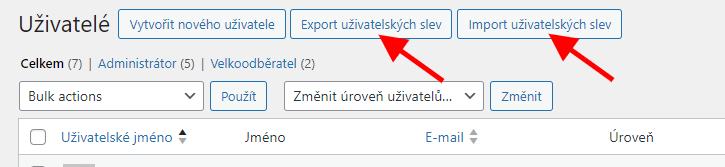
User discounts can be easily imported/exported via a CSV file directly in the user overview.
3. Product Level
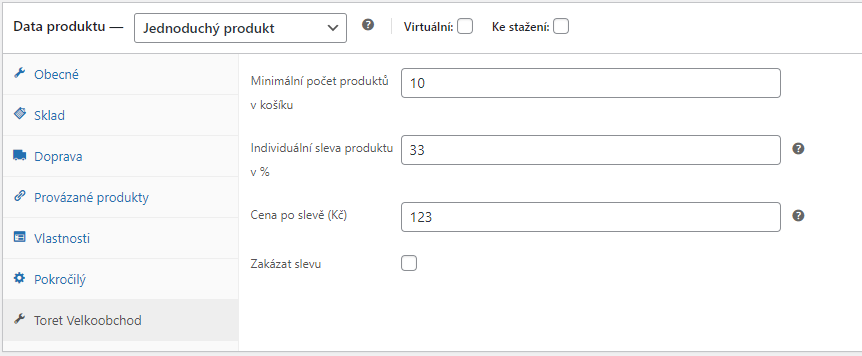
Setting individual discount, minimum quantity of products in cart or fixed price after discount at the product level overrides conditions at the user level. It thus has the highest priority of all discount settings.
You can also disable the discount for a given product. In that case, the wholesale discount from any setting will not apply to the disabled product. You can find these settings for each product on the “Toret Velkoobchod” tab.
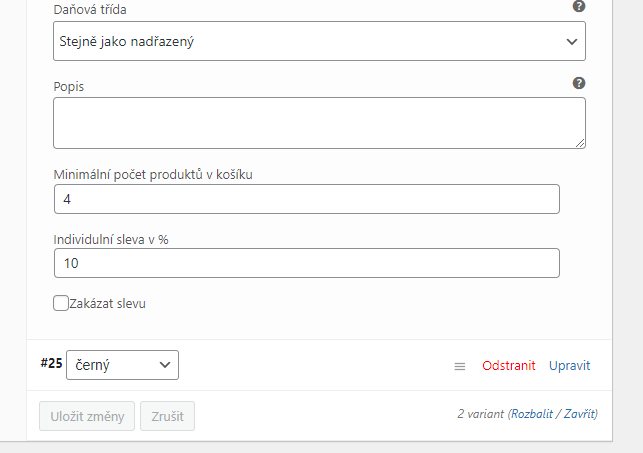
For variable products, the wholesale conditions settings are at the end of each variation settings.
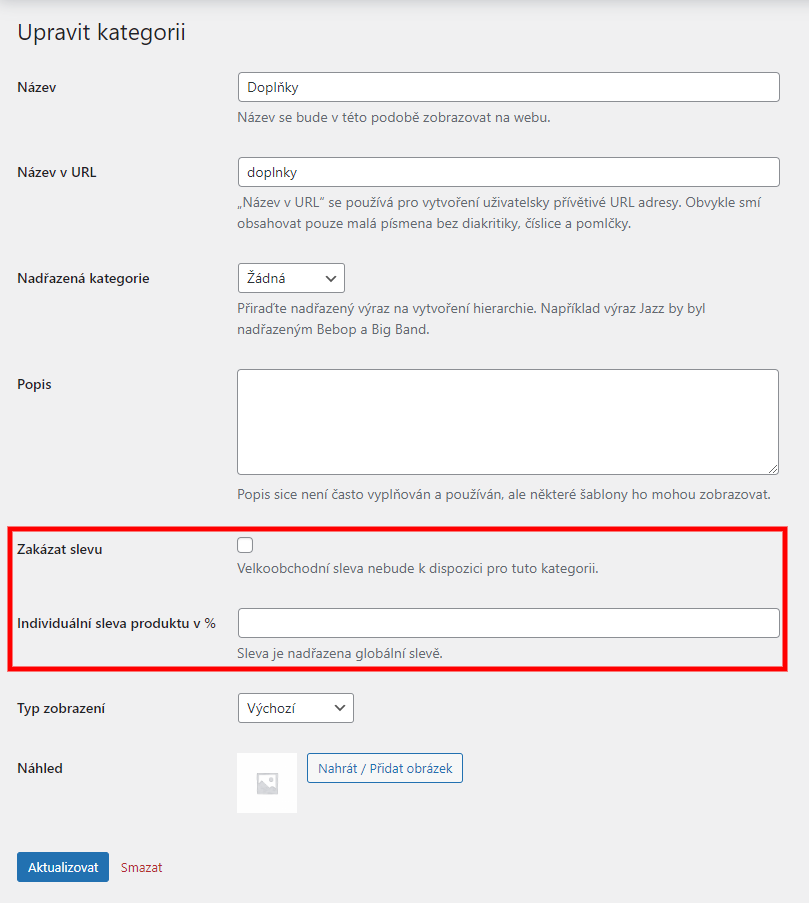
4. Category Level
At the category level, it is possible to disable or set a discount for all products in the given category. Disabling the discount can be set directly when creating a category or you can disable/enable it at any time directly in the settings of the specific category.
5. Wholesale Discount Display
The set discount is displayed to every logged-in user according to the set conditions.
The discount is displayed in the product detail and in the product overview.
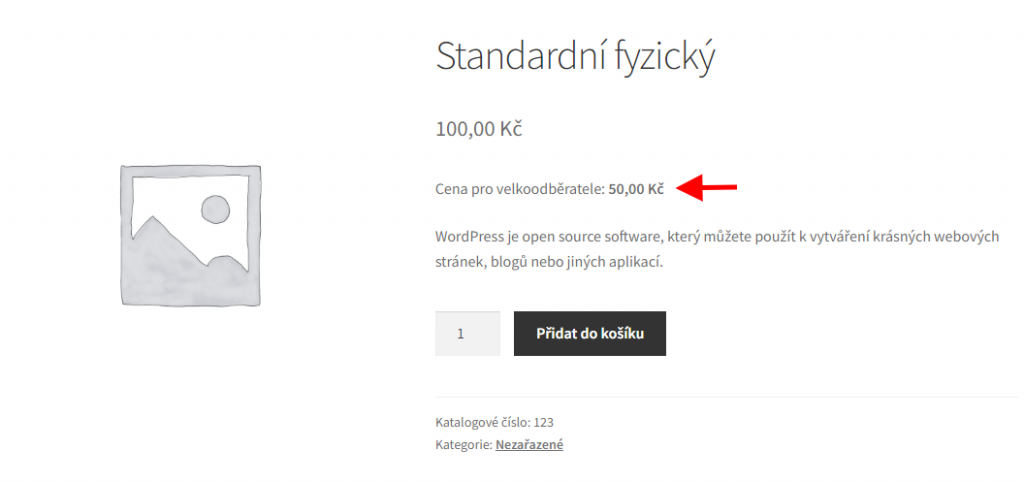
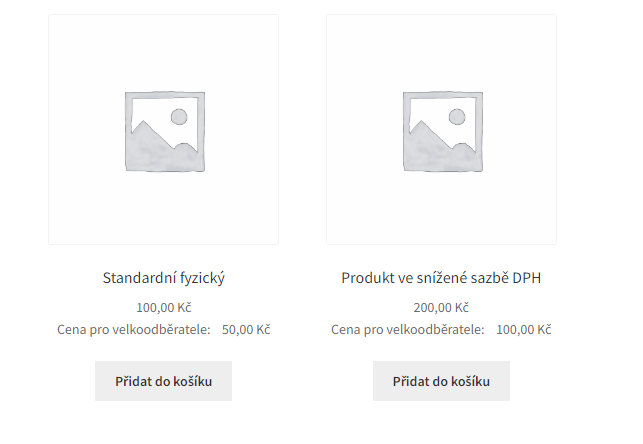
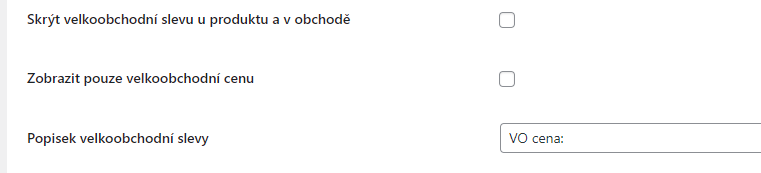
Wholesale price display can be customized in the main plugin settings (Toret plugins > Velkoobchod). You can:
- Hide wholesale discount on product and in shop
- Display only wholesale price
- Edit wholesale discount label
- Strike through product price if wholesale price is available
- Do not display wholesale discount if the price is the same as default
- Display wholesale price with or without VAT (Applies only to the product display; the price shown and calculated at checkout will follow the WooCommerce settings.)

To display the wholesale price, you can use the shortcode [tvelko_product_price tax=”included”]. The tax parameter value can be changed (“included” = wholesale price with VAT, “excluded” = wholesale price without VAT).
6. Disabling Coupons for Wholesale
In the plugin settings, it is possible to disable the use of coupons for wholesale customers. After activating the “Zakázat použití kupónů” (Disable coupon usage) function, the option to enter a coupon for wholesale users will be hidden in the cart and checkout.
Payment on Invoice (Platba na fakturu)
The plugin adds a custom payment method Platba na fakturu (Payment on Invoice) to WooCommerce. It is practically a bank transfer payment method, but it is displayed only to wholesale customers and the logged-in web administrator.
The Platba na fakturu payment method is standardly in the payment method settings (WooCommerce → Settings → Payments).
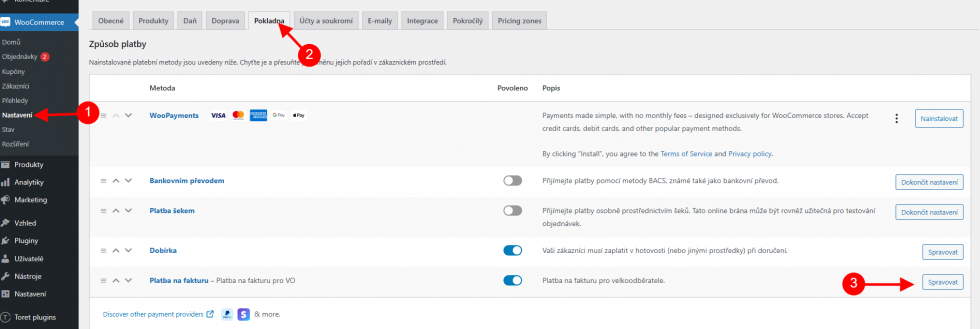
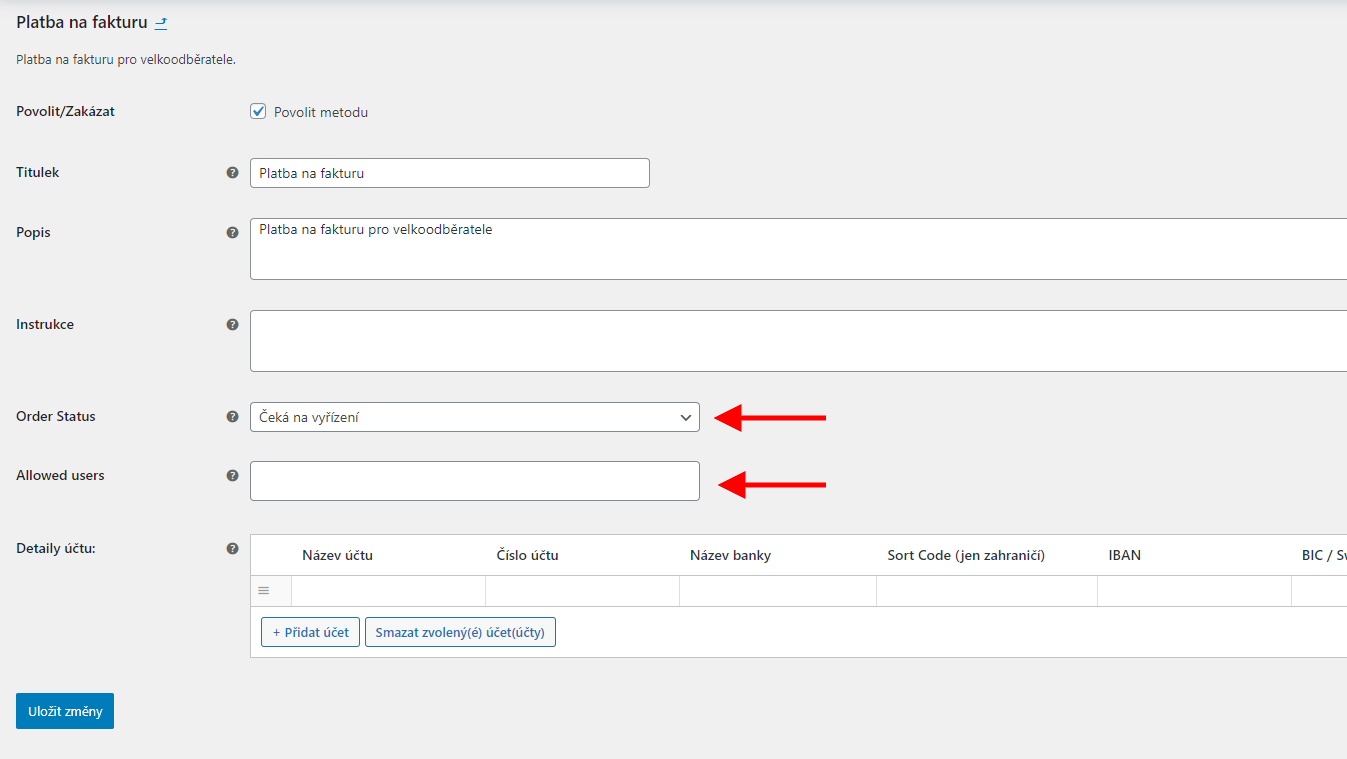
In the payment method detail, you can set a custom title, description, instructions, and account number with other bank account details, just like in the standard bank transfer payment method.
Compared to the regular payment method in WooCommerce, it is possible to set the status the order will have after its creation, and also select specific users for whom this payment method will be available.
Filters in the Plugin
It is not necessary to use filters to use the plugin. Filters serve to extend or customize the functionality of the plugin. Your programmer can help you with their implementation.
Extending User Role Permissions
Filter for extending the permissions of custom user roles for the purpose of approving and setting conditions for wholesale users.
add_filter('toret_velkoobchod_approvers','custom_toret_velkoobchod_approvers');
function custom_toret_velkoobchod_approvers($approvers){
    $approvers[] = 'contributor'; //role slug
    return $approvers;
}
Disabling Plugin CSS
Filter to disable CSS on the frontend:
toret_velkoobchod_skip_public_stylesFilter to disable CSS in administration:
toret_velkoobchod_skip_admin_stylesFilter to disable CSS in administration:
toret_velkoobchod_final_pricePlugin testing
For testing purposes, you can use:
- the subdomain “dev.domainlicense” (with the same license as for the production website)
- localhost (127.0.0.1)
Purchased plugins will also work in these locations, and you can test their implementation and compatibility here before deploying them to the website and during its use.