
You are on the documentation page for the plugin that integrates the ybox24 service into your e-shop. To use this service, it is necessary to conclude a contract with ybox24.
You can purchase the ybox24 plugin here: Toret ybox24 for WooCommerce
Plugin Installation
Upon purchasing the plugin, you will receive a license key and a download link for the plugin zip file via email. You can find detailed instructions on how to install the plugin from your computer into WordPress here.
Plugin Activation
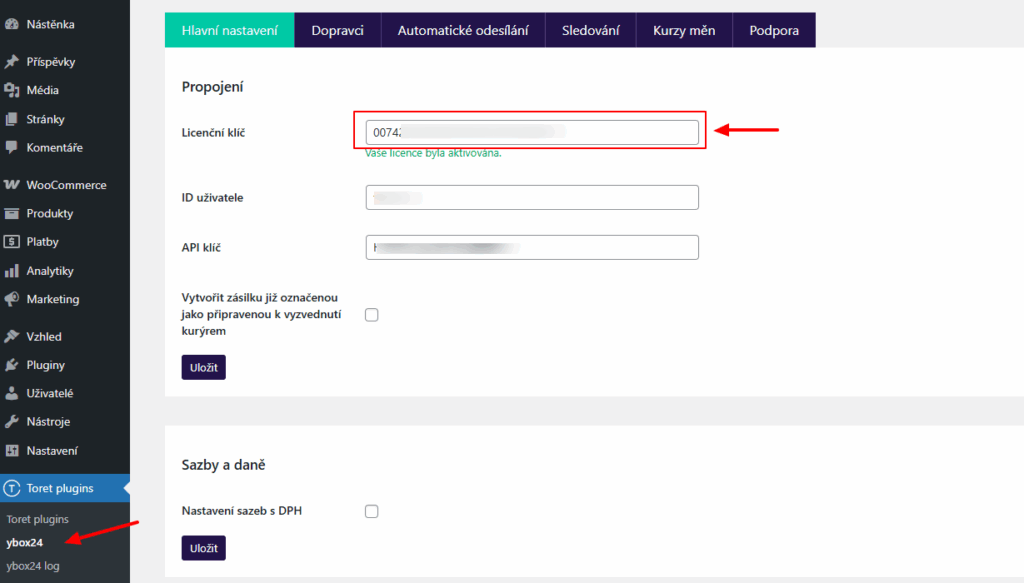
After installing the plugin, open the Toret ybox24 plugin, insert the license key into the appropriate field, and save.
Connecting to ybox24 Service
To use the Toret ybox24 plugin, you must have an account created with ybox24 (https://ybox24.com/).
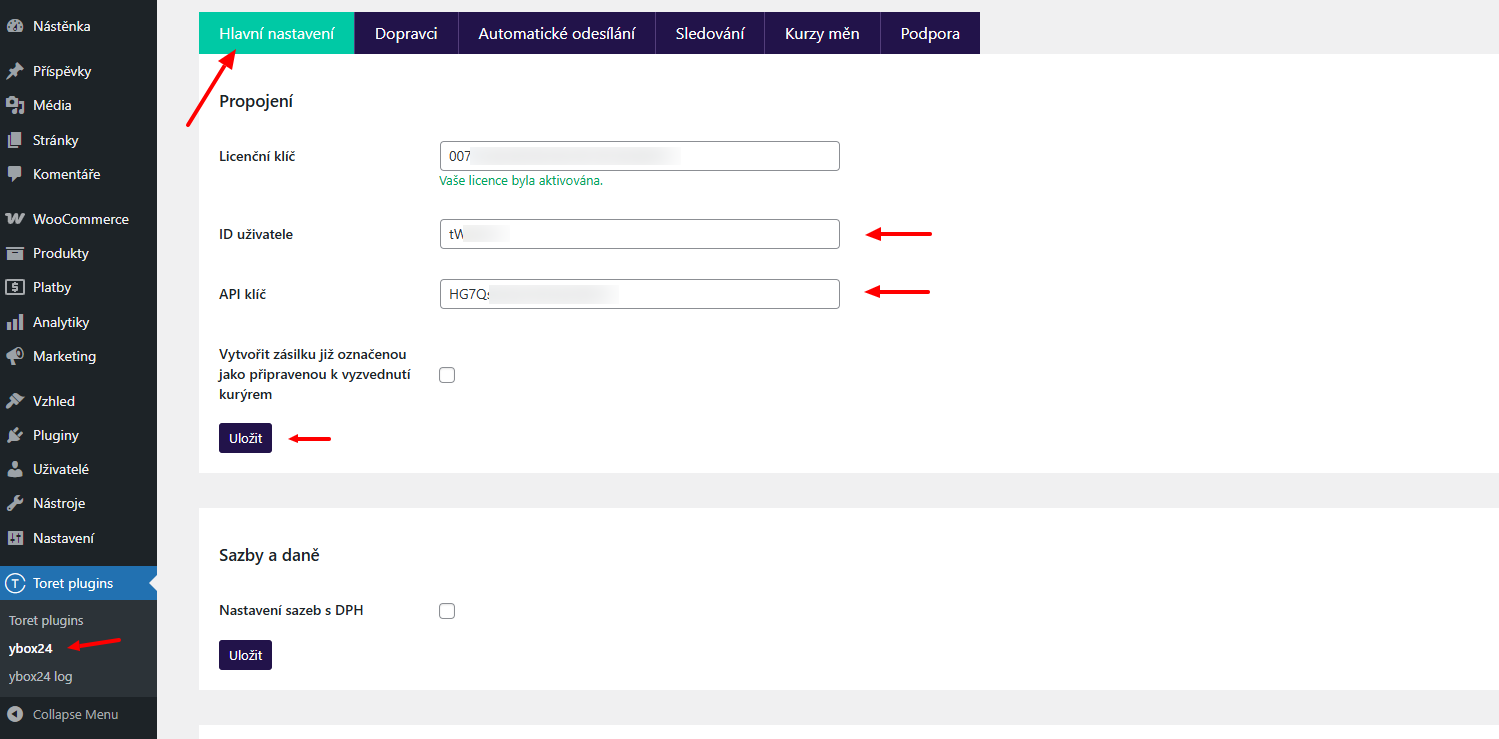
To connect the plugin to the API, implementation data will be needed:
- User ID
- API Key
You will receive these data directly from ybox24.
Enter the implementation data in the plugin settings Toret plugins → ybox24 → tab Hlavní nastavení (Main Settings).
Main Plugin Settings
You can find the following functions on the Hlavní nastavení (Main Settings) tab (Toret Plugins > ybox24 > Hlavní nastavení).
Rates and Taxes
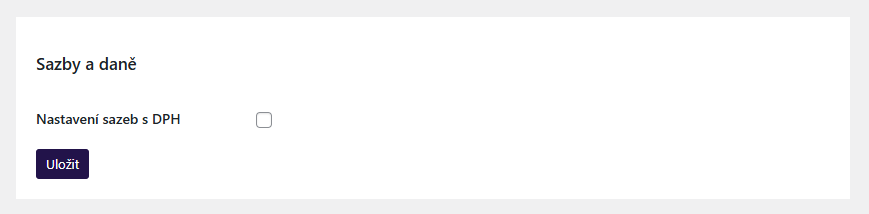
In this section, you set whether you will set shipping prices with or without VAT.
Custom Surcharges
Surcharges can be set:
- globally
- for product/variant
- for category
- for delivery to ybox24
Surcharges can be multiplied by quantity or counted once, and their visibility in the checkout can also be set.
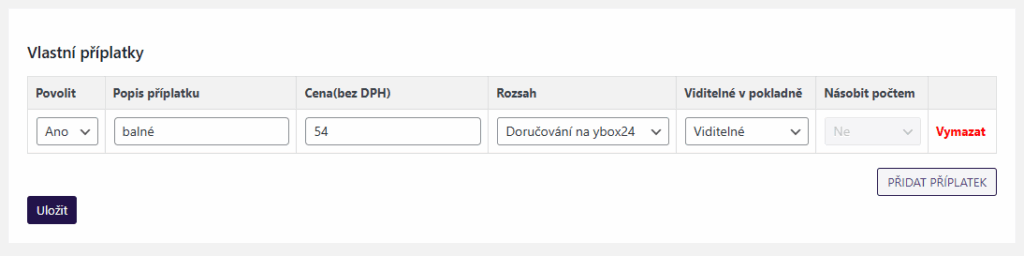
Surcharges for product/variant or category must also be enabled in the product/variant or category detail.
Map Widget Settings
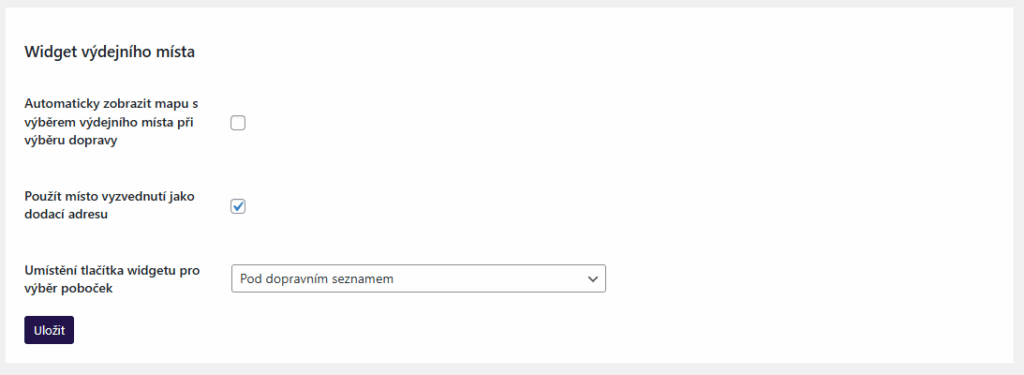
For the map widget, it is possible to set in Main Settings:
- automatic widget opening when selecting shipping (customer does not have to click to open the map)
- using pickup point address as delivery address (customer does not have to fill in their address, box address is filled automatically)
- button placement for opening the widget (under the list of shipping methods or directly at the given method)
Checkout Icon Settings
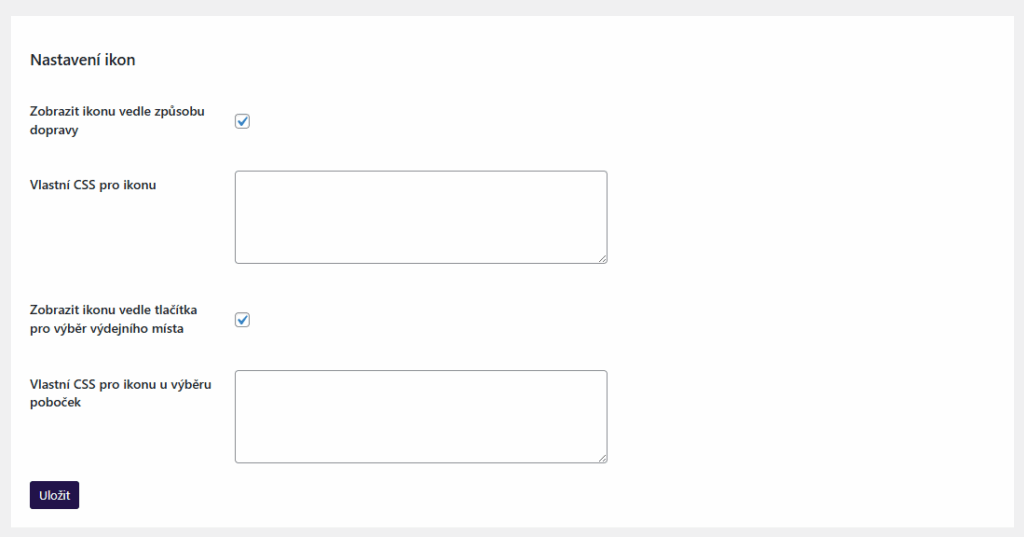
In this section, you can set whether an icon will be displayed for the ybox24 shipping method and for the widget opening button, and style them using CSS. You can upload a custom icon in the carrier settings (see below). The plugin also includes default icons that will be displayed if you do not enter your own.
Other Settings
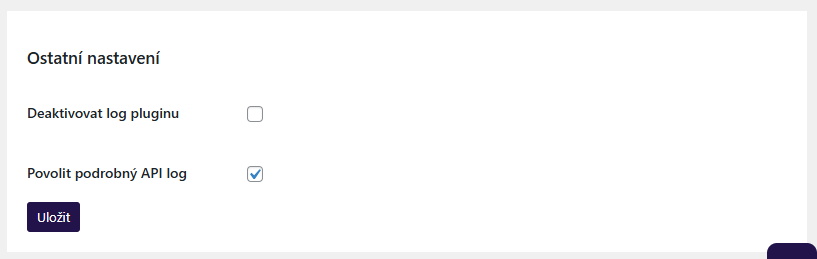
In the section Hlavní nastavení (Main Settings) > Ostatní nastavení (Other Settings), you can activate/deactivate the plugin log and detailed API log.
ybox24 Shipping Settings
You perform ybox24 shipping settings on the Dopravci (Carriers) tab. First, it is necessary to set the shipping method in shipping zones, then you can proceed to the shipping settings themselves.
Shipping Zone Settings
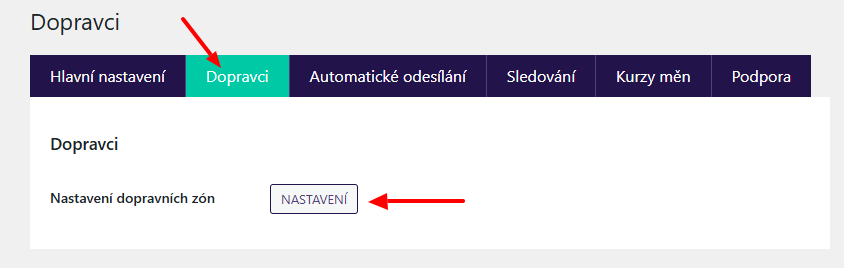
You can click through to shipping zone settings directly from the Dopravci (Carriers) tab > Nastavení dopravních zón (Shipping Zone Settings). Without setting the shipping method in shipping zones, it will not appear in the checkout.
It is necessary to have a shipping zone created in WooCommerce to which the ybox24 shipping method will be added. Select the zone and click on Přidat způsob dopravy (Add shipping method) > ybox24 > Pokračovat (Continue). The ybox service is currently available only for the Czech Republic.
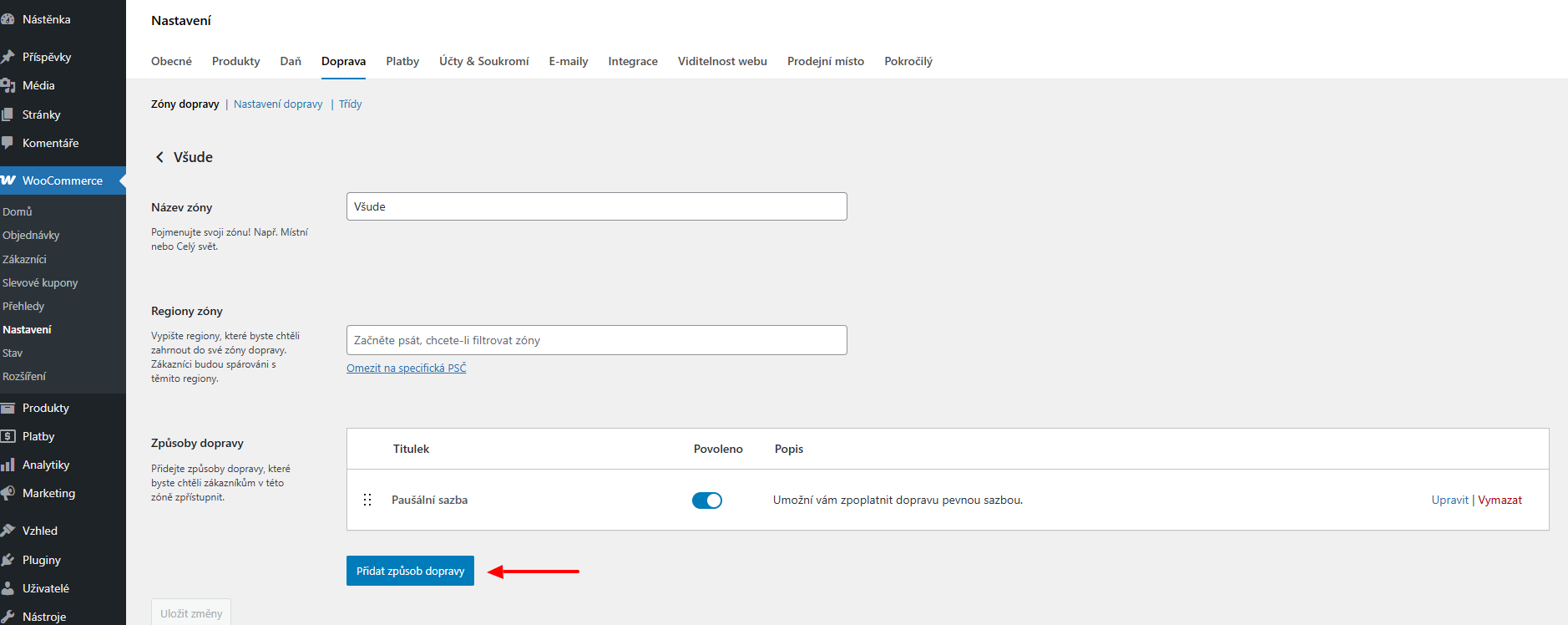
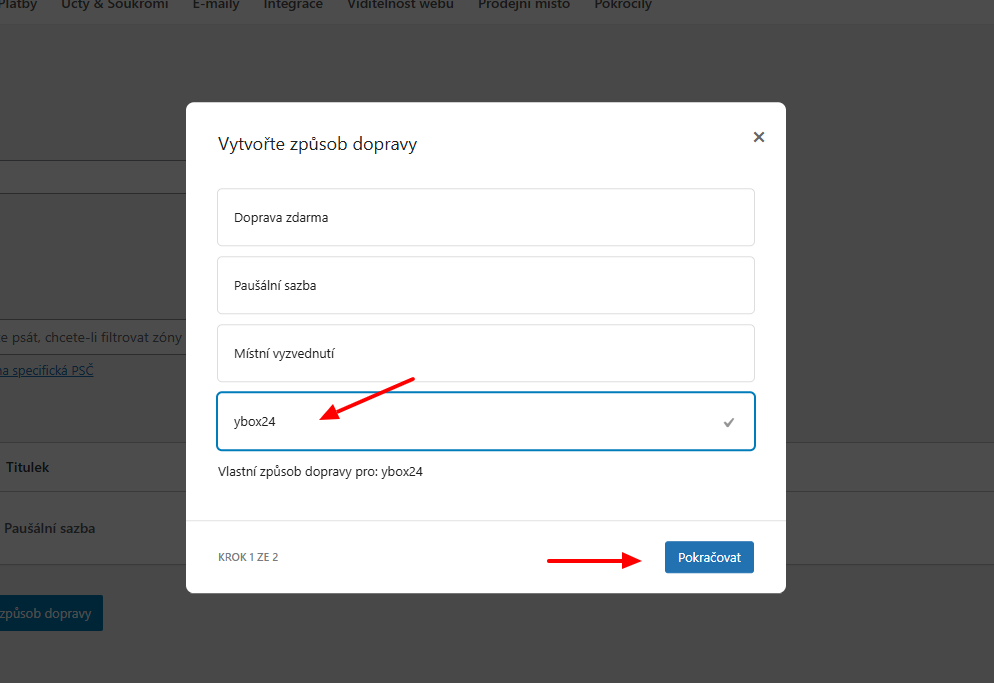
A new shipping method is created. Now you can configure shipping in the plugin.
Shipping Method Settings
Below on the Dopravci (Carriers) tab, you can set shipping parameters. Click on Nastavení (Settings) for the given country.
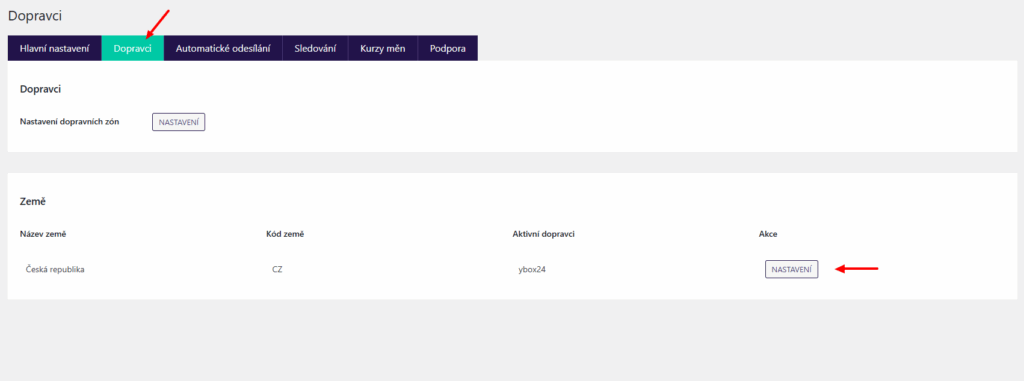
Now you can set:
- order types for shipping method
- custom title (text displayed to customers in checkout)
- custom icons
- in checkout (icon appears next to the shipping method)
- pickup points in checkout (icon appears on the button to open the map widget)
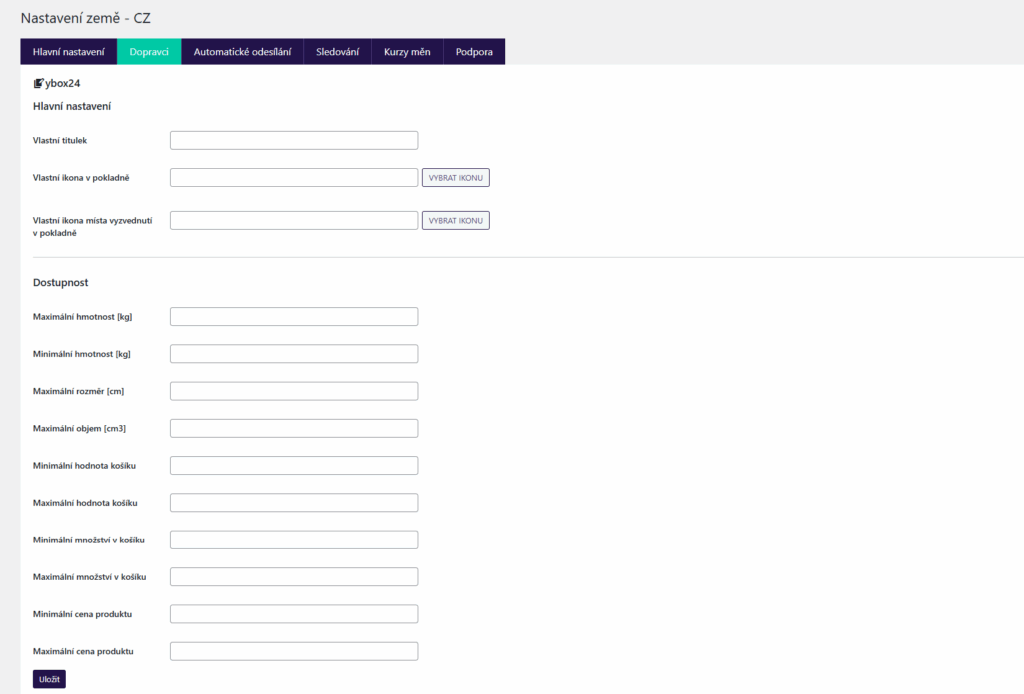
- shipping availability
Shipping availability can be restricted by weight, dimension, volume, cart value or quantity, and product price. If the order does not meet any restriction, the shipping method will not be offered to the customer in the checkout.
Order Types for Shipping Method – Free Shipping and Flat Rate
By default, shipping in ybox24 is paid by the customer upon receipt of the shipment directly to the carrier. The customer needs the ybox24 app for ordering and payment, and the price is determined by the storage time of the shipment in the box.
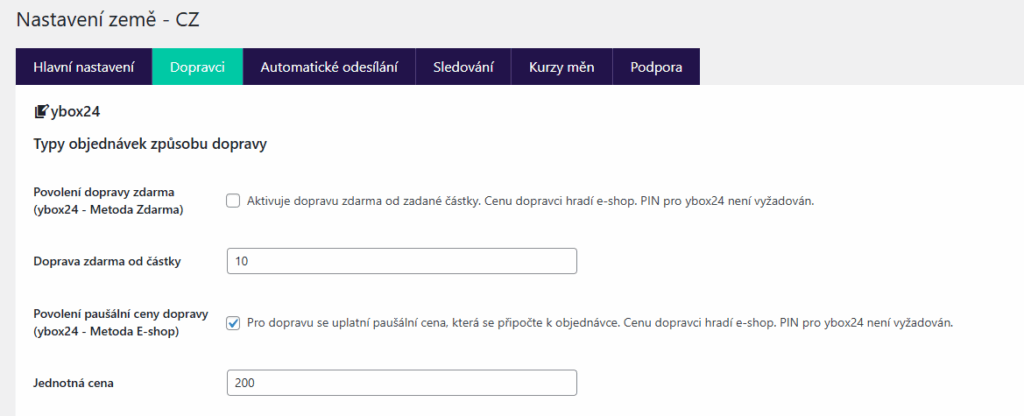
In the “Typy objednávek způsobu dopravy” (Order Types for Shipping Method) section, you can set free shipping and flat rate price. In the case of these shipping methods, the customer pays the shipping price directly to the e-shop (and the e-shop subsequently to the carrier) and does not need the ybox24 app.
To enable free shipping, check the checkbox “Povolení dopravy zdarma (ybox24 – Metoda Zdarma)” (Enable free shipping (ybox24 – Free Method)) and enter the order value from which shipping will be free.
To enable flat rate price, check the checkbox “Povolení paušální ceny dopravy (ybox24 – Metoda E-shop)” (Enable flat shipping price (ybox24 – E-shop Method)) and enter the shipping price.
Shipment Submission
In the plugin, you have three options for submitting a shipment to the ybox24 system.
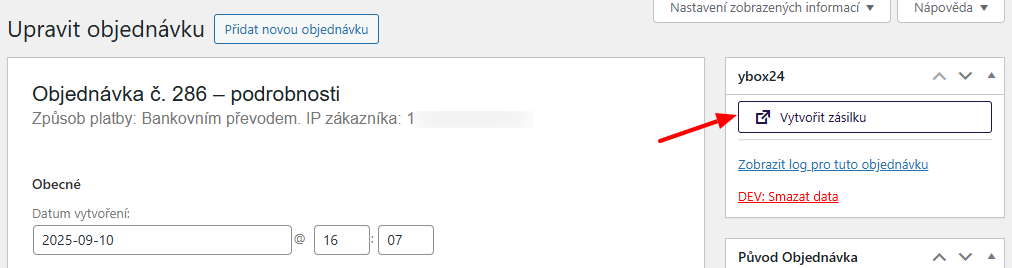
Manual submission via button in order overview or order detail

Bulk Submission
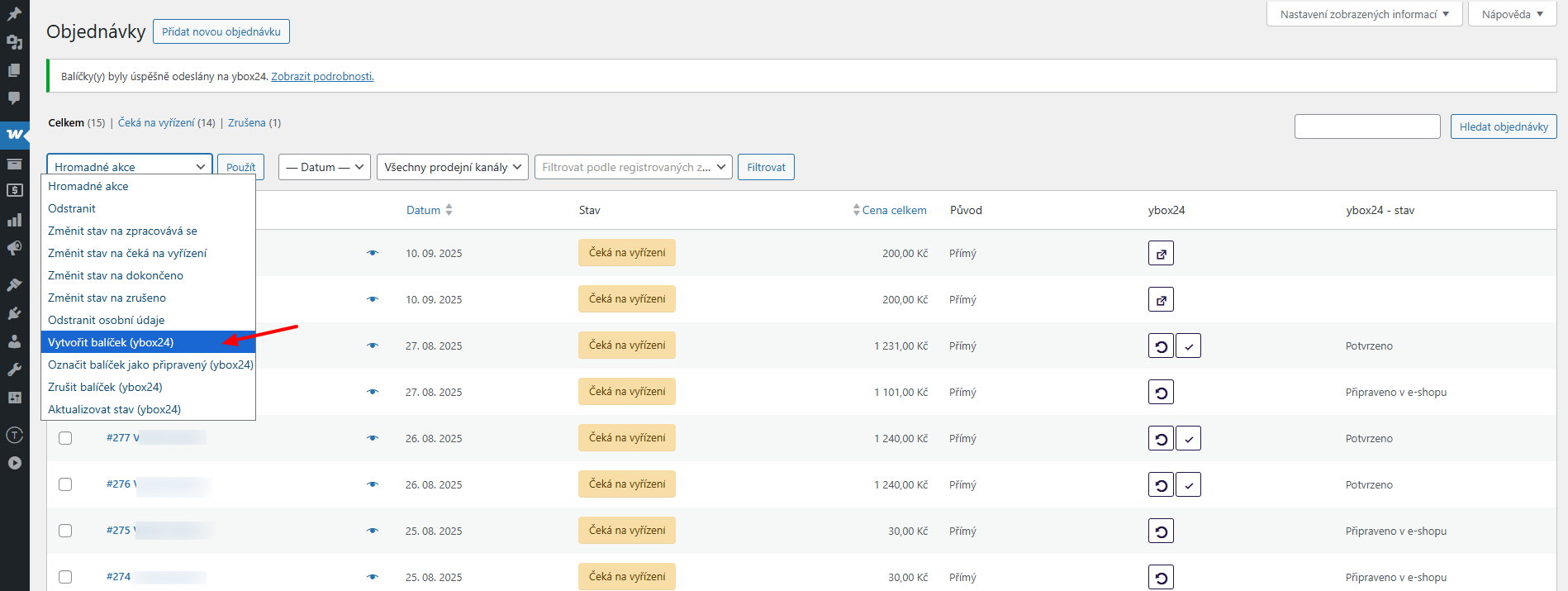
Via bulk actions in the order overview, multiple orders can be submitted to ybox24 at once. Just select the orders for submission and use the bulk action “Vytvořit balíček (ybox24)” (Create package (ybox24)).
Automatic Submission on Order Status Change
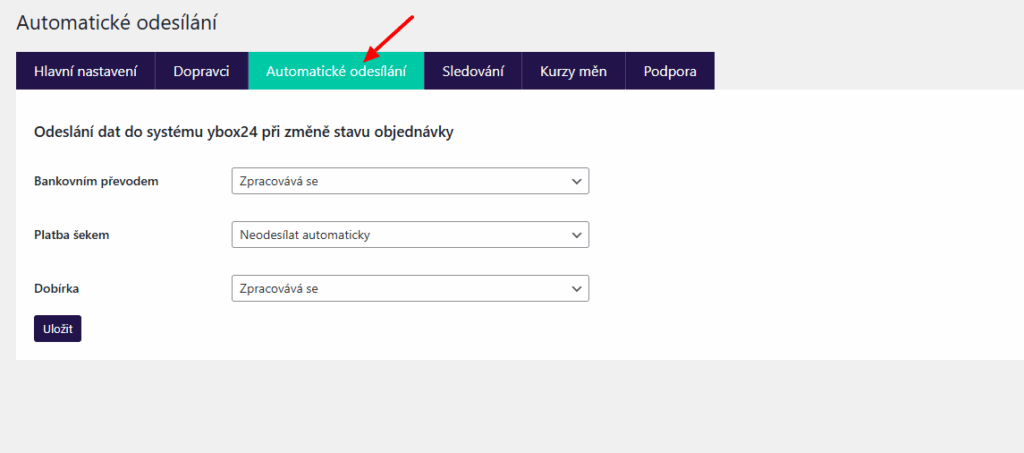
Automatic submission can be set in the ybox24 plugin → Automatické odesílání (Automatic Sending) tab.
Here, for each payment method, it is possible to set the order status in which the shipment will be automatically submitted.
Ordering Pickup
Ordering shipment pickup can be done manually or automatically.
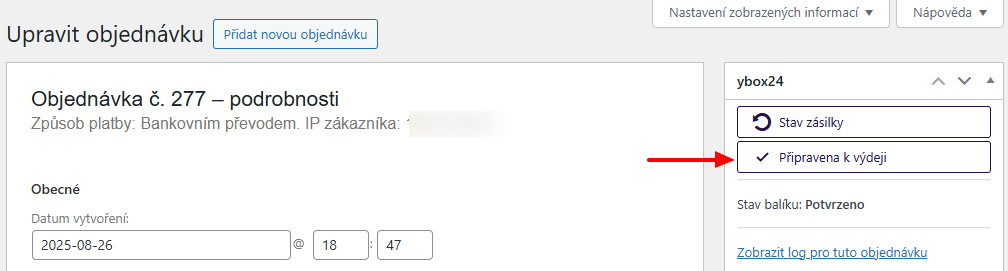
Manual pickup ordering in order overview and detail
Manual ordering is done by clicking the Připravena k výdeji (Ready for dispatch) button in the order overview or detail.

Ordering pickup via bulk action
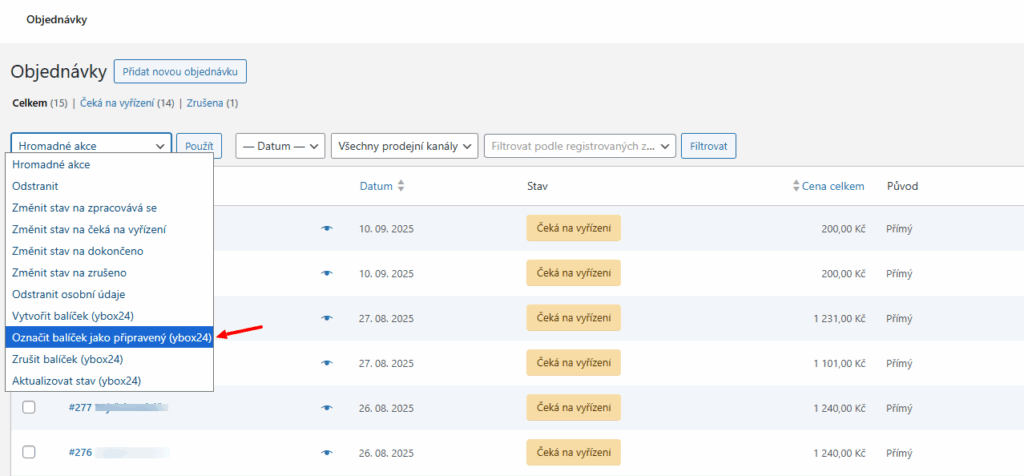
Ordering pickup can also be done via bulk action in the order overview – action Označit balíček jako připravený (ybox24) / Mark package as ready (ybox24).
Automatic Pickup Ordering
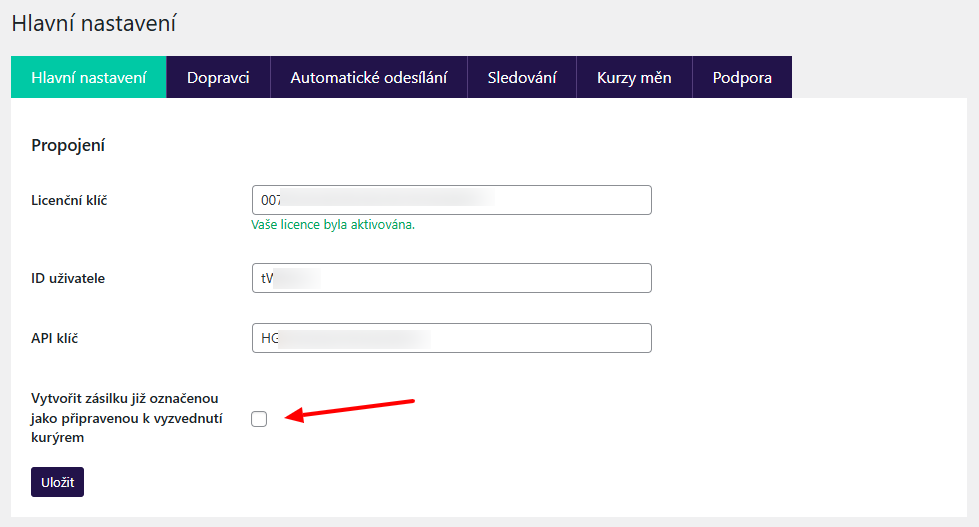
If you want to order pickup automatically when creating a shipment in the system, this can be set in the Main Plugin Settings.
Shipment Tracking
After creating an order with ybox24 pickup, information about the selected branch is displayed in:
- emails
- on the thank you page
- in order administration
You can track the package status in transit in the order overview and detail. This status can be loaded manually by clicking a button or automatically (see below).

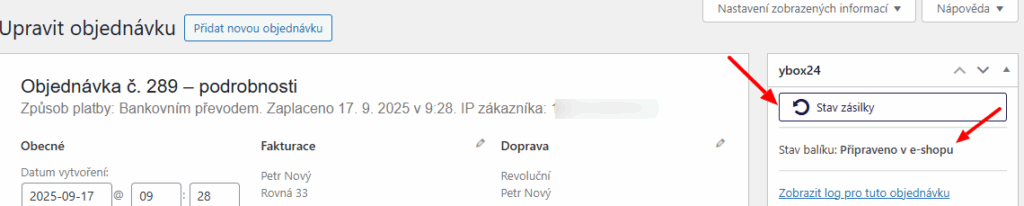
Automatic Shipment Status Loading
To see the current status of each order, you can load it automatically using CRON.
You can find the URL for CRON directly in the plugin on the Sledování (Tracking) tab and set it on your hosting. In the plugin, further set the number of days for retrospective checking and exclude order statuses and shipment statuses that will not be checked.
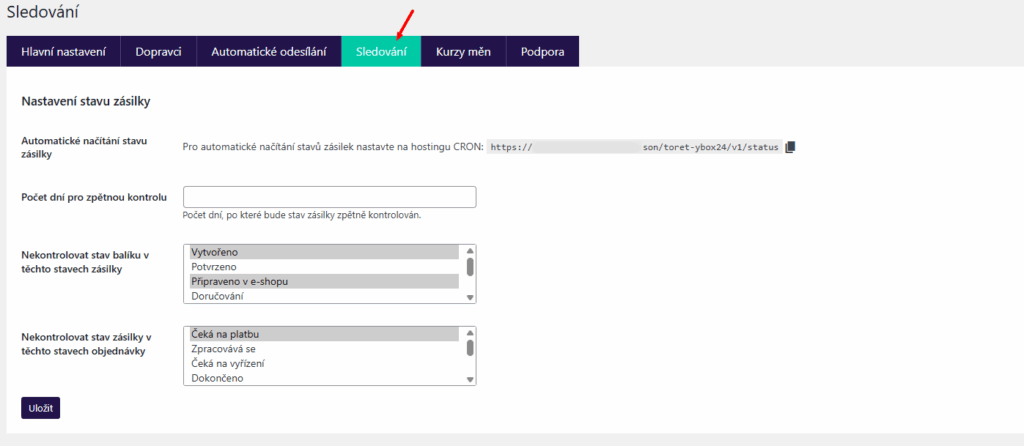
The current shipment status will then be displayed in the order detail and overview.
Order Status Change Based on Shipment Status Change
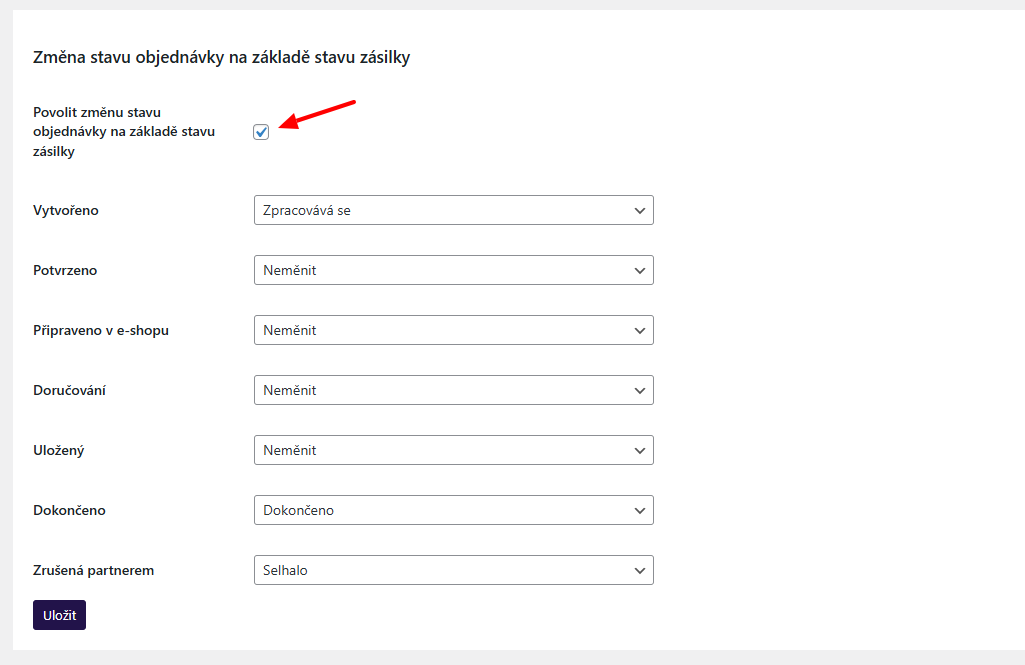
The plugin also enables automatic order status change based on shipment status change. For this function, we recommend having automatic shipment status loading active.
You set this function below on the Sledování (Tracking) tab. Enable the function (checkbox Povolit změnu stavu objednávky na základě stavu zásilky / Enable order status change based on shipment status) and assign order statuses in dropdowns to individual shipment statuses (left column). Save.
Disabling Carrier for Product, Variant, Category
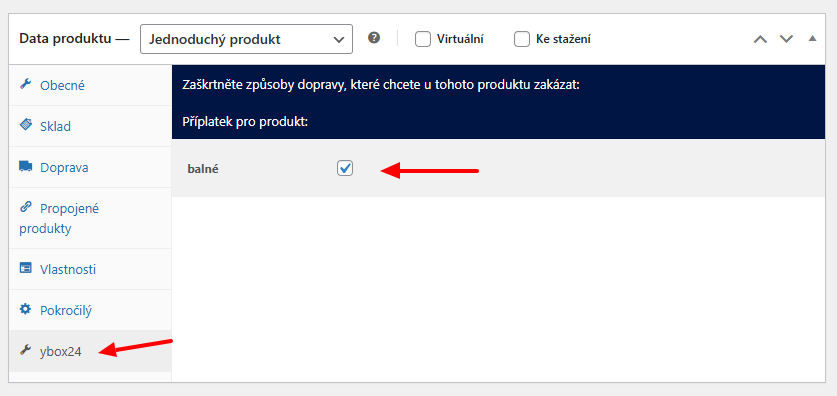
Using the plugin, you can disable delivery by the carrier for a selected product, variant, or category. If the customer has such an item in the cart, the ybox24 carrier will not be offered in the checkout.
You can find the setting when editing a specific product in the Product Data box and ybox24 tab.
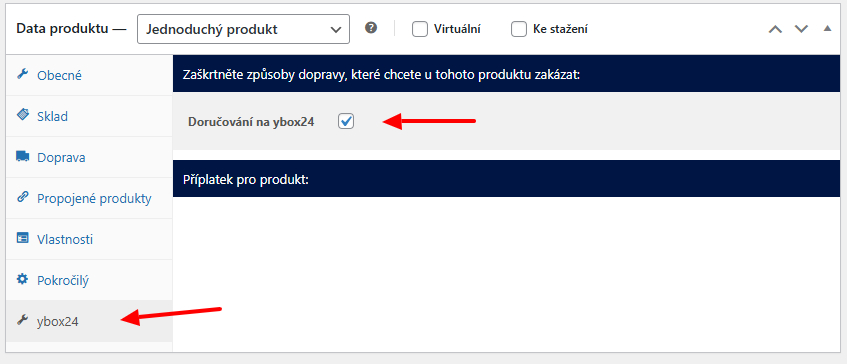
Similarly, disabling shipping can be set in the variant or category detail.
Testování pluginu
Pro účely testování můžete využít:
- subdoménu “dev.doménalicence” (se stejnou licencí jako pro produkční web)
- localhost (127.0.0.1)
Na těchto umístěních budou zakoupené pluginy fungovat také a můžete zde otestovat implementaci a kompatibilitu před ostrým nasazením na web i v průběhu jeho užívání.