
You are viewing the documentation for Toret PPL for WooCommerce, version 3.13.9 and older.
⚠️ Using plugin version 4.0.0 or newer? The documentation for version 4.0.0 and later is on the Toret PPL 4.0.0 Documentation page.
To use the PPL plugin, you must have an account created with PPL.
Furthermore, you need to request access to the CPL API from PPL. In the request, state that you will use the integrator solution:
Toret plugins s.r.o.
IntegrID: 4257736.
You can purchase the PPL plugin here: Toret PPL for WooCommerce
- Plugin Installation
- Plugin Activation
- Connecting to PPL
- Shipment Number Range (myAPI only)
- Main Settings
- Branch Selection Widget Settings (Nastavení widgetu pro výběr poboček)
- Setting up Carriers in the PPL Plugin
- Shipping Zone Settings
- Product and Category Level Settings
- Shipment Submission from Web to PPL
- Ordering Package Pickup
- Age Verification
- Printing Labels
- Automatic Shipment Status Loading
- Customs Declaration
- FAQ
- Plugin testing
Plugin Installation
After purchasing the PPL plugin, you will receive a license key and a download link for the plugin zip file via email. You can find detailed instructions on how to install the plugin from your computer into WordPress here.
Plugin Activation
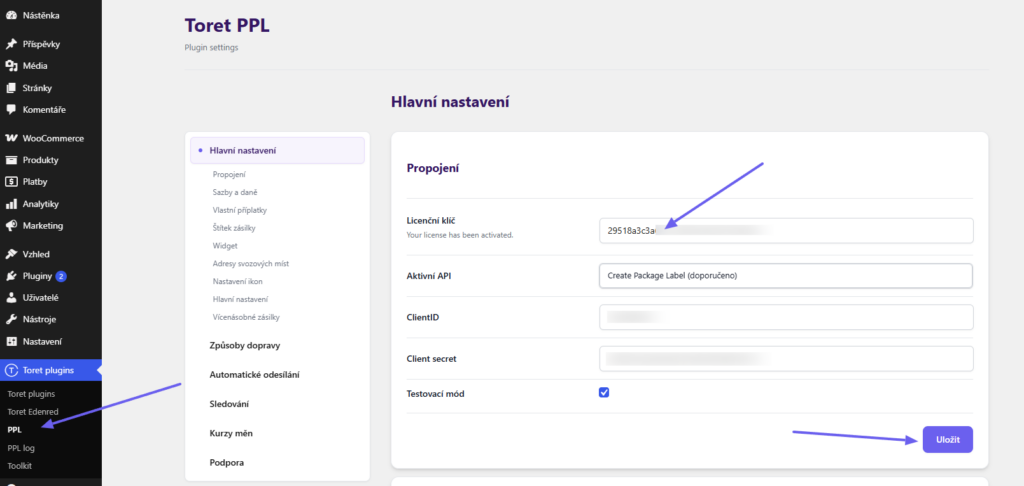
After installing the plugin, open the Toret PPL plugin, insert the license key into the appropriate field, and click the button to activate.
Connecting to PPL
After installing and activating the plugin, continue to its settings. This is found in the section Toret plugins → PPL
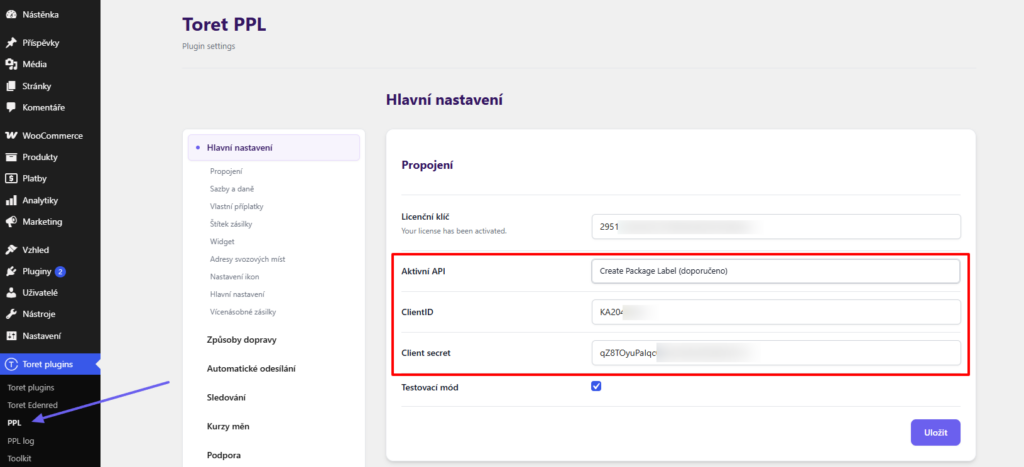
To connect the plugin with a PPL account, you need to select the API type for which you have access credentials.
Insert the access credentials into the corresponding fields and save.
To connect to the CPL API (Create package label), you need:
- ClientID
- Client secret
Shipment Number Range (myAPI only)
Warning: myAPI support in the plugin ends on March 31, 2026. After this date, the plugin can only be used with CPL API.
Furthermore, it is necessary to request a shipment number range from PPL, which you insert into the plugin settings on the “Hlavní nastavení” (Main Settings) tab. If the shipment number range runs out over time, have it increased by PPL support and update this value in the plugin settings.
This setting is only necessary if you are using the connection via the older API version – myAPI.
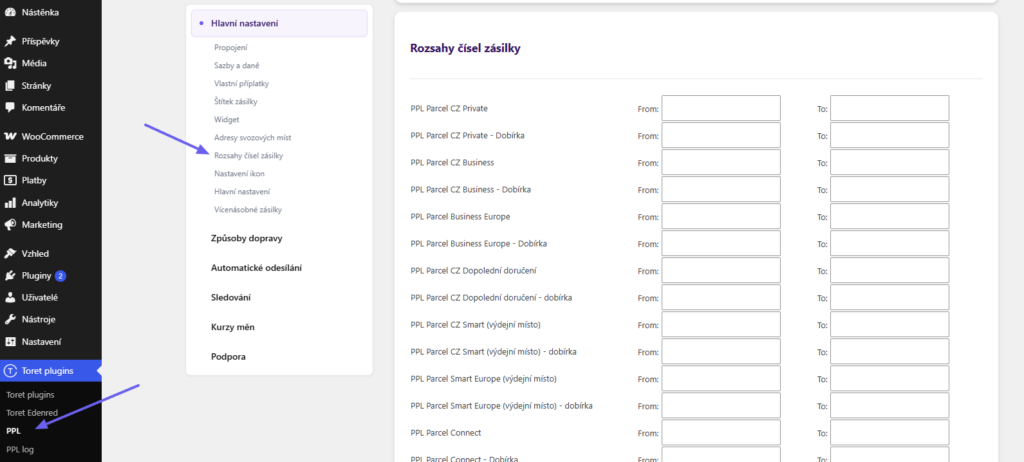
The number range on the screen is just an example. Request your own from PPL support.
Main Settings
On the Main Settings tab (Toret plugins > PPL > Hlavní nastavení), you can further configure:
- Rates and taxes (VAT, COD tax class, free shipping coupon behavior)
- Custom surcharges – can be set per product, variant, category, country, shipping, or globally
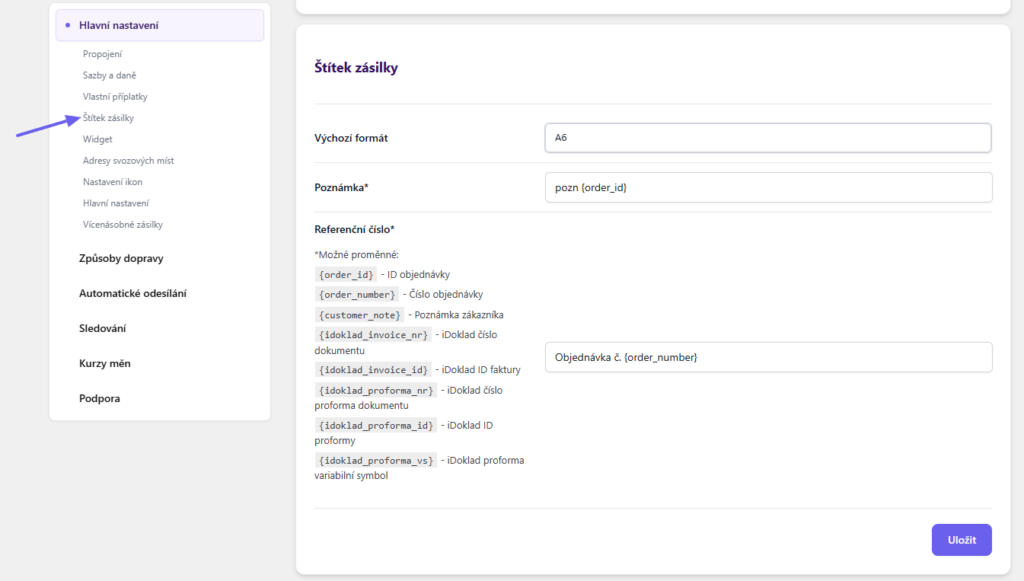
- Labels – format, note, and references
- Widget settings – version, opening, button placement, hiding boxes and COD
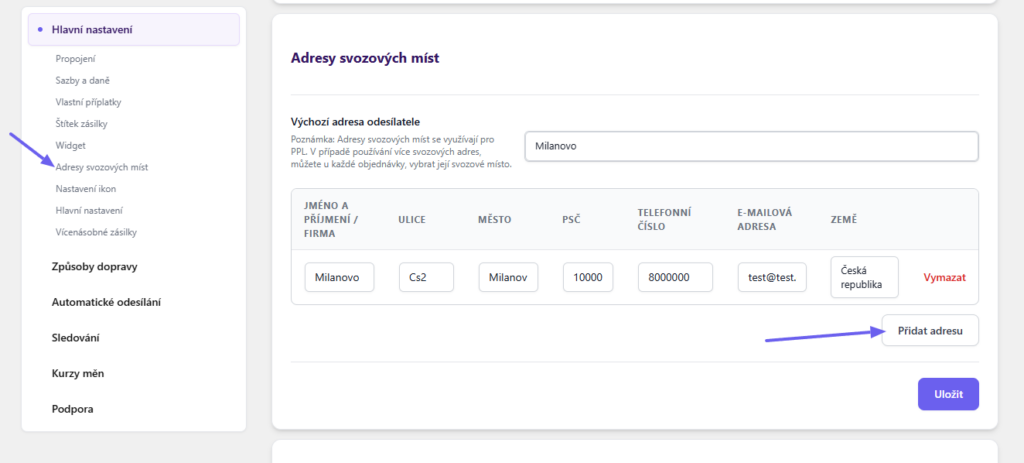
- Pickup addresses for shipment collection by courier (mandatory for pickups)
- Displaying icons for individual shipping methods in checkout
- Main settings (functions for checkout and email)
- Multiple shipments (automatic splitting of order into multiple packages based on weight)
Branch Selection Widget Settings (Nastavení widgetu pro výběr poboček)
With the PPL plugin, it is possible to use two versions of the map widget for branch selection.
- Widget 1.0 – an older version of the widget with fewer features. It does not require an API key. (PPL support for widget 1.0 ends on 31 August 2026)
- Widget 2.0 – a newer version of the widget with more features. It requires a custom API key, which you generate in the PPL administration.


Generating an API Key for PPL Widget 2.0 (Generování API klíče pro PPL widget 2.0)
You can generate the key on the PPL website at https://klient.ppl.cz/widgetadmin. Detailed step-by-step documentation directly from PPL can be found here.

In the form, fill in your Company ID (IČO), PPL ID, and the email registered with PPL. Click on Generate API key (Vygenerovat API klíč).

Subsequently, you will receive an API key and an activation link for the API key via email. Click on the activation link and complete the configuration. This must be done within 60 minutes of clicking the link.

In the edit section, fill in:
- the e-shop domain where you want to use the widget (e.g., myeshop.com)
- product type -> Custom settings (typ produktu -> Vlastní nastavení)
- pickup point types – select those you want to display in the widget (typy výdejních míst)
- available countries – select those you want to display in the widget (dostupné země)
- default language – of your choice – the widget will open in this language (výchozí jazyk)
- display type -> Pop-up window (typ zobrazení -> Vyskakovací okno (Modal))
–> Then click on Activate (Aktivovat).
Your API key is now active. All that remains is to paste it into the field in the plugin (you have the API key in the first email from PPL).
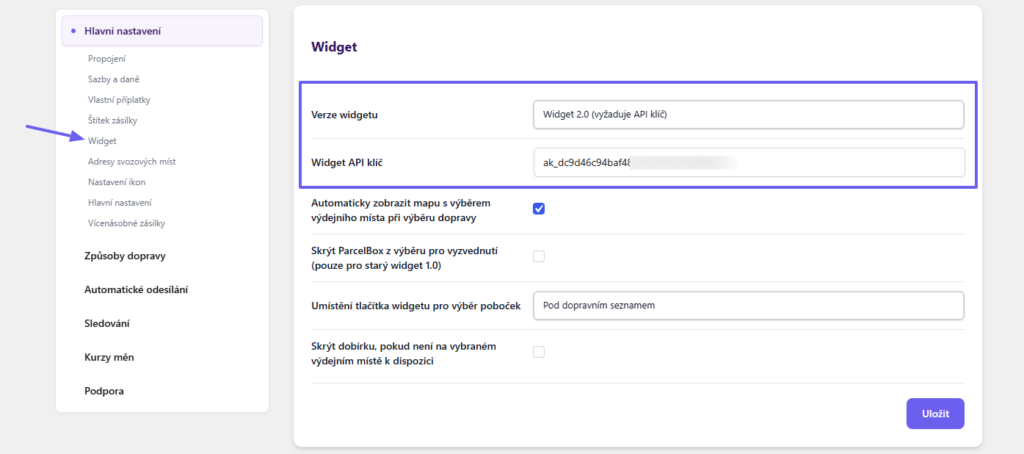
In the widget settings, select the widget version Widget 2.0. A field for inserting the API key will appear. Paste it and save the settings.
Setting up Carriers in the PPL Plugin
Individual delivery types can be found in the PPL plugin on the Způsoby dopravy (Shipping Methods) tab (Toret Plugins > PPL > Způsoby dopravy). After clicking the Nastavení (Settings) button for a specific country, you will see an overview of available shipping methods for that country.
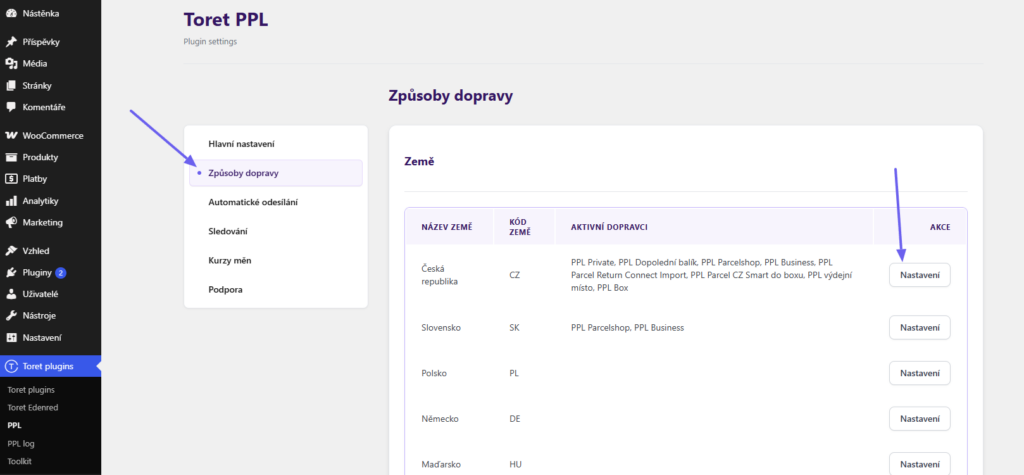
In the sidebar, select the shipping method you want to configure. In the Toret PPL plugin, you can set up shipping:
- PPL Private (delivery to address)
- PPL Parcelshop (pickup points – branches and boxes – for the Czech Republic, Slovakia, Poland, Germany, Netherlands, Austria, Hungary, Romania, Bulgaria)
- PPL Pick-up Point – physical stores only
- PPL Box – pick-up boxes only
- PPL Smart Europe (Pickup locations in 14 European countries at a great price)
- PPL Business (delivery to company address)
- PPL Morning delivery to address (Dopolední balík)
- PPL Parcel Return Connect Import (Return shipment from abroad to the Czech Republic. Service available only from supported countries. These countries must be set as the pickup address (sender).)
- PPL Parcel CZ Smart to box
Check the box to activate the shipping method and proceed with the settings below.
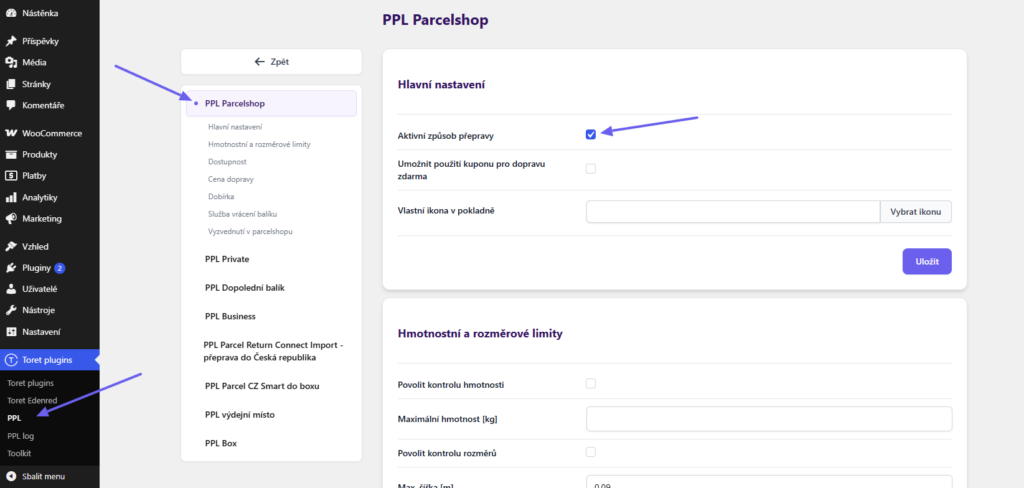
For each shipping method and delivery country, the following options can be set:
- shipping price – flat or based on weight
- custom icon for checkout
- free shipping over amount
- use of free shipping coupon
- flat price in other currencies
- maximum weight and maximum dimension (if exceeded, the shipping method will not be displayed in checkout)
- availability by cart value, number of items in cart, or product price (if exceeded, the shipping method will not be displayed in checkout)
- cash on delivery (if PPL supports it for the given shipping method and country)
- COD surcharge – flat or based on order price
- free COD over amount
- evening delivery (if PPL supports it for the given shipping method and country)
- package return service with drop-off at a ParcelShop (if PPL supports it for the given shipping method and country)
Tip: if you want to trigger free shipping or free COD at checkout e.g. from 500, set the value 499 in the plugin.
Price Settings
First, select the Typ výpočtu dopravy (Shipping calculation type). The shipping price can be set uniformly – with a fixed amount entered in the Jednotná cena (Uniform price) field,
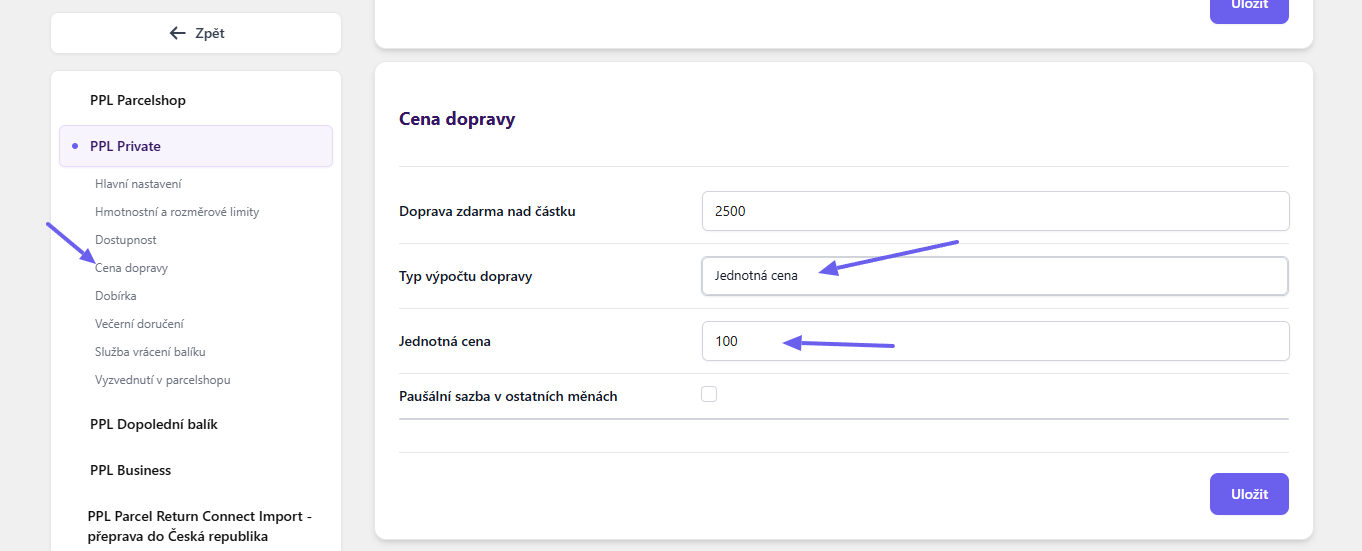
or set custom price rules based on shipment weight.
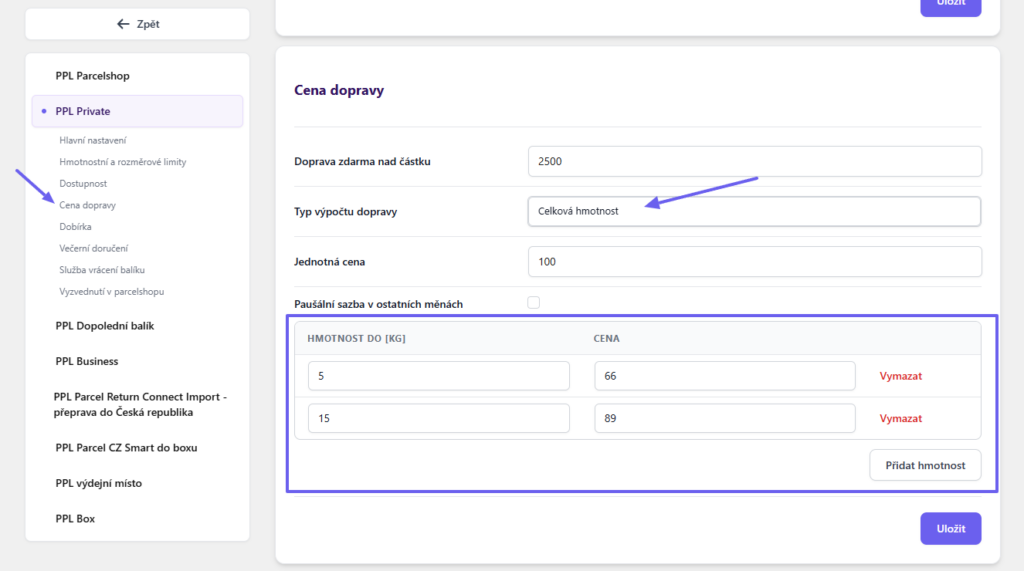
Flat rate in other currencies: Here you can set fixed shipping prices to be used if the order is in a currency other than the default e-shop currency.
Free Shipping
You set free shipping directly in the PPL plugin (Toret Plugins > PPL > Způsoby dopravy) for each type of shipping, for each country separately.
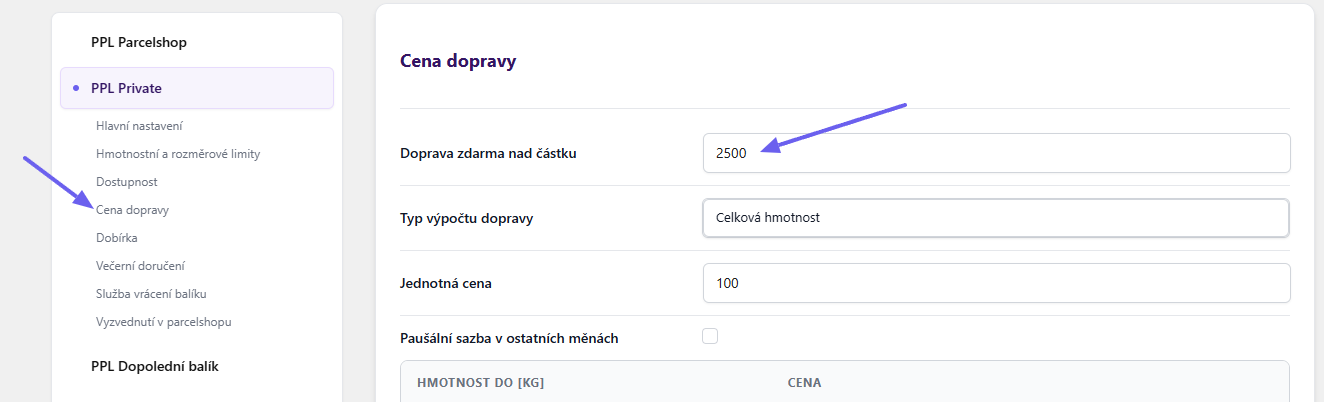
Free shipping is activated on the website upon reaching the set amount in the cart.
EXAMPLE: You set free shipping over 500. Free shipping is activated when the cart value reaches 500 (this applies to products only; the shipping cost is not included).
You can set free shipping for a specific product in its details on the PPL tab.
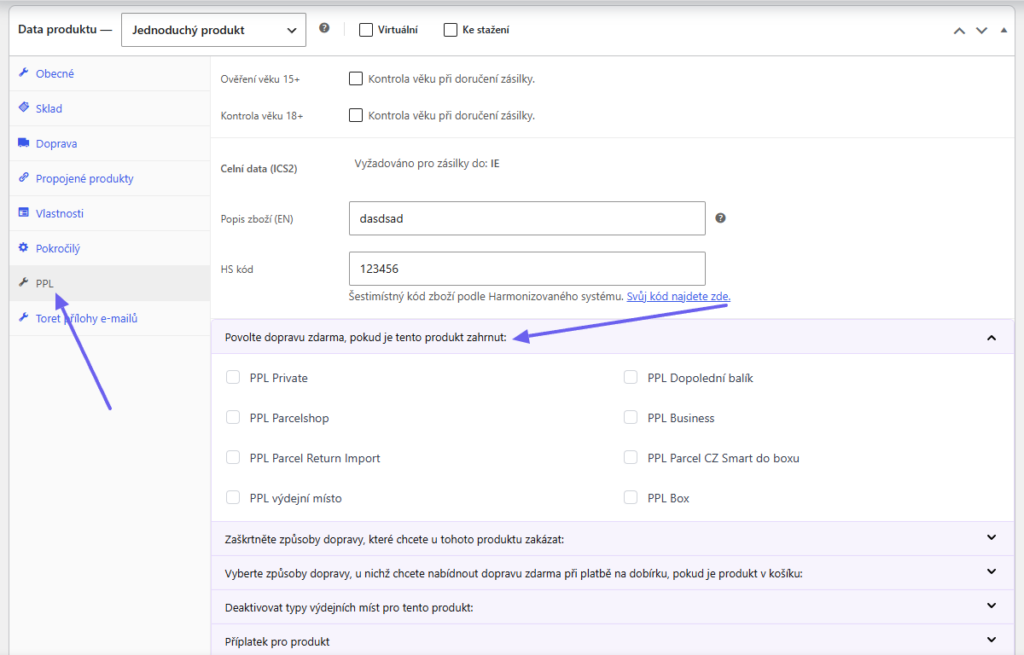
Free shipping for goods from a specific product category can be enabled in the category settings.
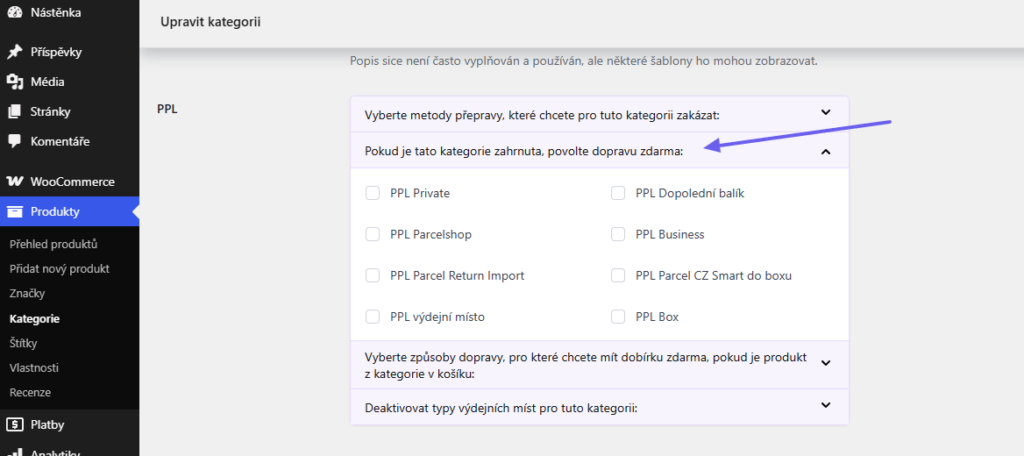
Free Shipping Coupons
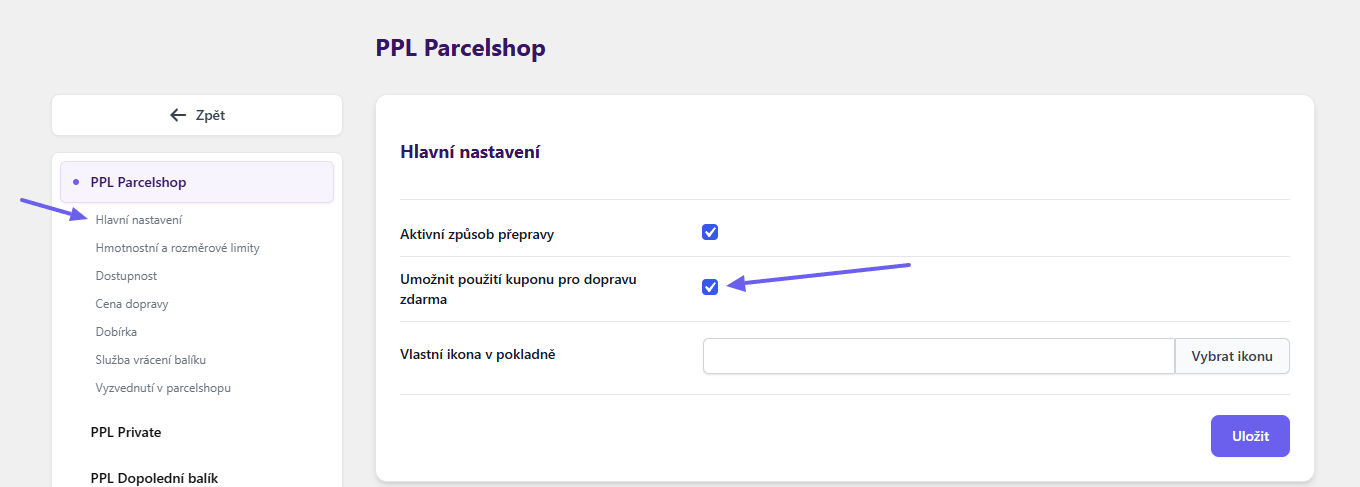
The plugin supports coupons for free shipping. These can be set globally, for all PPL shipments, or for a specific type of delivery. You configure coupon behavior in the main plugin settings (Toret plugins > PPL > Hlavní nastavení).
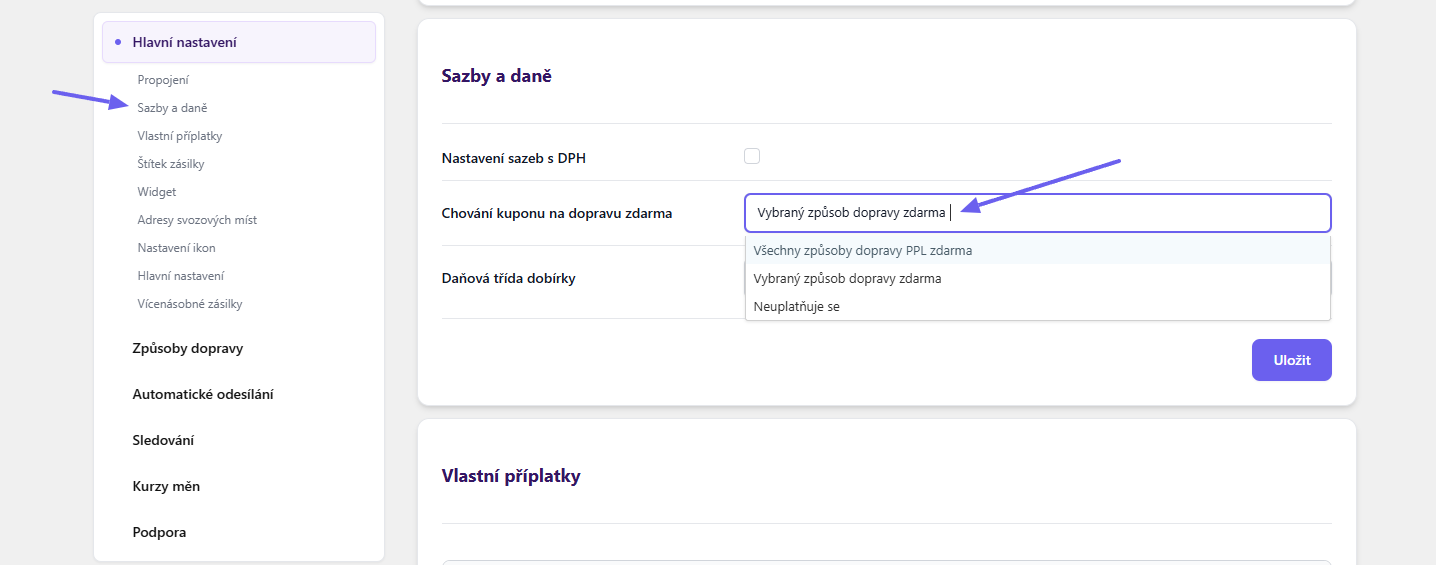
If you choose the option Vybraný způsob dopravy zdarma (Selected free shipping method), enable coupons in the settings of the specific method for which you want to have the coupon active.
Cash on Delivery (COD)
To set up COD for shipping, it is necessary to check the Povolit dobírku (Enable COD) checkbox.
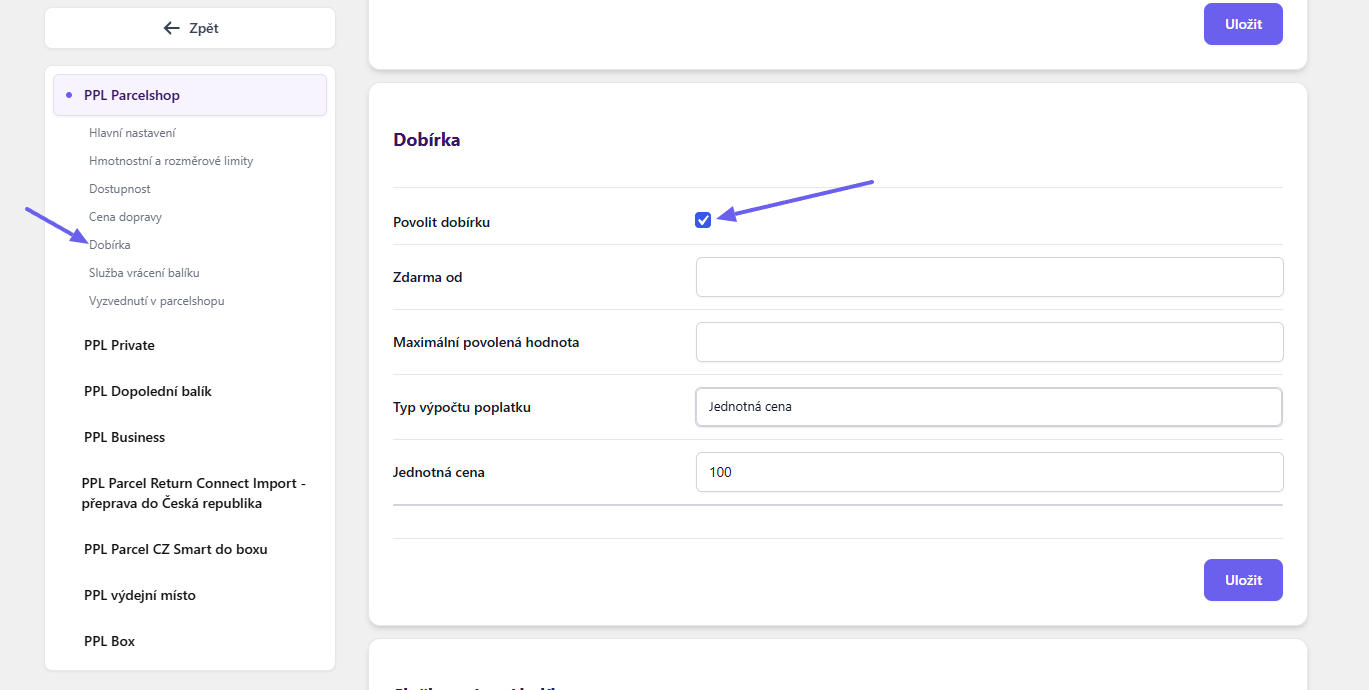
Subsequently, it is possible to set:
Zdarma od (Free from): From the entered order value, COD will be without surcharge.
Maximální povolená hodnota (Maximum allowed value): Upon exceeding this order value, COD will not be available in checkout.
Typ výpočtu poplatku (Fee calculation type): You can choose a fixed surcharge – Jednotná cena (Uniform price),
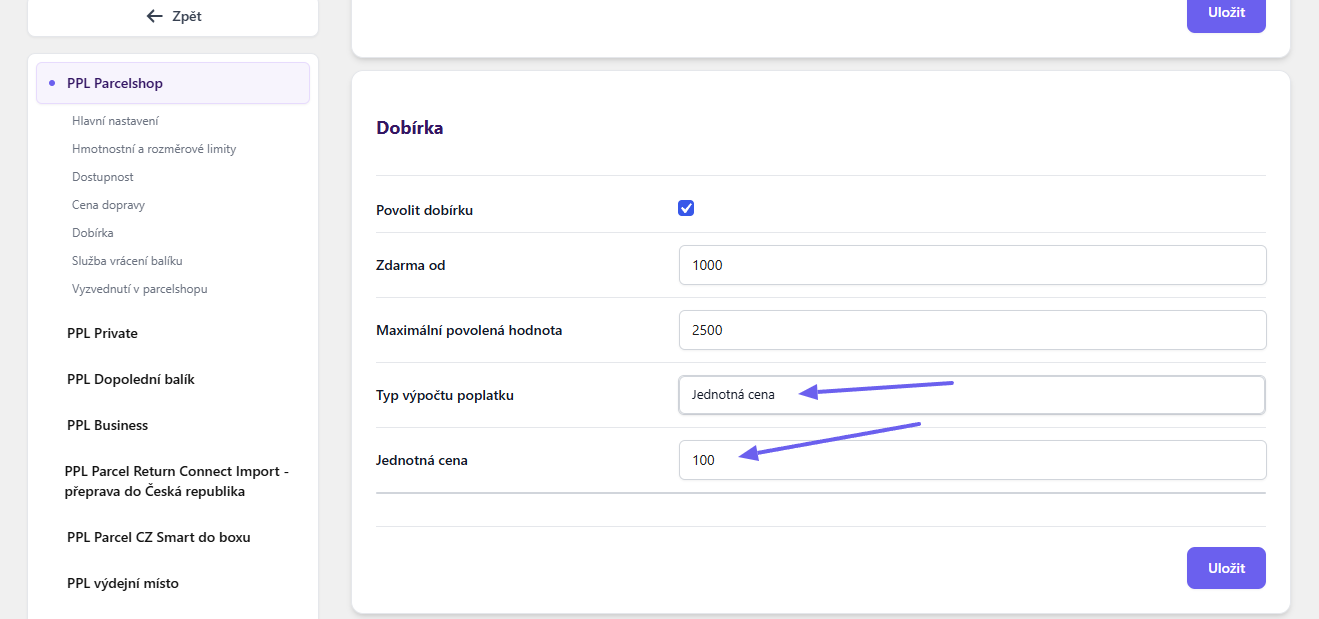
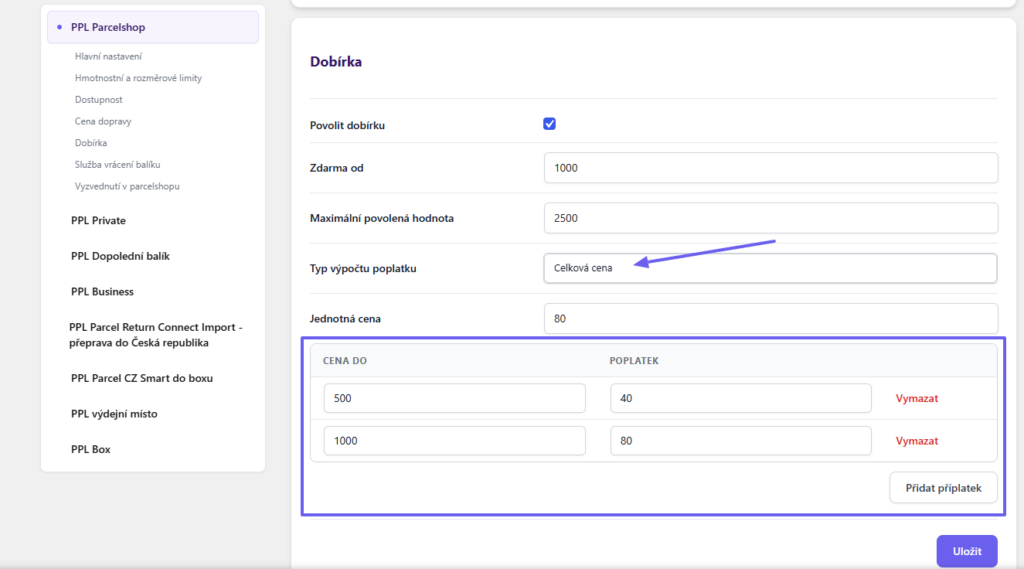
or scale the surcharge according to the order value – Celková cena (Total price) and set custom price rules.
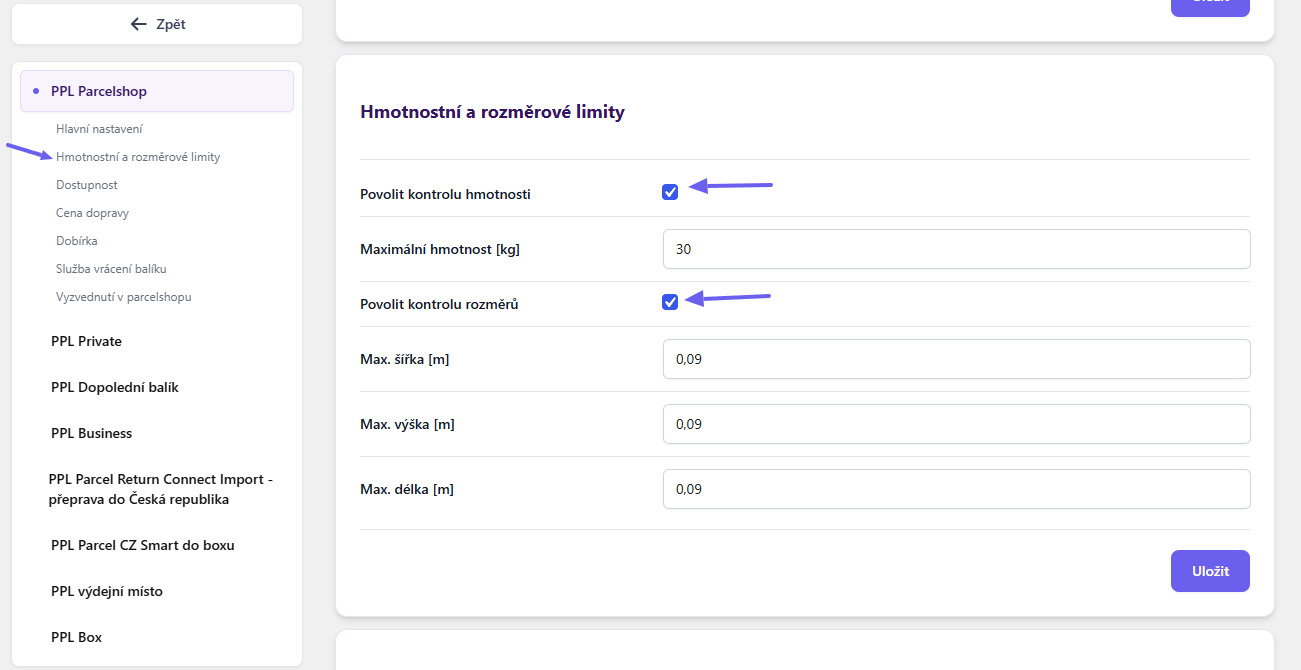
Weight and Dimension Limits
If you activate weight/dimension checks and enter values for maximum dimension/weight, shipping will be hidden in checkout if limits are exceeded. The plugin loads weight/dimensions from values set for products.
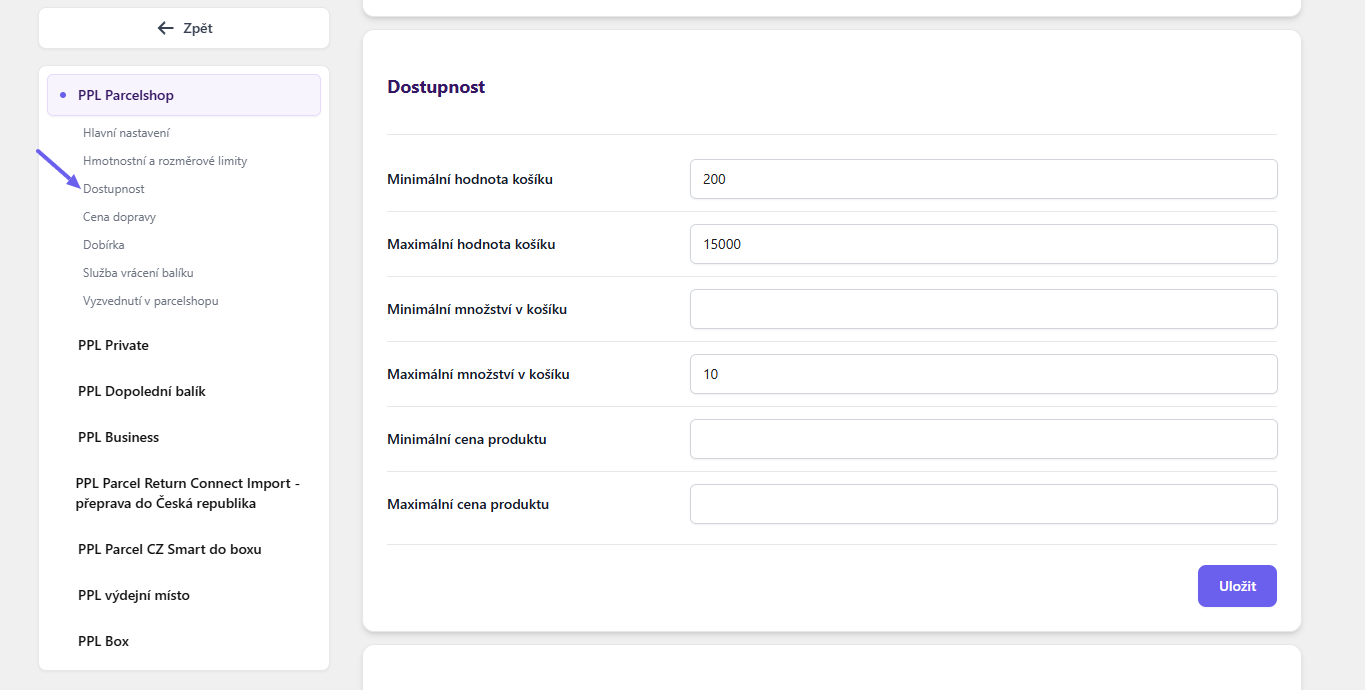
Availability
In the Availability section, you can set the minimum and maximum cart value, number of items in the cart, or product price. If orders exceed any of the limits, shipping will not be available in checkout.
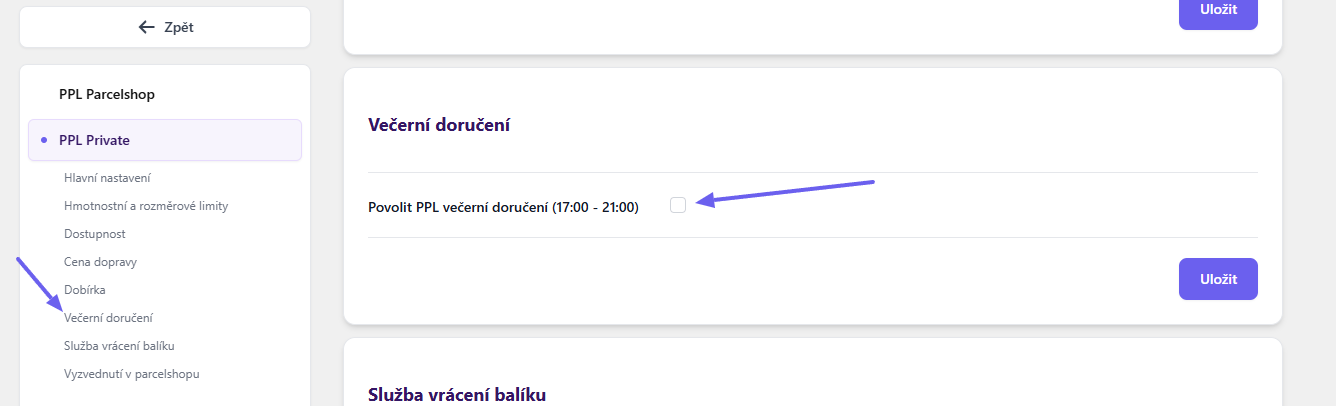
Evening Delivery
Activate evening delivery by checking the Povolit PPL večerní doručení (17:00 – 21:00) (Enable PPL evening delivery) checkbox. Evening delivery is available only for some shipping methods.
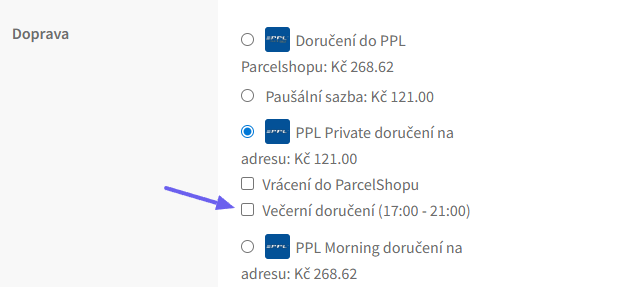
It will appear in checkout as an additional checkbox for the shipping method.
Parcel Return Service (Pick-up at a Parcelshop)
For supported shipping methods, parcel return is also available – with drop-off at a ParcelShop. The service must be activated – checkbox Povolit PPL Return balík v pokladně (PPL Private, PPL Private s dobírkou). Příjemce odnese balík do PPL Parcelshopu. (Enable PPL Return package in checkout. Recipient takes package to PPL Parcelshop.)
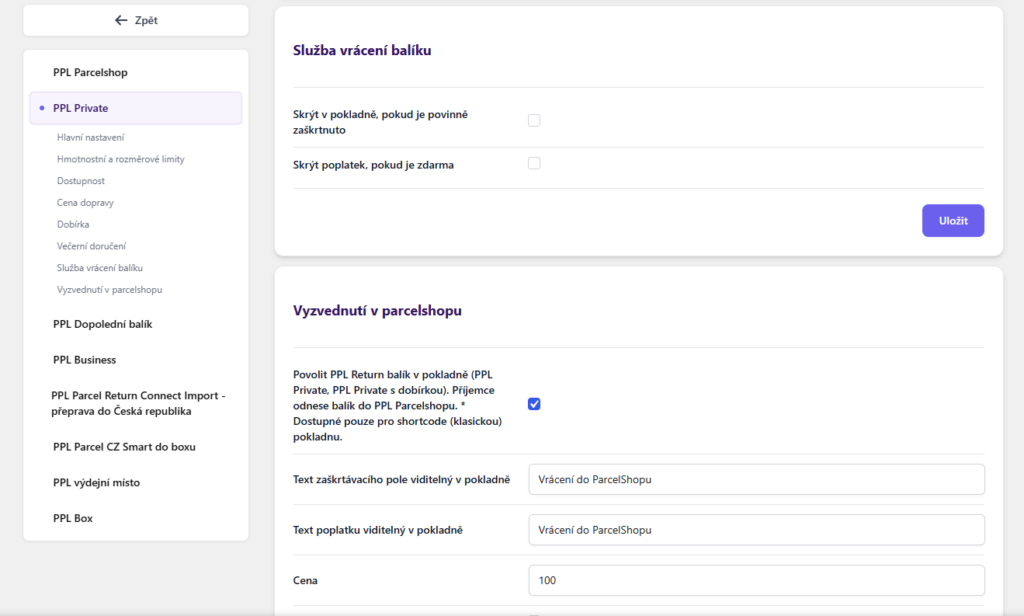
Subsequently, it is possible to set text, surcharge, and field pre-checking. It will appear in checkout as an additional checkbox for the shipping method.
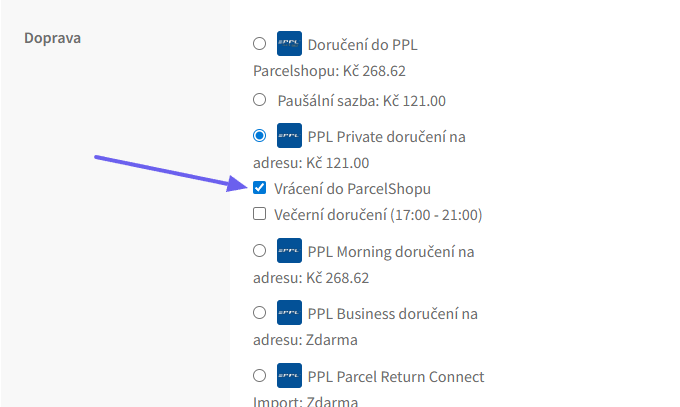
Note! This service is only available for the classic (shortcode) checkout.
Shipping Zone Settings
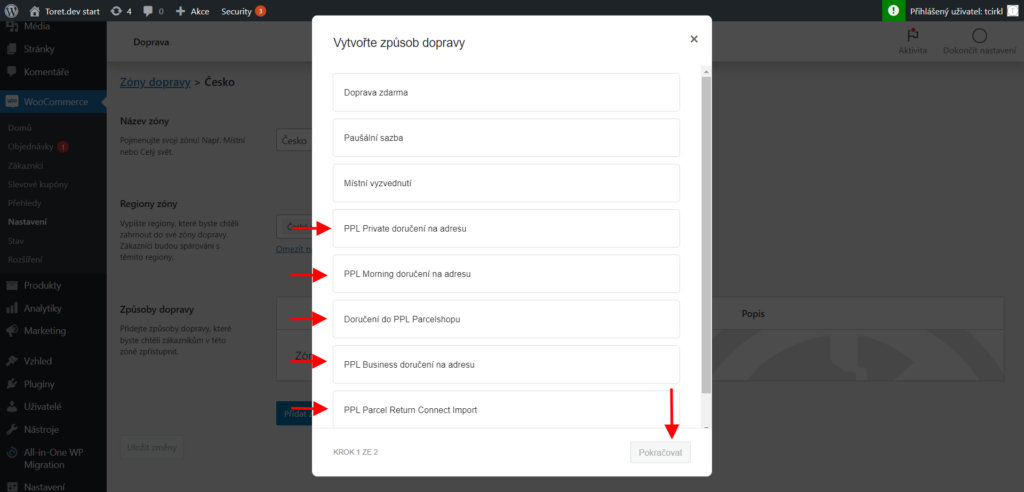
After setting up carriers in the Toret PPL plugin, it is necessary to set up identically named carriers in your WooCommerce shipping zones. Without setting them in shipping zones, carriers from the PPL plugin will not appear in checkout.
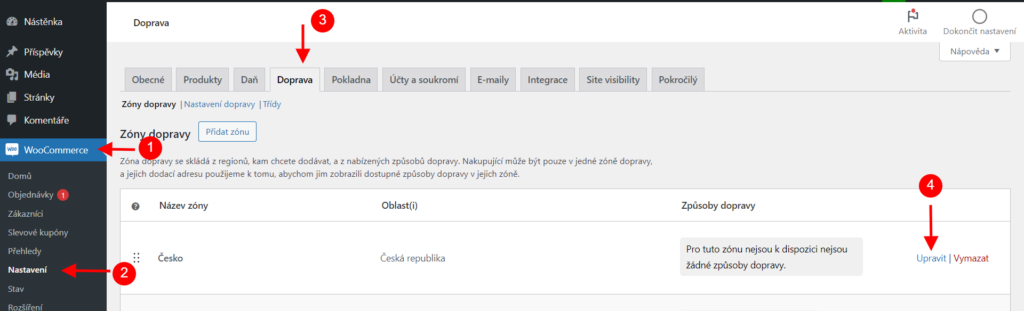
In WooCommerce > Settings > Shipping select the zone in which you want to enable shipping via PPL. Click “Edit”.
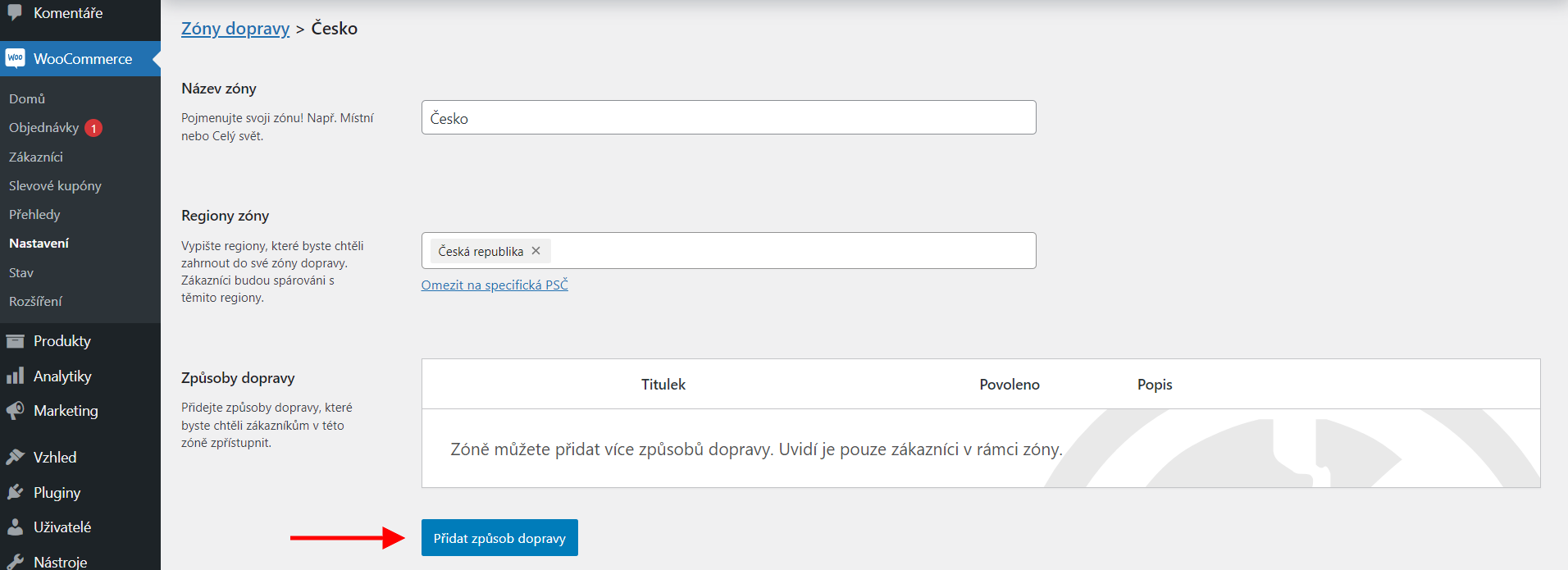
In the zone settings, click “Add shipping method”.
Select your required method from the list and click Continue.
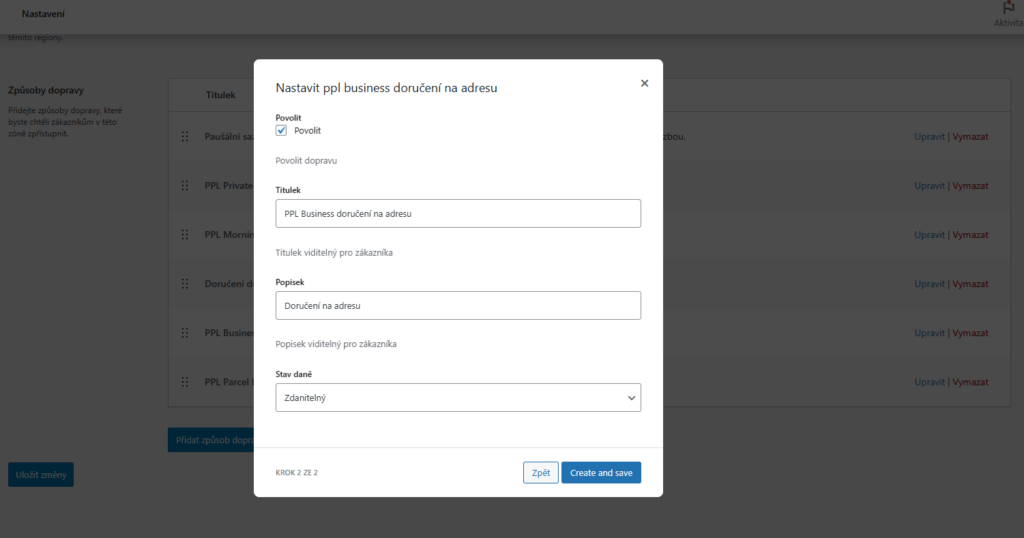
Leave the Enable box checked, you can adjust the Title and Description as needed. Tax status can be chosen as Taxable or None. After clicking Create and save, the shipping method will be available for the given zone.
Product and Category Level Settings
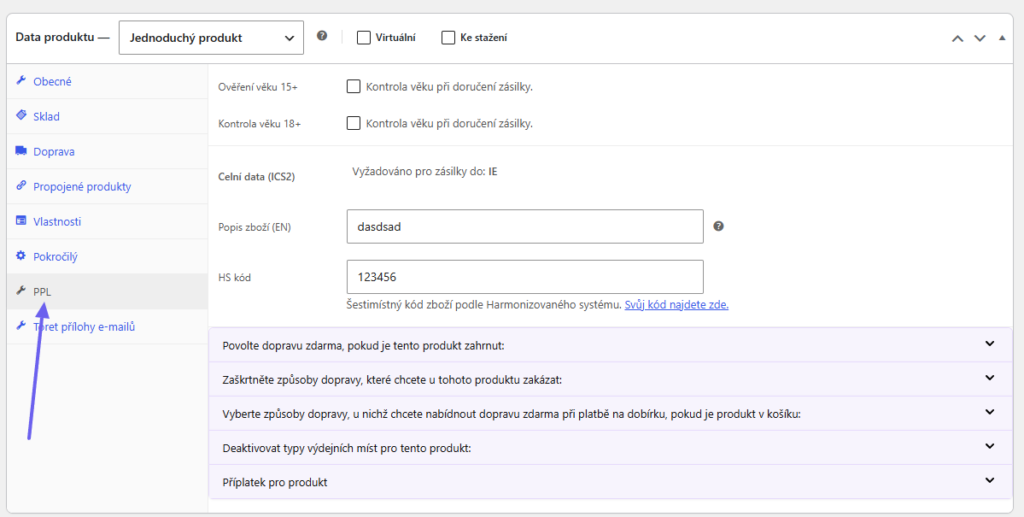
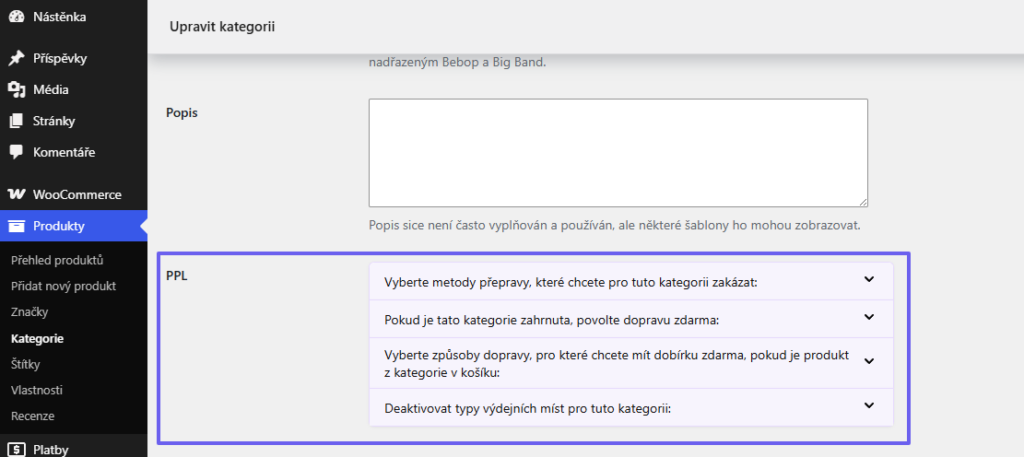
The PPL plugin also adds additional setting options to product and category details.
In product detail, you can set:
- Age verification (see below)
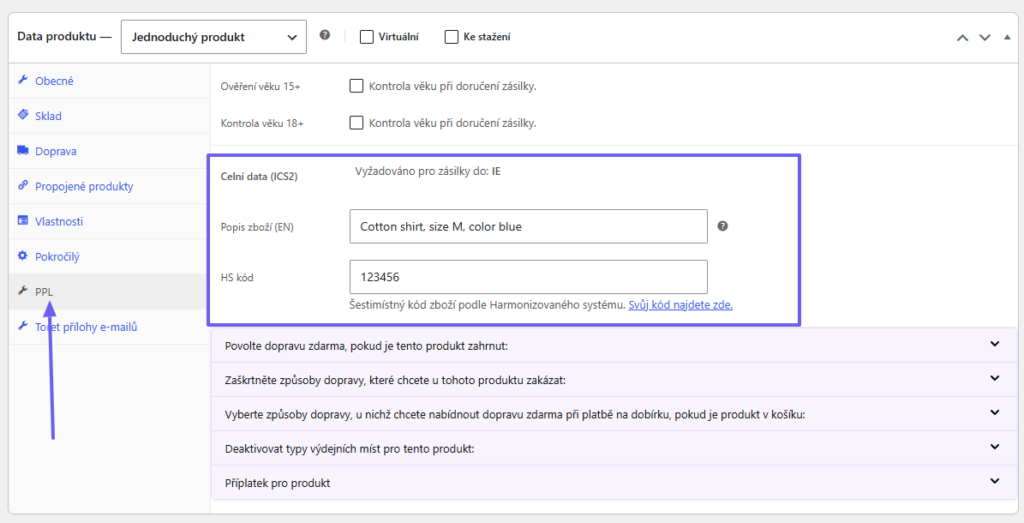
- Customs data (for shipments sent to Ireland)
- Free shipping for product
- Disable shipping method
- Free COD for product
- Deactivate delivery boxes for product
- Surcharge for product (Must first be created in the main plugin settings)
In category detail, you can set:
- Disable shipping method
- Free shipping
- Free COD
- Disable delivery boxes
- Surcharge by category (Must first be created in the main plugin settings)
Shipment Submission from Web to PPL
You have two options for submitting a shipment to the PPL system in the plugin.
Submitting a package requires weight. We recommend setting the weight at the product level; without set weight for products, automatic shipment submission upon order status change will not work.
Shipments sent via the plugin can also be found in the PPL Customer Zone.
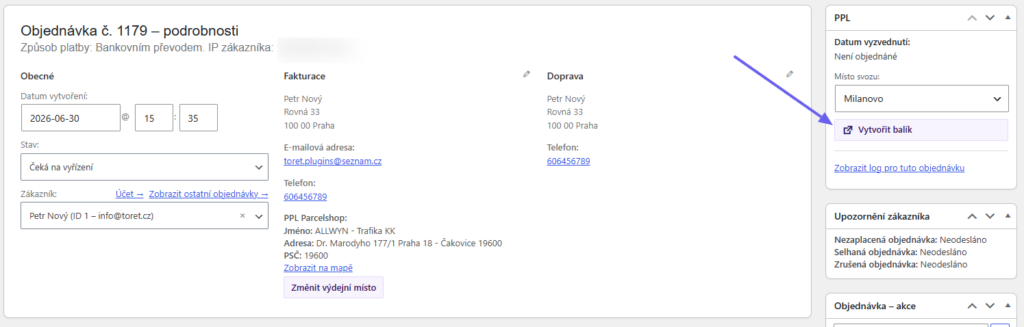
1. Manual via button in order overview or order detail

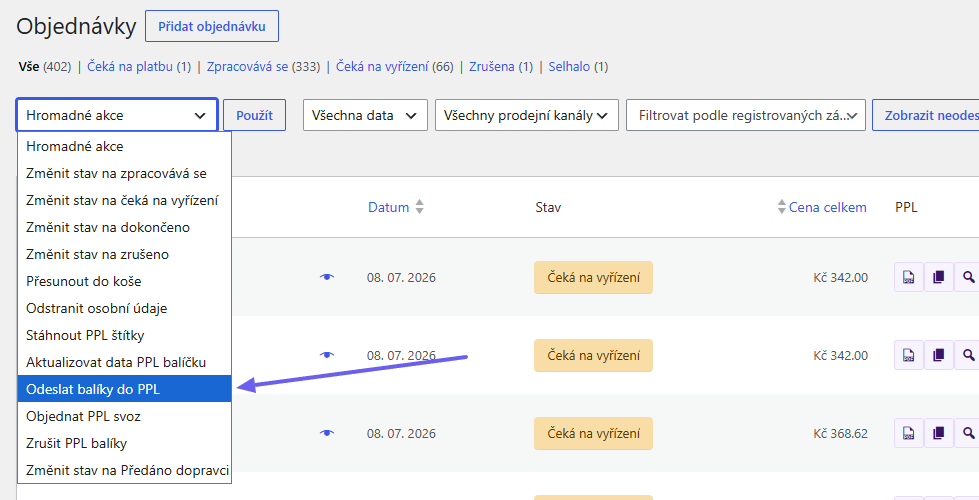
2. Submission as a collective action
TIP: Mass printing of labels is only possible with batch submission, see below.
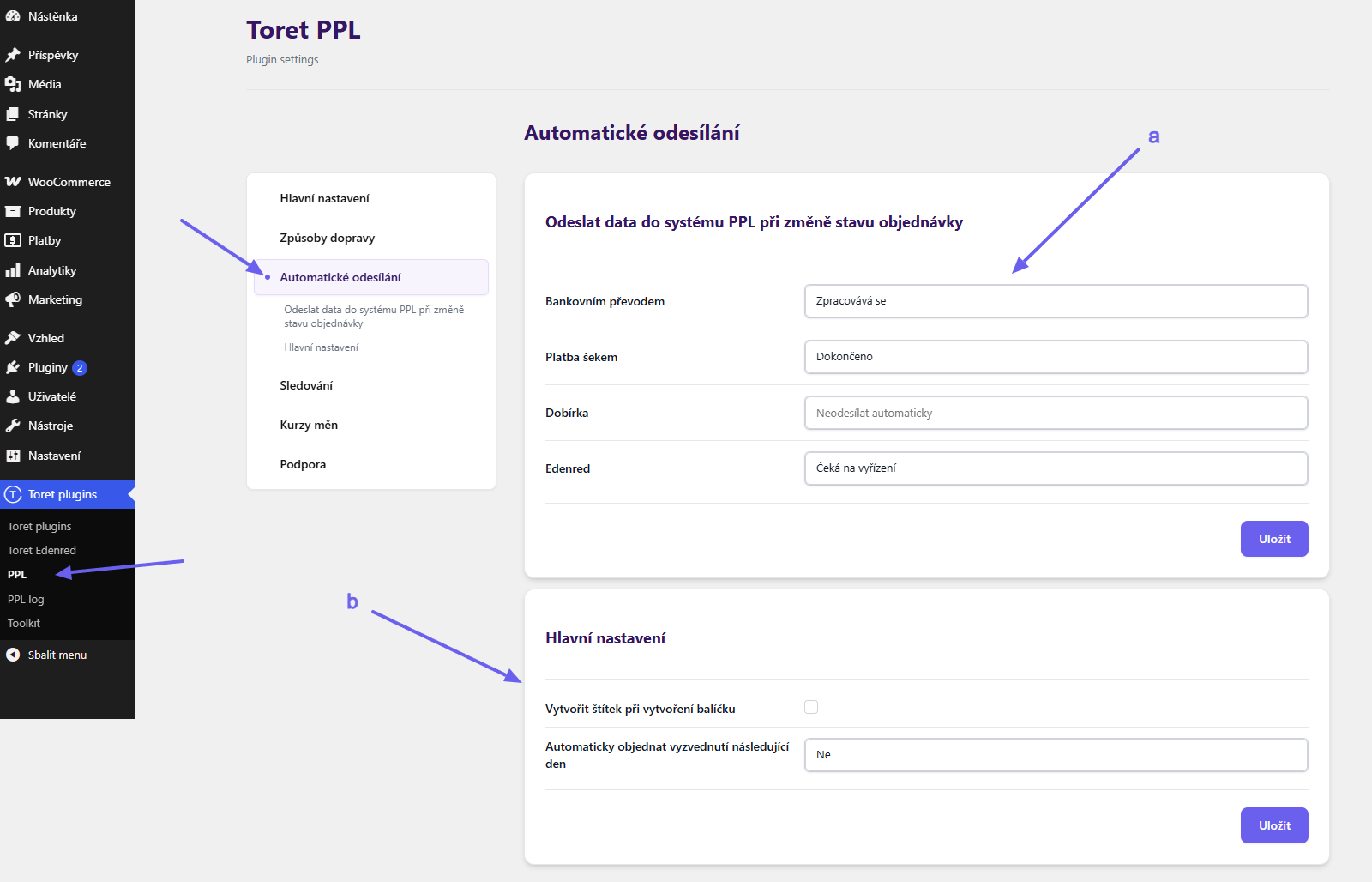
3. Automatic package dispatch upon order status change
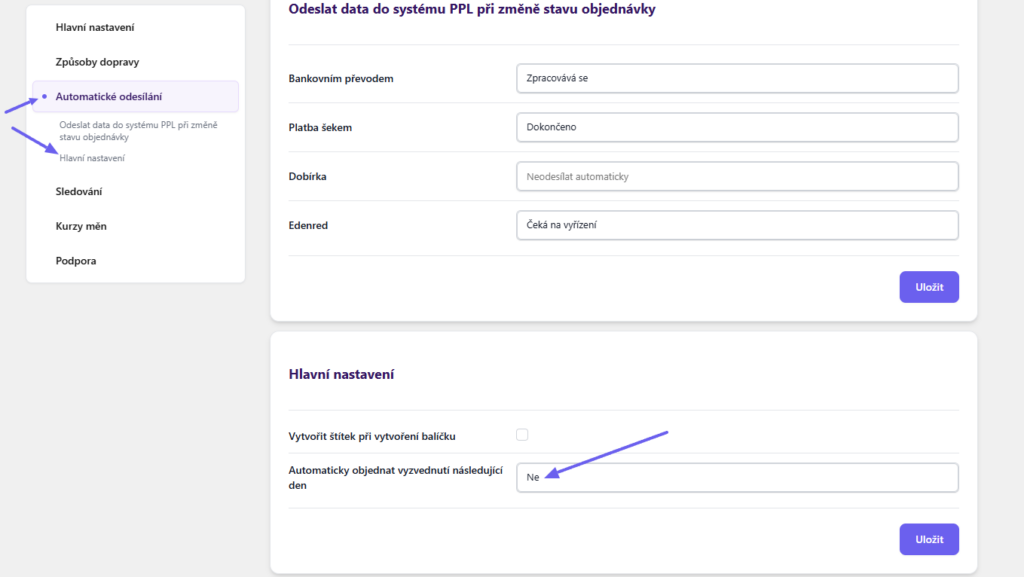
Automatic submission can be set in the PPL plugin on the Automatic Dispatch tab.
a. In the Send data to PPL system upon order status change section, select the order status for each payment method that will automatically trigger sending data to the PPL system.
b. In the Main Settings section, you can configure whether a label and pickup request should also be automatically created when a shipment is created.
Don’t forget to save your changes.
Ordering Package Pickup
Via the plugin, it is possible to order package pickup. Ordering pickup can be done in two ways.
Manual
In the order overview, there is a car icon for orders submitted to the PPL system. Clicking the icon displays a box above the order overview with the option to select the date for ordering package pickup.
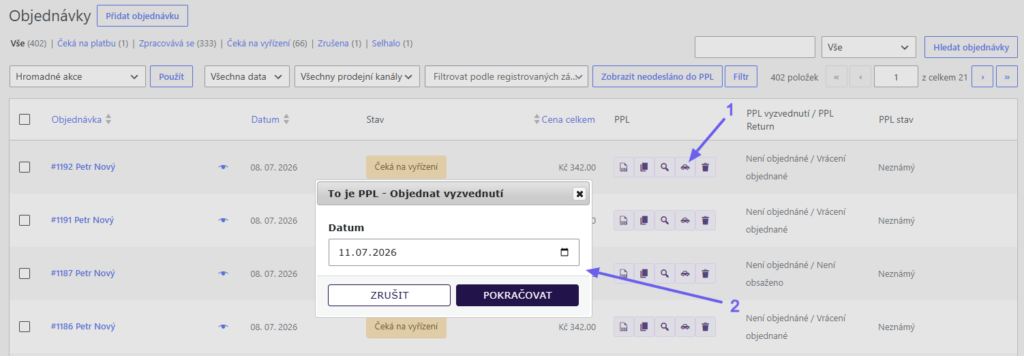
Pickup can also be ordered from the order detail or via a bulk action in the order overview.
Automatic
On the tab Automatické odesílání (Automatic Sending), in the section Hlavní nastavení (Main Settings) in the PPL plugin, it is possible to set automatic ordering of shipment pickup for the next day upon shipment creation.
Age Verification
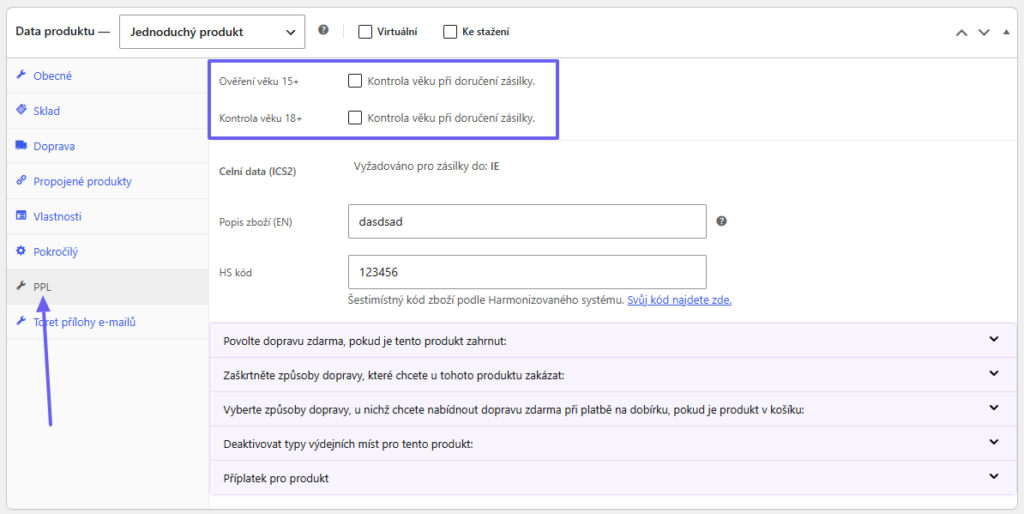
The PPL plugin supports age verification. This can be set for any product directly in the product detail on the PPL tab, where checking the Age Verification requirement is sufficient for activation.
Everything works automatically. If the order contains at least one product that requires age verification upon delivery, the entire order will require age verification.
You can choose between 15+ and 18+ limits.
Printing Labels
Label Printing Settings with myAPI
! We recommend using the Create package label (CPL) API, which does not need shipment number range settings. For new registrations, PPL will issue CPL API directly.
If you have an older registration and want to stay with myAPI, it is necessary to request a shipment number range from PPL, which you insert into the plugin settings on the “Hlavní nastavení” (Main Settings) tab. If the shipment number range runs out over time, have it increased by PPL support and update this value in the plugin settings.
The number range on the screen is just an example. Request your own from PPL support.
Label Data Settings (Pickup Location Addresses)
The label is created by our plugin. For the label to contain all necessary data required by PPL, in addition to the shipment number range, it is also necessary to fill in:
- Sender company name visible on label
- Sender contact person visible on label
- Sender email visible on label
- Sender phone number visible on label
Fill in these details on the “Main Settings > Pickup location addresses” tab.
Setting Label Format, Note, and Reference Number
You can configure label format, note, and reference on the label in the PPL plugin, on the Main Settings (Hlavní nastavení ) tab.
Downloading and Printing Labels
Labels of submitted packages can be downloaded directly in the website administration.
In the order overview for an order already submitted to the PPL system, click on the PDF document icon (see image) for the selected order. The label will be saved in PDF format, and then you can print it.

For a submitted shipment, the label can also be downloaded in the order detail.
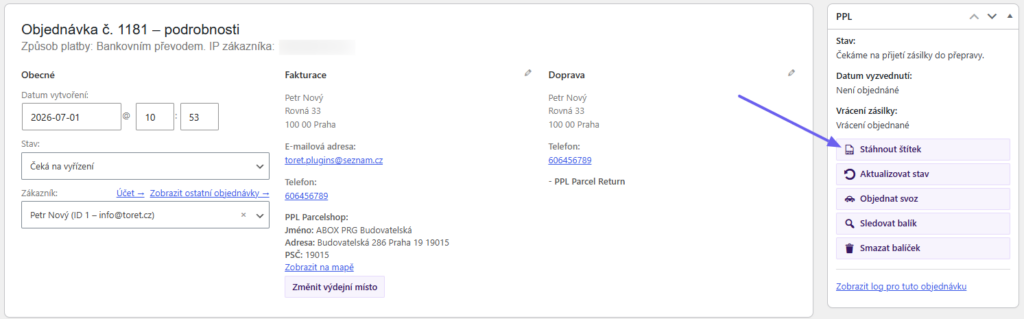
Bulk printing of labels
Labels can also be generated and printed in bulk (from a single PDF). To perform a bulk print, you must follow this procedure:
- Shipments must be submitted all at once using a bulk action.
- Once all shipments are loaded into PPL, labels can be downloaded in bulk—either via the bulk label download action or by clicking the icon with two small rectangles next to any order from the batch (both in the overview and in the detail).

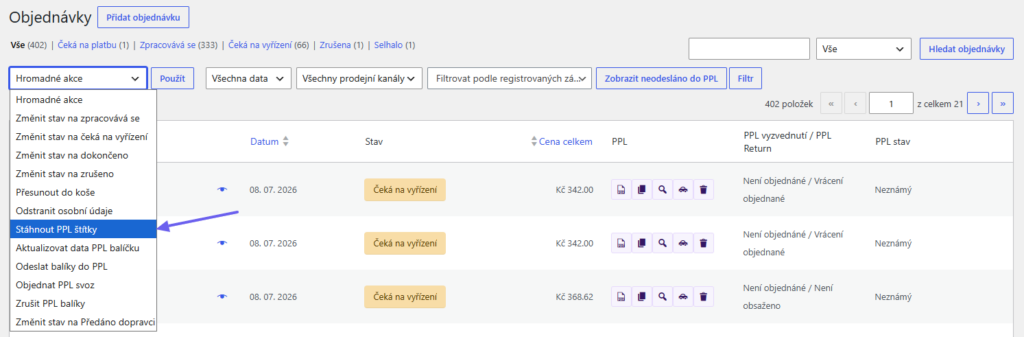
Note: If you try to download the labels before the API processes all shipments, only a single label will be downloaded. Especially for larger quantities of shipments, processing may take longer.
Automatic Shipment Status Loading
To track the shipment status directly in the order overview, you can set up automatic status updates on the Tracking tab (Sledování) (Toret Plugins > PPL > Tracking (Sledování)).
Tracking can be set up via a cron job configured on your hosting (a), or using the WP Cron scheduler (b).
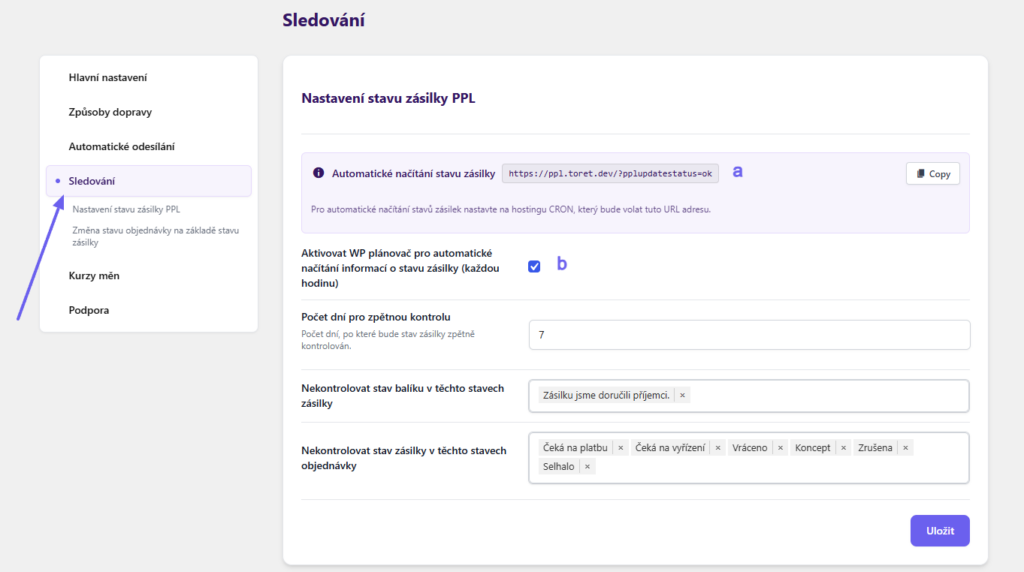
Next, set up:
- number of days for retroactive checking
- shipment statuses (from PPL) for which tracking will not be checked
- order statuses (from the e-shop) for which shipments will not be checked
These settings will reduce the volume of checked orders, thereby lowering system performance demands.
Order Status Change Based on Shipment Status in Transit
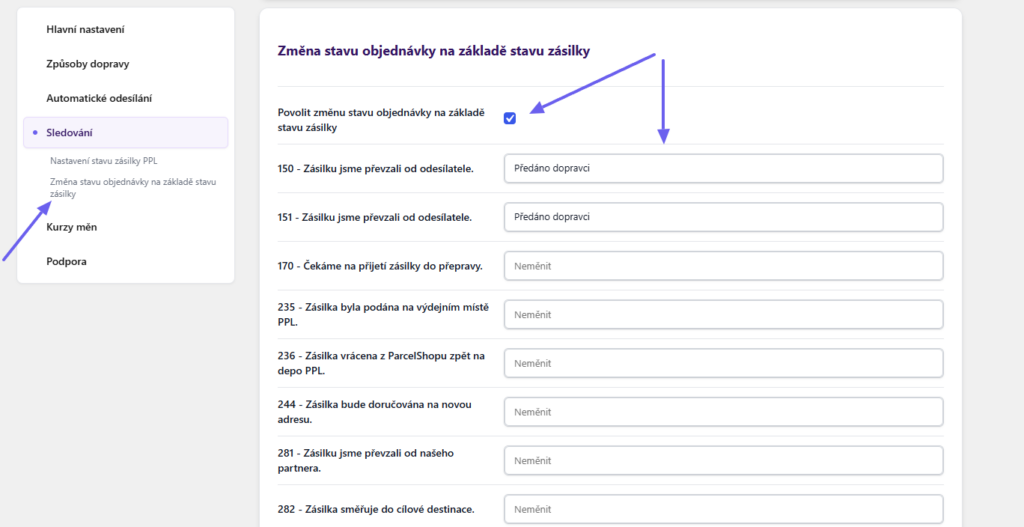
On the Tracking tab, you can further set the order status change according to the shipment status at the carrier. Simply assign WooCommerce order statuses for given PPL statuses and save the changes made.
E.g. Upon successful PPL shipment delivery, the order status changes to Completed (Dokončeno).
Customs Declaration
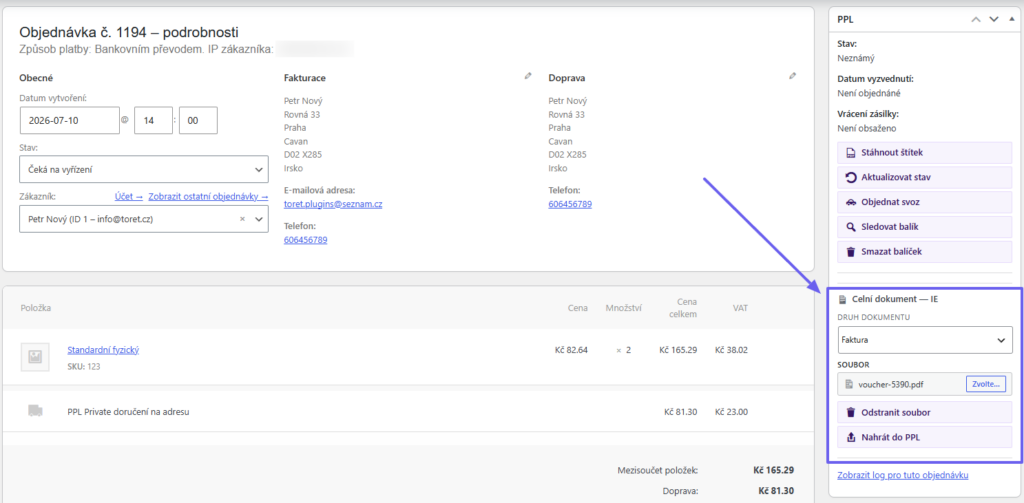
If you are shipping to Ireland, custom declaration requirements must be met.
Customs classification of goods needs to be set up in the product details.
You then upload the customs document in the order detail.
Plugin testing
For testing purposes, you can use:
- the subdomain “dev.domainlicense” (with the same license as for the production website)
- localhost (127.0.0.1)
Purchased plugins will also work in these locations, and you can test their implementation and compatibility here before deploying them to the website and during its use.
FAQ
Custom VAT Rate for COD Surcharge
You set the VAT rate for COD in the Main Settings of the plugin, Rates and Taxes section. The tax rate can be determined by items in the cart or set fixed,