
You are on the documentation page for the QR Payments plugin, which offers customers the option to easily pay for an order via QR code. You can purchase the QR Payments plugin here: Toret QR Payments for WooCommerce
- Plugin Installation
- Plugin Activation
- Payment Method and Bank Account Settings
- Variable Symbol Settings
- QR Code Settings
- Payment Details Visibility
- QR Code Visibility
- Recipient Name (for SK)
- Currency and Account Visibility
- Custom Thank You Page
- Custom Emails
- QR Code on Invoice
- Filters
- Troubleshooting
- Plugin testing
Plugin Installation
Upon purchasing the plugin, you will receive a license key and a download link for the plugin zip file via email. You can find detailed instructions on how to install the plugin from your computer into WordPress here.
Plugin Activation
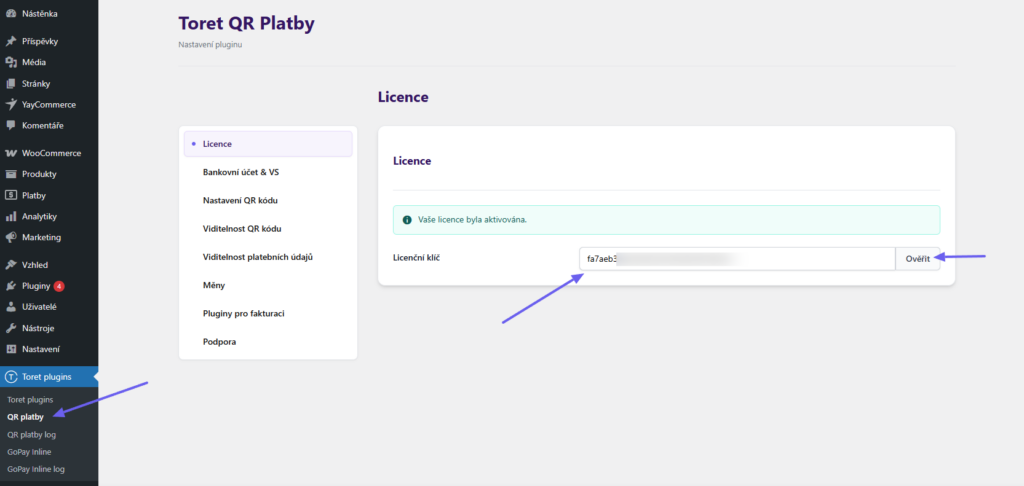
After installing the plugin, open the QR Payments plugin (Toret plugins → QR platby), insert the license key into the appropriate field, and click the button to activate.
Payment Method and Bank Account Settings
After installing and activating the plugin, proceed to its settings. This is found under the Toret plugins → QR platby tab.
Supported Payment Methods Settings
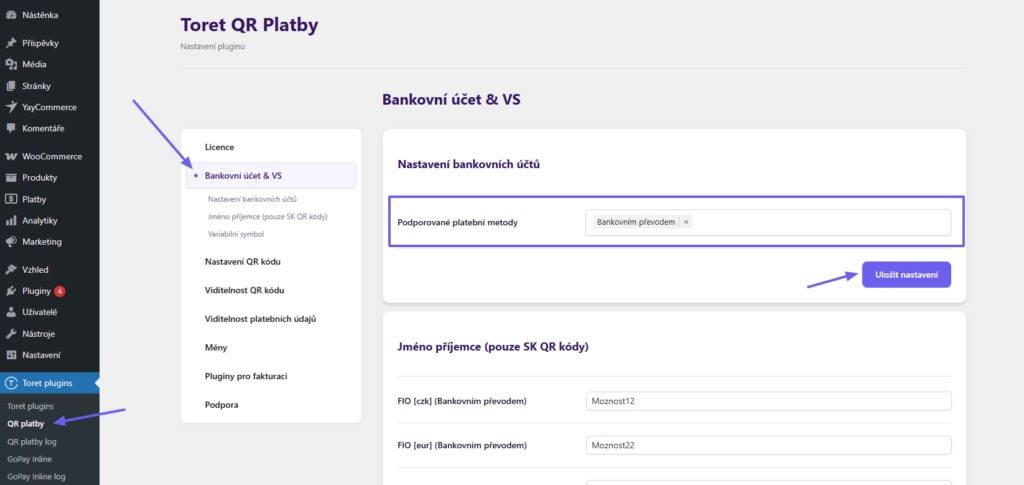
First, it is necessary to select the payment method(s) for bank transfer for which the QR code will be displayed. You can find the settings in the Bankovní účet a VS (Bank Account and VS) section. Multiple methods can be selected by clicking and holding the Ctrl key.
The plugin is compatible with the WooCommerce bank transfer payment method “bacs” and also with the Toret bank transfer payment method “pnu”. You can also choose custom, similar methods.
Entering Payment Details
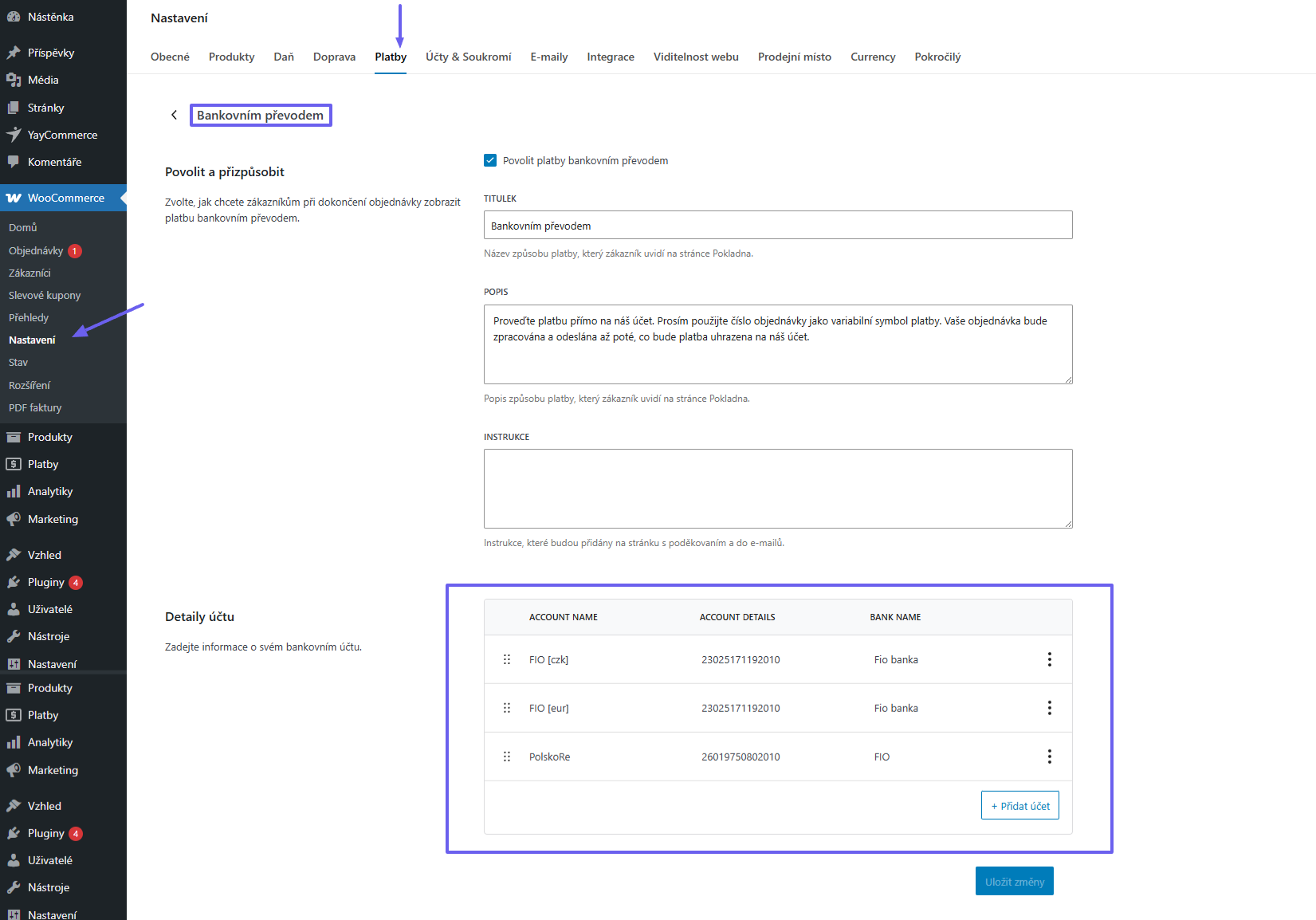
For the payment methods you selected in the previous step, it is necessary to set up account information. You do this in the WooCommerce payment methods settings.
Example for the Bank Transfer method: In the bank transfer payment method settings (WooCommerce > Settings > Payments > Direct bank transfer) it is necessary to fill in the bank account details.
Variable Symbol Settings
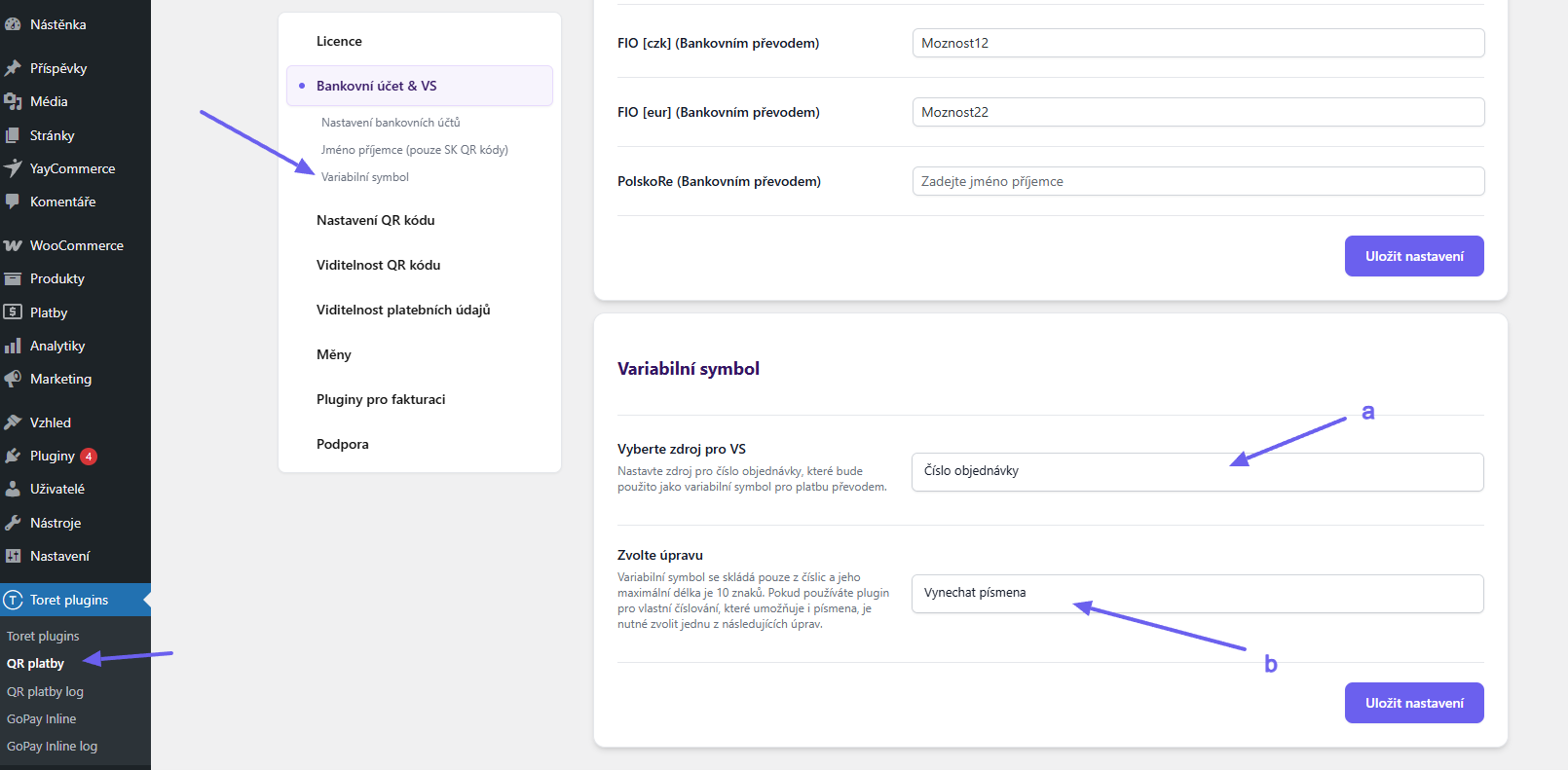
In the Variabilní symbol (Variable Symbol) section, set the source that will be used as the variable symbol for bank transfer payment (a). Available sources are order number or ID, data from compatible plugins, or a custom field can be chosen as the source.
The QR Payments plugin is compatible with plugins:
- Custom Order Numbers for WooCommerce
- Sequential Order Numbers for WooCommerce
- Toret Order Numbers
- Toret Faktura
The next step is choosing the variable symbol modification (b)
The variable symbol consists only of digits and its maximum length is 10 characters. If you use a custom numbering plugin that allows letters, you must choose one of the following modifications.
- Vynechat písmena (Omit letters): After setting this option, the order number without letters will be written into the variable symbol.
- Pouze číslo objednávky ve zprávě (Only order number in message): With this setting, the order number is not written into the variable symbol, but it is written into the note or payment description, including letters that are part of the order number.
QR Code Settings
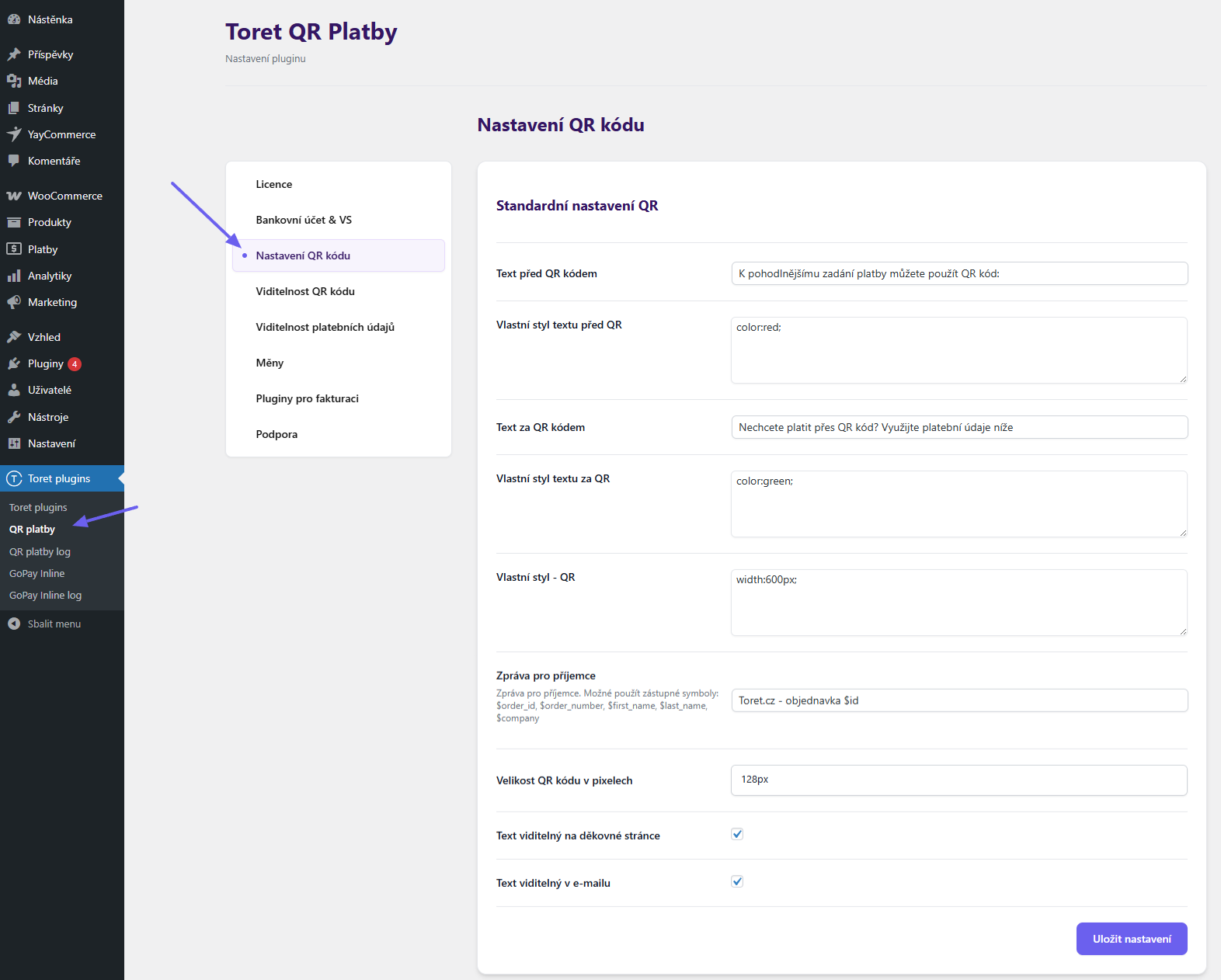
In the next part of the plugin settings, it is possible to customize its display:
- add custom text below or above the QR code, including custom styles
- add custom styles for the QR code
- enable the display of accompanying texts on the thank you page and in the email
- set message for recipient: Here you can customize the text that is automatically filled in as a note for the recipient. You can use variables in the note. Maximum length is 60 characters. If you leave the field empty, no note will be written to the payment.
- set QR code size
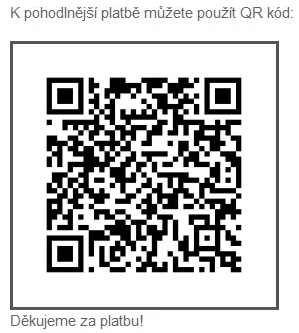
Example of added texts with the QR code.
Payment Details Visibility
In addition to the QR code, payment details (account number, IBAN, BIC, VS) can also be displayed to customers. In this section, you set whether and which payment details will be displayed to customers in emails and on the thank you page. These details help customers pay, e.g., if they fail to scan the QR code.
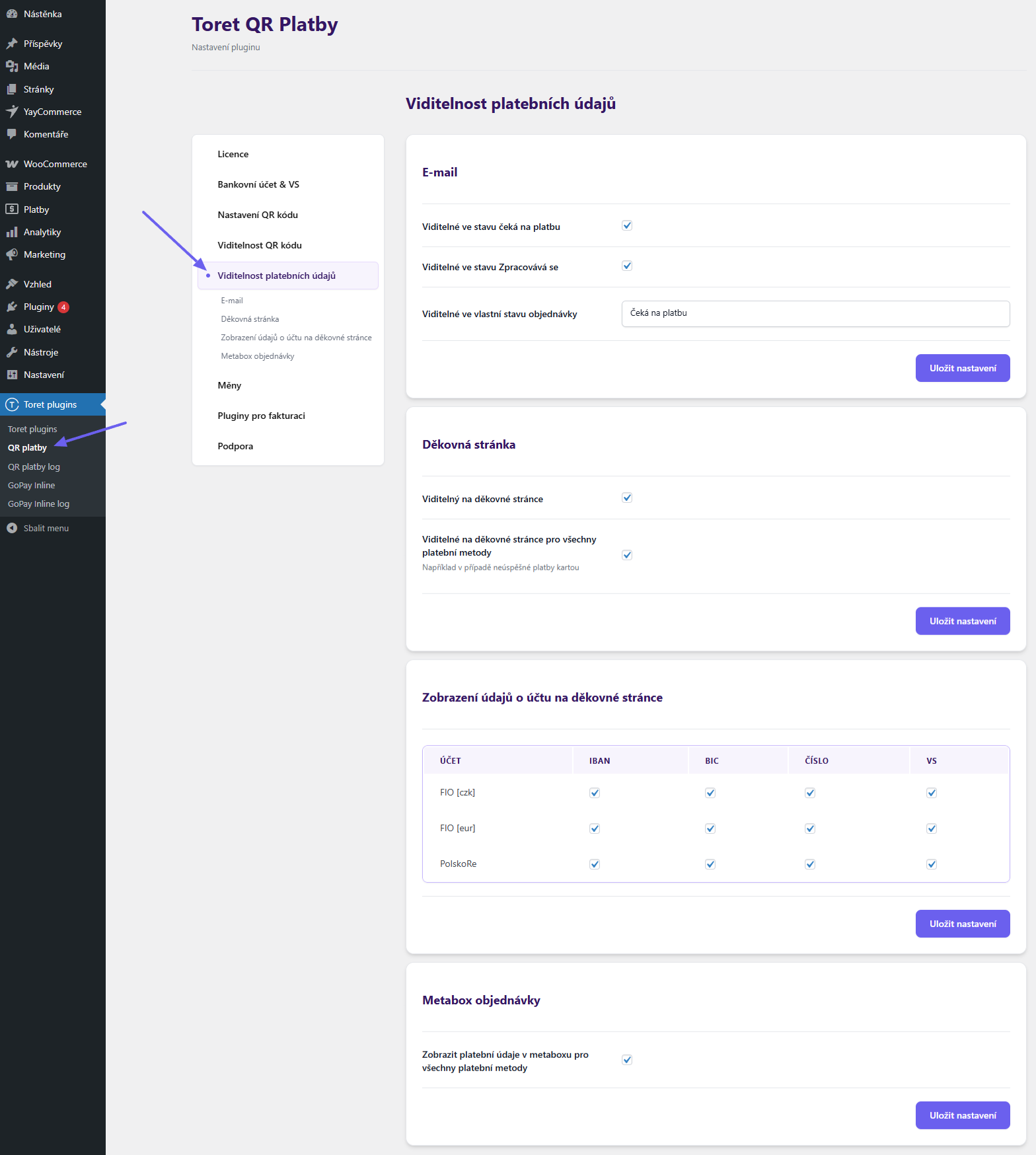
The Order Metabox section allows you to choose whether you see payment details in the order detail for all payment methods or only for orders with QR code payment.
QR Code Visibility
The QR code can be displayed to the customer as needed.
In the plugin, you can set the QR code display:
- In the email sent when order status is Pending payment (On hold)
- In the email sent when order status is Processing
- In the email sent for the selected order statuses
- A combination of these options
- On the thank you page
You can enable/disable QR code display for specific bank accounts (section Viditelnost QR kódu u účtu / QR code visibility for account).
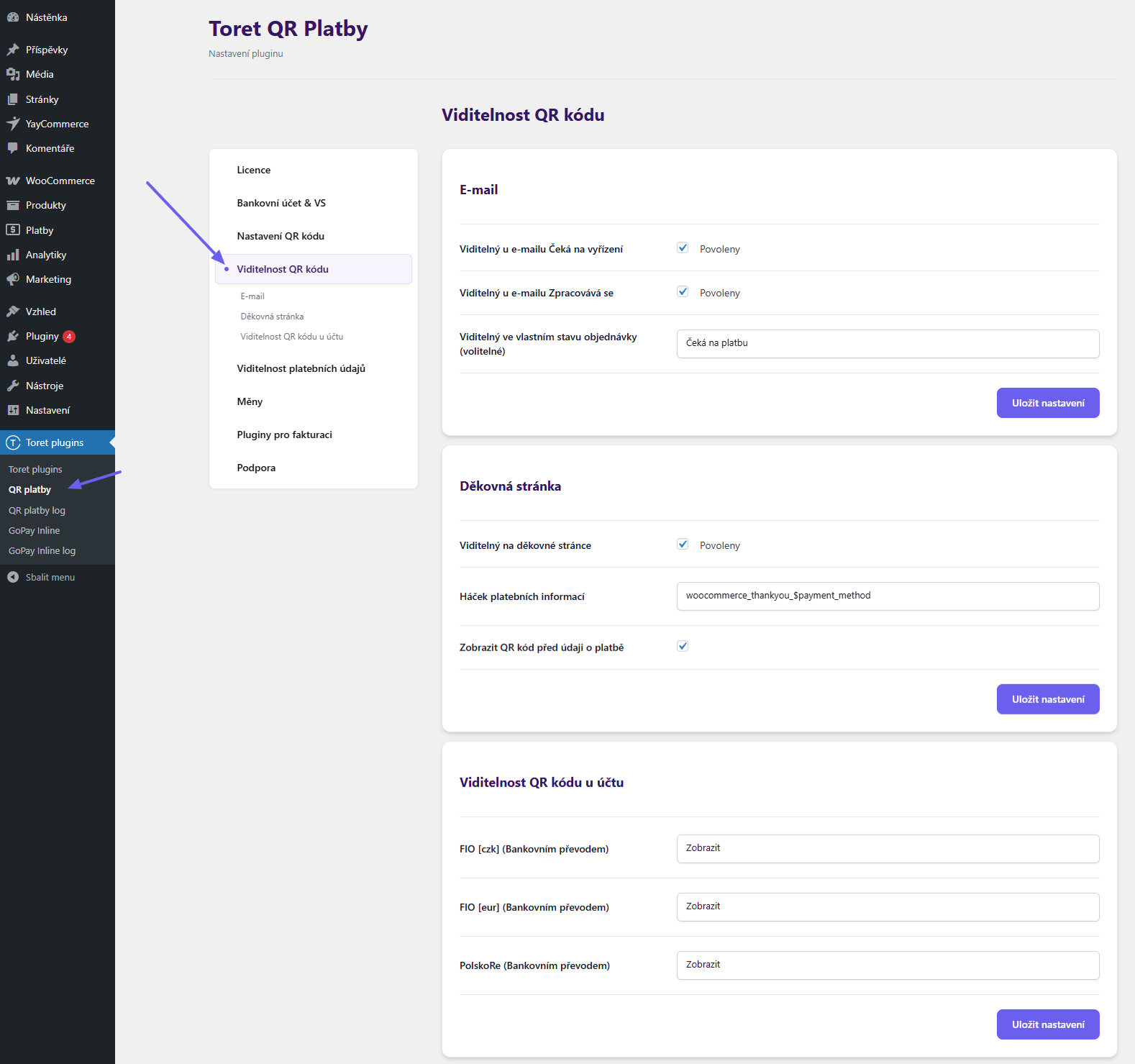
Display on the thank you page can be adjusted:
- select hook for placement on the thank you page
- display QR before payment details or below them
Recipient Name (for SK)
For QR payments made by a payer from Slovak banks, the payment recipient name (i.e., your e-shop account) is required. In the Recipient Name section, you can fill in the recipient for each of the entered accounts in the Bankovní účet a VS (Bank Account and VS) section.
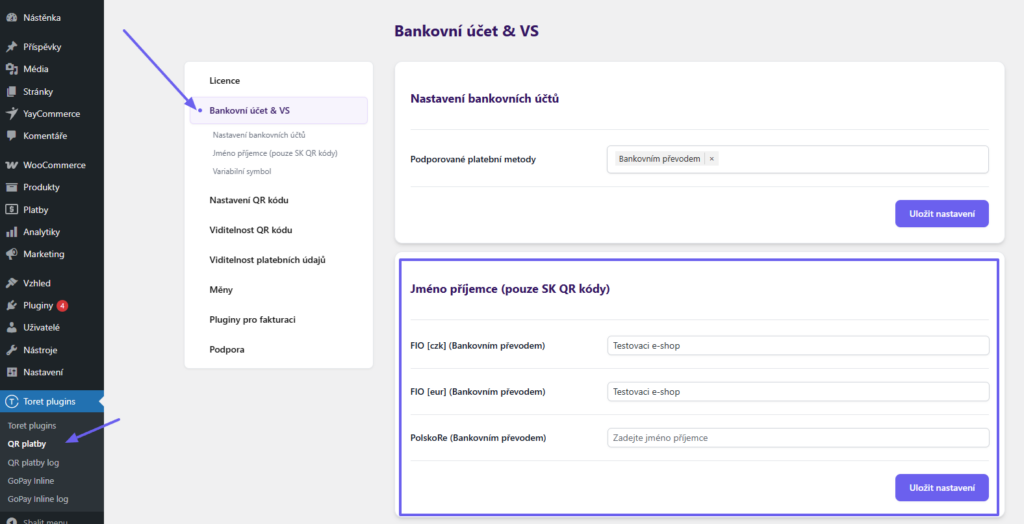
Currency and Account Visibility
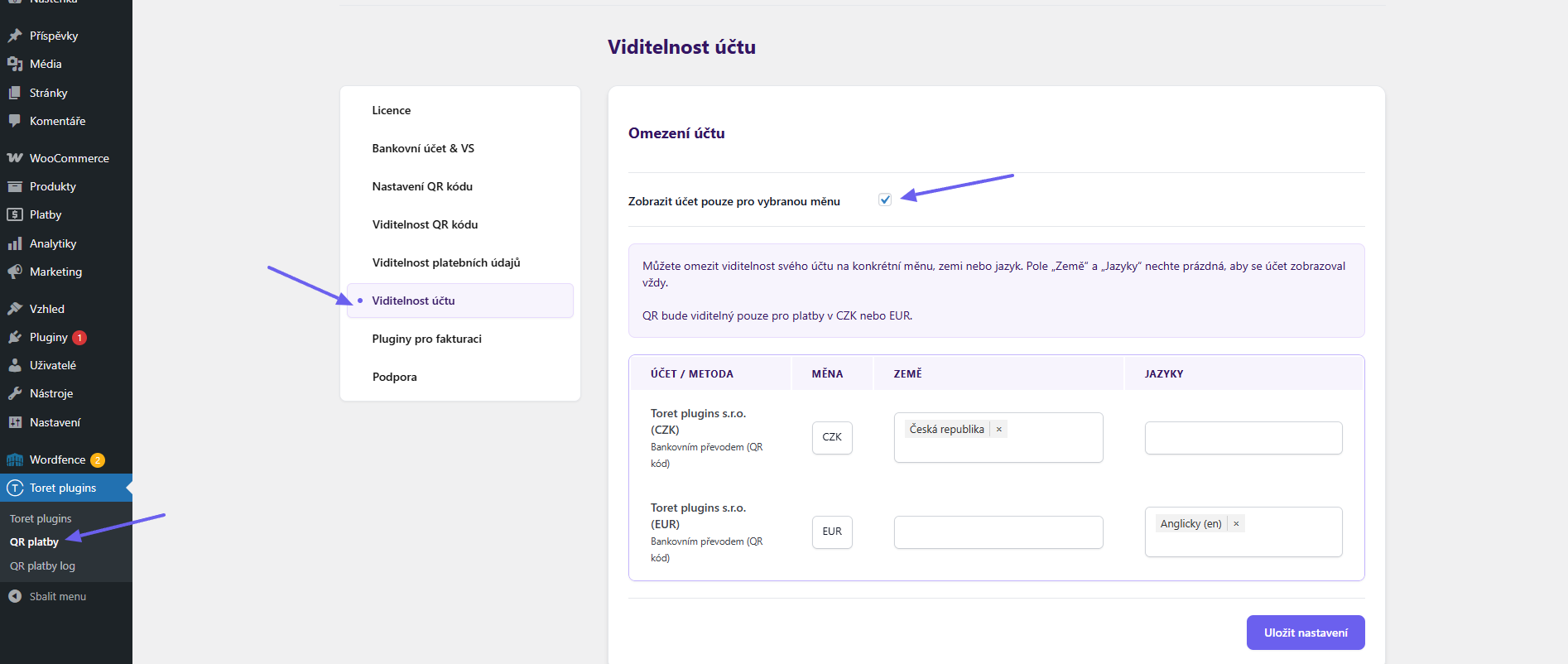
(Toret Plugins > QR Payments > Account Visibility)
If your e-shop uses multiple currencies and multiple bank accounts, you can now enable the Show account only for selected currency (Zobrazit účet pouze pro vybranou měnu) option in the plugin settings. This allows the QR code/payment details to be generated with the account corresponding to the currency used in the order. Instead of displaying all QR codes for all configured bank accounts, only the QR code for the account intended for payment in the given currency will be shown.
Note: The QR Payments plugin generates QR codes only for Czech crowns (CZK) and euros (EUR). For other currencies, only the payment details will be displayed without a QR code.
After activating the feature, assign a currency to each account for which you want it to be used. If you use more currencies than you have bank accounts, you can also set a Default account for other currencies (Výchozí účet pro jiné měny), which will be used for orders in unassigned currencies.
Displaying the QR code/payment details can also be conditioned by the customer’s country and language. If the fields are left empty, the QR code/payment details will always be displayed.
Custom Thank You Page
The default WooCommerce thank you page contains a hook for displaying the QR code. If you use a custom thank you page that does not contain this hook, the QR code will not be displayed.
If you want to display the QR code on a custom thank you page as well, you can use a shortcode, which you insert into your custom thank you page at the place where you want to display the QR code.
Insert the shortcode into your thank you page: tqr_thankyou_shortcode
Custom Emails
In case you use custom emails via a third-party plugin or have modified emails, the QR code may not appear in the email. If this is the case, check if the emails contain the hook woocommerce_email_before_order_table, to which the QR code is bound, and possibly add the hook to the email where you want to display the QR code.
The QR code display can also be blocked by the email client itself, which blocks images from external sources. Loading images from external sources can be enabled at the level of the entire email client or at the level of a specific email. However, this permission is on the side of email users. You cannot influence the blocking of images from external sources across the board.
QR Code on Invoice
The QR Payments plugin is compatible with invoicing plugins Toret Faktura, PDF Invoices & Packing Slips for WooCommerce, and WooCommerce PDF Invoicing and Packing Slips. You can add a QR code to invoices from these plugins.
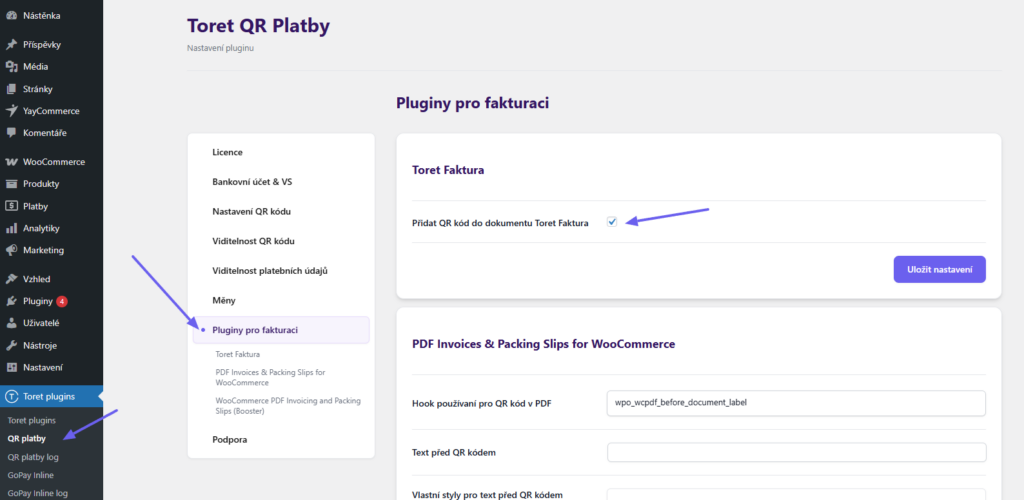
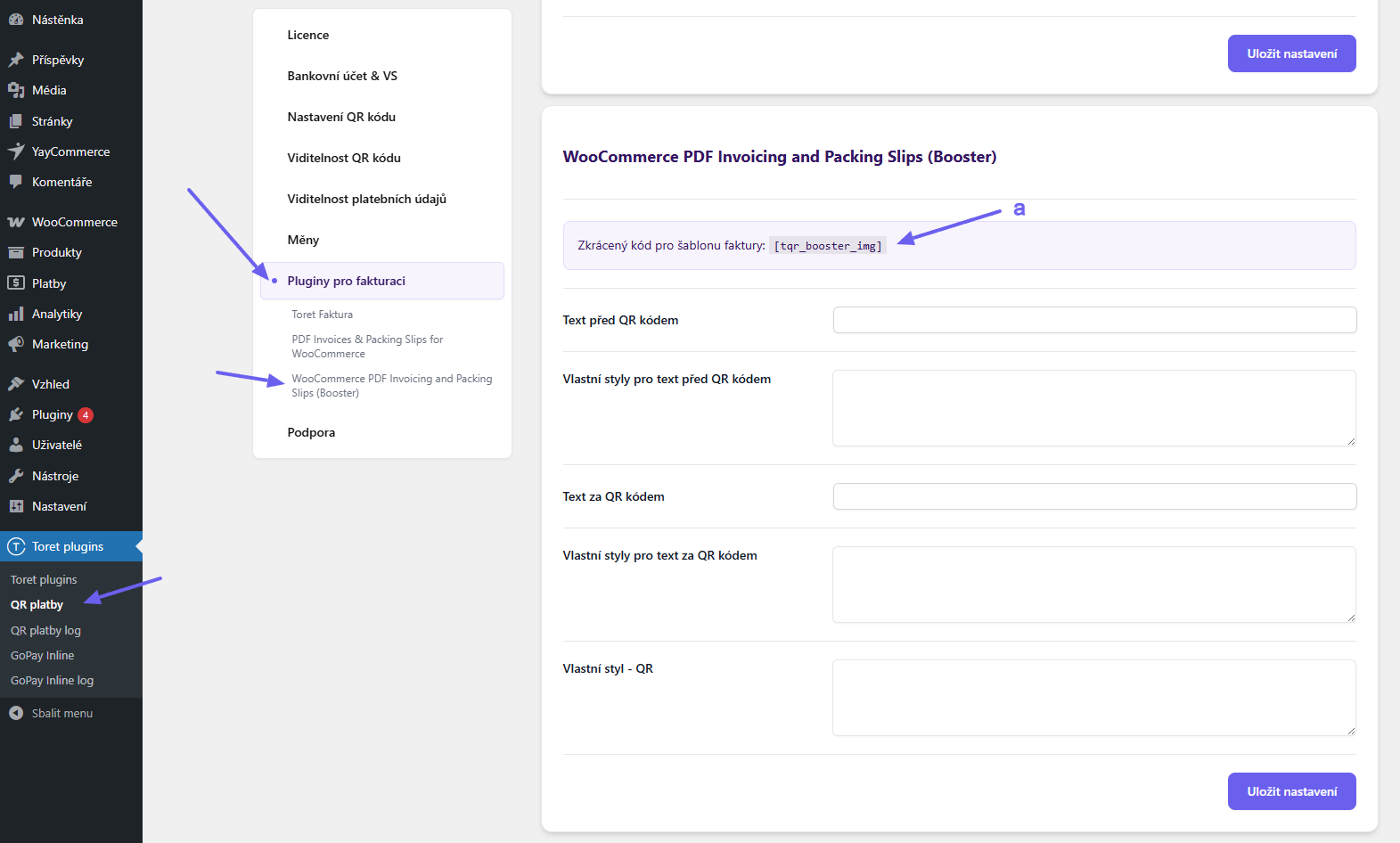
You set everything in the Pluginy pro fakturaci (Invoicing Plugins) section.
Toret Faktura
You can enable QR code display on the Toret Faktura plugin simply by checking the checkbox.
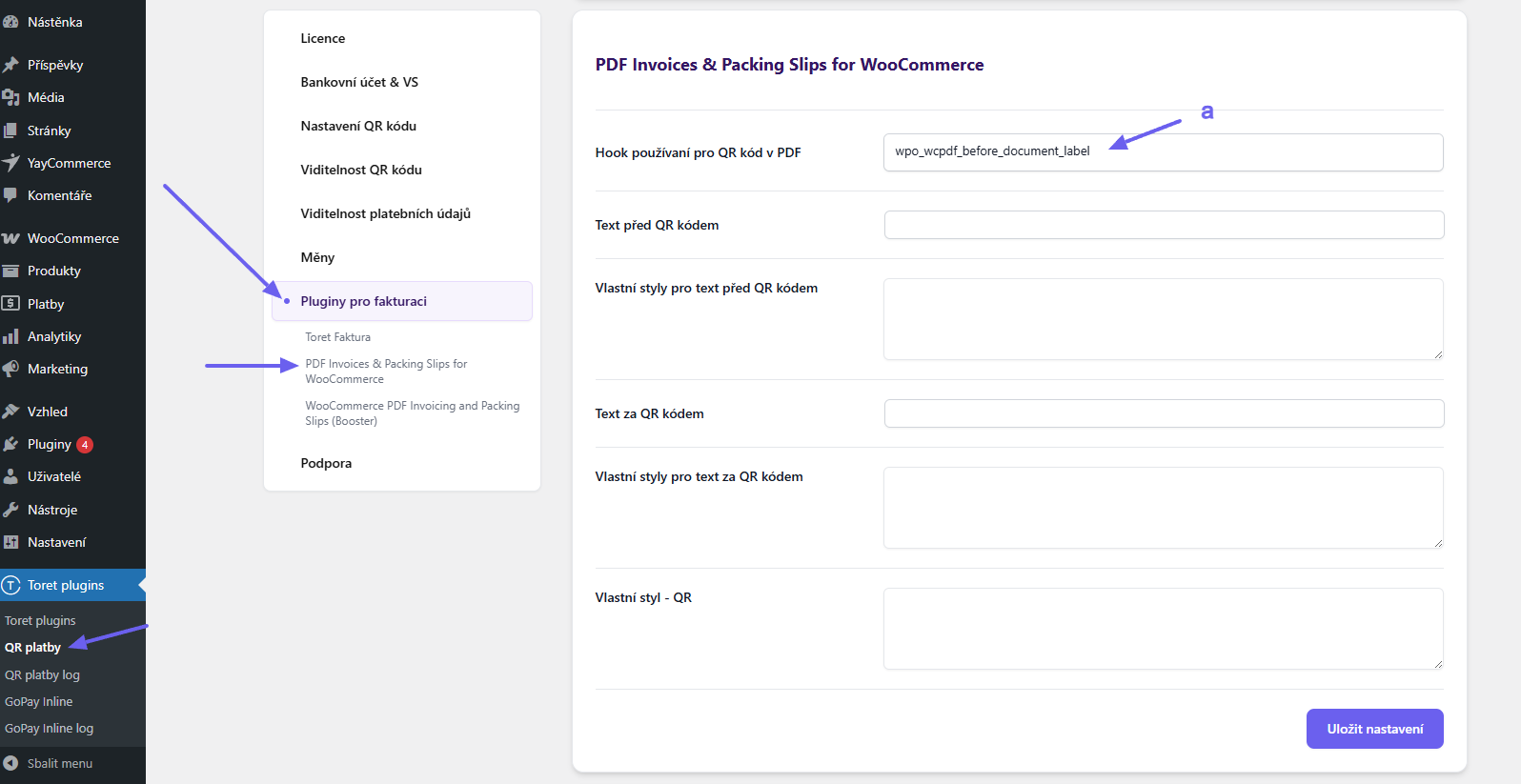
PDF Invoices & Packing Slips for WooCommerce
You place the QR code on the invoice generated by the PDF Invoices & Packing Slips for WooCommerce plugin by selecting a hook (a). Subsequently, it is possible to adjust accompanying texts and styles.
WooCommerce PDF Invoicing and Packing Slips
When using the WooCommerce PDF Invoicing and Packing Slips plugin, it is necessary to insert a shortcode into the invoice template (a). Subsequently, it is possible to adjust accompanying texts and styles.
Filters
- tqp_allowed_payment_methods_email (for adjusting allowed payment methods for displaying QR code in email)
- tqp_email_payment_method (for the possibility to change the displayed payment method of the order in email)
- tqr_text_before_thankyou, tqr_text_after_thankyou (for adjusting texts before and after QR code on thank you page)
- tqr_text_before_emai, tqr_text_after_email (for adjusting texts before and after QR code in email)
- tqr_show_qr_on_order_pay (used to disable the QR code on the order payment page)
Plugin testing
For testing purposes, you can use:
- the subdomain “dev.domainlicense” (with the same license as for the production website)
- localhost (127.0.0.1)
Purchased plugins will also work in these locations, and you can test their implementation and compatibility here before deploying them to the website and during its use.
Troubleshooting
The QR code cannot be scanned by the banking app
There can be several reasons why a banking app is unable to scan the QR code:
The QR code is displayed on a non-white background
Particularly for Slovak QR codes, a white background is required, including the empty border around the code (the so-called quiet zone). If the QR code is displayed on a different background, the banking app may not be able to scan it.
Different standards for Czech and Slovak QR codes
QR codes for Czech and Slovak bank transfers follow different standards. As a result, most Czech banking apps cannot scan Slovak QR codes, and vice versa.
The plugin automatically generates QR codes according to the standard corresponding to the customer’s selected country (CZ/SK) during checkout.