
You are on the documentation page for the Toret XML Feeds for WooCommerce plugin, which serves to connect your WooCommerce store with product search engines.
You can purchase the XML Feeds plugin here: Toret XML Feeds for WooCommerce
Plugin Installation
Upon purchasing the plugin, you will receive a license key and a download link for the plugin zip file via email. You can find detailed instructions on how to install the plugin from your computer into WordPress here.
Plugin Activation
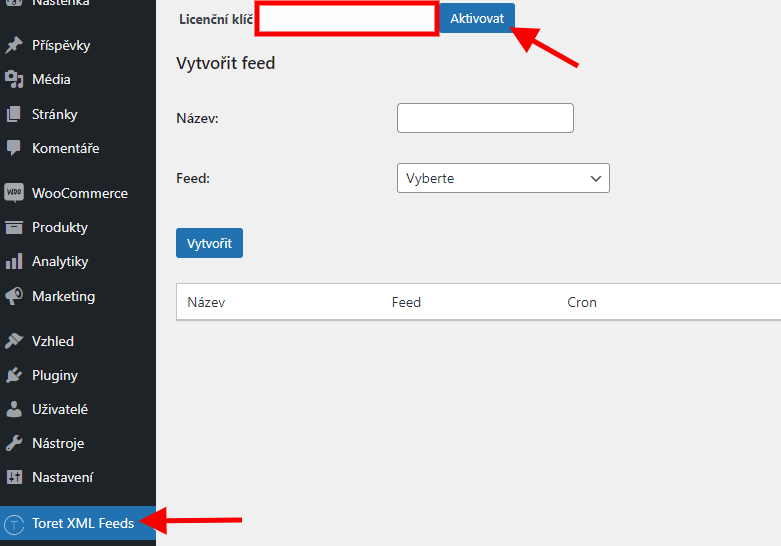
After installing the plugin, open the Toret XML Feeds plugin, insert the license key into the appropriate field, and click the button to activate.
Video Tutorial
Step 1: Creating a Feed
The first step after installing and activating the plugin is creating a feed.
In the WordPress settings on the Toret XML feeds tab, choose a feed name, select the comparator for which you want to generate the feed, and click the button to create the feed.
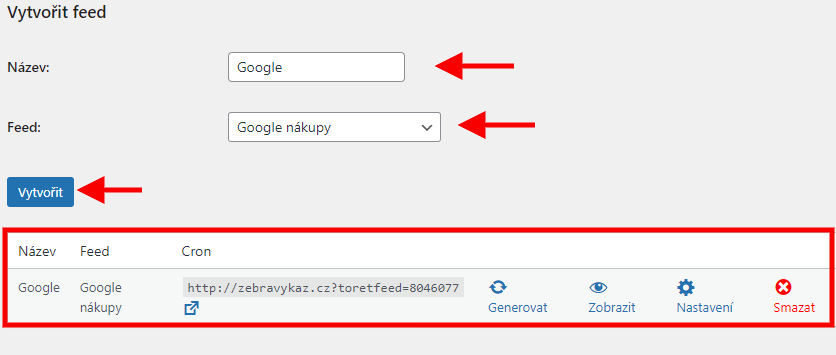
This step has not yet created the XML feed file. Now it is necessary to configure and generate the feed.
Step 2: Feed Settings
Once the feed is created, its configuration follows, which you can access via the gear icon labeled Nastavení (Settings).

The feed settings usually contain four tabs. In case you use WPML, there are five tabs. You can read more about WPML in the XML Feeds plugin on the WPML tab.
Display Products in Feed
Under this tab is the setting for selecting products that will be loaded into the feed.
There are two options to choose from.
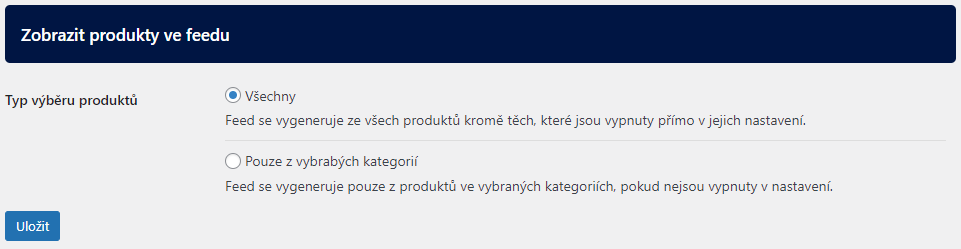
Všechny (All): The feed will be generated from all products except those that have feed generation disabled directly in their settings.
Pouze z vybraných kategorií (Only from selected categories): When selecting this option, a list of WooCommerce categories will appear, which you can enable for generation. All products from the enabled categories will be written to the feed, except those excluded from the feed in the product-level settings.
WPML Settings
The WPML tab appears only if the WPML plugin is active on the site.
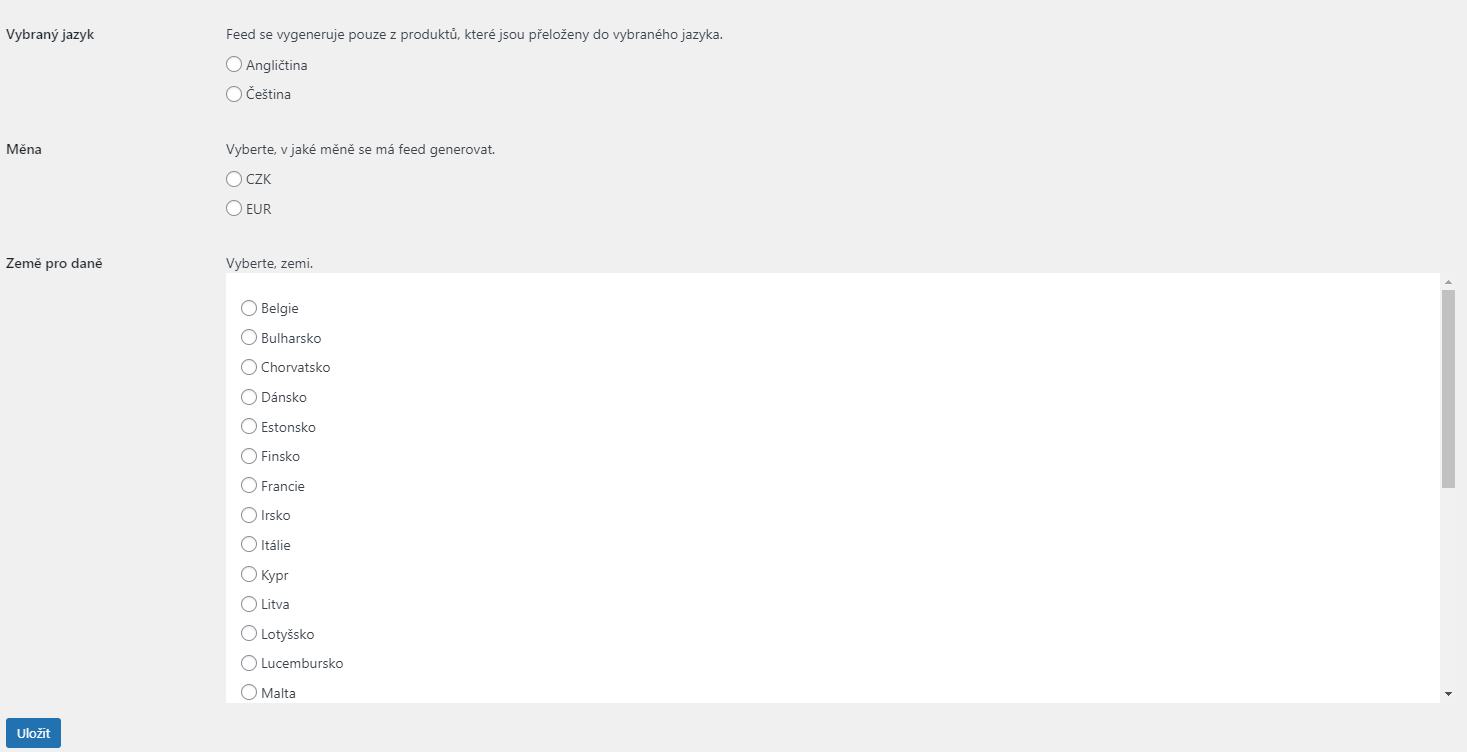
Under the tab, you can set the language, feed currency, and country for the VAT rate. Individual language and currency selection options appear according to the language and currency settings in the WPML plugin. The feed is generated only with products in the selected language.
Default Feed Values
Here you will find the global value settings of the selected comparator for all products. If you set any of the attributes here, it will be propagated to all products.
For example, if you offer your own products or products of one brand, you can fill in the manufacturer here, which will be in the feed for each product. The settings under this tab may vary depending on the selected comparator.
Category Mapping (Přiřazení kategorií)
Another important step is mapping WooCommerce categories to comparator categories. First, you must select the language of the comparator categories. After saving the language and reopening the tab, WooCommerce categories will load, and clicking in the empty field will open a whisperer with comparator categories in the selected language.
Category mapping serves to categorize products in the feed on the comparator’s website. If you have products in multiple WooCommerce categories and have different comparator categories assigned for these categories, the product will be assigned to the comparator category set for the deepest WooCommerce category (subcategory). If the product is in WooCommerce categories at the same level (e.g., the same product is in two main categories), the category that the feed loads first during generation will be written to the feed.
For each product, regardless of the category set in the global settings, it is possible to set a custom comparator category in the product detail. The category at the product level always takes precedence over the global setting.
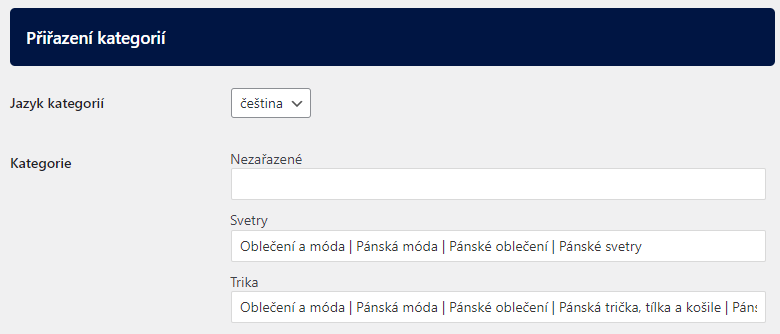
Not all comparators have the Přiřazení kategorií (Category Mapping) tab in the settings. For example, Arukereso and Pricemania do not have categories.
Other Settings (Ostatní nastavení)
The settings in the last tab are global for the entire feed, and the setting options DO NOT change depending on the selected comparator, as is the case with the Výchozí hodnoty feedu (Default Feed Values) tab. We will go through the individual setting options below.
Manufacturer Category (Kategorie výrobce): If you have a category with manufacturers (brands) created in WooCommerce, individual manufacturer names (brands) are listed as subcategories under this category, and these are assigned to products, then in this setting, insert the slug of the main category into the field, and manufacturers from the selected subcategories will be written to the products in the feed.
Save as Product Description (Jako popis produktu uložit): For WooCommerce products, you have the option to fill in a short or long description. Here you choose which description you want to write to the feed.
XML File Generation (Generování XML souboru): The plugin allows generating the feed at once or in parts. I recommend generating the feed at once if your website hosting can handle it. (see Generating the feed)
Product Name Format (Tvar názvu produktu): The product name is automatically written to the feed as it is for the product in WooCommerce. You can set the product name format for all products in the feed. It can be created using variables. Available variables are: {NAZEV}, {MANUFACTURER}, {KATEGORIE}, {pa_slugattribute}. The product name can also be modified individually for each product separately in the XML feed settings at the product level.
Custom Field for EAN (GTIN): The WooCommerce ID is written to the XML feed as the product ID. If you use a custom field for EAN (GTIN) and want to write it to the feed, you must enter the meta of the given field here. Alternatively, it is possible to manually fill in the EAN for each product and comparator in the product detail on the Toret XML feeds tab.
Delivery Time for Product In Stock, Out of Stock, On Backorder: Here you set the delivery time in days for products according to their stock status.
Attach Images Uploaded to Product also to Product Variant: Here it is possible to set that images from the variable product are also written to the feed for product variants.
Use SKU instead of WooCommerce ID as Product ID in Feed: In the plugin, it is possible to set the SKU (Catalog Number) to be written to the feed as the product ID instead of the WooCommerce ID.
Generate XML Feed Only with In-Stock Products: In this setting, it is possible to choose whether the feed is created with all products or only with products that are in stock.
Exclude products hidden in the catalog and products that cannot be purchased (Vynechat produkty skryté v katalogu a produkty, které nelze koupit): Products with the „Hidden“ visibility and products without a price or otherwise not purchasable are not included in the feed.
Exclude products without a main image (Vynechat produkty bez hlavního obrázku): Products without a main image are not included in the feed. If a variation has no image of its own, the image of the parent product is used.
Minimum main image size (px) (Minimální rozměr hlavního obrázku (px)): Products whose main image is smaller (in width or height) are not included in the feed. The value 0 means no check. Google Shopping requires an image of at least 500 × 500 px.
Generate Parameters from Attributes: Here you choose whether attributes entered for products will be written as parameters to the feed.
Do Not Write g:adult Parameter if Set to NO: g:adult is a parameter for goods that are saleable only over 18 years of age. If it is not goods only for adults, the parameter is set to NO and it is not necessary to write it to the feed. By enabling this option, the parameter with the value NO will not be written to the feed, thereby shortening the feed and speeding up generation/loading.
Step 3: Generating the Feed
After setting up the feed, it is time to generate it. I recommend performing the initial generation manually so you can check the feed right away.
There are two options in the plugin to manually generate the feed.
Manual Generation
The first method is via the Generovat (Generate) (icon of two arrows in a circle) link in the feed overview. Clicking the link opens a window where you can see the generation progress. Once the generation is complete, you can check the feed via the Zobrazit (View) (eye icon) link. If you terminate the feed generation before its completion, the feed page will not contain complete data and will show an error. When creating a feed via the Generovat link, one product loads in roughly one second. In the case of WPML, the time is double.
If you have hundreds or thousands of products, use the second method, which is faster. In the CRON column, there is a URL and next to it is an arrow icon; clicking the arrow opens a new browser window and starts generation. Once generation finishes (the spinner in the browser tab stops), you can open and check the feed via the Zobrazit (View) (eye icon) link.

Generate Feed All at Once or Gradually?
Every website is hosted on a hosting server, and every server has its specifications and limits. For example, one website can handle generating a feed with five thousand products at once. Another website can barely handle five hundred. It is very individual, and after setting up the feed, I recommend trying it by setting generation at once and using the generation procedure via cron url (see Second method above).
Once the generation is complete (the spinner in the browser tab stops) and the page is without error, try opening the feed via the “Zobrazit” (View) link (eye icon). If the feed displays correctly, the server handled it, and you can leave generation at once.
In case an error appears on the feed page or you have 5000+ products, set generation in parts and in the field Počet produktů při částečném generování (Number of products during partial generation) set how many products are generated per one CRON run. Again, it depends on the server capabilities, you can set from 500 to 5000.
Attention, each variant of a variable product counts as an individual product in the feed. For example, there are 100 variable products on the web and each variable product has 10 variants. For the XML feed, that is 1000 products.
Automatic Generation
After setting up the feed, its first generation and checking, you can set up automatic feed updates.
In the CRON column is the URL of the given feed. Set this on your hosting to run regularly. The feed triggering interval is purely individual. It depends on whether you generate the feed at once or in parts. We recommend updating the entire feed at least once a day.
In the case of generating the feed in parts, it depends on how many products are on the web and how many products are generated per run.
Example: The website contains 10,283 products and you generate the feed in batches of 2,000. The generation URL therefore needs to run 6 times, and the feed is complete after the last batch. To have the feed updated at least once a day, set up a CRON job on your hosting with an interval of at most 4 hours.
Feed Settings at Product Level
In case you have products on the web for which you do not want to apply global feed settings, it is necessary to set individual attributes for them. You do this in the product detail on the Toret XML feeds tab.
Under this tab are tabs for individual comparators, where you can set individual feed values for the given product. Individual attributes can also be set for individual variants – at the end of the variant settings are tabs with comparators, just like under the Toret XML feeds tab.
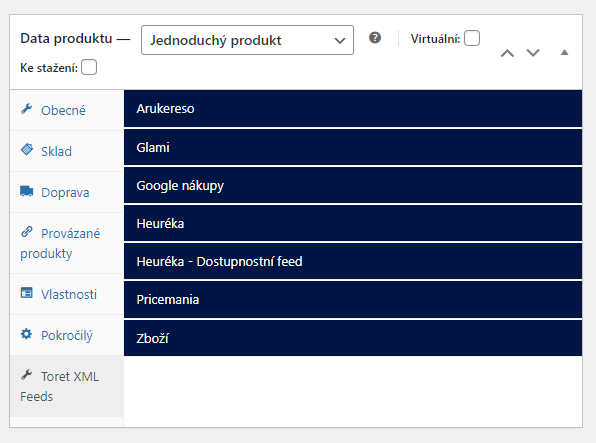
At the product level, you can for example:
- Exclude product from the given comparator
- Modify product name
- Modify product description
- Upload a thumbnail image to replace the default product image
- Add video review URL (Heureka)
- Assign comparator category
- Set individual EAN/GTIN
- Set ISBN (Heureka)
- Set individual shipping method (Heureka/Zboží.cz)
- Enable/disable direct sale via comparator (Heureka)
- Mark product for adults (Google)
- Set MPN and availability (Google)
- Set custom product labels (Google, Zboží.cz)
- Set individual delivery time
- and much more
Google Shopping Feed
A few specific rules apply to the Google Shopping feed:
- MPN (manufacturer part number) – can be filled in in the default values of the Google feed or on a specific product. If a product has no GTIN (EAN), the MPN is sent to Google together with the brand. The identifier_exists=no attribute is sent only when the product has neither a GTIN nor an MPN.
- Availability – on the product (Google tab on the Toret XML feeds card), you can choose Automatically by stock (Automaticky podle skladu, default), In stock (Skladem), Out of stock (Není skladem), Preorder (Předobjednávka) or Backorder (Doobjednávka). Manually selected availability takes precedence over the automatic one. For variations, the automatic availability follows the stock of the specific variation.
- Price – products with a zero or empty price are not included in the Google feed.
WPML
The Toret XML Feeds plugin is compatible with the WPML plugin.
If the WPML plugin is active on the website, connection to REST API appears on the main XML feeds settings page.
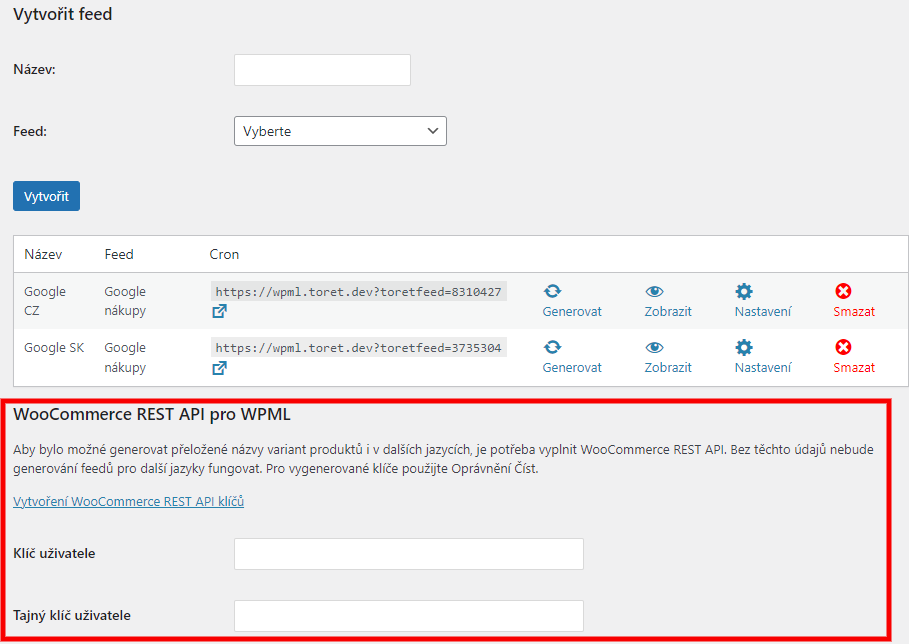
To be able to generate translated product variant names in other languages as well, it is necessary to fill in the WooCommerce REST API. Without this data, feed generation for other languages will not work. Use Read permission for generated keys.
You create the REST API in WooCommerce settings → Advanced → REST API → Add key.
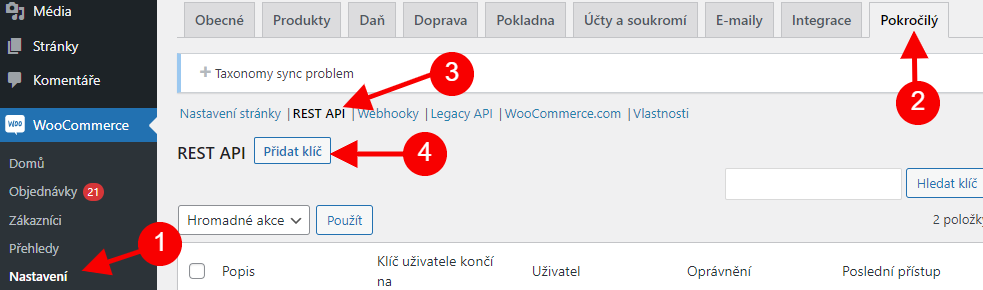
Save the REST API keys created in WooCommerce into the XML feeds plugin.
Feed Language and Currency Settings
Once you have created a feed, the WPML tab is in its settings. Under this tab, you choose in which language, currency, and with which VAT rate (Země pro daně / Country for taxes) the feed will be generated. The feed will contain only products that are translated into the selected language.
Plugin testing
For testing purposes, you can use:
- the subdomain “dev.domainlicense” (with the same license as for the production website)
- localhost (127.0.0.1)
Purchased plugins will also work in these locations, and you can test their implementation and compatibility here before deploying them to the website and during its use.