
You are on the documentation page for the Toret Invoice for WooCommerce plugin, which allows complete invoicing directly within the WooCommerce e-shop administration. You can purchase the Toret Invoice plugin here: Toret Invoice for WooCommerce
- Plugin Installation
- Plugin Activation
- Document Selection
- Supplier Settings
- Variable Symbol Settings
- Due Date Settings
- Number Series Settings
- Document Appearance Settings
- Document Content Settings
- Exchange Rates and Accounting Conversions
- Issuing Documents
- Document Management
- Sending Documents by Email
- Payment Status and Invoice Settlement
- Displaying Company Fields at Checkout
- Displaying a QR Code on the Invoice
- Reverse Charge
- Exporting Documents
- User Permissions
- Testování pluginu
Plugin Installation
After purchasing the plugin, you will receive a license key and a link to download the plugin zip file via email. A detailed guide on how to install the plugin into WordPress from your computer can be found here.
Plugin Activation
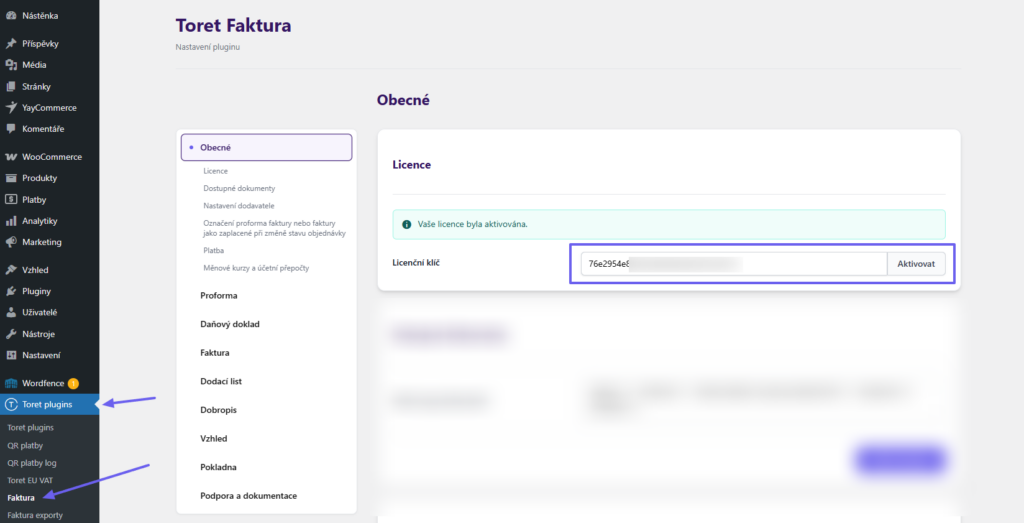
(Toret plugins > Invoice)
After installing the plugin, open the Toret Invoice plugin, enter the license key into the appropriate field, and activate it using the button.
Document Selection
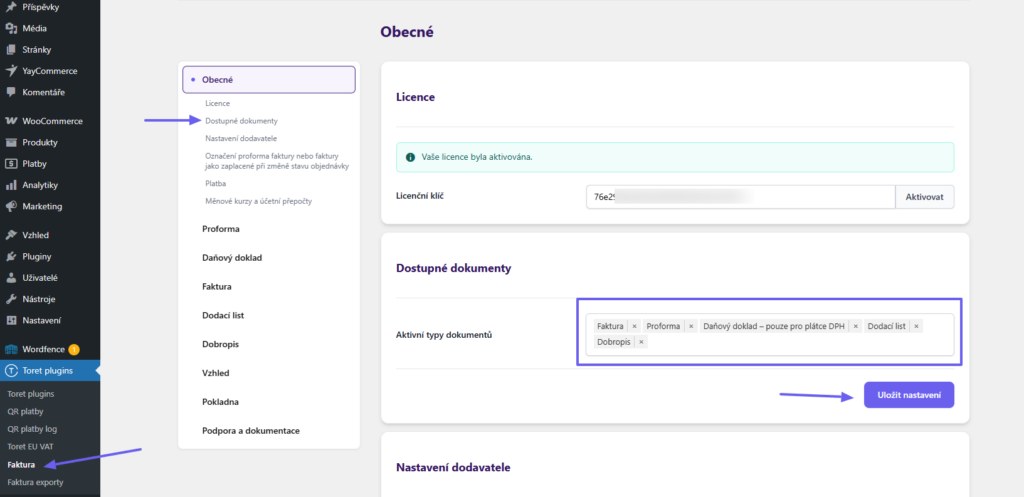
(Toret plugins > Invoice > General > Available documents)
In the plugin settings, under the Available documents section, you need to select the documents you want to issue in your e-shop. The following documents are available:
- Invoice (regular)
- Proforma invoice (advance)
- Credit note
- Tax document (only for VAT payers)
- Delivery note
Select the required documents and save.
Supplier Settings
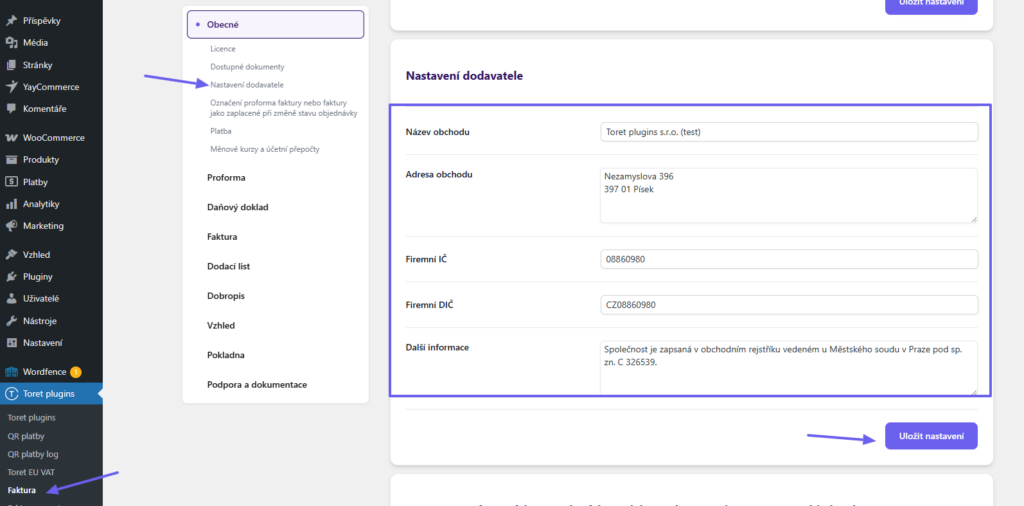
(Toret plugins > Invoice > General > Supplier settings)
In this section, provide the details that will appear on the documents in the Supplier section:
- Store name
- Store address
- Company ID (IČ)
- VAT ID (DIČ)
- Additional information – here you can provide any information to be displayed on the invoice – e.g., your phone number or email
Variable Symbol Settings
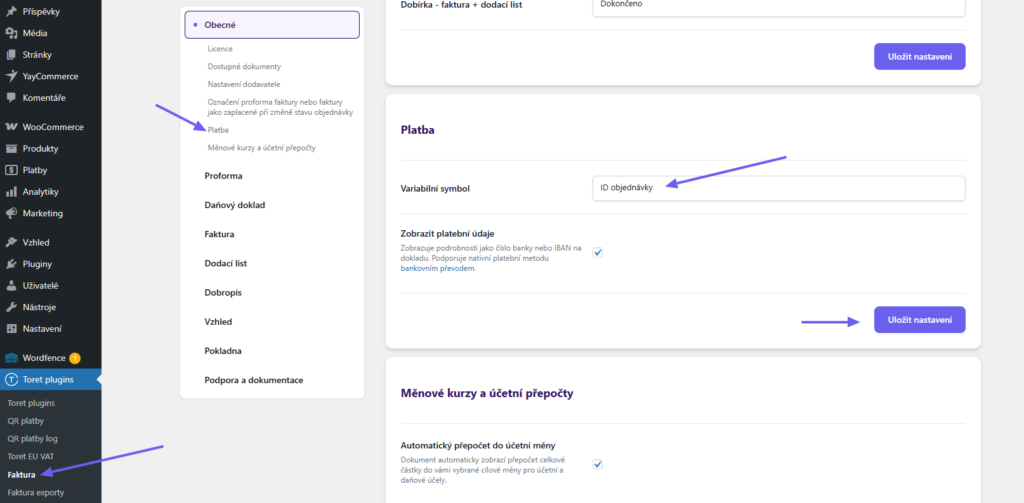
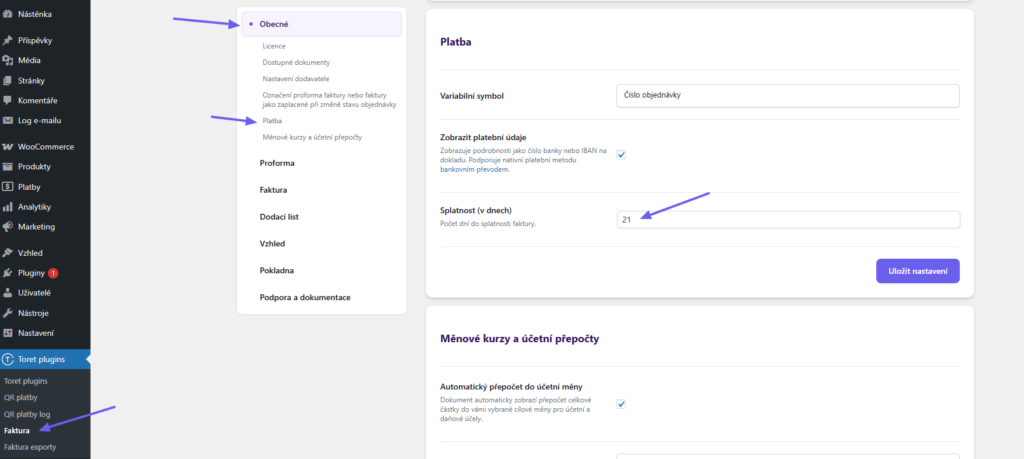
(Toret plugins > Invoice > General > Payment)
In the Payment section, you can set the source for the variable symbol. It can be:
- Order ID
- Order number
- Document number
Due Date Settings
(Toret plugins > Invoice > General > Payment)
You can set the Invoice due date (Splatnost faktur) (in days) in the Payment (Platba) section. The due date will be automatically calculated and displayed on the invoice.
Number Series Settings
(Toret plugins > Invoice > Proforma / Tax document / Invoice / Delivery note / Credit note > Number series)
To issue any of the documents, you first must set its number series. The number series is set separately for each document type in its settings.
Ex. For a proforma, you set the number series in the Proforma section (see fig.)
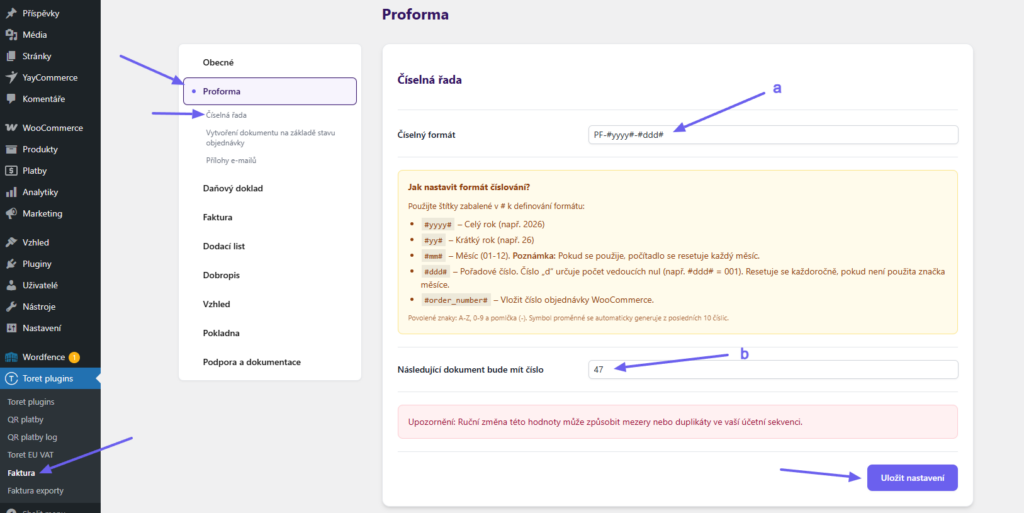
In the Number format field (a), you can enter custom text (characters: A-Z, 0-9, and hyphen -) + variables for:
#yyyy#– full year (e.g., 2026)#yy#– short year (e.g., 26)#mm#– month (01-12) – If used, the counter resets every month.#ddd#– sequential number The number of “d”s determines the number of digits (e.g., #ddd# = 001). It resets annually (unless the month tag is used – then monthly)#order_number#– WooCommerce order number
You set the start of the number series in the The next document will have the number field (b)
Setting example: Number format: FA-#yyyy##dddd#; The next document will have the number: 188
This setting will generate the following invoice numbers: FA-20260188, FA-20260189, FA-20260190, etc. At the beginning of the new year, the series will reset: FA-20270001, FA-20270002, …
Document Appearance Settings
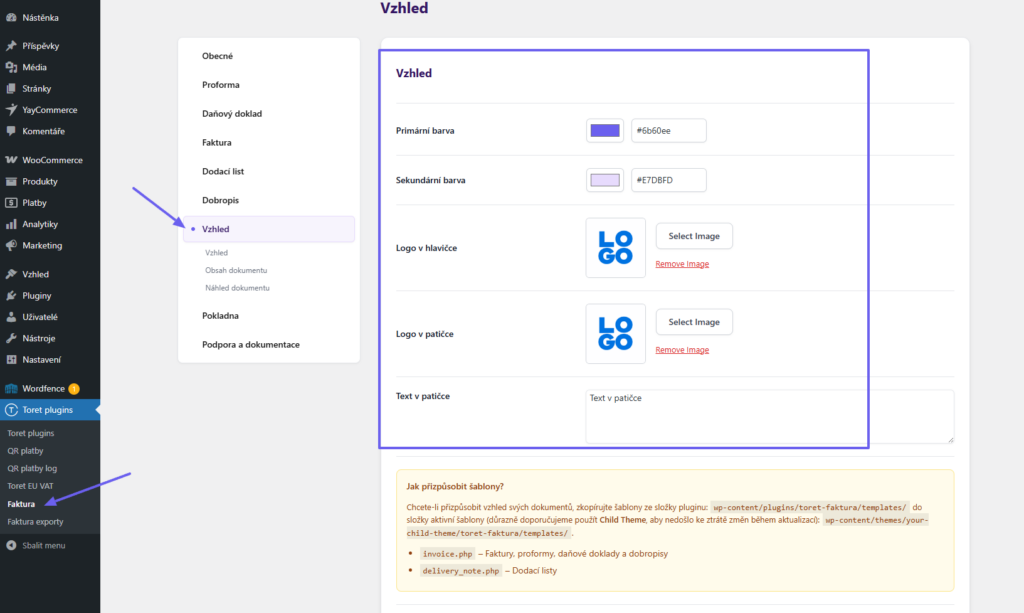
(Toret plugins > Invoice > Appearance)
In the appearance section, you can set:
- document colors
- logo for the document header
- logo for the document footer
- footer text
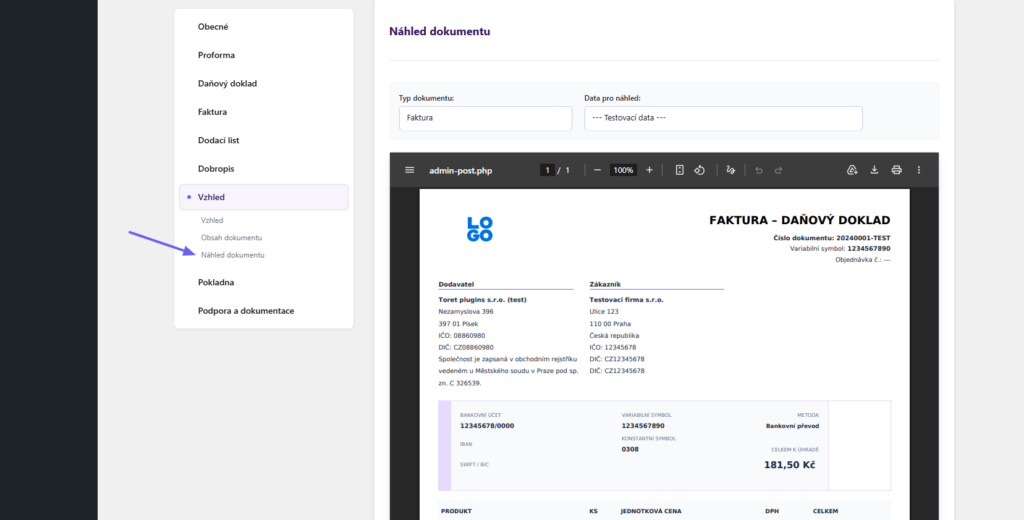
At the bottom of the page, you will see the current document preview.
Advanced customization of document appearance is possible using coding:
How to customize templates?
To customize the appearance of your documents, copy the templates from the plugin folder: wp-content/plugins/toret-faktura/templates/ to your active theme folder (we strongly recommend using a Child Theme, to avoid losing changes during updates): wp-content/themes/your-child-theme/toret-faktura/templates/.
delivery_note.php – Delivery notes
invoice.php – Invoices, proformas, tax documents, and credit notes
Document Content Settings
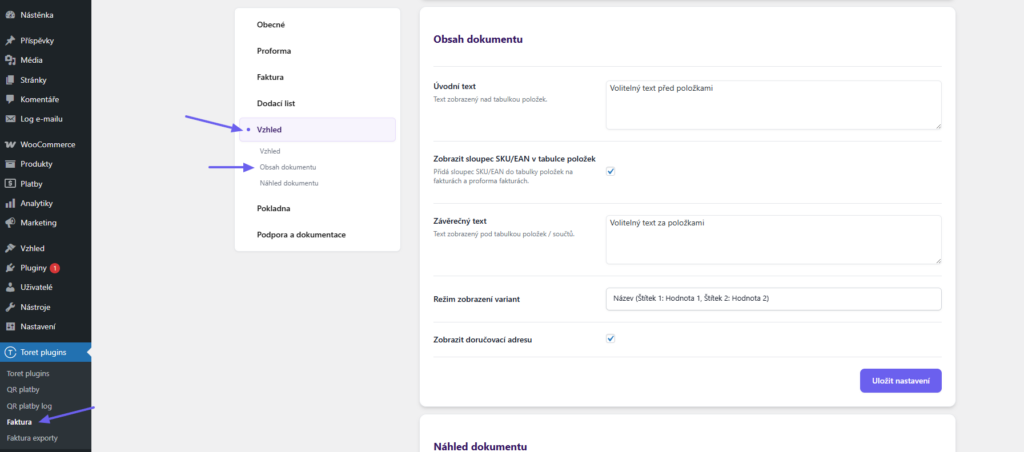
(Toret Plugins > Invoice > Appearance > Document content)
In the Document Content (Obsah dokumentu) section, you can configure the following:
- Show shipping address (Zobrazit doručovací adresu) – when activated, both the billing and shipping addresses of the customer will be displayed on the documents.
- Introductory text (Úvodní text) – displays before the item table.
- SKU/EAN column (Sloupec SKU/EAN) – this column is always shown on delivery notes. By activating this function, you also add it to invoices and proforma invoices.
- Closing text (Závěrečný text) – displays below the item table.
- Variation display mode (Režim zobrazení variant) – here you can choose how variations of variable products are displayed on the invoice.
Displaying payment details on the document
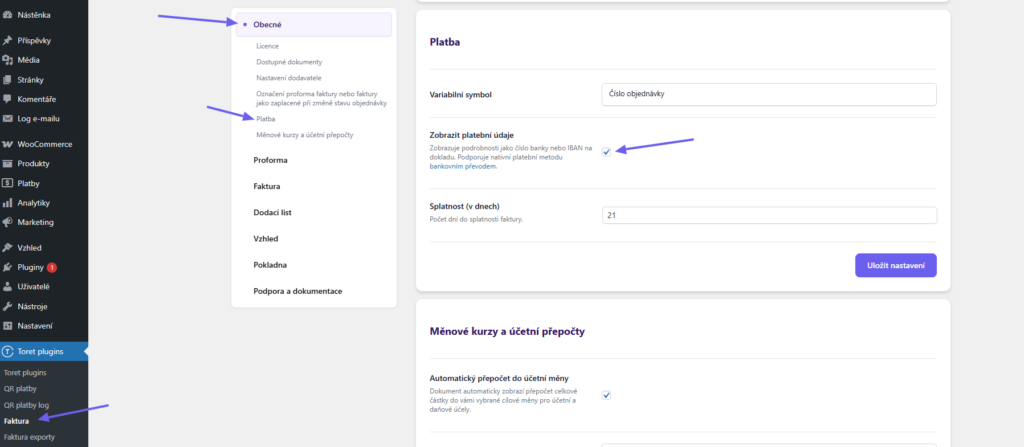
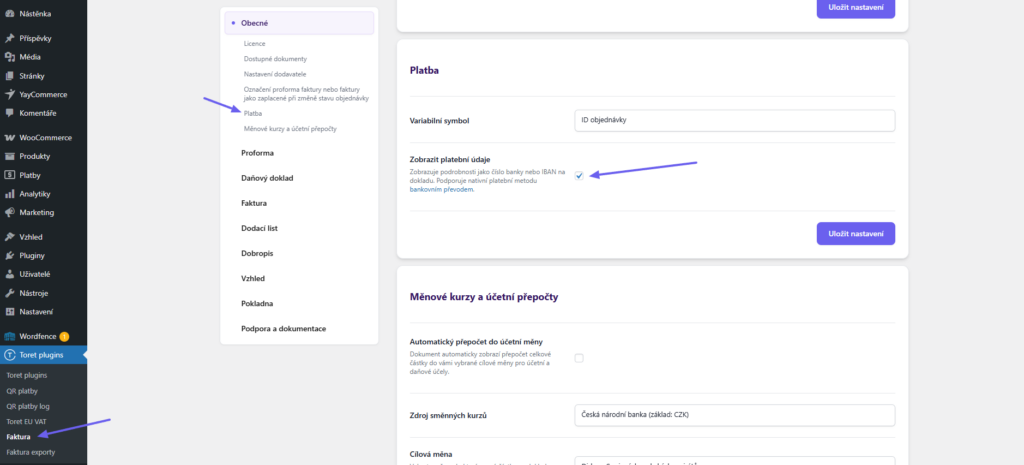
(Toret Plugins > Invoice > General > Payments)
In the Payments (General) section, you can enable the display of payment details on documents. The plugin loads payment details from the Direct Bank Transfer payment method settings in WooCommerce (WooCommerce > Settings > Payments > Offline payments > Direct bank transfer).
Exchange Rates and Accounting Conversions
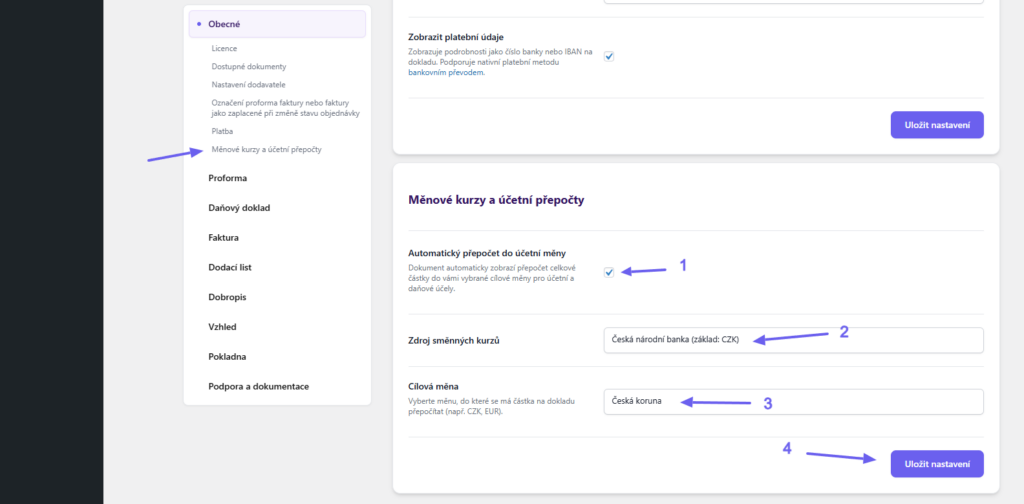
(Toret plugins > Invoice > General > Exchange rates and accounting conversions)
The plugin allows you to convert the total amount into a selected accounting currency. The conversion is displayed on the issued document and corresponds to the current exchange rate.
- First, activate the feature
- Select the exchange rate source (Czech National Bank, European Central Bank, or National Bank of Slovakia)
- Select the target currency to which the amount will be converted
- Save
Issuing Documents
Documents can be issued manually or automatically using the plugin.
Manual issuing
Manual issuing is possible in the order overview or order details.
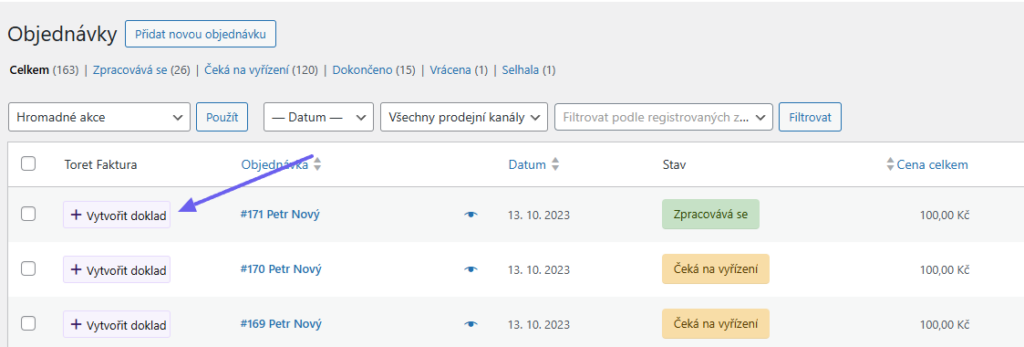
In the order overview
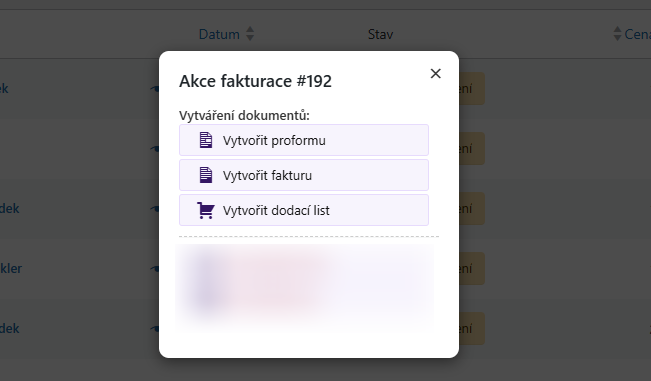
In the Toret invoice column, clicking the Create document button (or the button with the number of an already issued document) opens a pop-up window where you select the type of document you want to issue.
In the order details
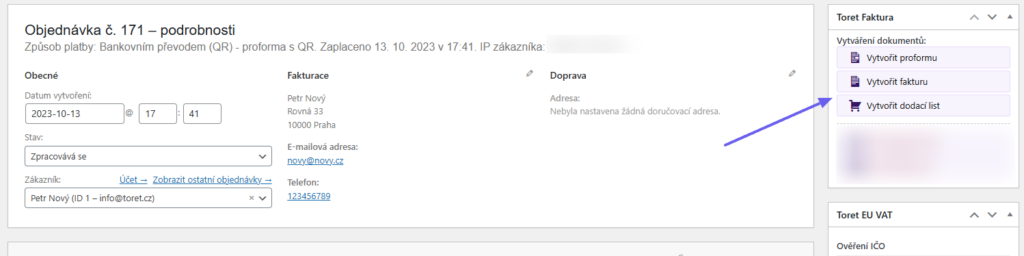
In the Toret Invoice metabox, click the button with the type of document you want to issue.
Bulk actions
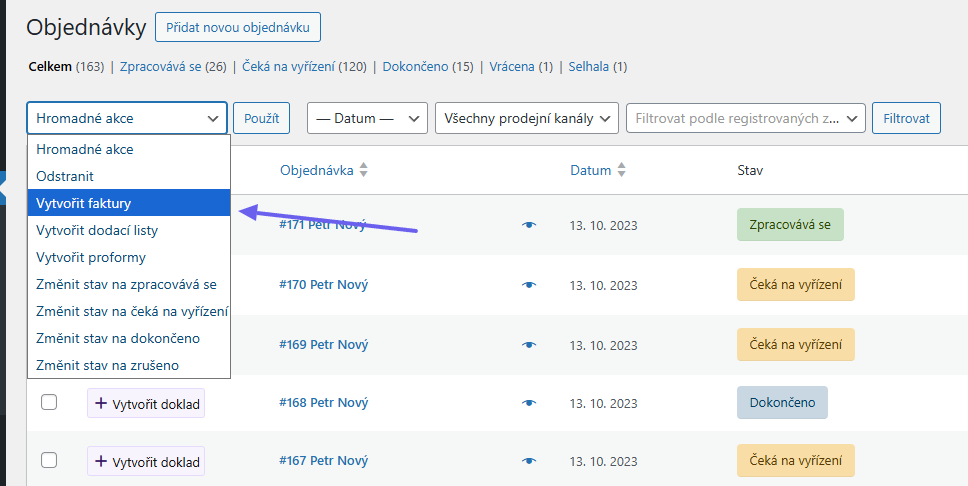
Creating proformas, invoices, and delivery notes is also possible via bulk actions in the order overview.
Automatic issuing
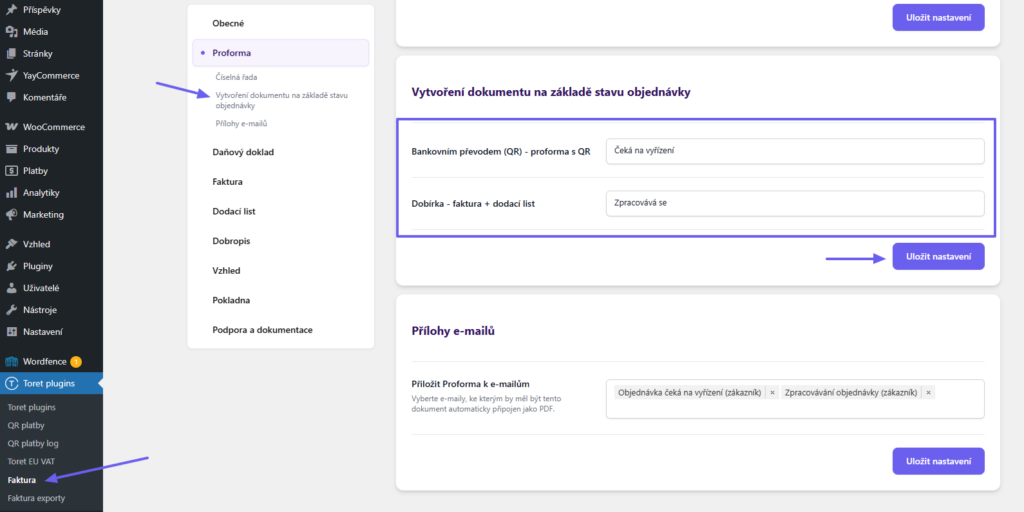
All documents can also be issued automatically – based on the order status. You configure the automatic issuing in the settings of individual document types.
(Toret plugins > Invoice > Proforma / Tax document / Invoice / Delivery note / Credit note > Document creation based on order status)
For each payment method, assign the order status at which the document will be automatically issued.
Document Management
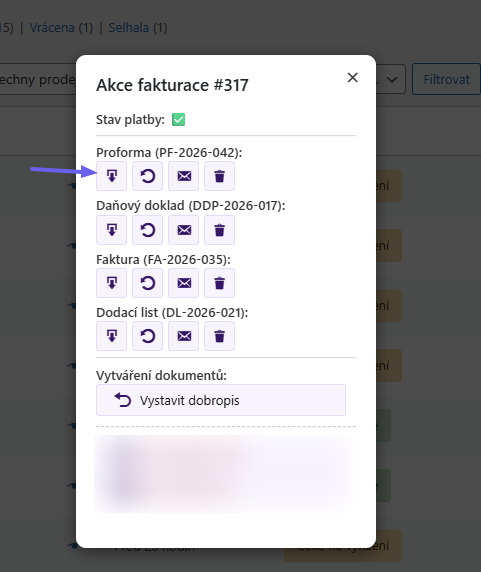
For already created documents, the following actions are available in both the order overview and details:
- download document – opens the PDF document
- update document – reloads data from the order and updates the document
- send document – for manual sending in a separate email
- delete document – removes the document. WARNING – this will create a gap in the number series
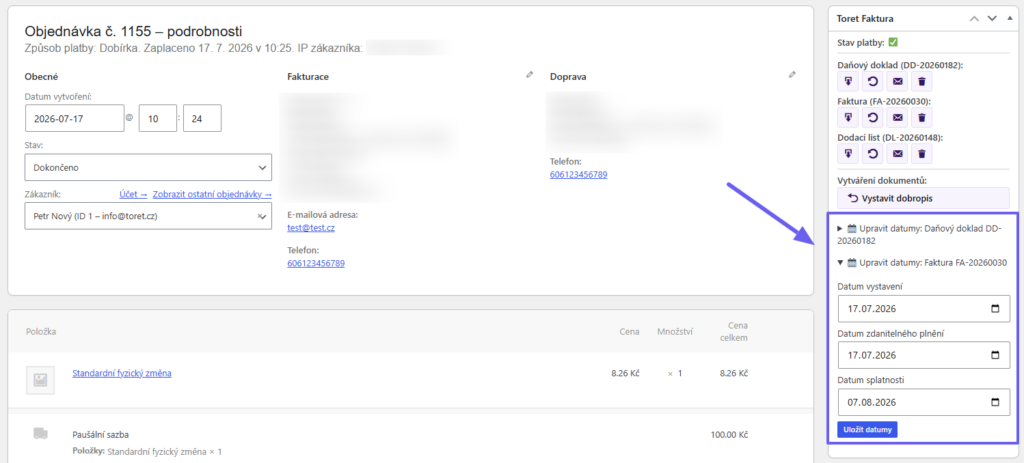
For issued documents, the issue date, due date, and taxable supply date can be edited in the order detail.
Sending Documents by Email
Sending issued documents can be done manually – in a separate email, or automatically – as a PDF attachment to WooCommerce emails.
Manual sending
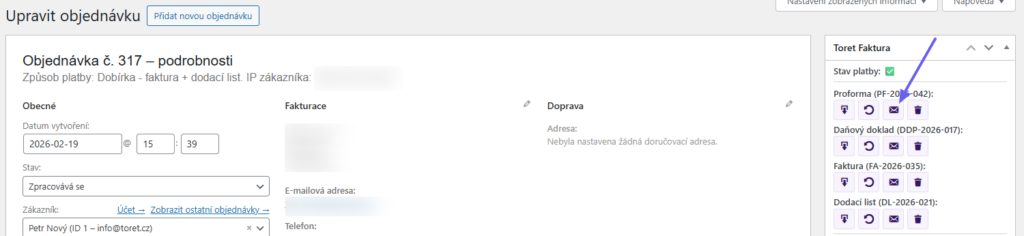
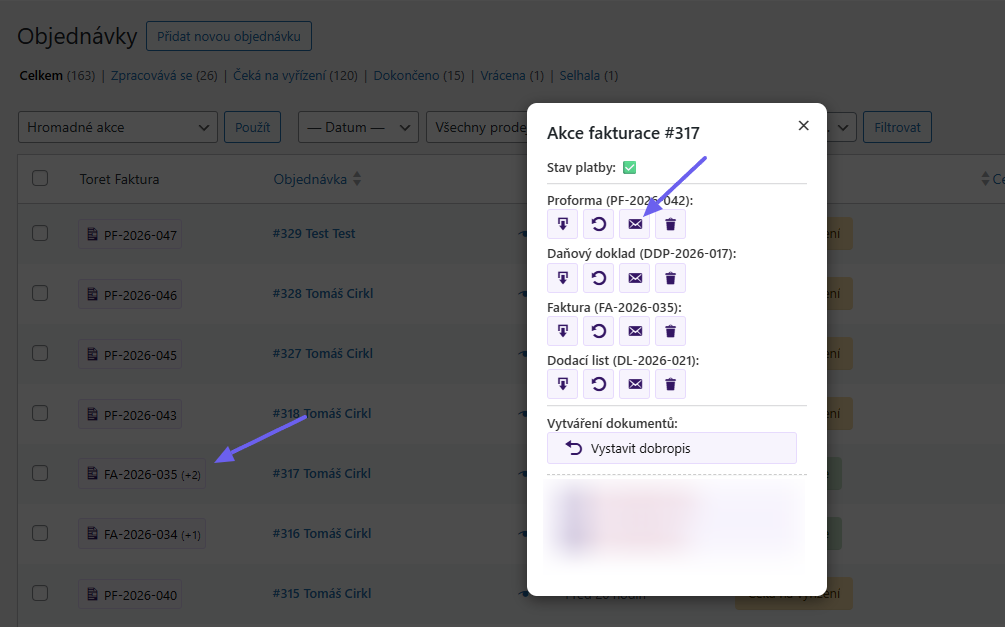
Manual sending is done by clicking the envelope icon next to the issued document in the order overview or details.
Editing the email with the document
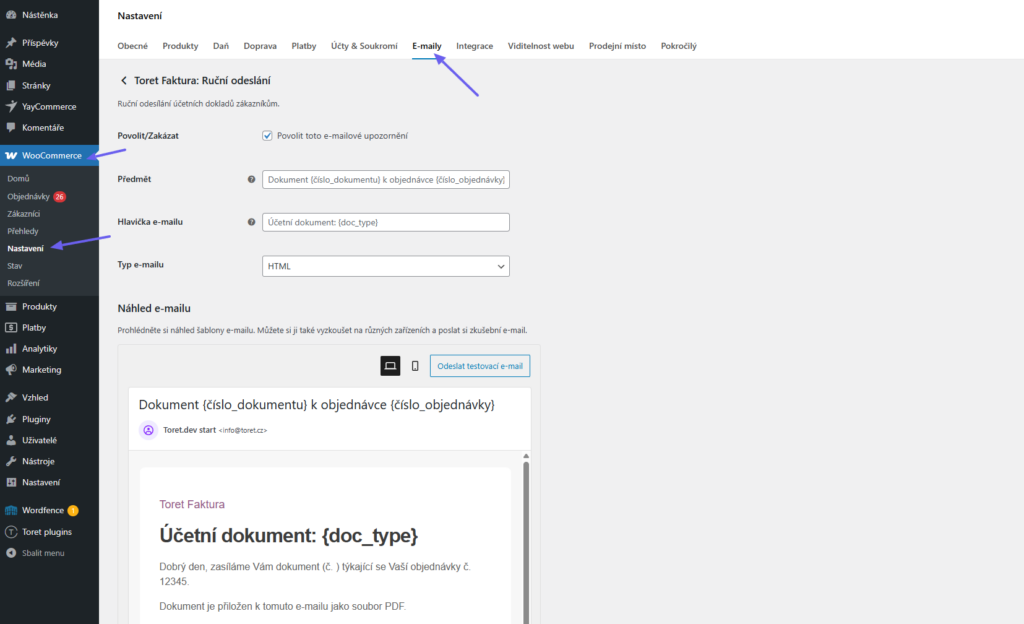
The separate email for sending issued documents can be edited in the WooCommerce email settings (WooCommerce > Settings > Emails > Toret Invoice: Manual sending)
Attaching files to WooCommerce emails
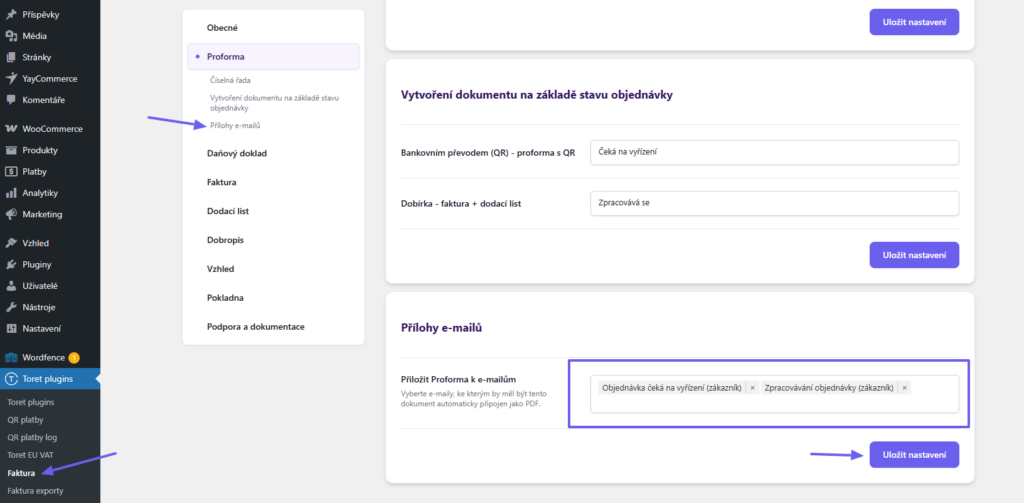
Attaching a document as an attachment is configured in the respective document’s settings (Toret plugins > Invoice > Proforma / Tax document / Invoice / Delivery note / Credit note > Email attachments).
In the Attach “document” to emails field, select the emails to which the documents will be automatically attached. The number of emails is not limited.
Attention! For the document to be attached to a specific WooCommerce email, it must already be created at the time the email is sent.
Payment Status and Invoice Settlement
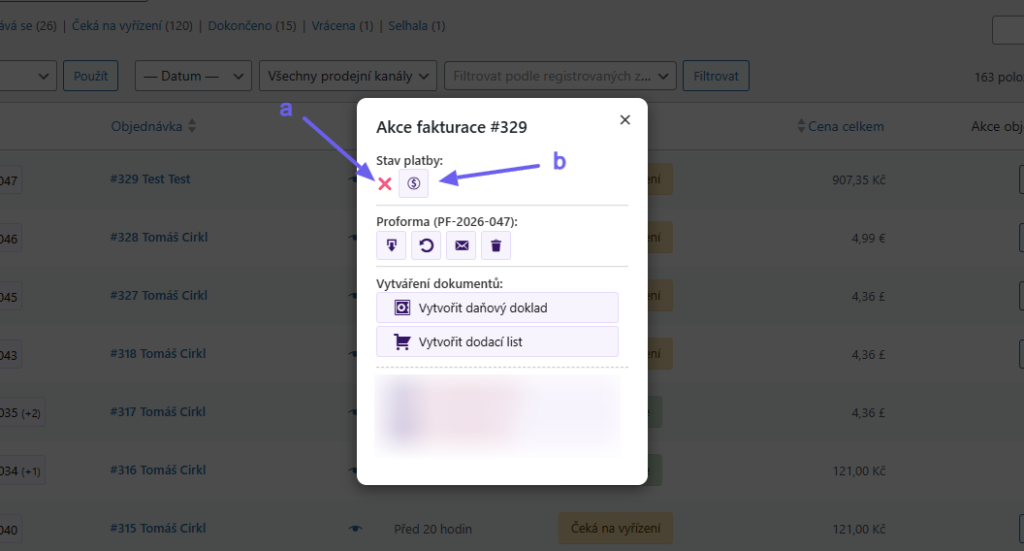
Proformas and invoices can be settled manually or automatically. You will see the payment status in the pop-up window in the order overview or in the Toret Invoice metabox in the order details (a). Manual settlement is possible in the same place by clicking the Mark as paid button (b).
Setting up automatic invoice settlement
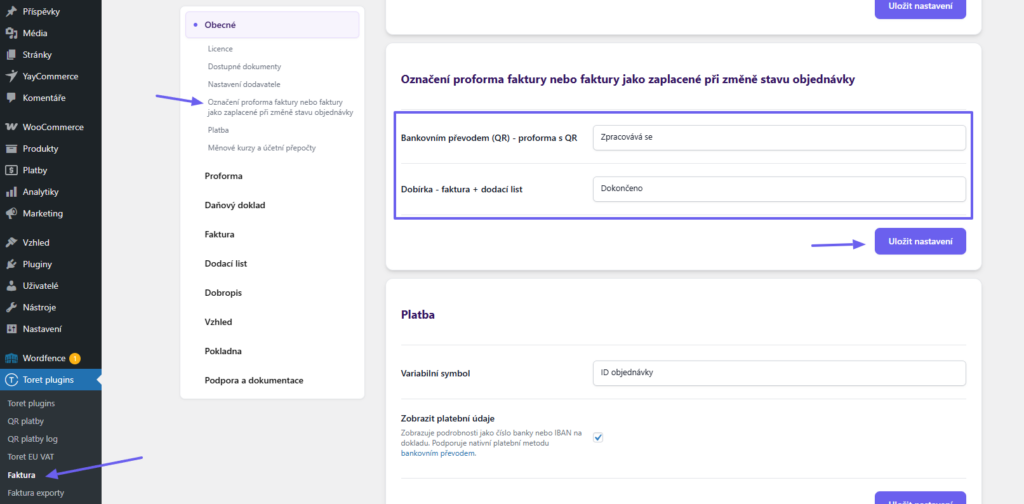
(Toret plugins > Invoice > General > Marking proforma invoice or invoice as paid upon order status change)
Automatic settlement works based on the change in order status. In the settings, choose the order statuses for individual payment methods. The automatic invoice settlement will occur when the order is switched to this status.
Displaying Company Fields at Checkout
(Toret plugins > Invoice > Checkout)
In the plugin, it is possible to enable the display of fields for Company ID (IČ), VAT ID (DIČ), VAT Number (IČ DPH) (1) and set them as required (2).
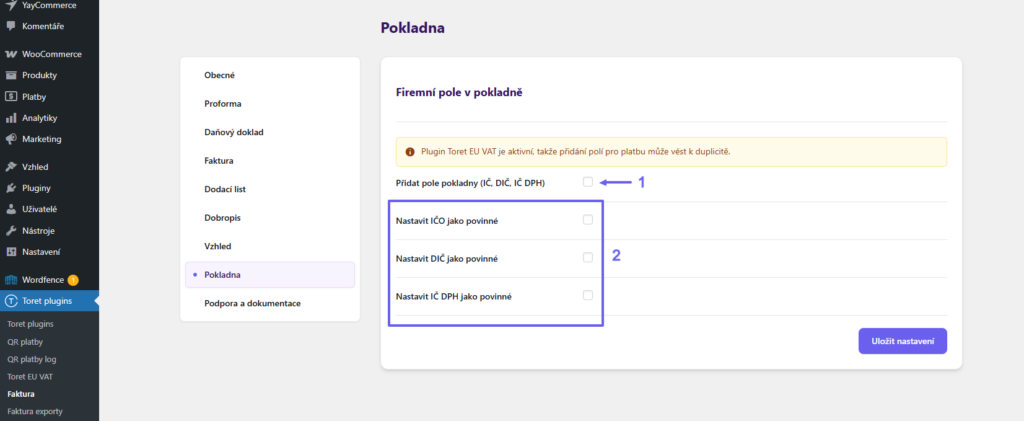
Attention! If you use the EU VAT plugin in your e-shop (or another plugin that adds these fields to the checkout), there may be duplicate fields at checkout. In this case, leave this feature inactive.
Displaying a QR Code on the Invoice
If you want to display a QR code on invoices and proformas, you will need the QR Payments plugin. In the QR Payments plugin settings, simply enable displaying the code on invoices (Toret plugins > QR Payments > Invoicing plugins > Toret Invoice).
There is no need to change anything in the Toret Invoice plugin settings.
Reverse Charge
The Toret Invoice plugin can issue invoices in the reverse charge mechanism. For the actual transfer to occur, you need to use the EU VAT plugin in the e-shop, where you configure everything necessary for the reverse charge mechanism.
There is no need to change anything in the Toret Invoice plugin settings. Only if you have the Company fields at checkout feature enabled, we recommend disabling it (Toret plugins > Invoice > Checkout) – the EU VAT plugin adds the company fields itself.
Exporting Documents
(Toret plugins > Invoice exports)
The plugin supports bulk export of documents in ISDOC (XML), CSV, and ZIP (PDF) files. You can perform the export on the Invoice exports page. Documents can be filtered by date, order number, and document type.
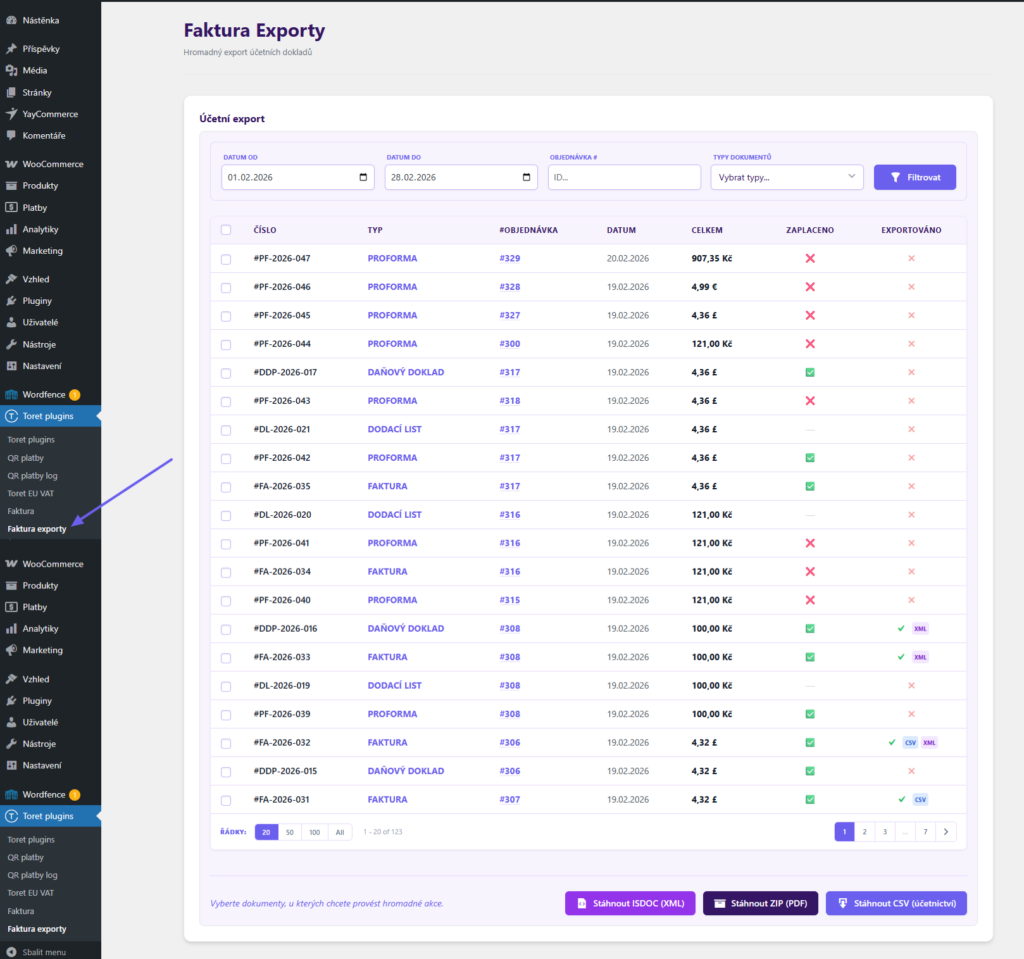
The Exports section is available to users with the Administrator or Sales Manager role.
Bulk Deletion of Documents
The Export section also allows for bulk deletion of documents. These documents will be removed not only from the Export window, but also from the corresponding orders. Only an administrator can perform bulk deletion.
POHODA Export Settings
(Toret plugins > Faktura > General > POHODA XML export)
In the Document rounding setting, choose how the total amount of the document is exported to POHODA:
- Do not round (exact amounts): the default option, suitable for bank transfers, which usually arrive in the exact amount,
- Round total to whole units: choose this only if your invoices are paid in rounded amounts.
Items are exported to POHODA as prices including VAT rounded to two decimal places, so the amounts in POHODA match the PDF invoice and the payment. If the sum of the items differs from the paid amount, the plugin adds a rounding adjustment. Orders in a foreign currency are exported in the order currency including the exchange rate. Credit notes are exported as corrective tax documents.
User Permissions
Administrators and Shop Managers can work with documents. They can issue documents manually, update the PDF, mark a document as paid, edit the dates on the document, send the document by e-mail and generate documents in bulk.
Only an administrator can delete documents, both in the order and in bulk in the exports section. Deleting a document creates a gap in the number series. The plugin settings are also reserved for the administrator.
Action buttons the user does not have permission for are not shown in the order detail or the order overview.
For advanced users: the plugin uses its own capabilities, which can also be assigned to other roles, for example with the User Role Editor plugin:
manage_toret_faktura_documents: working with documents (issuing, updating, payment, sending)manage_toret_faktura_exports: access to the Faktura exports section
The plugin automatically assigns both capabilities to the Administrator and Shop Manager roles when it is installed or updated. If you remove them from a role manually, the plugin will not add them back.
Testování pluginu
Pro účely testování můžete využít:
- subdoménu “dev.doménalicence” (se stejnou licencí jako pro produkční web)
- localhost (127.0.0.1)
Na těchto umístěních budou zakoupené pluginy fungovat také a můžete zde otestovat implementaci a kompatibilitu před ostrým nasazením na web i v průběhu jeho užívání.