
You are currently on the documentation pages for the Comgate plugin, which enables the integration of the Comgate payment gateway. You can purchase the Comgate plugin here: Toret Comgate for WooCommerce
Note: To implement the payment gateway, you need to have completed your registration with Comgate.
- Plugin Installation
- Plugin Activation
- Connecting Comgate with WooCommerce
- General Plugin Settings
- Advanced Settings
- Diagnostics and Logs
- Payment Method Settings
- Individual Payment Method Settings
- Performing Test Payments
- Refunds
- Recurring Payments (Subscriptions)
- Automatic Retry for (Failed) Payments
- Pre-authorization
- Hooks and Filters for Developers
- Troubleshooting
- Plugin testing
Plugin Installation
After purchasing the plugin, you will receive a license key and a link to download the plugin’s ZIP file via email. A detailed guide on how to install a plugin into WordPress from your computer can be found here.
Plugin Activation
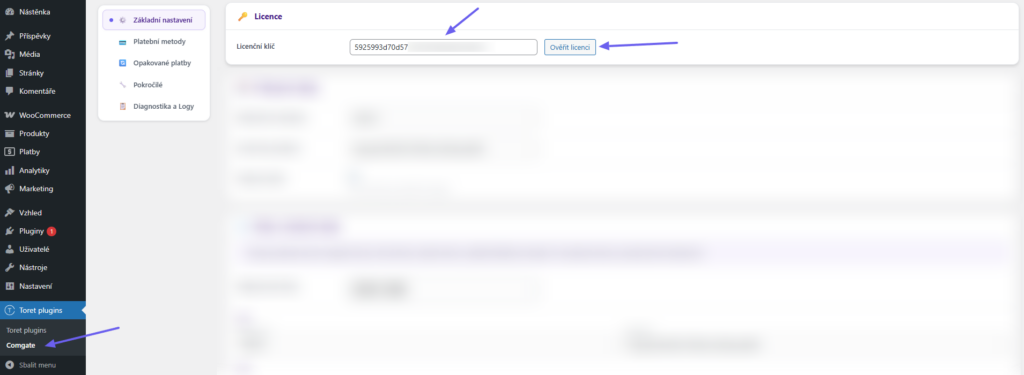
After installing the plugin, open the Comgate plugin, enter the license key into the appropriate field, and verify the license using the button.
Connecting Comgate with WooCommerce
Comgate is a payment gateway offering several payment methods. The Toret Comgate plugin connects this payment gateway with your WooCommerce e-shop. Settings need to be configured both in the Comgate client portal and in WooCommerce.
In the Comgate portal, after logging in, go to the Integration (Integrace) > Store Settings (Nastavení obchodů) tab in the top menu and select the store you want to manage. Then click on Store Connection (Propojení obchodu) and finally on the eye icon Preview (Náhled).
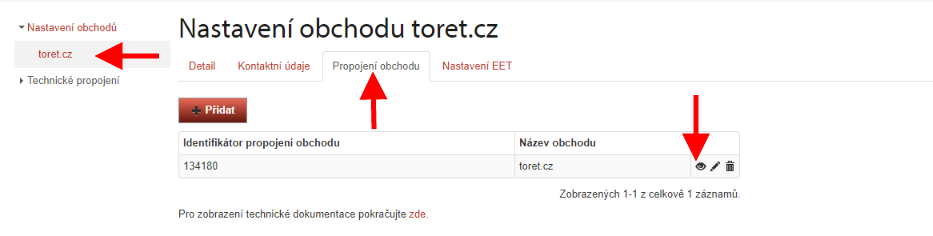
A new screen with the following menu will appear.

1. Copy the Store Connection Identifier (Identifikátor propojení obchodu) and Password (secure key) (Heslo) (1) and paste them into the plugin in WooCommerce (Toret Plugins > Comgate > Access Credentials (Přístupové údaje)). Save using the button at the bottom of the page.

2. For Allowed Payment Initiation Method (Povolený způsob založení platby) (2), choose either BACKEND or SIMPLE_REDIRECT.
3. In the URL fields (3), insert the URLs that you can find in the Comgate plugin settings (Toret Plugins > Comgate > General Settings (Základní nastavení) > URLs for Comgate account settings (URL adresy pro nastavení v účtu Comgate)).

4. In the Allowed IP Addresses (Povolené IP adresy) field (4), you must enter the IP addresses of the server where the website is hosted. If the IP addresses are not allowed, individual payment methods will not load in the plugin after entering the implementation data, and payments via the payment gateway will not work.
IP addresses do not have to be defined individually but can be written as a range. That is, the IP address followed by a slash and a number determining the number of locked address bits (the so-called network mask). For example, the entry 192.168.1.0/24 will allow any IP address starting with 192.168.1. with any final number.
General Plugin Settings
In the General Settings (Základní nastavení) section of the plugin (Toret Plugins > Comgate), you can further enable/disable Test Mode (testovací mód) (see below) and set access credentials for various currencies.
Access Credentials for Various Currencies
The plugin supports 9 currencies: CZK, EUR, PLN, HUF, USD, GBP, RON, NOK, SEK.
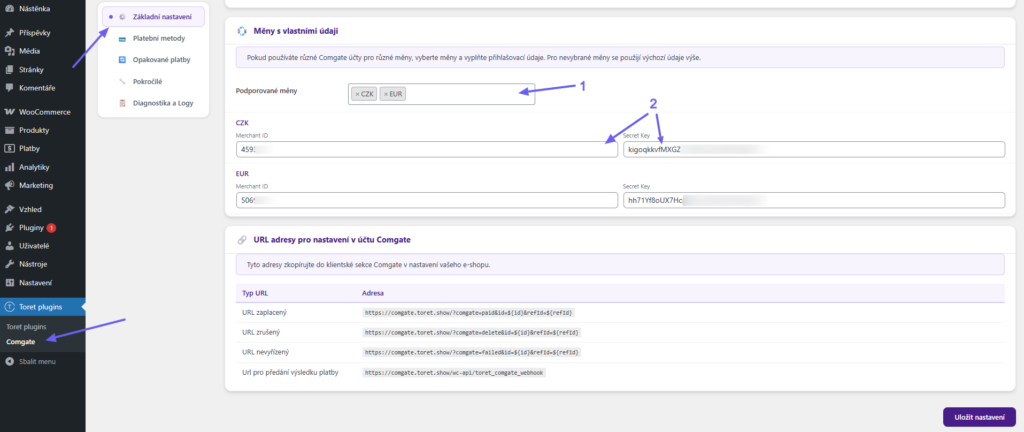
If you have different Comgate accounts for different currencies, you can enter unique login credentials for each currency:
- In the Currencies with own credentials (Měny s vlastními údaji) section, select the currencies from the drop-down list.
- Fill in the Merchant ID and Secret Key for each selected currency.
- Default access credentials will be automatically used for unselected currencies.
The plugin automatically recognizes the order currency and applies the corresponding login credentials.
WPML Support
If you use the WPML plugin for a multi-language website, you can define different Comgate accounts for each language version:
- The plugin automatically detects active WPML languages.
- Fill in the Merchant ID and Secret Key for each language.
- In case of a conflict, the language takes precedence over the currency.
The WPML section will only be displayed if WPML is installed and active.
Advanced Settings

Payment Gateway Language
Determines the language in which the payment gateway interface is displayed to the customer:
| Option (Možnost) | Description (Popis) |
|---|---|
| Automatic based on e-shop (Automaticky podle e-shopu) | Uses the language of the WordPress installation |
| Based on billing country (Podle fakturační země) | The language is derived from the country in the billing address |
| Force specific language (Vynutit konkrétní jazyk) | You choose one of the 23 supported languages |
Type of Goods
Select the type of goods according to your Comgate account settings:
- Physical goods (Fyzické zboží) – Products requiring shipping.
- Digital services / virtual goods (Digitální služby / virtuální zboží) – Software, services, subscriptions.
Email Payment Link
If enabled, the plugin adds a “Pay for Order (Zaplatit objednávku)” button with a direct link to the payment gateway to customer emails for orders in the Failed Payment (Selhala platba) status.
Available filters for customizing the appearance:
tcomgate_email_link_label– Button texttcomgate_email_link_heading– Section headingtcomgate_email_link_button_color– Button colortcomgate_email_link_button_text_color– Button text color
Apple Pay Button Style
Applies only to the Apple Pay gateway. Selection of variants:
- Black (default)
- White
- White with border
Payment Method Icons
By checking Hide all icons (Skrýt všechny ikony), you globally hide icons for all Comgate gateways in the checkout. This setting overrides individual settings for specific methods.
Automatic Refunds
Automatic refunds are triggered by a change in the order status. If the order changes to the selected status, the customer will automatically receive a refund.
To set up automatic refunds, follow these steps:
- Enable the “Allow automatic refunds” feature!
- Select the order status(es) under which refunds will occur
- Save
Warning! Refunds cannot be reversed once processed.

Debugging
Debug Mode
Enables detailed logging of all API calls into the WooCommerce log. The following are logged:
- Payment creation (request + response)
- Webhook arrival and processing
- Order status changes
- Recurring payments and subscription renewals
- Refunds
- Pre-authorization captures
- Error states with details
Log Retention
Set the number of days after which logs are automatically deleted (default is 30 days).
You can access the logs in the Diagnostics and Logs (Diagnostika a logy) tab.
Diagnostics and Logs

- API Connection Status (Stav spojení s API) – Tests the connection to the Comgate API.
- URL for Payment Result Transfer (URL pro předání výsledku platby) – Displays the current webhook URL.
- Plugin Version (Verze pluginu) – Current version.
- WooCommerce Logs (WooCommerce Logy) – Link to WooCommerce system logs.
Logs in Order Details
In the order detail, a table with the history of events is displayed:
- Date, transaction ID, event type
- Option to view raw data for each event
Payment Method Settings
Now it is possible to proceed to the payment method settings (Toret Plugins > Comgate > Payment Methods (Platební metody))
Gateway Display Method
In the Gateway Display Method (Způsob zobrazení brány) section, choose how the gateway is displayed to the customer:
- Redirect to payment gateway (Redirect) – The customer is redirected to the Comgate page to complete the payment. This is the default and most reliable variant.
- Embedded window in the e-shop (Inline) – The payment gateway opens in a modal window directly over your e-shop. Works only for card methods.
Types of Payment Methods
The plugin automatically creates several types of payment methods:
| Type (Typ) | ID | Description (Popis) |
|---|---|---|
| Comgate – selection on gateway (Comgate – výběr na bráně) (Combined method) | all |
Customer selects the method directly on the Comgate gateway |
| Card payment – combined methods (Platba kartou – sdružené metody) | card_all |
Card methods only |
| Bank payment – combined methods (Bankovní platba – sdružené metody) | bank_all |
Bank transfers only (bank selection takes place directly on the gateway) |
| Individual methods | {id} |
One method for each payment type |
Payment Method Settings (Available Payment Channels)
Payment method settings can be found on the Payment Methods (Platební metody) tab (Toret plugins > Comgate > Payment Methods (Platební metody))

- Click on Update methods from Comgate API (Aktualizovat metody z API Comgate) (1) to load available methods.
- Each method can be turned on/off using the toggle directly in the table (2).
- To change the order of gateways in the checkout, click on Manage sorting in WooCommerce (Spravovat řazení ve WooCommerce) (3).
Newly loaded methods from the API are disabled by default — you must activate them manually.
Clicking on the name of a payment method takes you to its individual settings.

Individual Payment Method Settings

Each payment method has its own settings in WooCommerce → Settings (Nastavení) → Payments (Platby):
| Setting (Nastavení) | Description (Popis) |
|---|---|
| Activate (Aktivovat) | Enables/disables the payment method |
| Inline gateway (Inline brána) | Enables modal window (overrides global settings) |
| Name (Název) | Name displayed to the customer in checkout |
| Description (Popis) | Description under the name in checkout |
| Custom icon (Vlastní ikona) | Replace the default icon with your own from the media library |
| Allowed methods (Povolené metody) | Restriction to specific sub-methods (for combined methods) |
| Allow for countries (Povolit pro země) | Restriction to specific billing countries |
| Do not show icon (Nezobrazovat ikonu) | Hides the icon for this method |
Performing Test Payments
The next step before going live is performing “test payments.” Verify if you have Test Mode (testovací mód) enabled in the plugin settings (Toret plugins > Comgate). After successfully completing the testing, don’t forget to disable Test Mode.

Now it’s time to return to the Comgate portal to the Technical Connection (Technické propojení) tab.
In the Technical Documentation (Technická dokumentace) section, you will find instructions for performing payments.
A list of all test payments can be found in the Comgate portal under the Technical Connection (Technické propojení) – Test Payments (Testovací platby) tab. You can also search and filter among them.
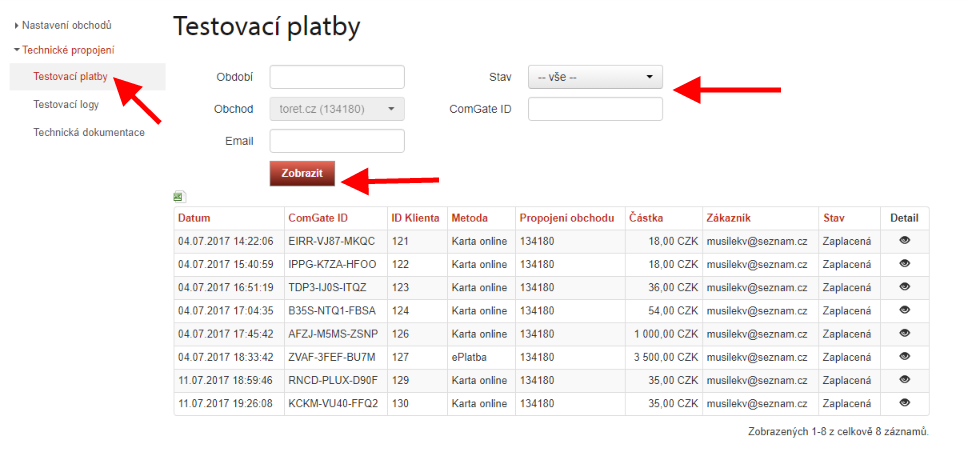
The Test Logs (Testovací logy) item also hides a record of payments including errors that caused a payment to fail.
After testing is complete, contact Comgate, which will verify the test payments and payment gateway integration and apply for approval from the card association. This process takes approximately 14 days. During this time, the gateway can be used for payments via bank buttons, but not for card transactions.
As soon as you are informed of the approval, your Comgate payment gateway will be fully operational, and you can start accepting payments through it without restrictions.
Refunds
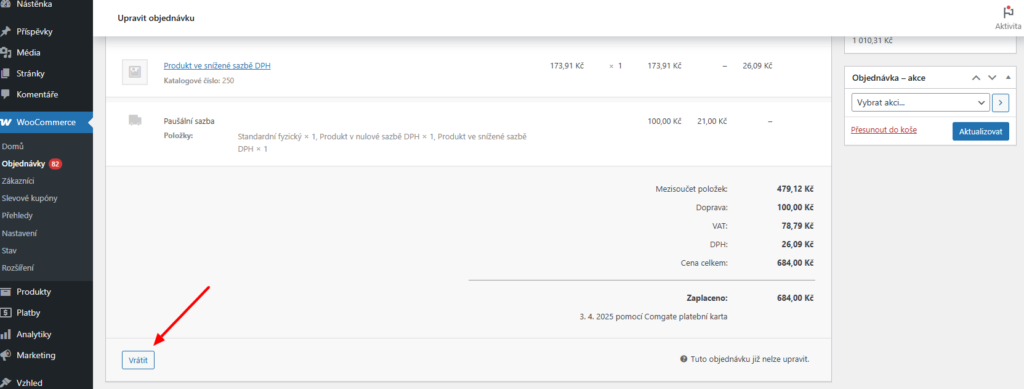
The plugin allows direct refunds via the payment gateway. You can find this function in order details > Refund (Vrátit) button > Refund X CZK via Comgate (Vrátit x Kč přes Comgate).
Another option is to set up automatic refunds based on the order status; see Automatic refunds.
Recurring Payments (Subscriptions)
Requirements
Recurring payments require the WooCommerce Subscriptions plugin. Once activated, the function is automatically enabled. Manual enabling/disabling can be done in the Recurring Payments (Opakované platby) section (Toret Plugins > Comgate > Recurring Payments (Opakované platby)).

How it Works
- First payment (master): The customer pays normally via checkout. Comgate returns a token, which is saved to the order.
- Automatic renewals: WooCommerce Subscriptions schedules the renewal, and Comgate automatically captures the payment in the background using the stored token — the customer is not redirected.
- Changing cards: In the My Account (Můj účet) → Subscriptions (Předplatná) section, the customer can click “Change payment card” and perform a new verification payment, which updates the token.
Supported Operations
- Subscription cancellation
- Suspending and renewing subscriptions
- Changing subscription amount
- Changing renewal date
- Changing payment method
Important
- The token is created on the same Comgate account from which renewals are subsequently captured.
- The plugin saves login credentials for the subscription to ensure correct pairing even if global settings change.
- The URL for transferring payment results must be correctly set in the Comgate client section (see Connecting Comgate with WooCommerce).
Automatic Retry for (Failed) Payments
If an automatic capture fails (e.g., insufficient funds, temporary bank issue), the plugin can automatically try the payment again.
Configuration
- Enable retry (Povolit opakování) – Turns on automatic attempts (max 3).
- 1st attempt after x (days) (1. pokus po x (dní)) – Default: 1 day after failure.
- 2nd attempt after x (days) (2. pokus po x (dní)) – Default: 7 days after the second failure.
- 3rd attempt after x (days) (3. pokus po x (dní)) – Default: 14 days after the third failure.
After all attempts are exhausted, the order is automatically marked as failed.

The retry mechanism utilizes WooCommerce Action Scheduler. Ensure that WP-Cron is functional on your server.
Pre-authorization
Pre-authorization blocks the amount on the customer’s card but does not capture it immediately. The money is only captured after a selected order status is reached.
When it is useful
- E-shops shipping goods with a delay (made-to-order, pre-orders).
- Situations where you want to manually approve payment before capture.

Pre-authorization Modes (Use pre-authorization for)
| Mode (Režim) | Description (Popis) |
|---|---|
| All products (Všechny produkty) | Pre-authorization is used for every order |
| Selected categories (Vybrané kategorie) | Only orders containing a product from the selected category |
| Individually per product (Individuálně u produktu) | Checkbox directly in product editing (General (Obecné) tab) |
Status for Payment Capture
Choose an order status (e.g., “Processing”, “Completed”) upon reaching which the plugin automatically captures the blocked amount.
Manual Management in Order
In the order detail, a meta box titled Comgate – Pre-authorization (Comgate – Pre-autorizace) is displayed with the following information:
- Transaction ID
- Payment Status (Authorized / Captured / Cancelled)
- Capture Payment (Strhnout platbu) button – immediately captures the blocked amount
- Cancel Reservation (Zrušit rezervaci) button – releases the block on the customer’s card
Hooks and Filters for Developers
It is not necessary to use filters to use the plugin. Filters are used for extending or customizing the plugin’s functionality. Your developer can assist you with their implementation.
Filters
| Filtr | Popis |
|---|---|
toret_comgate_transaction_request_params | Modification of parameters sent to the Comgate API when creating a payment |
tcomgate_main_icon | Overwriting the icon of the main combined gateway |
tcomgate_email_link_label | Button text in the email |
tcomgate_email_link_heading | Section heading in the email |
tcomgate_email_link_button_color | Button color in the email |
tcomgate_email_link_button_text_color | Button text color in the email |
tcomgate_payment_country | Modifying the country passed to the payment gateway |
Actions
| Action (Akce) | Description (Popis) |
|---|---|
tcomgate_gateway_hooks_registered | Triggers after all gateway hooks are registered |
Example: Modifying payment parameters
add_filter('toret_comgate_transaction_request_params', function ($params, $order) {
    // Adding a custom parameter
    $params['label'] = 'My order #' . $order->get_order_number();
    return $params;
}, 10, 2);
Example: Custom button color in the email
add_filter('tcomgate_email_link_button_color', function () {
    return '#ff6600';
});
Troubleshooting
Error “Access from unauthorized location”
Comgate does not allow payments from an unauthorized server IP address.
Solution:
- Go to the Comgate client portal → Integration (Integrace) → Store Settings (Nastavení obchodu) → Store Connection (Propojení obchodu).
- Add your server’s IP address to the list of allowed addresses.
- You can find the server’s IP address in the Diagnostics and Logs (Diagnostika a Logy) tab in the plugin settings.
- IP addresses can also be entered as a range (e.g.,
192.168.1.0/24).
Payment is not created / customer does not see the payment gateway
- Check that you have correctly filled in the Merchant ID and Secret Key.
- Verify that at least one payment method is active.
- Check that the checkout is using a correct currency (supported by your Comgate account).
- Enable Debug mode and check the WooCommerce logs.
Webhook not receiving notifications
- Check that the notification URL is correctly set in the Comgate client portal.
- Verify that the URL
yoursite.com/wc-api/toret_comgate_webhookis publicly accessible. - Ensure the server is not blocking POST requests from Comgate IP addresses.
- If you use Cloudflare or another firewall, allow access for Comgate servers.
Recurring payment failed
- Check that WP-Cron is functional on your server.
- Verify that the token (initRecurringId) is stored with the subscription.
- If the customer changed their card, a new token will be saved after the verification payment is completed.
- Check the logs in the Diagnostics and Logs (Diagnostika a Logy) tab.
Pre-authorization not applying
- Check that pre-authorization is enabled in the Recurring Payments (Opakované platby) tab.
- If using the Selected categories (Vybrané kategorie) mode, verify that the order contains a product from the selected category.
- If using the Individually per product (Individuálně u produktu) mode, verify that the “Allow pre-authorization (Comgate) (Povolit pre-autorizaci (Comgate))” box is checked for the product.
- Pre-authorization works only for card methods.
Plugin not working correctly after update to v5.0
Version 5.0 is a complete overhaul of the plugin. After updating:
- Review all settings — the plugin will attempt to migrate existing settings automatically.
- Click on Update methods from Comgate API (Aktualizovat metody z API Comgate) in the Payment Methods (Platební metody) tab.
- Check the URLs in the General Settings (Základní nastavení) tab and compare them with the Comgate client portal.
- Verify that the payment methods are active.
Installment Payments
Installment payments are only available for the Czech Republic and for orders over 2000 CZK. This payment method is subject to additional approval; therefore, it is necessary to contact Comgate and apply for its enablement.
Broken Layout of Payment Methods
The error lies in the template, which will require adjustments to the cascading style sheets (CSS).
Often, inserting the following code into your CSS style will help:
.comgate_select {display:flex;}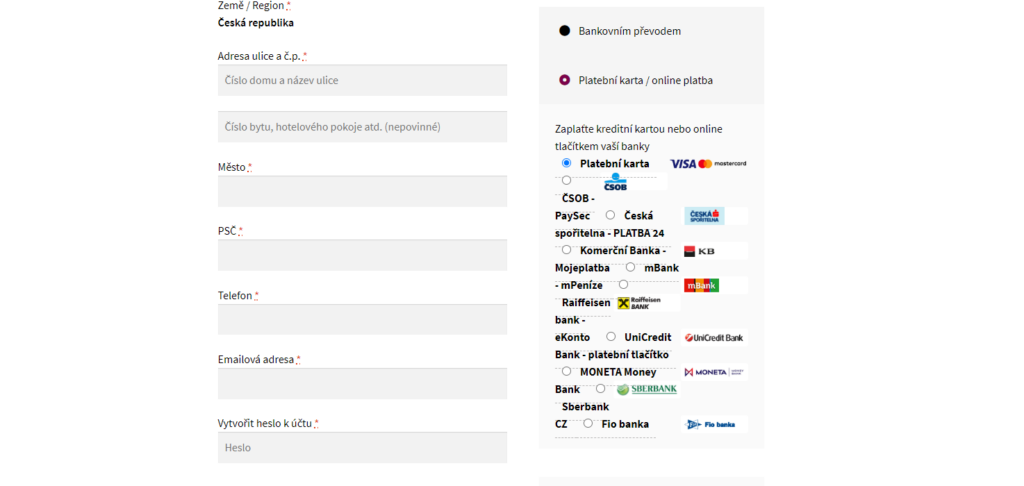
Redirect Limit Exhausted / Error in cURL request: Maximum (5) redirects followed
The payment gateway passes information about a completed/failed payment using a notification URL. This notification URL has a maximum number of redirects set as a protection measure by Comgate.
However, some hosting providers have internal redirects, which can cause this limit to be exhausted.
The problem needs to be resolved with the hosting provider; work with them to trace the redirects and reduce their number.
This issue occurs, for example, with Wedos hosting.
The error can also be caused by a third-party plugin that redirects the notification more times than Comgate allows.
Check if you have any of the following plugins on your site:
- Redirect all 404 to home
If you don’t have any of the listed plugins, you can gradually deactivate plugins and test payments (e.g., in test mode) until you identify which plugin is causing excessive notification redirects.
Comgate and RankMath
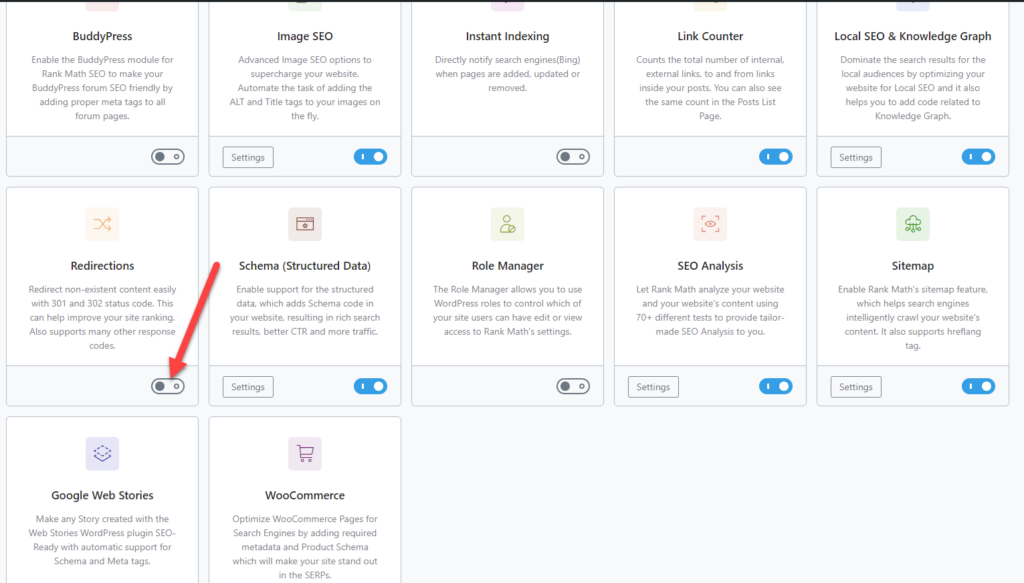
If you use the RankMath plugin on your site together with our Comgate plugin, you need to deactivate the Redirection feature in the Rank Math settings.
If this feature is enabled, it may result in notifications not being passed from the payment gateway to the e-shop.
Comgate API error: Access from unauthorized location.
If the message “Comgate API error: Access from unauthorized location” appears in the administration, it means the e-shop is initiating payments from an unauthorized server IP address. This can happen if your hosting provider changes the server’s IP addresses.
To make your payment gateway functional again, you must allow the currently correct IP addresses in the Comgate Client Portal. Here is how:
1. Log in to the Comgate portal: https://portal.comgate.cz/en/login
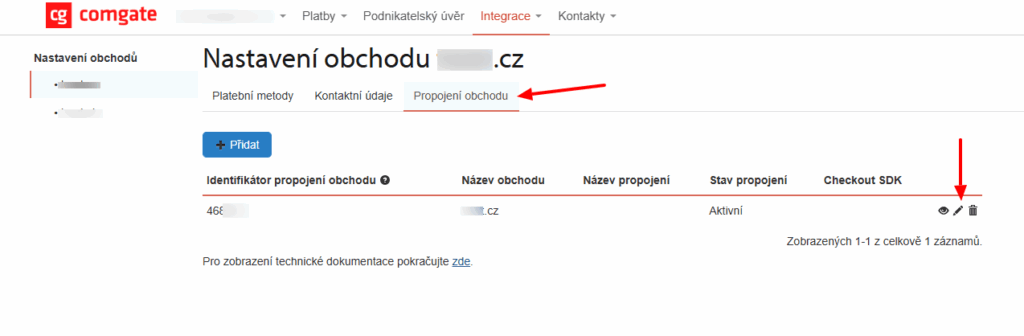
2. After logging in, go to the Integration (Integrace) > Store Settings (Nastavení obchodů) tab in the top menu and select the store you want to manage.
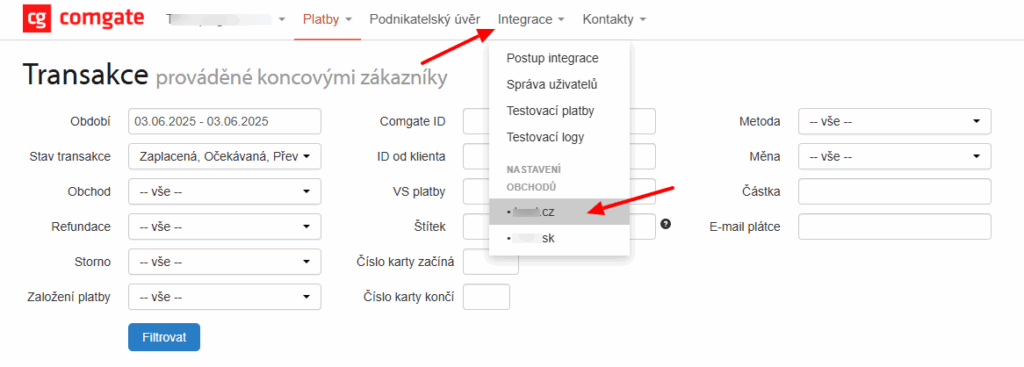
3. Then click on Store Connection (Propojení obchodu) and finally on the pencil icon Edit (Upravit).
4. Enter your server’s IP address(es). You can find them from your hosting provider or in the error message in the e-shop administration.
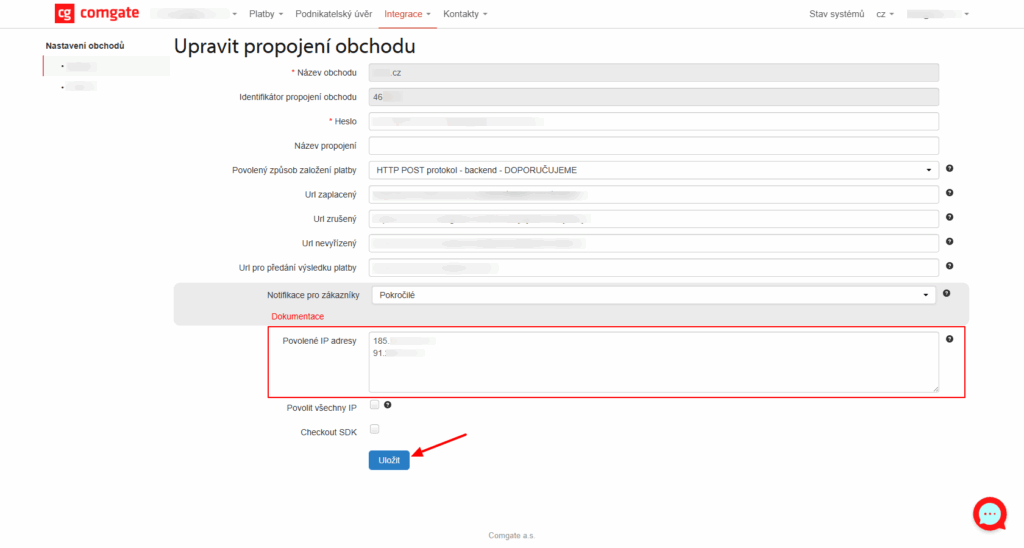
After saving the changes, your payment gateway should be functional again.
Note: IP addresses do not have to be defined individually but can be written as a range. That is, the IP address followed by a slash and a number determining the number of locked address bits (the so-called network mask). For example, the entry 192.168.1.0/24 will allow any IP address starting with 192.168.1. with any final number.
Plugin testing
For testing purposes, you can use:
- the subdomain “dev.domainlicense” (with the same license as for the production website)
- localhost (127.0.0.1)
Purchased plugins will also work in these locations, and you can test their implementation and compatibility here before deploying them to the website and during its use.