
You are on the documentation page for the Toret Invoice for WooCommerce plugin, which allows complete invoicing directly within the WooCommerce e-shop administration. You can purchase the Toret Invoice plugin here: Toret Invoice for WooCommerce
- Minimum Requirements
- Plugin Installation
- Plugin Activation
- Document Selection
- Supplier Settings
- Variable Symbol Settings
- Due Date Settings
- Number Series Settings
- Document Appearance Settings
- Document Content Settings
- Exchange Rates and Accounting Conversions
- Issuing Documents
- Document Management
- Sending Documents by Email
- Payment Status and Invoice Settlement
- Credit Notes and Refunds
- Displaying Company Fields at Checkout
- Displaying a QR Code on the Invoice
- Reverse Charge
- eFaktúra SK
- Electronic Registration of Sales (EET)
- Exporting Documents
- User Permissions
- Plugin testing
Minimum Requirements
- WordPress 6.9 or higher
- WooCommerce 11.0 or higher
- PHP 8.2 or higher
Plugin Installation
After purchasing the plugin, you will receive a license key and a link to download the plugin zip file via email. A detailed guide on how to install the plugin into WordPress from your computer can be found here.
Plugin Activation
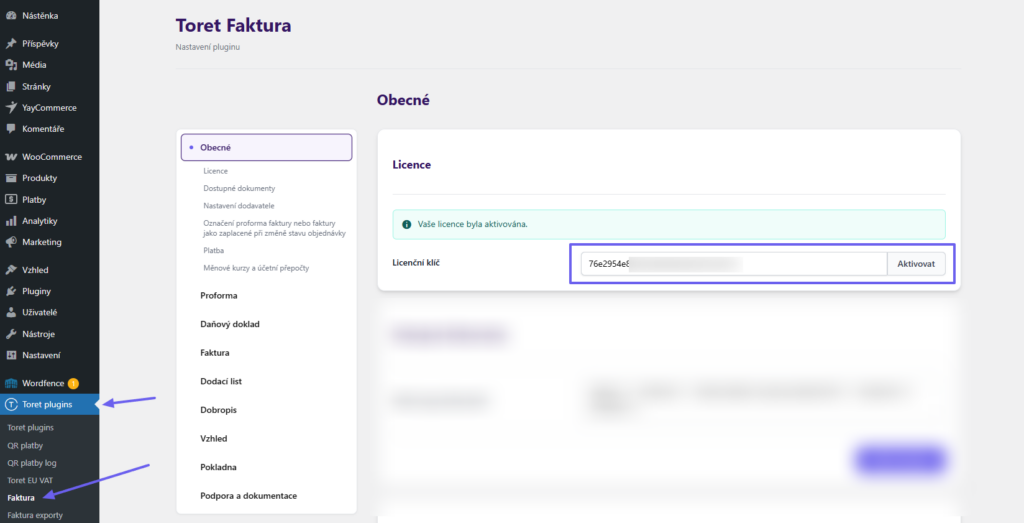
(Toret plugins > Invoice)
After installing the plugin, open the Toret Invoice plugin, enter the license key into the appropriate field, and activate it using the button.
Document Selection
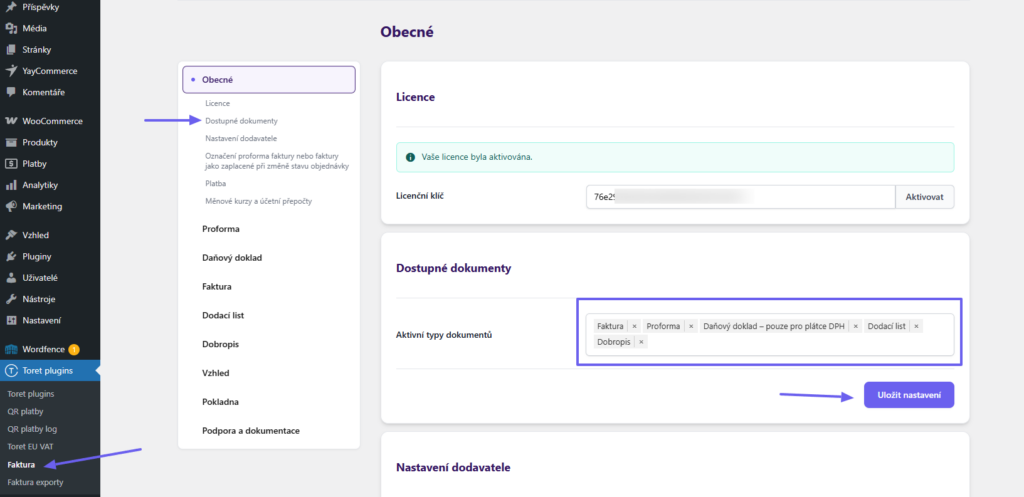
(Toret plugins > Invoice > General > Available documents)
In the plugin settings, under the Available documents section, you need to select the documents you want to issue in your e-shop. The following documents are available:
- Invoice (regular)
- Proforma invoice (advance)
- Credit note
- Tax document (only for VAT payers)
- Delivery note
Select the required documents and save.
Supplier Settings
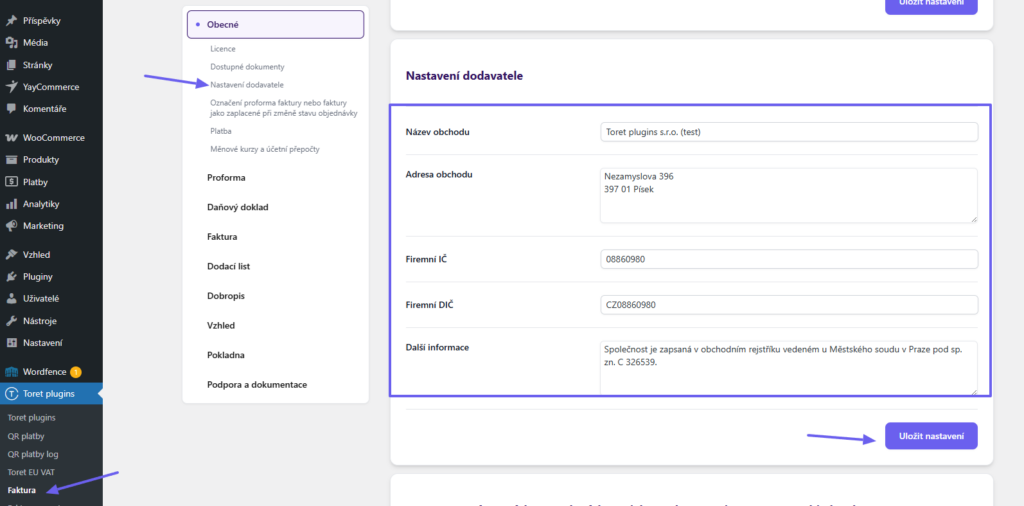
(Toret plugins > Invoice > General > Supplier settings)
In this section, provide the details that will appear on the documents in the Supplier section:
- Store name
- Store address
- Company ID (IČ)
- VAT ID (DIČ)
- Additional information – here you can provide any information to be displayed on the invoice – e.g., your phone number or email
Variable Symbol Settings
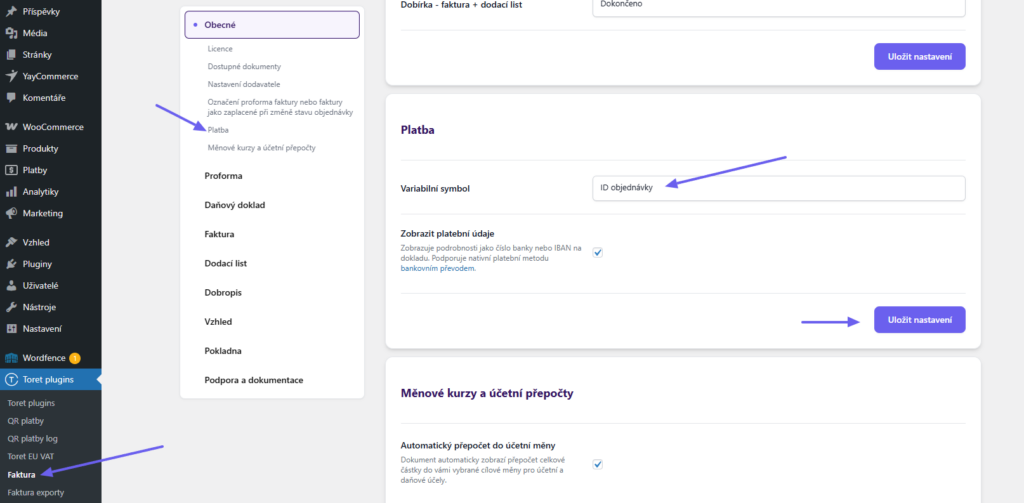
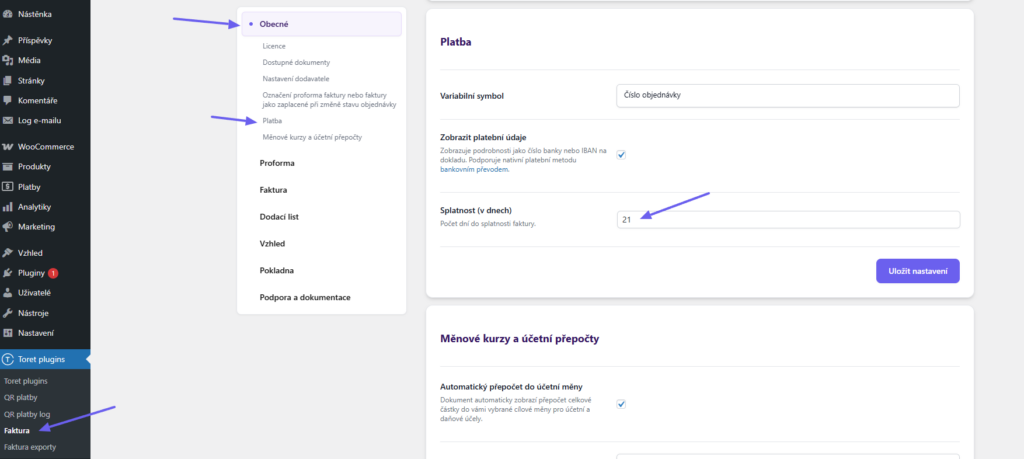
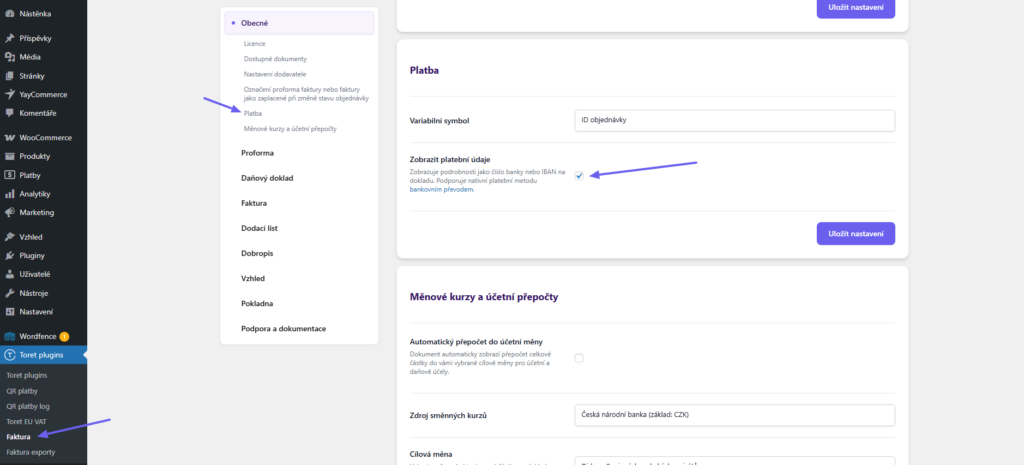
(Toret plugins > Invoice > General > Payment)
In the Payment section, you can set the source for the variable symbol. It can be:
- Order ID
- Order number
- Document number
If you choose the document number as the source, the variable symbol is created from the last 10 digits of the document number.
Due Date Settings
(Toret plugins > Invoice > General > Payment)
You can set the Invoice due date (Splatnost faktur) (in days) in the Payment (Platba) section. The due date will be automatically calculated and displayed on the invoice.
Number Series Settings
(Toret plugins > Invoice > Proforma / Tax document / Invoice / Delivery note / Credit note > Number series)
To issue any of the documents, you first must set its number series. The number series is set separately for each document type in its settings.
Ex. For a proforma, you set the number series in the Proforma section (see fig.)
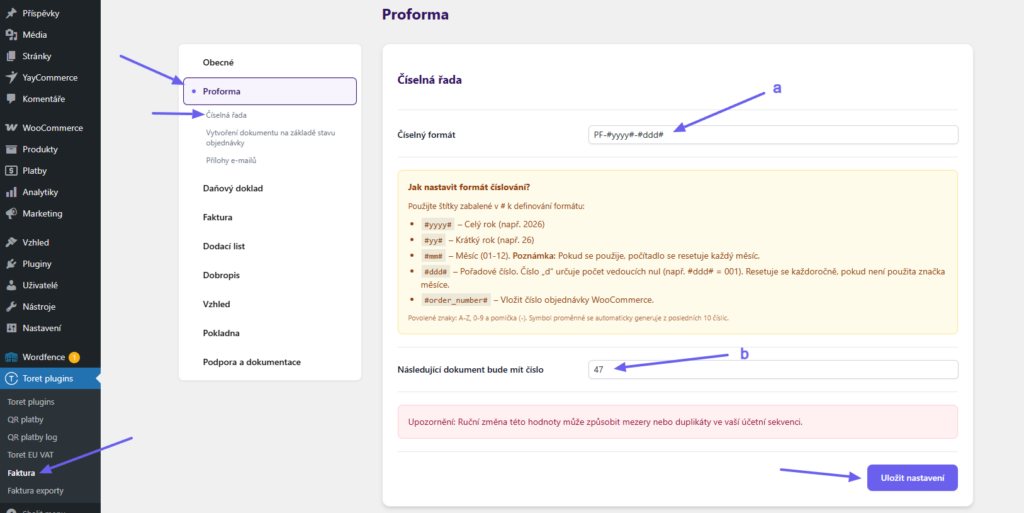
In the Number format field (a), you can enter custom text (characters: A-Z, 0-9, and hyphen -) + variables for:
#yyyy#– full year (e.g., 2026)#yy#– short year (e.g., 26)#mm#– month (01-12) – If used, the counter resets every month.#ddd#– sequential number The number of “d”s determines the number of digits (e.g., #ddd# = 001). It resets annually (unless the month tag is used – then monthly)#order_number#– WooCommerce order number
You set the start of the number series in the The next document will have the number field (b)
Setting example: Number format: FA-#yyyy##dddd#; The next document will have the number: 188
This setting will generate the following invoice numbers: FA-20260188, FA-20260189, FA-20260190, etc. At the beginning of the new year, the series will reset: FA-20270001, FA-20270002, …
Document Appearance Settings
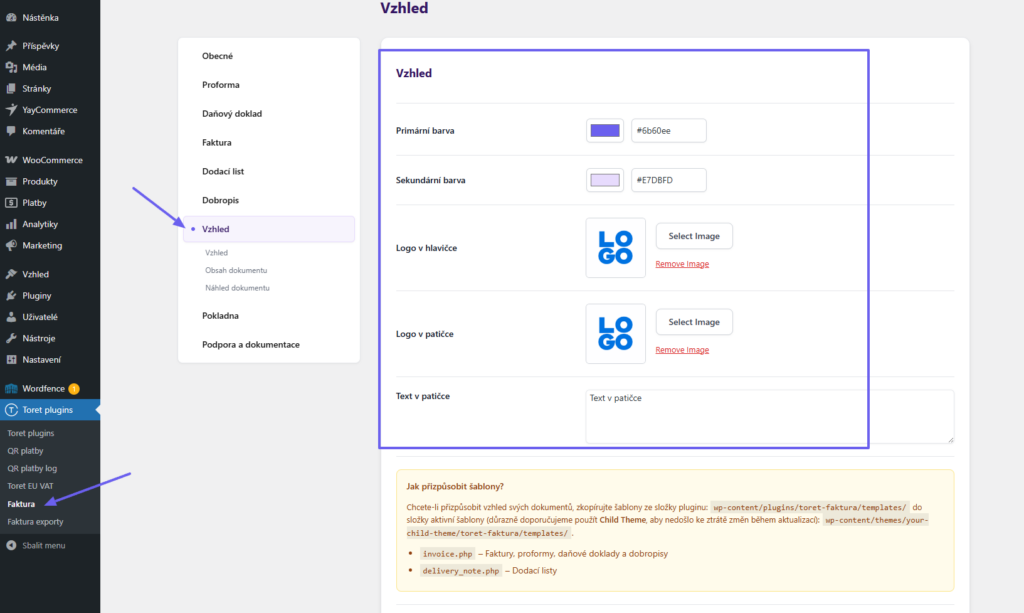
(Toret plugins > Invoice > Appearance)
In the appearance section, you can set:
- document colors
- logo for the document header
- logo for the document footer
- footer text
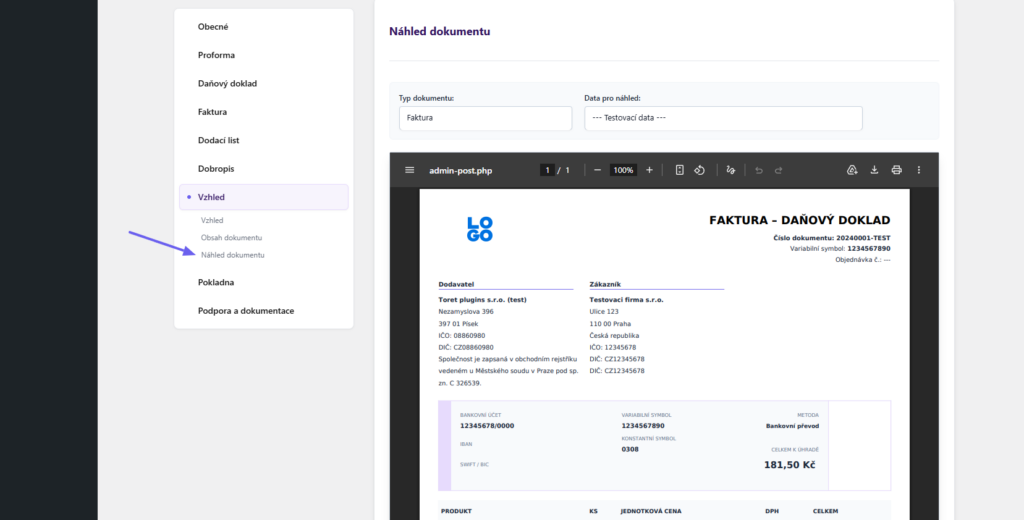
At the bottom of the page, you will see the current document preview.
Advanced customization of document appearance is possible using coding:
How to customize templates?
To customize the appearance of your documents, copy the templates from the plugin folder: wp-content/plugins/toret-faktura/templates/ to your active theme folder (we strongly recommend using a Child Theme, to avoid losing changes during updates): wp-content/themes/your-child-theme/toret-faktura/templates/.
delivery_note.php – Delivery notes
invoice.php – Invoices, proformas, tax documents, and credit notes
Document Content Settings
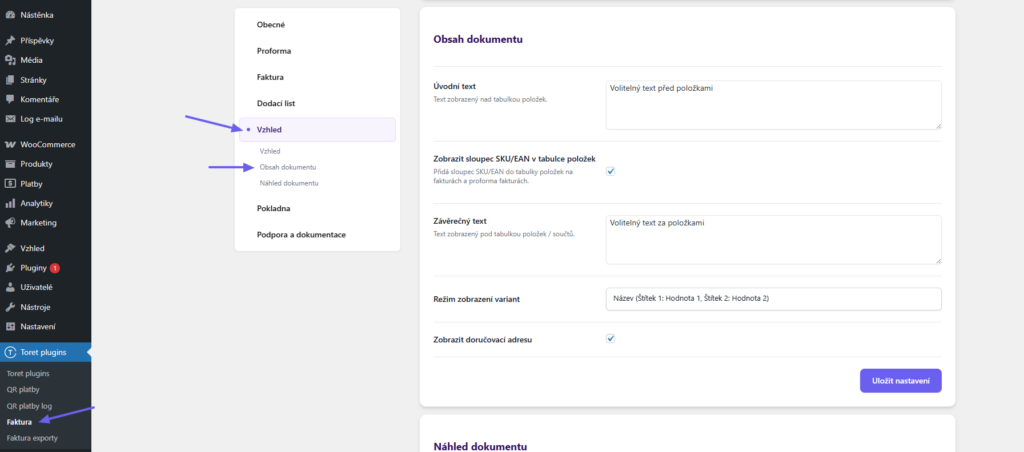
(Toret plugins > Invoice > Appearance > Document content)
In the Document Content (Obsah dokumentu) section, you can configure the following:
- Show shipping address (Zobrazit doručovací adresu) – when activated, both the billing and shipping addresses of the customer will be displayed on the documents.
- Introductory text (Úvodní text) – displays before the item table.
- SKU/EAN column (Sloupec SKU/EAN) – this column is always shown on delivery notes. By activating this function, you also add it to invoices and proforma invoices.
- Closing text (Závěrečný text) – displays below the item table.
- Variation display mode (Režim zobrazení variant) – here you can choose how variations of variable products are displayed on the invoice.
Displaying payment details on the document
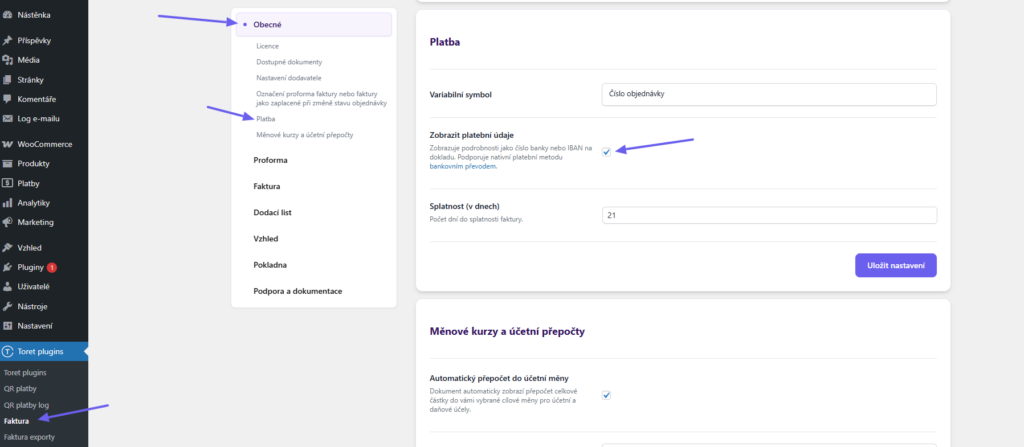
(Toret plugins > Invoice > General > Payment)
In the Payment (General) section, you can enable the display of payment details on documents. The plugin loads payment details from the Direct Bank Transfer payment method settings in WooCommerce (WooCommerce > Settings > Payments > Offline payments > Direct bank transfer).
Exchange Rates and Accounting Conversions
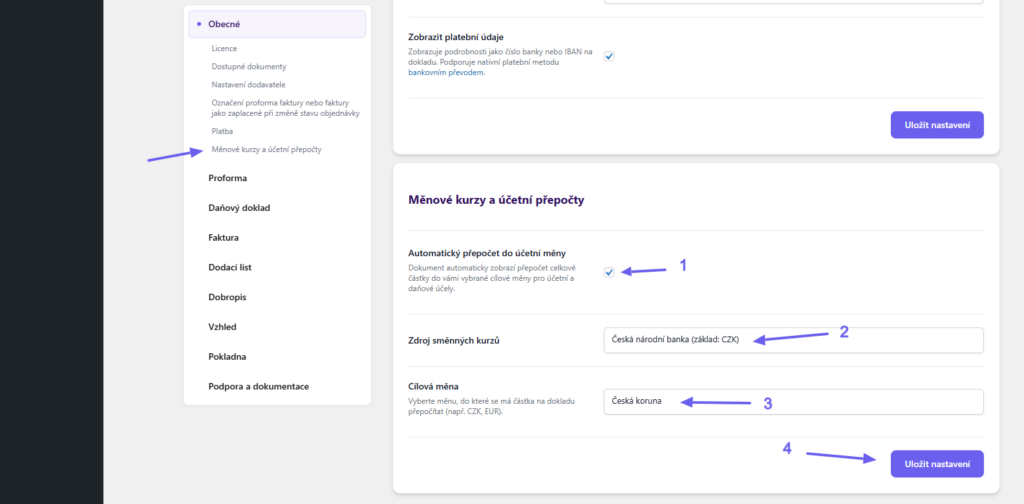
(Toret plugins > Invoice > General > Exchange rates and accounting conversions)
The plugin allows you to convert the total amount into a selected accounting currency. The conversion is displayed on the issued document and corresponds to the current exchange rate.
- First, activate the feature
- Select the exchange rate source (Czech National Bank, European Central Bank, or National Bank of Slovakia)
- Select the target currency to which the amount will be converted
- Save
If you select CZK as the target currency, the VAT summary on documents in a foreign currency also includes the conversion to CZK for VAT payers.
Issuing Documents
Documents can be issued manually or automatically using the plugin.
Manual issuing
Manual issuing is possible in the order overview or order details.
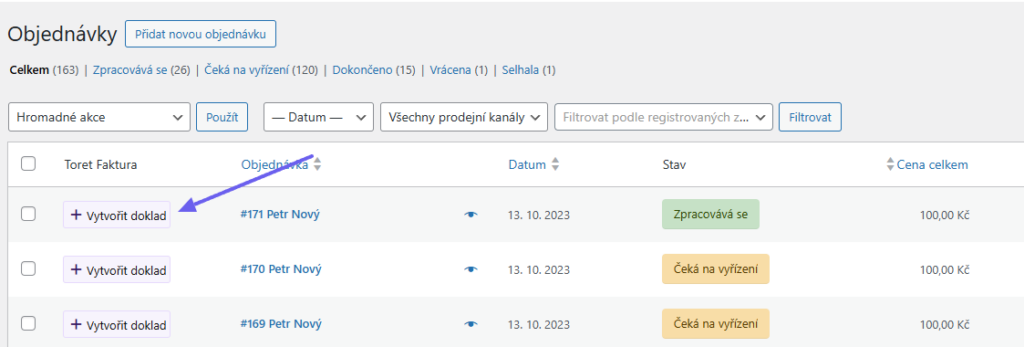
In the order overview
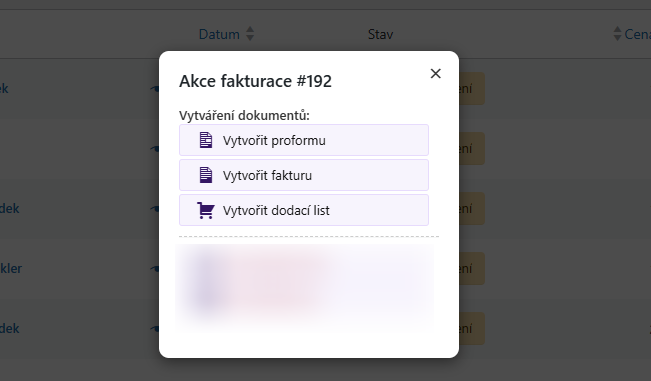
In the Toret invoice column, clicking the Create document button (or the button with the number of an already issued document) opens a pop-up window where you select the type of document you want to issue.
In the order details
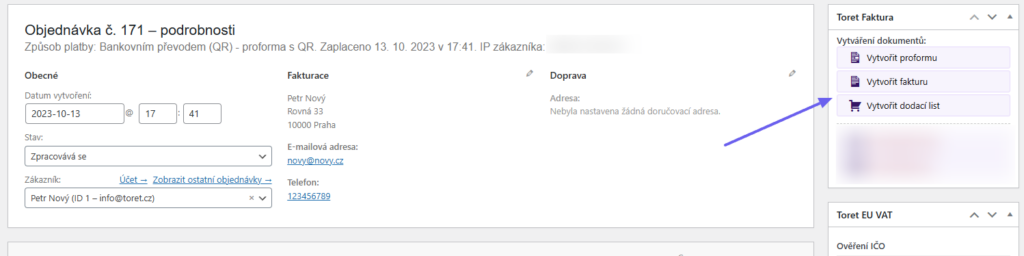
In the Toret Invoice metabox, click the button with the type of document you want to issue.
Bulk actions
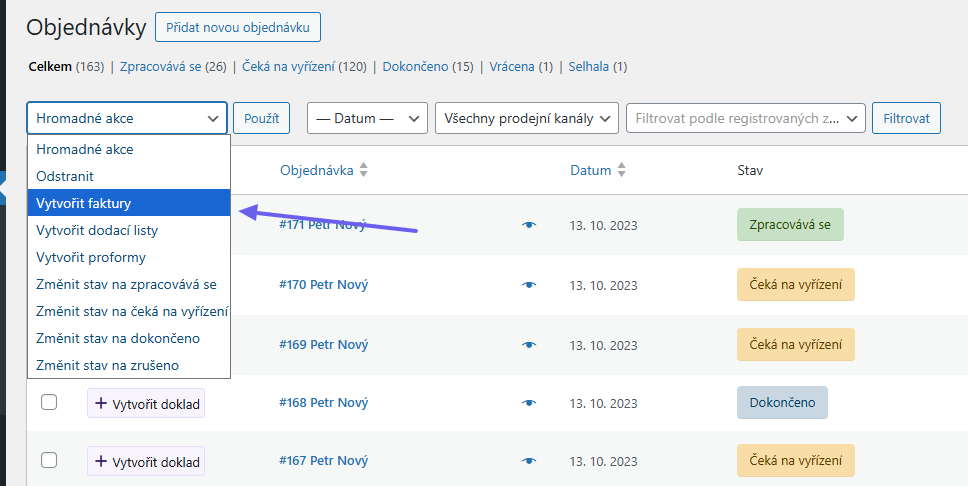
Creating proformas, invoices, and delivery notes is also possible via bulk actions in the order overview.
Automatic issuing
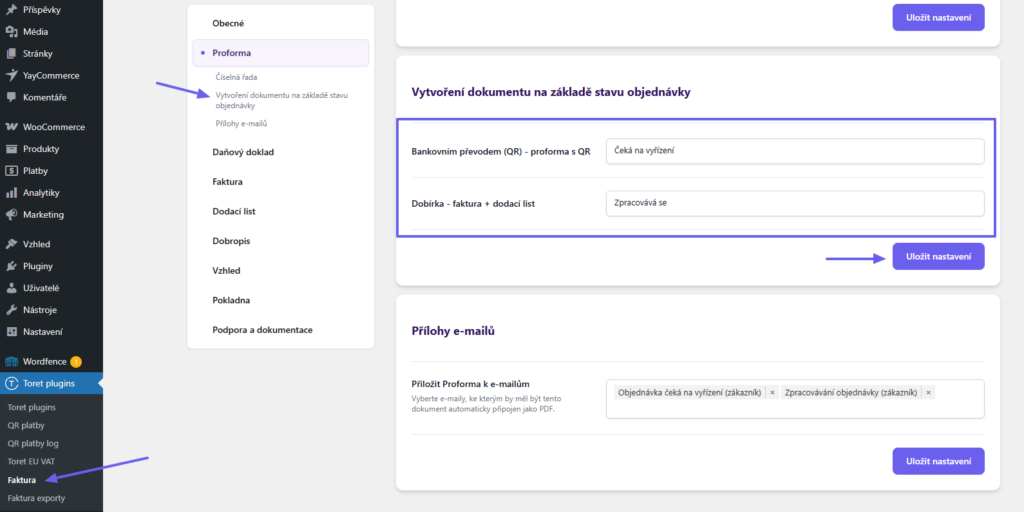
All documents can also be issued automatically – based on the order status. You configure the automatic issuing in the settings of individual document types.
(Toret plugins > Invoice > Proforma / Tax document / Invoice / Delivery note / Credit note > Document creation based on order status)
For each payment method, assign the order status at which the document will be automatically issued.
If you do not want a document to be issued automatically for a payment method, leave the Only manual action option selected for it.
Document Management
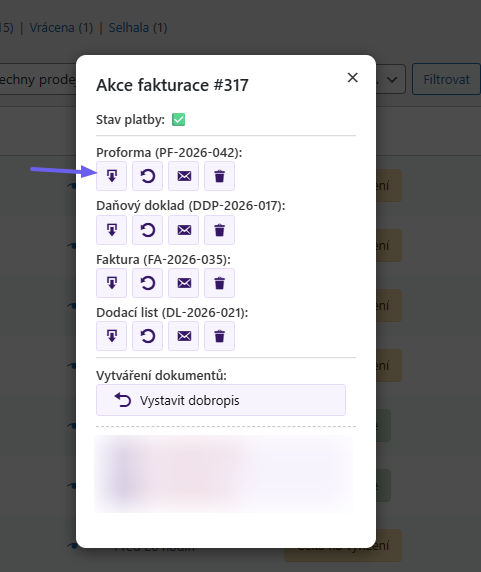
For already created documents, the following actions are available in both the order overview and details:
- download document – opens the PDF document
- update document – reloads data from the order and updates the document
- send document – for manual sending in a separate email
- delete document – removes the document. WARNING – this will create a gap in the number series
Attention! A document sent as an e-invoice (see eFaktúra SK) can no longer be updated or deleted. Make any corrections with a credit note. It can still be marked as paid, but the PDF document will not change.
When an order is permanently deleted from the trash, all its documents are deleted as well.
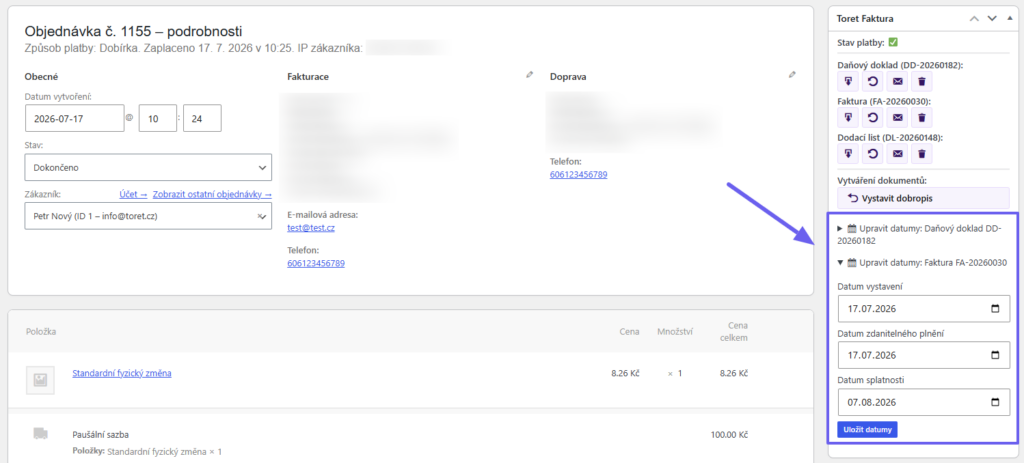
For issued documents, the issue date, due date, and taxable supply date can be edited in the order detail.
Sending Documents by Email
Sending issued documents can be done manually – in a separate email, or automatically – as a PDF attachment to WooCommerce emails.
Manual sending
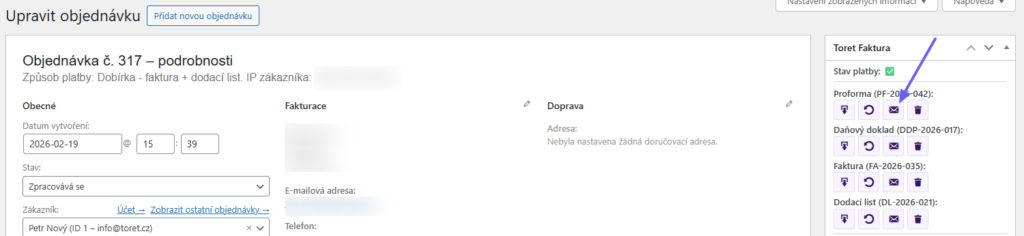
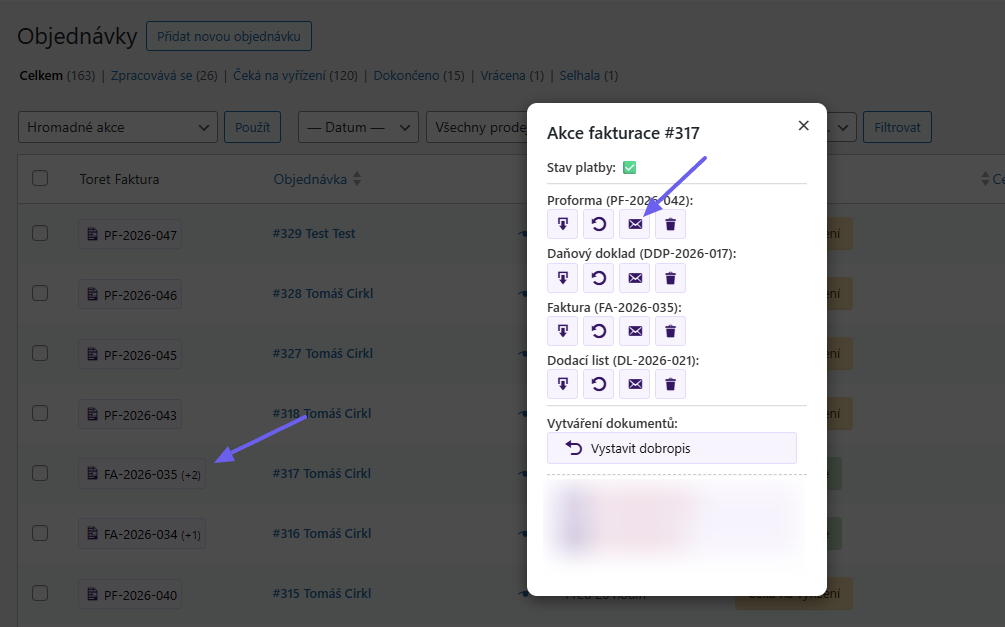
Manual sending is done by clicking the envelope icon next to the issued document in the order overview or details.
Editing the email with the document
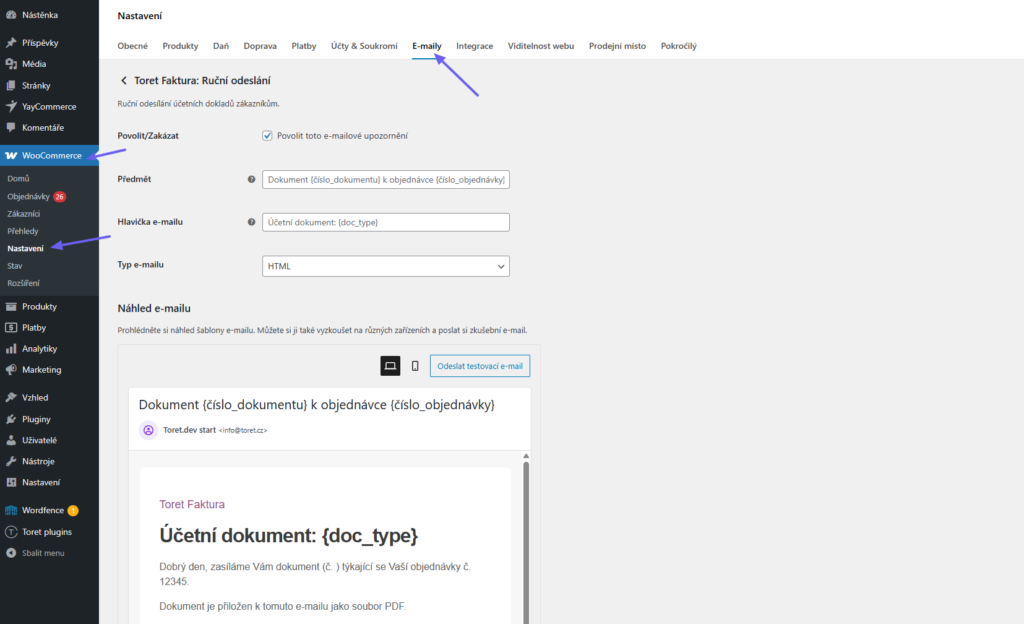
The separate email for sending issued documents can be edited in the WooCommerce email settings (WooCommerce > Settings > Emails > Toret Invoice: Manual sending)
Attaching files to WooCommerce emails
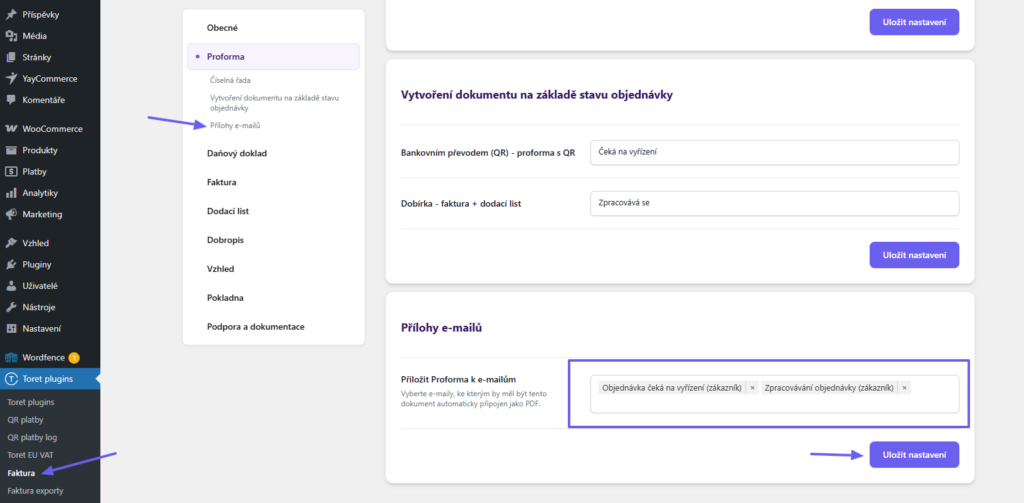
Attaching a document as an attachment is configured in the respective document’s settings (Toret plugins > Invoice > Proforma / Tax document / Invoice / Delivery note / Credit note > Email attachments).
In the Attach “document” to emails field, select the emails to which the documents will be automatically attached. The number of emails is not limited.
If you select the Refunded order email for the credit note, the credit note is also attached to the partial refund email – always the credit note for that refund.
Attention! For the document to be attached to a specific WooCommerce email, it must already be created at the time the email is sent.
Payment Status and Invoice Settlement
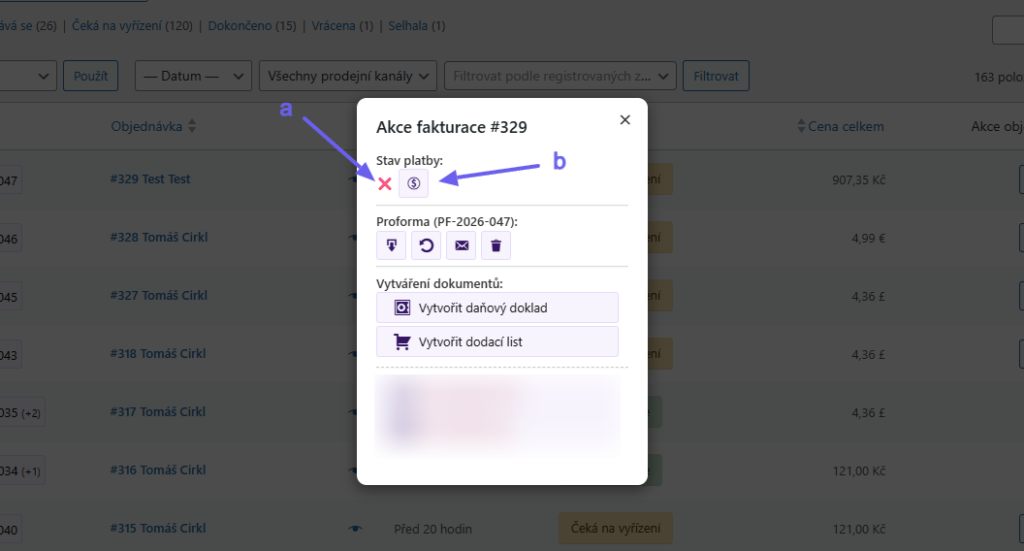
Proformas and invoices can be settled manually or automatically. You will see the payment status in the pop-up window in the order overview or in the Toret Invoice metabox in the order details (a). Manual settlement is possible in the same place by clicking the Mark as paid button (b).
Setting up automatic invoice settlement
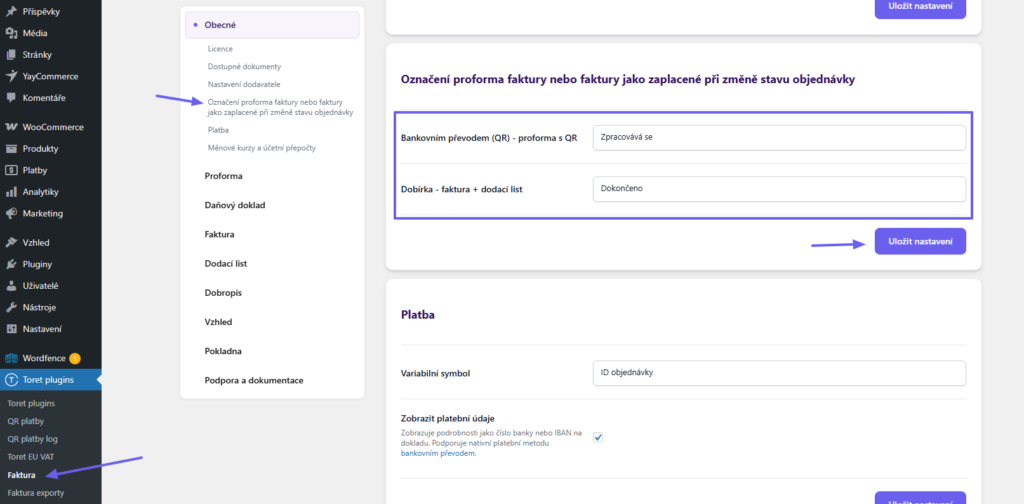
(Toret plugins > Invoice > General > Marking proforma invoice or invoice as paid upon order status change)
Automatic settlement works based on the change in order status. In the settings, choose the order statuses for individual payment methods. The automatic invoice settlement will occur when the order is switched to this status.
Issuing a document after the proforma is paid
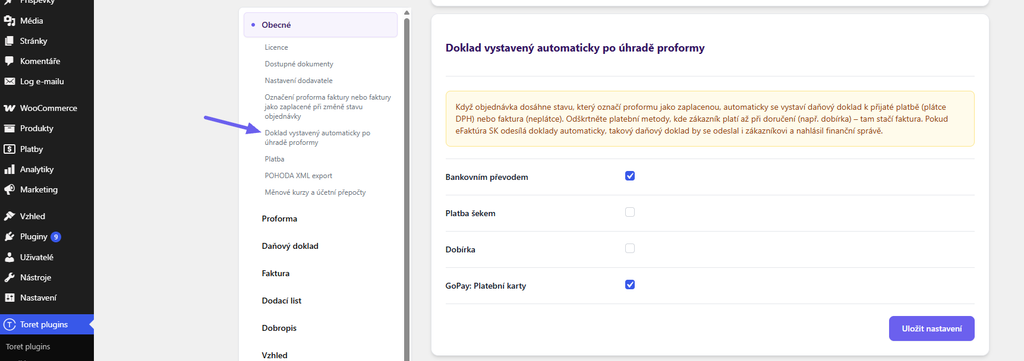
(Toret plugins > Invoice > General > Document issued automatically when the proforma is paid)
When the order reaches the status in which the proforma is marked as paid, the plugin automatically issues a tax document for the received payment (for VAT payers) or an invoice (for non-VAT payers).
You can disable this automatic issuing for individual payment methods. Keep checked only those for which the document should be issued. It is typically disabled for cash on delivery – the customer pays only when receiving the goods and the invoice is sufficient.
This section is shown in the settings only if you have the proforma and also the tax document (VAT payers) or the invoice (non-VAT payers) active.
Credit Notes and Refunds
Credit notes are issued based on order refunds in WooCommerce. For each refund (full or partial), a separate credit note can be issued that contains exactly the refunded items, shipping or the refunded part of the payment split by VAT rates. A credit note can also be issued for the remaining amount of the invoice that has not yet been credited.
Automatic credit note issuing
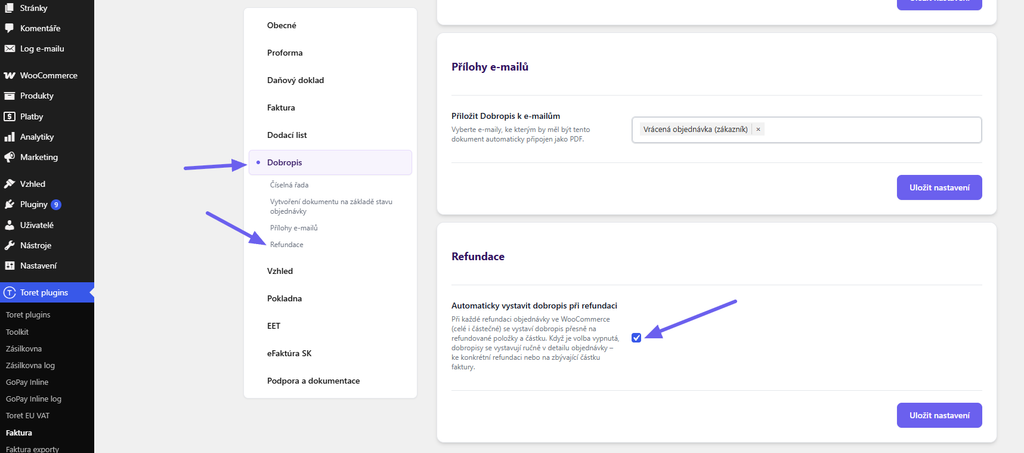
(Toret plugins > Invoice > Credit note > Refunds)
In the credit note settings, in the Refunds section, activate the Issue credit note automatically on refund feature. A credit note will then be issued automatically with every order refund.
Manual credit note issuing
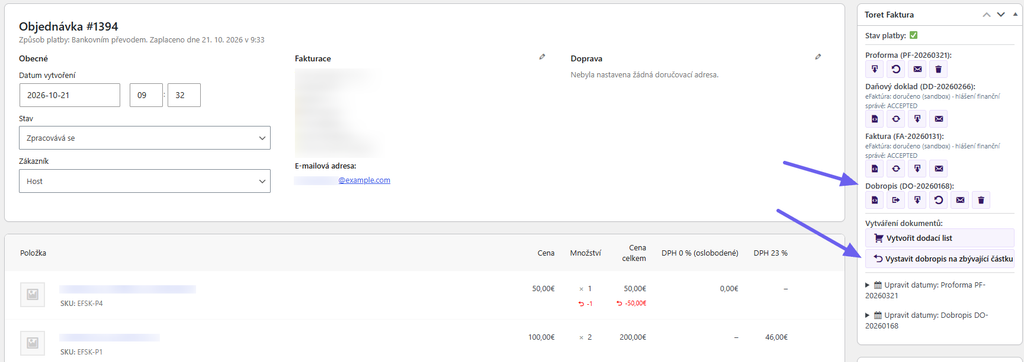
If you do not use automatic issuing, you can issue a credit note in the order details in the Toret Invoice metabox:
- Credit note for refund – issues a credit note for a specific refund
- Issue credit note for the remaining amount – issues a credit note for the part of the invoice that has not yet been credited
Credit note content
- For VAT payers, the credit note is issued as a corrective tax document; for non-VAT payers, it is titled Credit note.
- The reason for the correction is taken from the reason entered for the refund in WooCommerce.
- A credit note for an order in a foreign currency takes over the exchange rate from the original invoice.
- If you refund only part of the payment without returning items, it is shown on the credit note as Price reduction (partial refund).
You can attach the credit note to the refund email automatically – see Attaching files to WooCommerce emails.
Displaying Company Fields at Checkout
(Toret plugins > Invoice > Checkout)
In the plugin, it is possible to enable the display of fields for Company ID (IČ), VAT ID (DIČ), VAT Number (IČ DPH) (1) and set them as required (2).
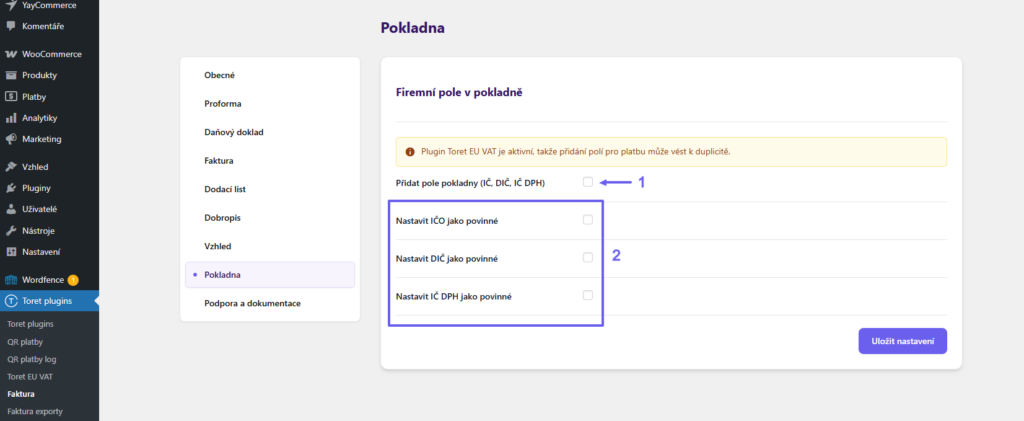
Attention! If you use the EU VAT plugin in your e-shop (or another plugin that adds these fields to the checkout), there may be duplicate fields at checkout. In this case, leave this feature inactive.
Displaying a QR Code on the Invoice
If you want to display a QR code on invoices and proformas, you will need the QR Payments plugin. In the QR Payments plugin settings, simply enable displaying the code on invoices (Toret plugins > QR Payments > Invoicing plugins > Toret Invoice).
There is no need to change anything in the Toret Invoice plugin settings.
Reverse Charge
The Toret Invoice plugin can issue invoices in the reverse charge mechanism. For the actual transfer to occur, you need to use the EU VAT plugin in the e-shop, where you configure everything necessary for the reverse charge mechanism.
There is no need to change anything in the Toret Invoice plugin settings. Only if you have the Company fields at checkout feature enabled, we recommend disabling it (Toret plugins > Invoice > Checkout) – the EU VAT plugin adds the company fields itself.
eFaktúra SK
(Toret plugins > Invoice > eFaktúra SK)
From 1 January 2027, Slovak VAT payers must deliver invoices to Slovak businesses and public authorities electronically – as structured XML (Peppol BIS 3.0) through a certified provider, the so-called Digitálny poštár (access point). The Toret Invoice plugin creates the e-invoice and hands it over to the selected access point, which delivers it to the recipient and reports it to the tax authority. Invoices for end consumers (B2C) are not affected. More information can be found on the website of the Slovak Financial Administration.
A document is sent as an e-invoice if:
- the store is a Slovak VAT payer (the store address in WooCommerce is in Slovakia and taxes are enabled),
- the customer has a Slovak billing address and a Slovak DIČ,
- the document type is selected in the settings.
Attention! Non-VAT payers and foreign stores registered for VAT in Slovakia only under § 5 do not send e-invoices.
eFaktúra SK settings
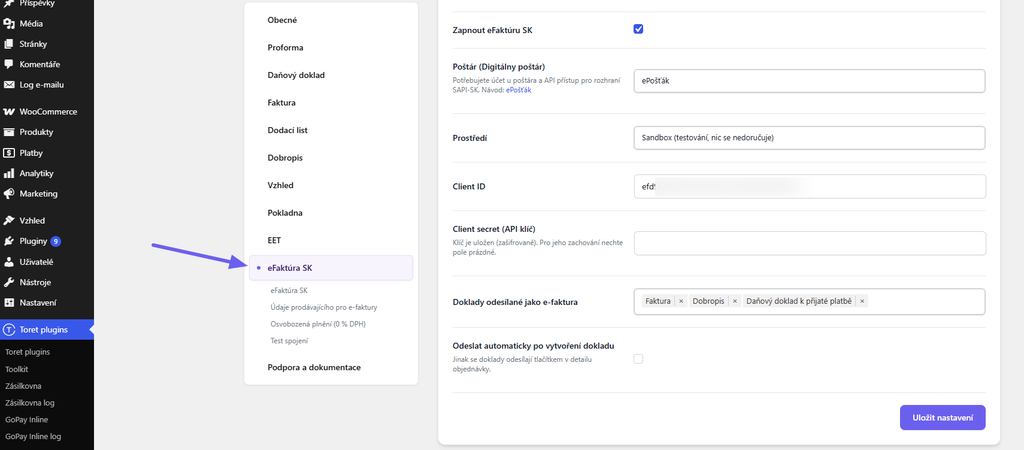
To send e-invoices, you need an account with the access point and API access for the SAPI-SK interface (Client ID and Client secret). The plugin supports the ePošťák access point.
- Activate the Enable eFaktúra SK feature (the ePošťák access point is set automatically)
- Select the environment – Sandbox (for testing, nothing is delivered) or Production
- Fill in the Client ID and Client secret (API key) from the access point
- Select the documents to be sent as e-invoices (invoice, credit note, tax document for a received payment)
- Choose whether documents are sent automatically when created, or manually from the order details
- Save and verify the connection to the access point using the Test connection button
Attention! Before going live, do not forget to switch the environment to Production.
Seller details
In the Seller details for e-invoices section, fill in:
- DIČ – serves as your address in the Peppol network
- IČ DPH
- Street and number, City, Postcode – if you leave these fields empty, the store address from the General tab is used
- IBAN – the bank account for payment by bank transfer
- Registration (legal form) – e.g. Zapísaná v Obchodnom registri Okresného súdu Bratislava I, oddiel Sro, vložka č. 12345/B
Exempt supplies (0 % VAT)
For items with a zero VAT rate, fill in the Exemption reason and select the Exemption code (VATEX). You can also set the code separately for individual WooCommerce tax classes.
A document can contain only one VATEX code. If a document has exempt items with different codes, only the exemption reason text is sent.
Sending e-invoices from the order
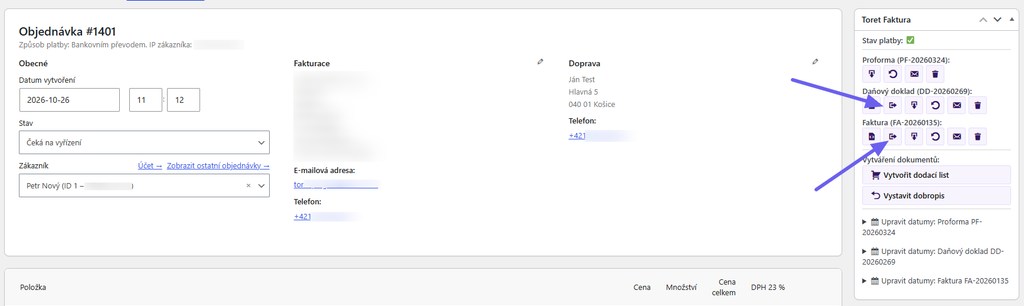
In the Toret Invoice metabox in the order details, the following actions are available for the document:
- send as e-invoice – manual sending (if you do not use automatic sending)
- check the e-invoice delivery state
- download the e-invoice XML (UBL)
Tip: If the issue date of the document differs from the sending date, the plugin offers the Set today as the issue date and send action in the metabox. The document is then sent with the current issue date.
Attention! A document sent as an e-invoice can no longer be updated or deleted. Make any corrections with a credit note.
The plugin archives sent e-invoices. You can download them in bulk in the Invoice exports section (see Exporting Documents).
You can find the communication between the plugin and the access point in the WooCommerce log (WooCommerce > Status > Logs, source toret-faktura-efaktura).
Electronic Registration of Sales (EET)
(Toret plugins > Faktura EET)
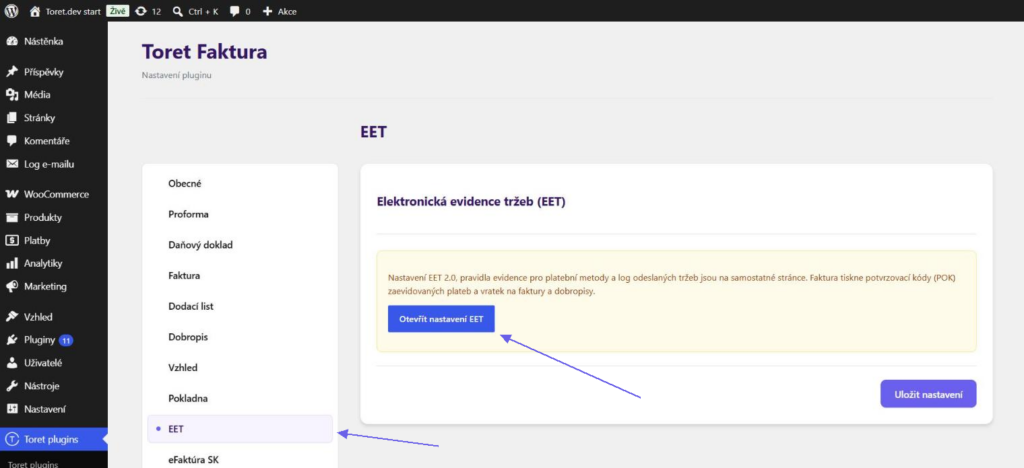
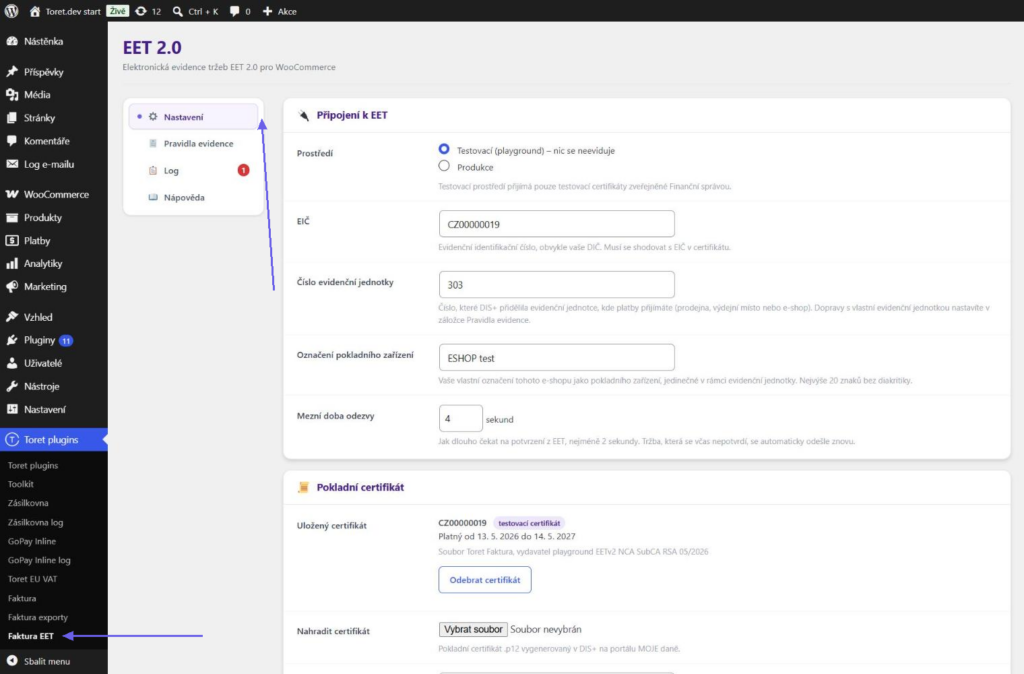
The Toret Invoice plugin can record sales in the EET 2.0 system. It sends selected payments from orders to EET, stores the confirmation code (POK) with the order and prints it on the invoice and the credit note. The EET settings are on a separate page “Faktura EET” with the tabs “Settings” (Nastavení), “Recording rules” (Pravidla evidence), “Log” and “Help” (Nápověda). You can also open it with the “Open the EET settings” (Otevřít nastavení EET) button on the EET tab of the Invoice settings (Toret plugins > Invoice > EET).
TIP: Information on which sales need to be recorded can be found at eet.gov.cz.
Attention! If the Toret EET 2.0 plugin is also active, the Faktura EET page is switched off and everything is taken from the EET 2.0 plugin.
Before You Start: Data from DIS+
In DIS+ on the MOJE daně portal, prepare:
- the cash register certificate – the .p12 file including its password,
- your EIČ (registration identification number, usually your DIČ),
- the numbers of the registration units where you accept payments (shop, pickup point, your own delivery vehicle or the e-shop).
EET Settings
(Toret plugins > Faktura EET > Settings)
Connection to EET
- “Environment” (Prostředí) – “Testing (playground)” is for trying the plugin out with the test certificates of the Financial Administration; nothing is recorded. For live operation, select “Production” (Produkce).
- “EIČ” – registration identification number, usually your DIČ, e.g. CZ12345678. It must match the EIČ in the certificate.
- “Registration unit number” (Číslo evidenční jednotky) – the number DIS+ assigned to the registration unit where you accept payments. Shipping methods with their own registration unit are set on the “Recording rules” tab.
- “Cash register designation” (Označení pokladního zařízení) – your own designation of the e-shop as a cash register, e.g. eshop. It must be unique within the registration unit, max. 20 characters without diacritics.
- “Response time limit” (Mezní doba odezvy) – how long (in seconds) to wait for confirmation from EET, at least 2 seconds. 3 to 5 seconds is usually enough. A sale that is not confirmed in time is sent again by the plugin.
Cash Register Certificate
- Certificate file – the .p12 cash register certificate generated in DIS+.
- “Certificate password” (Heslo certifikátu) – fill in only when uploading the file. The password is not stored; the private key is stored encrypted.
- “Stored certificate” (Uložený certifikát) – after upload, it shows the EIČ from the certificate, its validity, the file name and the issuer. A test certificate of the Financial Administration is labeled “test certificate”. The “Remove certificate” (Odebrat certifikát) button deletes it from the website.
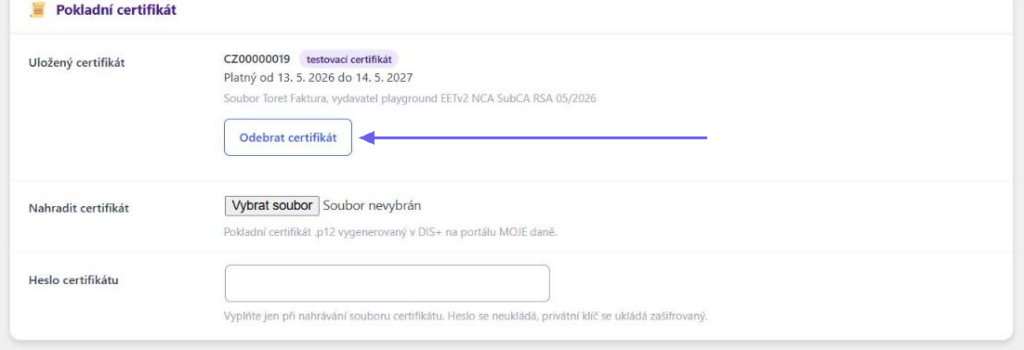
TIP: The plugin warns you 30 days before the certificate expires. Generate a new certificate in DIS+ and upload it in the “Replace certificate” (Nahradit certifikát) field.
EET Data for the Customer
- “Customer emails” (E-maily zákazníkovi) – shows the recorded sale (POK, sequence number, amount) in WooCommerce emails to the customer. It appears in all emails sent after the sale is confirmed by EET.
Connection Test
The “Test connection” (Otestovat spojení) button sends a test sale of CZK 0.00 to EET in verification mode – nothing is recorded. The test uses the saved settings, so save your changes first. Run it after every change of the settings or the certificate.
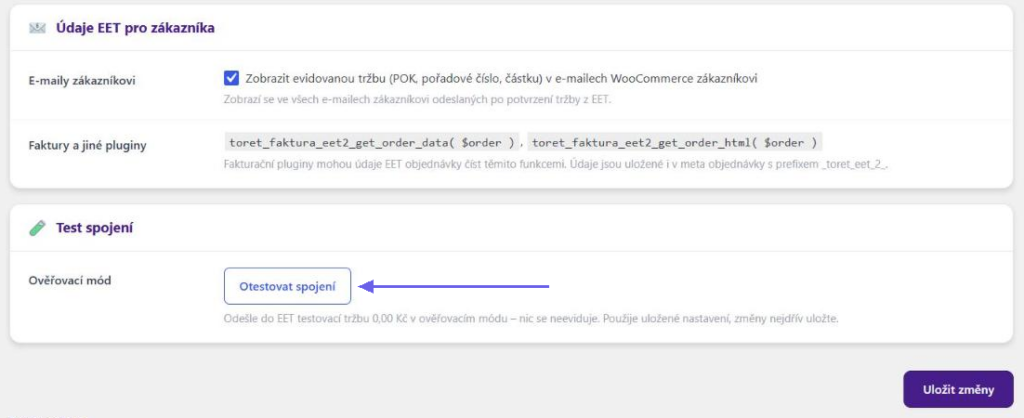
Attention! Before going live, switch the “Environment” to “Production” and upload the certificate from DIS+.
Recording Rules
(Toret plugins > Faktura EET > Recording rules)
The rules determine which payments are sent to EET and when. The table lists all payment methods of the e-shop. For each of them, you set:
- “Record” (Evidovat) – turns on recording for the payment method.
- “Only with shipping” (Jen s dopravou) – limits the rule to selected shipping methods, e.g. cash on delivery only with local pickup. An empty field means all shipping methods. For orders without shipping, the list offers “No shipping (virtual orders)” (Bez dopravy (virtuální objednávky)).
- “When to record” (Kdy evidovat) – “When the payment is completed” (Při dokončení platby), or “When the order status changes to” (Při změně stavu objednávky na) a selected status.
- “Round to whole CZK (cash)” (Zaokrouhlit na celé Kč (hotovost)) – records the amount rounded to whole crowns. Applies only to orders in CZK.
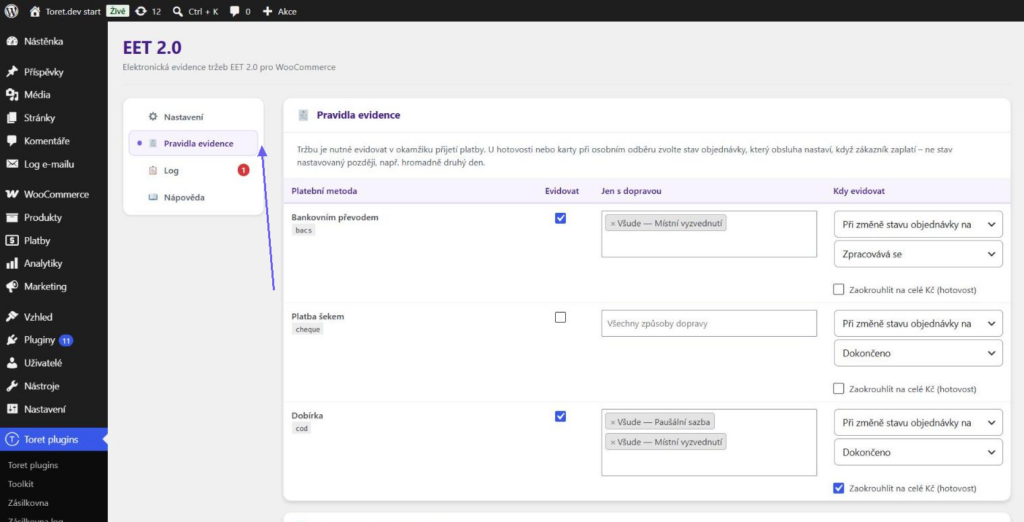
Attention! The “When the payment is completed” option is for payment methods that confirm the payment themselves (payment gateways). Cash on delivery, bank transfer and check never confirm the payment – select an order status for them.
A sale must be recorded at the moment the payment is received. For cash or card payments on personal pickup, select the order status that the staff sets when the customer pays – not a status set later, e.g. in bulk the next day.
The rule records the total order amount minus the payments already recorded, so an order is never recorded twice. If part of the order was paid differently (e.g. an advance payment by bank transfer), record the payment actually received manually in the order details.
EXAMPLE: You accept cash on delivery in cash only on local pickup at your shop. For the Cash on delivery payment method, turn on “Record”, select Local pickup in the “Only with shipping” field and, in the “When to record” field, select the status the staff sets after payment, e.g. Completed.
Record Units by Shipping Method
A sale is recorded under the registration unit where the customer paid. If you have more places (shop, pickup point, your own delivery), fill in for the relevant shipping method:
- “Registration unit number” – the number of the place from DIS+,
- “Cash register designation” – the designation of the cash register at that place.
A shipping method without these details uses the values from the “Settings” tab.
EET on the Invoice and Credit Note
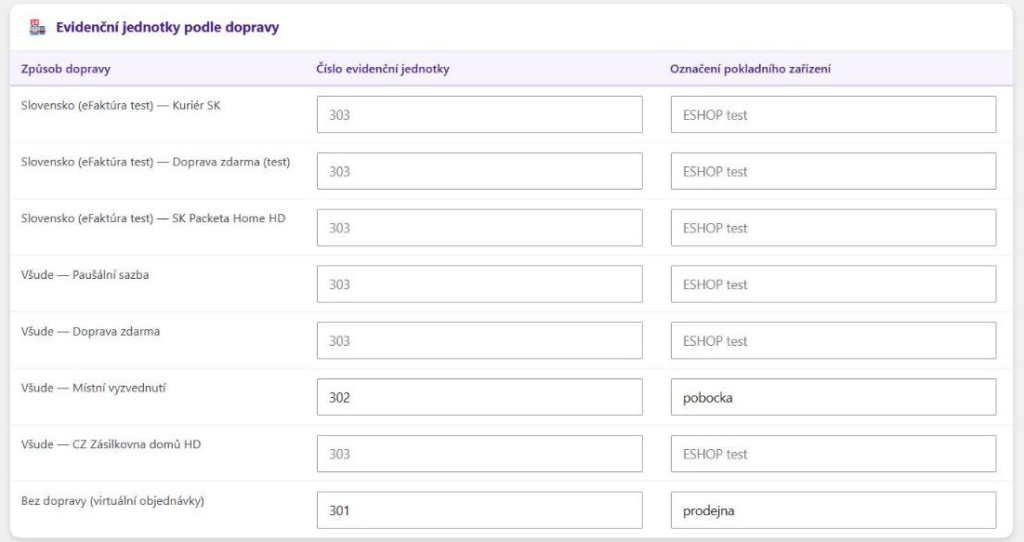
The invoice shows the Electronic registration of sales block with the details of the recorded payment: EIČ of the taxpayer, registration unit, cash register, sequence number, date and time of the sale, amount in CZK and the confirmation code (POK). On the credit note, the plugin prints the POK of the recorded refund. If the sale is confirmed only after the document has been issued, the PDF updates itself after the confirmation.
EET in the Order
(WooCommerce > Orders > order details > EET box)
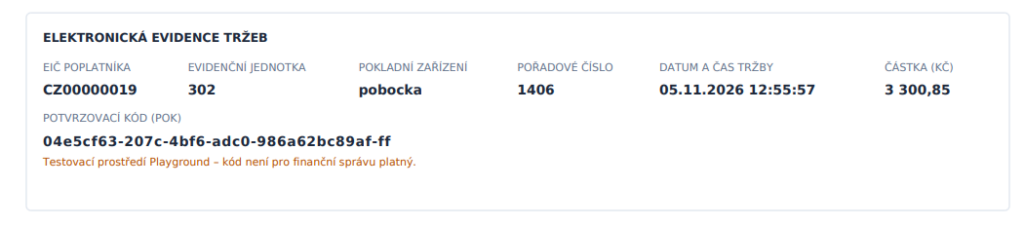
The EET box in the order details shows all sales, refunds and cancellations of the order. For each record, you can see the “Date” (Datum), “Type” (Typ), “Sequence number” (Pořadové číslo) with the registration unit and cash register, “Amount” (Částka), “Status” (Stav), “POK / message” (POK / zpráva) and the number of “Attempts” (Pokusy). Each result is also written to the order notes.
- Manual recording of a payment – enter the amount actually received in the “Amount received in CZK” (Přijatá částka v korunách) field and click “Record the payment in EET now” (Zaevidovat platbu v EET hned). The payment is recorded regardless of the rules, each one as a separate sale.
- Cancellation – the “Cancel … in EET” (Stornovat … v EET) button (with the amount) cancels the recorded amount, e.g. when the customer did not pay or the payment was recorded by mistake.
- “Send again” (Odeslat znovu) – sends again a sale that EET did not confirm (the button is also on the “Log” tab).
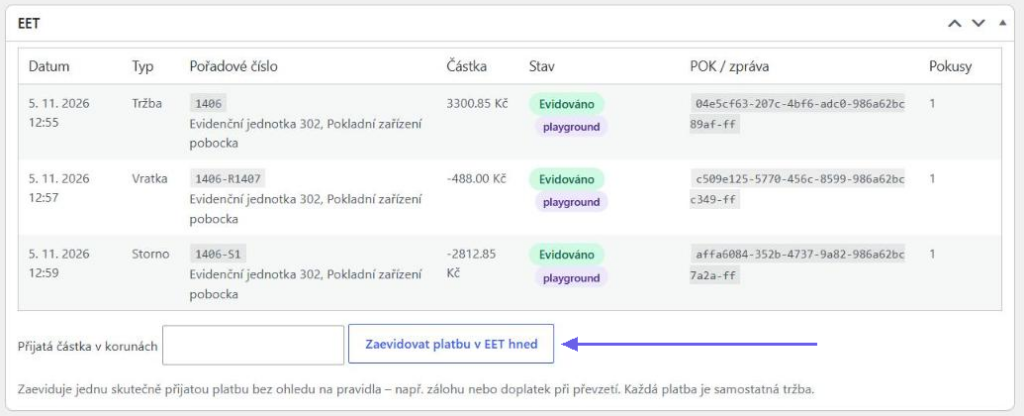
EXAMPLE: The customer paid an advance of CZK 500 by bank transfer and the remaining CZK 1,200 in cash on pickup at the shop. Enter 1200 in the “Amount received in CZK” field and click “Record the payment in EET now”. Do not use a rule for such orders, otherwise it would record the whole amount.
Automatically, the plugin:
- records a refund made in WooCommerce as a negative sale,
- cancels the recorded amount when you cancel an order with a recorded payment.
Note: Changes to the items or the amount of an already recorded order are not sent to EET. If you return money to the customer, make a refund in WooCommerce.
| Type | Meaning | Sequence number |
|---|---|---|
| Sale (Tržba) | Received payment. | Order number; further payments of the same order get the suffix -P2, -P3 … (e.g. 1410-P2) |
| Refund (Vratka) | A WooCommerce refund recorded as a negative amount. | Order number-R refund ID (e.g. 1406-R1407) |
| Cancellation (Storno) | Cancellation of the recorded amount without a refund (cancelled order, “Cancel in EET” button). | Order number-S1 |
Log and Resending
(Toret plugins > Faktura EET > Log)
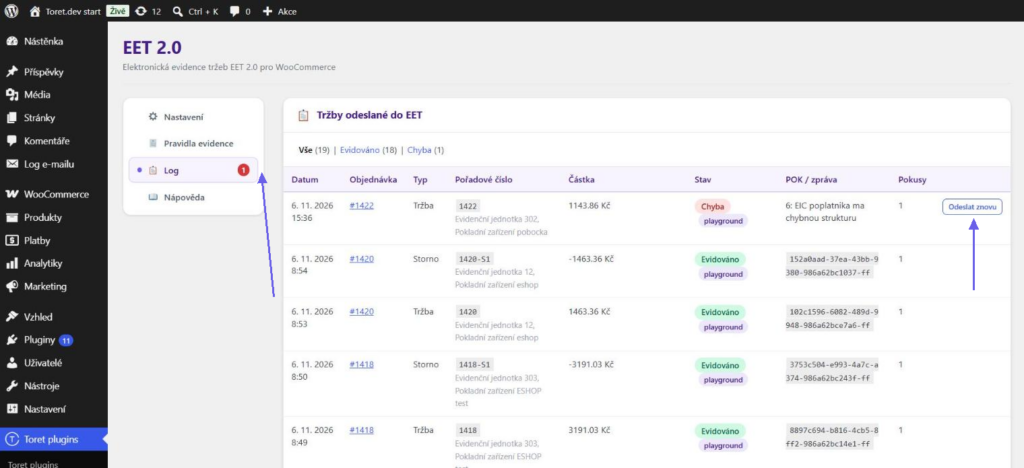
The log shows everything sent to EET, newest first, and can be filtered by status. Each row contains the Date, Order, Type, Sequence number, Amount (for a foreign currency with the CNB exchange rate), Status, POK / message and the number of Attempts. Rows sent to the test environment are marked playground.
| Status | Meaning |
|---|---|
| Sending (Odesílá se) | The sale is being sent. |
| Recorded (Evidováno) | EET accepted the sale, the POK is stored. No action needed. |
| Waiting for retry (Čeká na opakování) | EET did not respond or the connection failed. The plugin sends the sale again by itself after 1, 5, 15 and 30 minutes and then every hour. |
| Over 48 hours, still retrying (Po lhůtě 48 h, dál se opakuje) | The sale was not confirmed within 48 hours. The plugin keeps trying to send it every 6 hours. Check the cause in the message. |
| Failed (Chyba) | EET rejected the sale, or it could not be sent (missing settings, unknown currency). It is not retried – remove the cause and click “Send again”. |
Technical details of each attempt, including the EET responses, can be found in WooCommerce > Status > Logs (source toret-faktura-eet2).
Admin Notice
When a sale cannot be recorded, a red notice appears in the WordPress administration with the number of sales or refunds that could not be recorded. The link in the notice leads to the log. Once the sales are recorded, the notice disappears by itself.

Note: The test environment of the Financial Administration has regular outages (usually on Thursday evening and at night). An outage during this time is not a plugin error.
EET FAQ
| Message or situation | What to do |
|---|---|
| The EIČ or the registration unit number is missing in the settings | Fill in the “Settings” tab and click “Send again” for the sale. |
| The certificate has expired | Generate a new certificate in DIS+, upload it on the “Settings” tab and send the rejected sales again from the “Log” tab. |
| Error 4: invalid signature (Chyba 4: neplatný podpis) | The certificate does not belong to the selected environment or has expired (e.g. a test certificate in production). Check the “Stored certificate”. |
| The POK ends with -ff | The sale went to the test environment and is not recorded. Switch the “Environment” to “Production” and upload the certificate from DIS+. |
| The order currency is not on the CNB exchange rate list | EET accepts only CZK and the plugin converts other currencies at the CNB exchange rate. A currency the CNB does not publish cannot be converted and the sale ends as “Failed”. |
| Resending comes late | Retries run via WP-Cron, which needs visitors. On a website with low traffic, run WP-Cron with a system cron. |
| Cash on delivery is not recorded | Check that the rule does not have “When the payment is completed” in the “When to record” field. For cash on delivery, select an order status, e.g. Completed. Also check the “Only with shipping” field. |
The internet or EET was down. Do I need to do anything?
No, the plugin sends the sale again by itself. Only when a notice appears in the administration, open the “Log” tab and check the cause.
My orders are in euros. How are they recorded?
EET accepts only amounts in CZK. The plugin converts orders in a foreign currency at the CNB exchange rate and stores the rate with the sale record – you can see it next to the amount in the log. You do not need the conversion in the Exchange Rates and Accounting Conversions section for this.
Customers pay at several places. How do I set it up?
Register each place (shop, pickup point, your own delivery) in DIS+ as a separate registration unit. Then, on the “Recording rules” tab, in the “Record units by shipping method” (Evidenční jednotky podle dopravy) section, enter the registration unit number and the cash register designation for the relevant shipping method.
I started using the Toret EET 2.0 plugin. Where do I find the sales recorded by the Invoice plugin?
In the EET box in the order details – it shows all sales of the order. The log of the EET 2.0 plugin shows only the sales it sent itself.
EET for Developers
The EET data of an order is stored in the order meta with the prefix _toret_eet_2_. Other plugins can read it with these functions:
| Function | Returns |
|---|---|
toret_faktura_eet2_get_order_data( $order ) | EET data of the order (payments, refunds and cancellations). |
toret_faktura_eet2_get_order_html( $order ) | A ready-made block with the confirmed sale for invoices and documents. |
Exporting Documents
(Toret plugins > Invoice exports)
The plugin supports bulk export of documents in ISDOC (XML), Pohoda (XML), eFaktúra (UBL), CSV, and ZIP (PDF) files. You can perform the export on the Invoice exports page. Documents can be filtered by date (including a quick period selection – today, this week, last week, this month, last month), order number, and document type.
Only invoices and credit notes are exported to the Pohoda (XML) format; invoices, credit notes and tax documents are exported to the eFaktúra (UBL) format.
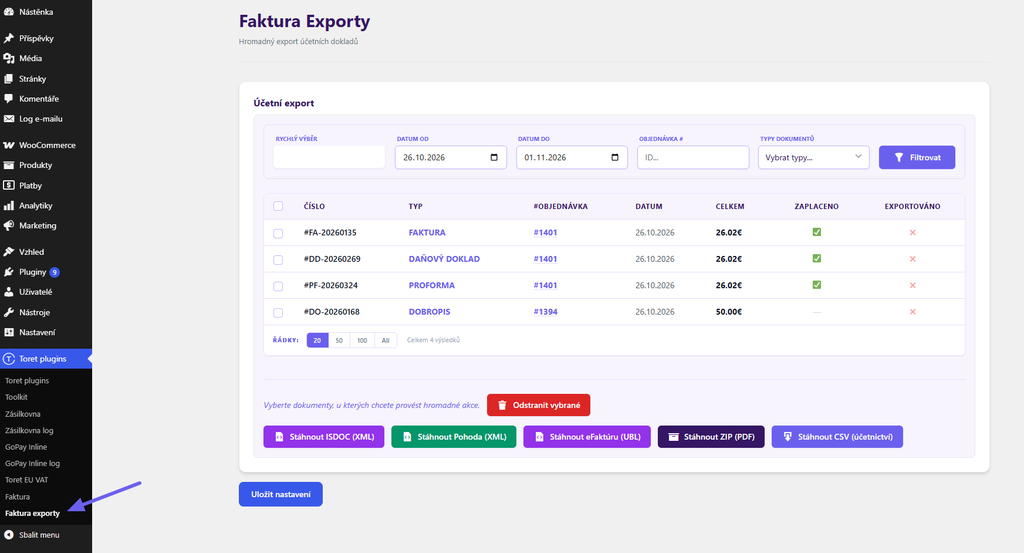
The Exports section is available to users with the Administrator or Sales Manager role.
Bulk Deletion of Documents
The Export section also allows for bulk deletion of documents. These documents will be removed not only from the Export window, but also from the corresponding orders. Only an administrator can perform bulk deletion.
POHODA Export Settings
(Toret plugins > Faktura > General > POHODA XML export)
In the Document rounding setting, choose how the total amount of the document is exported to POHODA:
- Do not round (exact amounts): the default option, suitable for bank transfers, which usually arrive in the exact amount,
- Round total to whole units: choose this only if your invoices are paid in rounded amounts.
Items are exported to POHODA as prices including VAT rounded to two decimal places, so the amounts in POHODA match the PDF invoice and the payment. If the sum of the items differs from the paid amount, the plugin adds a rounding adjustment. Orders in a foreign currency are exported in the order currency including the exchange rate. Credit notes are exported as corrective tax documents.
Exporting sales in the OSS scheme
If you sell to consumers in other EU countries under the OSS scheme, activate the Export EU sales to consumers in the OSS scheme feature. For orders delivered to another EU country (outside the reverse charge mechanism), the export then fills in the OSS country, the VAT classification and the VAT rate of the customer’s country.
- VAT classification for OSS documents – an abbreviation from the “Členění DPH” list in POHODA. We recommend the value UN (not included in the Czech VAT return).
- OSS evidence codes – optional; codes from POHODA separated by commas.
Attention! In POHODA, you need to enable foreign currencies, historical VAT rates and One Stop Shop (OSS) in the global settings.
User Permissions
Administrators and Shop Managers can work with documents. They can issue documents manually, update the PDF, mark a document as paid, edit the dates on the document, send the document by e-mail and generate documents in bulk.
Only an administrator can delete documents, both in the order and in bulk in the exports section. Deleting a document creates a gap in the number series. The plugin settings are also reserved for the administrator.
Action buttons the user does not have permission for are not shown in the order detail or the order overview.
For advanced users: the plugin uses its own capabilities, which can also be assigned to other roles, for example with the User Role Editor plugin:
manage_toret_faktura_documents: working with documents (issuing, updating, payment, sending)manage_toret_faktura_exports: access to the Faktura exports section
The plugin automatically assigns both capabilities to the Administrator and Shop Manager roles when it is installed or updated. If you remove them from a role manually, the plugin will not add them back.
Plugin testing
For testing purposes, you can use:
- the subdomain “dev.domainlicense” (with the same license as for the production website)
- localhost (127.0.0.1)
Purchased plugins will also work in these locations, and you can test their implementation and compatibility here before deploying them to the website and during its use.