
You are on the documentation pages for the Product Comparison Sites (Srovnávače zboží) plugin, which lets you connect your e-shop with the Heureka.cz, Heureka.sk, Zboží.cz and Sklik.cz price comparison sites.
You can purchase the Product Comparison Sites plugin here: Toret Product Comparison Sites for WooCommerce
- Plugin installation
- Plugin activation
- Heureka – Verified by Customers (Ověřeno zákazníky)
- Heureka – displaying reviews
- Heureka – conversion tracking
- Zboží – conversion tracking
- Sklik.cz
- Sklik.cz – SEM
- Zboží – reviews (support discontinued)
- Sklik reviews (Fénix API)
- Summary review listing
- Pinterest – conversion tracking
- Filters
- Plugin testing
Plugin installation
After purchasing the plugin, you will receive a license key and a link to download the plugin’s zip file by e-mail. You can find a detailed guide on how to install a plugin into WordPress from your computer here.
Plugin activation
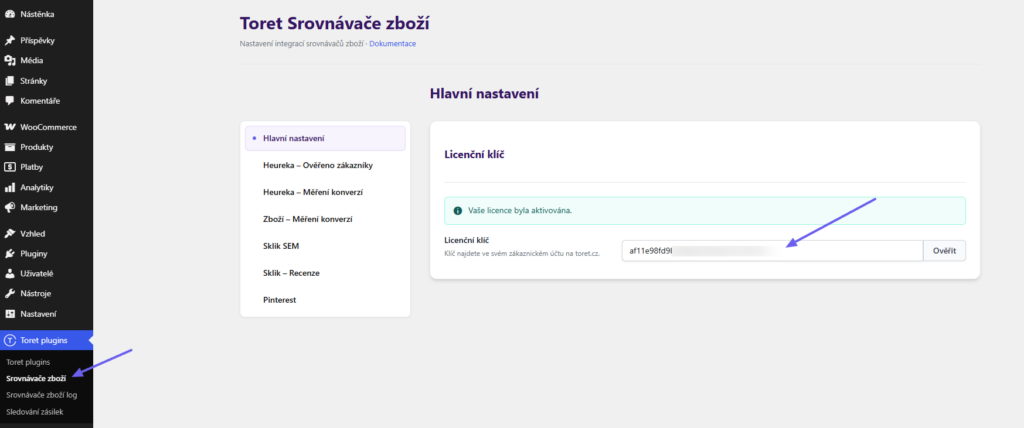
After installation, open the settings of the Toret Product Comparison Sites plugin, enter the license key in the relevant field and activate it using the button.
Heureka – Verified by Customers (Ověřeno zákazníky)
The Heureka – Verified by Customers (Ověřeno zákazníky) section contains the settings for implementing this service.
Activating the Verified by Customers (Ověřeno zákazníky) service
1. First, in the plugin settings (Toret plugins > Product Comparison Sites (Srovnávače zboží)) you need to enable sending data to the Verified by Customers (Ověřeno zákazníky) service.
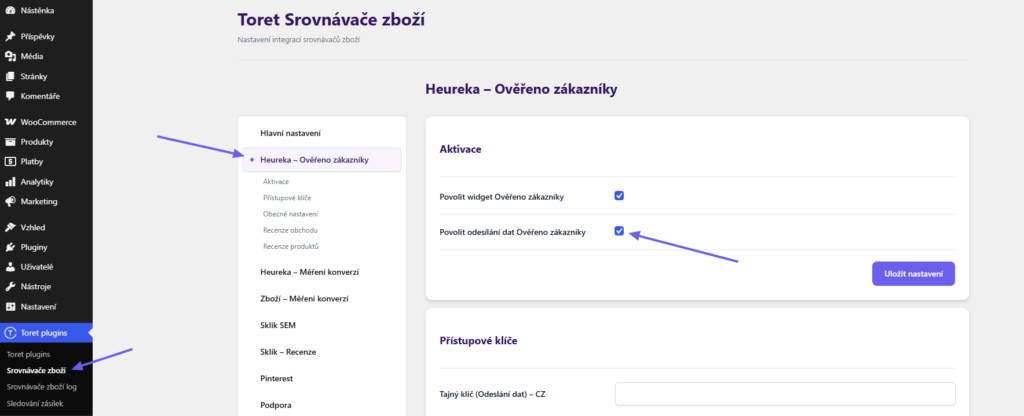
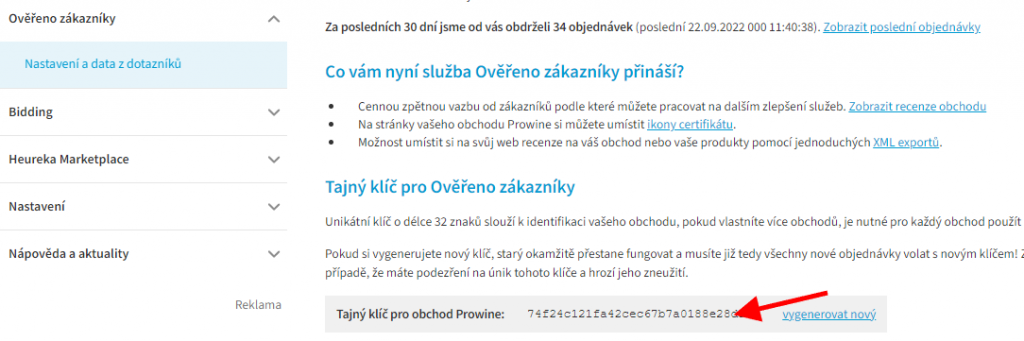
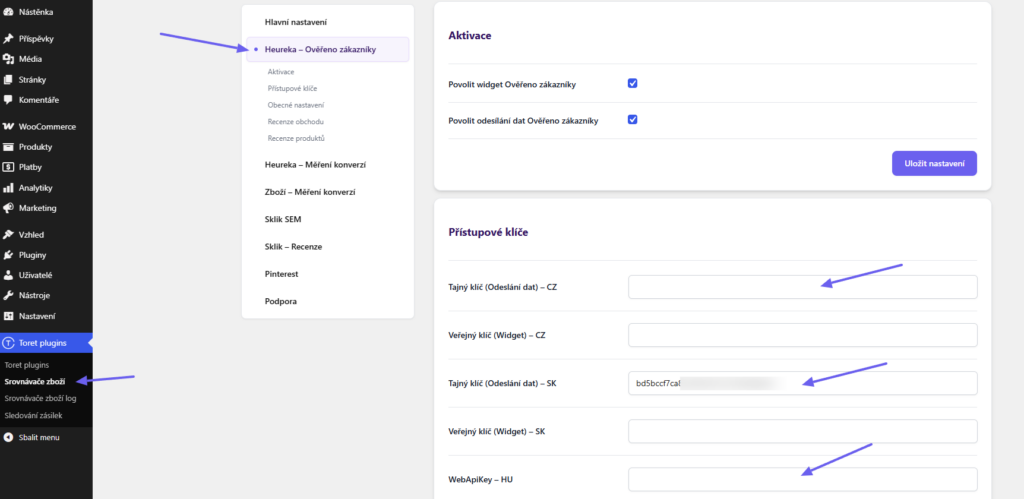
2. By entering the Secret Key (Tajný klíč) in the relevant field in the plugin, you link the data sending to your Verified by Customers (Ověřeno zákazníky) account. You will find the Secret Key in your Heureka account administration → Verified by Customers (Ověřeno zákazníky) → Settings and questionnaire data (Nastavení a data z dotazníku).
The Secret Keys are specific to the Czech and Slovak Heureka, the Hungarian Arukereso or the Romanian Compari.
Activating the Verified by Customers (Ověřeno zákazníky) widget
If you have already obtained the Verified by Customers (Ověřeno zákazníky) widget from Heureka, enter its Public Key (Veřejný klíč) into the field of the same name in the plugin and enable it in the Activation (Aktivace) part of the settings. The Public Key is specific to the Czech or Slovak Heureka.
You will find the Public Key on the same Heureka page as the Secret Key, but it is not stated directly there. You need to open the link „Here you will find various forms of the Verified by Customers certificate icons” (Zde naleznete různé podoby ikon certifikátu Ověřeno zákazníky).

After clicking the link, a window with code opens, in which the Public Key is stated. It is located after the word setKey.

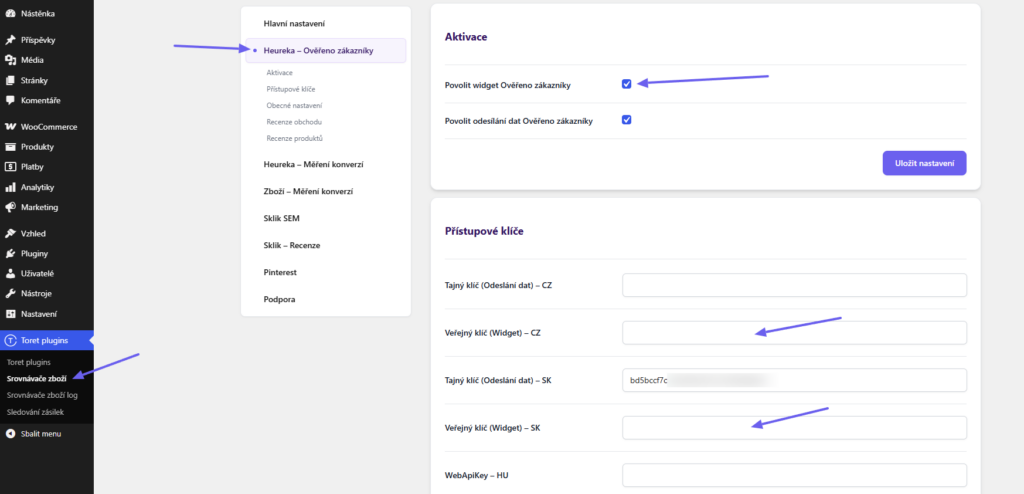
The widget can be obtained from Heureka automatically based on your e-shop’s current rating. If your e-shop does not reach, or stops reaching, a sufficient rating for the certificate to be awarded, Heureka will revoke it and the widget will automatically stop being displayed on your website as well.
Service and widget settings
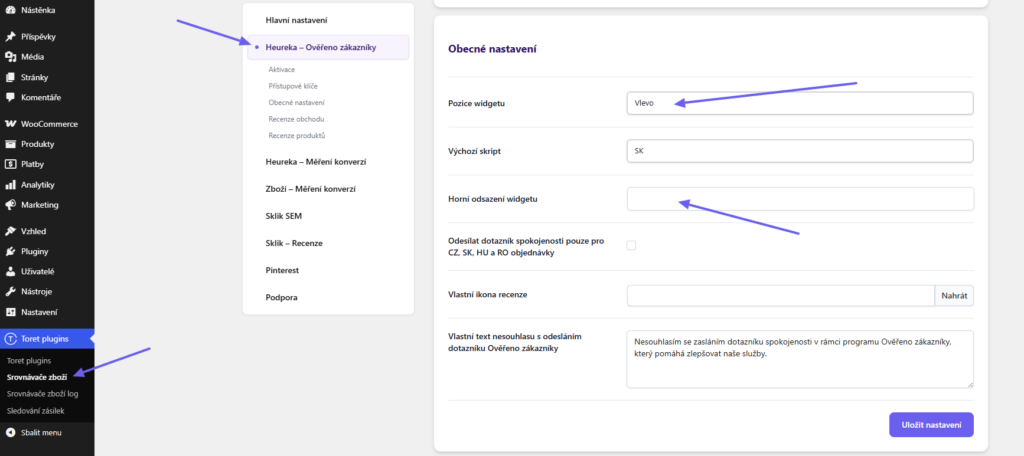
(Toret plugins > Product Comparison Sites (Srovnávače zboží) > Heureka – Verified by Customers (Ověřeno zákazníky) > General settings (Obecné nastavení))
If you already have the widget available from Heureka, you can set the following in the plugin:
- the widget position (left or right)
- the offset from the top edge of the page
TIP: If you set up the widget in the plugin and don’t see it on the website, you are probably using an ad-blocking extension in your browser. Open the e-shop page in an incognito window or disable the ad-blocking extension.
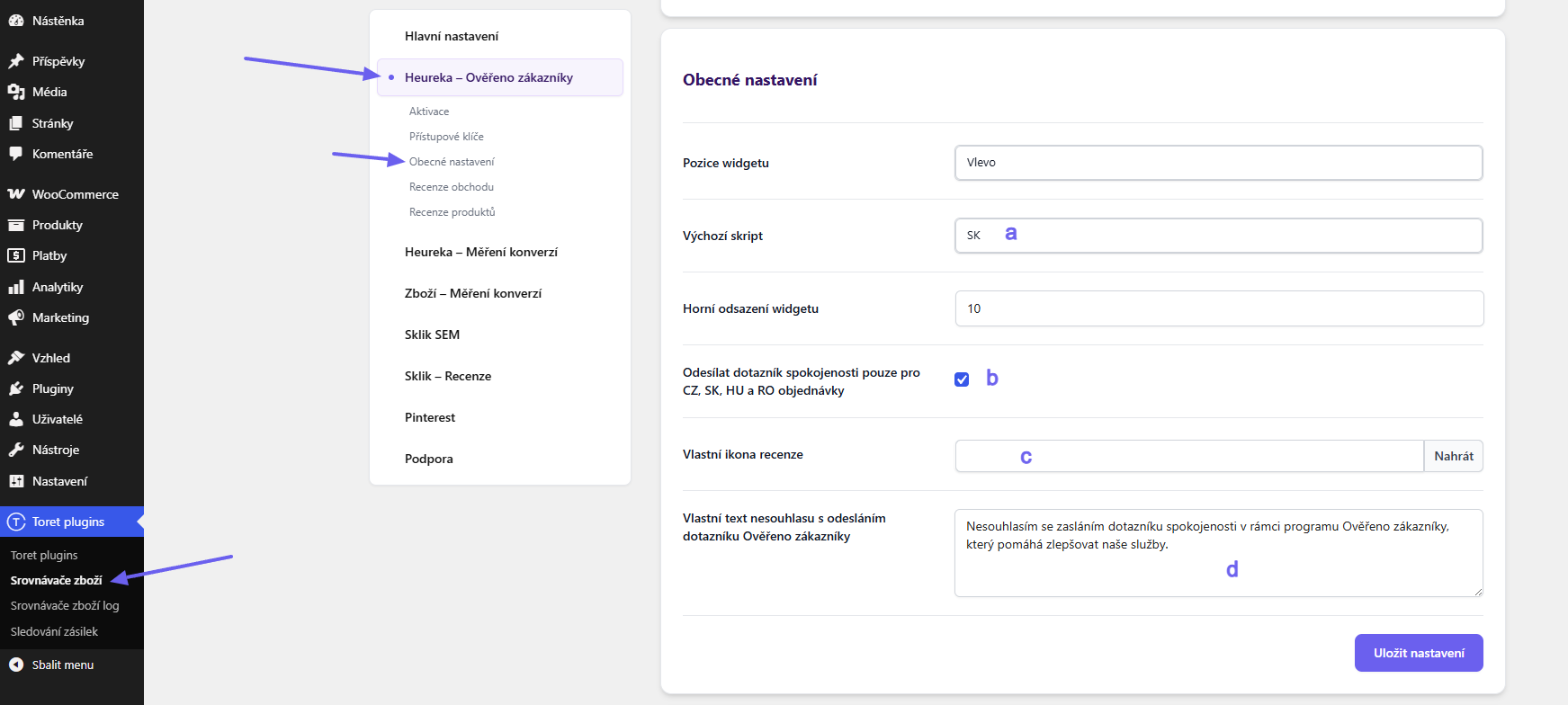
In the plugin you can connect the Verified by Customers (Ověřeno zákazníky) service for the Czech and Slovak Heureka, the Hungarian Arukereso and the Romanian Compari, and select the default script in the settings (a). If the e-shop is registered with several language versions of Heureka, you can enter several keys into the plugin.
The settings also include the option to send the questionnaire only for CZ, SK, HU and RO orders (b), to set custom icons for reviews (for their display on the website) (c), and also a Custom text for declining the questionnaire sending (displayed next to the checkbox at checkout) (d). The opt-out checkbox works in both the classic and the block checkout.
Heureka – displaying reviews
The Product Comparison Sites plugin offers the option to display Heureka reviews on your website using a shortcode.
Displaying shop reviews
(Toret plugins > Product Comparison Sites (Srovnávače zboží) > Heureka – Verified by Customers (Ověřeno zákazníky) > Shop reviews (Recenze obchodu))
1. Activation
For the reviews to load, you need to have the Heureka administration Secret Key (Tajný klíč) entered (see Heureka – Verified by Customers (Ověřeno zákazníky)). The Secret Key is in your Heureka account administration > Verified by Customers (Ověřeno zákazníky) > Settings and questionnaire data (Nastavení a data z dotazníku).
2. Inserting the shortcode
You will find the shortcode and other settings in the Product Comparison Sites plugin. Insert the shortcode into the page or builder box where you want the reviews to be displayed. The display can be adjusted using attributes:
- page – specifies the number of the displayed page
- per_page – specifies the number of reviews per page
- limit – specifies the total limit of displayed reviews
For shop reviews, there is also a layout attribute, which lets you set the reviews to be displayed in a grid or a slider. The shortcode can then look like this:
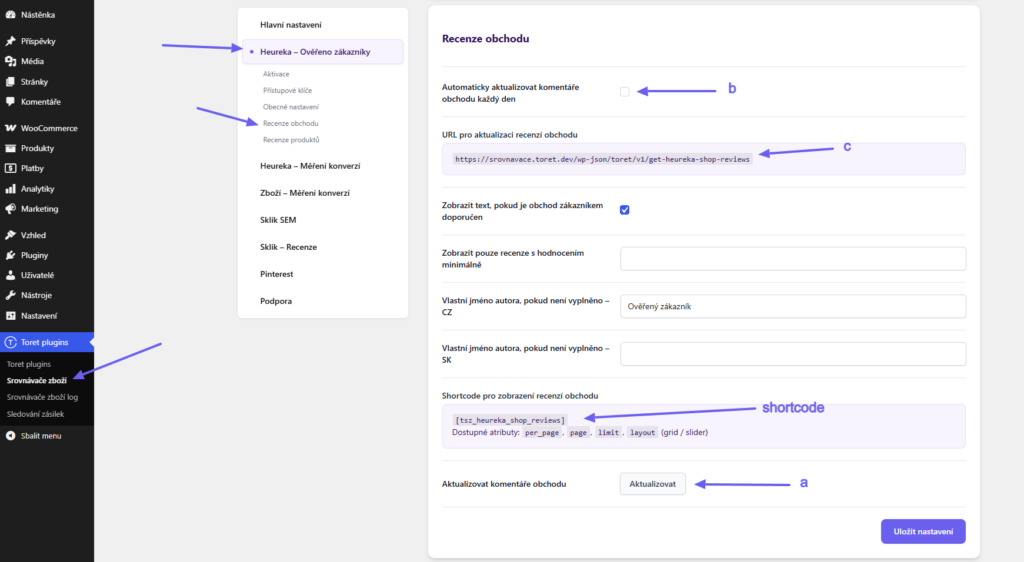
[tsz_heureka_shop_reviews layout="grid" per_page=6]TIP: The slider can be set to automatically scroll through reviews. You can configure this automatic rotation in the Main Settings (Hlavní nastavení) > Reviews (Recenze) – slider section.
3. Loading the reviews
Besides inserting the shortcode, you also need to load the reviews, otherwise they would not be displayed on the website. Perform the first load manually by clicking the Update (Aktualizovat) (a) button. After that, we recommend ticking the automatic update function (b), so that the latest reviews are always reflected on the website.
Instead of the automatic update function, you can use CRON, which you set up on your hosting. You will also find the URL for setting up CRON in the plugin settings. (c)
4. Settings
For displaying the reviews, you can further set:
- Display text if the shop is recommended by the customer – displays the review text only for positive reviews
- Display only reviews with a rating of at least – displays only reviews with the specified number of stars and higher
- Custom author name if CZ/SK is not filled in – displays the entered name for anonymous reviews
Displaying product reviews
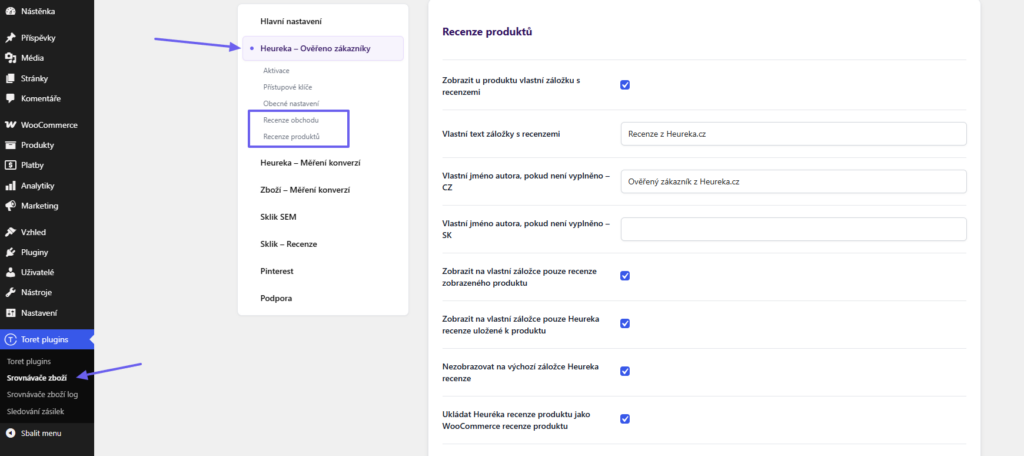
(Toret plugins > Product Comparison Sites (Srovnávače zboží) > Heureka – Verified by Customers (Ověřeno zákazníky) > Product reviews (Recenze produktů))
1. Activation
For the reviews to load, you need to have the Heureka administration Secret Key (Tajný klíč) entered (see Heureka – Verified by Customers (Ověřeno zákazníky)). The Secret Key is in your Heureka account administration > Verified by Customers (Ověřeno zákazníky) > Settings and questionnaire data (Nastavení a data z dotazníku).
2. Inserting the shortcode
You will find the shortcode and other settings in the Product Comparison Sites plugin. Insert the shortcode into the page or builder box where you want the reviews to be displayed. The display can be adjusted using attributes:
- page – specifies the number of the displayed page
- per_page – specifies the number of reviews per page
- limit – specifies the total limit of displayed reviews
You add the chosen attribute(s) with a number into the shortcode, see the example:
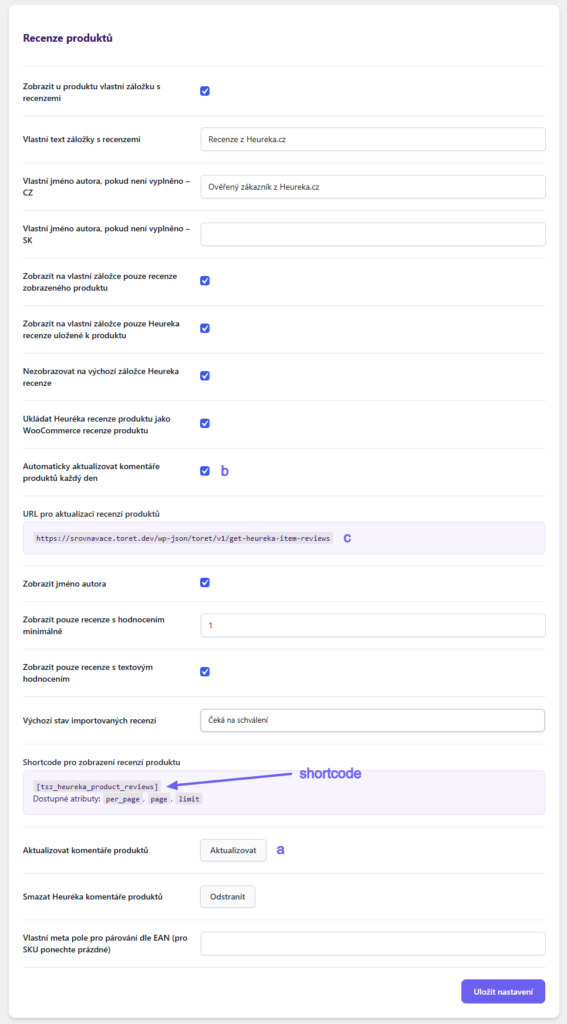
[tsz_heureka_product_reviews per_page=15]3. Loading the reviews
Besides inserting the shortcode, you also need to load the reviews, otherwise they would not be displayed on the website. Perform the first load manually by clicking the Update (Aktualizovat) (a) button. After that, we recommend ticking the automatic update function (b), so that the latest reviews are always reflected on the website.
Instead of the automatic update function, you can use CRON, which you set up on your hosting. You will also find the URL for setting up CRON in the plugin settings. (c)
5. Settings
For product reviews you can set:
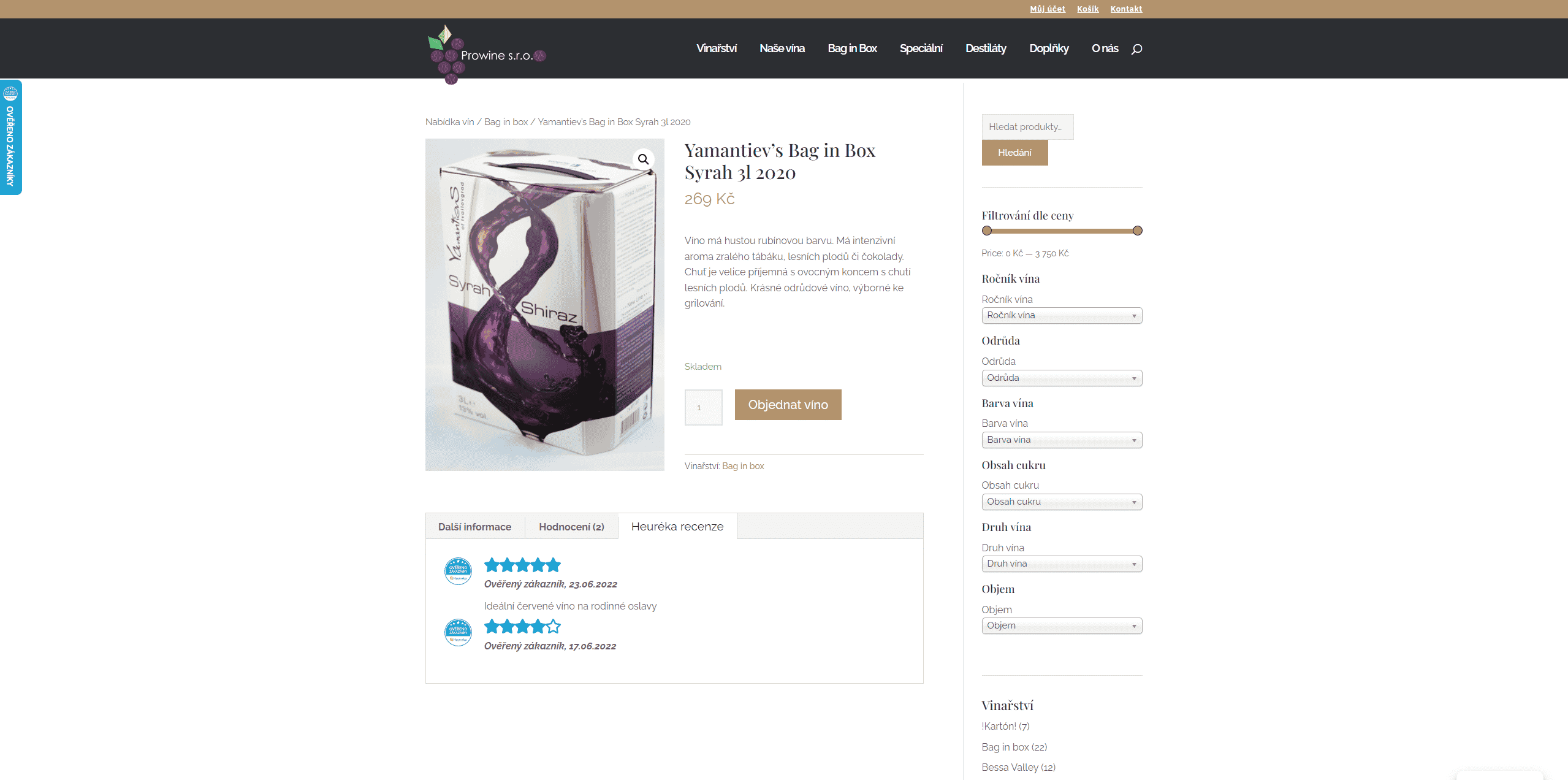
- Display a custom reviews tab on the product. In this tab, only reviews less than 6 months old can be displayed (a Heureka system limitation). To display older reviews, you need to save them and display them on the website as WooCommerce reviews (see below)
- Custom reviews tab text (displayed as the tab name)
- Custom author name if CZ/SK is not filled in (used for anonymous reviews)
- Display only reviews of the displayed product on the custom tab (limits the reviews to the given product)
- Display only Heureka reviews saved to the product on the custom tab (displays only saved Heureka reviews)
- Do not display Heureka reviews on the default tab (does not display Heureka reviews in the tab, but reviews saved in WooCommerce)
- Save Heureka product reviews as WooCommerce product reviews (saves the loaded reviews from Heureka into WooCommerce)
- Display the author name
- Display only reviews with a rating of at least (displays only reviews with the given rating or better)
- Display only reviews with a text rating
- Default status of imported reviews (you can review the reviews before publishing or publish them automatically)
- Delete Heureka product comments
- Custom meta field for matching by EAN (leave empty for SKU)
Caution! Reviews from Heureka can only be loaded 6 months back. Reviews older than 6 months cannot be loaded (a Heureka system limitation). To display older reviews, you need to save them and display them on the website as WooCommerce reviews.
Heureka – conversion tracking
(Toret plugins > Product Comparison Sites (Srovnávače zboží) > Heureka – conversion tracking (měření konverzí))
In the Product Comparison Sites plugin, you can set up the service of the same name in the Heureka – conversion tracking (měření konverzí) section.
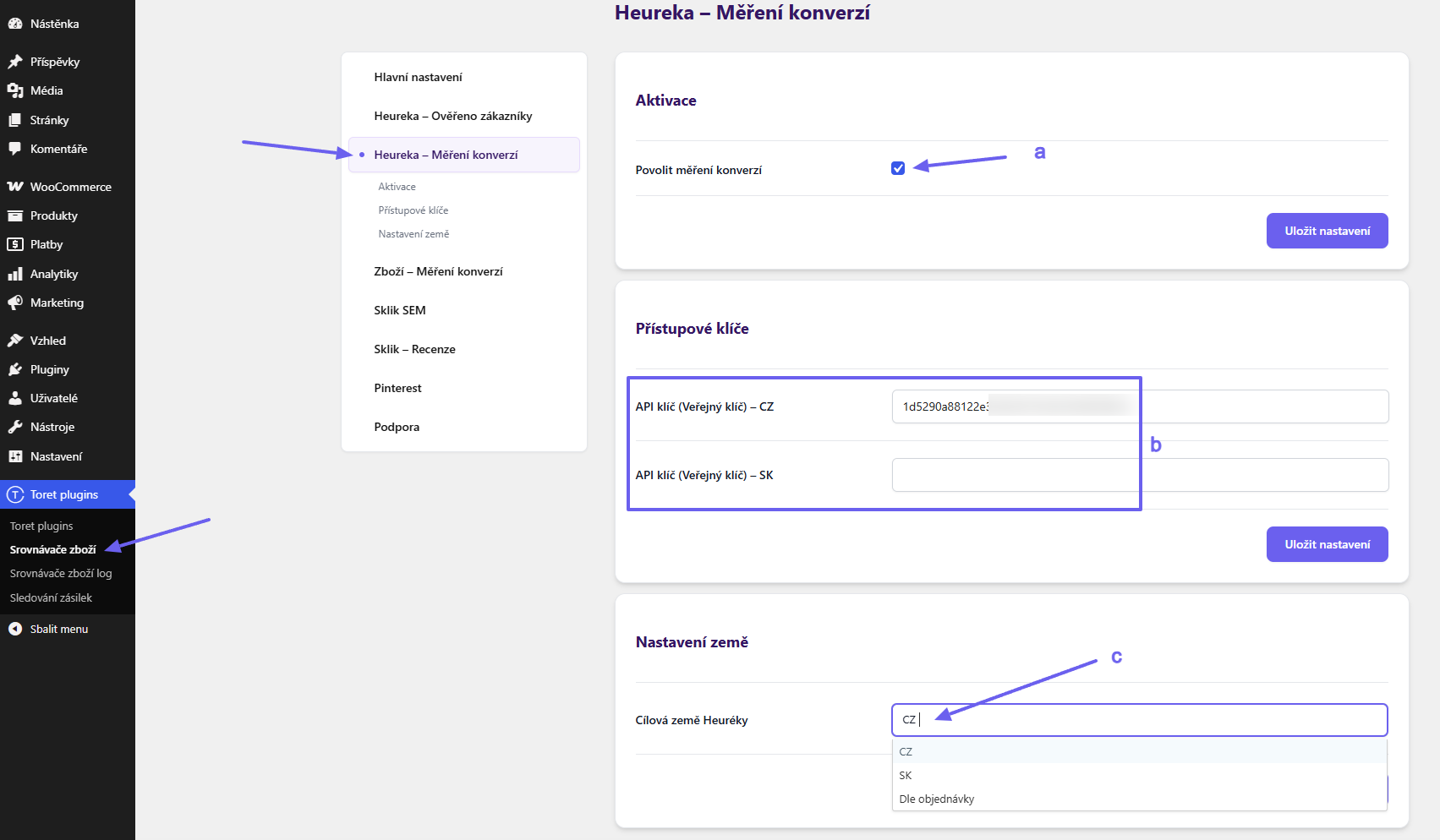
1. Activation (a)
First, you need to enable the service in the plugin.
2. Inserting the Public Key (Veřejný klíč). (b)
Then you need to insert the public key for the conversion tracking code. In the plugin, you can connect conversion tracking for the Czech or Slovak Heureka. You will find the key in your Heureka account administration → Statistics and reports (Statistiky a reporty) → Conversion tracking (Měření konverzí).

3. Setting the target country (c)
In the settings, you need to select the Heureka target country. If both Heureka sites are used on the website, you can set the Heureka target country according to the order, and conversions will be sent based on the customer’s country.
Zboží – conversion tracking
(Toret plugins > Product Comparison Sites (Srovnávače zboží) > Zboží – conversion tracking (měření konverzí))
This is an older method of conversion tracking. Seznam.cz is gradually migrating users to the new SEM tracking method. See here.
In the Product Comparison Sites plugin, you can set up the service of the same name on the Zboží – conversion tracking (měření konverzí) tab.
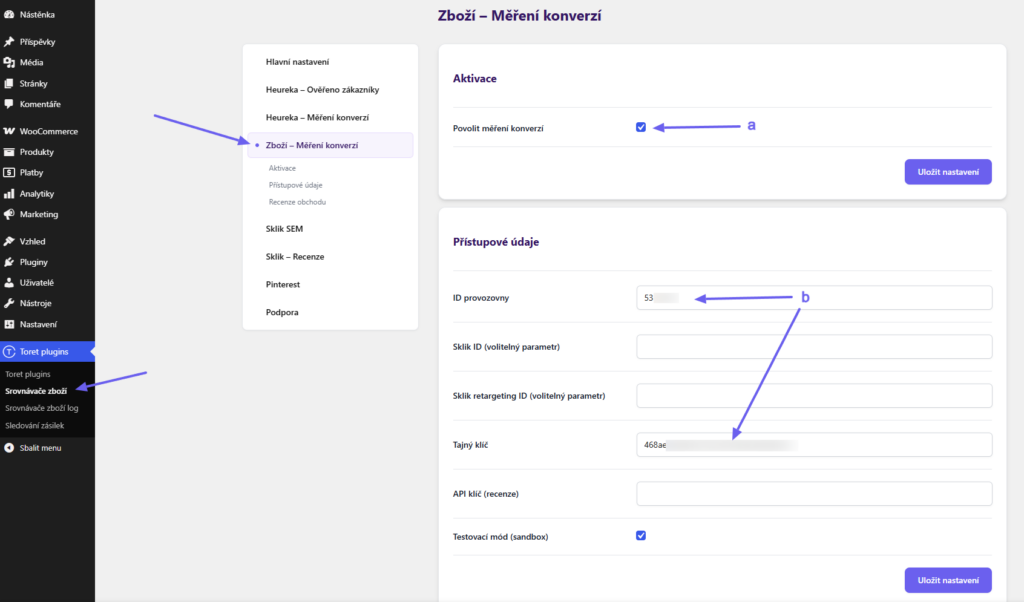
1. Activation (a)
First, you need to enable the service in the plugin.
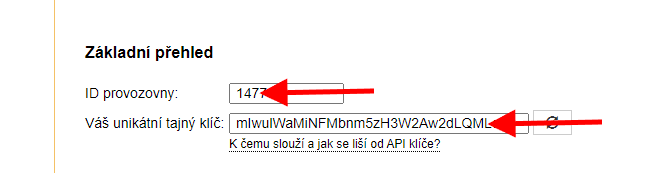
2. Inserting the access credentials (b)
Then you need to insert the establishment ID (ID provozovny) and the Secret Key (Tajný klíč). You can access the Secret Key and the establishment ID via the zboží.cz administration → Establishment management (Správa provozovny) → Conversion tracking (Měření konverzí) → the Basic overview (Základní přehled) part of the page (near the very bottom of the page).
TIP: Since version 2.3.0, the checkbox for declining the questionnaire (opt-out) is shared by Zboží – conversion tracking (měření konverzí) and Sklik SEM. You set it on the Sklik – Reviews (Sklik – Recenze) tab, see the chapter Sklik reviews (Fénix API).
Sklik.cz
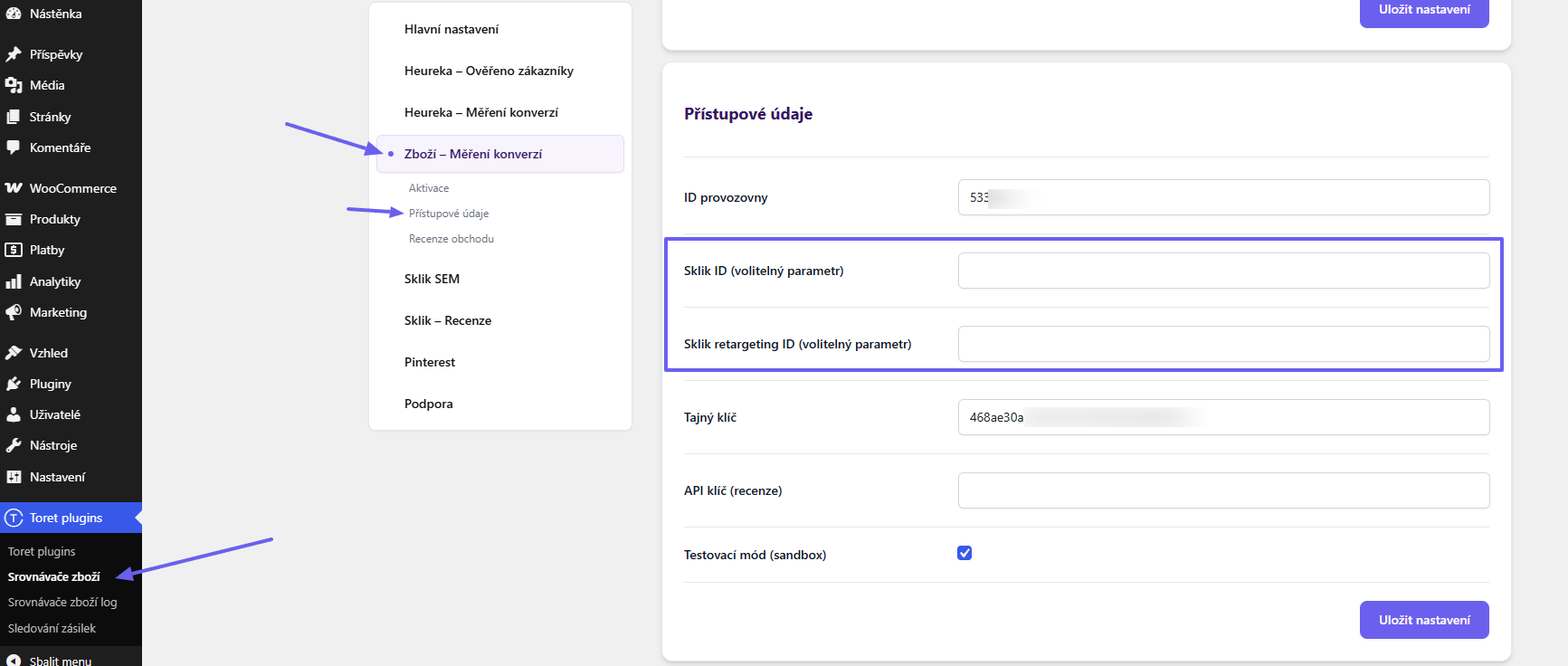
(Toret plugins > Product Comparison Sites (Srovnávače zboží) > Zboží – Conversion tracking (Měření konverzí) > Access credentials (Přístupové údaje))
This is an older method of conversion tracking. Seznam.cz is gradually migrating users to the new SEM tracking method. See here.
An optional attribute is the Sklik ID setting (for tracking) and the Sklik retargeting ID (for remarketing). If filled in, the conversion is reflected into Sklik. You will find the Sklik ID parameter in the Sklik administration → Tools (Nástroje) → Conversion tracking (Sledování konverzí) → here you can create a conversion or open an existing one, and inside it is the conversion code in which the (Sklik) ID is stated.

Sklik.cz – SEM
In 2026, Sklik launched advanced conversion tracking – the SEM script, which enables more accurate ad targeting. You set up Sklik SEM in the tab of the same name (Toret Plugins > Product Comparison Sites (Srovnávače zboží) > Sklik SEM).
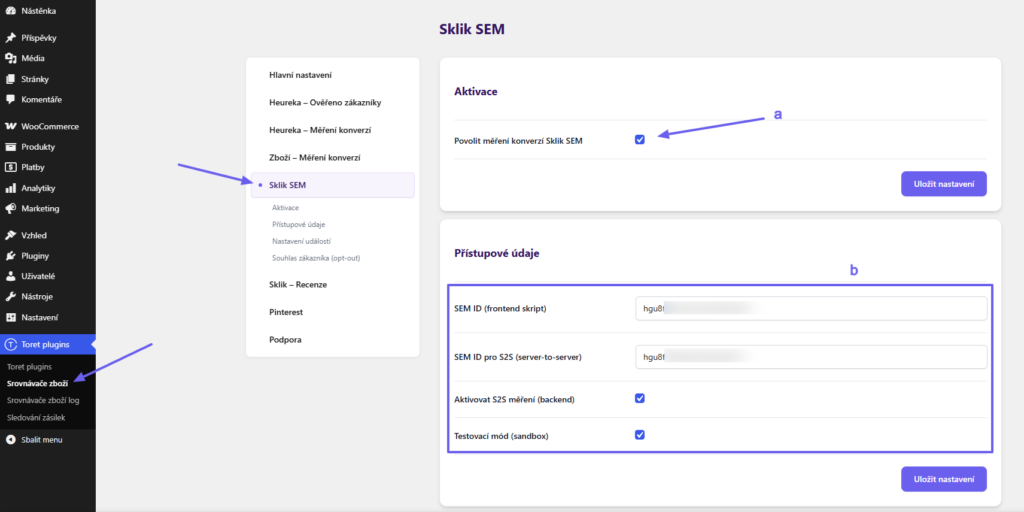
1. Activate the function (a)
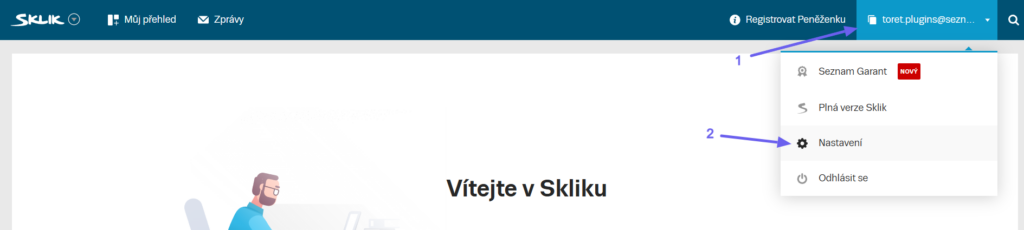
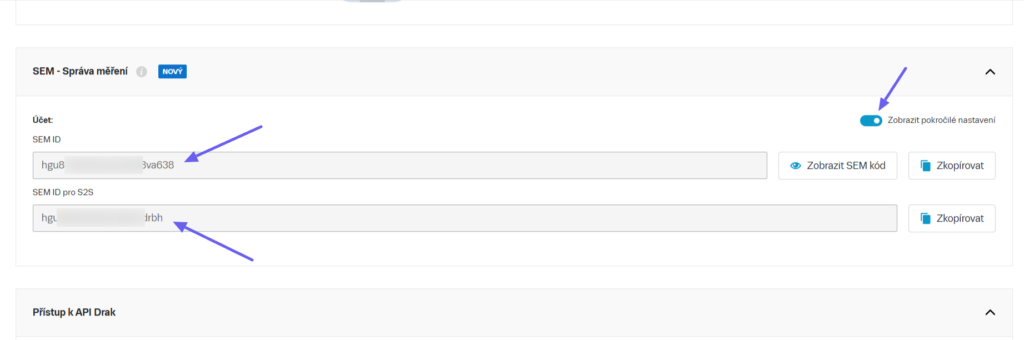
2. Enter the SEM ID and SEM ID for S2S access credentials – you obtain these credentials in your account in the Sklik administration (see below) (b)
- Activate S2S tracking – server-side tracking (sending data from the server instead of from the user’s browser). With S2S tracking enabled, the Purchase event is sent only from the server, so that the purchase is not counted twice.
- Only log, do not send S2S (Jen logovat, S2S neodesílat) – events are only written to the log and are not sent to Seznam. Useful for debugging without affecting the statistics.
- Sandbox token for S2S (Sandbox token pro S2S) – used for testing S2S tracking. You get the token in Sklik in the Sandbox → I want to test Server to Server (Chci testovat Server to Server) section. With the token filled in, the data is actually sent, but Seznam shows it only in the Sandbox and does not count it in live data. The token is valid for 24 hours; delete it after testing.
3. Enable the events you want to track (c)
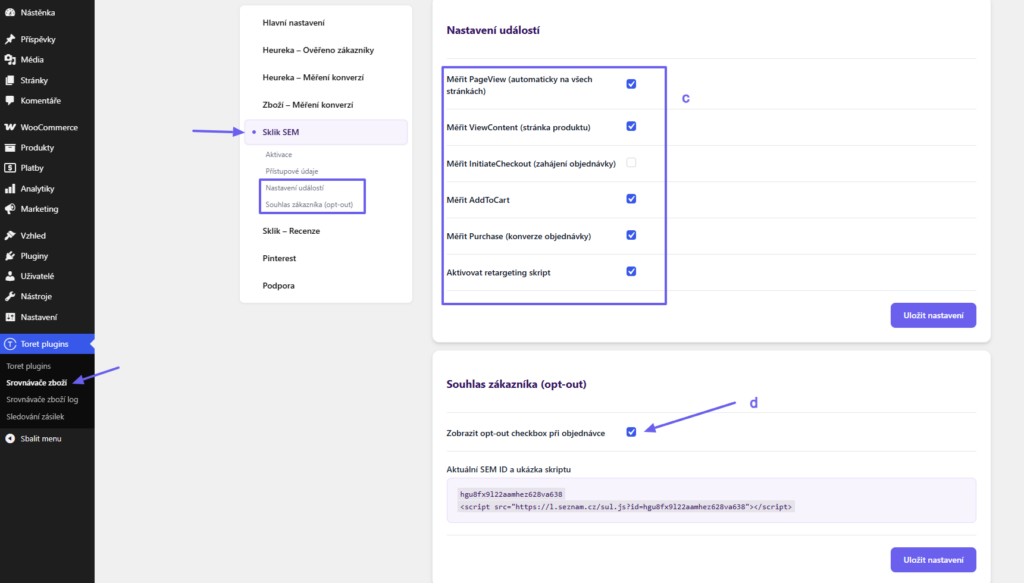
- PageView – page view
- ViewContent – content view (for product pages)
- InitiateCheckout – entering the checkout
- AddToCart – adding to cart. Adding without a page reload (AJAX), adding in the block cart and adding a product that is already in the cart again are tracked as well.
- Purchase – purchase
- Retargeting script – for remarketing
- Marketing consent (consent mode) – the plugin automatically takes over the consent status from the cookie bar of the Complianz, WebToffee GDPR Cookie Consent and Cookie Law Info plugins and passes it to the SEM script and S2S tracking. It also reacts to a later change of consent in the bar. With other cookie bars, a developer can pass the consent with JavaScript
window.tszSemSetConsent(true|false)or with the PHP filtertsz_sklik_sem_marketing_consent.
The checkbox for declining the questionnaire is set on the Sklik – Reviews (Sklik – Recenze) tab, see below.
Zboží – reviews (support discontinued)
In March 2026, Seznam.cz discontinued the Zboží.cz API for reviews. Since version 2.3.0, the plugin therefore no longer downloads reviews from Zboží.cz, and the Shop reviews (Recenze obchodu) section and the API key (reviews) field are no longer in the settings. You now load shop and product reviews from Sklik / Seznam Nákupy via the Fénix API, see the chapter Sklik reviews (Fénix API).
Reviews the plugin downloaded earlier are still displayed with the [tsz_zbozi_reviews] shortcode. New reviews are no longer added to them, so we recommend replacing it with the [tsz_sklik_shop_reviews] shortcode.
Sklik reviews (Fénix API)
(Toret Plugins > Product Comparison Sites (Srovnávače zboží) > Sklik – Reviews (Sklik – Recenze))
In the Sklik reviews section, you set up the newest method of displaying shop and product reviews from Sklik / Seznam Nákupy (Zboží). Through the API, reviews can be loaded up to a maximum age of 150 days (products) or 180 days (shop).
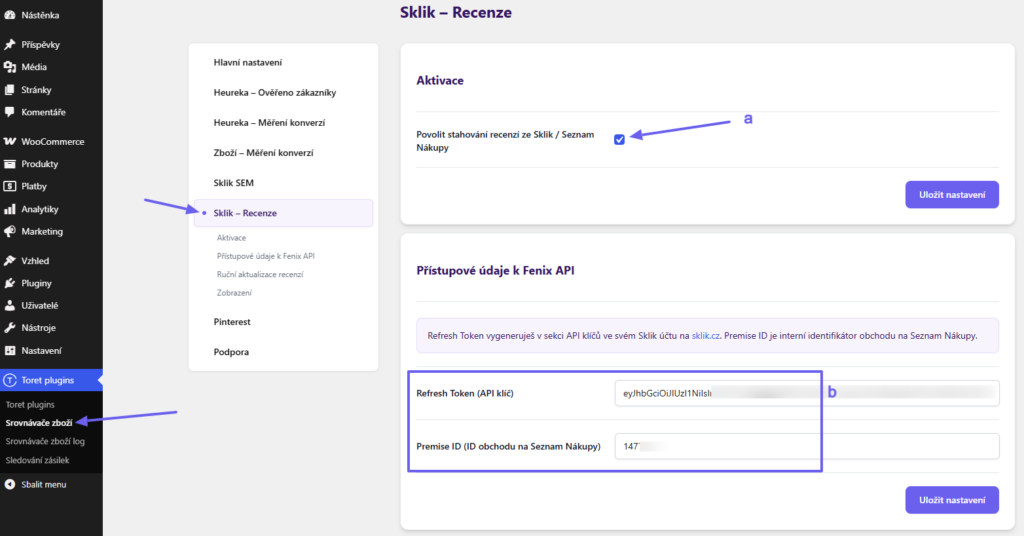
1. Activation (a)
First, you need to turn the function on.
2. Inserting the Fénix API access credentials (b)
You obtain the access credentials in your Sklik account:
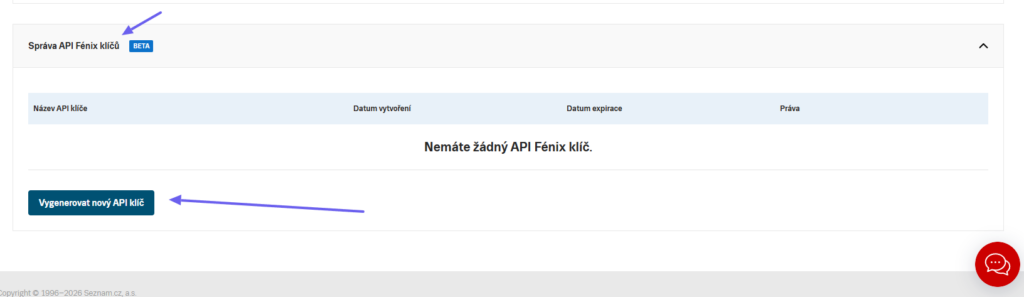
- API key (Fénix API): Settings (Nastavení) > Fénix API key management (Správa API Fénix klíčů) > Generate new API key (Vygenerovat nový API klíč)
- Premise ID (the shop ID on Seznam Nákupy) – you find it in the URL of the shop detail

3. Inserting the shortcode (c)
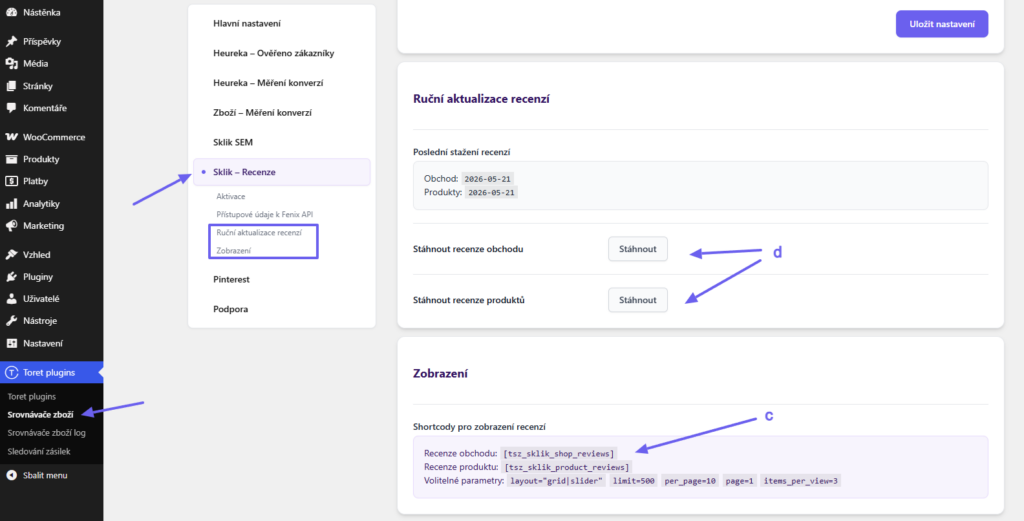
In the plugin you will find the shortcode for placing product or shop reviews on the website. The shortcode can be adjusted using optional parameters:
layout="grid/slider"(grid/slider display)limit=(maximum number of displayed reviews)per_page=(number of reviews per page)page=(default displayed page)items_per_view=
The shortcode can therefore look like this, for example:
[tsz_sklik_shop_reviews layout="grid" limit=15 per_page=5]TIP: The slider can be set to automatically scroll through reviews. You can configure this automatic rotation in the Main Settings (Hlavní nastavení) > Reviews (Recenze) – slider section.
4. Loading the reviews (d)
Load the reviews by clicking the download button. Automatic updates via WP Cron run every 12 hours. Reviews are fetched up to 180 days back and are displayed from the newest.
5. Customer consent (opt-out) (e)
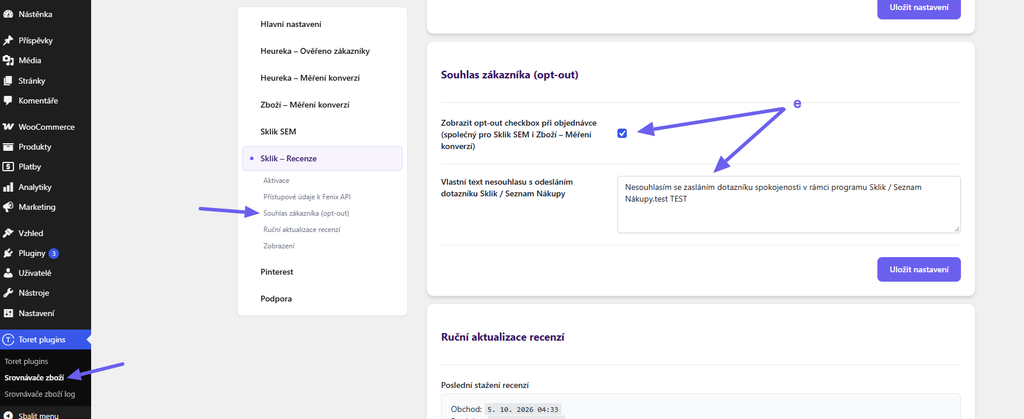
With the Show opt-out checkbox at checkout (Zobrazit opt-out checkbox při objednávce) option, you display a checkbox at checkout for declining the Sklik / Seznam Nákupy satisfaction questionnaire. The checkbox is shared by Sklik SEM and Zboží – conversion tracking, so the customer sees it only once. You edit its text in the Custom text for declining the Sklik / Seznam Nákupy questionnaire (Vlastní text nesouhlasu s odesláním dotazníku Sklik / Seznam Nákupy) field. The checkbox works in both the classic and the block checkout.
Summary review listing
With the [tsz_all_shop_reviews] shortcode, you display shop reviews from Heureka, from Sklik / Seznam Nákupy and previously downloaded reviews from Zboží.cz in a single listing. The limit attribute limits the total number of displayed reviews (the default value is 500), for example: [tsz_all_shop_reviews limit=20]
Pinterest – conversion tracking
(Toret plugins > Product Comparison Sites (Srovnávače zboží) > Pinterest)
The plugin also lets you insert a tracking script for Pinterest.
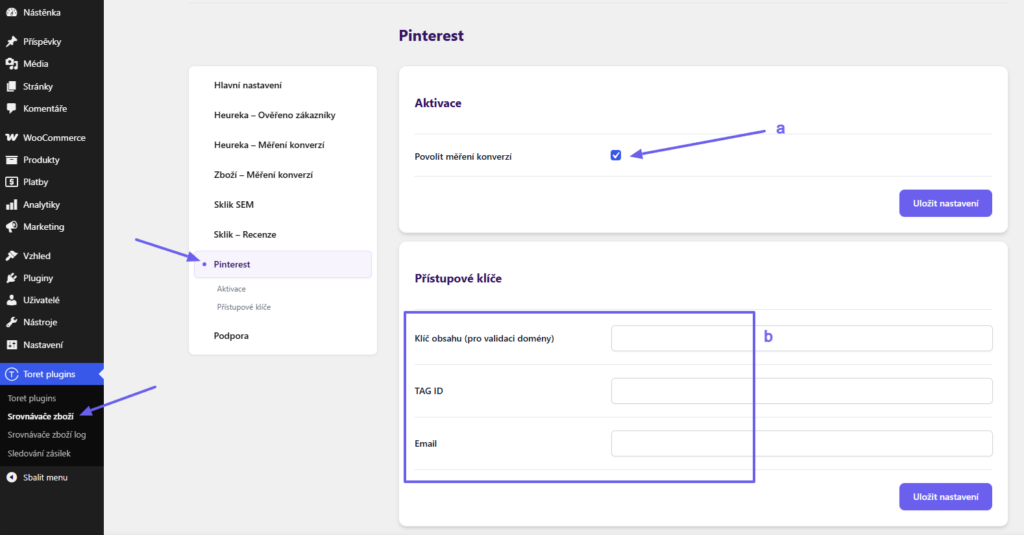
1. Activation (a)
First, you need to turn the function on.
2. Inserting the access credentials from your Pinterest account (b)
Plugin testing
For testing purposes, you can use:
- the subdomain “dev.domainlicense” (with the same license as for the production website)
- localhost (127.0.0.1)
Purchased plugins will also work in these locations, and you can test their implementation and compatibility here before deploying them to the website and during its use.
Filters
Disable sending store review requests for selected orders
The tsz_send_shop_review_request filter is used to programmatically disable sending store review requests for selected orders (Heuréka, Zboží, and Sklik – e.g. based on the payment method).
apply_filters('tsz_send_shop_review_request', true, $module, $order);
// $module = 'heureka' | 'zbozi' | 'sklik'; return false → the questionnaire will not be sent
Example usage:
add_filter('tsz_send_shop_review_request', function ($send, $module, $order) {
    if ($order && $order->get_payment_method() === 'homecredit') {
        return false; // do not send review requests for Home Credit payments
    }

    return $send;
}, 10, 3);